


 Video Converter Ultimate
 Enregistreur d'écran
 Réparation vidéo
 Téléchargement sécurisé
La vidéo MP4 ne s'affiche pas dans Premiere Pro : raisons et solutions à connaître
Premiere Pro est un excellent outil professionnel pour le montage vidéo. Toutefois, il lui arrive parfois de dysfonctionner, provoquant des problèmes de lecture qui interrompent votre travail. C’est également frustrant lorsque vous essayez de monter en toute fluidité et que la vidéo ne cesse de ramer, de buguer ou, pire encore, de ne pas s’afficher. C’est un problème courant auquel de nombreux utilisateurs d’Adobe Premiere Pro sont confrontés. Heureusement, il existe des moyens de résoudre ce problème. En identifiant précisément la cause pour laquelle la vidéo MP4 ne s’affiche pas dans Premiere Pro et en suivant les étapes décrites dans ce guide, vous pourrez reprendre le montage et la lecture sans prise de tête. Alors, entrons dans le vif du sujet !
Partie 1. Pourquoi la vidéo MP4 n'apparaît pas dans Premiere Pro
Pour ceux qui rencontrent des erreurs dans Premiere Pro lors de l'affichage de vidéos MP4, nous avons rassemblé ici certaines des raisons pour lesquelles cela se produit.
Version du logiciel :
Il se peut que cela soit dû à la version de Premiere Pro que vous utilisez. En d'autres termes, vous utilisez peut-être un logiciel obsolète qui ne prend pas en charge certains formats de fichiers ou fonctionnalités MP4.
Limitations matérielles :
Le matériel de votre système peut également être en cause. Il est possible que votre appareil ne réponde pas aux exigences nécessaires pour décoder et afficher correctement le fichier MP4 dans Premiere Pro.
Emplacement du fichier :
Vient ensuite l’emplacement du fichier. Votre fichier MP4 peut se trouver dans un répertoire auquel Premiere Pro ne peut pas accéder en raison de paramètres d’autorisation ou de problèmes de chemin d’accès.
Fichier corrompu :
Une autre raison pour laquelle la vidéo MP4 ne s’affiche pas dans Premiere Pro est que le fichier peut être corrompu. Cela peut empêcher Premiere Pro de le lire correctement.
Incompatibilité de codec :
Si le fichier MP4 n’est pas corrompu, il se peut alors qu’il soit encodé avec un codec non pris en charge par Premiere Pro.
Paramètres d’importation incorrects :
Vous pouvez également envisager de vérifier les paramètres d’importation. Des paramètres d’importation incorrects ou des métadonnées associées au fichier MP4 peuvent faire qu’il ne s’affiche pas dans Premiere Pro.
Cache corrompu :
Bien sûr, comme pour les autres programmes, le cache média de Premiere Pro peut être corrompu. Dans ce cas, cela entraîne des problèmes lors de l’importation ou de l’affichage du fichier MP4.
Partie 2. Méthodes pour corriger le problème de Premiere Pro qui n’affiche pas les vidéos MP4
Convertir MP4 dans un format compatible :
Si votre fichier MP4 est la principale cause de ce problème, envisagez alors de le convertir dans d’autres formats vidéo. Cela dit, nous vous recommandons vivement d’utiliser un puissant outil de conversion vidéo qui produira assurément une excellente qualité de sortie vidéo pour une utilisation dans Premiere Pro.
Bonus : Utiliser FVC Video Converter Ultimate pour la conversion vidéo
Video Converter Ultimate, recommandé par FVC, est disponible à la fois sur Windows et Mac, ce qui le rend accessible à tous. Il propose une interface conviviale tout en offrant une technologie de pointe d’accélération matérielle ultra-rapide qui accélère la conversion jusqu’à 120 fois. En outre, il ne se limite pas à la conversion de MP4 ; il prend en charge plus de 1000 autres formats que vous pouvez choisir comme format de sortie.
Au‑delà de la simple conversion de formats, il offre une gamme de puissants outils de montage dans sa Boîte à outils. Ces outils, pilotés par l’intelligence artificielle, assurent une amélioration et un montage fluides de vos vidéos, sans la moindre complication ! À présent, découvrons le processus de conversion par lots qu’il propose en suivant les étapes ci‑dessous.
Téléchargement gratuitPour Windows 7 ou version ultérieureTéléchargement sécurisé
Téléchargement gratuitPour macOS 10.7 ou version ultérieureTéléchargement sécurisé
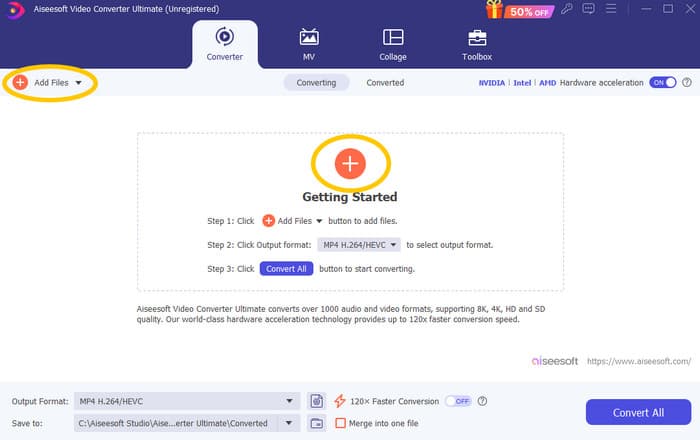
Étape 1. Supposons que vous ayez déjà installé le logiciel sur votre ordinateur. Vous pouvez maintenant le lancer et cliquer sur le bouton Ajouter pour importer des fichiers. Vous pouvez également utiliser l’onglet Ajouter des fichiers ou faire glisser les fichiers depuis votre dossier.
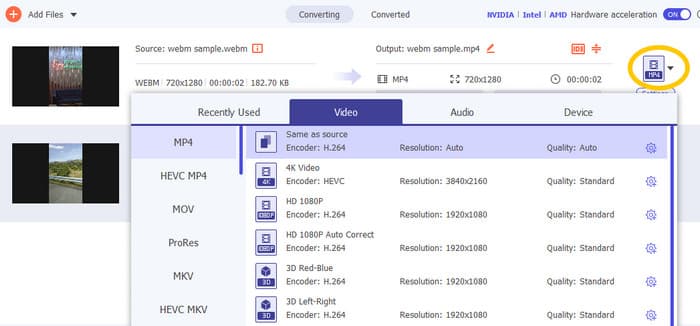
Étape 2. Ensuite, cliquez sur la flèche déroulante de la section Format de sortie et choisissez le format souhaité dans le menu Vidéo. Cliquez sur l’encodeur choisi pour l’appliquer.
Étape 3. Quand tout est prêt, cliquez sur le bouton Convertir tout pour lancer la conversion.

Réparer les fichiers MP4 corrompus :
Si la vidéo MP4 ne s’affiche pas dans Premiere Pro, il se peut qu’elle soit corrompue. Vous pouvez donc utiliser un outil de réparation vidéo dédié, tel que Video Repair, pour régler les problèmes de corruption. Vous pouvez rapidement réparer et lire un fichier endommagé sans difficulté. Il affiche un taux de réussite parfait et il est très facile à utiliser en seulement quelques clics. De plus, le logiciel fonctionne en copiant les parties saines d’une vidéo d’exemple pour combler les parties défectueuses, afin de garantir une lecture fluide. En outre, il prend en charge la réparation des MP4 et de nombreux autres formats tout en gardant vos informations en sécurité. Voici comment réparer votre fichier MP4 corrompu.
Étape 1. Téléchargez l’outil de réparation vidéo sur votre ordinateur et ouvrez‑le pour commencer.
Téléchargement gratuitPour Windows 7 ou version ultérieureTéléchargement sécurisé
Téléchargement gratuitPour macOS 10.7 ou version ultérieureTéléchargement sécurisé
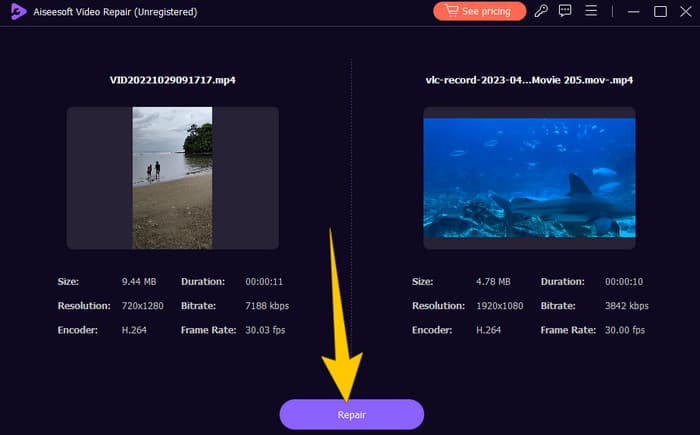
Étape 2. Sur l’interface principale, cliquez sur le bouton Plus rouge pour importer la vidéo MP4 corrompue. Puis cliquez sur le bouton bleu pour importer la vidéo d’exemple.
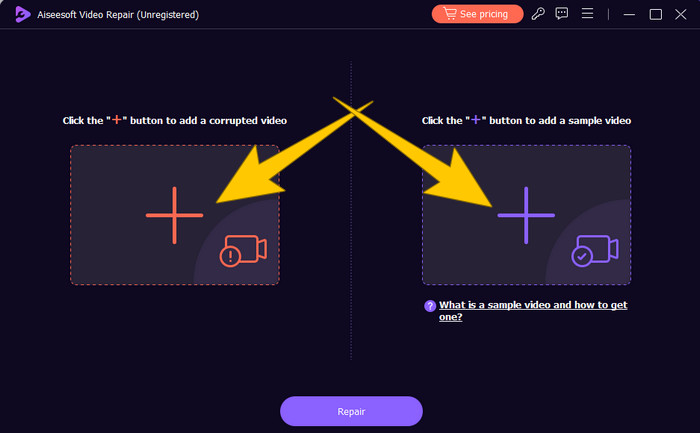
Étape 3. Après l’importation des fichiers, il est temps de les réparer. Pour ce faire, cliquez sur le bouton Réparer.
Redémarrer l’ordinateur et réinitialiser Premiere Pro :
Envisagez de réinitialiser Premiere Pro et de redémarrer votre ordinateur pour rafraîchir les ressources système. Ce faisant, vous pouvez également rétablir les préférences aux paramètres par défaut, ce qui permet parfois de résoudre des problèmes de compatibilité.
Vider les fichiers de cache :
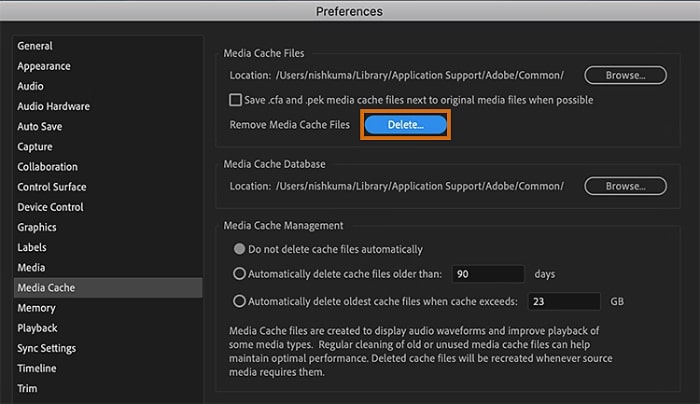
Il est toujours recommandé de vider les fichiers de cache de Premiere Pro. Supprimez donc les fichiers de cache pour effacer toute donnée corrompue ou obsolète susceptible de provoquer le problème. Il vous suffit de vous rendre dans Édition > Préférences > Cache média > Supprimer.
Modifier les paramètres dans Premiere Pro :
Enfin, vérifiez les paramètres de votre Premiere Pro et assurez‑vous qu’ils correspondent aux spécifications de vos fichiers MP4. Cela inclut la fréquence d’images, la résolution et le codec. En effet, lorsque vous ajustez ces paramètres pour qu’ils correspondent à vos fichiers MP4, les problèmes de compatibilité peuvent parfois être résolus.
Partie 3. FAQ sur Premiere Pro et le problème des MP4 qui ne s’affichent pas
Que faire si mes fichiers MP4 utilisent un codec incompatible et ne s’affichent pas dans Premiere Pro ?
Si vos fichiers MP4 utilisent un codec incompatible, vous pouvez utiliser un convertisseur vidéo HD comme Video Converter Ultimate pour les convertir dans un format compatible.
Pourquoi mes fichiers MP4 ne s’affichent‑ils pas dans Premiere Pro ?
Les fichiers MP4 peuvent ne pas s’afficher dans Premiere Pro pour diverses raisons, comme un codec incompatible, des problèmes de paramètres de Premiere Pro ou une corruption du fichier.
Puis‑je dépanner le problème des fichiers MP4 qui ne s’affichent pas dans Premiere Pro ?
Oui, vous pouvez dépanner ce problème en vérifiant le codec des fichiers MP4. Cela permet de s’assurer que les fichiers MP4 correspondent aux codecs pris en charge par Premiere Pro. Vous pouvez également essayer de réparer tout fichier MP4 corrompu et d’ajuster les paramètres de Premiere Pro si nécessaire.
Conclusion
Cet article présente les raisons pour lesquelles les fichiers vidéo MP4 ne s’affichent pas dans Premiere Pro. De plus, des solutions sont proposées pour vous donner une idée de la manière de résoudre le problème rencontré. Le plus souvent, c’est le fichier vidéo lui‑même qui en est à l’origine. Ainsi, vous devez vous assurer qu’il est en bon état à chaque fois que vous l’ouvrez dans Premiere Pro.
-
 Méthodes rapides et simples pour synchroniser l’audio et la vidéo dans Adobe Premiere Pro
 Vous souhaitez savoir comment synchroniser l’audio et la vidéo dans Premiere Pro ? Alors cet article est fait pour vous, car nous l’avons testé nous‑mêmes avec des étapes simples et concrètes.
-
 Comment accélérer une vidéo dans Premiere Pro et avec ses alternatives
 Vous voulez savoir comment utiliser Premiere Pro pour accélérer une vidéo ? Vous êtes au bon endroit, car nous fournissons des étapes détaillées ainsi que d’autres alternatives abordables.
-
 Les vidéos Instagram ne se lancent pas ? Voici comment résoudre le problème
 Méta description : Vous téléchargez des vidéos sur Instagram et elles ne se lisent pas ? Ne vous inquiétez pas, cet article vous apportera des explications et des solutions rapides à ce problème. Lisez‑le dès maintenant !
