


 Video Converter Ultimate
 Enregistreur d'écran
 Réparation vidéo
Top 9: Meilleur logiciel d'édition de GIF animé pour les débutants [En ligne et hors ligne]
La meilleure façon de mieux exprimer vos sentiments est d'insérer des GIF dans votre message. Son objectif principal est de stocker et de prendre en charge des images animées et statiques. On sait que les GIF se chargent mieux que les autres formats disponibles sur le Web et qu'ils sont beaucoup plus petits. Il est plus excitant de voir un GIF plutôt qu'une image uniquement. Mais tous les GIF que vous recherchez sur Internet ne peuvent pas vous fournir l'émotion que vous souhaitez offrir.
Ainsi, au lieu de chercher des GIF sur Internet, ils utilisent un logiciel d’édition de GIF pour créer leurs propres GIF. Mais vous vous demandez peut‑être quel outil utiliser pour créer un GIF majestueux qui impressionnera votre destinataire. Voici quelques listes des meilleurs outils pour créer un GIF. Tous les outils ci‑dessous peuvent être utilisés pour convertir, éditer, créer, et bien plus encore autour du format GIF. Donc, si vous cherchez le bon outil pour la bonne tâche, continuez à lire ci‑dessous pour en savoir plus sur ces outils.

Partie 1. Meilleur éditeur GIF hors ligne qui fonctionne efficacement pour PC et Mac
1. Vidéo gratuite FVC vers GIF Maker
Convertissez votre vidéo préférée en format GIF afin de pouvoir l’envoyer facilement à vos amis, à votre famille ou à quelqu’un d’autre. Ce créateur de GIF vidéo gratuit FVC vous donne la possibilité de créer vos propres GIF. Sa principale fonction est de convertir n’importe quel format de fichier vidéo, qu’il s’agisse de MP4, MOV, AVI, et de bien d’autres encore, et de les transformer en format GIF. Il propose également des fonctions de montage et de découpage. Cet éditeur de GIF est disponible sur tous les systèmes. Pour savoir comment utiliser cet outil, voici quelques procédures étape par étape à suivre.
Étape 1. Téléchargez l’outil sur votre disque, installez‑le et configurez‑le.
Téléchargement gratuitPour Windows 7 ou version ultérieureTéléchargement sécurisé
Téléchargement gratuitPour macOS 10.7 ou version ultérieureTéléchargement sécurisé
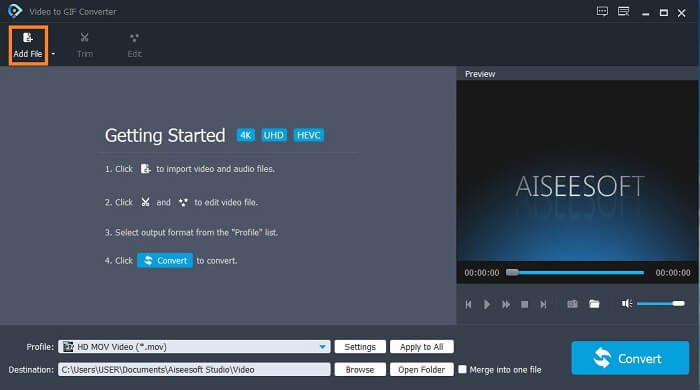
Étape 2. Une interface comme celle‑ci apparaîtra sur votre écran. Cliquez sur Ajouter un fichier ou glissez‑déposez le fichier dans le convertisseur.
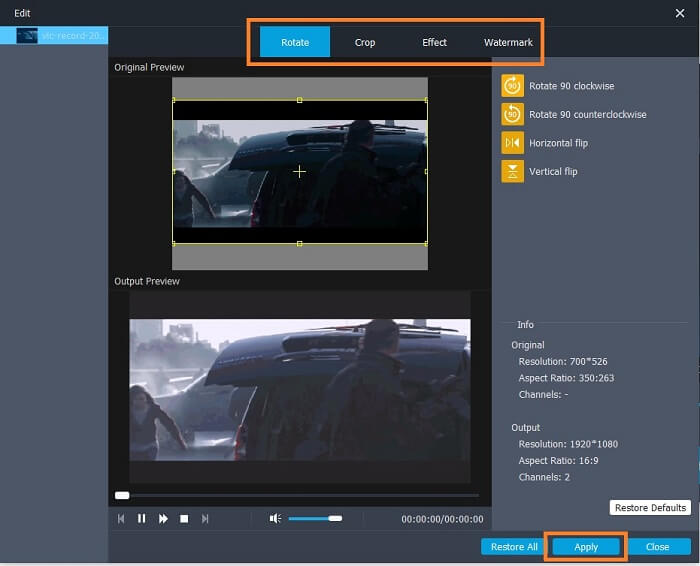
Étape 3. Si vous avez déjà ajouté le GIF, vous pouvez également le recadrer pour le rendre plus court, puis cliquer sur OK pour enregistrer les modifications. Vous pouvez aussi faire pivoter, rogner, ajouter des effets et un filigrane à votre GIF dans la section Éditer, puis enregistrer les modifications en cliquant sur Appliquer.
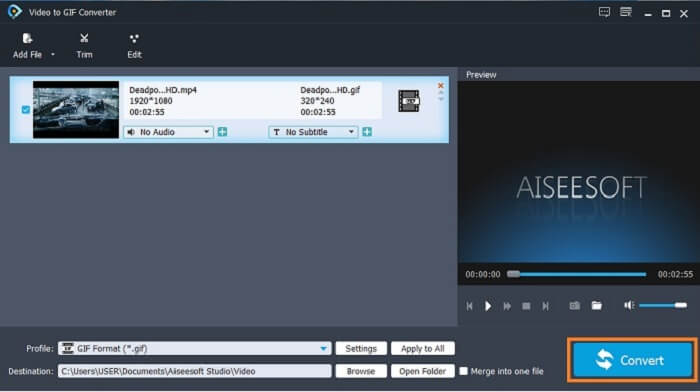
Étape 4. Sélectionnez la destination où placer votre fichier final. Pour lancer la conversion, cliquez sur Convertir.
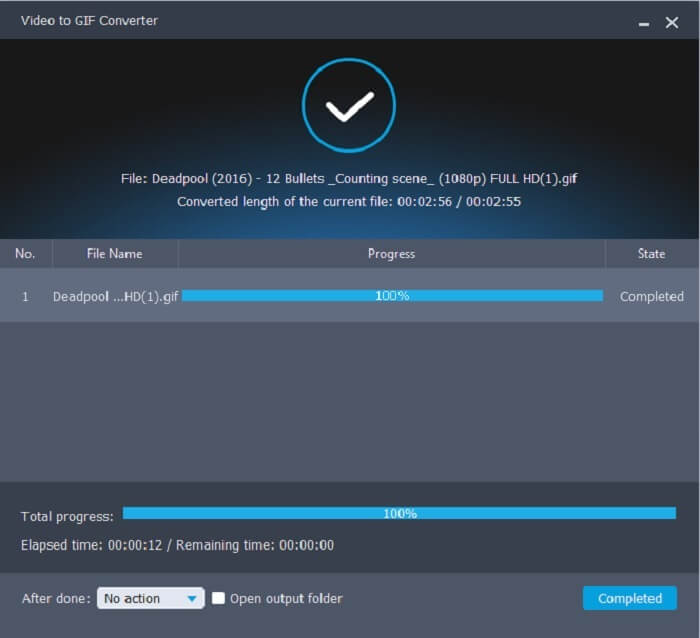
Étape 5. Si tout est terminé, vous verrez ceci s’afficher à l’écran ; cela signifie que la conversion est terminée.
Avantages
- Meilleur outil gratuit pour convertir le format vidéo en GIF.
- Il est disponible sur toutes les différentes plates-formes connues et produit toujours une sortie incroyable.
- Cela fonctionne même si Internet n'est pas disponible.
Les inconvénients
- Toutes les fonctionnalités ultimes ne sont pas présentées ici.
- C'est un outil téléchargeable également comme la version premium.
2. Convertisseur vidéo ultime
Il est reconnu que le éditeur de GIF ci‑dessus vous offre une qualité de premier ordre pour créer un GIF. Mais saviez‑vous qu’il existe un autre outil qui est encore meilleur que celui ci‑dessus et que ceux ci‑dessous ? Video Converter Ultimate porte bien son nom en tant que créateur de GIF ultime disponible sur tous les logiciels. Il n’est pas seulement excellent pour créer des GIF, il fonctionne aussi comme convertisseur et bien plus encore. Ajoutez des effets à votre GIF pour qu’il se démarque des autres. Donc, si vous êtes en compétition avec vos amis pour créer le meilleur GIF et que vous voulez gagner, c’est votre chance de leur en mettre plein la vue. De plus, pour savoir comment utiliser l’outil, vous devez suivre correctement ces étapes pour obtenir un GIF réussi.
Étape 1. Cliquez sur le bouton de téléchargement et installez‑le sur le disque de votre ordinateur. Modifiez les préférences puis cliquez sur Terminer pour enregistrer et lancer l’outil.
Téléchargement gratuit pour Windows 7 ou version ultérieure Téléchargement sécurisé
Téléchargement gratuit pour macOS 10.7 ou version ultérieure - Téléchargement sécurisé
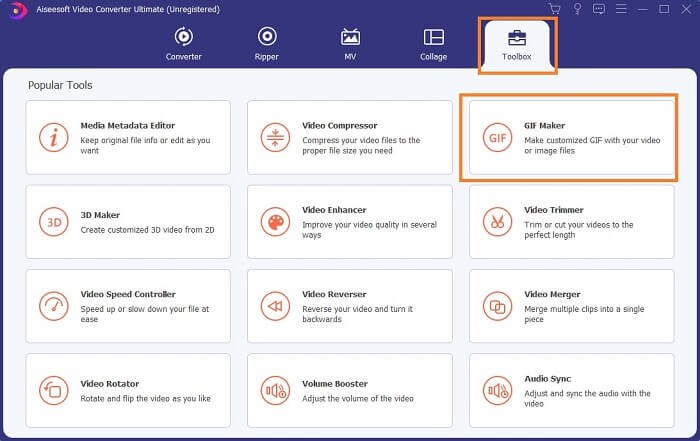
Étape 2. Si l’outil fonctionne déjà sur votre système, une interface comme celle‑ci s’affichera sur votre écran. Allez dans la Boîte à outils puis dans Créateur de GIF pour commencer à créer des GIF.
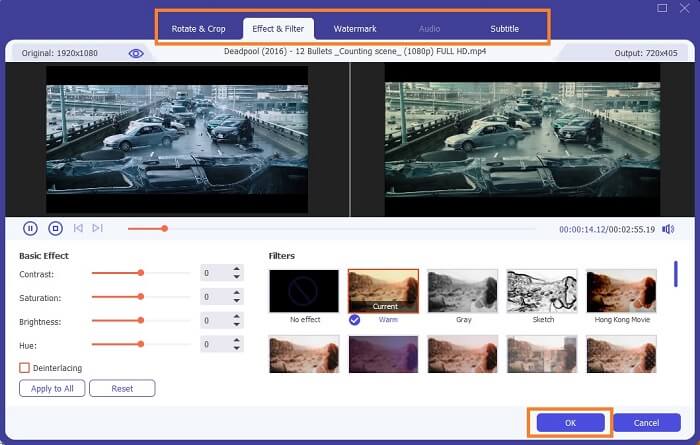
Étape 3. Cliquez ensuite sur Vidéo en GIF et sélectionnez la vidéo que vous souhaitez convertir. Après avoir sélectionné le fichier vidéo, vous pouvez également éditer la vidéo, par exemple faire pivoter et rogner, ajouter un filtre d’effets, un filigrane et des sous‑titres. Cliquez sur OK pour enregistrer les réglages.
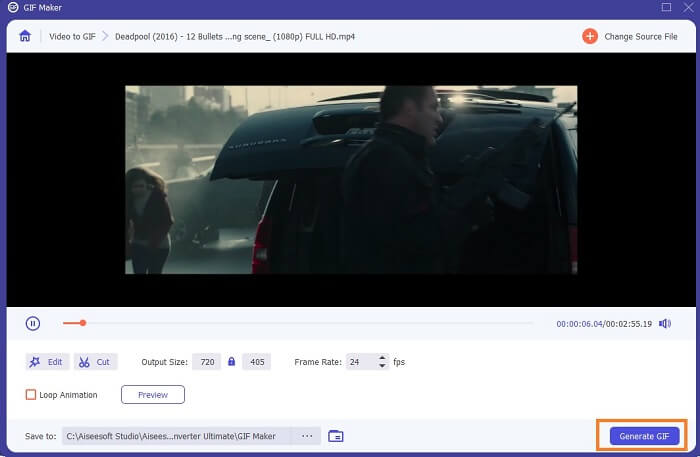
Étape 4. Cliquez sur Aperçu pour regarder les 10 premières secondes de la vidéo que vous avez créée. Appuyez sur Générer le GIF pour lancer la conversion.
Étape 5. Si tout est terminé, localisez le fichier dans votre explorateur de fichiers et regardez ou envoyez le résultat final.
Avantages
- Le meilleur convertisseur vidéo pour un GIF avec l'outil ultime pour améliorer le GIF.
- Il prend en charge tous les formats vidéo-audio connus et inconnus sur le Web.
- Outil polyvalent avec un excellent résultat final.
Les inconvénients
- C'est un outil payant mais il est moins cher.
- Doit être téléchargé dans votre espace de stockage avant de pouvoir l'utiliser.
Partie 2. 3 des meilleurs éditeurs GIF en ligne
1. Ezgif
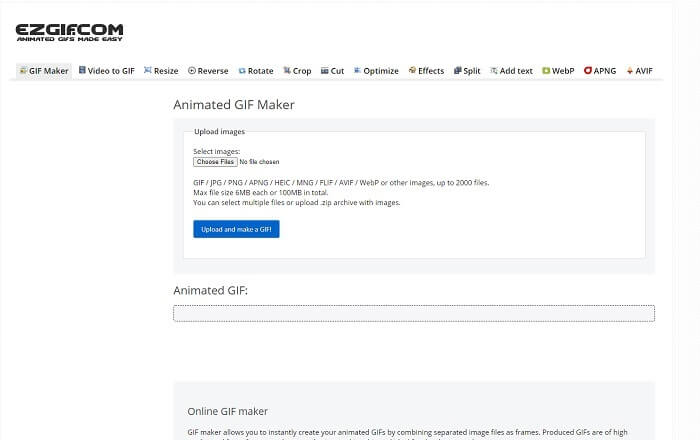
L’un des éditeurs de GIF en ligne que vous avez peut‑être déjà croisé sur Internet. Ezgif est connu comme l’un des meilleurs créateurs de GIF. Même si cet outil vous offre de nombreuses fonctions comme faire pivoter la vidéo, la rogner, la mettre à l’envers, etc., elles sont toutes séparées les unes des autres. Donc au lieu de vous concentrer sur la création et l’édition de GIF, vous devrez transférer le fichier entre les différents outils de montage que vous voulez utiliser, ce qui est contraignant. De plus, l’interface a un fond blanc, simple mais ennuyeux à regarder. On a l’impression que l’outil en ligne n’a pas reçu de mise à jour de son interface.
Avantages
- Outil sur-point avec différentes options.
- L'outil de page Web est simple.
- Efficace pour créer des GIF.
Les inconvénients
- Il est limité à 6 Mo chacun et 100 Mo au total.
- Il n'est pas convivial car toutes les fonctionnalités de l'outil sont partout sur le site Web. Et c'est un peu ennuyeux à regarder à cause de son fond blanc uni.
2. VEED.IO
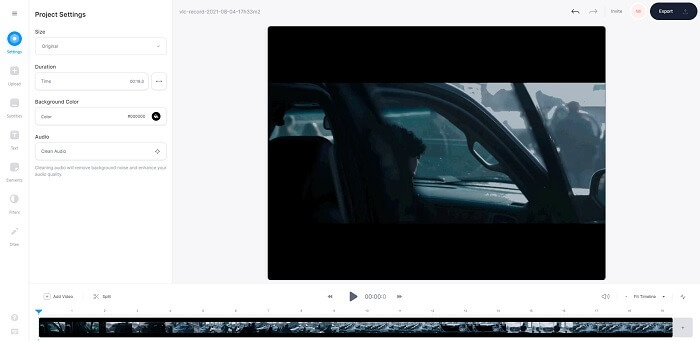
Un autre outil d’édition de GIF en ligne pour créer des GIF est VEED.IO. Créez, éditez et convertissez votre propre vidéo en format GIF avec cet outil. Le site principal de l’outil est plutôt agréable à regarder, contrairement à Ezgif. Mais lorsque vous commencez à créer des GIF en ligne, la page web de l’outil devient peu réactive et elle n’est pas vraiment sécurisée. De plus, n’essayez pas d’y saisir votre mot de passe ou vos numéros de carte bancaire, car il existe un risque qu’un attaquant puisse les voler.
Avantages
- Meilleur support client.
- Il fournit une version pro de l'outil.
- Facile d'accès via Internet.
Les inconvénients
- L'outil Web n'est pas protégé. Alors, visitez à vos risques et périls.
- Aucune fonctionnalité d'édition 3D.
3. Giphy
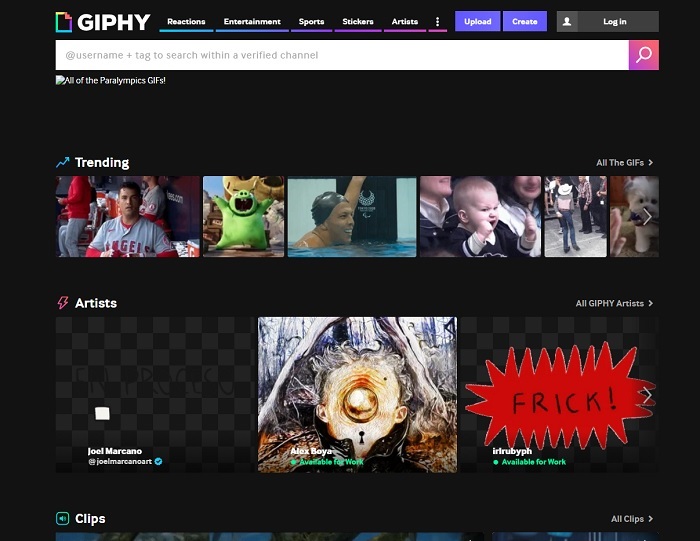
Giphy est un éditeur de GIF animés en ligne. Cet outil propose des GIF prêts à l’emploi, comme des réactions, du divertissement, du sport, ainsi que des autocollants. Bien qu’il fasse partie des meilleurs créateurs de GIF, cet outil exige la création d’un compte avant de pouvoir l’utiliser. Le site obtient ainsi l’accès à votre compte. Gardez donc à l’esprit que les mises à jour, les nouvelles fonctionnalités ou les nouveaux GIF de l’outil apparaîtront régulièrement dans votre boîte mail.
Avantages
- Téléchargez et créez des GIF en ligne.
- La plus grande bibliothèque de GIF, clips et autocollants gratuits sur le Web.
- L'interface est à jour et elle a l'air géniale.
Les inconvénients
- Vous devrez vous inscrire avant d'utiliser l'outil. Donc, si vous ne vous inscrivez pas ou ne vous connectez pas, l'outil est inaccessible.
- La longueur maximale du GIF n'est que de 30 secondes.
Partie 3. Applications GIF Editor sur Android et iOS
1. GIPHY : Clavier et créateur de GIF et d'autocollants
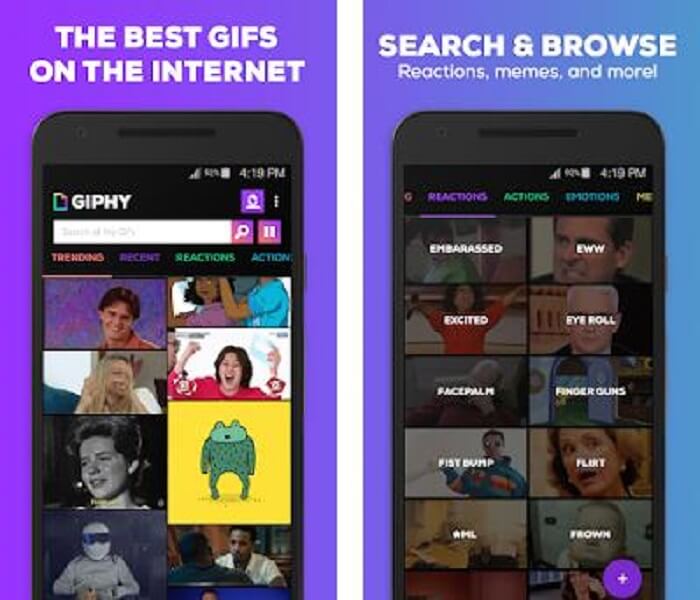
Une autre application d’édition de GIF disponible sur Android et iOS est GIPHY: GIF & Sticker Keyboard & Maker. Elle est connue comme l’un des plus grands espaces de stockage de GIF de tout le Play Store et de l’App Store. Mais ce n’est pas tout : cette application peut fournir des GIF déjà prêts, ou vous permettre de créer les vôtres. Vous pouvez également partager vos propres GIF dans l’application. Dans certains cas, lorsque vous importez des GIF qui fonctionnent parfaitement lors de leur création ou ceux déjà présents sur votre téléphone, l’application les rend un peu bogués et certaines parties du GIF deviennent plus rapides tandis que d’autres sont plus lentes.
Avantages
- GIF, autocollants et clips vidéo incroyables.
- Peu ou pas de publicités dans l'application.
- Modifiez vos Gifs et ajoutez une animation plus esthétique sur les GIF.
Les inconvénients
- À certaines occasions, lorsque vous téléchargez des GIF à partir de cette application, vous obtiendrez des images fixes. Au lieu de le télécharger au format .gif, il est devenu un .jpeg.
- La connexion à l'application est un peu ennuyeuse car dans certains cas, vous ne pouvez pas vous connecter correctement et devez le faire davantage.
2. ImgPlay–GIF Maker
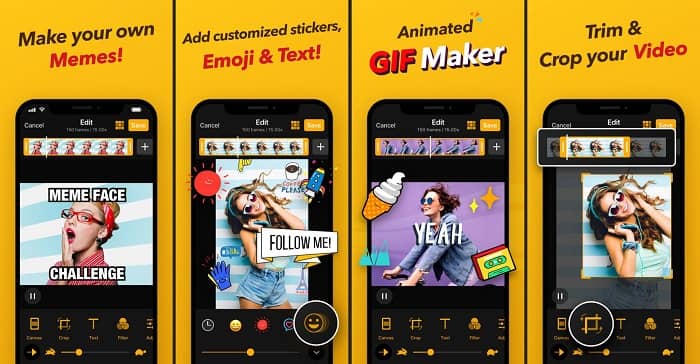
La meilleure et la plus simple façon de créer un GIF, qu’il s’agisse d’une vidéo ou d’images. Imgplay peut transformer vos images ou vidéos en un GIF pleinement fonctionnel. Cette application vous offre les meilleures fonctionnalités pour faire ressortir votre GIF autant que possible. Si vous enregistrez le résultat final de votre GIF, un filigrane apparaîtra dans le coin inférieur droit du GIF final. Pour supprimer ce filigrane, vous devez payer la version premium de l’outil.
Avantages
- Il prend en charge les appareils Android et iOS.
- Appliquez plus de 30 filtres sur votre GIF pour l'améliorer, si vous achetez la version premium de l'outil.
- Créez facilement des GIF à partir de vos vidéos et images.
Les inconvénients
- Cela fonctionne mieux sur iOS plutôt que sur Android. Fondamentalement, vous ne pouvez pas régler la luminosité, le contraste, la saturation et la fréquence d'images avec d'autres fonctionnalités majeures d'Android.
- Attendez-vous également à des publicités sur ces applications. Pour les supprimer, vous devez acheter la version premium. Ses fps sont également très bas.
3. GIFX
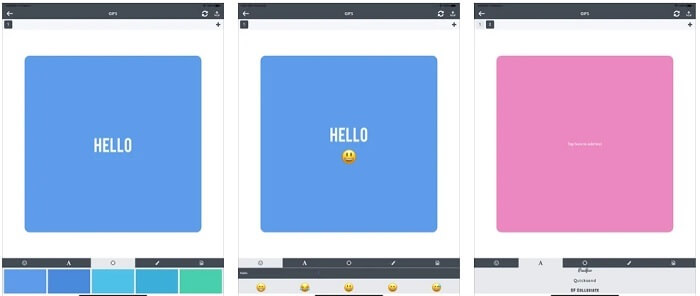
Cet éditeur de GIF n’est disponible que sur iOS. GIFX peut faire le travail pour créer le meilleur GIF que vous souhaitez avoir. Il prend également en charge les images et les vidéos pour les convertir en format GIF. Vous pouvez aussi le partager via MMS et e‑mails. De plus, il permet d’ajouter des émojis à votre propre GIF pour mieux exprimer vos émotions, ainsi que du texte.
Avantages
- Créez votre propre GIF animé avec cette application sur iOS.
- Il prend également en charge différents produits Apple tels que iPad, iPhone, iPod touch et Mac.
- Ajustez la vitesse de votre GIF avec cet outil.
Les inconvénients
- L'outil dit qu'il prend en charge les vidéos mais il ne vous permet pas d'ajouter des vidéos dans votre GIF.
- La note de l'application n'est que de 1 étoile et ne reçoit que 2 avis, ce qui est très bas pour une application.
4. Studio GIF
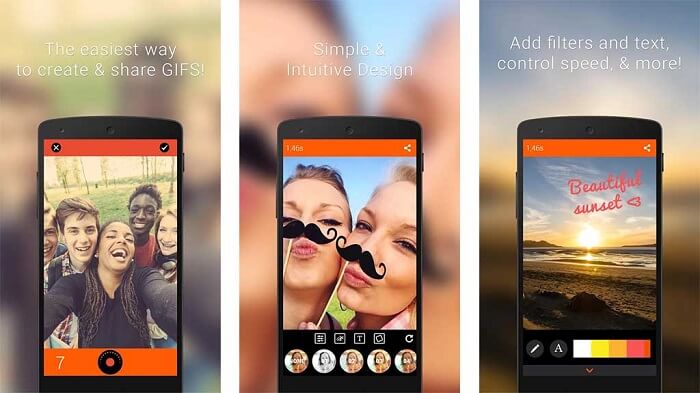
Si vous cherchez la meilleure application d’édition de GIF, alors GIF Studio devrait faire l’affaire. Elle vous donne la possibilité de laisser libre cours à votre imagination dans vos GIF. Créez, éditez et lisez des GIF animés avec cette application. De plus, si vous faites partie des utilisateurs qui trouvent la création de GIF un peu compliquée, cet outil vous simplifie la tâche. Il vous offre également davantage de fonctionnalités à ajouter pour rendre le résultat encore plus impressionnant.
Avantages
- Fusionnez plusieurs GIF en un seul.
- Ajoutez du texte à vos GIF pour créer une carte de vœux.
- Partagez vos GIF et enregistrez-les facilement.
Les inconvénients
- Parce que les développeurs simplifient les choses. L'interface utilisateur est horrible. Apprendre à utiliser cette application sera un peu raide.
- Il ne prend pas en charge les GIF créés à partir d'un autre créateur de GIF.
Partie 4. FAQ sur l'éditeur GIF
Existe-t-il d'autres formats pouvant stocker des images animées comme le GIF peut en fournir ?
Après 30 ans d'être l'un des célèbres formats image-vidéo. Il s'est déjà fait un concurrent : APNG, AVIF, MNG, WebP et FLIF.
Quelle compression de données est GIF?
Il s’agit d’une compression sans perte, donc lorsque vous compressez les données il n’y a aucune perte d’information et il est facile de transférer ce format sur Internet. Si votre GIF est volumineux, vous pouvez consulter Comment compresser un GIF animé en un fichier de petite taille.
Quel enregistreur GIF puis-je utiliser pour enregistrer au format GIF ?
Vous pouvez utiliser FVC Screen Recorder, un enregistreur GIF téléchargeable disponible sur toutes les différentes plates-formes, fournissant le format GIF et plus encore. Avec une très haute qualité et beaucoup plus d'options aussi. Télécharger FVC Free Screen Recorder pour Windows Télécharger FVC Free Screen Recorder pour Mac
Conclusion
Et maintenant qu'il est très clair que la meilleure façon de faire passer un bon message est d'utiliser des GIF. Bien que l'utilisation d'un message brut soit une bonne chose, l'ajout d'un GIF est bien mieux. Ainsi, choisir le meilleur éditeur GIF est un must pour délivrer le bon ton du message que vous souhaitez partager et avoir une déclaration claire ou pour ajouter un ton hilarant. Choisissez l'outil ultime pour créer un GIF ultime pour faire la meilleure impression que vous souhaitez partager.
-
 Comment convertir des vidéos AVI en fichiers GIF animés sous Windows/Mac
 Vous voulez sélectionner les segments AVI intéressants pour créer des mèmes GIF ? Cet article vous indiquera les 2 meilleures méthodes pour couper les vidéos AVI et convertir AVI en fichiers GIF animés gratuitement.
-
 [Résolu] Comment convertir des vidéos FLV en fichiers GIF animés gratuitement
 Si vous souhaitez créer des GIF à partir des segments vidéo FLV pour un meilleur envoi, vous pouvez en savoir plus sur la façon de convertir facilement des vidéos FLV en fichiers GIF à partir de cet article.
-
 [2 Solutions] Comment convertir facilement et gratuitement des fichiers SWF en GIF
 Lorsque vous ne parvenez pas à exporter le format GIF via le logiciel Flash, vous pouvez d'abord essayer d'enregistrer les fichiers au format SWF. Ensuite, vous pouvez apprendre 2 façons simples de convertir des fichiers SWF en GIF à partir de cet article.
