


 Video Converter Ultimate
 Enregistreur d'écran
 Réparation vidéo
5 Greatest MP4 Cutter: Apprenez à couper des vidéos sur PC, Mac et appareils mobiles
Si vous êtes un vlogger ou un aspirant, prendre une vidéo de vous-même est si courant. Cela demanderait beaucoup d'efforts et de confiance en plus de prendre des photos devant une caméra. De plus, la chose la plus courante que tous les pros et les nouveaux vlogs sont les erreurs que vous faites. Au lieu de refaire la vidéo, ils ont tendance à la couper et à la fusionner avec les vidéos originales. Pour créer une toute nouvelle vidéo composée de différents angles, vues, montages et plus encore, ils la découpent à partir de différentes vidéos et l'ajoutent en une seule. Mais en tant que débutant dans ce genre de métier ou même pro, choisir le bon taille-bordures est difficile. Parce que toutes les fonctions comme ils le disaient sur la publicité de l'outil ne sont pas dans les outils. Au lieu d'aller à l'autre article et de lire la recommandation, pourquoi ne pas apprendre de cela en premier. Comme nous n'avons rassemblé que les preuves réelles pour votre propre profit. Donc, voici dans la liste les découpeurs MP4 que vous pouvez utiliser pour démarrer le vlogging. Restez concentré pour savoir quels sont les meilleurs rogneurs que vous pouvez utiliser et qui offrent une perspective simple mais professionnelle à vos vidéos.

Partie 1. Téléchargez le meilleur logiciel de découpe vidéo MP4 sur PC et Mac
Si nous voulons parler de ce qu’il y a de mieux, vous devez commencer par lire ceci en priorité. Comme nous l’avons déjà dit, créer des vlogs est beaucoup plus difficile que prévu : ce n’est pas seulement une question de confiance devant la caméra et de mise en ligne. Il faut aussi penser à disposer d’un outil polyvalent, capable de produire une vidéo plus agréable à regarder pour chaque spectateur. FVC Video Converter Ultimate offre des fonctions d’édition remarquables et de conversion accessibles à tous ceux qui en ont besoin. Que l’on soit débutant ou professionnel, il faut s’intéresser à ce qui se fait de mieux sur le marché. Même s’il s’agit d’une version payante, elle fournit malgré tout ce qu’il y a de plus performant. Et si vous la choisissez comme solution personnelle, un bel avenir s’ouvre à vous. Vous voulez commencer à vlogger dès aujourd’hui ? Suivez alors ces étapes pour utiliser ce coupeur vidéo MP4.
Étape 1. Cliquez sur le bouton de téléchargement ci‑dessous et installez le programme sur votre PC ou votre Mac. Suivez l’assistant de configuration de l’outil puis cliquez sur Terminer pour lancer le logiciel.
Téléchargement gratuit pour Windows 7 ou version ultérieure Téléchargement sécurisé
Téléchargement gratuit pour macOS 10.7 ou version ultérieure - Téléchargement sécurisé
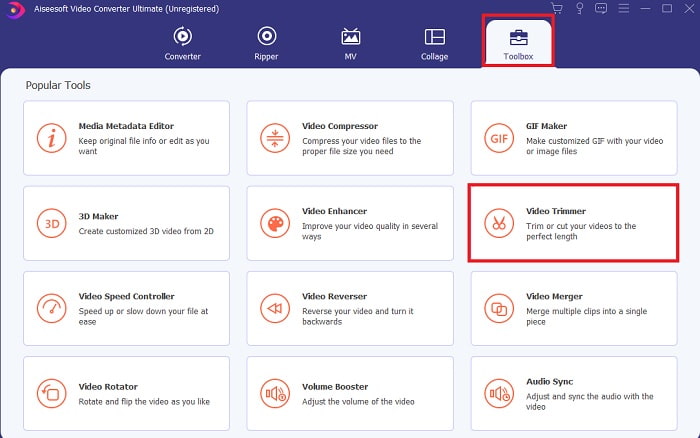
Étape 2. Si cette fenêtre s’affiche, cliquez sur la barre d’outils et cherchez le Video Trimmer en dessous.
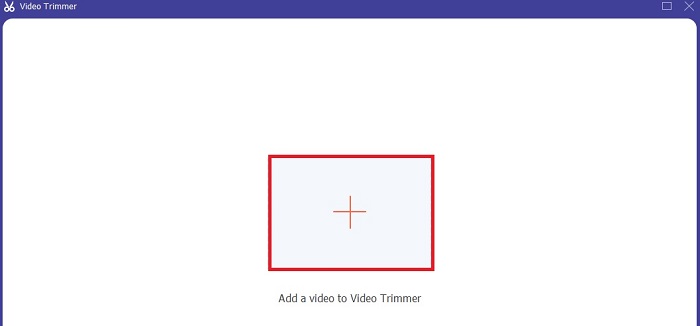
Étape 3. Cliquez sur le bouton plus pour ajouter le fichier. Sélectionnez sur votre disque le fichier que vous souhaitez couper puis cliquez sur Ouvrir pour insérer la vidéo.
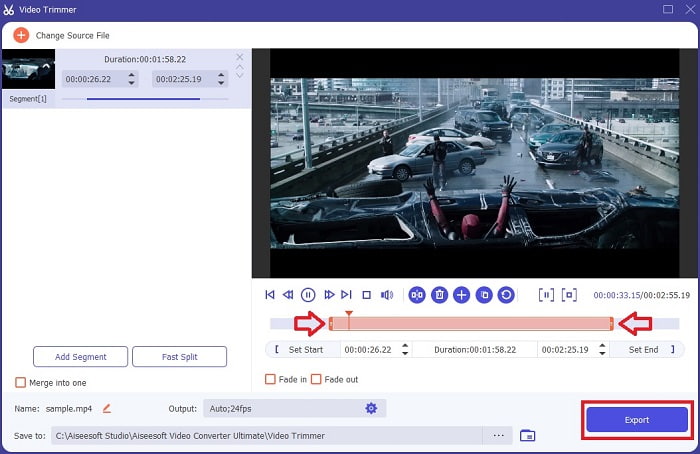
Étape 4. Ajustez le point de départ et la fin de votre vidéo en manipulant les marqueurs d’entrée et de sortie de lecture afin de définir la durée souhaitée. Ajoutez un fondu d’entrée et de sortie si vous le souhaitez. Vous pouvez également modifier le format de sortie en cliquant sur le bouton en forme de roue dentée. Lorsque tout est prêt, cliquez sur le bouton Exporter pour lancer le processus de découpe.
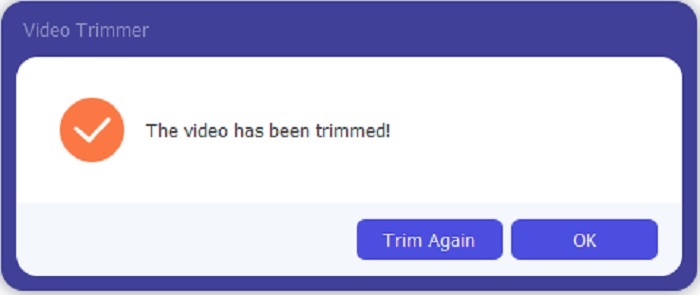
Étape 5. Patientez à peine quelques secondes : votre vidéo est maintenant découpée. Cliquez ensuite sur OK ou sur Couper à nouveau si vous devez en découper une autre. Si vous voulez améliorer la vidéo que vous venez de créer, cliquez de nouveau sur la barre d’outils et cherchez l’outil d’optimisation vidéo.
Avantage d'avoir un outil de fusion fourni par FVC Video Converter Ultimate avec étapes
Contrairement à toute autre application, la fusion de vidéos dans FVC Video Converter Ultimate est très facile à faire. Il s'agit d'une fonctionnalité bonus si vous achetez cet outil. Comme cela a été dit, cet outil est polyvalent, alors sans plus tarder, commençons à fusionner différentes vidéos en une seule.
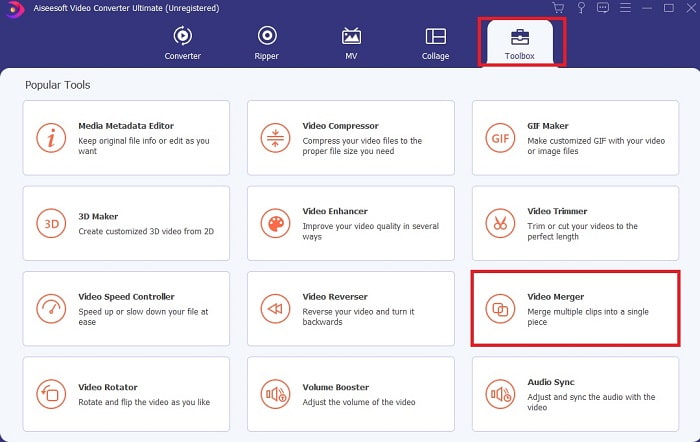
Étape 1. Ouvrez le logiciel, allez dans la barre d’outils puis repérez le Video Merger et cliquez dessus.
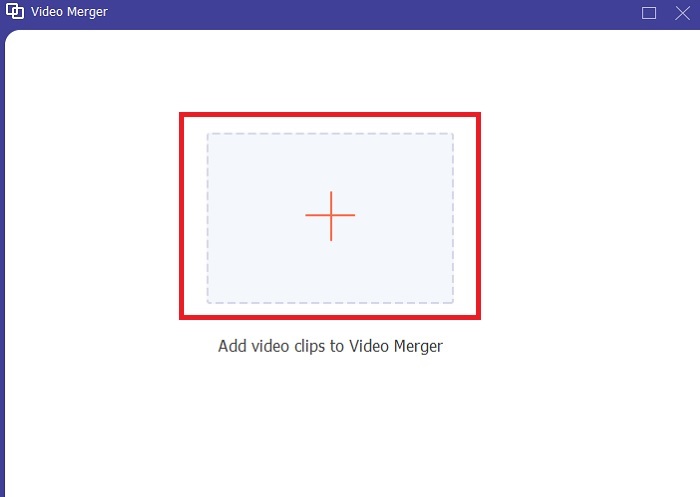
Étape 2. Cliquez sur le bouton Ajouter, sélectionnez la vidéo que vous souhaitez fusionner puis cliquez sur Ouvrir pour continuer. Après avoir choisi le premier fichier, cliquez sur le signe plus pour ajouter l’autre fichier que vous voulez fusionner.
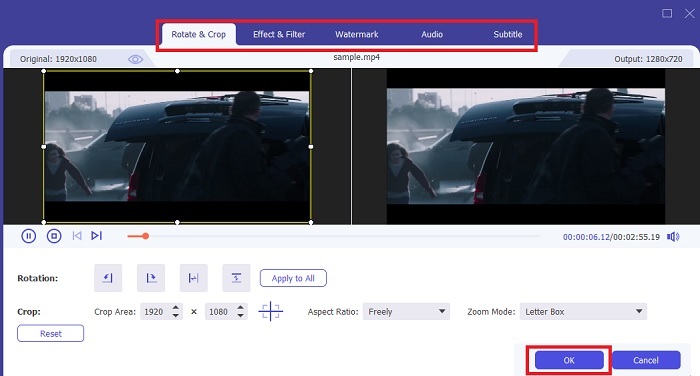
Étape 3. Dans l’interface, cliquez sur le bouton en forme de baguette magique pour ajouter des effets, améliorer l’audio, faire pivoter ou recadrer et ajouter des sous‑titres. Pour enregistrer les modifications, cliquez sur OK. Procédez de la même façon avec les autres vidéos si vous le souhaitez.
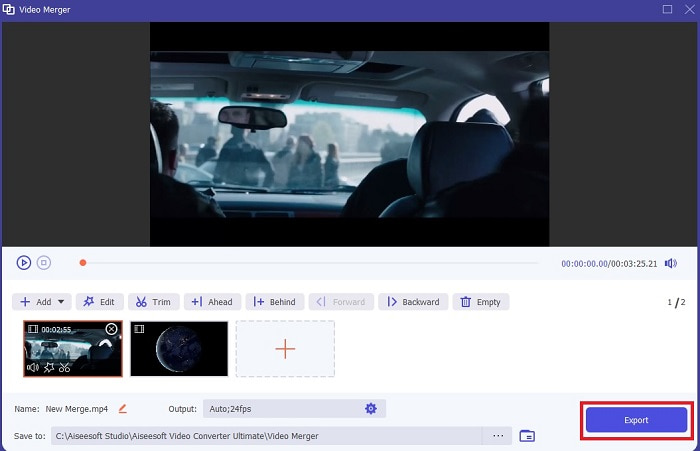
Étape 4. Lorsque vous êtes prêt à lancer le processus, cliquez sur Exporter. Une fois l’exportation terminée, un gestionnaire de fichiers s’ouvrira à l’écran. Pour regarder la vidéo exportée, cliquez simplement dessus et profitez‑en.
Partie 2. Meilleurs découpeurs MP4 en ligne
Ce sont peut‑être de bons outils de découpe, mais ils ne sont pas au niveau de FVC Video Converter Ultimate. Mais au moins, cela vaut la peine d’essayer ces coupeurs MP4 en ligne.
1. Coupeur de vidéo en ligne 123Apps
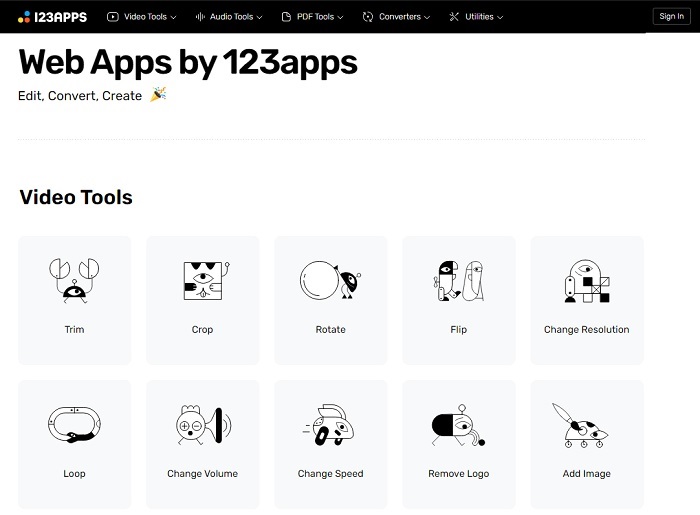
Ce premier outil en ligne est destiné à améliorer vos vidéos. Il peut ajuster la durée de la vidéo, recadrer, ajouter du texte et plus encore. Mais cet outil prend beaucoup de temps à s'exporter. Après avoir exporté, vous devez le télécharger, et ce processus dépendra de votre vitesse Internet. De plus, vous ne pouvez pas régler la qualité de vos vidéos. Donc, si votre vidéo est un peu floue et doit ajuster le fps, vous ne pouvez pas le faire ici. Mais encore, cela vaut la peine d'essayer.
2. Clidéo
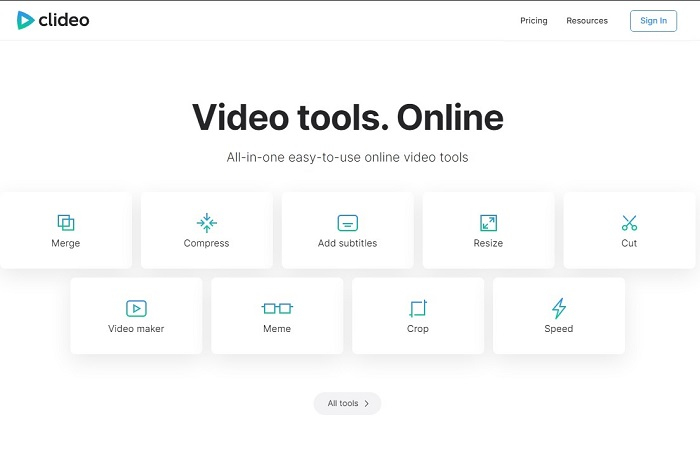
Si l’on parle de découpe, c’est aussi un bon choix. Clideo est l’un des meilleurs découpeurs MP4 en ligne que vous puissiez trouver. Tout comme le premier outil en ligne mentionné plus haut, il propose lui aussi des fonctions de montage de base. Même s’il prend en charge l’édition basique, cela reste insuffisant si vous voulez créer une vidéo vraiment accrocheuse. Mais vous pouvez l’essayer en ligne sans inquiétude : c’est gratuit et également sûr.
Partie 3. 3 meilleures applications MP4 Cutter sur Android et iOS
Et si vous n'avez pas de bureau pour utiliser les outils ci-dessus et que vous voulez être un vlogger, est-ce toujours possible ? Si vous avez un téléphone comme Android ou iOS, vous pouvez utiliser ces applications pour effectuer des modifications sur vos téléphones. Mais certaines fonctionnalités disponibles ci-dessus ne sont pas ici. Alors, continuez à lire ci-dessous pour savoir quels sont ces outils et choisissez-les.
1. iMovie pour iOS
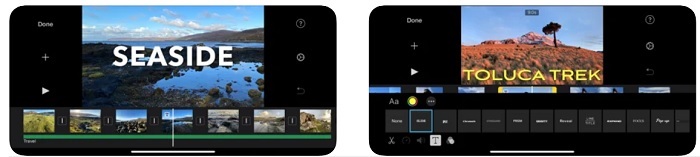
Si vous voulez donner une ambiance hollywoodienne à votre vidéo, alors iMovie est le logiciel qu’il vous faut. Cette application coupeur MP4 a été créée uniquement pour les utilisateurs iOS. Cependant, même si l’outil propose des fonctions de montage haut de gamme, certains bugs n’y sont pas encore corrigés. Dans certains cas, l’application plante dès que vous essayez de monter et l’écran devient noir. Parfois, la vidéo et l’audio ne sont plus synchronisés à cause de ces dysfonctionnements. Ce ne sont là que quelques exemples de bugs : ils peuvent paraître mineurs, mais ils sont très agaçants la plupart du temps. Donc, si vous voulez essayer iMovie, vous pouvez toujours le télécharger sur l’App Store.
2. Éditeur et créateur de vidéos - Viva Video pour Android
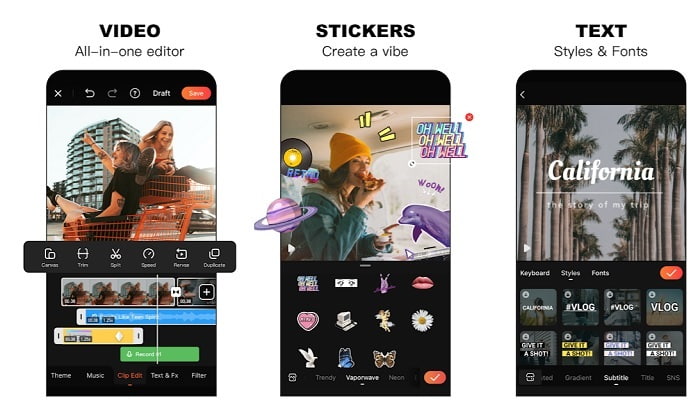
L’un des meilleurs coupeurs MP4 gratuits sur Android est Video Editor & Maker – Viva Video. Tout comme l’outil mentionné ci‑dessus, ils offrent tous deux d’excellentes fonctions de montage sur téléphone : transitions vidéo, effets de glitch, etc., mais il s’agit d’un outil payant. Il arrive aussi que l’expérience ne soit pas idéale, car il n’y a pas de bouton d’annulation d’abonnement pour arrêter l’application. Vous pouvez penser que la meilleure solution est de supprimer l’application pour mettre fin à l’abonnement, mais cela ne l’arrêtera pas : les prélèvements sur votre carte de crédit continueront si vous avez choisi ce mode de paiement. Mais dans l’ensemble, l’outil reste de classe A, ni plus ni moins.
Partie 4. FAQ sur MP4 Cutter
Qu'est-ce qu'un MP4 ?
MP4 est également connu sous le nom de format multimédia polyvalent. Au lieu de stocker un code, il stocke les données des vidéos, des images fixes, des sous-titres ou des textes. De plus, c'est le format de vidéo le plus utilisé dans le monde.
Le MP4 est-il avec ou sans perte ?
Étant un format polyvalent, MP4 est une compression avec perte.
Quel est le meilleur format autre que MP4 ?
Certains formats offrent une meilleure qualité de sortie que le MP4, mais ils ne sont pas aussi polyvalents que ce format. Par exemple, le WMV : ce format produit des fichiers plus légers que le MP4, mais il n’est pas compatible avec les appareils Apple, car il a été conçu comme format natif pour Windows Media Player. Vous pouvez choisir de convertir vos fichiers MP4 en WMV pour une meilleure lecture.
Conclusion
Pour conclure, il est désormais plus facile de comprendre la différence entre chaque outil à votre disposition. Mais comme nous l’avons déjà mentionné, ils n’offrent pas tous les excellentes fonctions de coupe que propose FVC Video Converter Ultimate. Surtout si vous voulez créer une vidéo plus attrayante afin de générer davantage de vues, et donc des revenus. Au lieu de vous contenter d’une solution temporaire, pourquoi ne pas choisir FVC Video Converter Ultimate pour préparer l’avenir et obtenir la meilleure version possible pour vous‑même ?.
-
 Guide sur la conversion de RMVB en MP4 sous Windows / Mac (3 méthodes gratuites)
 Vous voulez convertir RMVB en MP4 pour une lecture facile sur votre ordinateur ou votre téléphone portable ? Vous trouverez des moyens simples de convertir vos fichiers RMVB en MP4 dans ce guide.
-
 4 meilleurs convertisseurs MP4 en M4V pour transformer facilement des vidéos MP4 en M4V
 Lorsque vous devez changer des fichiers MP4 en M4V, vous devriez en savoir plus sur les différences entre les deux formats, ainsi que sur les meilleurs convertisseurs MP4 vers M4V dans l'article.
-
 AMV Converter - 3 meilleures méthodes pour convertir MP4 en AMV sur Win / Mac
 Quels sont les meilleurs convertisseurs MP4 vers AMV pour transformer les vidéos en Amine Music Video, vous pouvez en savoir plus sur les 3 méthodes les plus efficaces pour obtenir facilement les vidéos souhaitées dans l'article.
