


 Video Converter Ultimate
 Enregistreur d'écran
 Réparation vidéo
 Téléchargement sécurisé
Comment convertir des fichiers FLV en vidéos iPhone sans perte de qualité
Il est bien connu que l’iPhone et l’iPad sont équipés d’écrans de dernière génération. Il est donc logique que regarder des films sur les appareils iOS soit une activité très répandue. Cependant, les utilisateurs iOS se heurtent souvent à une barrière de format lorsqu’ils lisent des vidéos. Par exemple, les fichiers FLV, pourtant très courants, ne sont pas pris en charge par les logiciels natifs d’Apple. C’est pourquoi nous partageons ce guide, afin de vous aider à convertir des fichiers FLV au format vidéo iPhone facilement, sur ordinateur ou en ligne.

Partie 1 : Meilleur logiciel gratuit pour convertir FLV en vidéo iPhone
Nativement, l’iPhone prend en charge le M4V, une partie du MP4, le MOV et une partie de l’AVI. Cela rend la conversion de FLV au format iPhone difficile. FVC Free FLV Converter est un outil puissant. Il fournit des préréglages permettant de convertir directement des fichiers multimédias au format iPhone. Plus important encore, il est entièrement gratuit.
Principales fonctionnalités du meilleur convertisseur FLV vers vidéo iPhone gratuit
- 1. Convertissez facilement les fichiers FLV au format vidéo iPhone.
- 2. Incluez de nombreux préréglages pour iPhone, iPad et plus encore.
- 3. Offrez des fonctionnalités bonus étendues, telles que l'amélioration de la vidéo.
Téléchargement gratuitPour Windows 7 ou version ultérieureTéléchargement sécurisé
Téléchargement gratuitPour macOS 10.7 ou version ultérieureTéléchargement sécurisé
Comment convertir FLV en vidéo iPhone par lots
Étape 1 : ajouter des fichiers FLV
Lancez le meilleur convertisseur gratuit FLV vers vidéo iPhone une fois qu’il est installé sur votre ordinateur. Cliquez ensuite sur le bouton Add File(s) pour ouvrir la boîte de dialogue d’importation. Recherchez et sélectionnez tous les fichiers FLV que vous souhaitez lire sur iPhone, puis cliquez sur Open. Le convertisseur prend en charge la conversion par lots.

Étape 2: définir le format de sortie
Après le chargement des fichiers FLV, vous les verrez tous dans la zone de bibliothèque. Allez en bas de la fenêtre, cliquez sur l’option Output format pour l’ouvrir et la développer. Sélectionnez Apple iPhone dans la liste et choisissez le modèle de votre appareil. Le logiciel optimisera alors les paramètres en conséquence. Il définira le format de sortie pour tous les fichiers FLV. Si vous souhaitez modifier des paramètres spécifiques, cliquez sur l’icône en forme de Gear pour ouvrir la boîte de dialogue de profil.

Étape 3 : Convertir FLV en vidéo iPhone
Ensuite, cliquez sur le bouton Open Folder, choisissez le dossier de destination et validez. Par défaut, le logiciel enregistre les vidéos iPhone dans votre bibliothèque vidéo, mais vous pouvez le modifier selon vos préférences. Enfin, cliquez sur le bouton Convert pour lancer la conversion des fichiers FLV en vidéos pour iPhone.

Par ailleurs, le programme prend aussi en charge la conversion de vidéos FLV pour Xbox, PS4, Samsung, Apple TV ou d’autres appareils populaires.
Partie 2 : Comment convertir le format FLV au format iPhone en ligne
Certaines personnes n’aiment pas installer de logiciels sur leur disque dur. Parfois, vous pouvez aussi n’avoir besoin de convertir des FLV en vidéos pour iPhone qu’occasionnellement. Dans ces cas-là, une application de conversion vidéo en ligne, telle que FVC Free Online Video Converter, est une solution pratique. Elle peut répondre à vos besoins sans installer aucun logiciel. De plus, elle ne demande ni paiement ni inscription. Contrairement à d’autres applications web, elle n’impose pas de limite de taille de fichier, vous pouvez donc téléverser un nombre illimité de fichiers FLV à convertir.
Étape 1 : Ouvrez la page https://www.free-videoconverter.net/free-online-video-converter/ dans un navigateur web pour accéder à la page d’accueil. Appuyez sur le bouton Add Files to Convert et téléchargez le lanceur.

Étape 2 : Une fois le téléchargement terminé, le lanceur s’ouvrira automatiquement. Cliquez alors sur le bouton Add File dans le coin supérieur gauche et importez les fichiers FLV que vous souhaitez lire sur iPhone.
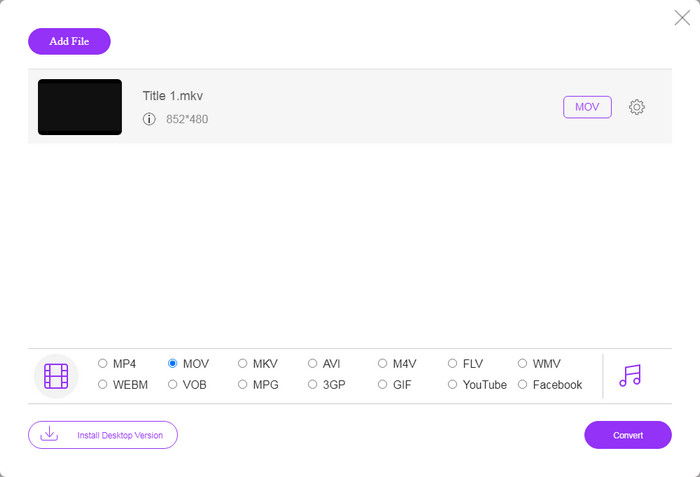
Étape 3 : Rendez-vous dans la zone des formats en bas et sélectionnez MOV, qui est le format vidéo le plus accepté par les appareils iOS. Cliquez sur le bouton Convert et l’application web effectuera la conversion de FLV au format iPhone en ligne. Attendez la fin du processus, puis téléchargez le résultat sur votre disque dur.
Si vous souhaitez réinitialiser les options, cliquez sur l'icône Paramètres et vous les trouverez dans la boîte de dialogue Paramètres, comme la résolution, le codec, etc.
Partie 3 : FAQ sur la conversion de FLV en vidéo iPhone
Pouvez-vous lire des fichiers FLV sur iPhone sans convertir ?
La seule façon de lire des fichiers FLV sur iPhone sans conversion est d’installer un lecteur FLV tiers, comme VLC pour iOS. Vous pourrez alors regarder facilement vos films préférés.
Où sont enregistrées les vidéos sur iPhone ?
Les vidéos que vous enregistrez et transférez sur iPhone seront enregistrées dans l'application Photos. Si vous téléchargez une vidéo à l'aide d'une application, elle sera enregistrée dans l'application. Quoi qu'il en soit, vous ne pouvez pas accéder au système de fichiers sur iPhone ou iPad.
Quels types de fichiers l'iPhone utilise-t-il pour les vidéos ?
Sur iPhone, H.264 est le seul codec vidéo pris en charge. En ce qui concerne les formats vidéo, MOV et MP4 sont étroitement liés. Pour l'enregistrement vidéo sur iOS, Apple utilise le nouveau codec vidéo H.265 ou HEVC.
Conclusion
Maintenant, vous devez comprendre comment ouvrir et lire des fichiers FLV sur iPhone. Apparemment, vous ne pouvez pas ouvrir directement les vidéos FLV sur iPhone. Le meilleur moyen est de convertir vos fichiers au format pris en charge par iPhone, tel que MOV. Ensuite, vous pouvez lire les vidéos en douceur. FVC Free FLV Converter est l'un des meilleurs convertisseurs vidéo gratuits FLV vers iPhone. Il est non seulement facile à utiliser, mais également capable de produire une excellente qualité de sortie. Plus de questions? Veuillez écrire ci-dessous.
-
 3 méthodes simples pour convertir FLV en AVI sur le bureau et en ligne
 1. Convertissez facilement des vidéos FLV vers d'autres formats multimédias. 2. Prend en charge presque tous les formats vidéo, comme AVI, MP4, MKV, etc. 3. Traitez par lots des centaines de fichiers FLV par conversion.
-
 Les 3 meilleures façons de convertir FLV en WMV sur Windows et Mac
 Vous cherchez le meilleur moyen de convertir FLV en WMV sans perte de qualité sur PC ou Mac ? Vous avez de la chance puisque nous partageons ici trois méthodes pour faire le travail facilement.
-
 Guide concret pour télécharger vos vidéos FLV sur YouTube
 Télécharger FLV sur YouTube, mais échec ? Vous pouvez résoudre ce problème par vous-même et convertir FLV en codecs pris en charge par YouTube en suivant notre guide étape par étape.
