Mode d'emploi

Solutions de conversion vidéo/audio

Commencer

FVC Free FLV to Audio Converter est le meilleur convertisseur vidéo en audio gratuit. Il peut extraire des pistes audio du fichier vidéo FLV. De plus, il prend en charge la conversion de fichiers audio entre différents formats audio.
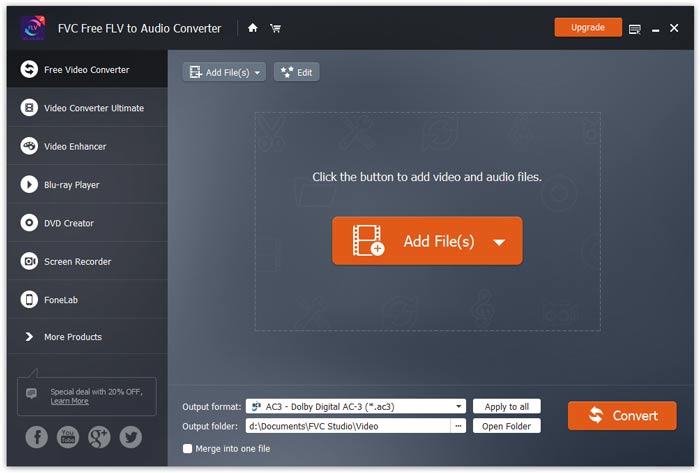
Interface principale

Télécharger et installer

Téléchargez le package d'installation en fonction du système d'exploitation de votre ordinateur. Ensuite, double-cliquez sur le fichier d'installation et suivez les instructions à l'écran pour installer le programme.

Préférences

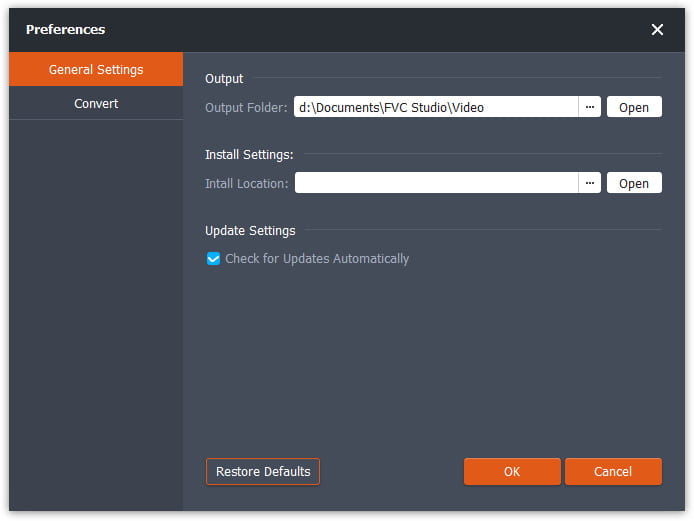
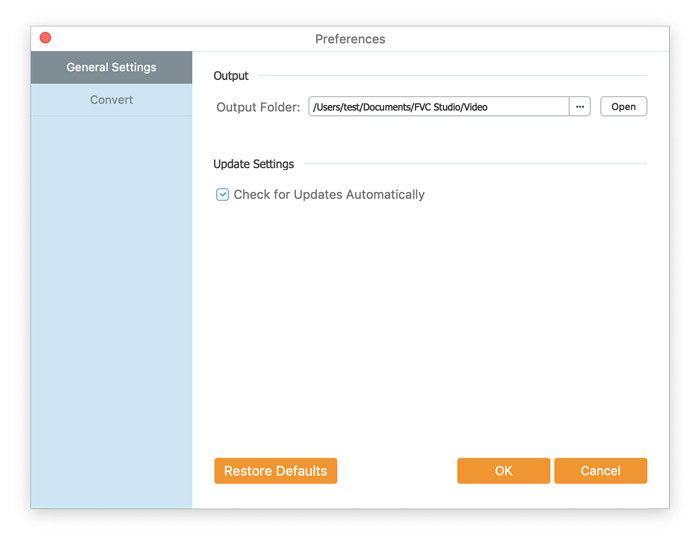
Before you start the conversion, it’s recommended to tweak the default settings. You can click the Menu icon and click on Preferences… to configure the specific settings. For example, you are free to choose the output folder to store your converted files.

Préférences

Convertir FLV en audio

Vous pouvez maintenant suivre ces étapes pour convertir des fichiers FLV en formats audio.

Step 1. Launch FVC Free FLV to Audio Converter

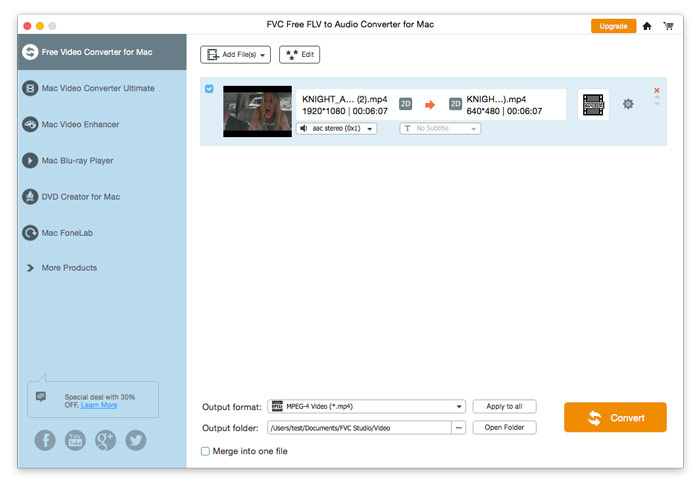
Lancez FVC Free FLV to Audio Converter et vous verrez son interface épurée.

Interface principale

Step 2. Add an FLV file into the program

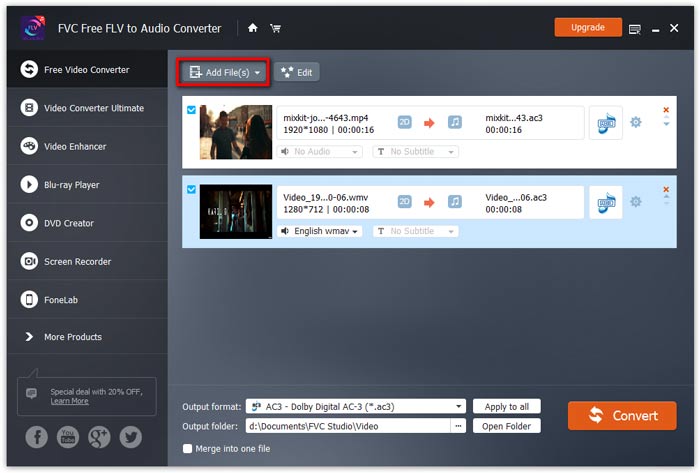
Click the Add File(s) button and choose FLV files you want to process in the dialogue opening subsequently. After the files are added to the program, they will be displayed on the file list.

Ajouter des fichiers FLV

Step 3. Select the output format

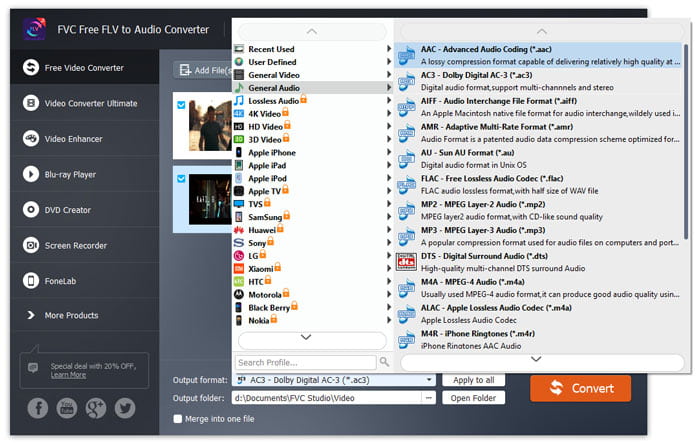
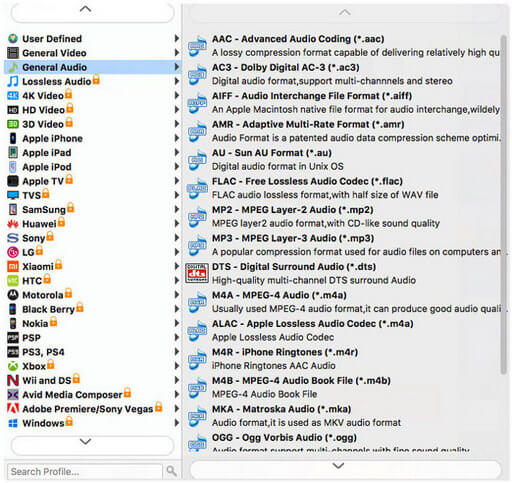
Click to open Output format drop-down list, then choose the audio format from the General Audio profile list. It can convert your FLV files to MP3, WMA, AAC, M4A, and so on.

Sélectionnez le format audio

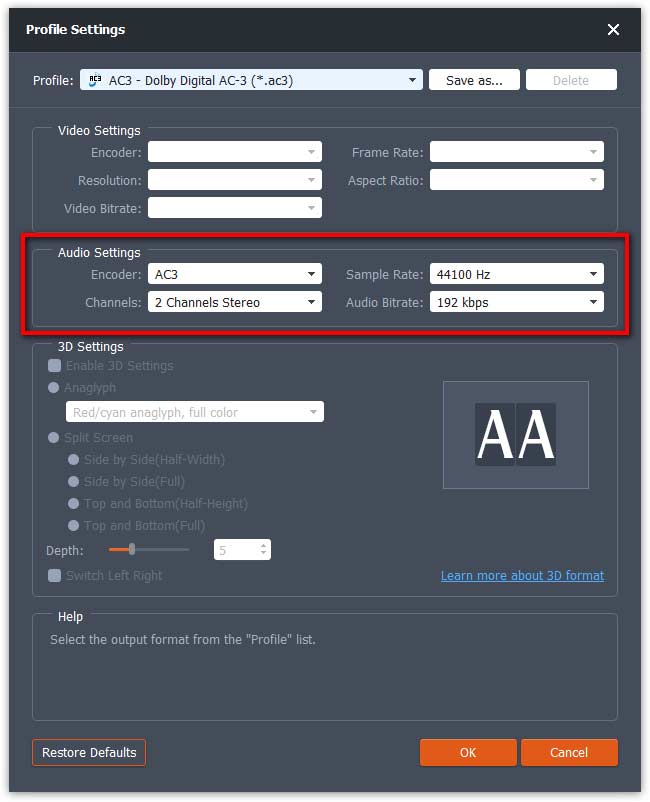
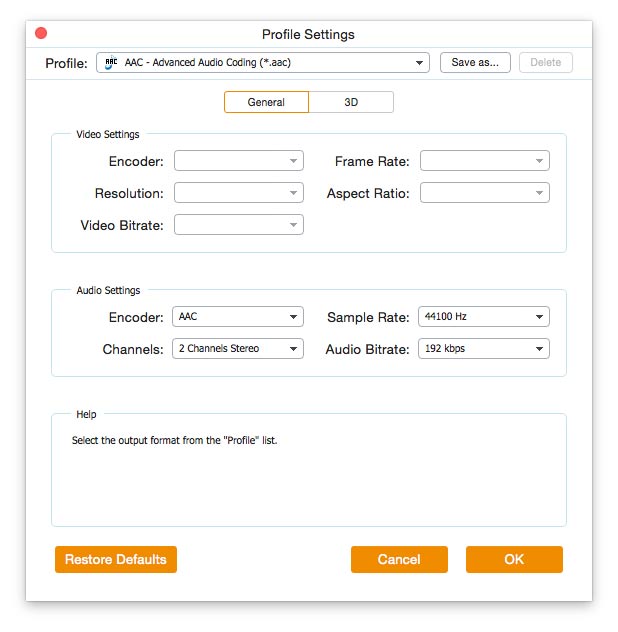
If you’re not satisfied with the original profile parameter settings, you can click the Cogwheel icon and adjust the encoder, channel, sample rate, and audio bitrate in the Profile settings window.

Paramètres de profil

Step 4. Start converting FLV to Audio

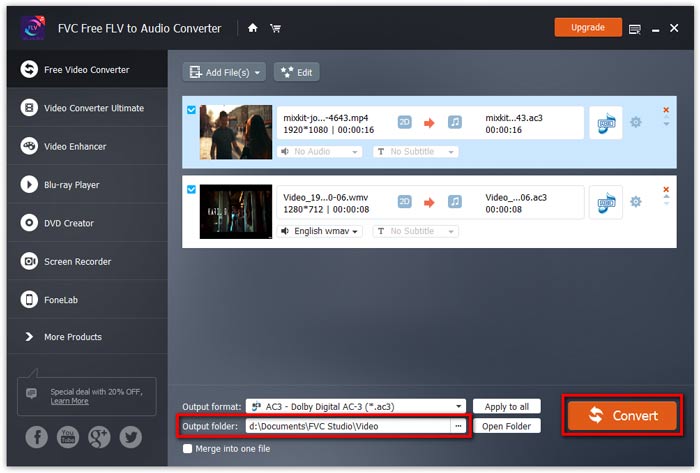
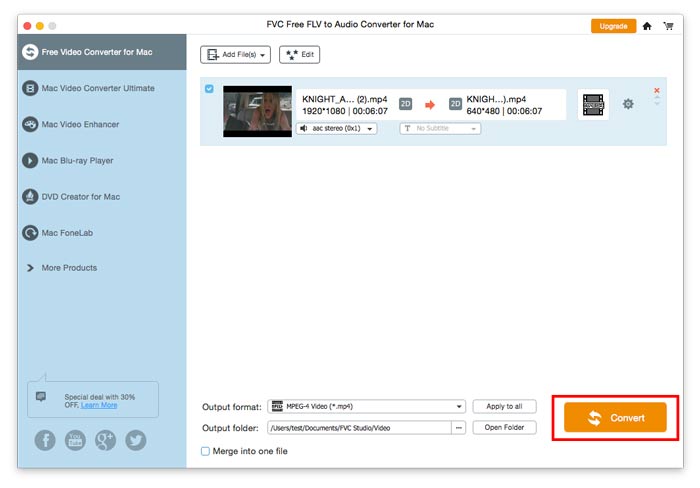
Go to Output folder to choose the destination folder for saving output files, and then click OK button to return to the main window. Finally, click the Convert button to start the conversion.

Lancer la conversion

Mode d'emploi

Solutions de conversion vidéo/audio

Commencer

FVC Free FLV to Audio Converter est le meilleur convertisseur vidéo en audio gratuit. Il peut extraire des pistes audio du fichier vidéo FLV. De plus, il prend en charge la conversion de fichiers audio entre différents formats audio.
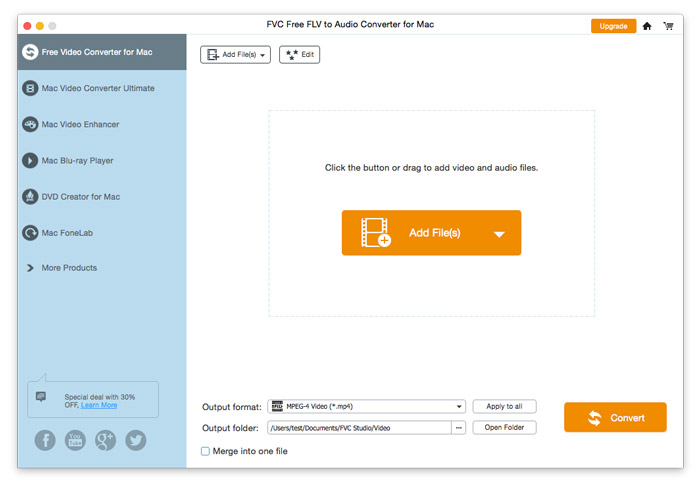
Interface principale

Télécharger et installer

Téléchargez le package d'installation en fonction du système d'exploitation de votre ordinateur. Ensuite, double-cliquez sur le fichier d'installation et suivez les instructions à l'écran pour installer le programme.

Préférences

Before you start the conversion, it’s recommended to tweak the default settings. You can click the Menu icon and click on Preferences… to configure the specific settings. For example, you are free to choose the output folder to store your converted files.

Préférences

Convertir FLV en audio

Vous pouvez maintenant suivre ces étapes pour convertir des fichiers FLV en formats audio.

Step 1. Launch FVC Free FLV to Audio Converter

Lancez FVC Free FLV to Audio Converter et vous verrez son interface épurée.

Interface principale

Step 2. Add an FLV file into the program

Click the Add File(s) button and choose FLV files you want to process in the dialogue opening subsequently. After the files are added to the program, they will be displayed on the file list.

Ajouter des fichiers FLV

Step 3. Select the output format

Click to open Output format drop-down list, then choose the audio format from the General Audio profile list. It can convert your FLV files to MP3, WMA, AAC, M4A, and so on.

Choisissez la sortie audio

If you’re not satisfied with the original profile parameter settings, you can click the Cogwheel icon and adjust the encoder, channel, sample rate, and audio bitrate in the Profile settings window.

Paramètres de profil

Step 4. Start converting FLV to Audio

Go to Output folder to choose the destination folder for saving output files, and then click OK button to return to the main window. Finally, click the Convert button to start the conversion.

Lancer la conversion