


 Video Converter Ultimate
 Enregistreur d'écran
 Réparation vidéo
Comment créer un GIF à partir de vos photos enregistrées sur votre iPhone
Nous avons utilisé des GIF pour rendre notre simple texte plus attrayant, au point de devenir une meilleure alternative que les images. Parce qu’il s’agit d’images statiques animées en mouvement. De plus, en raison de la popularité de ce format, de nombreux utilisateurs essaient déjà de créer leurs propres GIF, que ce soit sur ordinateur ou sur téléphone. Nous allons donc maintenant expliquer comment créer un GIF sur iPhone à partir de photos que vous avez enregistrées dans votre stockage. Continuez à lire cet article pendant que nous détaillons comment faire des GIF et quels sont les différents logiciels que vous pouvez utiliser.

Partie 1. Comment enregistrer une photo en direct au format GIF dans l'application Photos
Saviez-vous que vous pouvez créer de simples GIF à partir de vos photos sur iPhone ? En utilisant Photos. Cette application préinstallée stocke de nombreuses images et vidéos sur votre téléphone. En gros, c’est votre espace de stockage pour les photos que vous prenez, comme la Galerie sur Android. Mais cet outil propose aussi des fonctions d’édition que vous ne connaissez peut‑être pas. Même s’il possède un créateur de GIF, il manque encore certaines fonctions de montage essentielles pour rendre vos GIF vraiment percutants et agréables à regarder. Par ailleurs, si vous voulez essayer cet outil, suivez les étapes ci-dessous et apprenez comment faire un GIF sur iPhone à partir de Photos.
Étape 1. Ouvrez l’application Appareil photo préinstallée sur votre iPhone.
Étape 2. Appuyez ensuite sur Live Photo en haut au centre, puis sur le bouton Capturer.
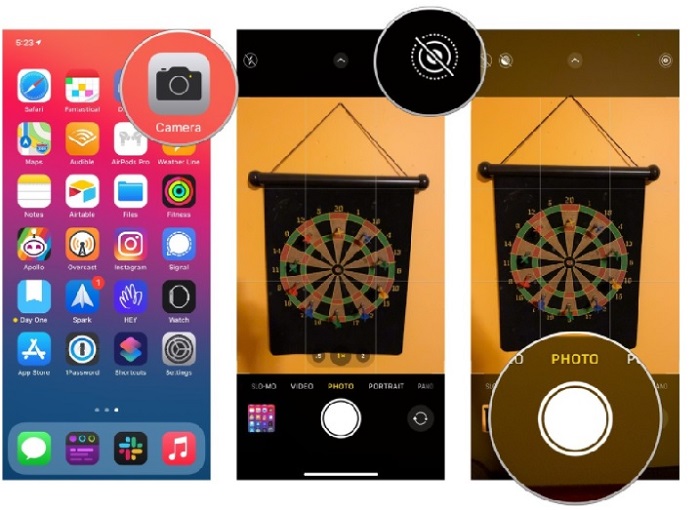
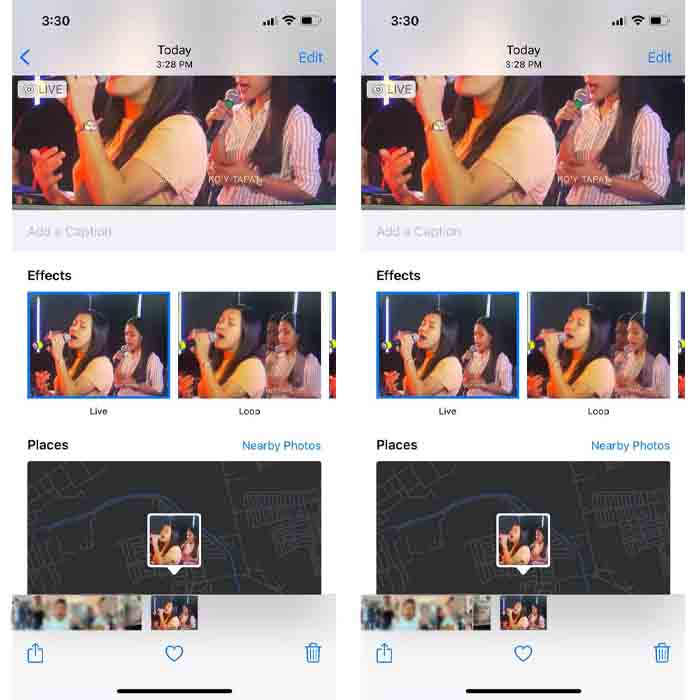
Étape 3. Après cela, touchez la petite vignette en bas à gauche de l’interface de l’appareil photo. Ensuite, faites glisser la photo vers le haut et choisissez les effets GIF qui s’y trouvent. Une fois l’effet sélectionné, il sera automatiquement enregistré et prêt à être partagé avec d’autres personnes ou sur les réseaux sociaux.
Avantages
- Pas besoin de télécharger car il est déjà pré-installé sur votre iPhone.
- Simple à utiliser comme outil d'édition.
Les inconvénients
- Vous ne pouvez pas transformer des images en GIF s'il ne s'agit pas d'une photo en direct.
- Il ne fournit pas beaucoup de fonctionnalités d'édition pour rendre votre GIF incroyable.
Partie 2. Comment créer un GIF sur iPhone avec GIPHY
GIPHY est une gigantesque bibliothèque de GIF à laquelle vous pouvez accéder gratuitement, avec inscription. Vous pouvez aussi y partager vos propres GIF déjà créés pour aider d’autres personnes en mettant à disposition vos créations. Toutefois, cet outil ne prend pas en charge la fusion de plusieurs images en un seul GIF. En revanche, les filtres proposés sont excellents et simples à utiliser. Donc, si vous voulez utiliser GIPHY et créer des GIF, suivez les étapes ci-dessous.
Étape 1. Téléchargez GIPHY sur votre iPhone, puis lancez l’application.
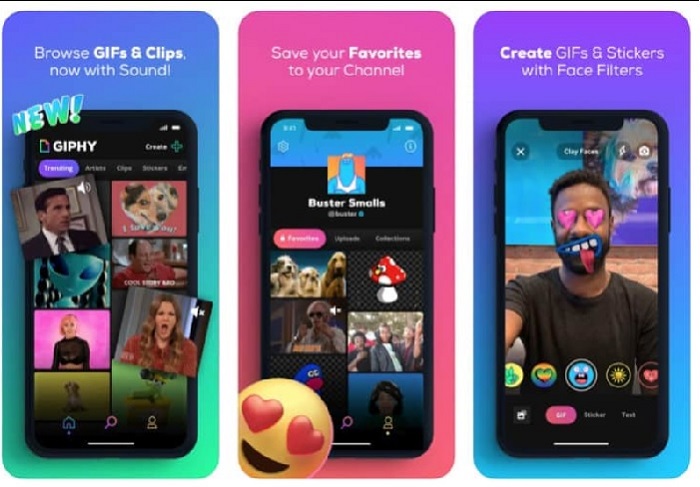
Étape 2. Appuyez sur Create, puis sur le bouton album en haut à gauche et autorisez l’application à accéder à vos images.
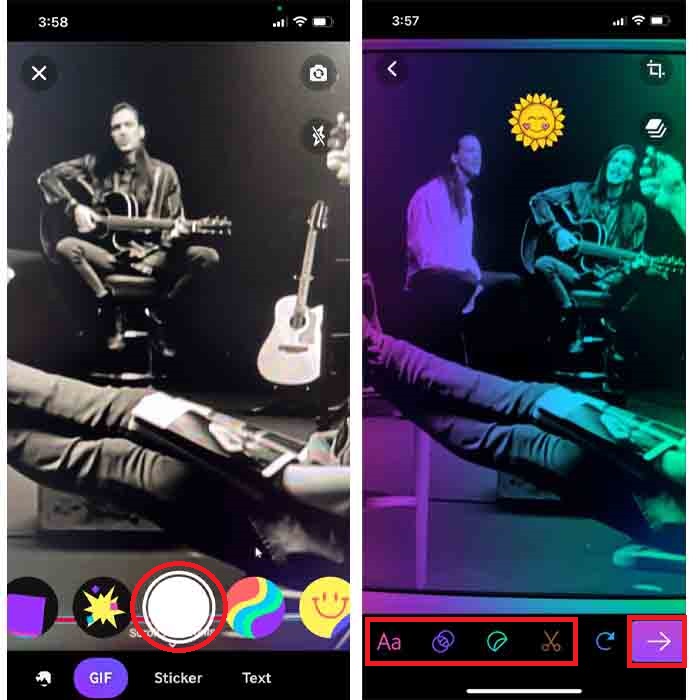
Sélectionnez ensuite l'image que vous souhaitez transformer en GIF et effectuez la modification dans l'interface.
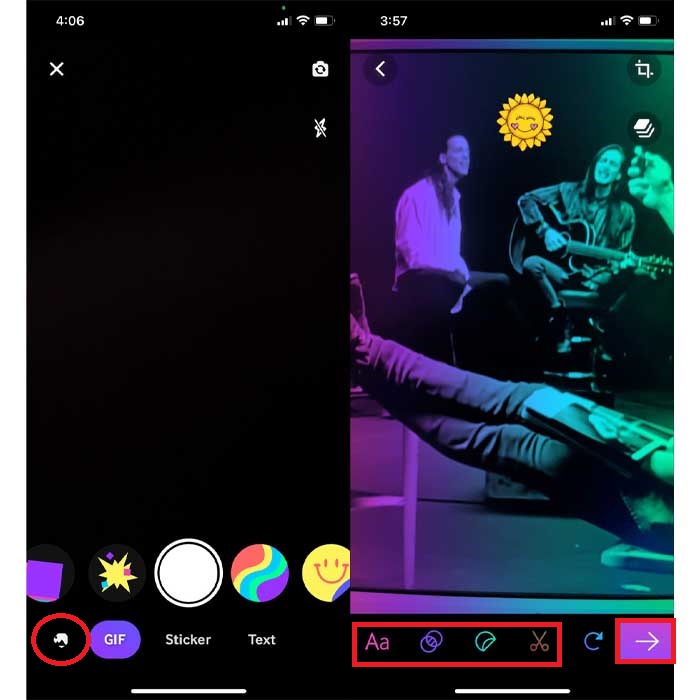
Étape 3. Vous ne pouvez pas enregistrer le GIF directement sur votre iPhone, vous avez donc deux options. La première consiste à le téléverser sur le stockage cloud de GIPHY, puis à le rendre public ou privé, ou bien à le partager immédiatement.
Avantages
- C'est une énorme bibliothèque de GIF.
- Il a un meilleur effet que les photos peuvent offrir.
Les inconvénients
- Vous ne pouvez pas enregistrer le GIF fini directement dans votre stockage. C'est soit vous l'enregistrerez sur le compte que vous avez créé sur GIPHY, soit vous le partagerez.
- Impossible de compiler des images pour créer des GIF.
Partie 3. L'outil le plus professionnel pour créer des GIF à partir de plusieurs photos
Si l’outil présenté en premier ne permet pas d’obtenir les GIF que vous souhaitez, essayez d’utiliser Video Converter Ultimate. Cet outil peut créer des GIF à partir de vos photos avec un meilleur résultat que les deux autres applications natives et les options téléchargeables. En revanche, le programme n’est disponible que sur ordinateur, vous devez donc d’abord transférer plusieurs photos sur votre ordinateur avant de pouvoir créer des GIF. Par ailleurs, les filtres que vous pouvez y appliquer sont remarquables et sauront vous impressionner. Pour apprendre comment faire un GIF sur iPhone à partir de plusieurs photos, suivez donc les étapes indiquées ci-dessous.
Étape 1. Téléchargez d’abord Video Converter Ultimate, puis installez-le.
Téléchargement gratuit pour Windows 7 ou version ultérieure Téléchargement sécurisé
Téléchargement gratuit pour macOS 10.7 ou version ultérieure - Téléchargement sécurisé
Étape 2. Dans la section Boîte à outils, cliquez sur Créateur de GIF.
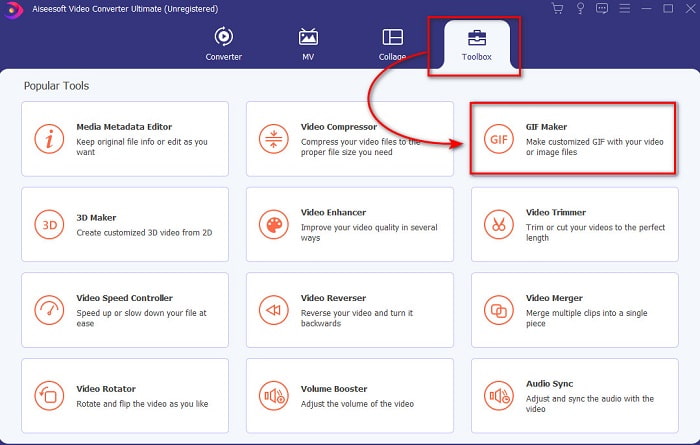
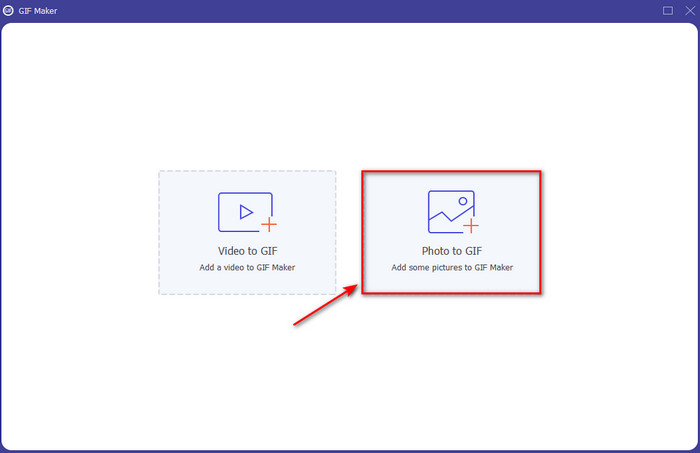
Étape 3. Cliquez sur Photos en GIF, puis sélectionnez la photo que vous voulez transformer en GIF et cliquez sur Ouvrir. Vous ne pouvez pas ajouter plusieurs images au départ, mais vous pourrez en ajouter par la suite. Modifiez ensuite les Paramètres de sortie pour le GIF, puis cliquez sur OK.
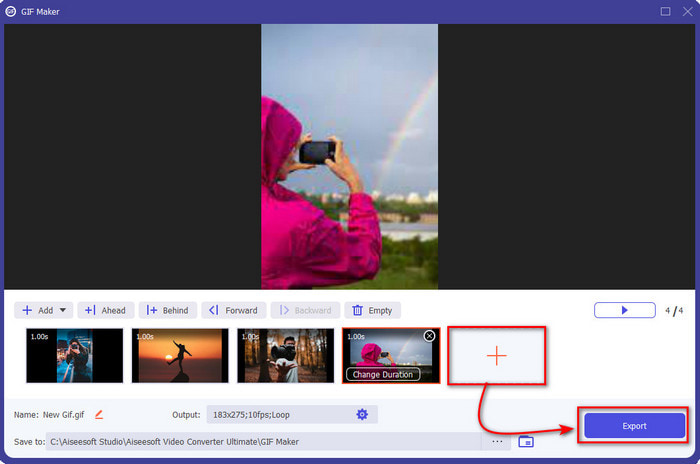
Étape 4. Pour ajouter d’autres images, cliquez sur le bouton + et sélectionnez-les. Une fois toutes les images insérées, cliquez sur Exporter.
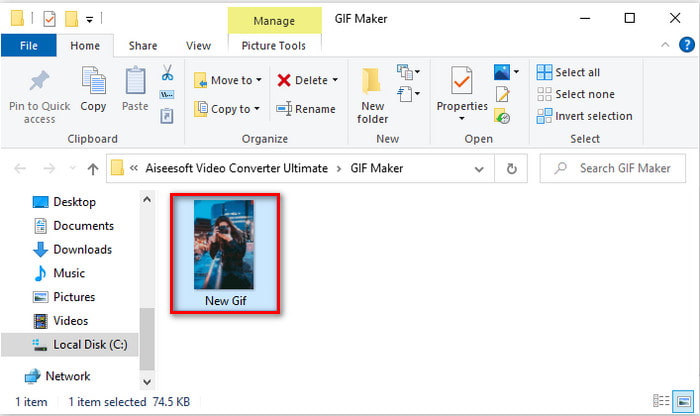
Étape 5. Attendez quelques secondes : un dossier s’ouvrira à l’écran avec le GIF que vous venez de créer.
Avantages
- L'éditeur phénoménal sur lequel vous pouvez compter pour rendre votre GIF exceptionnel.
- Il a beaucoup de fonctionnalités avancées que vous pouvez utiliser.
- Apprendre à utiliser cet outil est plus facile en raison de sa pertinence.
Les inconvénients
- Vous devrez transférer les images de votre iPhone sur le bureau.
- Vous devez d'abord le télécharger sur votre bureau avant de pouvoir y accéder.
Partie 4. FAQ sur Créer un GIF à partir de photos sur iPhone
Comment faire un GIF sur Android à partir de photos ?
Vous pouvez répéter les étapes de la partie 3 et faire la même chose. Fondamentalement, vous devrez transférer toutes les vidéos que vous souhaitez transformer en GIF sur votre lecteur. Suivez ensuite les étapes indiquées ci-dessous.
Qu'est-ce qu'un GIF ?
Les GIF sont aujourd’hui très populaires, car ils peuvent rendre nos messages simples beaucoup plus expressifs qu’auparavant. Pour en savoir plus sur ce qu’est un GIF, cliquez sur ce lien et lisez l’article dédié.
Pourquoi mes images deviennent-elles floues lorsque je les transforme en GIF ?
Parce que les GIF ne prennent en charge que 256 couleurs différentes au maximum. Contrairement au JPEG et au PNG, ce format d'image prend en charge plus de 16 millions de combinaisons de couleurs. Ainsi, JPEG et PNG produisent la meilleure qualité d'image par rapport aux GIF. Mais JPEG et PNG ne peuvent pas contenir d'animations animées comme le font les GIF.
Conclusion
En conclusion, il est désormais plus facile pour nous de gérer et de créer des GIF, même sur nos iPhone. Bien que tous les outils mentionnés dans cet article puissent vous aider à créer de simples GIF, Video Converter Ultimate reste le meilleur. Il propose de nombreuses fonctions différentes que vous pouvez utiliser pour rendre vos GIF encore plus impressionnants, au point que vous aurez du mal à croire que c’est vous qui les avez réalisés. Ne vous contentez donc pas d’un logiciel basique si vous pouvez disposer du meilleur outil possible. Téléchargez-le dès maintenant et transformez vos séries de photos en GIF.
-
 Choisissez le meilleur recadrage GIF en ligne et hors ligne pour recadrer les GIF [2021]
 Choisir le meilleur outil de recadrage est un must et certains des fabricants de GIF n'ont pas fourni cette fonctionnalité. Mais quel est le meilleur outil de recadrage GIF à utiliser et comment l'utiliser ?
-
 5 meilleures options pour enregistrer le format GIF avec des enregistreurs GIF pour PC et Mac
 Quel est le meilleur enregistreur GIF que vous devriez utiliser pour enregistrer des GIF ? La liste ci-dessous fournit des preuves sur lequel est le meilleur enregistreur d'écran.
-
 Comment convertir MPG au format GIF [En ligne et hors ligne]
 Vous voulez exprimer une bien meilleure émotion ? Ensuite, vous devez utiliser GIF à la place. Cet article vous apprendra comment convertir un fichier MPG en GIF pour mieux exprimer votre sentiment.
