


 Video Converter Ultimate
 Enregistreur d'écran
 Réparation vidéo
 Téléchargement sécurisé
Les meilleures façons d'agrandir une image pour l'impression
Agrandir une image peut se faire de deux manières. Vous pouvez agrandir une photo en la « upscalant » ou en augmentant le nombre de pixels de votre image. Une autre façon d’agrandir une image consiste à modifier la taille réelle ou les dimensions d’une photographie. Dans ce guide, nous allons vous montrer ces deux méthodes pour agrandir une photo. Selon vos besoins, vous trouverez certainement les réponses à vos questions. Lisez ce guide pour apprendre comment agrandir une image pour l’impression, en ligne et hors ligne.

Partie 1. Agrandir l'image sans perte de qualité en ligne pour l'impression
Cela semble compliqué lorsque vous entendez parler pour la première fois d'agrandir la qualité d'une image. Mais, après avoir lu cet article, ce sera sûrement facile pour vous. Il existe des tonnes d'applications qui peuvent vous aider à agrandir votre image. Mais le problème c'est qu'il y en a tellement qu'il est difficile d'en choisir un. Heureusement, nous avons trouvé une application qui peut vous aider à agrandir une image facilement et gratuitement.
FVC Free Image Upscaler est une formidable application d’agrandissement de photos que vous pouvez utiliser en ligne. L’avantage des applications en ligne est que vous n’avez pas besoin de les télécharger, ce qui vous permet d’économiser de l’espace de stockage. Vous pouvez agrandir votre image avec cet outil en ligne par un facteur de 2x, 4x, 6x ou 8x. De plus, il utilise un procédé d’upscaling basé sur l’IA qui détecte automatiquement les zones de moindre qualité de l’image, puis les améliore.
De plus, les débutants peuvent facilement utiliser cette application car elle possède une interface utilisateur intuitive. De plus, il a un effet de prévisualisation qui vous permet de vérifier les résultats de votre sortie avant de l'enregistrer. FVC Free Image Upscaler peut être utilisé gratuitement sur tous les navigateurs Web, tels que Google, Firefox et Safari.
Comment agrandir une image pour l'impression à l'aide de FVC Free Image Upscaler
Étape 1. Ouvrez votre navigateur Web et recherchez FVC Free Image Upscaler dans la barre de recherche. Vous pouvez également cliquer sur ce lien pour être redirigé directement vers la page principale.
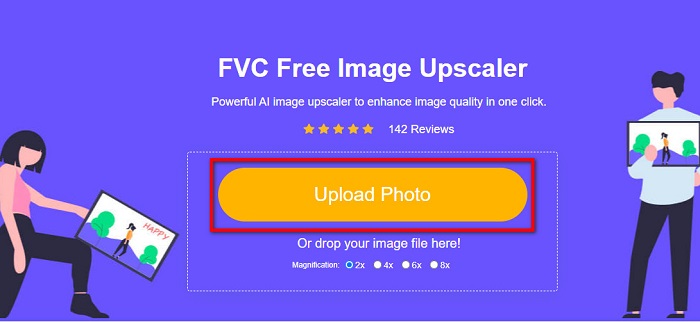
Étape 2. Sur l’interface principale, cliquez sur le bouton Upload Photo pour ajouter l’image que vous souhaitez agrandir. Vous pouvez aussi utiliser la fonction de glisser-déposer pour téléverser votre image.
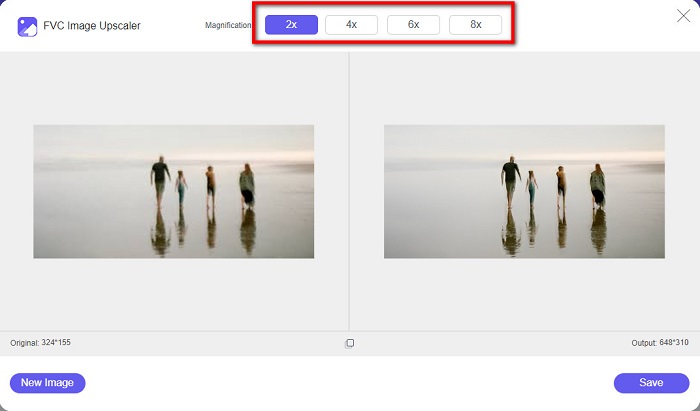
Étape 3. Une fois votre fichier importé, vous serez dirigé vers une autre interface. Sélectionnez le niveau de grossissement que vous préférez pour votre image. Vous pouvez choisir entre 2x, 4x, 6x et 8x. Plus la qualité de votre image est faible, plus vous devez choisir un grossissement élevé.
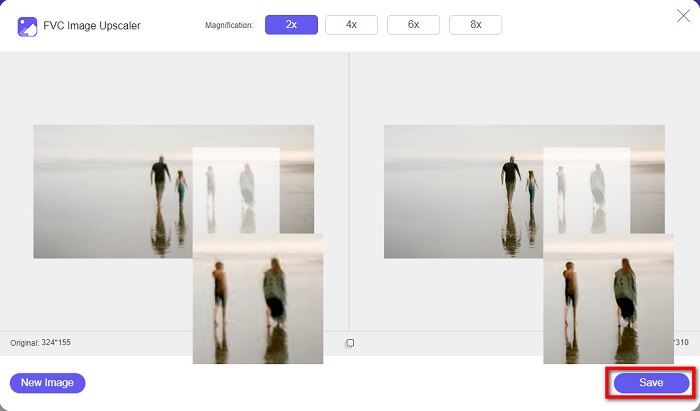
Étape 4. Survolez l’image de gauche avec votre curseur pour voir le résultat de l’agrandissement. Vous voyez la différence ? Cliquez sur le bouton Save dans le coin inférieur droit de l’interface pour enregistrer le résultat sur votre appareil.
Et ce sont les étapes faciles sur la façon d'agrandir une image pour l'impression en ligne à l'aide de FVC Free Image Upscaler. Facile comme bonjour, non ? Mais si vous souhaitez agrandir une photo en modifiant les dimensions de votre image, lisez la partie suivante.
Partie 2. Comment agrandir une image dans Photoshop sans perte de qualité
Vous avez probablement rencontré cette application lorsque vous cherchiez comment agrandir une photo. Et Adobe Photoshop est l'application de retouche photo la plus éminente sur Internet. Adobe Photoshop est principalement utilisé par les professionnels qui éditent souvent des images pour les publier sur différentes plateformes. Avec les outils et les fonctionnalités de cette application, vous pouvez sûrement produire des résultats étonnants. Mais saviez-vous que vous pouvez également agrandir une image avec Adobe Photoshop ? Oui, tu l'as bien lu. C'est également un outil approprié pour agrandir les images sans perte de qualité. Avec Adobe Photoshop, vous pouvez agrandir votre image en modifiant la résolution ou en saisissant manuellement la largeur et la hauteur de votre image. Bien qu'Adobe Photoshop soit une application professionnelle, sa fonction d'agrandissement est simple à utiliser. Sans plus tarder, voici les étapes pour agrandir une image à l'aide de Photoshop sans perte.
Étape 1. Avant tout, téléchargez Adobe Photoshop sur votre ordinateur. Il est disponible sur presque tous les systèmes d’exploitation, comme Windows et macOS. Une fois l’application installée sur votre appareil, importez l’image que vous voulez agrandir.
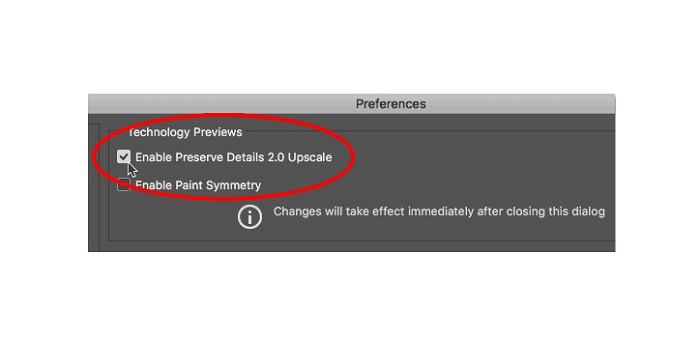
Étape 2. Ensuite, activez l’option Preserve Details 2.0. Si vous utilisez un ordinateur Windows, allez dans le panneau Edit de la Menu Bar. Si vous utilisez un Mac, allez dans le menu Photoshop CC, choisissez Preferences, puis cliquez sur le bouton Technology Previews. La boîte de dialogue des préférences s’ouvrira sur l’option Technology Previews. Cochez la case à côté de Enable Preserve Details 2.0 Upscale. Ensuite, cliquez sur OK pour fermer la boîte de dialogue et valider l’option Technology Previews.
Étape 3. Ouvrez ensuite la boîte de dialogue Image Size en allant dans le menu Image et en sélectionnant l’option Image Size.
Étape 4. Lors de l’agrandissement ou de l’upscaling d’une image dans Photoshop, nous voulons ajuster les dimensions physiques de l’image, autrement dit, ajouter ou supprimer des pixels. Assurez-vous donc que l’option Resample est sélectionnée.
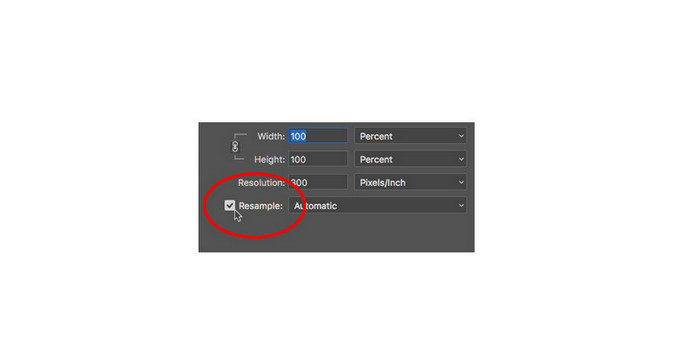
Étape 5. Ensuite, modifiez la height et la width de votre photo en saisissant les dimensions souhaitées pour votre image. Par défaut, la largeur et la hauteur sont liées, donc si vous modifiez la largeur de votre image, la hauteur s’ajustera automatiquement.
Étape 6. Enfin, changez la Resample Method en Preserve Details 2.0. La méthode de rééchantillonnage par défaut est réglée sur Automatic. Cependant, Photoshop ne la choisira pas lorsque Resample est défini sur Automatic. Par conséquent, modifiez l’option Resample en cliquant sur Automatic, puis sélectionnez Preserve Details 2.0.
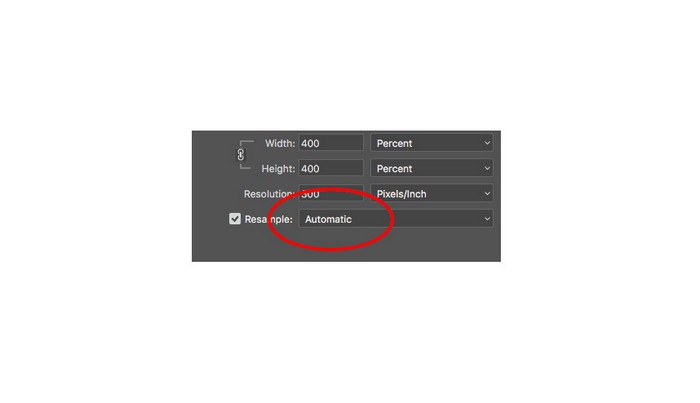
Étape 7. Il est maintenant temps de prévisualiser le résultat. Après avoir sélectionné Preserve Details 2.0, l’onglet d’aperçu à gauche se mettra à jour et vous montrera à quoi ressemblera votre image agrandie. Faites glisser l’image à l’intérieur de la fenêtre d’aperçu avec la souris pour voir les différentes parties de votre visuel.
En suivant ces étapes, vous apprendrez sûrement à agrandir une image pour l'impression sans perte de qualité.
En relation avec :
Top 7 des meilleurs agrandisseurs de photos en ligne et hors ligne
Top 4 des agrandisseurs de GIF en ligne et hors ligne à ne pas manquer
Partie 3. FAQ sur la façon d'agrandir l'image sans perte de qualité
Puis-je agrandir la taille du fichier JPG en ligne ?
Vous pouvez modifier la taille de fichier de votre image JPG à l’aide de FVC Free Image Upscaler. Il vous suffit d’augmenter le grossissement à 6x ou 8x pour agrandir la taille de votre image JPG.
Adobe Photoshop prend-il en charge les fichiers PNG ?
Oui. Les fichiers PNG sont pris en charge par de nombreuses plates-formes, notamment Adobe Photoshop. Vous pouvez importer presque tous les formats de fichiers image avec Adobe Photoshop, tels que PNG, JPG, JPEG, BMP et WebP.
Est-ce que l'agrandissement de mon image affecte sa taille de fichier ?
Oui. La taille du fichier de votre image augmente car vous ajustez le nombre total de pixels de votre image ou le nombre de pixels dans chaque pouce. Mais la taille du fichier sera également plus petite lorsque vous réduisez la largeur et la hauteur de votre image.
Conclusion
Et voici donc les méthodes expliquant comment agrandir une image sans perte de qualité. Que vous choisissiez la méthode en ligne ou hors ligne, vous pouvez agrandir votre image sans en compromettre la qualité. Mais si vous voulez un moyen plus simple d’agrandir une image, nous vous recommandons d’utiliser FVC Free Image Upscaler, une application conviviale.
-
 Comment redimensionner une image dans Illustrator de 2 manières différentes
 Découvrez les meilleures façons de redimensionner une image dans Illustrator. Pour commencer, téléchargez et ouvrez l'application Adobe Illustrator sur votre PC et suivez ces étapes simples.
-
 6 façons de redimensionner une image sur le Web et hors ligne [100% Working]
 Avec le didacticiel que nous ajoutons ici, vous pouvez désormais facilement redimensionner une image en fonction de votre taille préférée. Apprenez à le faire ici !
-
 Meilleures façons de redimensionner une photo sur votre iPhone gratuitement et sans installation
 Redimensionner une photo sur votre iPhone peut être difficile à apprendre. Heureusement, cet article fournit un tutoriel sur la façon de changer facilement la dimension des images.
