


 Video Converter Ultimate
 Enregistreur d'écran
 Réparation vidéo
Apprenez à convertir F4V en MOV dans les étapes les plus simples possibles
Un fichier vidéo Flash MP4, également appelé fichier vidéo MPEG‑4, est un fichier vidéo basé sur le format de conteneur Apple QuickTime. Les fichiers portant l’extension F4V sont des fichiers vidéo fondés sur ce format de conteneur Apple QuickTime. En apparence, il est comparable au format MP4. Malgré cette brève explication de F4V, vous pouvez encore ne pas savoir comment convertir ce format vidéo en un autre. Grâce à cet article, vous saurez comment convertir un F4V en MOV.

Partie 1. Discussion des détails : F4V et MOV
Les fichiers vidéo Flash utilisent l’extension .f4v. L’extension .f4v a été appliquée à des fichiers MPEG‑4 qui portaient auparavant l’extension .mp4. Pour la diffusion de médias dynamiques, le F4V est un format standard généralement accepté. Il est important de noter que les fichiers F4V sont essentiellement des fichiers conteneurs utilisés pour la lecture de certains fichiers multimédias. Dans Adobe Flash Player, les fichiers F4V contiennent des contenus multimédias diffusés en ligne et peuvent être visualisés. D’après les estimations, jusqu’à 80 % des vidéos en ligne actuelles peuvent être lues grâce à la technologie Adobe Flash. L’application Adobe AIR peut également prendre en charge le format de fichier F4V.
Cependant, en tant que format QuickTime, le MOV est utilisé dans l’environnement QuickTime de Mac OS X. En tant que conteneur multimédia, il permet aussi, sous Windows, de regrouper plusieurs pistes, chacune contenant un type de données différent (audio, vidéo, sous‑titres). La séparation des données multimédias de leurs décalages, l’abstraction des références de données et la gestion des listes de montage sont autant de moyens dont disposent les outils de montage vidéo pour améliorer le traitement. Le format de conteneur MOV est largement utilisé pour distribuer des films et des vidéos sur Internet.
Partie 2. Conseils les plus utiles pour convertir F4V en MOV
Utilisez Video Converter Ultimate pour convertir des formats tels que F4V en MOV et lorsqu'il est comparé à d'autres applications et convertisseurs Web, ce logiciel possède le convertisseur le plus rapide que vous puissiez imaginer car il est équipé de la technologie d'accélération matérielle qui accélère la conversion F4V en MOV 8 fois plus rapidement. . De plus, il peut convertir une large gamme de formats, même les formats vidéo les plus obscurs comme RMVB, MXF, OGV, F4V, etc. Tout le monde devrait envisager d'utiliser ce logiciel en raison de la sortie de haute qualité qu'il fournit et d'un large éventail d'options. disponible qui peut améliorer votre vidéo gratuitement. Sans plus tarder, voici les étapes à suivre :
Étape 1. Pour lancer le téléchargement, cliquez simplement sur l’icône Téléchargement gratuit située à droite de ce texte pour démarrer le processus. Une fois le téléchargement terminé, vous aurez la possibilité d’installer le logiciel sur un ordinateur Windows ou Macintosh. Pour commencer à utiliser le logiciel, vous devez d’abord l’installer sur le bureau de votre ordinateur, puis sélectionner Démarrer maintenant depuis le menu Démarrer.
Téléchargement gratuit pour Windows 7 ou version ultérieure Téléchargement sécurisé
Téléchargement gratuit pour macOS 10.7 ou version ultérieure - Téléchargement sécurisé
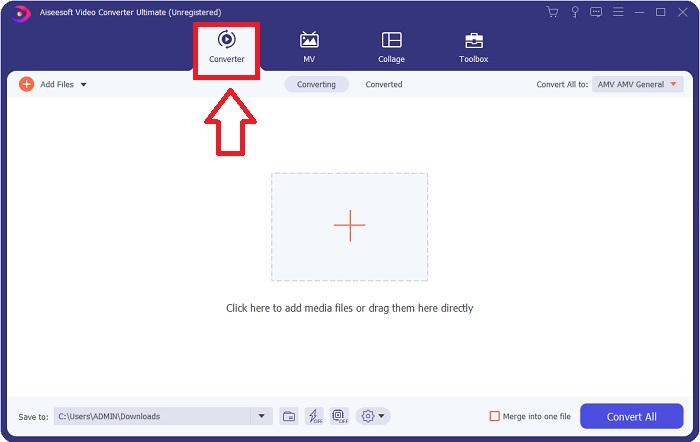
Étape 2. Commencez par lancer le logiciel que vous venez de télécharger. Après le premier lancement, une fenêtre affichant l’interface du Convertisseur apparaîtra à l’écran.
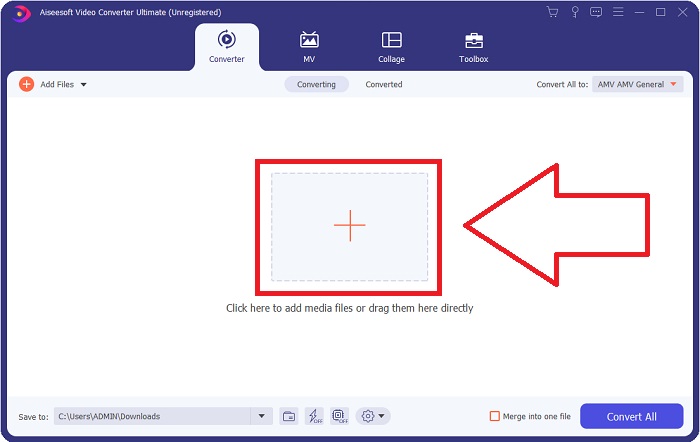
Étape 3. Importez vos fichiers dans le convertisseur pour commencer la conversion. Faites glisser et déposez le fichier vidéo que vous souhaitez convertir sur l’icône +.
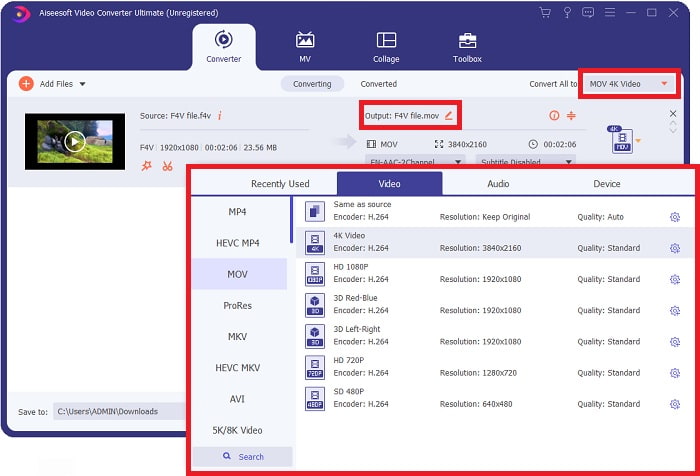
Étape 4. Pour choisir un format vidéo, cliquez sur le menu déroulant dans le coin supérieur droit de l’écran. À l’aide de ce menu déroulant, sélectionnez le format vidéo MOV. Une fois le MOV sélectionné, vous pouvez régler la qualité vidéo. Toutefois, si le format de sortie souhaité ne correspond pas à un profil prédéfini, vous pouvez modifier les paramètres de qualité selon vos besoins. Il est possible de modifier la fréquence d’images de l’affichage et la qualité audio en cliquant sur l’icône en forme de roue dentée. Pour enregistrer vos modifications, cliquez sur le bouton Créer un nouveau.
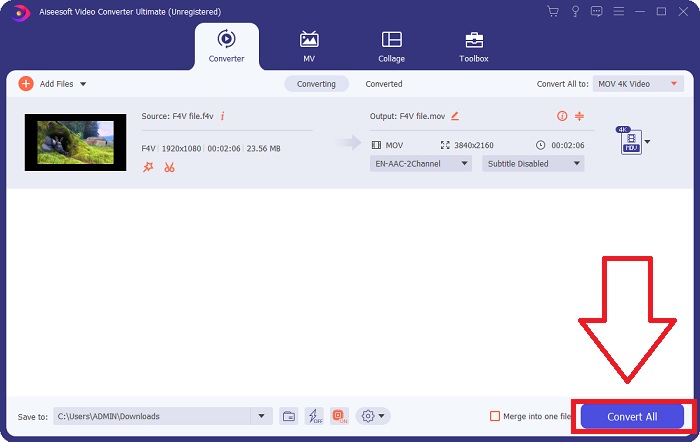
Étape 5. Lorsque vous avez terminé le montage de la vidéo et qu’elle est prête à être convertie, sélectionnez Tout convertir pour lancer la conversion.
Partie 3. Conseils bonus ! Convertir F4V en MOV en ligne
Si vous n’avez pas le temps de télécharger la version complète de Video Converter Ultimate, utilisez plutôt cette version en ligne. Free Video Converter Online est le meilleur outil en ligne pour convertir rapidement et facilement un vaste éventail de formats vidéo. Étant donné qu’il n’impose aucune contrainte quant aux types de fichiers pris en charge, il est particulièrement recommandé aux débutants, contrairement à d’autres convertisseurs en ligne. Pour en savoir plus sur cette application web, suivez les instructions ci‑dessous.
Étape 1. Vous pouvez accéder au site officiel du convertisseur en ligne en cliquant sur ce lien.
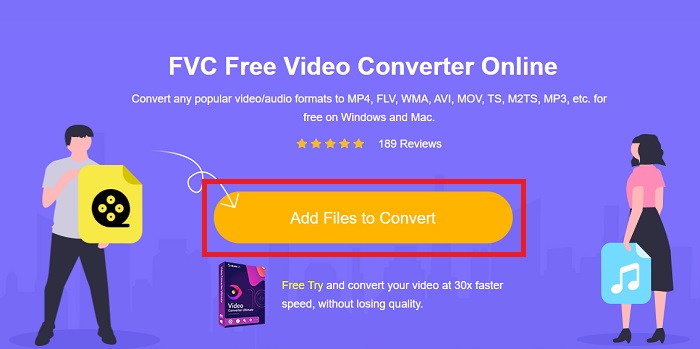
Étape 2. S’il s’agit de votre première utilisation du programme, cliquez sur Ajouter des fichiers pour téléverser un fichier depuis votre ordinateur, au centre de l’écran, et pour obtenir également le lanceur adapté à votre machine. Il se lancera automatiquement une fois le deuxième téléchargement terminé. Après ce deuxième téléchargement, repérez le fichier dans votre dossier et cliquez sur Ouvrir pour commencer à travailler.
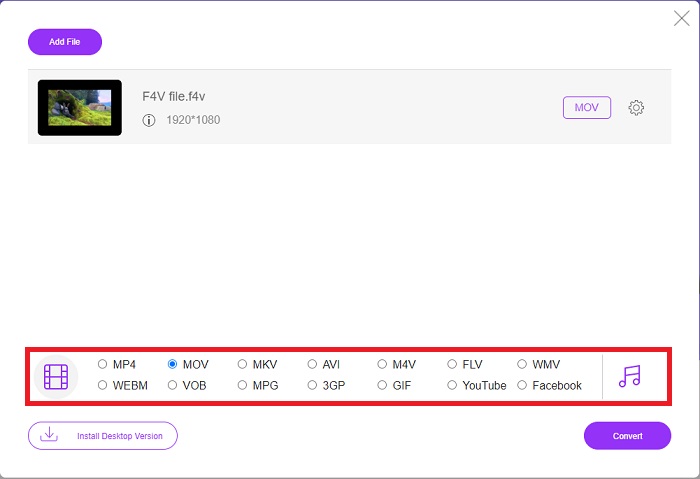
Étape 3. Pour commencer la conversion, sélectionnez le format MOV dans la liste des formats située dans la partie inférieure de la fenêtre et cliquez dessus.
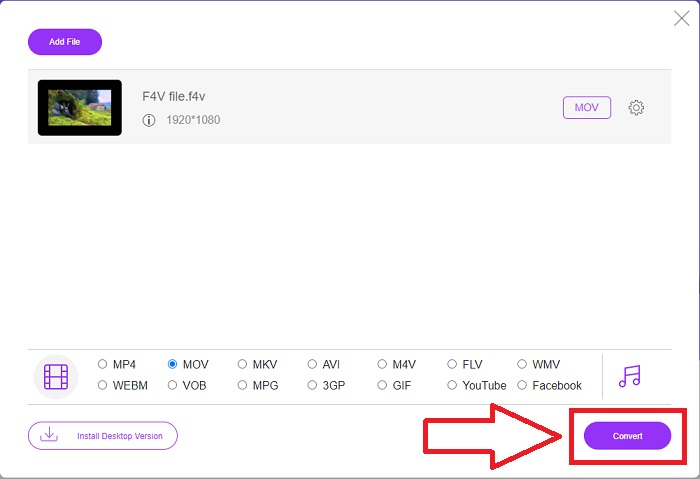
Étape 4. Après avoir choisi le format vers lequel convertir, cliquez sur Convertir pour lancer le processus de conversion vers un autre format.
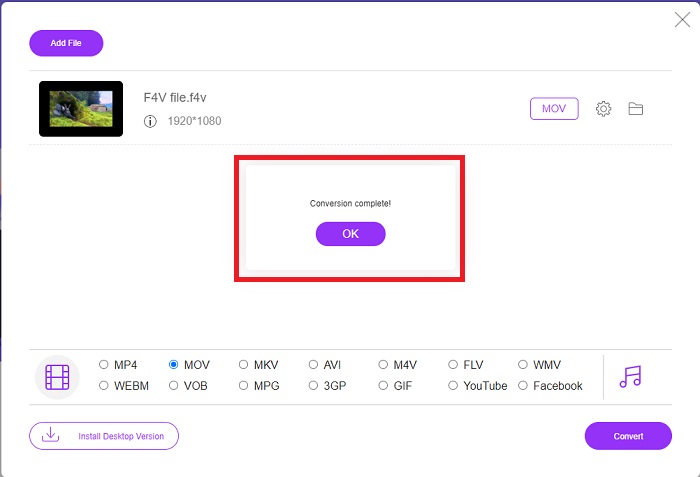
Étape 5. En quelques minutes seulement, le fichier converti apparaîtra dans un dossier, que vous pourrez ouvrir pour commencer immédiatement la lecture.
Partie 4. FAQ sur la conversion F4V en MOV
Comment lire des fichiers F4V sur VLC ?
Vous pouvez importer et lire une vidéo F4V dans VLC Player en la faisant simplement glisser et en la déposant. Pour ce faire, vous devez d'abord ouvrir le dossier dans lequel votre fichier F4V est stocké. VLC Player doit lancer le fichier F4V doit être glissé dans l'interface du lecteur, puis déposé. Votre fichier vidéo devrait commencer à jouer dès que vous le déposez dans le lecteur.
Comment lire des fichiers F4V sur Mac ?
Elmedia Player doit d'abord être téléchargé depuis le site officiel, selon Eltima. Elmedia peut ensuite importer des fichiers F4V via les méthodes suivantes : Faites simplement glisser et déposez les fichiers F4V dans la fenêtre ou l'icône du dock du lecteur. Sélectionnez l'option de menu Ouvrir avec dans le menu contextuel du Finder. Allez avec le lecteur Elmedia. Dans le menu principal d'Elmedia Player, sélectionnez Fichier, puis Ouvrir. Enfin, amusez-vous.
Le fichier MOV est-il le même que MP4 ?
MOV est un format propriétaire d’Apple pour QuickTime, tandis que MP4 est une norme utilisée dans le reste du monde. Comme les fichiers MOV ne sont pas compatibles avec tous les protocoles de diffusion en streaming, la plupart des plateformes de streaming privilégient les fichiers MP4. En revanche, les fichiers MOV ont tendance à offrir une qualité supérieure et une taille plus importante que les fichiers MP4. Pour le montage vidéo sur Mac, les fichiers MOV sont préférables, car ils sont conçus spécifiquement pour QuickTime, ce qui les rend plus faciles à utiliser. Continuez votre lecture pour découvrir plus de détails sur la différence entre MOV et MP4.
Conclusion
Il est important de noter que, malgré les nombreuses solutions en ligne mentionnées ci‑dessus, les problèmes de connexion font partie des causes les plus fréquentes d’interruption des conversions vidéo. C’est pourquoi il est conseillé d’utiliser un logiciel gratuit comme Video Converter Ultimate, disponible en téléchargement. En plus de convertir votre clip vidéo à une vitesse remarquablement élevée, ce convertisseur offre un large éventail de fonctionnalités utiles. De plus, il prend en charge de très nombreux formats vidéo, si bien que vous n’aurez pas à vous inquiéter de devoir convertir des fichiers méconnus pour obtenir le meilleur résultat possible.
-
 4 nouveaux convertisseurs en ligne et hors ligne pour convertir F4V au format AVI
 Ne savez-vous pas quel convertisseur vous devez utiliser pour convertir F4V en AVI ou en tout autre format vidéo ? Ensuite, lisez cet article pendant que nous apprenons à convertir avec l'outil disponible.
-
 Comment convertir M2TS en MOV gratuitement [en ligne et hors ligne]
 Besoin de convertir M2TS en MOV pour lire des fichiers vidéo sur un certain nombre de lecteurs et de plates-formes? Cet article vous aidera à trouver la meilleure méthode en ligne / hors ligne pour convertir M2TS en MOV sur Windows / Mac.
-
 Comment convertir MP4 en MOV sur Mac / PC / en ligne
 Comment convertir MP4 en MOV sur Mac? Existe-t-il un moyen gratuit de convertir MP4 en MOV sans perte de qualité? Cet article présente 4 façons simples de vous aider à effectuer la conversion vidéo de MP4 en MOV sur Mac, PC Windows et en ligne.
