


 Video Converter Ultimate
 Enregistreur d'écran
 Réparation vidéo
 Téléchargement sécurisé
Comment imprimer des photos HEIC avec une sortie d'image de haute qualité en une minute
Bien qu’Apple offre moins de compatibilité avec d’autres appareils, la société affirme tout de même qu’elle utilisera le format HEIC pour prendre des clichés rapides et stocker les images avec des données hyperspectrales, sans coût supplémentaire pour vous tout en économisant de l’espace. En revanche, si vous souhaitez imprimer, afficher ou transférer une image vers un autre appareil qui n’est pas lié à Apple, vous ne recevrez qu’une notification d’incompatibilité. Mais si vous utilisez un Mac, vous pouvez rapidement apprendre comment imprimer des photos HEIC avec la même qualité que celle du fichier brut. Donc, si vous voulez connaître les étapes pour les imprimer, poursuivez votre lecture des informations ci‑dessous.

Partie 1. 2 façons efficaces d'imprimer des photos HEIC sur Mac
Au fur et à mesure que nous explorons et essayons d'imprimer des photos HEIC sur Mac, nous remarquons qu'il existe deux façons de créer une copie papier du fichier HEIC sans convertir le format. Donc, si vous voulez savoir comment faire une copie papier de l'image HEIC que vous avez, vous devez continuer à lire les deux méthodes ci-dessous.
Veuillez vérifier si l'imprimante est correctement installée sur le Mac et dépannez-la avant de passer aux étapes. SI tout est prêt et préparé, vous devez maintenant continuer.
1ère méthode : Utiliser une touche de raccourci
Si vous voulez moins de clics, vous devez utiliser la touche de raccourci pour imprimer une image sur Mac. Suivez les étapes et les touches sur lesquelles nous cliquons b pour imprimer sans effort le fichier HEIC sur votre Mac.
Étape 1. Cliquez sur le fichier HEIC enregistré sur votre Mac et ouvrez‑le.
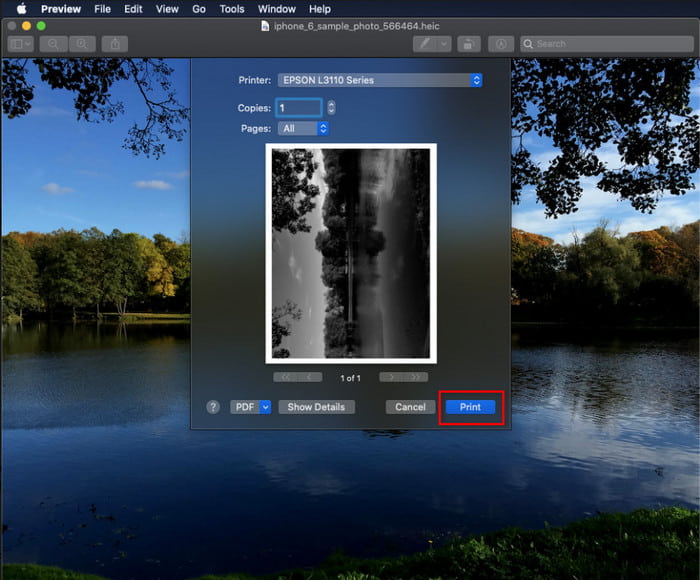
Étape 2. Après l’avoir ouvert, appuyez sur les touches Commande + P de votre clavier.
Étape 3. Dans la boîte de dialogue d’impression, vous verrez un aperçu de l’image et vous pourrez ajuster les paramètres d’impression ; cliquez sur Imprimer pour obtenir une copie papier de l’image HEIC en haute qualité.
2ème méthode : Utiliser le menu Fichier
Si vous pensez que la touche de raccourci ne peut pas vous aider à imprimer le document, vous devez essayer d'utiliser le menu Fichier. Avec ce menu, vous pouvez facilement cliquer sur le bouton d'impression et apporter quelques modifications avant d'avoir une copie papier de l'image HEIC. Commençons à imprimer le HEIC que vous avez sur votre macOS sans utiliser les touches de raccourci sans plus tarder.
Étape 1. Avant toute chose, ouvrez le fichier HEIC sur votre Mac.
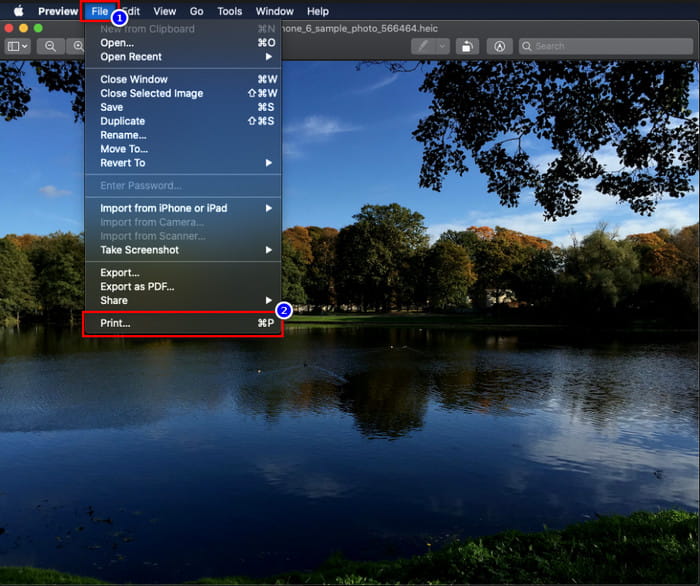
Étape 2. Dans la partie supérieure, cliquez sur le menu Fichier, puis une liste d’options s’affichera à l’écran. Choisissez maintenant la dernière option, à savoir Imprimer.
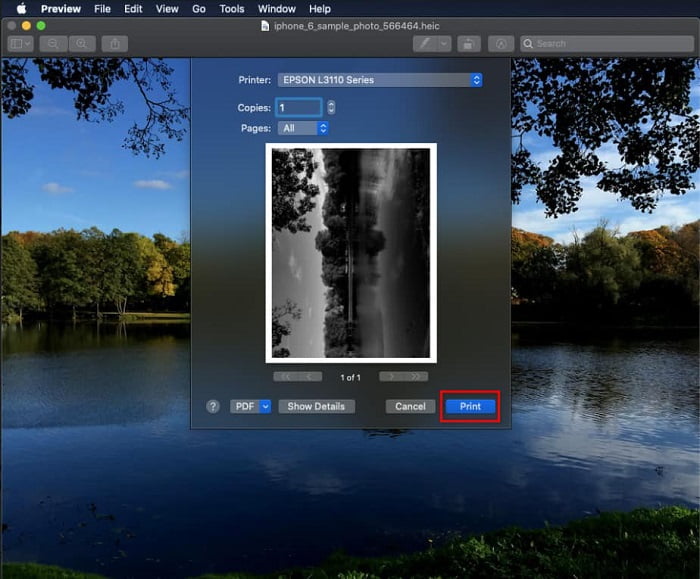
Étape 3. Vous verrez alors s’ouvrir à l’écran la fenêtre de dialogue d’impression. Dans la partie centrale, vous verrez un aperçu de ce que donnera votre fichier HEIC une fois imprimé, et sur le côté, vous pourrez effectuer quelques réglages avant de lancer l’impression. Lorsque tout est paramétré, cliquez sur Imprimer pour commencer à imprimer le document.
Partie 2. Pourquoi ne puis-je pas télécharger mes photos HEIC pour les imprimer ?
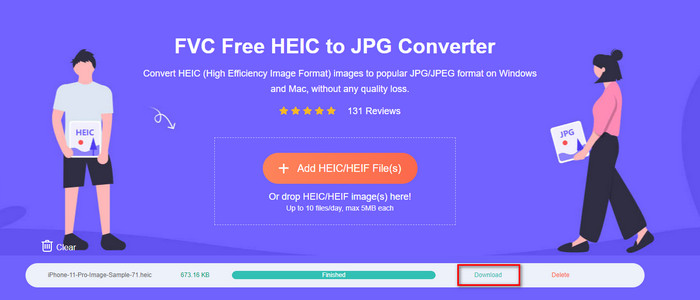
Faites‑vous partie des utilisateurs qui ont du mal à gérer les fichiers HEIC parce que vous ne pouvez pas en obtenir une copie papier ? Dans ce cas, permettez‑nous de vous présenter un outil en ligne spécifique qui peut vous aider à résoudre ce problème : le FVC Free HEIC to JPG Converter. Cet outil web peut convertir votre HEIC en JPG très facilement. Vous pouvez alors téléverser le fichier pour l’impression après avoir changé le format en JPEG, car ce format est bien plus largement reconnu que le HEIC. Même si vous êtes limité à dix conversions par jour de 5 Mo ou moins, cela reste un convertisseur en ligne fiable malgré ces restrictions. Ne perdons donc plus de temps et voyons les étapes à suivre pour utiliser le meilleur convertisseur web open source à votre portée.
Étape 1. Vous pouvez cliquer sur ce lien pour accéder au convertisseur en ligne ; un nouvel onglet s’ouvrira immédiatement.
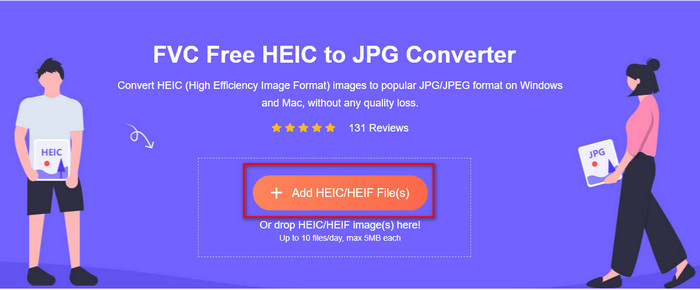
Étape 2. Importez le fichier HEIC en cliquant sur ce bouton, repérez le fichier HEIC dans votre dossier, puis cliquez sur Ouvrir pour le téléverser entièrement.
Étape 3. Le processus de conversion commencera rapidement, puis cliquez sur Télécharger pour enregistrer le fichier sur votre bureau. Il est désormais prêt à être imprimé, et vous pouvez en faire des copies aussi facilement que pour l’image HEIC d’origine, avec la même qualité que le fichier brut mais dans un format différent.
Partie 3. FAQ sur l'impression de photos HEIC
Puis-je imprimer des photos HEIC sous Windows ?
Malheureusement, Windows ne prend pas en charge HEIC, cela signifie donc qu'il ne peut pas créer de copie papier du HEIC de haute qualité. Mais ne perdez pas espoir car nous incluons un moyen de convertir le HEIC en un format JPEG reconnaissable dans la deuxième partie. Vous pouvez librement le lire pour savoir comment faire, puis imprimer le fichier HEIC que vous avez sous Windows, mais l'extension de fichier est différente.
Pourquoi l'imprimante ne reconnaît-elle pas HEIC ?
En raison de la compression et de la structure de ce format, même s’il peut contenir des images de haute qualité dans des fichiers de plus petite taille, plus petits que les JPEG, il reste difficile à reconnaître car il est encore récent sur le marché. Mais vous pouvez toujours convertir ce format vers le format d’image le plus compatible, compris par pratiquement toutes les imprimantes : le JPEG, qui demeure aujourd’hui encore le meilleur format d’image haute résolution largement utilisé. Si vous avez besoin d’un convertisseur, nous en avons déjà présenté un ci‑dessus, mais vous pouvez cliquer sur ce lien pour découvrir d’autres outils que vous pouvez utiliser pour convertir HEIC en JPEG, que nous avons tous passés en revue pour vous.
Qu'est-ce que le fichier HEIC ?
Le Moving Picture Expert Group (MPEG) a développé le HEIC, qui pourrait devenir le format d’image standard de remplacement pour le JPEG ou JPG. Même s’ils ont créé les deux formats, ils restent différents ; si vous voulez en savoir plus sur ce qu’est le HEIC, cliquez sur ce lien et lisez les informations que nous avons rassemblées pour vous.
Conclusion
Alors maintenant que nous avons une idée de la façon d'imprimer des photos HEIC avec les étapes ci-dessus, il devient possible pour chaque utilisateur Mac d'en faire une copie papier. Cependant, si vous êtes un utilisateur Windows, vous ne parvenez pas à imprimer une seule image HEIC sur votre imprimante car le format n'est pas pris en charge par Windows. Mais cela ne signifie pas que vous perdrez espoir d'imprimer l'image HEIC. Bien que nous ne puissions pas vous aider à imprimer le fichier HEIC d'origine, cela reste possible si vous convertissez d'abord le format en JPEG/JPG avant de le publier.
Dans la deuxième partie, nous incluons le meilleur convertisseur HEIC en JPG en ligne auquel vous pouvez accéder sur le Web, et il est également exempt de virus. Vous ne savez toujours pas s'il peut faire le travail de conversion correctement ? Alors pourquoi ne pas essayer en cliquant sur ce lien ? Vous serez sûrement impressionné car l'outil peut convertir les fichiers HEIC que vous avez sans effort.
-
 Convertir HEIC en PDF en utilisant les 4 meilleures méthodes améliorées en 2022
 Pour en savoir plus sur le meilleur convertisseur HEIC en PDF, vous pouvez télécharger ce 2022. Vous pouvez lire cet article car nous avons fourni une critique à leur sujet.
-
 5 des meilleurs convertisseurs HEIC en JPG choisis en 2022
 Avec le convertisseur HEIC en JPC, vous pouvez facilement changer le format d'image en un JPG portable. Vous voulez savoir quels sont ces 5 outils ? Lisez cet article.
-
 Meilleur convertisseur HEIC gratuit et payant que vous devez connaître [Mise à jour 2022]
 Voulez-vous savoir ce qu'est le convertisseur HEIC ? Si tel est le cas, nous incluons les 5 meilleurs convertisseurs HEIC gratuits et payants que vous pouvez utiliser pour changer le format HEIC.
