


 Video Converter Ultimate
 Enregistreur d'écran
 Réparation vidéo
 Téléchargement sécurisé
Techniques de premier ordre pour convertir MPEG en M4V
Votre fichier MPEG n’est pas lisible avec QuickTime Player ? Si c’est votre problème, la meilleure solution que vous puissiez essayer est de convertir votre fichier MPEG au format M4V. Vous pouvez lire un fichier M4V sur QuickTime Player et sur d’autres lecteurs multimédias. Dans ce guide, nous vous présenterons les trois meilleures méthodes pour convertir MPEG en M4V instantanément à l’aide d’outils sur Mac et en ligne. De plus, nous vous montrerons les différences entre les formats de fichiers MPEG et M4V, afin que vous compreniez mieux ces deux formats. Lisez dès maintenant cet article pour en savoir plus sur ces méthodes.

Partie 1 : Quelles sont les différences entre MPEG et M4V
Consultez le tableau ci-dessous pour voir les informations sur les formats de fichiers MPEG et M4V.
| MPEG | M4V | |
| La description | Lorsque MPEG-1 a été créé en 1993, il a rapidement gagné en popularité en tant que format de stockage pour l'audio et la vidéo. C'est aujourd'hui le type de média le plus compatible dans le monde. Lorsque le format est sorti à l'origine, il était innovant et en avance sur son temps, fournissant des fichiers d'une qualité raisonnable tout en réduisant leur taille et en compressant les données, simplifiant ainsi le téléchargement de fichiers. Ces fonctionnalités permettaient de diffuser de l'audio numérique, de la télévision numérique et de la vidéo. Étant donné que MPG est obsolète et n'est plus protégé par des brevets, de nombreux matériels et logiciels Mac et Windows sont équipés d'un support natif pour la vidéo et l'audio MPEG. | M4V, un type de conteneur vidéo dans lequel les fichiers iTunes peuvent stocker des données audio et vidéo. Il est préférable d'acheter des fichiers audio ou vidéo sur l'iTunes Store s'ils sont protégés par Apple FairPlay DRM contre la visualisation et la copie non autorisées. Parce que le format est basé sur la structure MPEG-4, pratiquement n'importe quel lecteur contemporain peut afficher des fichiers non protégés. |
| Catégorie de fichier | Vidéo | Vidéo |
| Extension de fichier | .mpeg | .m4v |
| Développeur | ISO, CEI | Pomme |
| Programmes associés | VLC Media Player Réseau local vidéo Lecteur Windows Media | Lecteur Quick Time VLC Media Player iTunes d'Apple |
Partie 2 : Excellente méthode pour convertir MPEG en M4V à l'aide de Mac
Vous pouvez télécharger Video Converter Ultimate pour convertir facilement MPEG en M4V sur Mac. Il propose une vitesse de conversion très élevée, jusqu’à 30 fois plus rapide que d’autres convertisseurs. Il offre également la conversion par lots. Ainsi, vous pouvez convertir votre fichier MPEG au format M4V et, en même temps, convertir plusieurs fichiers simultanément. Avec ce type de procédé, vous êtes sûr de pouvoir convertir de nombreux fichiers en un court laps de temps. Vous pouvez aussi convertir votre fichier MPEG vers d’autres formats, comme MOV, MKV, WMV, MP4, AVI, FLV et plus de 100 autres encore. En outre, Video Converter Ultimate n’est pas seulement fiable pour la conversion. Si vous souhaitez recadrer votre vidéo MPEG avant de la convertir, vous pouvez le faire directement dans cette application. Ce convertisseur propose un outil de recadrage pour couper et rogner votre vidéo afin de supprimer les parties que vous ne voulez pas voir. De plus, si vous avez l’intention de créer un collage photo, vous pouvez utiliser cette application. Elle propose une fonction créateur de collages. Grâce à cette fonction, vous pouvez utiliser des modèles gratuits avec différents designs, et elle offre aussi de nombreux filtres. De cette manière, créer un collage remarquable devient possible. Si vous voulez en découvrir davantage sur cette application, vous devez l’essayer par vous‑même.
Fonctionnalités
◆ Convertissez plus de 100 formats de fichiers vidéo, notamment M4V, MPEG, MKV, WMV, MOV, FLV, AVI, MP4, etc.
◆ Il peut créer un collage avec des modèles et des filtres gratuits.
◆ Offre divers outils d'édition, tels que l'amélioration vidéo, le compresseur, la correction des couleurs, le recadrage, etc.
◆ Capable de créer une vidéo musicale attrayante avec des thèmes gratuits.
◆ Peut ralentir et accélérer une vidéo de 0,125x jusqu'à 8x plus vite.
◆ Il peut compresser la vidéo et l'audio.
Avantages
- Parfait pour l'utilisateur non professionnel.
- Il peut convertir des fichiers 30 fois plus rapidement que la vitesse de conversion normale.
- Il a une interface intuitive.
- Offre un processus de conversion par lots.
Les inconvénients
- Vous devez acheter le logiciel pour profiter des fonctionnalités exceptionnelles de la version pro.
Suivez le guide simple ci-dessous pour convertir MPEG en M4V en utilisant Mac.
Étape 1 : Cliquez sur le bouton Télécharger pour télécharger et installer Video Converter Ultimate sur votre Mac. Ensuite, lancez l’application.
Téléchargement gratuit pour Windows 7 ou version ultérieure Téléchargement sécurisé
Téléchargement gratuit pour macOS 10.7 ou version ultérieure - Téléchargement sécurisé
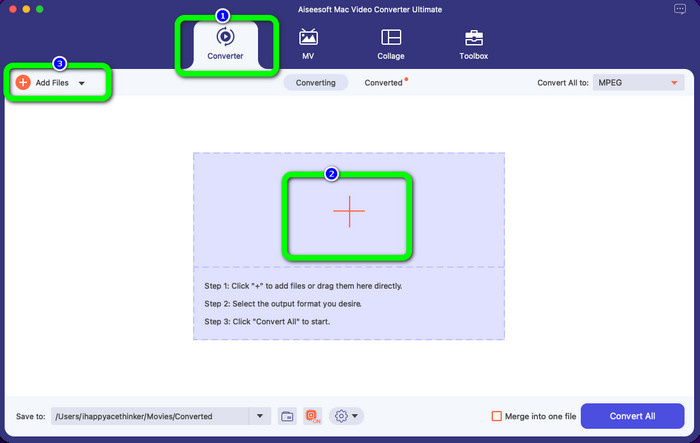
Étape 2 : Après avoir ouvert l’application, vous verrez quatre options dans la partie supérieure de l’interface. Sélectionnez l’option Convertisseur et cliquez sur l’icône Plus au centre de l’interface pour ajouter la vidéo MPEG que vous voulez convertir. Vous pouvez aussi cliquer sur le bouton Ajouter des fichiers.
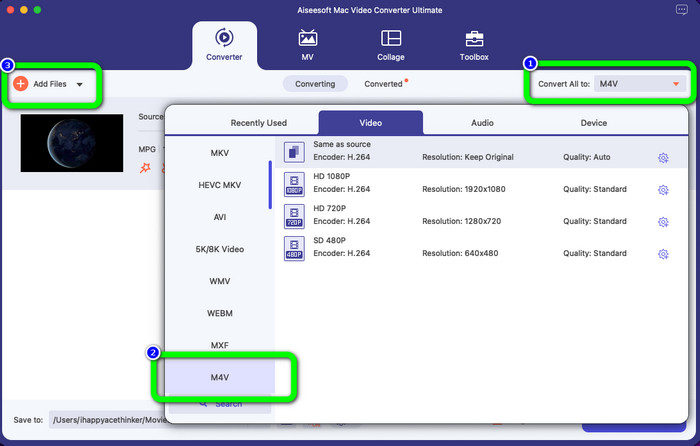
Étape 3 : Une fois votre fichier vidéo MPEG importé, sélectionnez le bouton Convertir tout en dans le coin supérieur droit de l’interface. Les options de format apparaîtront alors à l’écran. Cliquez sur le fichier M4V, qui est votre format de sortie souhaité. Cet outil propose la conversion par lots ; vous pouvez donc cliquer sur le bouton Ajouter des fichiers pour ajouter d’autres fichiers à convertir.
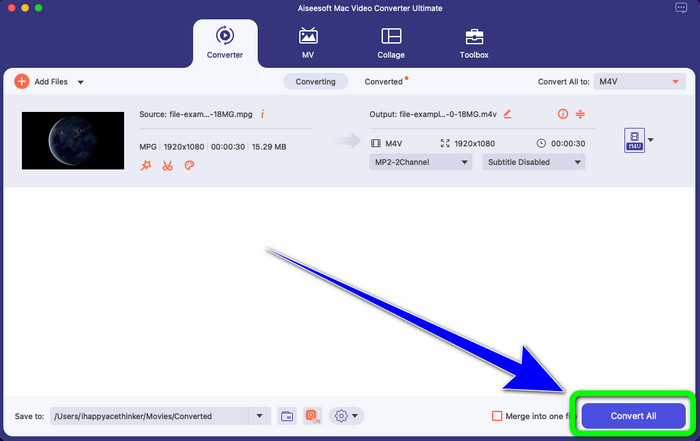
Étape 4 : Lorsque vous avez terminé de définir le format souhaité à partir du fichier MPEG, cliquez sur le bouton Tout convertir pour enregistrer votre vidéo finale au format M4V.
Partie 3 : Meilleure façon de convertir MPEG en M4V en ligne
La meilleure façon de convertir MPEG en M4V à l’aide d’un outil en ligne est d’utiliser FVC Free Video Converter Online. Il s’agit d’un convertisseur vidéo polyvalent capable de convertir presque tous les formats, tels que AVI, MOV, MP4, FLV, TS, et bien plus encore. Vous pouvez également convertir votre fichier MPEG tout en conservant sa qualité d’origine. Ce convertisseur est aussi entièrement gratuit, vous pouvez donc l’utiliser sans limite et sans dépenser d’argent. Suivez les étapes simples ci‑dessous pour convertir MPEG en M4V avec FVC Free Video Converter Online.
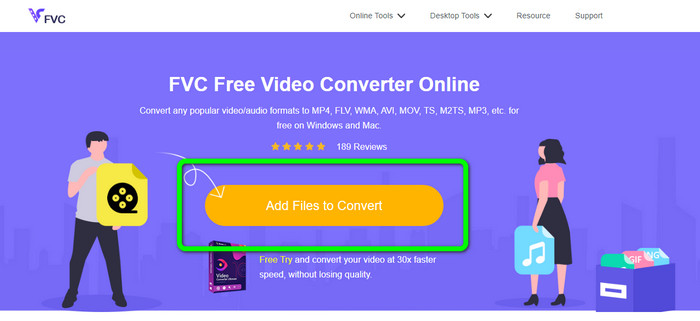
Étape 1 : Ouvrez votre navigateur et rendez‑vous sur le site FVC Free Video Converter Online. Ensuite, cliquez sur le bouton Ajouter des fichiers à convertir. Votre dossier s’ouvrira sur votre écran, et vous choisirez le fichier MPEG que vous souhaitez convertir.
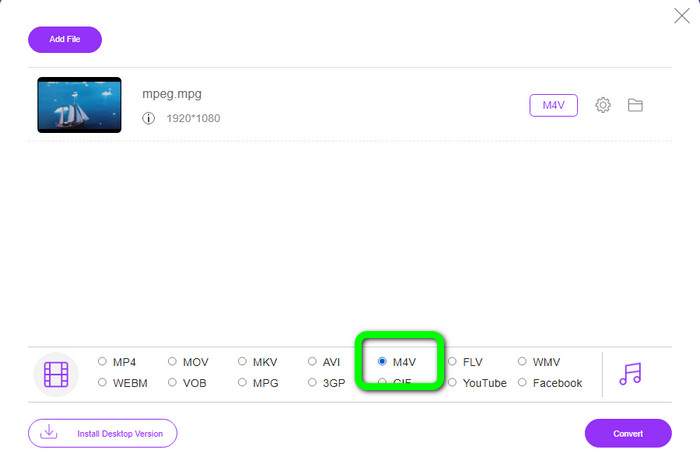
Étape 2 : Après avoir ajouté votre fichier vidéo MPEG, vous verrez les options de format dans la partie inférieure de l’interface. Sélectionnez votre format de sortie souhaité, à savoir le fichier M4V.
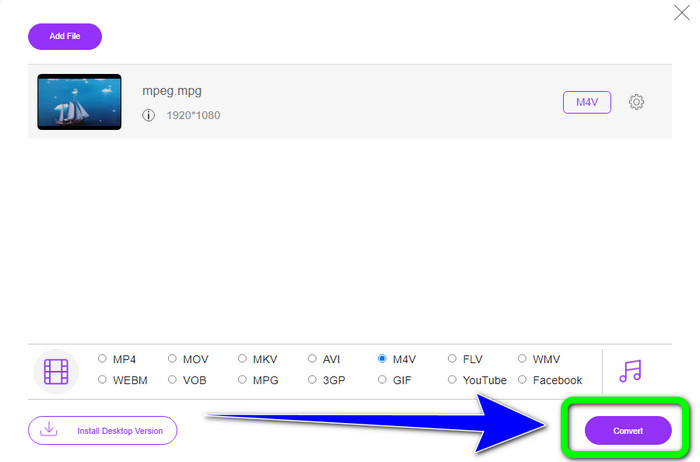
Étape 3 : Pour la dernière étape, cliquez sur le bouton Convertir après avoir sélectionné le format de fichier M4V. Ensuite, enregistrez‑le à l’emplacement désiré. Attendez la fin du processus de conversion, puis cliquez sur OK. Cet outil vous aide également à convertir MP4 en M4V en ligne.
Partie 4 : FAQ sur la conversion de MPEG en M4V
Comment utiliser FFmpeg pour convertir MPEG en M4V ?
Téléchargez le FFmpeg sur votre ordinateur. Ouvrez ensuite votre invite de commande. Basculez votre ligne de commande sur "Bureau". La commande de conversion commence par FFmpeg -i, suivi du nom et du type de fichier du fichier source, ainsi que du nom et du type de fichier du fichier de sortie. Ensuite, appuyez sur "Entrée" et attendez le processus de conversion. Après la conversion, vous verrez votre fichier converti sur votre bureau.
VLC peut-il convertir MPEG en MP4 ?
Oui. VLC, un lecteur multimédia multiplateforme très populaire, peut lire tous les principaux types de fichiers, notamment MP4, MPEG, AVI, MOV et bien d’autres. Il peut aussi être utilisé pour convertir rapidement et facilement vos fichiers MPG en MP4, car il prend également en charge la conversion de fichiers.
Puis-je utiliser un excellent outil en ligne pour convertir des fichiers MPEG vers d'autres formats ?
Oui, bien sûr ! Vous pouvez utiliser FVC Free Video Converter Online. Cet outil en ligne peut convertir instantanément votre fichier MPEG vers d’autres formats sans modifier la qualité vidéo.
Conclusion
Les deux méthodes présentées ci‑dessus sont les meilleures solutions pour convertir un fichier MPEG en M4V. Vous pouvez utiliser Video Converter Ultimate si vous souhaitez un convertisseur à télécharger. Et si vous préférez utiliser un outil en ligne, vous pouvez vous tourner vers FVC Free Video Converter Online.
-
 3 façons de convertir MPG en 3GP sur Windows et Mac [Gratuit]
 Si vous cherchez des moyens de convertir MPG en 3GP, lisez cet article pour connaître les meilleures façons de convertir MPG en 3GP sur Windows et Mac.
-
 Comment convertir MPG en DivX sans perte de qualité
 Êtes-vous à la recherche d'une application sans problème que vous pouvez utiliser pour convertir MPG en DivX ? Cet article vous fournira différentes méthodes efficaces que vous devez essayer.
-
 Comment convertir M4V en DivX gratuitement sur Mac [Meilleurs outils]
 Vous cherchez des moyens de convertir M4V en DivX gratuitement ? Nous avons répertorié les meilleurs convertisseurs pour convertir votre fichier M4V en DivX sur Mac.
