


 Video Converter Ultimate
 Enregistreur d'écran
 Réparation vidéo
 Téléchargement sécurisé
Comment joindre des fichiers MOV (QuickTime) gratuitement
Après avoir rassemblé de nombreux documents vidéo MOV, vous souhaiterez peut-être les organiser et les joindre en un seul fichier complet. Cependant, pour les débutants ou les producteurs de vidéos amateurs, l'utilisation d'un outil technique comme Adobe Premiere Pro peut être trop compliqué. Vous passerez peut-être des jours, voire des mois, à étudier comment faire fonctionner le programme.
En réalité, si vous voulez simplement fusionner des clips vidéo, vous pouvez utiliser un assembleur vidéo simple et efficace pour résoudre votre problème, ce qui ne prend que quelques minutes pour fusionner deux ou plusieurs fichiers MOV ensemble.
Avec les étapes suivantes, vous pouvez facilement combiner des fichiers MOV aussi bien sur Mac que sur Windows. Veuillez donc poursuivre votre lecture et essayer vous‑même ces méthodes.

Partie 1. Comment fusionner des vidéos MOV dans QuickTime
Le MOV, également connu sous le nom de QuickTime File Format (QTFF), est un conteneur vidéo numérique utilisant le codec MPEG‑4. Il a été introduit par Apple en 1998 pour prendre en charge QuickTime Player. Par conséquent, si vous avez un Mac, vous pouvez en fait utiliser QuickTime Player pour assembler des fichiers MOV très facilement.
Étonnamment, QuickTime n'est pas seulement un lecteur multimédia, mais également un éditeur vidéo qui vous permet de fusionner des vidéos séparées, d'éditer des clips vidéo et même d'enregistrer de l'audio ou de la vidéo sur votre Mac. En outre, il est facile à utiliser et conserve la qualité d'origine des vidéos.
Voici les étapes à suivre pour joindre des clips vidéo dans QuickTime.
Étape 1. Trouvez les vidéos que vous souhaitez fusionner et ouvrez l’une d’elles avec QuickTime Player. (Vous pouvez d’abord les déplacer dans un même dossier ou sur le bureau pour vous simplifier la tâche.)
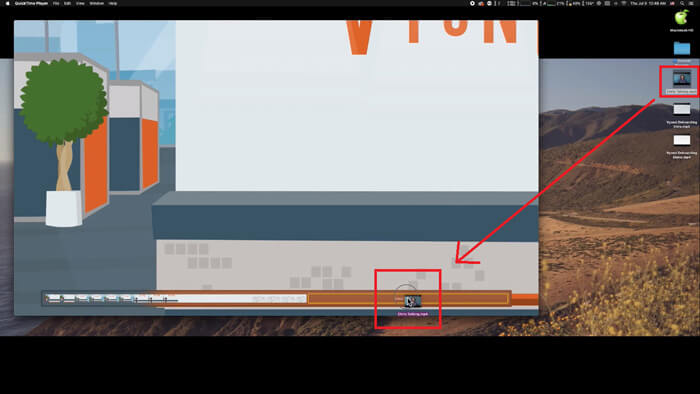
Étape 2. Après avoir ouvert le fichier, une fenêtre de lecture apparaît à l’écran. Faites maintenant glisser l’autre clip vidéo dans QuickTime Player. Vous pouvez maintenir et faire glisser le clip vidéo pour le placer dans le bon ordre. Lorsque vous relâchez la souris, un bouton Terminé apparaît à côté de vos clips vidéo. Cliquez dessus.
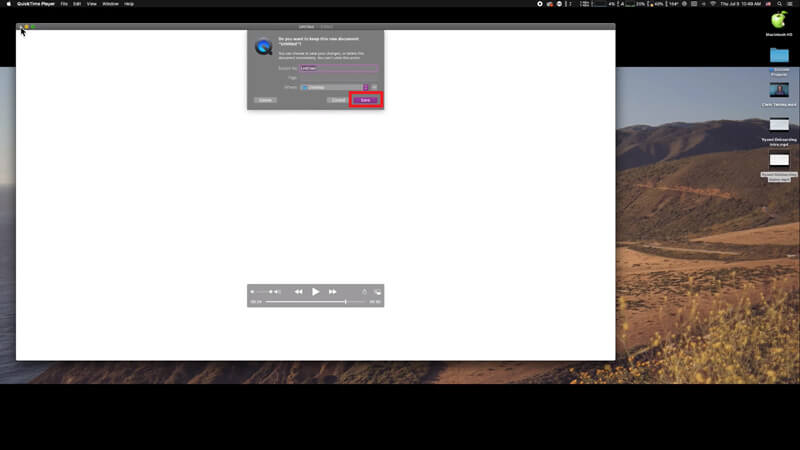
Étape 3. Quittez QuickTime et vous verrez immédiatement une fenêtre vous invitant à enregistrer la vidéo fusionnée. Saisissez simplement un nouveau nom et choisissez un dossier de destination avant de cliquer sur le bouton Enregistrer.
Partie 2. Comment fusionner des fichiers MOV en ligne et gratuitement
Cependant, QuickTime ne peut pas vous aider à fusionner différents fichiers vidéo de formats variés, tels que MP4, MOV, AVI, WMV, FLV, etc., en un seul fichier MOV. Dans ce cas, vous devez utiliser un assembleur vidéo plus professionnel prenant en charge de multiples formats vidéo.
Voici donc FVC Free Online Video Merger, le meilleur assembleur vidéo pour fusionner gratuitement vos vidéos. Avec cet outil, vous pouvez téléverser autant de vidéos que vous le souhaitez, sans aucune limite. En plus du MOV, vous pouvez exporter d’autres formats vidéo populaires, ce qui est très pratique pour partager la vidéo sur des plateformes de streaming comme YouTube.
Au lieu d'installer un programme sérieux et coûteux sur votre PC, vous pouvez joindre n'importe quelle vidéo pour produire une vidéo incroyable en ligne avec ce combinateur vidéo facile à utiliser, qui vous permet également de créer une vidéo sans filigrane. Quel que soit le système que vous utilisez, Windows, Mac ou Linux, il peut bien fonctionner. Tout ce dont vous avez besoin est un navigateur et un réseau stable.
Les étapes suivantes vous guideront sur la façon d'utiliser cet outil de fusion vidéo.
Étape 1. Cliquez sur le lien ci‑dessus pour ouvrir dans votre navigateur le site de FVC Free Online Video Merger.
Étape 2. Cliquez d’abord sur le bouton Upload Videos to Merge dans la bannière. Ensuite, suivez les instructions à l’écran pour télécharger et installer un lanceur sur votre ordinateur.

Étape 3. Une fois l’installation terminée, une fenêtre surgira immédiatement. Vous pouvez maintenant sélectionner et ajouter tous les fichiers MOV que vous souhaitez assembler dans l’outil de fusion vidéo.
Étape 4. Après le téléversement, vérifiez si l’ordre des clips vidéo est correct. Modifiez ensuite la Resolution selon vos besoins et le Format en MOV ou en tout autre format souhaité.
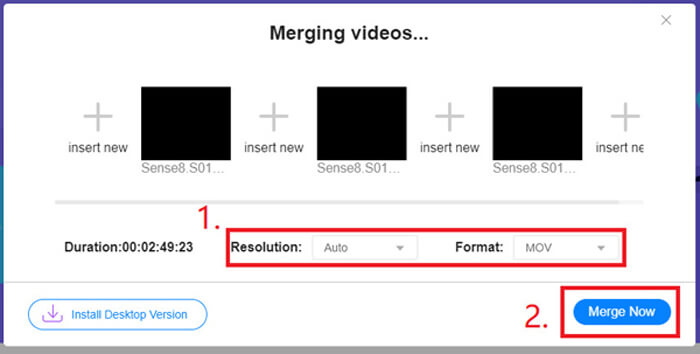
Étape 5. Cliquez sur Merge Now pour lancer la fusion.
Partie 3. Comment fusionner des fichiers MOV dans Windows 10
Si vous n'avez pas de Mac mais que vous possédez un PC avec Windows 10, vous pouvez essayer les étapes suivantes pour joindre des fichiers MOV.
Étape 1. Ouvrez l’application Photos sur votre PC. Vous pouvez la trouver en la recherchant dans la barre de recherche. Puis sélectionnez l’onglet Projets vidéo en haut et cliquez sur Nouveau projet vidéo. Donnez un nom au projet vidéo.
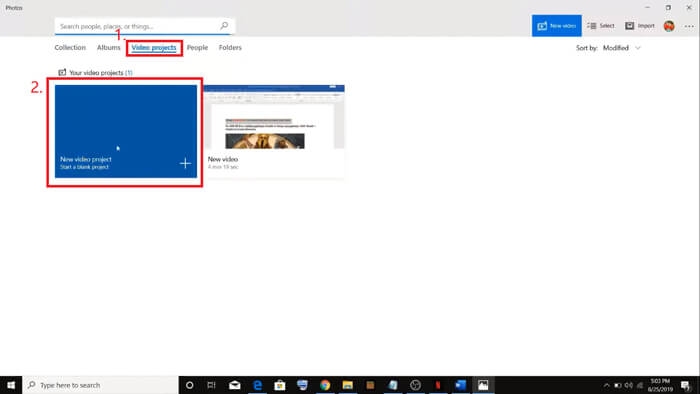
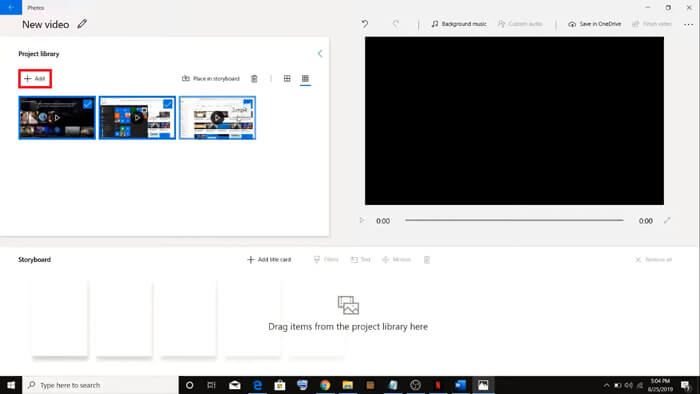
Étape 2. Cliquez sur le bouton Ajouter dans le coin supérieur gauche et sélectionnez toutes les vidéos que vous souhaitez convertir depuis votre PC.
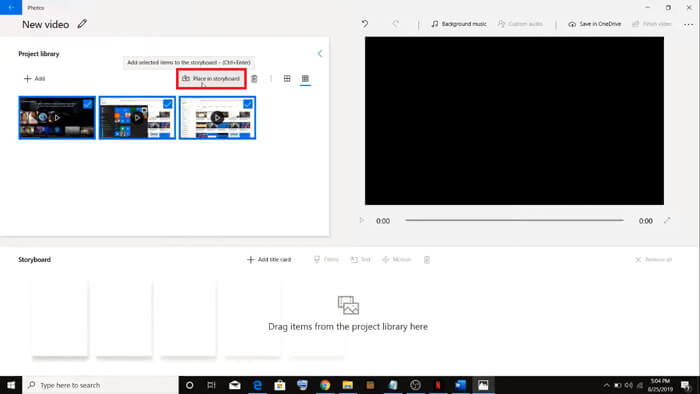
Étape 3. Cliquez ensuite sur le bouton Placer dans le storyboard pour combiner tous vos fichiers MOV.
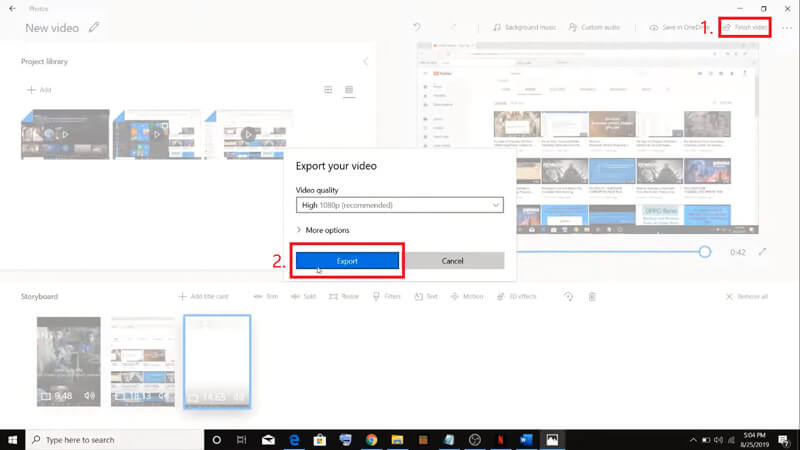
Étape 4. Après avoir ajusté l’ordre des vidéos, cliquez sur Terminer la vidéo dans le coin supérieur droit. Puis exportez la vidéo fusionnée vers votre PC.
Partie 4. FAQ sur la fusion de MOV
1. Puis-je utiliser QuickTime Player sous Windows?
Même si Apple ne prend plus en charge QuickTime pour Windows, vous pouvez encore trouver le programme d’installation de QuickTime sur Internet. Toutefois, notez bien que vous ne pouvez l’utiliser que pour lire des vidéos. Il s’agit donc essentiellement d’un lecteur classique qui vous aidera très peu.
Si vous êtes un utilisateur Windows qui souhaite fusionner des fichiers MOV, vous pouvez simplement utiliser le puissant FVC Free Online Video Merger.
2. Quel est le meilleur pour YouTube, MOV ou MP4?
Après avoir produit une superbe vidéo en fusionnant tous vos éléments vidéo, vous souhaiterez peut‑être la téléverser sur YouTube, Facebook, Instagram ou d’autres plateformes. Dans ce cas, le MP4 sera un meilleur choix, car il est plus léger et plus facile à partager sur Internet.
Vous voulez peut‑être connaître plus de différences entre MOV et MP4.
3. QuickTime Player peut-il exporter une vidéo MP4?
Oui et non. Car QuickTime, en lui‑même, ne permet pas aux utilisateurs d’exporter des fichiers MP4. Mais si vous avez payé pour mettre à niveau QuickTime vers QuickTime Pro, vous pouvez alors fusionner des fichiers MOV et obtenir automatiquement un fichier MP4 converti. Si vous ne voulez pas dépenser un centime mais souhaitez tout de même convertir un MOV en MP4 sur Mac, vous pouvez essayer un convertisseur en ligne gratuit appelé FVC Free Online Video Converter, compatible à la fois avec Mac et Windows.
Conclusion
Voici donc les méthodes que vous pouvez adopter lorsque vous avez besoin de fusionner plusieurs fichiers MOV en un seul. Si vous utilisez un Mac, vous pouvez employer directement le logiciel intégré QuickTime Player pour obtenir le fichier MOV fusionné. Les utilisateurs de Windows 10 peuvent essayer Photos. Quant aux autres PC Windows, les utilisateurs peuvent choisir FVC Free Online Video Merger et profiter d’une expérience de fusion vidéo fantastique, sans restriction, sans publicité et sans virus.
Si vous aimez cet article et le trouvez pratique, vous pouvez le partager avec vos amis. Et n'hésitez pas à nous laisser votre commentaire. C'est maintenant à votre tour d'essayer les méthodes et de fusionner vos fichiers.
-
 Comment convertir QuickTime en MP4 sur Windows / Mac / en ligne / iOS / Android
 Lisez et obtenez 4 façons de convertir gratuitement QuickTime en vidéos MP4 sur votre téléphone ou votre ordinateur. Vous pouvez changer le format de fichier de MOV à MP4 sur Windows / Mac / iPhone / Android / en ligne avec facilité.
-
 Top 4 des façons de convertir gratuitement MP4 en MOV
 Comment convertir MP4 en MOV sur Mac? Existe-t-il un moyen gratuit de convertir MP4 en MOV sans perte de qualité? Cet article présente 4 façons simples de vous aider à effectuer la conversion vidéo de MP4 en MOV sur Mac, PC Windows et en ligne.
-
 Comment convertir M2TS en MOV sur Windows / Mac (en ligne / hors ligne)
 Besoin de convertir M2TS en MOV pour lire des fichiers vidéo sur un certain nombre de lecteurs et de plates-formes? Cet article vous aidera à trouver la meilleure méthode en ligne / hors ligne pour convertir M2TS en MOV sur Windows / Mac.
