


 ממיר וידאו אולטימטיבי
 מקליט מסך
 תיקון וידאו
 הורדה מאובטחת
MOV ל- MP3 - 4 השיטות הטובות ביותר לחילוץ קבצי MP3 מ- MOV בקלות
אם ברצונך לחלץ את קובץ מוזיקת הרקע מסרטון, כיצד להמיר MOV ל- MP3 באיכות המקורית? MOV הוא פורמט וידאו הנפוץ לרוב המכשירים, תוכלו ללמוד עוד על 4 הדרכים היעילות ביותר לחילוץ קבצי MP3 מ- MOV בקלות. פשוט בחרו בשיטה הרצויה בהתאם לדרישתכם כעת.

חלק 1: 5 השיטות הטובות ביותר להמיר MOV ל- MP3 בקלות
שיטה 1: כיצד להמיר MOV ל- MP3 באופן מקוון
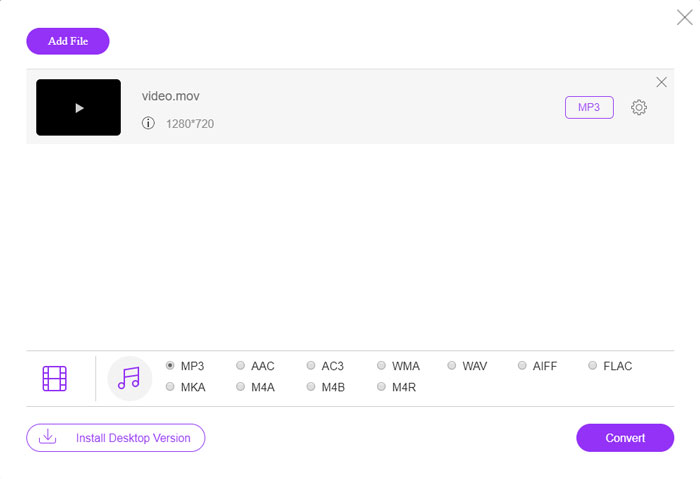
ממיר הווידאו המקוון החינמי FVC הוא ממיר MOV ל‑MP3 מקוון ורב־תכליתי, המאפשר להמיר את רוב קובצי הווידאו/אודיו, לכוונן את הגדרות האודיו והווידאו, ואף ליהנות מהמרה יציבה ובטוחה ללא סימן מים או הגבלת גודל.
שלב 1. עבור לממיר הווידאו המקוון בכל דפדפן אינטרנט, באפשרותך ללחוץ על כפתור Add Files to Convert כדי לטעון את קובצי ה‑MOV שברצונך להמיר. יש להתקין מראש את תוכנית ה‑PKG.

שלב 2. לאחר שייבאת את קובץ ה‑MOV, באפשרותך לבחור ב‑MP3 מתפריט האודיו בממשק המשתמש. בנוסף, ניתן גם לכוונן את ההגדרות, כגון קצב הדגימה, ערוצי האודיו ועוד.

שלב 3. לאחר מכן ניתן ללחוץ על כפתור Convert כדי להמיר MOV ל‑MP3. ההמרה אורכת כמה שניות עד לקבלת הווידאו הרצוי. לאחר מכן תוכל להוריד את קובץ ה‑MP3 למחשב שלך או לשתף אותו באתרי מדיה חברתית.
שיטה 2: כיצד להפוך MOV ל- MP3 בחלונות
כאשר אתה רוצה להפוך MOV ל- MP3 באיכות המקורית ב- Windows ו- Mac, FVC Video Converter Ultimate הוא ממיר ה- MOV ל- MP3 הרצוי כדי להמיר את רוב פורמטי הווידאו, לשנות את הגדרות השמע / וידאו, לערוך את קבצי הפלט או אפילו להחיל. מסנני וידאו מרובים בקלות.
- 1. המרת MOV ל- MP3, WAV, WMA ועוד אחרים באיכות המקורית.
- 2. כוונן את codec הווידאו, קצב הדגימה, קצב האודיו והגדרות שמע אחרות.
- 3. ספק תכונת עריכת וידאו, כגון קליפ, גזירה, מיזוג MOV ולהחיל פילטרים.
- 4. האצת חומרה מתקדמת להמרת קבצי וידאו במהירות גבוהה פי 70.
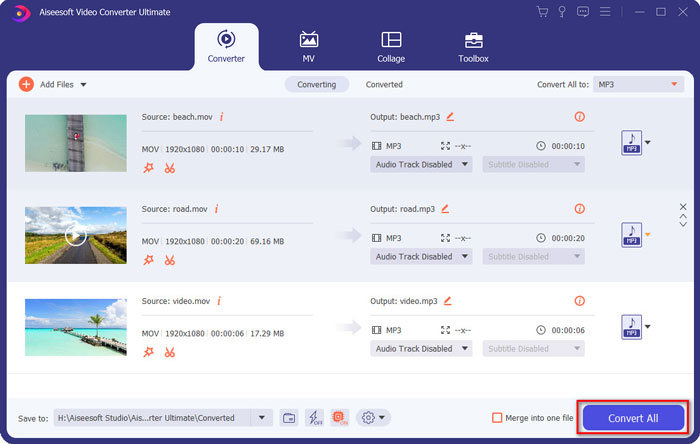
שלב 1. הורד והתקן ממיר MOV ל‑MP3, לאחר מכן תוכל להפעיל את התוכנית במחשב שלך. לחץ על האפשרות Add Files כדי לטעון את קובצי ה‑MP4 או גרור את הווידאו ישירות אל תוך התוכנית.
הורדה חינמיתל-Windows 7 ומעלההורדה מאובטחת
הורדה חינמיתל-MacOS 10.7 ומעלההורדה מאובטחת

שלב 2. לאחר שייבאת את וידאו ה‑MP4, תוכל לבחור בתפריט Audio ולבחור ב‑MP3 כפורמט הפלט. לאחר מכן באפשרותך לכוונן את הגדרות הפרופיל, כגון קצב הסיביות, קצב הדגימה ועוד.

שלב 3. בחר תיקיית יעד עבור הקבצים שהומרו. לאחר מכן באפשרותך ללחוץ על הכפתור Convert All בממשק הראשי כדי להתחיל להמיר MOV ל‑MP3 במחשב שלך בהתאם לצורך שלך.
שיטה 3: כיצד להמיר MOV ל- MP3 באנדרואיד
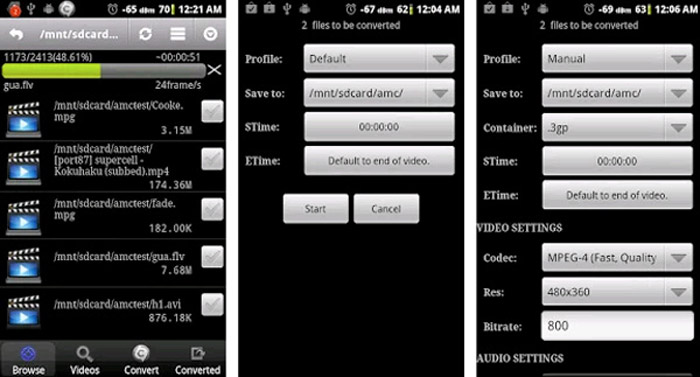
אם יש לך כמה קבצי MOV במכשירי אנדרואיד שלך, אינך צריך להעביר את הסרטונים למחשב, ממיר וידאו אנדרואיד הוא אפליקציית ממיר MOV ל- MP3 פשוטה מומלצת שהופכת את וידיאו MOV לאודיו רצוי תוך מספר לחיצות.
שלב 1. לאחר שהתקנת את ממיר ה‑MP3, תוכל לפתוח את האפליקציה כדי לעיין ולהוסיף את קובץ ה‑MOV מגלריית האנדרואיד שלך. לאחר מכן ניתן להקיש על סמל ה‑Refresh בחלק העליון.
שלב 2. לאחר מכן תוכל לבחור את STime ו‑ETime כדי לחתוך את מוזיקת הרקע מקובץ ה‑MOV ולכוונן את קצב הדגימה והגדרות נוספות לפני ההמרה.
שלב 3. לאחר מכן ניתן לעבור ללשונית Convert ולבחור ב‑MP3 כפורמט הפלט מרשימת הקודקים. לחץ על כפתור Start כדי להמשיך בתהליך ההמרה מ‑MOV ל‑MP3.
שיטה 4: כיצד להמיר MOV ל- MP3 ב- iOS
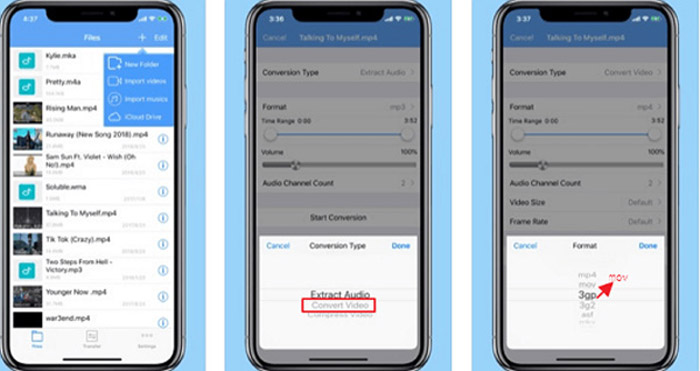
ממיר מדיה הוא אפליקציית ממיר ל- MOV ל- MP3 עבור ה- iPhone וה- iPad שלך. יש לו נגן מדיה מובנה המאפשר לנגן את מרבית פורמטי הווידאו והשמע. יתר על כן, אתה יכול גם לדחוס את קובץ השמע באמצעות zip ו- RAR בקלות.
שלב 1. אם כבר התקנת את ממיר ה‑MOV ל‑MP3, תוכל להפעיל את התוכנית במכשיר ה‑iOS שלך. לאחר שטעינת את קובצי ה‑MOV, תוכל להקיש על האפשרות Extract Audio.
שלב 2. בחר ב‑MOV כפורמט הקלט ובקובץ MP3 כפורמט הפלט. לאחר מכן באפשרותך לכוונן את הגדרות האודיו, כגון קצב הדגימה ועוד, בהתאם לצרכים שלך.
שלב 3. לאחר מכן תוכל ללחוץ על כפתור Convert כדי להתחיל להמיר MOV ל‑MP3. כאשר תקבל את הקובץ הרצוי, תוכל לייצא את קובץ ה‑MP3 שהומר למכשיר שלך דרך Photos בהתאם.
חלק 2: שאלות נפוצות בנושא המרת MOV ל- MP3 ב- Win / Mac
1. האם יש שיטה רב-תכליתית להמיר MOV ל- MP3 לכל המכשירים?
נגן המדיה של VLC הוא יותר מנגן מדיה. אתה יכול גם להמיר MOV ל- MP3 במחשבים ובסמארטפונים שלך. יתר על כן, אתה יכול גם לשנות את ההגדרות השונות ולערוך את הסרטונים עם כמה תכונות עריכה בסיסיות. אבל אתה צריך להשתמש בממיר וידאו מקצועי כדי להשיג תפוקה מרוצה.
2. מהו פורמט הפלט הטוב ביותר, MP3 או WAV להמרת MOV?
כאשר אתה ממיר MOV ל- MP3, אתה יכול להשתמש בפורמט השמע לרוב המכשירים. כדי לחלץ את קבצי השמע מהמחשב שלך או מנגן מדיה תואם אחר, אתה יכול לבחור את שמע ה- WAV כפורמט הפלט כדרישה שלך.
3. כיצד לבחור ממיר מקוון MOV ל- MP3 רצוי?
אם אתה רק צריך לבחור ממיר מקוון ל- MOV ל- MP3, עליך לשים לב במיוחד למגבלת הגודל, סימן המים, רישום החשבון ועוד לפני ההמרה. ממיר וידאו מקוון חינם של FVC הוא תכליתי המפיק את קבצי השמע ללא כל מגבלה.
סיכום
על מנת לחלץ את ה- MP3 מווידיאו MOV, תוכלו ללמוד עוד על 4 ממירי ה- MOV ל- MP3 הטובים ביותר מהמאמר. בין אם עליכם להמיר את הווידאו ל- MP3 במחשב, או לשנות את קבצי ה- MOV בקלות במכשיר ה- iOS / Android שלכם, תוכלו לבחור בפתרון הרצוי בהתאם לדרישתכם מהמאמר.
-
 כיצד להמיר קבצי מוסיקה OGG שלך ל- MP3 בשולחן העבודה ובאינטרנט
 כיצד להמיר את קבצי ה- OGG שלך לפורמט MP3 להאזנה למחשב או למכשיר נייד? כאן אנו חולקים את 5 הדרך הקלה ביותר לעשות זאת בשולחן העבודה או באינטרנט.
-
 כיצד להמיר MP4 ל- MP3 ב- Windows / Mac / iPhone / Android / Online
 אם ברצונך לחלץ אודיו MP3 מווידיאו MP4, תוכל לבדוק מאמר זה ולקבל 8 פתרונות. ישנן דרכים מקוונות ולא מקוונות להמיר MP4 ל MP3 בטלפון או במחשב שלך בקלות.
-
 כיצד לדחוס קבצי MOV ב- Windows, Mac, iPhone ו- Android
 מאמר זה מראה כיצד לדחוס קטעי וידאו QuickTime MOV בטלפון או במחשב שלך בפרטים. אם סרטון ה- MOV שלכם גדול מכדי לשלוח, לשתף או לשמור, תוכלו לקבל כאן 4 פתרונות מעשיים.
