


 Video Converter Ultimate
 Snimač zaslona
 Video popravak
5 GIF za promjenu veličine koje možete koristiti za promjenu veličine vašeg animiranog GIF-a na mreži i izvan mreže
Promjena veličine GIF-a jednostavan je zadatak u svakom uređivaču, ali ne podržavaju svi uređivači ovu vrstu formata. Umjesto da isprobavate različite alate i gubite puno vremena, zašto se ne biste uključili u čitanje ovog članka? Zašto? Zato što vam predstavljamo alate za promjenu veličine koje možete koristiti i iznosimo samo činjenice o ovih pet alata. Dakle, jeste li spremni upoznati resizere za animirane GIF-ove koji su dostupni na vašim platformama? Ako je tako, sada moramo prijeći na detaljnu recenziju ovih pet alata za promjenu veličine GIF-ova u nastavku i upoznati razlike svakog alata.

Dio 1. Top 5 online i izvanmrežnih GIF resizera
1. FVC Video Converter Ultimate [preporučeno]
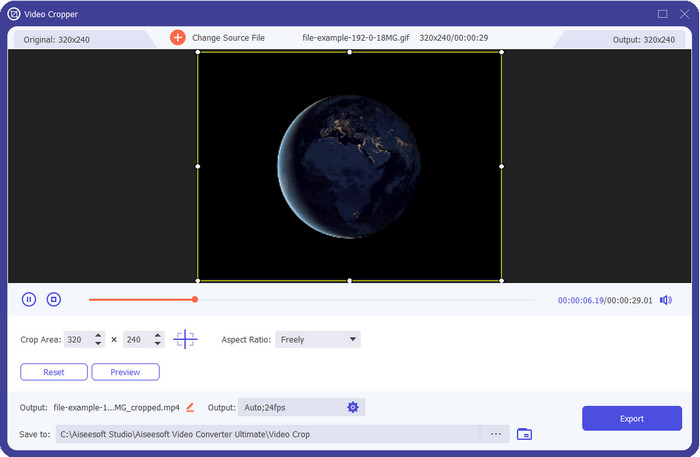
Nijedan alat ovdje nema ono što FVC Video Converter Ultimate može donijeti vašim GIF-ovima. Možda se pitate što je potrebno da ovaj alat bude jedinstven? Ovaj vrhunski alat nudi sveobuhvatnu i jeftinu promjenu veličine GIF-ova koju ćete rado koristiti. Odličan je za postizanje profesionalnog rezultata kakav vam može dati Photoshop, ali puno je brži i za početnike i za profesionalce. Štoviše, ovaj alat može promijeniti veličinu vašeg GIF-a, ali također možete pretvoriti svoje GIF-ove u MP4, MOV, AVI, MKV i drugih 200+ formata kako biste ih učinili kompatibilnima s drugim uređajima. Recimo da trebate izraditi GIF i želite ga postaviti kao pozadinu, tada imate sreće što imate ovaj vrhunski alat jer sadrži GIF maker koji će vam u tome pomoći. Ako želite naučiti kako izraditi i postaviti GIF-ove kao pozadinsku sliku, kliknite ovu poveznicu. Ipak, ovaj je alat preporučen za sve korisnike koji žele opušteno naučiti kako promijeniti veličinu GIF-a bez čitanja uputa za upotrebu.
Besplatno preuzimanjeZa Windows 7 ili novijiSigurno preuzimanje
Besplatno preuzimanjeZa MacOS 10.7 ili novijiSigurno preuzimanje
Pros
- Slobodno promijenite veličinu GIF-a prema veličini koju želite slobodnim povlačenjem točkica.
- Ima pregled koji možete pogledati kako biste bili sigurni da je točna veličina koja vam je potrebna na vašim GIF-ovima.
- Ima ugrađeno ultra-brzo renderiranje za proces izvoza munje.
- Dostupno u bilo kojem desktop operativnom sustavu kao što su Windows i Mac.
Protiv
- Treba kupiti.
2. Adobe Photoshop
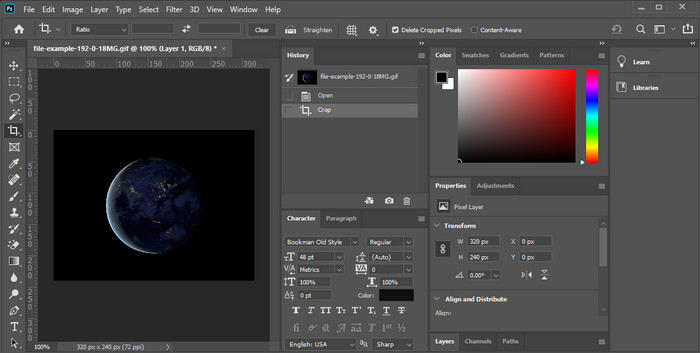
Što ako želite profesionalni alat za promjenu veličine? Onda je Adobe Photoshop izbor. Ovaj program koji se preuzima pomaže vam da promijenite veličinu bilo kojeg GIF-a u svega nekoliko minuta. Detaljnije, ovaj je alat izbor svakog profesionalnog korisnika koji želi urediti svoje slike, poput GIF-ova, da izgledaju bolje i privlačnije oku. Iako je alat profesionalan, i dalje je težak za korištenje onima koji nisu skloni tehnologiji. Također, ako želite promijeniti veličinu GIF-a, ovo je skup alat za taj posao. Ali ako želite koristiti PhotoShop za promjenu veličine GIF-ova i dodati neke sitne detalje, tada će vam ovaj alat pomoći; međutim, učenje korištenja trajat će dulje nego kod ostalih alata.
Pros
- To je najbolji izbor za profesionalno uređivanje slika.
- Profesionalni alat za profesionalnu upotrebu.
- Napredne značajke za uređivanje GIF-ova.
Protiv
- Skupo.
- Teško za korištenje ako ste novi u području uređivanja.
3. GIF GIF-ovi
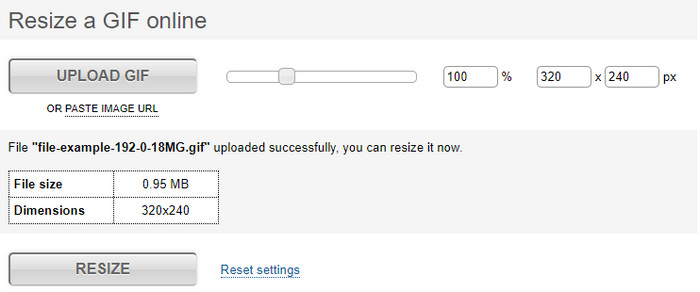
GIFGIFs ima jednu od najopsežnijih GIF biblioteka koje možete koristiti za spremanje unaprijed izrađenih GIF-ova na svoj disk, a ima i jednostavan uređivač za promjenu veličine velikih GIF-ova. Ovaj alat postoji kako bi pomogao korisnicima da po potrebi prilagode svoje GIF-ove putem internetskih usluga. Iako je ovaj web alat za promjenu veličine besplatan i online, na sučelju nema oglasa koji bi vas ometali, što je odlično. No glavni problem njegova alata za promjenu veličine jest to što morate navesti točnu veličinu omjera slike koju želite dobiti. Taj je problem stresniji od oglasa jer morate pokušavati više puta kako biste bili sigurni da ste dobili upravo onu promjenu veličine koju želite. Međutim, ako imate predodžbu o omjeru stranica koji vam treba, ovo je dobar izbor za promjenu veličine vaših GIF-ova.
Pros
- Ugrađena biblioteka za GIF-ove.
- Nema oglasa na webu koji bi vas mogli živcirati ili uznemiravati dok mijenjate veličinu GIF-a.
- Jednostavan i besplatan za korištenje.
Protiv
- Internet je potreban za završetak zadatka promjene veličine GIF-ova.
- Teško je znati je li to točna veličina koja vam treba.
4.RedKetchup.io
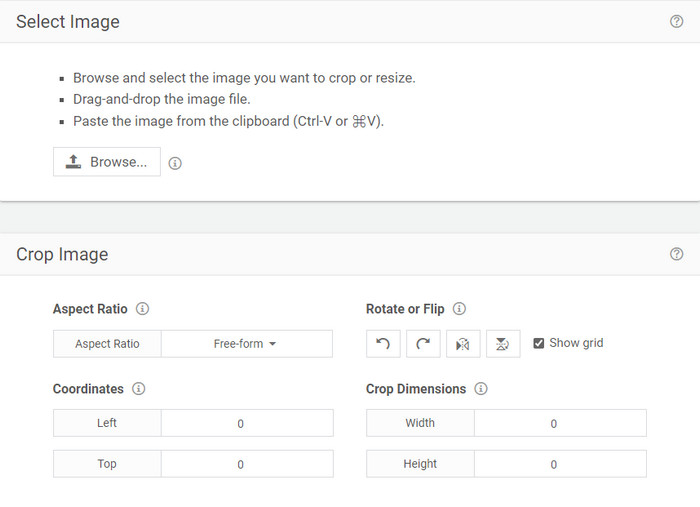
RedKetchup.io nudi jednostavan i interaktivan način za promjenu veličine animiranih GIF-ova unutar određenog ograničenja koje želite. Ovaj web alat omogućuje internetskim korisnicima da poboljšaju izgled svojih GIF-ova pomoću značajki uređivanja koje nudi. Nadalje, ovdje možete odraditi puno detaljniju promjenu veličine nego što vam Ezgif može pružiti. Iako je ovaj alat mnogo jednostavniji za korištenje od prvog, njegovom sučelju nedostaje boja da bi izgledalo profesionalno. Jedina boja koju ćete vidjeti kad pristupite alatu je njegovo ime, i to u crvenoj boji. Štoviše, alat je besplatan za korištenje, ali ipak, neki oglasi na sučelju mogu biti pomalo naporni za pogled.
Pros
- Dostupan za pristup svima koji imaju internetsku vezu.
- Mnogo detaljna promjena veličine GIF-a.
- A opet besplatan, jednostavan je za korištenje.
Protiv
- Ima dosadne oglase na sučelju.
- Ovisna o internetu.
5. Ezgif
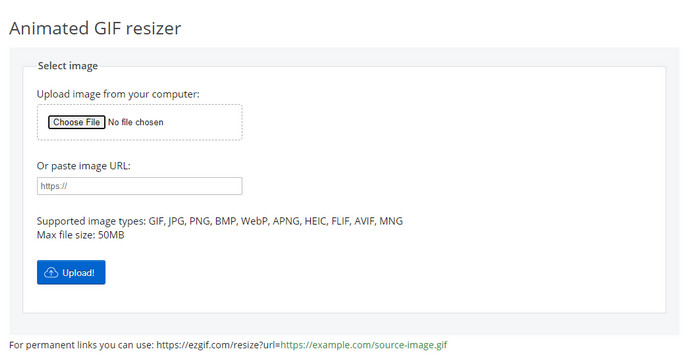
Poznat je kao jedan od najboljih alata za izradu GIF-ova i također može promijeniti veličinu GIF-ova online ako je potrebno. Ezgif nudi intuitivno sučelje za poboljšanje vašeg GIF-a bez puno truda. Štoviše, ako niste skloni tehnologiji, ovaj je alat izvrstan izbor za ovu vrstu korisnika. Međutim, ako nemate internetsku vezu, ovaj alat nije opcija za promjenu veličine GIF-a jer ovisi o internetu, kao i drugi web alat u nastavku. Također, oglasi na sučelju mogu vas ometati dok mijenjate veličinu GIF-ova. Ako koristite ovaj uređivač, svakako unaprijed znajte širinu i visinu koje želite postaviti jer nema pregleda da provjerite odgovara li promijenjeni GIF vašim potrebama i ne možete povlačenjem mijenjati omjer kako biste ga prilagodili svojim željama.
Pros
- Najbolji GIF maker online.
- Ima jednostavne značajke za uređivanje GIF-a koje će vam trebati.
- Pristupite mu besplatno.
Protiv
- Nema pregled za provjeru je li veličina GIF-a ispravna.
- Oglasi su na sučelju koji vas mogu iritirati.
Dio 2. Usporedni grafikon o 5 GIF Resizera
| Značajke | Video Converter Ultimate [preporučeno] | Photoshop | GIFGIFOVE | RedKetchup.io | Ezgif |
| Značajke uređivanja |  | | | | |
| Bez oglasa | | |  | | |
| Prijatan za korisnike | | | | | |
| Ovisno o internetu | | | | | |
| Jeftino ili besplatno | | | | | |
| Okno za pregled | | | | | |
Dio 3. Često postavljana pitanja o GIF Resizeru
Nakon promjene veličine, mijenja li se kvaliteta GIF-a?
Što se tiče kvalitete, GIF se ne bi trebao drastično mijenjati u mutan, ali će se kvaliteta promijeniti nakon što promijenite veličinu GIF-a, ali ne bi trebao biti daleko od izvornog GIF-a. Dakle, ako naiđete na ovaj problem, to znači da se kvaliteta promijenila tijekom izvoza, a ne tijekom promjene veličine GIF-a.
Postaje li veličina datoteke GIF-a mala?
Nakon usporedbe dva GIF-a, izvornog i promijenjene veličine, vidjeli smo značajnu promjenu u veličini datoteke. Iako se radi o maloj izmjeni, možemo reći da je njezina veličina postala manja od izvorne.
Mogu li ga vratiti na izvorni GIF nakon promjene veličine?
Nakon što promijenite veličinu GIF-a, možete ga pretvoriti u izvorno stanje ako ga još niste izvezli. Međutim, ako izvezete GIF i niste zadovoljni rezultatom, ne možete ga vratiti na izvornu veličinu GIF-a. Da biste izbjegli ovaj problem, morate koristiti GIF za promjenu veličine koji ima pregled kako biste provjerili izlaz prije izvoza.
Hoće li se pomaknuti nakon pretvaranja JPG-a u GIF?
Ne, neće, jer se JPEG-ovi ne miču kao animirani GIF-ovi. Ali možete pretvoriti više JPEG-ova u GIF ako ih pretvorite u foto GIF. Želite naučiti kako to učiniti? U tom slučaju ovaj će vam članak uvelike pomoći da pretvorite svoju kompilaciju JPEG-ova u GIF.
Zaključak
Sada kada znamo koje alate za promjenu veličine GIF-ova možete koristiti, vrijeme je za odabir. Svi online i offline alati pojedinačno su testirani kako bi se pružile točne informacije o alatima i njihovim mogućnostima. Ali ustanovili smo da Video Converter Ultimate nudi najbolji rezultat kada je riječ o promjeni veličine GIF-ova. Iako je alat potrebno kupiti, možemo s punim povjerenjem reći da vaš novac neće biti bačen u vjetar nakon što nabavite ovaj vrhunski alat. Dakle, ako još uvijek sumnjate u ono o čemu govorimo, morate isprobati i preuzeti ovaj vrhunski alat klikom na gumb za preuzimanje.
Besplatno preuzimanjeZa Windows 7 ili novijiSigurno preuzimanje
Besplatno preuzimanjeZa MacOS 10.7 ili novijiSigurno preuzimanje
-
 Kako napraviti GIF na iPhoneu od više fotografija koje ste snimili i spremili
 Želite li znati kako napraviti GIF-ove na iPhoneu od svojih fotografija? Ovaj post dijeli 3 softvera koje možete koristiti za izradu GIF-ova na svom iPhoneu.
-
 3 najbolja konvertera koja ne biste smjeli propustiti da biste pretvorili PNG u animirani GIF
 Želite li oživjeti svoj PNG? Zatim pokušajte pretvoriti PNG u GIF animirani format pomoću dostupnih korisnih alata i koraka kako to učiniti.
-
 4 najbolja načina da pretvorite animirani GIF u FLV na PC/Mac/Online/Android/iOS
 Želite pretvoriti svoj GIF u FLV i podijeliti ih na mreži? Ako je tako, pogledajmo najbolje GIF u FLV pretvarače koje možete koristiti na PC-u, Macu, na mreži, Androidu i iOS-u.
