


 Video Converter Ultimate
 Screen Recorder
 Videó javítás
 Biztonságos letöltés
Hogyan lassíthat le egyszerűen és gyorsan egy videót iPhone-on a legjobb megoldásokkal
Láttad már valaha kedvenc előadód Grammy-gálás felvételét, amikor ráállnak a GlamBot-ra? A legtöbben már láttuk, milyen gyönyörű felvételeket tud ez a gép készíteni kevesebb mint egy másodperc alatt, néhány mozdulatot rögzítve, majd azokat lassított felvételben lejátszva. Sajnos nem mindenki engedheti meg magának, hogy eljusson a Grammyre, és a GlamBot-tal készítsen lassított videót, de ha híresség vagy, ez az egyik módja, hogy kipróbáld. Ne csüggedj, ha nem tudod használni a GlamBotot, mert még te is tudsz nagy felbontású lassított videót készíteni az iPhone-oddal. Készen állsz tehát a felvételre és arra, hogy megtanuld, hogyan lassíthatsz le egy videót iPhone-on, amely legalább olyan lenyűgözőnek tűnik, mint az a gép, amelyről az imént beszéltünk? Akkor ez a cikk neked szól.

1. rész: Videó lelassítása iPhone-on a 3 legjobb sebességszabályozó alkalmazással
iMovie
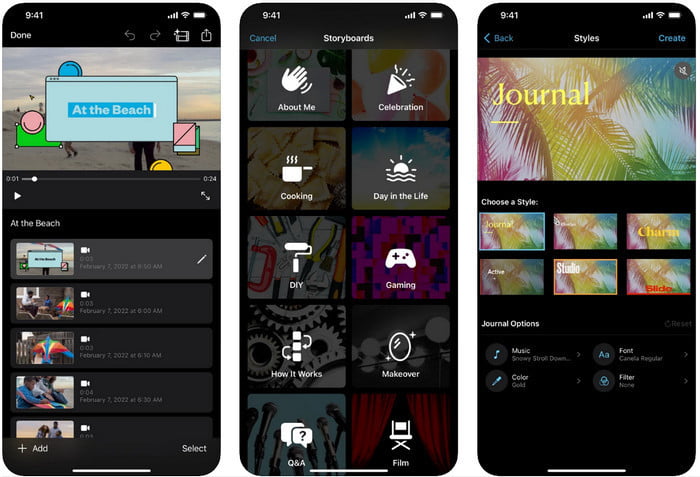
1. lépés. Érintsd meg a képernyőn az iMovie ikont az alkalmazás megnyitásához, majd koppints a plusz ikonra. Egy új ablak jelenik meg két lehetőséggel, ezek közül válaszd a Movie (Film) opciót.
2. lépés. Válaszd ki a listából a videót, amely megjelenik a képernyőn, majd koppints a Create Movie (Film létrehozása) gombra a folytatáshoz. Miután feltöltötted, nyomd meg az óra ikonszerű gombot a videó sebességének módosításához, és húzd balra a csúszkát, hogy lelassítsd a videót.
3. lépés. Miután befejezted a videó sebességének szerkesztését, koppints a Done (Kész), majd az Export (Exportálás) gombra, hogy elmentsd az eszközödön.
Slow Fast Motion Video Editor
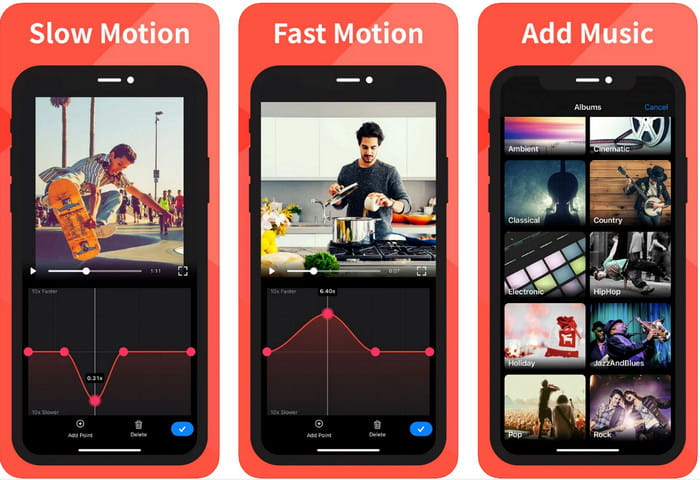
A Slow Fast Motion Video Editor nem olyan látványos videót készít, mint az iMovie, de ezzel az alkalmazással nagyon könnyen le tudod lassítani a videót iPhone-on. Sokfunkciós sebességszerkesztőjének köszönhetően alig van olyan dolog, amit sebesség terén ne tudna megoldani, különösen a gyorsításnál. Akár álló, akár fekvő módban van a videó, mindkét esetben jól működik. Így az alkalmazás használatának elsajátítása sem olyan nehézkes, mint sok más, letölthető sebességszabályzóé. Ahhoz viszont, hogy iOS-en használni tudd, elő kell fizetni, bár 3 napos ingyenes próbaidőt biztosít, viszont ezalatt sok hirdetés jelenik meg. Az alkalmazás használatához kövesd az alábbi lépéseket.
1. lépés. Töltsd le az alkalmazást, majd nyisd meg iOS-eszközödön, és koppints az Allow Access (Hozzáférés engedélyezése) lehetőségre, hogy hozzáférést adj a Fotókhoz.
2. lépés. Válaszd ki a videót az eszközödről, majd koppints a Show Selected (Kijelölt megjelenítése) opcióra; ezután érintsd meg az All Videos (Összes videó) gombot, hogy lásd a feltöltött videót, majd koppints a Select (Kiválasztás) gombra.
Opcionális: Igény szerint megvághatod és rövidítheted a videót, a lejátszófejeket a kívánt hosszra húzva. Ha nem szeretnél vágni, koppints a Skip (Kihagyás) gombra, de ha szerkeszted, nyomd meg a Next (Tovább) gombot.
4. lépés. Érintsd meg a Speed (Sebesség) gombot, állítsd be az egyes sebességeket ízlésed szerint, és húzd lefelé a csúszkát a videó lassításához. Ne feledd, minden egyes pontra, amit elhúzol, csak az adott szakasz lassul le, nem az egész videó. Koppints a Check and Save (Ellenőrzés és mentés) gombra a módosított sebességű videó exportálásához.
Slo-Mo: Készítsen lassított videót
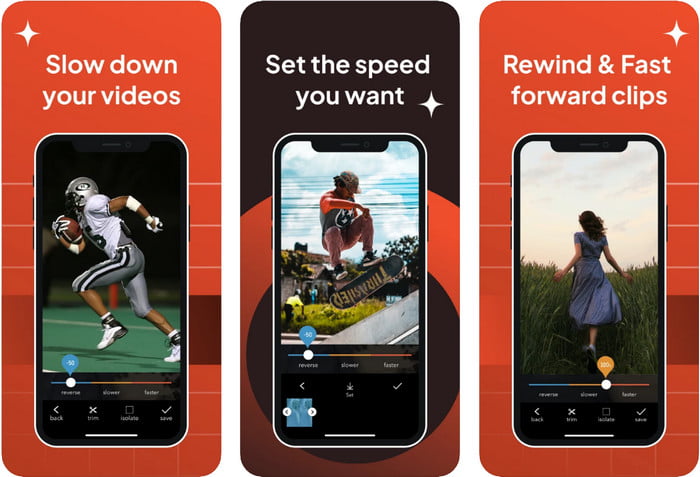
A Slo-Mo: Make Slow Motion egy másik, kifejezetten lassított felvételhez használható alkalmazás, amelyet ingyen letölthetsz iOS-re, de alkalmazáson belüli vásárlásokat kínál. Hasonlóan a Slow Fast Motion Video Editorhoz, itt is elő kell fizetned, hogy a teljes funkcionalitást kiaknázhasd. Bár előfizetést igényel, megéri, és nem túl drága. A videók lejátszási sebességének módosítása terén ez az eszköz kifejezetten pontos. Ha még többet szeretnél megtudni arról, hogyan lehet lassított videót készíteni iPhone-on, olvasd el az alábbi útmutatót.
1. lépés. Az alkalmazás letöltéséhez keresd meg az App Store-ban, töltsd le, majd nyisd meg, hogy elkezdhesd a meglévő videód lassítását.
2. lépés. Koppints a Library (Médiatár) menüpontra, válaszd ki azt a videót, amelynek a lejátszási sebességét módosítani szeretnéd, majd érintsd meg a Choose (Választás) gombot a kezdéshez.
3. lépés. Húzd a csúszkát balra, hogy lelassítsd a felvételt; kattints a Save (Mentés) gombra, ha elégedett vagy a sebességgel.
2. rész. Top of the Line Video Speed Controller Elérhető Windows és Mac rendszeren
A FVC Video Converter Ultimate rendelkezik a legjobb sebességszabályzóval a Windowsra és Macre mentett videóidhoz. Egyedi sebességállítási funkcióinak köszönhetően, ha összevetjük a cikkben említett többi alkalmazással, hatalmas a különbség egy „jó” és egy „végső” sebességszabályzó között. Mivel korlátozott az operációs rendszerek támogatása, iOS-re nem tölthető le, mert nem támogatott. Ennek ellenére továbbra is egy mindent egyben szoftvernek számít, amely megoldja a videó- és hangproblémáidat. Ha meg szeretnéd tanulni, hogyan készíthetsz lassított videót iPhone-on a felvétel után, kövesd és olvasd el a következő részben található útmutatót.
1. lépés. Hogy megszerezd ezt a „végső” sebességszabályzó szoftvert az asztali gépedre, kattints a letöltés gombra, majd válaszd ki, hogy Windowst vagy Macet használsz. Ezután kattints a letöltött fájlra a telepítéshez és az indításhoz.
Ingyenes letöltés Windows 7 vagy újabb rendszerre Biztonságos letöltés
Ingyenes letöltés macOS 10.7 vagy újabb rendszerre Biztonságos letöltés
2. lépés. Nyisd meg az eszköz Toolbox (Eszköztár) részét, hogy hozzáférj a Video Speed Controller (Videósebesség-szabályzó) modulhoz.
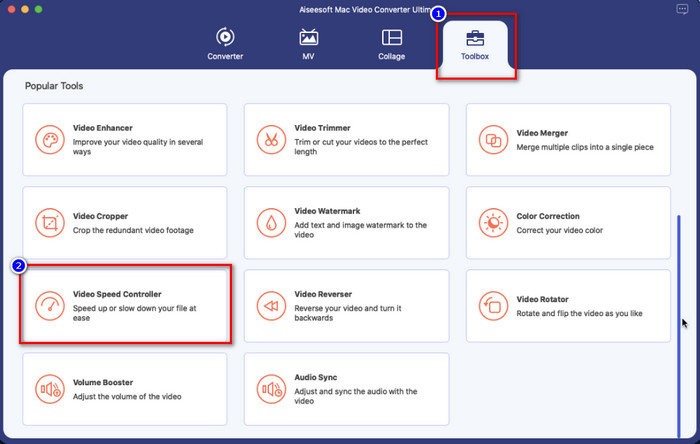
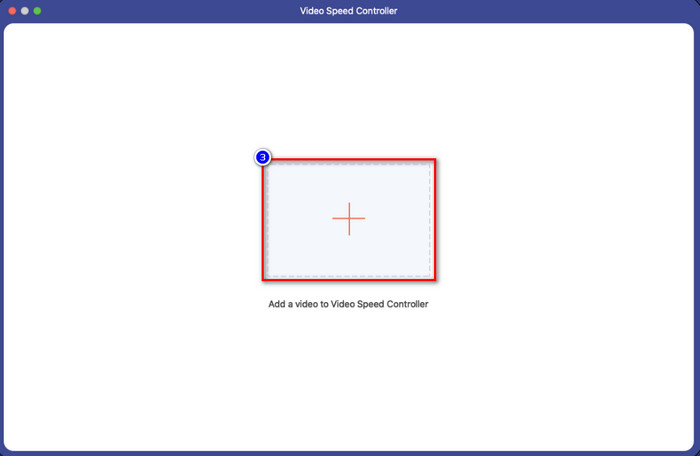
3. lépés. Kattints a plusz ikonra, ekkor egy fájlkezelő ablak jelenik meg a képernyőn. Keresd meg a feltölteni kívánt videót, kattints a fájlra, majd nyomd meg az Open (Megnyitás) gombot.
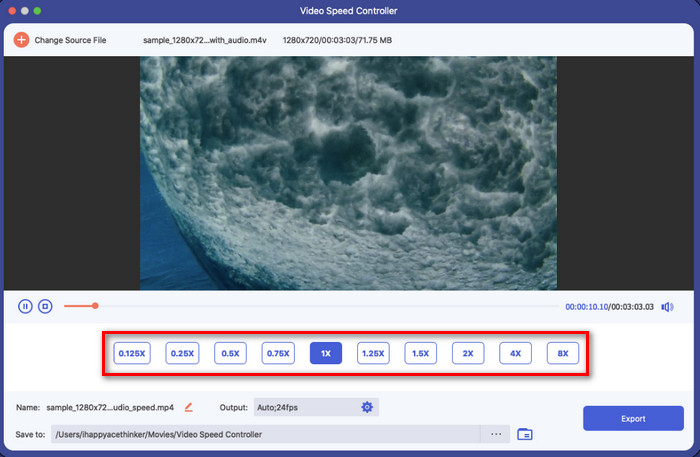
4. lépés. Itt már kiválaszthatod, milyen mértékű lassítást szeretnél alkalmazni a videódra. Próbáld ki az összes opciót, hogy megtaláld azt a lejátszási sebességet, amelyet az előzőleg kiválasztott videóhoz szeretnél.
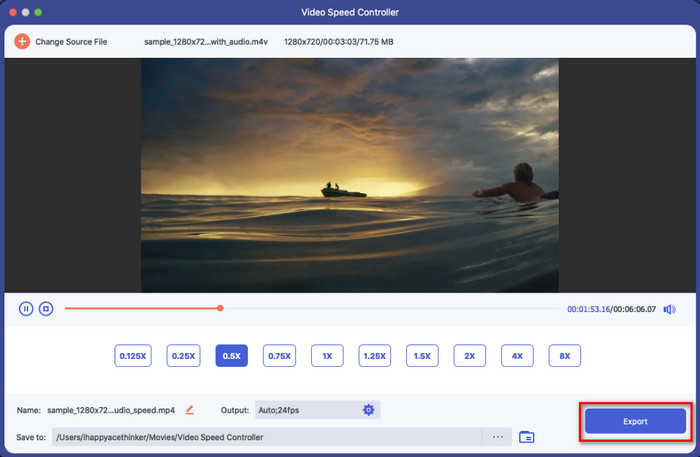
5. lépés. Végül a videóra alkalmazott módosításokat az Export (Exportálás) gombra kattintva mentheted. Az exportálás után egy mappa jelenik meg a képernyőn a lelassított, már exportált videóval.
3. rész. GYIK a videó lelassításáról iPhone-on
A videó lelassítása befolyásolja a minőséget?
A videolejátszás megváltoztatása miatt előfordulhat, hogy a videón bizonyos változások következnek be, ha a tényleges sebességet lassított effektusra változtatja. De ha lassított hatást alkalmaz a videón, biztosíthatjuk, hogy a videó nem rontja a minőséget, ezért ügyeljen arra, hogy ne vigye túlzásba a használatát.
Miért lett elmosódott a videóm, miután lassítottam?
Ilyen esetek valószínűleg akkor fordulnak elő, ha a választott eszköz nem támogatja a jó minőségű videó exportálását. Néhány ingyenes eszköz azonban a minőségi korlátozások nélkül segít lassított effektus alkalmazásában. Ahogy az FVC Video Converter Ultimate-nél is elérhető, ha lelassítja a videót itt, ugyanaz a jó minőség marad a feltöltött videón.
Miért vannak vízjelek, miután exportáltam a videót lassított módban?
Ha az alkalmazás ingyenes verzióját használja a videó lassítására, akkor valószínű, hogy a videó exportálásakor vízjelet hagy rajta. Ezért feltétlenül olvassa el a kiválasztott szoftverrel kapcsolatos információkat, és ellenőrizze, hogy nem hagy-e vízjelet a videón, ha exportálni készül.
Következtetés
Ha Grammy-sztárhoz méltó felvételt szeretnél készíteni, iOS-eszközeid ebben sokat segíthetnek, és az általunk készített útmutatóval az iPhone-on történő videólassítás könnyűvé és elérhetővé válik. Az általunk kiválasztott alkalmazásokkal bárki professzionális szintre emelheti a lassított effektjeit. Bár ezek az appok remekek, mégsem titkolható el, hogy a FVC Video Converter Ultimate messze túlszárnyalja az összes elvárást a videók lelassítását illetően. Ha szeretnéd használni ezt az eszközt, olvasd el a 2. részben található útmutatót, és töltsd le a programot.
-
 Valóban: Az MP4 videó lelassításának legjobb gyakorlata
 A videó sebességének növelése mellett a lassítás is egyike a sok gyakorlat közül, amelyek a legjobb videó kimenet eléréséhez szükségesek. Törekedjen arra, hogy a lehető legjobb szerkesztő legyen, ha elolvassa a cikk többi részét.
-
 A lassított videó normál sebességre váltása [Egyszerű lépések]
 Szeretné tudni, hogyan lehet visszaállítani az internetről letöltött vagy véletlenül lassított felvételben rögzített lassított videót? Ismerje meg, hogyan konvertálhat lassított videót normál sebességre Mac, Windows, iOS és Android rendszeren.
-
 Minden, amit a lassított videók készítéséről tudni kell
 Lassított videókat szeretne készíteni, mint egy professzionális szerkesztő, de nem tudja, milyen szoftvereket vagy alkalmazásokat szeretne használni? Olvassa el ezt a cikket, hogy megtudja az összes szükséges részletet.
