


 Video Converter Ultimate
 Screen Recorder
 Videó javítás
 Biztonságos letöltés
A legnépszerűbb MP3-M4A konverterek: Gyors és egyszerű hangkonverzió
Are you unsatisfied when listening to low-quality audio that doesn't do justice to your favorite songs? It's time to upgrade your audio experience with the power of MP3 to M4A conversion! By converting your audio files to M4A, you can unlock the true potential of your music library and hear the difference for yourself. In this guide post, we'll guide you through the benefits of MP3 to M4A conversion and provide you with the best software converters to ensure a seamless conversion process. Get ready to transform your audio experience and enjoy your music like never before.

1. rész. Az MP3 M4A formátumba konvertálásának legjobb módjai
Íme néhány a legjobb audio konverterek MP3-ról M4a-ra. Van egy offline mód, amely egy asztali alkalmazás, és egy másik online eszköz, amely egy webalapú program. Nézze meg őket, ha többet szeretne megtudni.
1. Video Converter Ultimate
Video Converter Ultimate is a flexible software that offers an array of features for audio and video conversion. When it comes to converting MP3 to M4A, Video Converter Ultimate is an excellent choice, providing users with a simple and straightforward process to convert their audio files. The tool supports a wide range of audio formats, and its advanced audio codec technology ensures high-quality output. Whether you need to convert audio files for personal or professional purposes, Video Converter Ultimate makes the process fast, allowing you to focus on what matters most - enjoying your high-quality audio files.
Step 1. Get the program and install
To begin, select one of the Free Download buttons and then follow the on-screen instructions to save the file to your computer. The next step is to start the app and familiarize yourself with the intuitive controls.
Ingyenes letöltésWindows 7 vagy újabb rendszerreBiztonságos letöltés
Ingyenes letöltésMacOS 10.7 vagy újabb rendszerhezBiztonságos letöltés
Step 2. Add audio files
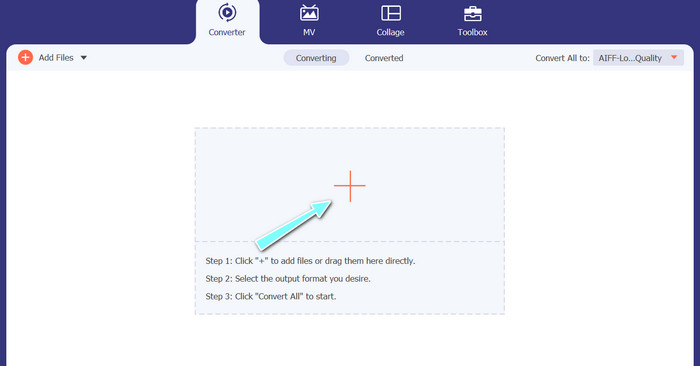
Next, select the plus sign from the main interface and navigate to the location of the audio file you wish to convert. After a file is uploaded, a preview of it will appear on the user interface. If you wish to batch-convert MP3 to M4A, you can upload a folder of files.
Step 3. Choose an output format
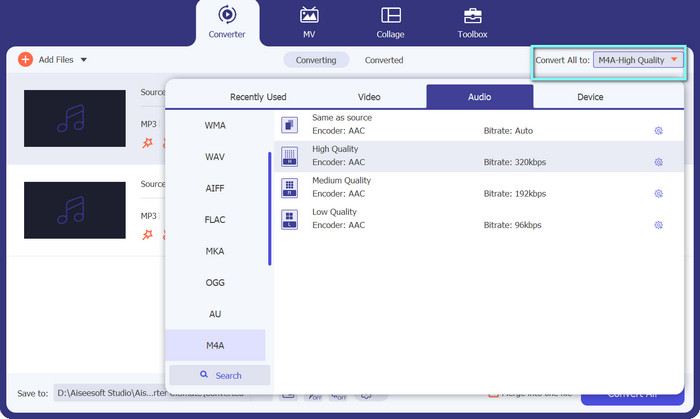
Next, choose the output format by clicking the Audio tab in the Profile menu (located in the tool's upper right). You can convert to or from MP3 using either the MP3 or M4a format.
Step 4. Save the output
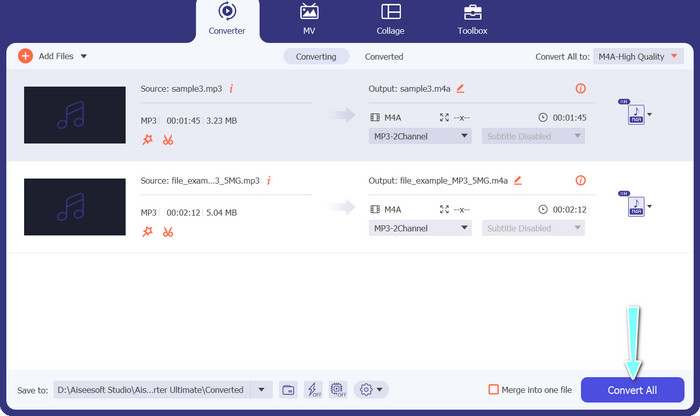
At the bottom of the screen, choose the destination folder. When you're ready to begin the conversion, click the Convert All button.
2. Ingyenes Online Video Converter
No space allotted for another program? Worry not because you can opt for an online tool to help you convert files without downloading a program. The Free Video Converter Online web-based app enables you to convert from your browser directly. Additionally, it has a lot of supported formats both for video and audio files. Not to mention, you can do a bulk conversion process with this online tool. On top of that, customizing the output of the audio file is another great feature of the tool. Check out how this MP3 to M4A online converter works.
Step 1. In order to begin using Free Video Converter Online, you should first open your favorite web browser and go to the website directly.
Step 2. Then, select the MP3 file you wish to convert to M4A by clicking the Add Files to Convert button.
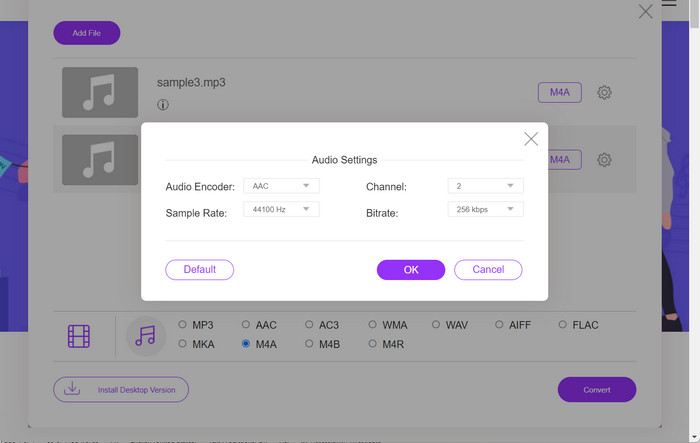
Step 3. From the Audio format option, select M4A as your desired output file. The M4A file's output quality, or bitrate, can also be modified.
Step 4. Click the Convert button to begin the process of converting. That is how you convert MP3 to M4A online.
2. rész. MP3 konvertálása M4A formátumba Windows rendszeren
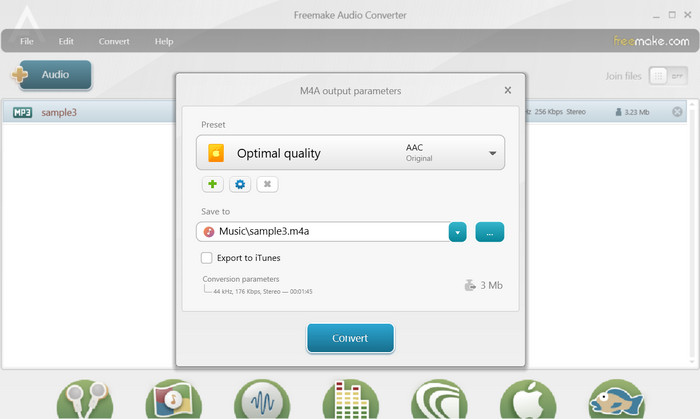
A Freemake Audio Converter egy ingyenes és könnyen használható program, amely lehetővé teszi a felhasználók számára, hogy hangfájlokat különböző formátumokká alakítsanak át, beleértve az M4A, MP3, WAV stb. Az egyszerű fogd és vidd felülettel a felhasználók könnyedén hozzáadhatják MP3 fájljaikat és konvertálhatják őket M4A formátumba bonyolult beállítások és konfigurációk nélkül. Az eszköz számos testreszabási lehetőséget is kínál, amelyek lehetővé teszik a felhasználók számára, hogy módosítsák a kívánt kimeneti minőség elérése érdekében olyan paramétereket, mint például a bitráta és a mintavételi sebesség. Összességében ez az egyik legjobb használható MP3-M4A konverter.
Step 1. Download and install Freemake Audio Converter on your Windows computer.
Step 2. Launch the program and click on the +Audio button to add your MP3 file(s) to the program.
Step 3. Select to M4A from the list of available formats at the bottom of the program window. Use the drop-down menu to choose the desired quality settings for your output file.
Step 4. Choose the output folder where you want your converted file to be saved. Finally, tick on the Convert button to start the conversion process.
3. rész. MP3 konvertálása M4A formátumba Mac rendszeren
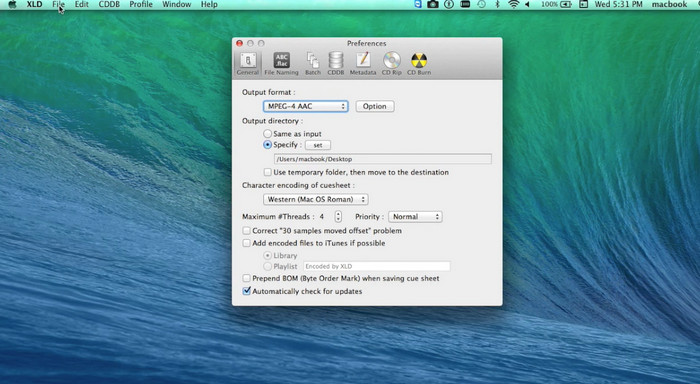
Az XLD egy ingyenes és könnyen használható program, amely lehetővé teszi a Mac felhasználók számára, hogy hangfájlokat konvertáljanak különböző formátumokba, beleértve az M4A, MP3, FLAC stb. Az egyszerű fogd és vidd felülettel a felhasználók könnyedén hozzáadhatják MP3 fájljaikat és konvertálhatják őket M4A formátumba bonyolult beállítások és konfigurációk nélkül. Az XLD egy sor testreszabási lehetőséget is kínál, lehetővé téve a felhasználók számára a paraméterek, például a bitráta és a mintavételezési sebesség beállítását a kívánt kimeneti minőség elérése érdekében.
Step 1. Download and install XLD on your Mac computer.
Step 2. Launch the program and click on the Open button to add your MP3 file(s) to the program.
Step 3. Select M4A from the list of available formats in the program preferences. You can use the drop-down menu to choose the desired quality settings for your output file.
Step 4. Next, choose the output folder where you want your converted file to be saved. Lastly, hit the Convert button to start the conversion process. This is how to convert MP3 to M4A on Mac for free.
4. rész. MP3 konvertálása M4A formátumba Androidon
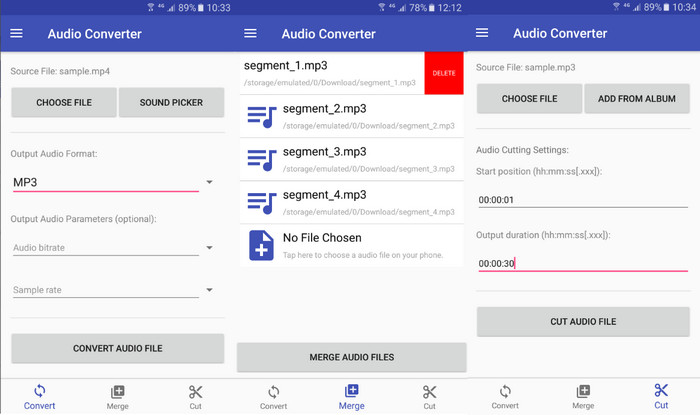
Ha hangfájlok konvertálásáról van szó, az Online-Convert.com ingyenes és egyszerű Android szoftverét, az Audio Convertert nehéz felülmúlni. A felhasználók egyszerűen áthúzhatják MP3 fájljaikat a program felületére az M4A formátumba való átalakítás megkezdéséhez. Az audiofájl kimeneti minősége módosítható az Audio Converter beállításainak, például a bitráta és a mintavételezési frekvencia módosításával. Íme a lépések az MP3-ról M4A-ra cseréléséhez Androidon:
Step 1. Download and install Audio Converter by Online-Convert.com from the Google Play Store on your Android device. Launch the app and tap on the Convert Audio button.
Step 2. Then, select MP3 as the input format and M4A as the output format.
Step 3. Now, tap on the Select Files button to add your MP3 file(s) to the app. At last, tap on the Start Conversion button to start the conversion process. It is that easy! Now you have learned how to convert MP3 to Android on Android.
5. rész. MP3 konvertálása M4A formátumba iOS rendszeren
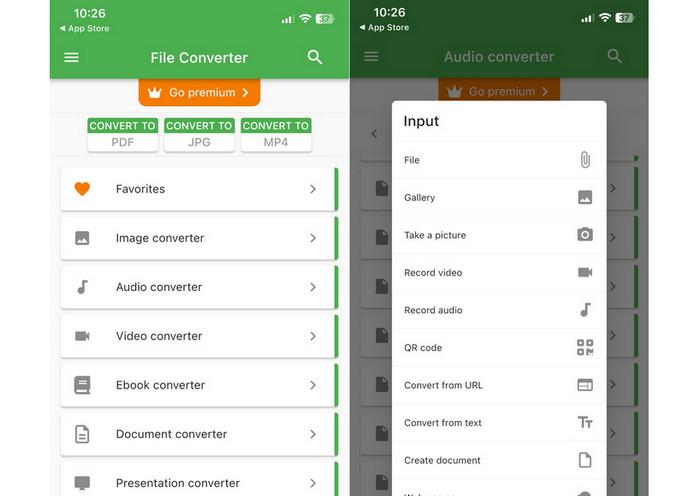
Az olyan audiofájlok, mint az MP3, átkonvertálhatók hordozhatóbb és veszteségmentes M4A formátumba a File Converter Free segítségével, amely egy ingyenes és egyszerű iOS-szoftver. Egyszerű kialakításának köszönhetően bárki egyszerűen tölthet be MP3 fájlokat és konvertálhat M4A formátumba anélkül, hogy bármiféle beállításon vagy beállításon kellene babrálnia.
Step 1. File Converter Free may be found on the App Store and is free to download and use. Start the program up and hit the Audio tab.
Step 2. Choose MP3 for both the input and output formats and M4A for Apple's AAC format. Select the desired output file quality using the drop-down menu. To import an MP3 into the program, select the Add File button.
Step 3. To initiate the converting process, click the Convert button.
6. rész. GYIK az MP3 M4A formátumba konvertálásával kapcsolatban
Átalakíthatom az MP3-at M4A formátumba a Windows Media Player segítségével?
Yes, you can convert MP3 to M4A using Windows Media Player, but it requires a few additional steps since M4A is not a natively supported format in Windows Media Player. Or, you can simply apply a Windows Media Player alternative.
Az MP3 M4A formátumba konvertálása a hangminőség romlását eredményezi?
Az MP3 M4A formátumba konvertálása a hangminőség enyhe romlását eredményezheti a két formátum által használt tömörítési algoritmusok különbségei miatt.
Vissza tudom konvertálni az M4A-t MP3-ba?
Yes, many audio conversion programs and tools allow you to convert M4A to MP3 if needed. However, be aware that converting between formats multiple times can result in quality loss.
Következtetés
MP3 to M4A conversion is a valuable process for anyone looking to improve the quality and compatibility of their audio files. By following the steps and tips outlined in this discussion, you can easily convert your MP3 files to M4A and enjoy high-quality audio on any device.
-
 Ingyenes és online | Hogyan lehet konvertálni MP4-et M4A-ba Windows / Mac rendszeren
 Hogyan konvertálhatom az MP4-et M4A-ba online? Kihúzhatom a hangot MP4 fájlokból? Olvassa el ezt a bejegyzést, és megkapja az összes választ az MP4-ről M4A-ra való átalakításra.
-
 Az MP3 M4R fájlok kötegelt konvertálására használható legjobb eszközök
 Olyan konvertert keresel, amely kötegesen átalakítja MP3-fájlját M4R csengőhanggá iPhone-odhoz vagy iPadedhez? Olvassa el a cikket, hogy felfedezze a legjobbakat.
-
 5 MP3 vágó bármilyen hang egyszerű vágásához [2023-ban frissítve]
 Szüksége van egy MP3 vágóra a hang vágásához? Ebben az esetben olvassa el ezt a cikket, mert mi biztosítjuk azokat az eszközöket, amelyekre számíthat, amelyek megkönnyítik a hangvágást.
