


 Video Converter Ultimate
 Screen Recorder
 Videó javítás
Hogyan változtasd unalmas képernyő-háttérképed lenyűgöző, élénk GIF-fel
A legtöbben nagy felbontású képet használunk háttérnek, és néhányan már videós háttérképet is beállítanak. De tudtad, hogy GIF‑eket is használhatsz háttérképként, hogy a háttered élettelibb legyen, mint valaha? Ha szeretnél ötletet kapni arról, hogy hogyan készíts GIF‑et háttérképként, akkor olvass tovább. Mindössze öt percbe telik, hogy megtudd, hogyan kell beállítani, és még azt is megmutatjuk, hogyan készíts tökéletes GIF‑et videóból vagy képekből.

1. rész: Hogyan készítsünk GIF-et háttérképként iPhone-on
A legtöbbünknek már van okostelefon a kezében, például egy iPhone. De tudtad, hogy az unalmas hátteredet sokkal látványosabbá teheted? Igen, az iPhone‑od háttérképe varázslatos GIF‑fé alakítható. Azonban az iPhone készülékek nem támogatják a GIF‑ek közvetlen háttérképként való használatát. Ezért megoldásként először Live Photo‑vá kell átalakítanod a GIF‑et, majd azt beállítani új háttérképként. Ellenkező esetben csak egy állóképet kapsz a mozgó helyett. Ebben az esetben a GIF‑et Live Photo‑vá kell alakítanod a Convert - GIF & Live Wallpaper letöltésével, majd konvertálásával. Ezután folytasd a hogyan legyen a GIF az iPhone háttérképed témával az alábbi lépések követésével.
A GIF Live Photo formátumba konvertálásának lépései:
1. lépés. Az App Store‑ból töltsd le a Convert - GIF & Live Wallpaper alkalmazást, majd a letöltés után azonnal nyisd meg.
2. lépés. Kattints az Allow (Engedélyezés) gombra, hogy az app hozzáférjen a képeidhez, majd válaszd ki a GIF‑et a galériából.
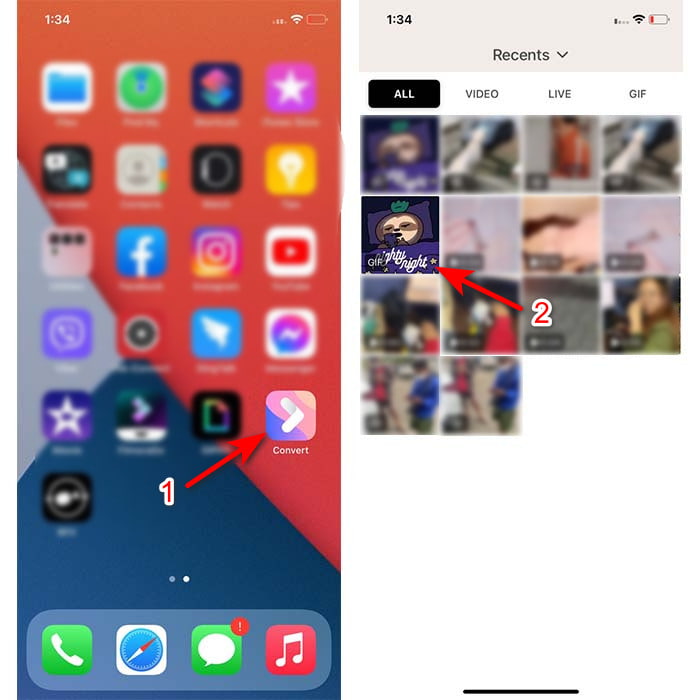
3. lépés. Ezután kattints a letöltés gombra, állítsd be a mentés típusát Live Photo‑ra, majd kattints a Save (Mentés) gombra a folytatáshoz.
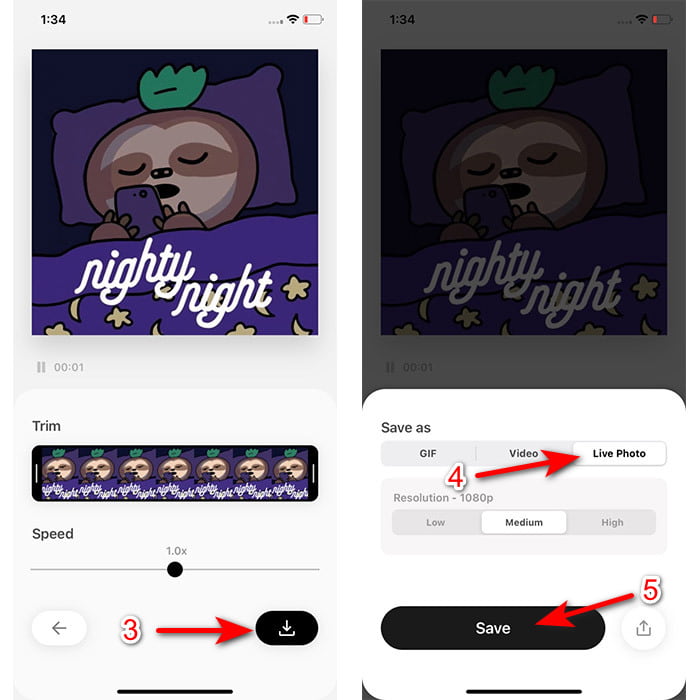
Lépések, hogyan készíthet élő fotót háttérképként iPhone-on:
1. lépés. Nyisd meg a Photo (Fotók) alkalmazást, és keresd meg a library (könyvtár) részben az általad konvertált GIF‑et.
2. lépés. Ezután nyomd meg a Share (Megosztás) gombot, és keresd meg a Use as Wallpaper (Használat háttérképként) opciót.
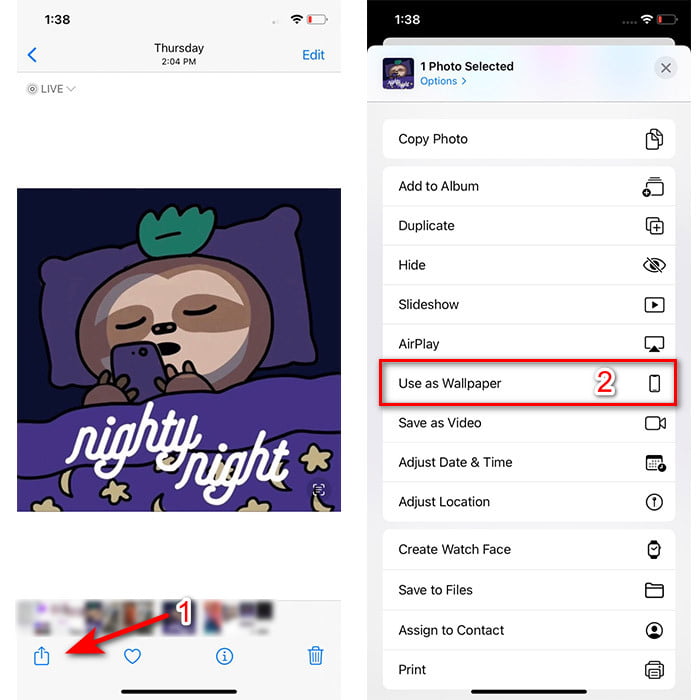
3. lépés. Kapcsold be a Live Photo‑t, hogy biztosan aktív legyen, majd kattints a Set (Beállítás) gombra. Válaszd ki, hogy a Zárolt képernyőn, a Főképernyőn vagy mindkettőn szeretnéd használni. Továbbá, a Live Photos nem működik a Főképernyőn, mert a kép életre keltéséhez 3–5 másodpercig nyomva kell tartanod a kijelzőt. Ezért ideálisabb, ha élő fotót a Zárolt képernyőre állítasz be.
2. rész: GIF készítés háttérképként Windows rendszeren
Ha szeretnéd, hogy a Windows háttérképed sokkal látványosabb legyen, akkor kövesd az alábbi lépéseket. Ebben az esetben sem tudsz közvetlenül GIF‑et beállítani háttérnek, mert csak egy állóképet kapnál. Ennek elkerüléséhez egy harmadik féltől származó eszközt kell használnod, például a Lively Wallpaper programot. Most pedig vágjunk bele abba, hogy hogyan legyen a GIF a háttérképed Windows 10‑en.
1. lépés. Töltsd le a Lively Wallpaper alkalmazást a Microsoft Store‑ból. A letöltés után indítsd el.
2. lépés. Kattints a bal felső sarokban lévő + gombra, majd nyomd meg a Browse (Tallózás) gombot. Keresd meg a GIF fájlt a felugró mappában, majd kattints az open (Megnyitás) gombra. Megjelenik egy mini könyvtár, ott kattints az OK, majd a Save (Mentés) gombra.
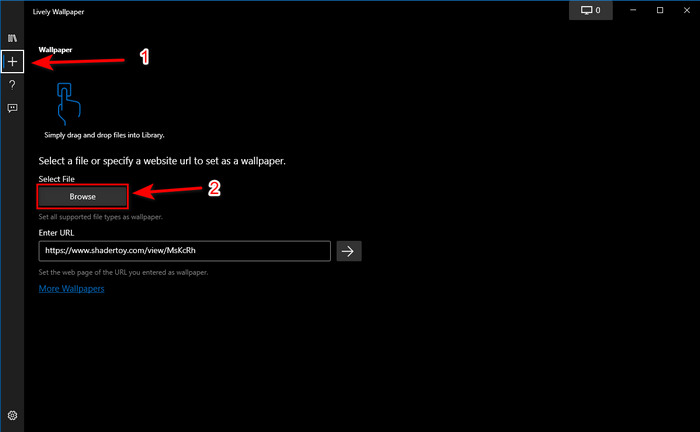
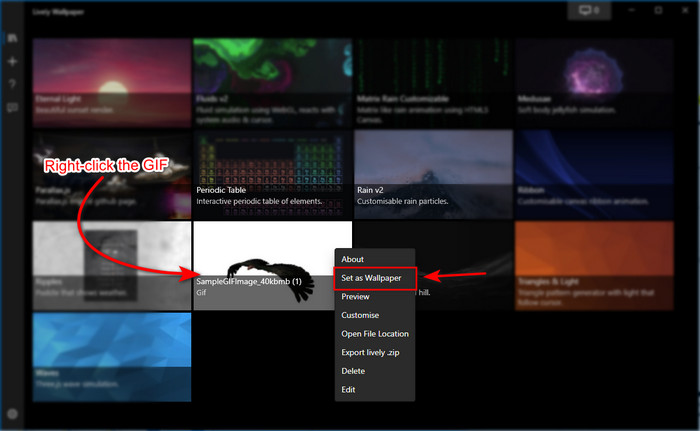
3. lépés. Keresd meg a GIF‑et a beépített galériában, majd jobb gombbal kattints rá az egérrel, és válaszd a set it as a wallpaper (beállítás háttérképként) lehetőséget.
3. rész: GIF létrehozása videókból/fotókból a Video Converter Ultimate segítségével
Keltse életre a képernyő hátterét a Video Converter Ultimate alkalmazásban létrehozott animált GIF használatával. Ez a szoftver már bebizonyította, hogy a GIF készítés könnyen elkészíthető, legyen szó képről vagy videóról. Továbbá, ellentétben minden más online és offline eszközzel, ez az eszköz nagyon egyedi hozzájuk képest. Mert a végső konverter már rendelkezik minden olyan fejlett funkcióval, amelyet valószínűleg használni fog.
Bár a szoftver fejlett eszközfunkciókat támogat, mégis felhasználóbarát, így bárki könnyen használhatja, legyen profi vagy sem. Most tehát megtanítjuk neked, hogyan készíts GIF‑et háttérképként PC‑re, Macre, Androidra és iPhone‑ra. Emellett többféle módszert is bemutatunk arra, hogy még egy videót vagy képeket is lenyűgöző GIF‑fé alakíthatsz a Video Converter Ultimate segítségével. Mielőtt rátérnénk a lépésekre, előfeltétel, hogy először töltsd le az eszközt a gépedre, telepítsd, végezd el a gyors beállítást, majd kattints a Befejezésre a folytatáshoz.
Ingyenes letöltés Windows 7 vagy újabb rendszerre Biztonságos letöltés
Ingyenes letöltés macOS 10.7 vagy újabb rendszerre Biztonságos letöltés
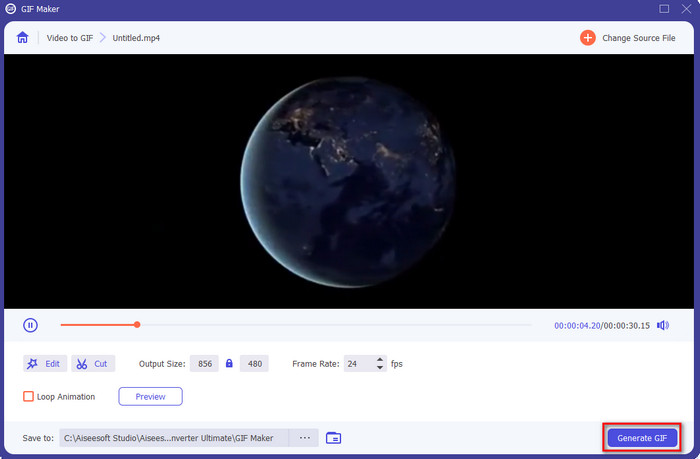
4 egyszerű lépés animált GIF készítéséhez videókból:
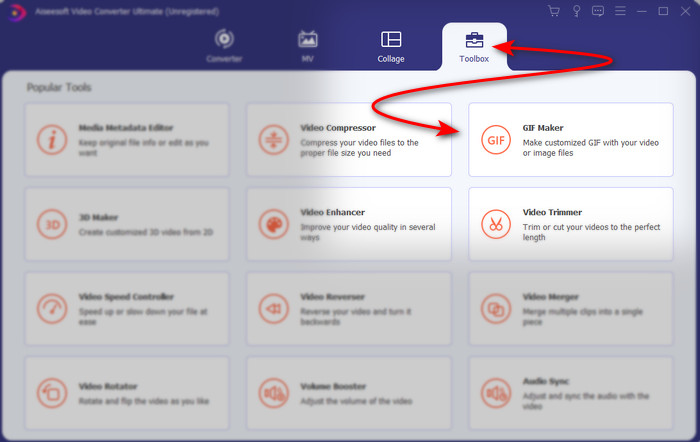
1. lépés. Indítsd el az eszközt, és keresd meg a Toolbox (Eszköztár) menüpontot, azon belül a GIF Maker (GIF készítő) opciót, majd kattints rá a folytatáshoz.
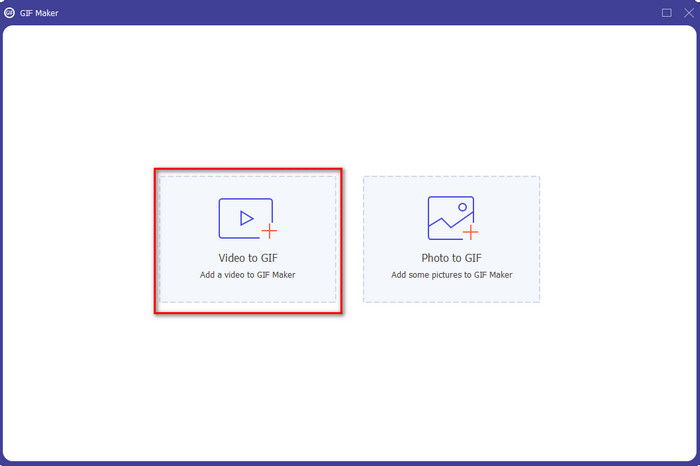
2. lépés. Kattints a Videos to GIF (Videóból GIF) gombra; amint rákattintasz, felugrik egy fájlkezelő ablak. Válaszd ki azt a videófájlt, amelyet GIF‑fé szeretnél alakítani, és nyomd meg az Open (Megnyitás) gombot.
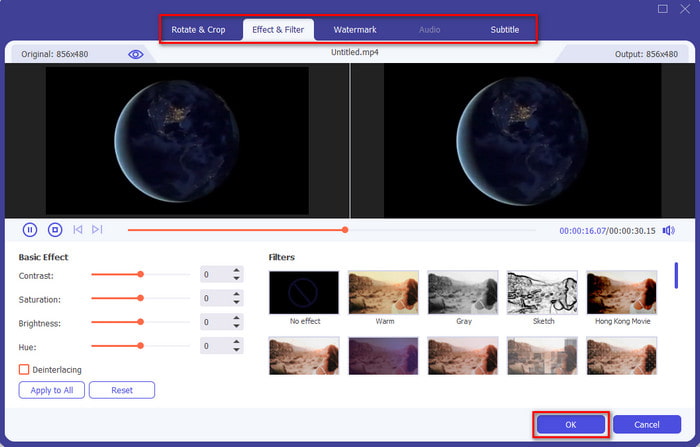
3. lépés. A felületen kattints a wand (varázspálca) ikonra a videó szerkesztéséhez. A szerkesztés befejezése után kattints az OK gombra a módosítások mentéséhez.
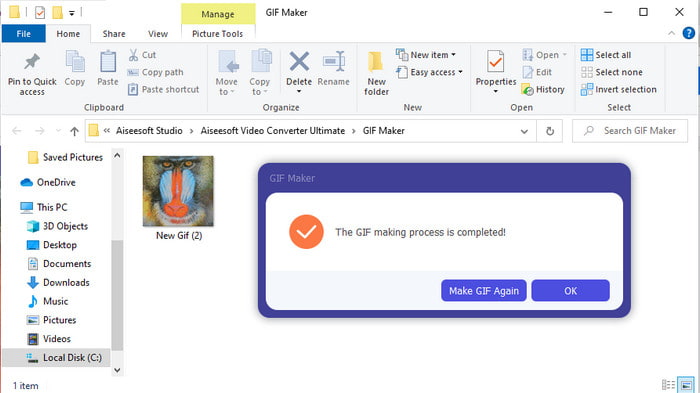
4. lépés. Kattints a Generate GIF (GIF létrehozása) gombra, hogy azonnal elmentsd a GIF‑et a tárhelyedre. Amint a videóból GIF‑re való átalakítás befejeződik, a fájlkezelő megjelenik a képernyőn a GIF fájllal, kattints rá a megtekintéshez.
4 egyszerű lépés animált GIF készítéséhez képekből:
1. lépés. Ha a szoftver teljesen telepítve van, akkor nyisd meg. Menj a Toolbox (Eszköztár) részhez, és keresd meg a GIF Maker (GIF készítő) modult.
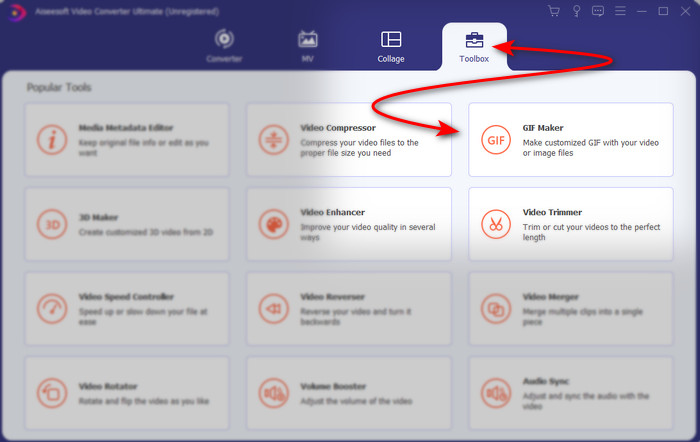
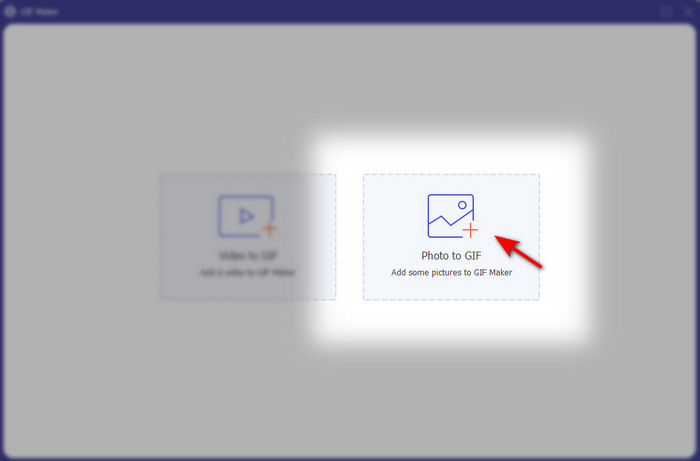
2. lépés. Ha a képeidet szeretnéd animált GIF‑fé alakítani, kattints az Image to GIF (Képből GIF) opcióra. Ezután felugrik egy mappa, válaszd ki az első képet, majd kattints az Open (Megnyitás) gombra.
3. lépés. Az Output Setting (Kimeneti beállítások) ablak automatikusan megjelenik, kattints az OK gombra a folytatáshoz. Két vagy több kép hozzáadásához kattints a + gombra. Emellett itt nem tudsz olyan mértékű szerkesztést végezni, mint a videóból GIF funkciónál. Ehelyett a képek sorrendjét és az egyes képek megjelenési idejét állíthatod be.
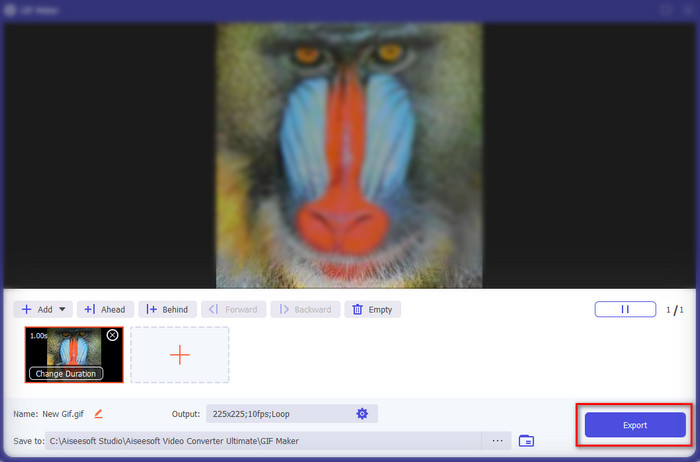
4. lépés. Ha mindennel elkészültél, eljött az ideje, hogy a folytatáshoz rákattints az Export (Exportálás) gombra. Ha az exportálás befejeződött, felugrik egy fájlkezelő ablak az imént elkészített GIF fájllal.
Összefüggő:
Hogyan posztolj GIF‑et Instagramon
A legjobb online GIF–videó konverter
4. rész. GYIK a GIF készítésről háttérképként
Miért fagynak le a GIF-ek, ha háttérként használják őket?
Természetesen az összes eszköz nem támogatja a GIF-et háttérként. Azonban továbbra is használhat harmadik féltől származó eszközt a GIF-fájl alkalmazására a háttérben.
Menthetek animált GIF-eket online, és használhatom háttérképként az iPhone-omon?
Teljes mértékben igen! Megmentheti őket. Ha jelenleg a GIPHY-t használja, kattintson az ellipszisre, hogy élő fényképként mentse el. Tehát most kihagyhatja a GIF élő videóvá konvertálásának lépéseit, és csak folytathatja a GIF használatával a fenti háttérként való használathoz.
Az animált háttérkép fogyasztja az akkumulátor élettartamát?
Valójában igen, mert az animált háttérképek vagy a mozgó háttérképek csaknem 2-41 TP2T akkumulátort fogyasztanak, mivel a CPU és a GPU még mindig a háttérben fut.
Következtetés
A végére érve láthatjuk, hogy tényleg használhatunk GIF‑et háttérképként, hogy az unalmas, statikus képet életre keltsük. Természetesen az itt bemutatott alkalmazások mind remekül végzik a maguk feladatát. A Video Converter Ultimate például olyan szoftver, amellyel könnyedén elsajátíthatod, hogyan használd a GIF‑et háttérképként, bármilyen platformról is legyen szó. Ha egyedi GIF‑et szeretnél készíteni, töltsd le ezt az eszközt az asztali gépedre, és próbáld ki saját magad.
-
 Bemutató a GIF tömörítésére és a fájlméret kiváló minőségű csökkentésére
 Itt van két egyszerű módszer a GIF tömörítésére a számítógépen vagy a mobiltelefonon. Használhatja az FVC Free Online Video Compressor és a Photoshop alkalmazásokat, amelyek különböző aspektusokban csökkentik a GIF fájlméretet.
-
 Készítse el legjobb animált GIF-jét az Online GIF Maker segítségével [2021]
 Informatív áttekintés arról, hogyan készíthet GIF-et ezekkel az egyszerű online GIF-készítőkkel, amelyekkel már találkozik vagy nem az interneten.
-
 Válassza ki a legjobb online és offline GIF-vágót a GIF-ek vágásához [2021]
 A legjobb vágóeszköz kiválasztása kötelező, és néhány GIF-készítő nem biztosította ezt a funkciót. De melyik a legjobb GIF-vágó eszköz, és hogyan kell használni?
