


 Video Converter Ultimate
 Screen Recorder
 Videó javítás
Hogyan változtassuk meg a MOV-fájlok metaadatait Mac-en lépésekkel könnyedén
Mindannyian tudjuk, hogy a MOV az egyik legkiválóbb formátum, amelyet az Apple‑készülékeken történő videolejátszáshoz és szerkesztéshez ideálisan használhatunk. De mitől egyedi a MOV? Olyan tömörítést támogat, amelyet elsősorban profik használnak. Bár egyetlen fájlban több elemet is képes tárolni, mégis előfordulhat, hogy a MOV‑ban összekeverednek a tagek, ami problémát okozhat. Ilyenkor érdemes ezeket megfelelően megszerkeszteni, hogy a metaadatok rendben legyenek, és a hibát azonnal kijavíthassuk. A megfelelő eszközzel ez gyerekjáték. Ma tehát bemutatjuk a legjobb módszereket, hogyan szerkesztheti azonnal a MOV‑fájl metaadatait.

1. rész: MOV-metaadatok szerkesztése az Ultimate Tag Editor segítségével Mac rendszeren
A FVC Video Converter Ultimate egy mindent egyben megoldás a metaadatokkal kapcsolatos problémákra, amely több mint 1000 formátumot támogat Macen és Windowson. Ezzel az eszközzel azonnal eltávolíthatja, szerkesztheti vagy hozzáadhatja a metaadatokat a MOV‑fájlhoz. És ez még nem minden: számos egyéb szerkesztést is végezhet a MOV‑on, például vághatja, trimmelheti, egyesítheti, körülvághatja, és még ezernyi mást is megtehet, akkor is, ha nem profi vágó. Valóban lenyűgöző, ha ez az eszköz kéznél van, és még rengeteg mindent megtehet vele néhány kattintással. Ma azonban a részletes útmutatót mutatjuk be, amelyet követve sikeresen szerkesztheti a MOV‑fájlok metaadatait.
1. lépés. Szerezze be az Ultimate konvertert Macre vagy Windowsra az alábbi letöltés gombra kattintva. Futtassa a telepítési folyamatot a letöltött fájlra kattintva, majd kattintson a Start Now gombra, hogy az eszköz azonnal elinduljon.
Ingyenes letöltés Windows 7 vagy újabb rendszerre Biztonságos letöltés
Ingyenes letöltés macOS 10.7 vagy újabb rendszerre Biztonságos letöltés
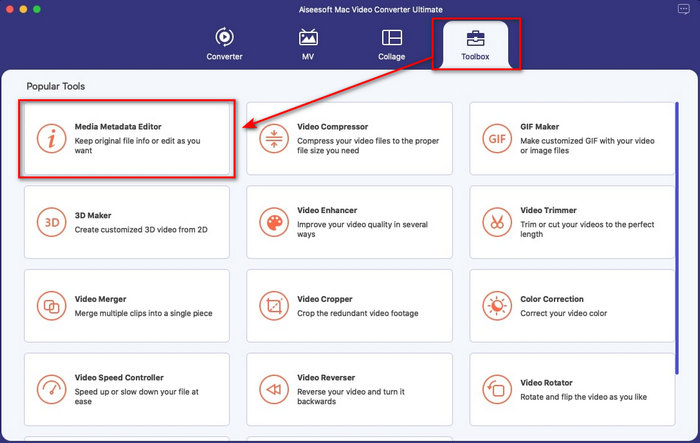
2. lépés. Az eszköz felülete megjelenik a képernyőn; menjen a Toolbox részhez, és nyissa meg a Media Metadata Editor funkciót.
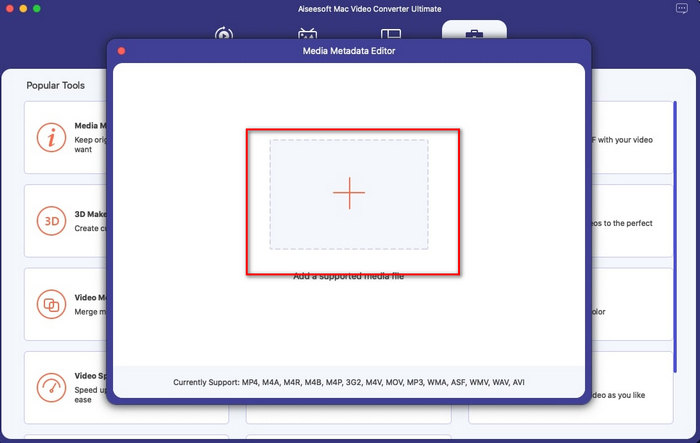
3. lépés. Miután megnyitotta a szerkesztőt, megjelenik egy kis ablak; kattintson a + gombra egy mappa megnyitásához, ahol megkeresheti a fájlt, majd a beszúráshoz kattintson az Open gombra.
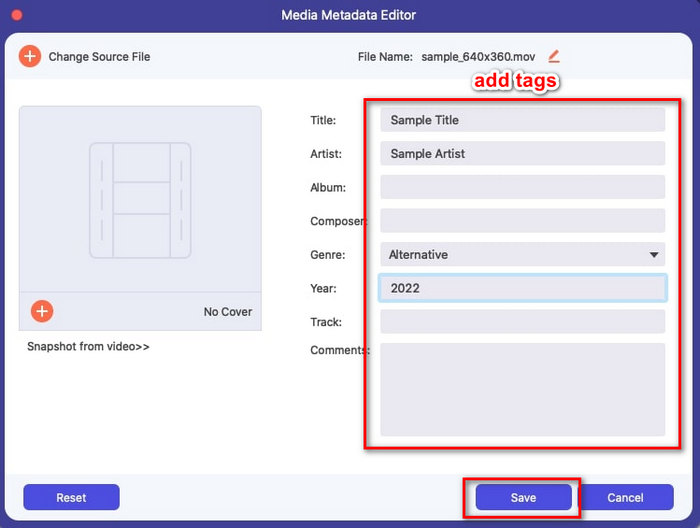
4. lépés. Most már hozzáadhatja, szerkesztheti vagy eltávolíthatja a tageket a MOV‑fájlon itt, a szövegdobozban. Ha mindennel elkészült, kattintson a Save gombra. Ilyen gyorsan szerkesztheti a MOV‑fájlok metaadatait.
Összefüggő:
2. rész. 3. A legjobb MOV címkeszerkesztők a MOV metaadatok módosításához
VLC Media Player
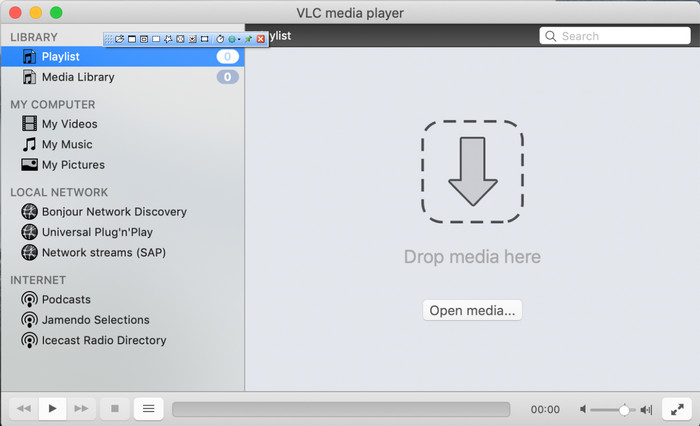
A VLC Media Player egy ismert médialejátszó, amely elérhető Macen és Windowson. Bár számos különböző videoformátumot le tud játszani, a médiafájljai – például a MOV – metaadatait is módosítani tudja. Sőt, ha meg szeretné tekinteni a fájl metaadatait, ezzel az eszközzel könnyedén megteheti. Ugyanakkor nem olyan hatékony, mint a kifejezetten metaadat‑szerkesztésre készült eszközök Macre vagy Windowsra. Ennek ellenére a médialejátszóval továbbra is lehetséges a MOV‑fájl metaadatainak szerkesztése.
1. lépés. Töltse le a médialejátszót a VLC hivatalos weboldaláról, majd nyissa meg.
2. lépés. Nyomja meg a billentyűzetén a Command + I billentyűkombinációt, és megjelennek a médiainformációk, ahol hozzáadhatja vagy törölheti a MOV‑fájl metaadatait.
3. lépés. Kattintson a Save Metadata gombra, ha befejezte a tagek alkalmazását a MOV‑on.
iTunes
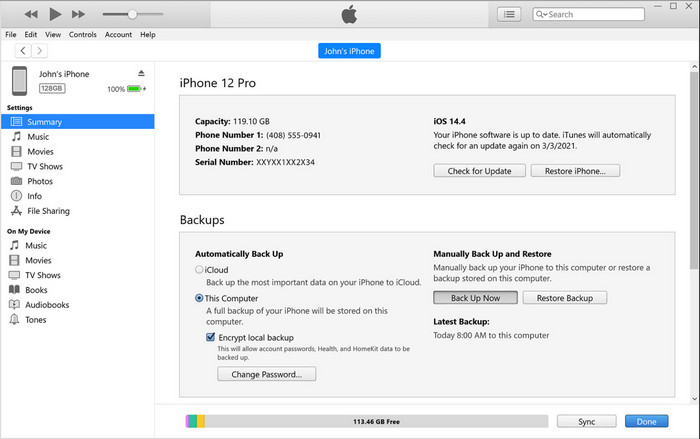
Az iTunes a legjobb beépített streamingalkalmazás, amelyet bármely Apple‑eszközön elérhet. Ez az eszköz tele van funkciókkal, például zenelejátszóval és áruházzal zenékhez, filmekhez, podcastokhoz és még sok máshoz, amelyek DRM‑mel védettek a szerzői jogi problémák elkerülése érdekében. Annak ellenére, hogy nagyszerű beépített alkalmazás, a metaadat‑szerkesztők között túl erős a verseny ahhoz, hogy az iTunes felvegye a harcot. Mégis, számításba vesszük ezt az appot, mert képes módosítani a MOV metaadatait Macen.
1. lépés. Nyissa meg az iTunes‑t, majd importálja a MOV‑fájlt az iTunes könyvtárába.
2. lépés. Ezután kattintson jobb gombbal a hozzáadott .mov fájlra, és válassza a Get Info lehetőséget. A kattintás után több fül is megjelenik a metaadatok módosításához, például részletek, borító, dalszöveg, beállítások, rendezés és fájl; állítsa ezeket az igényeinek megfelelően.
3. lépés. Nyomja meg az OK gombot a módosítások mentéséhez.
MetaZ
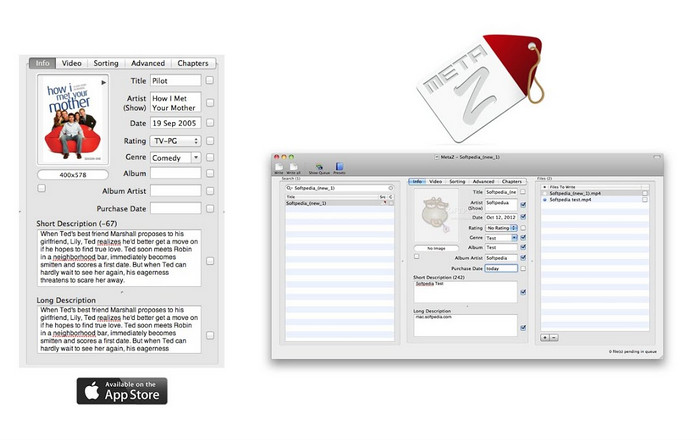
MacOS X esetén szabadon letöltheti a Metaz-t, hogy könnyedén módosítsa a fájljai metaadatait. Ez a metaadat-szerkesztő segíthet a videocímkék módosításában a legtöbb formátumban, például a MOV-ban. Ezzel az alkalmazással könnyedén megcsinálhatja a trükköt, és rendszerezheti a MOV-t a könyvtárában. Az utóbbi időben azonban számos bejelentés érkezett az alkalmazással kapcsolatban; a felhasználók sok problémás problémával találkoznak az alkalmazás használata során. Bár problémák adódhatnak, továbbra is ez az egyik legtöbbet választott MOV metaadat-szerkesztő, amelyet letölthet Mac számítógépére.
1. lépés. Töltse le az alkalmazást Macre, indítsa el, majd a felület három részre oszlik a képernyőn: ahol fájlt adhat hozzá, szerkesztheti a tageket, és tagekre kereshet.
2. lépés. Húzza át a MOV‑fájlt a bal oldalra; a bal oldaltól jobbra láthatja, hogy a program automatikusan megkeresi a MOV‑fájlhoz tartozó tageket a címe alapján, de ezeket a középső részben tetszés szerint módosíthatja.
3. lépés. Nyomja meg a Write gombot, és a tagek hozzáadódnak a MOV‑fájlhoz.
3. rész. GYIK a MOV metaadatszerkesztővel kapcsolatban
Használhatom a QuickTime metaadatszerkesztőt a címkék módosítására?
Sajnos nem tudja, mert ez az eszköz csak médiaformátum lejátszására, videók szerkesztésére és rögzítésére képes. De szabadon megtekintheti a fájl metaadatait a Quicktime-on, ha követi ezeket az egyszerű lépéseket. Először nyissa meg a MOV fájlt a Quicktime-on, és játssza le. A felső részben különböző lehetőségeket fog látni; kattintson az Ablak elemre, és alatta nyomja meg a View Inspector gombot, ekkor egy új ablak jelenik meg a képernyőn, ahol megtekintheti a MOV fájlra vonatkozó kis információkat.
A MOV címkék megváltoztatása befolyásolja a minőséget?
Szerencsére nem, mert a címkéket módosítottad, nem pedig a MOV fájl felbontását vagy minőségét. Tehát, ha attól tart, hogy a videó felbontása csökkenhet a címkék megváltoztatása után, megismételjük; nem fog.
Ha metaadatokat ad hozzá a MOV-hoz, az növeli a fájl méretét?
Bármely fájlban, miután hozzáadta a metaadatokat az adott fájlhoz, látni fogja a különbséget a címkével nem rendelkező és a címke nélküli fájl között. Ezek a címkék azonban nem olyan nagyok, mint a fájl tartalma. Tehát, ha metaadatokat ad hozzá a MOV-hoz, számítson rá, hogy annak mérete kissé megnő, mivel információkat adott hozzá a videofájlhoz.
Következtetés
Miután most már elsajátította, hogyan lehet módosítani a MOV‑fájl metaadatait, itt az ideje, hogy kiválassza, melyik útmutatót szeretné követni. Ha ingyenes eszközt szeretne letölteni Macre, beszerezheti a VLC‑t és a Metaz‑t, hogy kijavítsa vagy szerkessze a MOV metaadatait. Ha ezt nem szeretné, használhatja az iTunes‑t is a metaadatok egyszerű szerkesztésére. Noha ezek az eszközök is jól használhatók, továbbra sincs olyan program Macre, amely a metaadat‑szerkesztésben olyan erős funkciókat kínálna, mint a FVC Video Converter Ultimate. Ha tehát még mindig azon gondolkodik, mit használjon, azt javasoljuk, hogy ehhez a feladathoz az Ultimate eszközt válassza, mert egyszerű a használata, mégis mindent tud, amire a hét bármely napján szüksége lehet.
-
 Mi a metaadat: Ismerje meg a metaadatokkal kapcsolatos alapvető információkat
 Mi az a metaadat? Ez fontos? Melyek a metaadatok részei? Ugyanez a kérdés? Ebből a cikkből megismerheti a metaadatokkal kapcsolatos alapvető információkat.
-
 A 4. legjobb online és offline metaadat-megtekintő [Frissítve 2022]
 Ellenőrizhetem a fájlom metaadatait? Igen, megteheti, ennek a bejegyzésnek a segítségével bemutatjuk a különböző metaadatmegjelenítőket, amelyeket használhat.
-
 A 4 legjobban kiválasztott WMV címkeszerkesztő asztali számítógépen [Frissítés 2022]
 Megbízható WMV címkeszerkesztőre van szüksége a WMV címkék szerkesztéséhez? Nos, ez a cikk elegendő ismeretet nyújt a WMV-t támogató eszközről.
