


 Video Converter Ultimate
 Screen Recorder
 Videó javítás
 Biztonságos letöltés
Hogyan távolíthat el logót egy videóról az Adobe Premiere Pro alkalmazásban néhány kattintással
Az Adobe Premiere Pro az Adobe Inc. által készített videoszerkesztő szoftveralkalmazás. Ez az alkalmazás képes javítani a videóidat, mivel számos szerkesztőeszközt kínál. Így ha szeretnéd tudni, hogyan lehet vízjelet eltávolítani egy videóról az Adobe Premiere Pro-ban, ebből a bejegyzésből megtanulhatod. Ezenfelül több alkalmazást is teszteltünk, és tudunk számodra alternatívát ajánlani a logó vagy vízjel eltávolítására a videóidról. Ez a cikk megtanítja a leggyorsabb és legegyszerűbb módszereket a logó vagy vízjel eltávolítására a videóidról.

1. rész: A vízjel eltávolítása egy videóról az Adobe Premiere Pro programban
Néhány kattintással eltávolíthatod a vízjeleket a videóidról az Adobe Premiere Pro segítségével. Ha rendelkezel ezzel az alkalmazással, nem kell azon gondolkodnod, hogyan távolíthatod el a vízjeleket vagy a logót a videóidról, mert ez megoldja a problémádat. Emellett ezt az alkalmazást a videóid továbbfejlesztésére is használhatod. Az Adobe Premiere Pro számos funkcióval rendelkezik, például egyidejű projektek, VR-szerkesztés, átmenetek, effektek, címkék, többféle videótípus, többszörös videótámogatás, közvetlen közzététel, mozgógrafika-sablonok és még sok más. Ugyanakkor ez az alkalmazás drága, ha meg szeretnéd vásárolni. Emellett elsősorban haladó felhasználók számára ideális, ami azt jelenti, hogy a kezdőknek nehézséget okozhat a használata. Nagy memóriakártyára is szükség van, mert a jó teljesítményhez sok memóriát igényel. Ha az Adobe Premiere Pro-t szeretnéd használni a logók eltávolítására a videódból, kövesd az alábbi egyszerű lépéseket.
1. lépés: Az első lépés, hogy letöltöd az Adobe Premiere Pro alkalmazást az eszközödre. Használhatod az ingyenes próbaverziót, vagy meg is vásárolhatod a programot. Az installálás befejezése után indítsd el az alkalmazást.
2. lépés: Nyisd meg a logót tartalmazó videót az alkalmazásban a File > Open menüpontra kattintva. Ezután másold a videót, és húzd a fő videód felső részére.
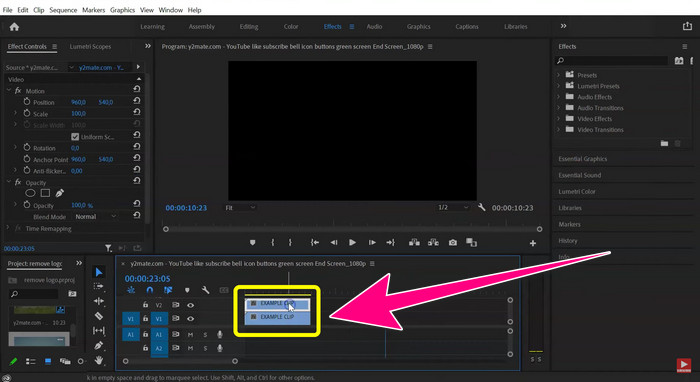
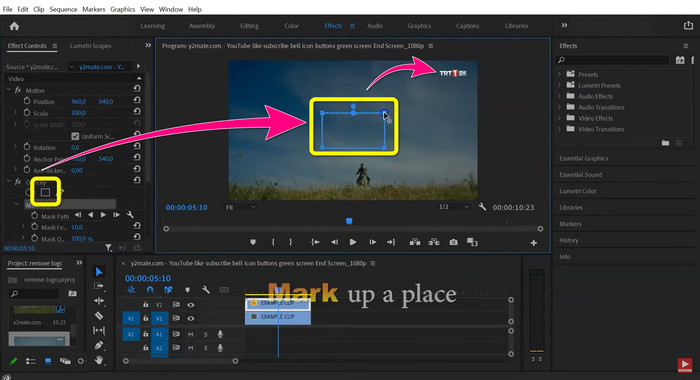
3. lépés: Kattints a sokszög maszkra (poligonmaszk). Amikor a doboz megjelenik a képernyőn, használd a Motion eszközt, és húzd a dobozt a logóra. Ha végeztél a logó eltávolításával, lépj a File > Save menüpontra, és élvezd a videód megtekintését.
2. rész: A legjobb alternatíva a Premiere használatával a vízjel eltávolítására a videóról
Ha kezdő vagy, és nehezen boldogulsz az Adobe Premiere Pro használatával a logók vagy vízjelek eltávolításához a videóidról, ne aggódj. Megvannak számodra a legjobb alternatívák. Sokkal egyszerűbb módot tudunk ajánlani a zavaró objektumok eltávolítására a videóidról. Ez a Video Converter Ultimate. Két kiváló módszert kínál a vízjelek vagy logók eltávolítására a videóidról: a Video Watermark Remover eszközt és a Video Cropper eszközt. Ez a szoftver könnyebben használható, mint az Adobe Premiere Pro. Ezért még az is, aki kezdő, és nincs tapasztalata a logók vagy vízjelek eltávolításában, hatékonyan tudja kezelni. Továbbá a szoftvert Mac-en és Windowson is használhatod. Emellett az alkalmazást ingyen is használhatod, de meg is vásárolhatod, hogy az összes funkcióját élvezhesd. Olcsóbb, mint az Adobe Premiere Pro. Kövesd az alábbi lépéseket, hogy eltávolítsd a logókat vagy vízjeleket a videóidról.
A Video Watermark Remover funkció használata
1. lépés: Töltsd le a Video Converter Ultimate hivatalos verzióját az alábbi Download gombra kattintva. Telepítsd Windowsra vagy Macre. Indítsd el a szoftvert.
Ingyenes letöltés Windows 7 vagy újabb rendszerre Biztonságos letöltés
Ingyenes letöltés macOS 10.7 vagy újabb rendszerre Biztonságos letöltés
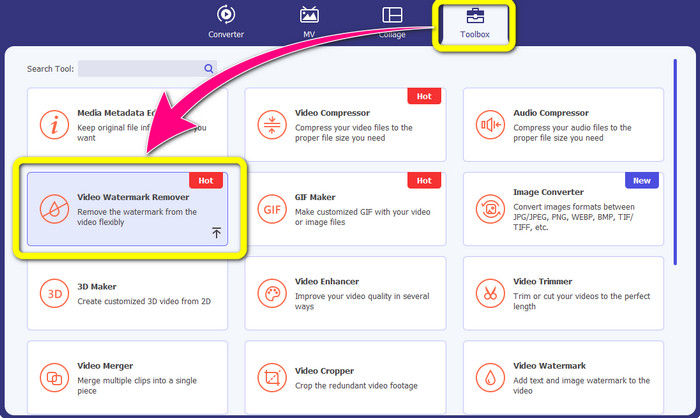
2. lépés: Amikor a szoftver megnyílik, fent négy lehetőség jelenik meg: Converter, MV, Collage és Toolbox. Válaszd a Toolbox panelt, majd kattints a Video Watermark Remover lehetőségre a Toolbox panelen belül.
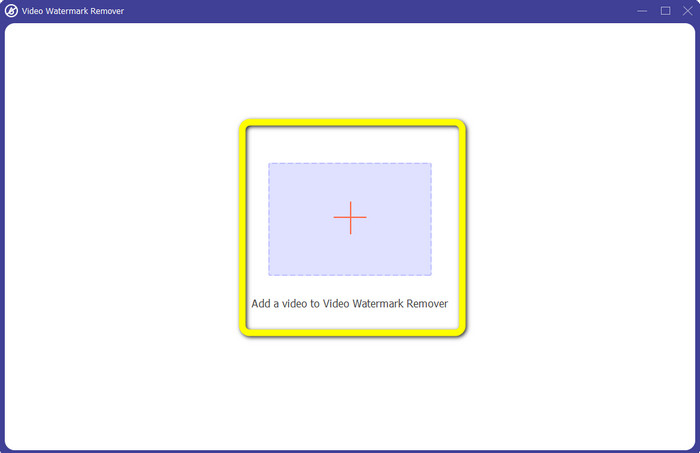
3. lépés: Egy új ablak jelenik meg a képernyőn. A vízjelet tartalmazó videó importálásához kattints a felület közepén lévő + jelre.
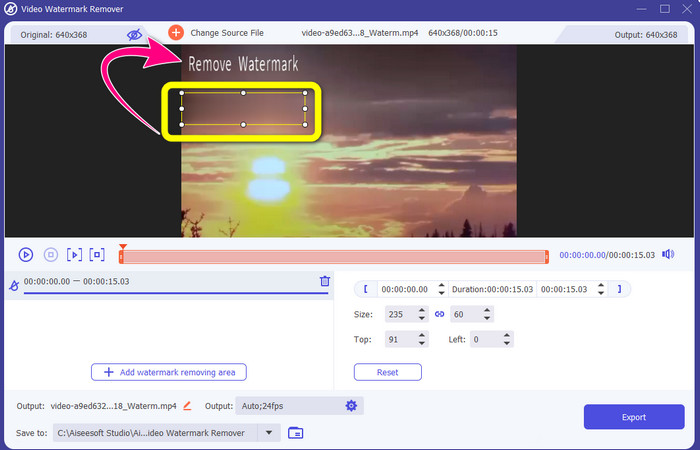
4. lépés: Kattints az Add Watermark Removing Area gombra. Húzd a dobozt a képernyőn, majd igazítsd úgy, hogy lefedje a videóidon lévő vízjelet.
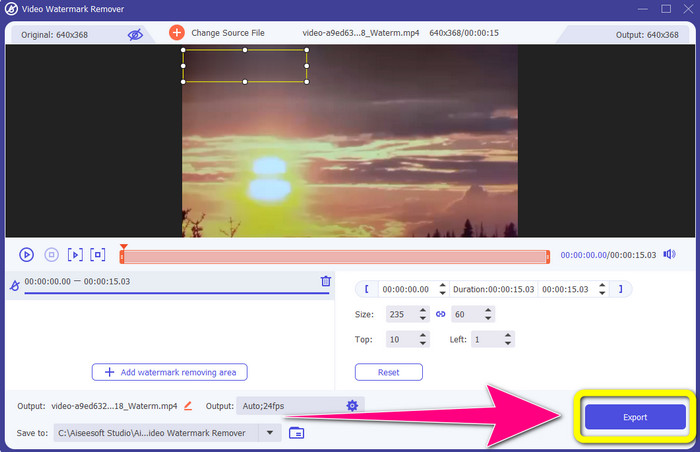
5. lépés: Az utolsó lépés a legegyszerűbb. Mindössze annyit kell tenned, hogy a Export gombra kattintasz, és elmented a végső kimenetet. Várj néhány pillanatot, és a kész videód teljesen elkészül.
A Video Cropper funkció használata
Ezzel a Video Cropper funkcióval eltávolíthatja a vízjeleket a videóiról, ha a vízjel a videó szélén található.
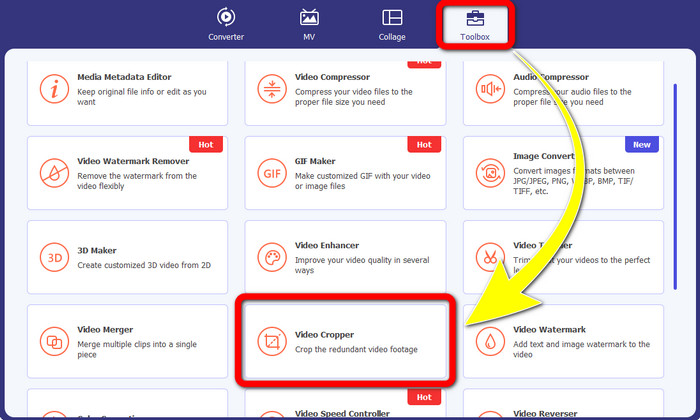
1. lépés: Indítsd el az alkalmazást Windows vagy Mac számítógépeden. Kattints a Video Cropper gombra a Toolbox panel alatt.
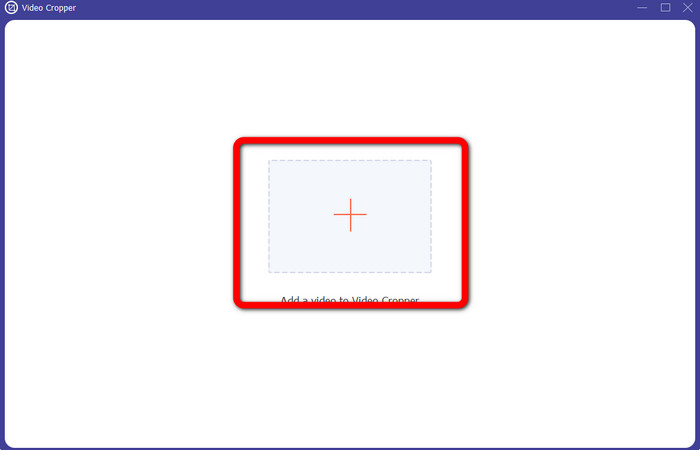
2. lépés: Egy újabb ablak jelenik meg a képernyőn. Kattints a + ikonra a vízjelet tartalmazó, eltávolítani kívánt videó beszúrásához.
3. lépés: Ebben a részben már kivághatod a videódat, hogy eltávolítsd a vízjelet a pontok mozgatásával.
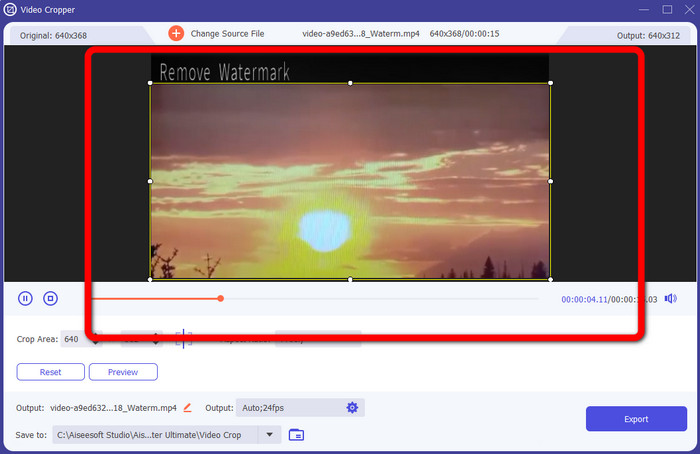
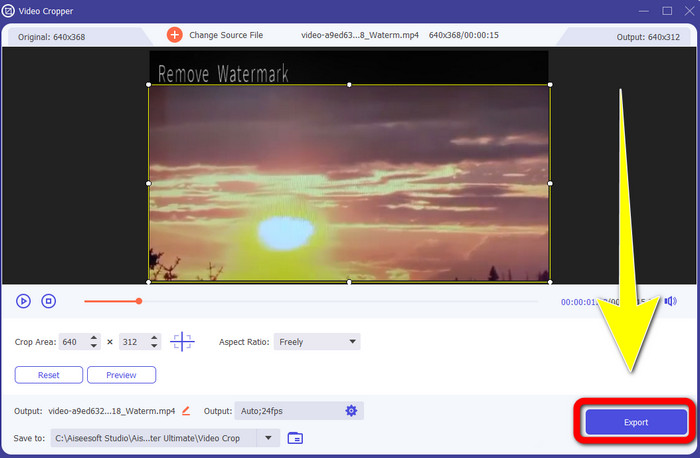
4. lépés: Ha elégedett vagy azzal, amit elértél a vízjelek videóidról való eltávolításával, kattints az Export gombra, és mentsd el a videót.
3. rész: GYIK a Premiere Pro videóról történő vízjel eltávolításával kapcsolatban
Hogyan lehet eltávolítani a vízjelet a videóról elmosódás nélkül a Premiere Pro segítségével?
Az Adobe Premiere Pro képes eltávolítani a vízjelet a videódról elmosódás nélkül. Így továbbra is élvezheted a videód minőségét. Kövesd az alábbi lépéseket.
1. Csatold a fájlt az Adobe Premiere Pro-hoz.
2. Másold a videódat, és húzd az eredeti videó fölé.
3. Kattints a poligonmaszk eszközre.
4. Fedd le a vízjelet, és mentsd el a végső kimenetet.
Hogyan távolíthatom el a márka logóját a videóból?
Le kell töltened egy logóeltávolítót, például a Video Converter Ultimate-et, hogy eltávolítsd a márkalogót a videódból. Ez az offline szoftver azonnal eltávolíthatja videóiból a bosszantó elemeket, például logókat, vízjeleket, dátumbélyegzőket, szövegeket stb.
Hogyan távolíthatok el egy logót a videóról anélkül, hogy elmosódna?
A legjobb megoldás a Video Converter Ultimate letöltése az asztalra. Miután eltávolította a logót és a nem kívánt objektumokat a videóidról, a terület nem lesz elmosódott.
Milyen hátrányai vannak az Adobe Premiere Pro használatának?
Ez egy előfizetés alapú modell. Az alkalmazás következetes használatához havonta vagy évente kell fizetnie. Ezenkívül magas RAM-használatról van szó, így elfogyhat a memória, ha összetett és hosszadalmas felvételeket szerkeszt. Végül bonyolult a használata. Az alkalmazás megtanulása egy hónapot vesz igénybe. Még a szakemberek is elismerik, hogy még csak tanulják az Adobe Premiere Pro használatát.
Melyek a legmegbízhatóbb alkalmazások, amelyekkel eltávolíthatom a vízjeleket a videóimról?
A vízjelek videóiról való eltávolítására használható alkalmazások a következők: Video Converter Ultimate, Aiseesoft Free Watermark Remover Online, HitPaw Remove Watermark Online, BeeCut és Adobe Premiere Pro. Ezek az alkalmazások teszteltek, és érdemes kipróbálni.
Következtetés
Amint a fentiekből láthatod, eltávolíthatsz egy logót a videóról a Premiere Pro-ban. Emellett használhatsz egy kiváló alternatívát is az Adobe Premiere Pro helyett: a Video Converter Ultimate programot. Ez lehetővé teszi, hogy könnyedén eltávolítsd a vízjeleket vagy logókat a videóidról.
-
 Bevált módszerek lassított videók készítésére az Adobe Premiere programban
 Az Adobe egyik legjobb szoftvere a Premiere; inkább arra szolgál, hogy a videókat a következő szintre emelje, például lassított videókat készítsen. Olvassa el ezt a cikket, ha többet szeretne megtudni az Adobe Premiere-ről és hasznos funkcióiról.
-
 Gyors és egyszerű módszerek a hang és a videó szinkronizálására az Adobe Premiere Pro programban
 Szeretné tudni, hogyan szinkronizálhatja a hangot és a videót a Premiere Pro alkalmazásban? Akkor ez a cikk megfelel az Ön igényeinek. Ahogy magunk is kipróbáljuk, hogyan szinkronizáljunk, hogy csak a valódi és egyszerű lépéseket biztosítsuk.
-
 Hogyan lehet felgyorsítani a videózást a Premiere Pro-ban és annak alternatíváiban
 Szeretné tudni, hogyan használhatja a premier pro-t a videó felgyorsítására? Akkor a megfelelő cikkben jár, mivel lépéseket és más megfizethető alternatívákat kínálunk.
