


 Video Converter Ultimate
 Screen Recorder
 Videó javítás
 Biztonságos letöltés
Eljárások egy videó részeinek kivágására iPhone készüléken
Lehet, hogy szabadidődben egy gyönyörű videót rögzítettél iPhone‑nal vagy iPaddel, és szeretnéd megosztani a barátaiddal, illetve közzétenni a közösségi médiában. Az viszont hasznos, ha előbb megszerkeszted a videó azon részeit, amelyeket nem szeretnél elküldeni. Ilyen helyzetben gyorsan szerkesztheted a felvételeket a beépített eszközökkel, például lerövidítve vagy megvágva őket. Tehát hogyan lehet lerövidíteni egy videót iPhone‑on? Ebben a cikkben megismerheted a legjobb módszereket. Ha az összes lépést el szeretnéd sajátítani, olvasd el az alábbi információkat.

1. rész: Hatékony eljárások a videó vágására iPhone-on
A Photos alkalmazás használata
Ha Ön iPhone-felhasználó, és le szeretné rövidíteni a videó hosszát, a Fotók alkalmazás segíthet. A Fotók alkalmazás nem csak képek és videók megjelenítésére alkalmas. Ennek az előre beépített alkalmazásnak a segítségével kivághatja vagy vághatja a videót. Mivel ez egy egyszerű alkalmazás iPhone-on, néhány érintésre lerövidítheti a videót. Így minden felhasználó, különösen a kezdő, használhatja az alkalmazást. Ezenkívül, mivel ez egy előre beépített alkalmazás, nincs szükség telepítésre. Annak ellenére, hogy praktikus alkalmazás a videók vágására, a Fotók alkalmazásnak vannak bizonyos korlátai. Az alkalmazás nem megfelelő, ha azt szeretné, hogy a videó hosszának lerövidítése mellett fejlett szerkesztőeszközök javítsák a videót. A Fotók alkalmazás csak alapvető szerkesztési funkciókat kínál, például vágást, szűrők hozzáadását és egyebeket. Ha szeretné tudni, hogyan vághat le egy videót iPhone-on, kövesse az alábbi lépéseket.
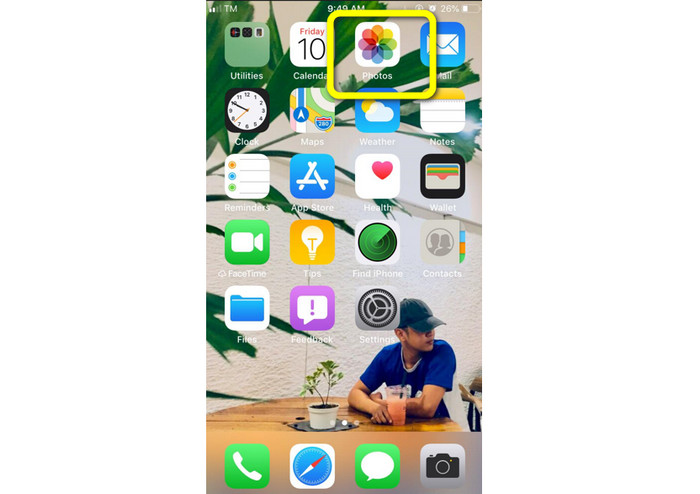
1. lépés. Nyisd fel az iPhone készülékedet, és indítsd el a Fotók alkalmazást.
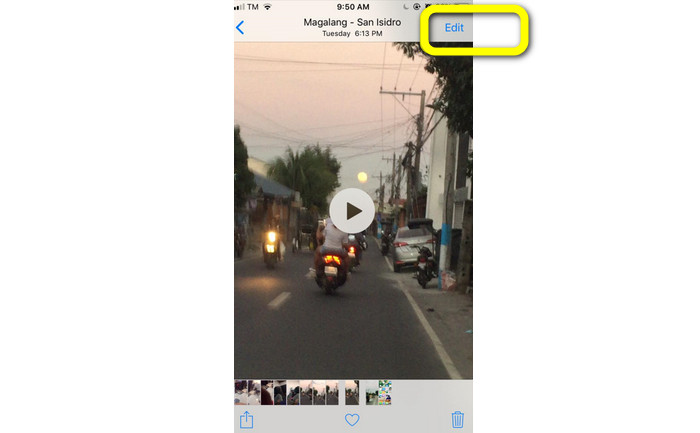
2. lépés. Ezután koppints arra a videóra, amelyet le szeretnél rövidíteni. Utána nyomd meg a Szerkesztés gombot a képernyő jobb sarkában.
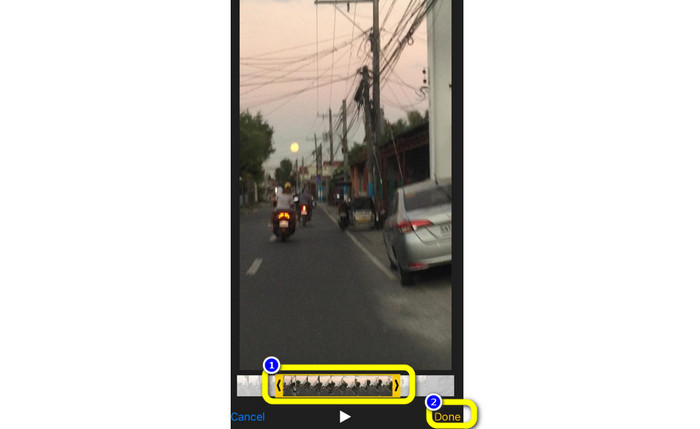
3. lépés. Ezután már le is rövidítheted a videót a videó szélének húzásával. A videó bal és jobb szélét egyaránt húzhatod. Miután megvágtad a videót, a mentéshez koppints a Kész gombra.
Az iMovie használata
Szeretnél néhányat az iPhone‑nal rögzített felvételeid közül szerkeszteni, esetleg kivágni a felesleges részeket, lerövidíteni őket vagy látványosabbá tenni a videót? Ez egy egyenes, egyszerű folyamat a iMovie program használatával, amely iOS‑eszközökre érhető el. A Fotók alkalmazás beépített videoszerkesztője a legtöbb felhasználó számára elegendő. Azonban nem használható fejlettebb funkciók elérésére, például az idővonal részletes áttekintésére, áttűnések alkalmazására, több videó egyesítésére stb. Ilyen esetekben hasznos egy speciális videoszerkesztő program, mint az iMovie. Az Apple iMovie alkalmazása jobb, mint az App Store‑ban található sok más videoszerkesztő eszköz. Sőt, szinkronizálhatod az audiót és a videót is az iMovie segítségével. Az iMovie‑nak azonban vannak hátrányai is. Az iMovie csak iPhone‑ra érhető el. Ez azt jelenti, hogy ha Android‑os felhasználó vagy, más alkalmazást kell használnod a videó vágásához.
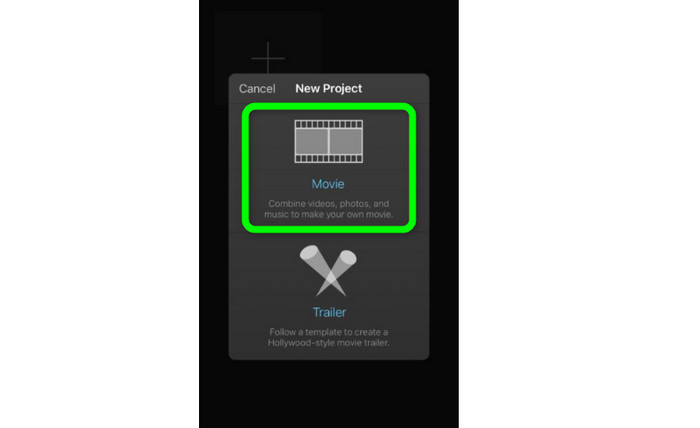
1. lépés. Töltsd le és telepítsd az iMovie alkalmazást az iPhone készülékre. Ezután indítsd el az alkalmazást. Amikor megjelenik a felület, koppints a Create Project > Movie (Projekt létrehozása > Film) lehetőségre, és add hozzá a videót.
2. lépés. Az általad kiválasztott videó most megjelenik az iMovie idővonalán. Alapértelmezés szerint a mutató a klip végén lesz, de ha vágni szeretnél, lassan jobbra húzhatod, majd ott megállíthatod.
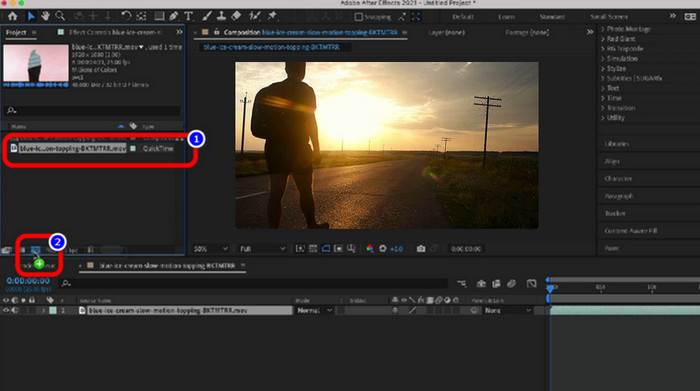
3. lépés. Most már használhatod az iMovie által kínált különféle funkciókat. Ahogy alább látható, az Olló ikon jelöli a vágóeszköz kiválasztását. Válaszd a Split (Felvágás) eszközt a menüből, hogy pontosan ott vágd el a klipet, ahol megjelölted.
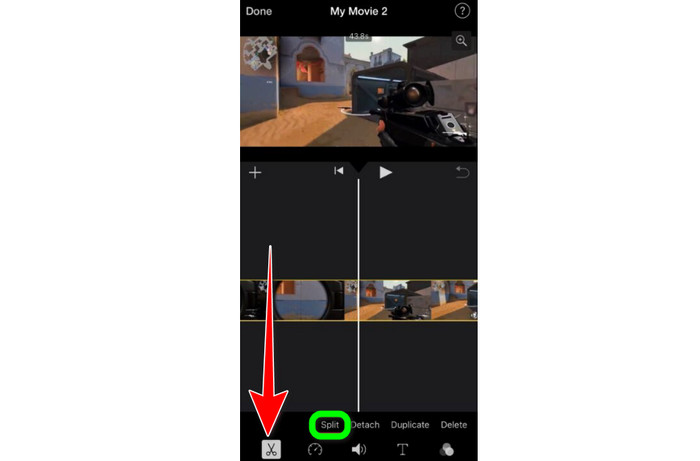
4. lépés. Ezután kattints a Delete (Törlés) opcióra, hogy eltávolítsd a videó felesleges részét. Amikor befejezted a videó vágását, kattints a Done (Kész) gombra.
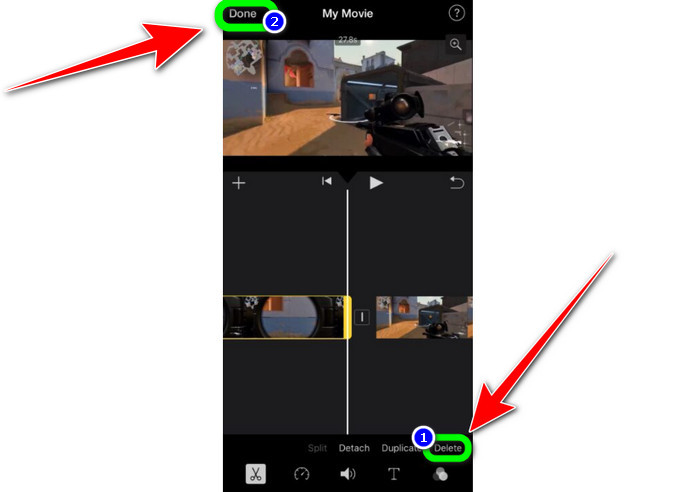
2. rész: Videók vágása iPaden
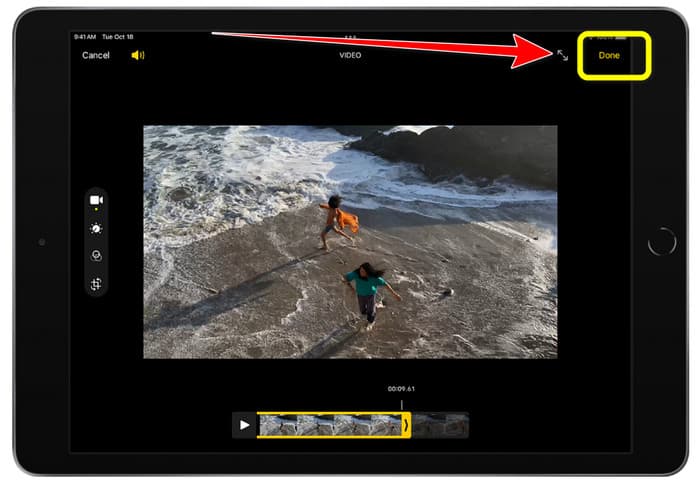
Ha iPaden szeretnél videót vágni vagy megvágni, már nem kell letölthető alkalmazás után kutatnod. Akárcsak iPhone‑on, iPaden is a Fotók alkalmazással tudsz videót vágni vagy rövidíteni. A Fotók appnak iPaden is vannak korlátai. Ha csak a videó vágása a célod, arra kiváló, de ha fejlettebb szerkesztőeszközöket szeretnél használni, az alkalmazás már nem lesz megfelelő. Kövesd az alábbi lépéseket, hogy iPaden vágd vagy rövidítsd a videót.
1. lépés. Indítsd el a Fotók alkalmazást az iPaden, koppints a szerkeszteni kívánt videoklipre, majd kattints a Szerkesztés lehetőségre.
2. lépés. Húzd a képkocka‑néző szélét, hogy lerövidítsd a videó hosszát, és ezzel megkezd a vágást.
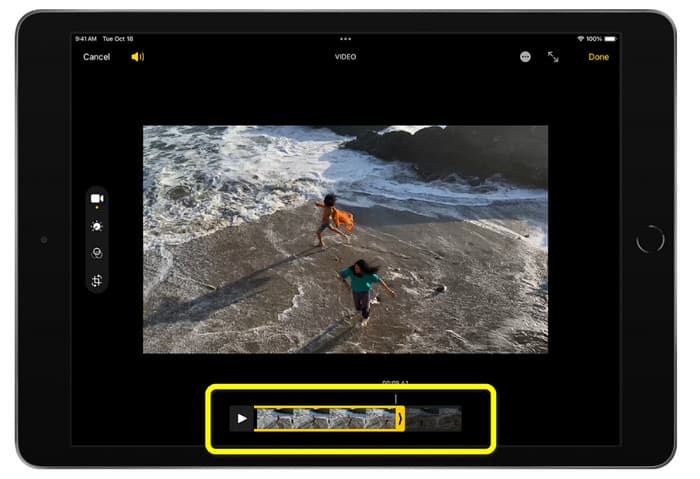
3. lépés. Miután befejezted a videó vágását, kattints a Kész gombra.
3. rész: iPhone videók vágása PC-n
A legjobb módot keresed az iPhone‑videók vágására PC‑n? Ebben az esetben használd a Video Converter Ultimate programot. Ezzel az offline szoftverrel könnyedén megvághatod az iPhone‑os videódat. Emellett könnyen kezelhető felületet kínál egyszerű lépésekkel, így minden felhasználó – különösen a kezdők – számára ideális. A Kimenet beállításainál különböző értékeket is módosíthatsz. Változtathatod a videó felbontását, élességét és képkockasebességét. Az audió bitrátáját, mintavételezési frekvenciáját és egyéb jellemzőit is megváltoztathatod. A végső fájlt számos formátumban mentheted, például MP4, MOV, AVI, MKV stb. Ez a felhasználóknak kedvez, mivel a Video Converter Ultimate Windows és Mac számítógépeken is elérhető és használható. Ráadásul az alkalmazás nem helyez vízjelet a szerkesztett videóra, így a felvételt továbbra is zavaró elemek nélkül nézheted.
Ingyenes letöltés Windows 7 vagy újabb rendszerre Biztonságos letöltés
Ingyenes letöltés macOS 10.7 vagy újabb rendszerre Biztonságos letöltés
1. lépés. Töltsd le a Video Converter Ultimate programot a számítógépedre. Kattints az alábbi Download (Letöltés) gombra, hogy könnyen hozzáférj a programhoz.
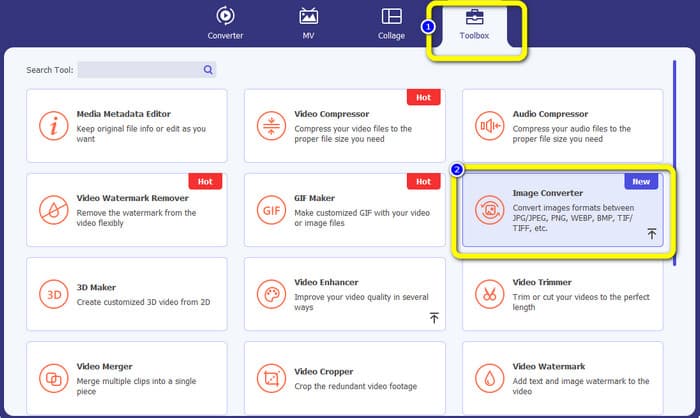
2. lépés. Letöltés után indítsd el, hogy megjelenjen a főfelület. Győződj meg róla, hogy az iPhone‑videó már át lett másolva a számítógépre. Ezután, amikor megjelenik a felület, kattints a Toolbox > Video Trimmer Tool (Eszköztár > Video Trimmer eszköz) lehetőségre.
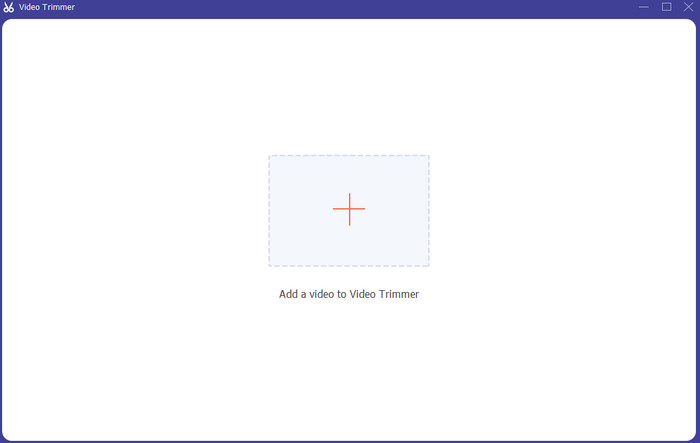
3. lépés. Amikor az új felület megjelenik a képernyőn, kattints a + jelre az iPhone‑videó hozzáadásához.
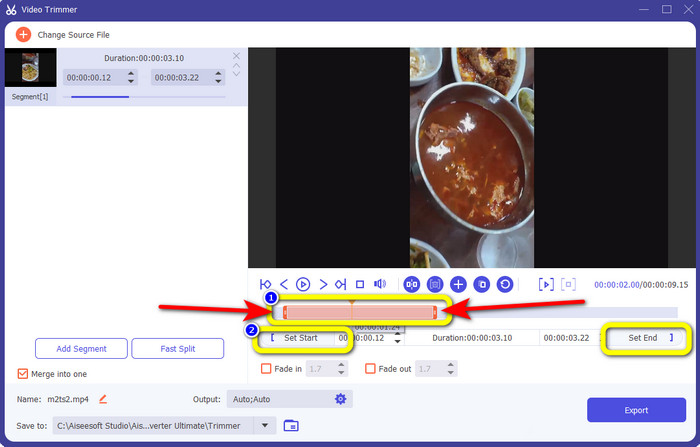
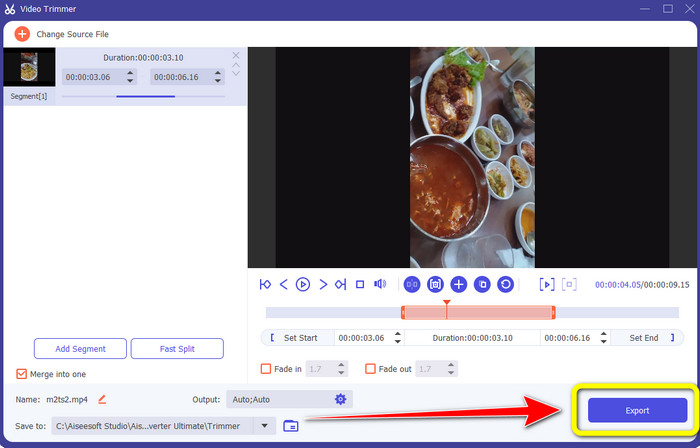
4. lépés. Ezután már állíthatod a videó szélét a vágáshoz. Emellett használhatod a Set Start and Set End (Kezdőpont beállítása és Végpont beállítása) opciót is a videó kézi vágásához.
5. lépés. Végül kattints az Export (Exportálás) gombra, hogy elmentsd a videót a vágás után.
4. rész. GYIK arról, hogyan rövidíthet le egy videót iPhone-on
Hogyan vághatom le a videó közepét iPhone-on?
Ha le szeretné vágni a videó középső részét az iPhone használatával, továbbra is használhatja a fent említett módszereket. A Photos alkalmazás és az iMovie a videó középső részét is levághatja.
Hogyan lehet videót vágni Android telefonon?
Léphet a Galéria alkalmazásba. Ezután nyissa meg a videót, és kattintson a Szerkesztés lehetőségre. Ezt követően a videó széleit húzva már vághatja is a videót.
Hogyan lehet videót átvinni az iPhone-ra a számítógépről?
Számos eszközt használhat a videó számítógépről iPhone készülékre való átvitelére. Használhatja iPhone Transfer Pro, Dropbox, AirDrop stb.
Következtetés
A videó vágása különösen hasznos, ha meg szeretnél osztani vagy fel szeretnél tölteni egy videoklipet. Ez az ismertető cikk részletesen bemutatja, hogyan lehet lerövidíteni egy videót iPhone‑on. Ezenkívül, ha számítógépen szeretnéd lerövidíteni az iPhone‑videó hosszát, használhatod a Video Converter Ultimate programot. Ezzel az offline alkalmazással egyszerűen és azonnal megvághatod az iPhone‑videót PC‑n.
-
 [4 megoldás] Hogyan lassíthat le egy videót iPhone-on, mint egy profi
 Problémái vannak a videó lelassításával iPhone-on? Ha ezzel a problémával találkozik, ne aggódjon tovább, mert a cikk elolvasásával segítünk megoldani a problémát.
-
 Videó gyors előretekerése iPhone-on – Állítsa be a videó sebességét
 Hogyan gyorsíthatok előre egy videót az iPhone-omon? Hogyan lehet előretekerni egy videót iPhone-on az iMovie segítségével? Tanuljon meg 3 módot a videó felgyorsítására iPhone és iPad eszközökön.
-
 Oktatóanyag - 4 ingyenes módszer az iPhone-on található videók újba egyesítéséhez
 Olvassa el és szerezzen be 4 egyszerű módszert a videók egyesítésére iPhone-on. Minden iPhone modell és iOS verzió támogatott. Az iPhone-on 2 és több videót gyorsan új videóvá kombinálhat.
