


 ビデオコンバーター究極
 スクリーンレコーダー
 ビデオ修復
ビデオ修復iMovieでビデオに画像をすばやく追加する簡単な方法
動画に画像を追加することは、視聴者にメッセージをより分かりやすく伝えるための、最も効果的な方法の一つになりました。ほとんどの動画編集ソフトでは、画像を動画に素早く重ねることができますが、Appleユーザーであれば、すでにiMovieに出会っているかもしれません。iMovieは、Appleデバイスで使える最高の編集ソフトの一つとして知られています。しかしその一方で、一般的なAppleユーザーの中には、これまで使ったことがないためにiMovieの操作を難しく感じる人も少なくありません。もしあなたも同じようにiMovieの使い方でつまずき、動画に画像を追加したいと思っているなら、本記事をお読みください。この記事を読めば、iMovieで動画に画像を追加する方法を簡単に理解できます。詳しい手順は以下をご覧ください。

パート1。iMovie[Mac]でビデオに画像をオーバーレイする方法
MacにiMovieがある場合は、それを使用して画像をビデオに追加できます。だから今、あなたがビデオiMovieに写真を置く方法を学びたいなら、以下のステップがあなたを助けるでしょう。
ステップ1. FinderでiMovieを検索し、クリックして起動します。
ステップ2. iMovie画面左上のインポートボタンをクリックして、動画と画像を読み込みます。挿入したメディアファイルをタイムラインにドラッグ&ドロップして配置します。
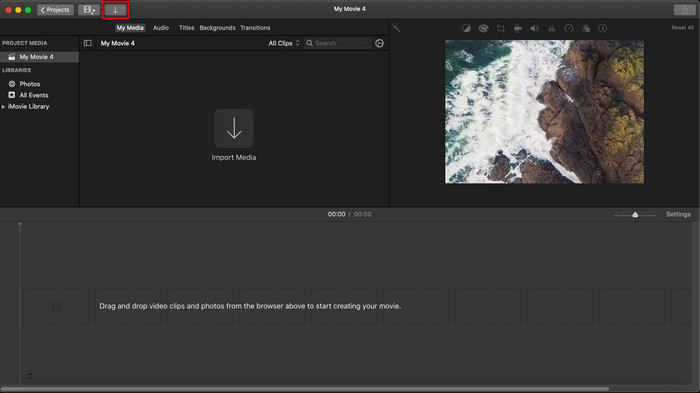
ステップ3. 取り込んだ画像の表示位置や表示時間を調整します。その後、書き出しをクリックして、ファイルをパソコンに保存します。
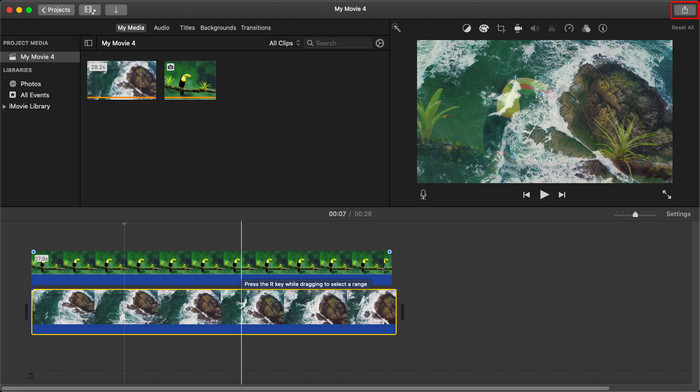
ここで紹介する手順は、iMovieを実際に使用した経験からのものです。ツールに更新がある場合、またはいくつかの変更がまもなく行われる場合、手順は異なる場合があります。
パート2。iMovieを使ってビデオに写真を挿入する方法[iOS]
iOSデバイスを使用していて、ビデオに画像を追加するためのエディタとしてiMovieを使用したい場合はどうなりますか?出来ますか?そうですね、そうです。以下の詳細を読んで、iPhoneのビデオiMovieに写真を入れる方法を説明します。
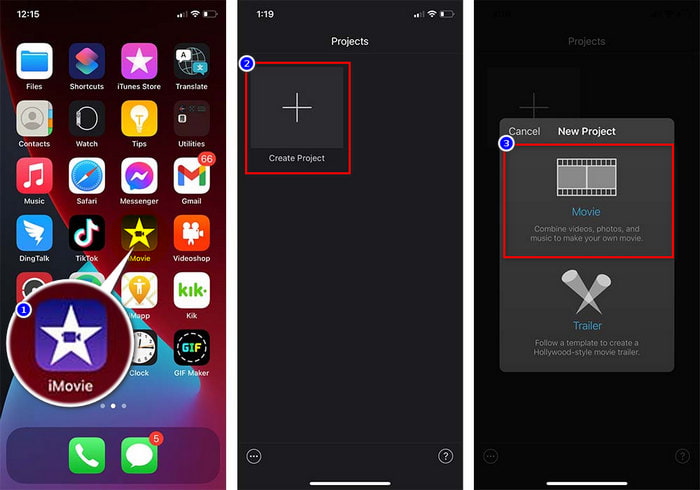
ステップ1. iOSデバイスでiMovieアプリを起動し、プロジェクトを作成をタップしてからムービーを選択します。ライブラリ内の動画を追加します。
ステップ2. +ボタンをタップして、画像ウォーターマークを動画に追加します。ライブラリ内から画像を探してタップし、三つの点のアイコンを押してからグリーン/ブルースクリーンを選択します。画像をタップすると、自動的に背景が削除されます。
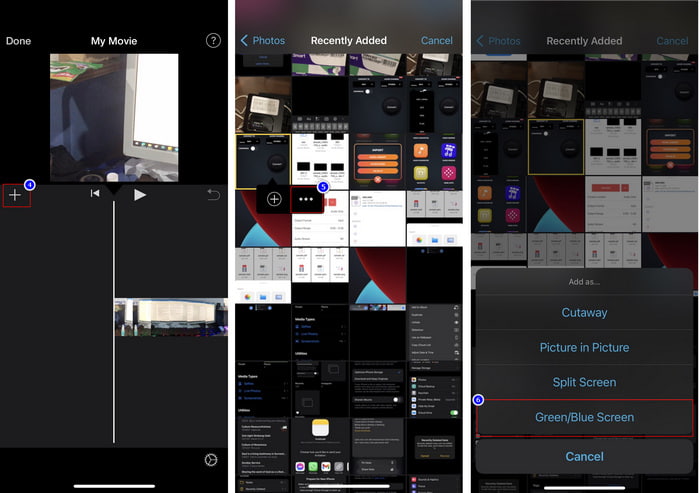
ステップ3. 完了を押し、書き出しをタップしてからビデオを保存を選択します。
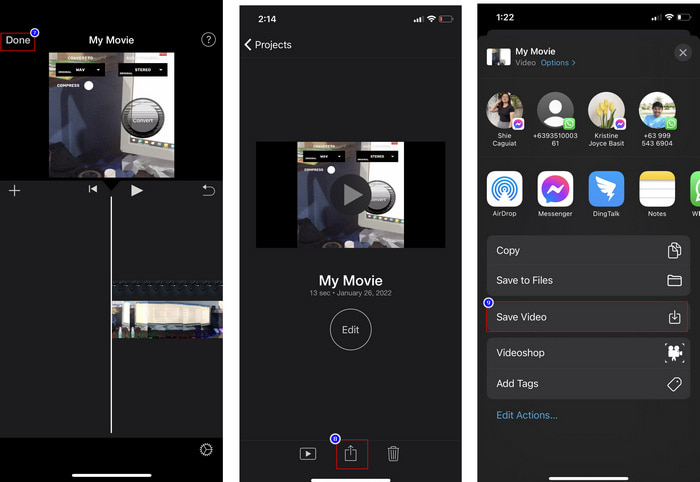
ここで紹介するすべての手順は、iOSでiMovieを実際に使用した経験に基づいています。ただし、エディターアプリで更新がすぐに行われると、一部の手順が変更される可能性があります。
パート3。Macで最高のビデオ透かしソフトウェアを使用してビデオに写真を挿入する最も簡単なソリューション
iMovieで動画に写真を重ねるときに、同じような問題でお困りではありませんか?その場合は、Video Converter Ultimateを使ってみてください。このツールは、iMovieの最高の代替ソフトです。その総合的な性能は、すでに何百万人ものユーザーから高く評価されています。ユーザーはそれぞれ異なる動画の悩みを抱えていますが、それでも問題解決のためにこの「Ultimate」ツールを選んでいるのです。さらに、本ソフトがあれば、カット、画像の追加、結合、クロップなど、動画に関するほとんどの作業を行えます。どんな問題であっても、これ一つで解決できるワンストップソリューションと言えるでしょう。問題を解決したいですか?それなら、以下に示す手順に沿って操作してみてください。
主な機能:
◆究極のツールは複数のフォーマットをサポートしているため、フォーマットのアップロードは難しくありません。
◆数秒以内に動画に画像をすばやく追加できる、わかりやすいインターフェースをサポートしています。
◆ユーザーがすべてのプラットフォームで楽しめるように、MacやWindowsなどのさまざまなプラットフォームをサポートしています。
ステップ1. 下のダウンロードボタンをクリックしてツールをダウンロードし、そのままインストールを完了させたら、インストール後に起動します。
無料ダウンロードWindows 7 以降に対応安全なダウンロード
無料ダウンロードMacOS 10.7 以降に対応安全なダウンロード
ステップ2. 起動後、表示されている+ボタンをクリックして動画ファイルをインポートします。その後、フォルダウィンドウが開くので、動画ファイルを選択して開くをクリックします。
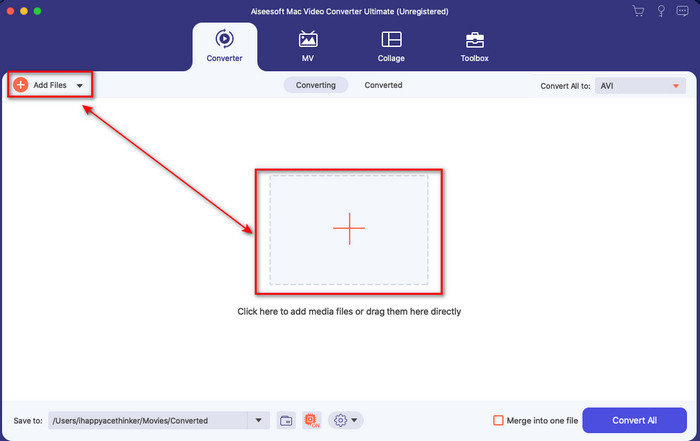
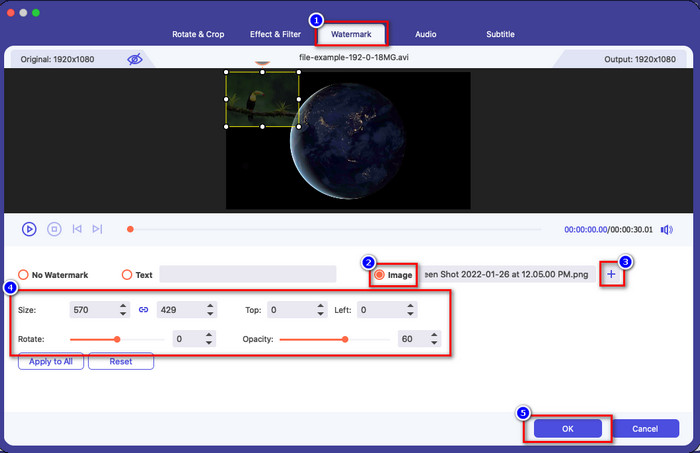
ステップ3. 魔法の杖アイコンを押して、コンバーターの編集画面を開きます。ウォーターマークに進み、画像をクリックしてから追加を押し、ウォーターマークにしたい画像をアップロードします。また、必要に応じて画像の不透明度を調整したり、回転させたりできます。変更を反映するには、OKをクリックします。
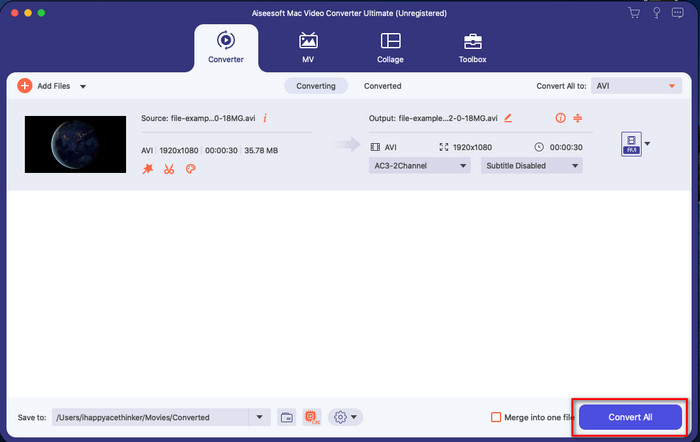
ステップ4. すべて変換ボタンをクリックして動画ファイルを書き出します。書き出し処理が完了すると、動画はパソコン上のフォルダに保存されます。これだけで、動画にウォーターマーク画像を追加できるのです。さて、Video Converter Ultimateの実力を信じていただけましたか?このように、画像ウォーターマークを動画に素早く追加できます。
関連記事:
パート4。iMovieのビデオに写真を追加することに関するFAQ
iMovieビデオに追加される画像の数に制限はありますか?
これまでのところ、iMovieの使用中にビデオに複数の画像を追加することに不便はありませんでした。ただし、ビデオに追加する画像が多すぎると、エクスポートプロセスに時間がかかりますが、経験上、クラッシュすることはありません。
iMovieで使用できる画像形式は何ですか?
iMovieがサポートする静止画像形式はBMP、PNG、JPGまたはJPEG、HEIF、PSD、RAW TIFF、TGAなど多数ありますが、アニメーション画像が必要な場合はGIFを使用できます。これらの形式はたくさんありますが、EXIFやWebPなどのすべての画像形式をサポートしているわけではありません。
なぜiMovieを使う必要があるのですか?
Appleユーザーにとって、iMovieは、短編映画、広告、vlogなどを作成するための最良の選択肢の1つです。これらはすべて無料です。エディターは、ユーザーが高度なインターフェースまたはツールの外観を実際に体験できるように、半高度なインターフェースを提供します。また、ソフトウェアはそれほど技術的ではありませんが、専門的です。あまり技術的でない使用方法を提供するエディターを目にすることは一般的ではありませんが、それはあなたがプロになり、高度なツールが持っているいくつかの専門的な技術を追加するのに役立ちます。
結論
ここまでで、iMovieで動画に写真を簡単に重ねる方法について、十分な知識が得られたと言えるでしょう。Apple純正の優れたツールを使えば、ある程度複雑な編集もこなせます。しかし、必要な機能がすべてiMovieに備わっているわけではありません。そんなときは、すべてのプラットフォームで使える編集ソフトとしてVideo Converter Ultimateを利用できます。「なぜこのUltimateツールを使うべきなのか?」と思うかもしれませんが、本記事で示したとおり、その理由は説明するまでもないほど明らかです。では、あなたはどうすべきでしょうか?ダウンロードボタンをクリックして、このUltimateツールを実際に試し、今抱えている問題を解決してみてください。
-
 AndroidとiOSで最も人気のある5つのオーディオレコーダーアプリ[2022年更新]
 どのオーディオレコーダーアプリを使うべきかわからないのですか?もしそうなら、この記事はあなたがあなたのオーディオ録音タスクであなたを助けるであろうアプリを選ぶのを助けるでしょう。
-
 iOSでの音声メモ–長所、短所、機能、4つのベストリプレイスメント
 ボイスメモとは? iOSで最高のオーディオレコーダーですか?その質問に対する答えを探しますか?そのため、この記事の全範囲を読んで詳細を確認してください。
-
 MODファイルを新しいフォーマットに変更するための7つの最新の無料MODコンバーター
 使用できるMODコンバーターは何ですか?同じ質問を考えていますか? MODファイルの変換に使用できる7つのツールを提供します。
