


 ビデオコンバーター究極
 スクリーンレコーダー
 ビデオ修復
ビデオ修復それぞれの詳細な手順を含むビデオにテキストを追加する方法に関するベストガイド
ビデオチュートリアルを作りたいですか? 理論的には、ユーザーは飽きやすく、特に内容が分かりにくいチュートリアル動画を見ているときは、その傾向が強くなります。たとえコンテンツ自体が素晴らしくても、ユーザーはあなたの動画をそれほど魅力的だと感じず、数分のうちに視聴意欲を失ってしまうかもしれません。ですが、動画にテキストを追加することで、ユーザーにとってより魅力的なものにできることをご存じでしたか? それなら、試してみてはいかがでしょうか。ここでは、動画にテキストを追加するための方法を解説しますので、途中でやめずに記事を最後まで読んでみてください。

パート1。究極のツールを使用してビデオにテキストを追加する最も専門的な方法
多くのブロガーやコンテンツクリエイターは、テキスト入りの優れた動画を作るのが大好きです。Video Converter Ultimate を使えば、そんな素晴らしい動画を簡単に作成できます。このツールには、動画にテキストを入れたあとに使いたくなる編集機能が備わっています。また、動画をより魅力的な状態に仕上げ、ほんの数クリックで信じられないほど美しい動画にすることも可能です。このツール、驚きませんか? 私たちも同じように驚いています。テキストを素早く追加したいなら、ここで紹介する「動画にテキストを追加する」手順に沿って、数クリックで完了させましょう。
究極ツールで動画にテキストをウォーターマークとして追加する手順
手順1. プログラムを Windows または Mac のドライブにダウンロードし、すぐにインストールして起動します。以下のガイドは、分かりやすく簡単に理解できるようにまとめています。
無料ダウンロードWindows 7 以降に対応安全なダウンロード
無料ダウンロードMacOS 10.7 以降に対応安全なダウンロード
手順2. ツールボックス セクションから ビデオウォーターマーク を見つけて開きます。
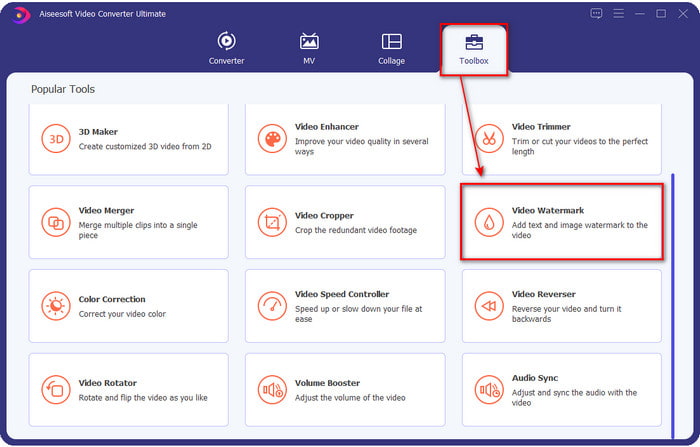
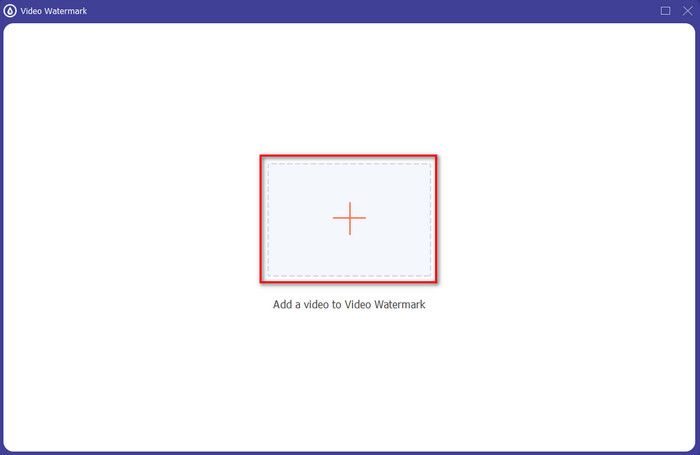
手順3. + ボタンを押すと、ハードドライブのファイルフォルダが開きます。フォルダ内からファイルを探し、開く をクリックして、ウォーターマーク用のキューに追加します。
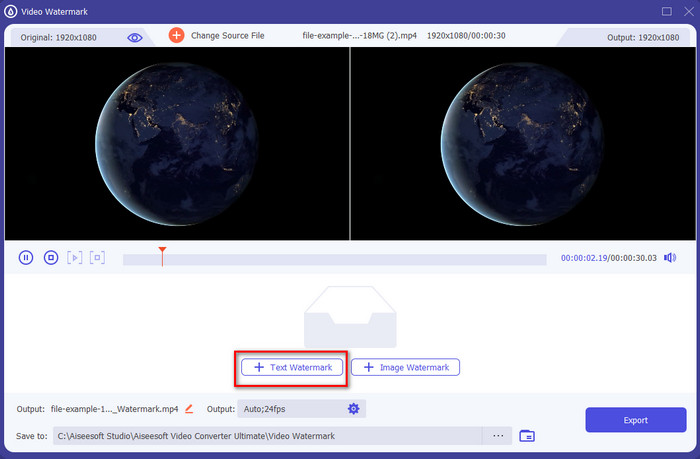
手順4. 新しく開いたウィンドウの下中央付近にある テキストウォーターマーク をクリックして、動画にテキストオーバーレイを行います。
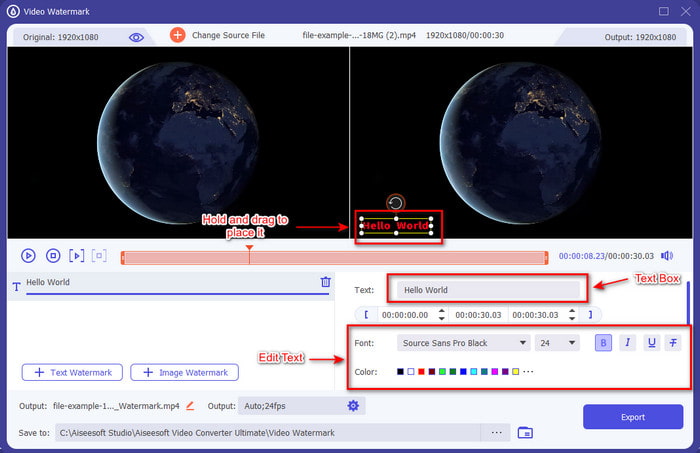
手順5. それをクリックしたら、テキストボックス にテキストを入力し、好みに合わせてフォントの種類・色・サイズを変更します。テキストウォーターマークを押したままドラッグし、動画内のお好みの位置に配置します。
手順6. 仕上がったファイルをドライブへ保存するには、書き出し ボタンをクリックします。このツールは超高速処理に対応しているため、書き出しには1分もかかりません。これで完了です。とても簡単に、動画にテキストウォーターマークを追加できました。
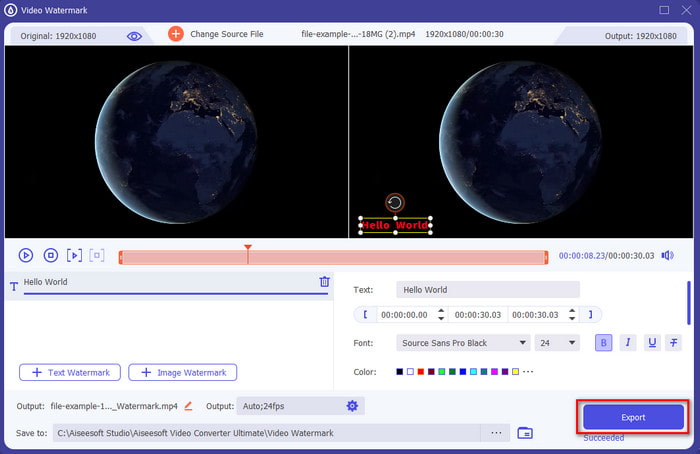
長所
- 他のツールが提供できるよりも優れたビデオを作成し、テキストを追加するための高度な編集機能をサポートしています。
- あらゆる状況で、WindowsやMacなどのプラットフォームに適応できます。
- MP4、AVI、MOV、MKV、WMV、FLVなどにアップロードおよびエクスポートできる200以上のビデオ形式をサポートしています。
短所
- ツールの購入が必要です。
関連記事:
パート2。iOSデバイスでビデオにテキストを追加または配置する便利な方法
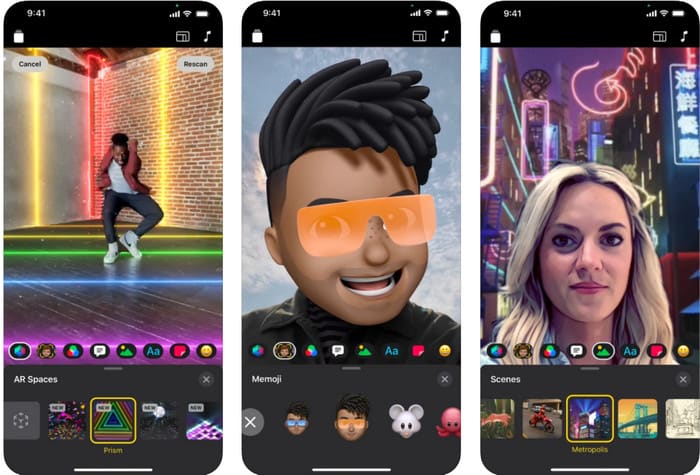
iPhone または iPad で動画にテキストを追加するには、Clips アプリを使用できます。このツールは、動画の録画と編集をまとめて行えるパッケージを備えています。また、必要であれば App Store から無料でダウンロードできます。ただし無料ツールではありますが、Android には対応していないため利用できません。したがって、以下の手順は Android ユーザー向けではありません。
手順1. iOS デバイスに Clips をダウンロードして開きます。
手順2. 複数画像 アイコンをクリックし、続けて写真を選択して、ギャラリーから動画を探します。ファイルをクリックして 追加 を押し、最後に プロジェクトに追加 をタップします。
手順3. 動画をタップして エフェクト をクリックし、その中の Aa を選択して、追加したいアニメーションテキストを選びます。追加したいテキストを入力し、書き出し ボタンをクリックしてから ビデオを保存 を選択します。
長所
- 半高度な編集機能をサポートします。
- iOSデバイスに無料でダウンロードできます。
- 編集だけでなく、録音にも対応しています。
短所
- それが提供するいくつかの編集機能には、まだバグや不具合が発生しています。
- の新しいバージョンは、以前のバージョンよりも最悪になりました。
パート3。Web上のビデオにテキストを追加する無料の方法
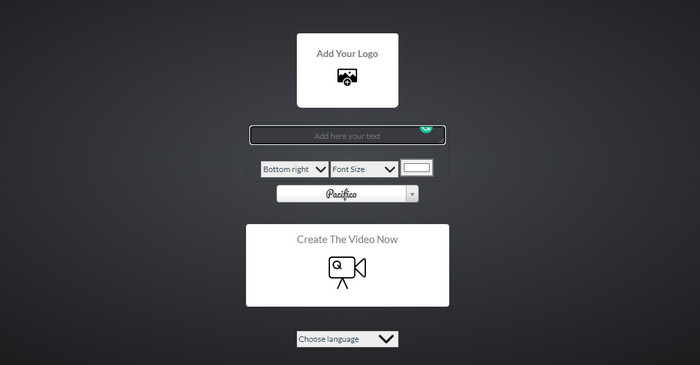
オンラインでビデオにテキストを追加しますか?さて、あなたは無料のvoice2v.comのためにそれを使うことができます。このWebツールは、MP4ビデオにテキスト透かしを無料で追加することを簡単にサポートします。このツールは無料で透かしを追加できますが、表示されているオプション以外の場所に透かしを自由に配置することはできません。ただし、必要に応じて、以下の手順を実行できます。
手順1. ブラウザを開き、voice2v.com の公式サイトを検索してアクセスします。
手順2. Upload Your Video をクリックして、ウォーターマークを追加したい動画を挿入します。
手順3. テキストボックス に追加したいウォーターマーク文字を入力し、ドロップダウンボタンからウォーターマークの位置、フォントの種類、サイズ、色を変更します。その後、Create The Video Now をクリックし、三点リーダー アイコンをクリックして動画をダウンロードします。
長所
- アプリやソフトウェアをダウンロードする必要はありません。
- すべてのブラウザで無料でアクセスできます。
- シンプルでありながら効果的な編集機能。
短所
- 透かしがどこにあるかを監視するためのプレビューペインはありません。
- 透かしを好きな場所に自由に配置することはできません。
パート4。ビデオへのテキストの追加に関するFAQ
テキスト透かしにアニメーションを追加できますか?
はい、できますが、すべてのエディターがテキスト透かしのアニメーションをサポートしているわけではありません。したがって、アニメーションのテキスト透かしを追加する場合は、アニメーションの透かしをサポートする一連のプロフェッショナルな機能を提供するツールを使用してください。
テキスト透かしの最適な場所はどこですか?
小さな障害が必要な場合は、ビデオの端に透かしを配置できます。ただし、作業にセキュリティを追加する場合は、ビデオの中央部分に透かしを追加できます。それはあなたのニーズに応じてうまく機能します。
テキスト透かしは、ビデオの元のファイルサイズを増やしますか?
まず、透かしビデオの元のビデオのファイルサイズが変更されます。ビデオに別の要素を追加すると、ファイルサイズが大きくなります。ただし、この追加は、ビデオのサイズを2倍にするような方法でビデオのファイルサイズに影響を与えることはありません。また、ビデオのファイルサイズが2倍になることに遭遇した場合、それは、テキスト透かしを追加するために使用したツールがそれを実行し、あなたではないことを意味します。
結論
要約すると、私たちが選択するこれらのツールはハンドピックです。つまり、テキスト透かしを追加するために使用できる最高のツールの中で最高のものだけを選択します。違いはありますが、このツールは、ビデオに透かしとしてテキストを追加する際に大きな影響を与えます。
これらのツールにはさまざまな機能がありますが、Video ConverterUltimateは私たちに編集者以上のチャンスを与えてくれたと思います。このツールはユーザーとツール自体との強固なつながりを生み出すため、手順を見ると、透かしとしてテキストを追加する手間が少なくて済みますが、楽しいツールであると言えます。あなたの注意を引きますか?もしそうなら、デスクトップにツールをダウンロードして楽しんでください!
-
 コンピュータ/電話で無料でビデオにオーディオと音楽を追加する方法
 この記事では、ビデオにオーディオを無料で追加する4つの簡単な方法を紹介します。ビデオに追加するオーディオトラックに関係なく、ここで満足のいく結果を得ることができます。
-
 GIFをビデオ形式に変換:GIFミームをビデオに変換[2021]
 以下にリストされているツールを使用して、GIFをビデオ形式に変換する方法を決定します。それらについて十分な証拠を収集するので、どれを選択し、それを行う方法を学びます。
-
 AndroidおよびiOSデバイス用のビデオアプリへの素晴らしいGIF
 GIFを携帯電話を使用して好きなビデオ形式に変換できることをご存知ですか? AndroidまたはiOSで最高のアプリを選択してください。
