


 ビデオコンバーター究極
 スクリーンレコーダー
 ビデオ修復
ビデオ修復
 安全なダウンロード
ビデオのAnimoto透かしを完全に削除するための最良のテクニック
Animotoはクラウドベースのビデオメーカーであり、誰でも優れたビデオを作成して、ビデオを見る視聴者に感動を与えることができます。何百万人ものユーザーを抱えるAnimotoは、ポストプロダクションに関する幅広い知識がなくても、動画の編集と作成で有名になりました。 Webサイトにアクセスする毎日の使用により、多くのユーザーはWebサイトを楽しんで使用し、プレゼンテーション用に複数のすばらしい短いビデオを作成します。
しかし、このツールの無料版では、動画の最後にツールのロゴが残ってしまいます。これは人によっては煩わしく感じられますし、何よりも、ウォーターマークのないすっきりとした動画を見せるためには削除する必要があります。無料でAnimoto のウォーターマークを削除できるツールを紹介するために、この記事では役立つツールをすべてまとめていますので、読み進めて確認していきましょう。

パート1。Animotoビデオから透かしを削除する方法[2022年に最も使用された透かしリムーバー]
FVCビデオコンバーターアルティメット–WindowsおよびMac上の究極のウォーターマークリムーバー
Animotica のウォーターマークを削除したい場合は、FVC Video Converter Ultimate の多彩な機能を活用できます。このツールは、動画からウォーターマークを取り除く最も効果的な方法、つまり削除という手段を提供します。このツールを使えば、Animoto のロゴの上に自作のロゴを配置して覆い隠すことができ、作成した動画にツールのロゴが表示されなくなります。総合的なウォーターマーク除去性能から見て、市場で見つけた中では最も優れたツールだと自信を持って言えます。
さらに、透かしの削除と追加以外に、編集、変換、MVの作成などの他の機能を利用することもできます。そのすべての特徴と機能において、私たちはそれが究極の目的のためにテーブルの正しいプレートに役立つことを認めることができます。したがって、Animotoビデオから透かしを削除する方法を知りたい場合は、以下の情報を読むことができます。
ステップ1. 下のダウンロードボタンをクリックして、Windows または Mac にインストールします。お使いの OS に合ったボタンを選んで適切なバージョンをダウンロードしてください。その後、ダウンロードしたファイルをクリックしてインストールを開始し、画面の指示に従ってセットアップを行ってから起動します。
無料ダウンロードWindows 7 以降に対応安全なダウンロード
無料ダウンロードMacOS 10.7 以降に対応安全なダウンロード
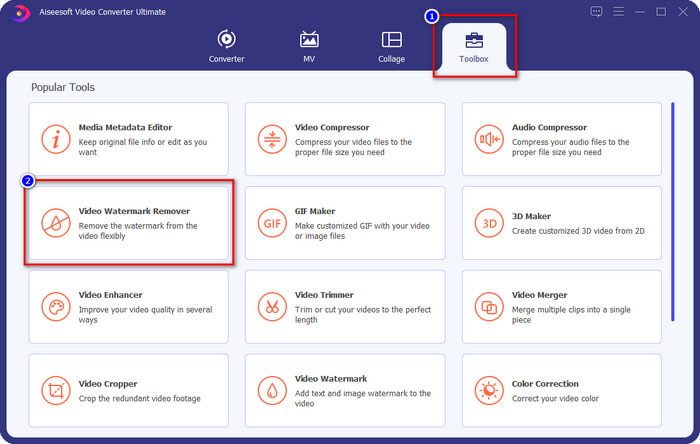
ステップ2. ツールボックス(Toolbox) へ進み、そこから Video Watermark Remover を開きます。
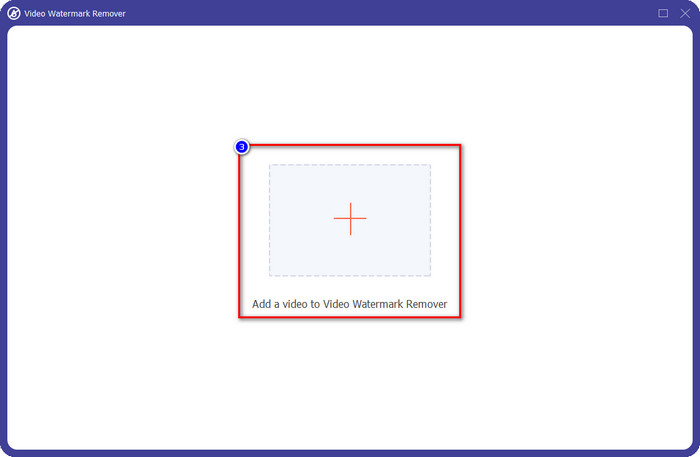
ステップ3. 画面に表示される + ボタンをクリックし、Animoto で編集したウォーターマーク付きの動画をアップロードします。
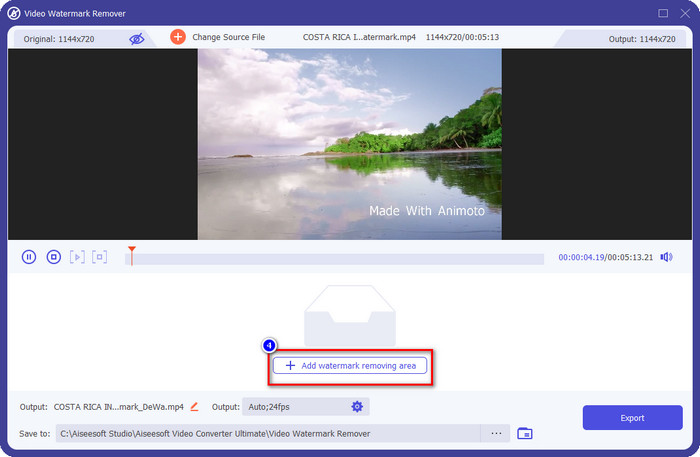
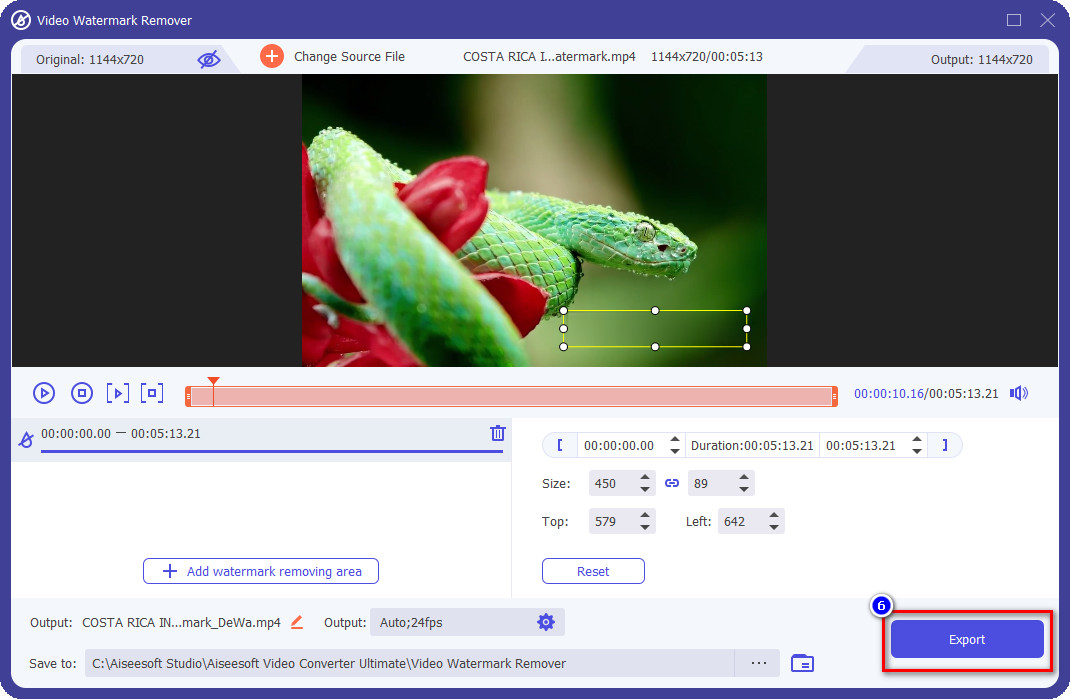
ステップ4. 動画をアップロードすると、このような新しいウィンドウが画面に表示されます。インターフェイス中央下部にある Add Watermark Removing Area をクリックします。
ステップ5. ウォーターマークに合わせて選択ボックスの大きさと位置を調整してください。
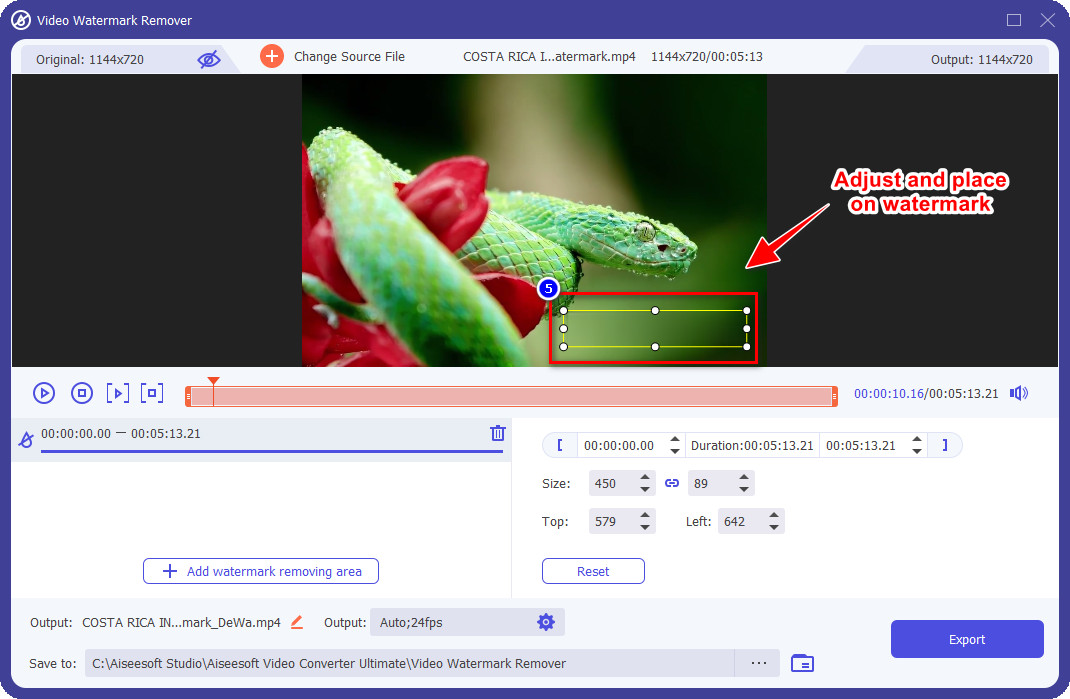
ステップ6. ウォーターマークに選択ボックスを正しく配置できたら、[Export]ボタンをクリックして、ウォーターマークのない最終的な動画を保存します。
MacのiMovie
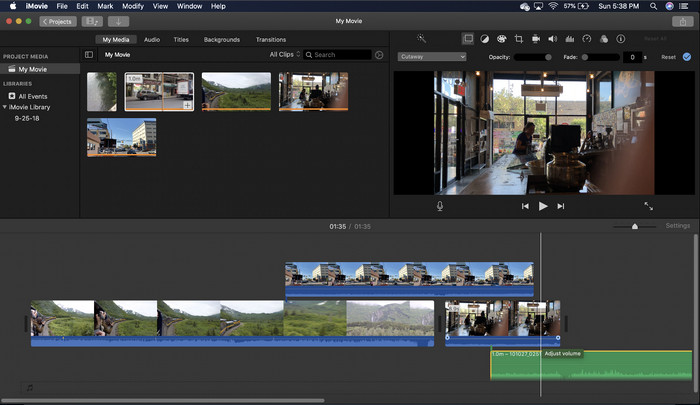
iMovieは、ビデオをトリミングして透かしを削除するために使用できる人気のあるビデオエディタです。すべてのMacユーザーは、ソフトウェアがすでにプリインストールされているため、デバイスにソフトウェアをダウンロードしなくてもその可能性を活用できます。これにより、ストレージ上であっても、ダウンロードとインストールの時間を節約できます。このツールはビデオ編集には優れていますが、サポートされている透かし除去機能は、最初のツールが提供するものとは異なります。ビデオフレームをトリミングしてビデオの透かしを削除するため、透かしが中央に配置されている場合は、ビデオの視覚的表現のほぼ半分をトリミングする必要があります。
透かしを削除するのに常に最適な選択であるとは限りませんが、ロゴがビデオの端にある場合は、以下の手順に従って、ビデオからAnimoto透かしをトリミングして削除する方法を知ることができます。
ステップ1. Mac デバイスで Finder を開き、「アプリケーション」フォルダに移動します。その中から iMovie を探してダブルクリックし、動画編集ソフトを起動します。
ステップ2. 取り込み(import) ボタンをクリックし、ローカルドライブ内から目的の動画ファイルを選択してアップロードします。
ステップ3. 動画がアップロードできたら、その動画を ドラッグ(drag) してタイムライン上に配置します。
ステップ4. インターフェイス右側には多数の編集アイコンが表示されています。その中から トリミング(crop) アイコンをクリックします。
ステップ5. フレーム(frame)の範囲を調整し、動画内から Animoto のウォーターマークが映らないように切り抜きます。
ステップ6. 左上にある 共有(share) ボタンをクリックし、動画として書き出す(Export as a Video) を選択して、動画のダウンロード処理を開始します。
パート2。透かしなしでAnimotoビデオを保存する追加の方法
編集した動画を透かしなしでAnimotoに保存できますか?あなたはできる。上記のソフトウェアを使用する代わりに、このWebツールでサブスクリプション料金を購入して、ここで編集したビデオを保存しますが、今回は透かしなしです。あなたがそれをするのを助けるために、あなたは以下の以下のステップに従うことができます。
ステップ1. ブラウザを開き、「Animoto Video Editor」と検索して公式サイトにアクセスします。
ステップ2. 公式サイト上で Pricing(料金)をクリックします。
ステップ3. その下に、月額プランと年額プランの 2 種類のサブスクリプションが表示されます。年額プランは一見月額より安く見えますが、「年額=1年分前払い」であるため、トータルの支払額は月額プランより高くなることに注意してください。
ステップ4. ここでアカウントを作成し、請求先住所と利用したい支払い方法を登録します。その後、このオンラインツールのプロ版を利用できるようになります。
関連:
パート3。Animoto透かしを削除する方法に関するFAQ
AnimotoとAnimoticaは同じですか?
これらの2つのビデオエディタは互いに関連していませんが、それらに関する記事では、ほとんどの場合、各ツールの比較について説明しています。そして、それらは両方ともそれ自体がお互いにとって最良の選択肢です。
Animotoの透かしをぼかしたり、トリミングしたりするのはどちらが良いですか?
ぼかしは、ビデオに良い影響と悪い影響を与える可能性があります。透かしをぼかすことの良い面は、特にそれが色とうまく混ざり合っている場合、肉眼では認識できないことです。しかし、それの悪い面は、それがうまくいかなかった場合、それをエクスポートした後に追跡可能なマークが表示されることです。トリミングについても同じです。ビデオをトリミングすると、ビデオへの影響後のブレはありませんが、フレームサイズは狭くなります。
Animotoには1回限りの支払いがありますか?
残念ながら、1回限りの支払いはサポートされていません。ただし、安くして長期間使用したい場合は、年間サブスクリプションを選択してWebツールを1年間使用してから、翌年以降に再度サブスクリプションすることをお勧めします。
結論
では、Animotoの透かしを削除するためにどちらの方法を使用すると思いますか?あなたの決定が何であれ、Animotoで編集したビデオの透かしを削除する問題の解決に役立つことを願っています。
-
 任意のビデオに透かしをすばやく追加する方法に関する4つの最良の方法
 この記事を読んだら、詳細な手順を使用して、Windows、Mac、オンライン、iOS、およびAndroid上のビデオに透かしを追加する方法を学びましょう。
-
 TiktokビデオからTiktok透かしを削除する4つの効果的な方法
 エクスポートしたTiktokビデオからTiktok透かしを削除する必要がありますか?私たちが提示するツールの助けを借りて、ここでそれを行うことができます。あなたはそれを簡単に行うことができます。
-
 MacのiMovieでビデオに透かしを追加する方法[すべてを含む]
 iMovieのビデオに透かしを追加する秘訣を知りたいですか?誰にもお茶をこぼさないでください、そしてこの記事を読んでそれを学んでください。
