


 ビデオコンバーター究極
 スクリーンレコーダー
 ビデオ修復
ビデオ修復
 安全なダウンロード
2023 年に GIF にテキストを挿入するための 5 つの素晴らしいソリューション
一枚の画像は千の言葉に値すると言われますが、GIF が登場してからは話が変わりました。これらの動く画像は、人々がまるでリアルタイムで対面して話しているかのように自己表現できるようになり、ソーシャルメディアの世界をまったく新しいレベルへと押し上げました。とはいえ、おもしろくて印象に残る GIF を作るとき、もうひと工夫加えたいなら、テキストを入れるのが非常に効果的です。本ガイドでは、オンライン・オフライン・モバイルアプリを使ってGIF にテキストを追加する方法を解説します。

パート 1: オフラインで GIF にテキストを追加する
1.ビデオコンバーターアルティメット
GIF を作る目的が何であれ、Video Converter Ultimate を使えばテキストの追加はとても簡単に行えます。このプログラムは、単にフォーマット変換を行うだけでなく、画像編集にも役立ちます。ツールボックスからは、ビデオ結合、音声強化、圧縮、そしてもちろん GIF メーカーといった豊富な機能にアクセスできます。GIF の上にテキストを重ねたい場合は、次の手順に従ってください。
ステップ 1.最高の GIF メーカーをインストール
まず、お使いのデバイスに合った無料ダウンロードボタンを選択します。ダウンロードが完了したら、ファイルをクリックして画面の指示に従い、インストールウィザードを進めてプログラムを起動します。
無料ダウンロードWindows 7 以降対応安全なダウンロード
無料ダウンロードMacOS 10.7 以降対応安全なダウンロード
ステップ 2.GIF ファイルを追加
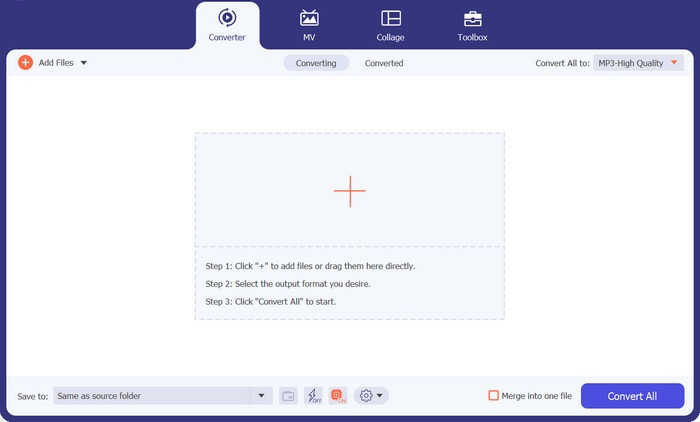
プログラムのメイン画面から、プラスアイコンのボタンをクリックして GIF ファイルを追加します。
ステップ 3.GIF にテキストを追加
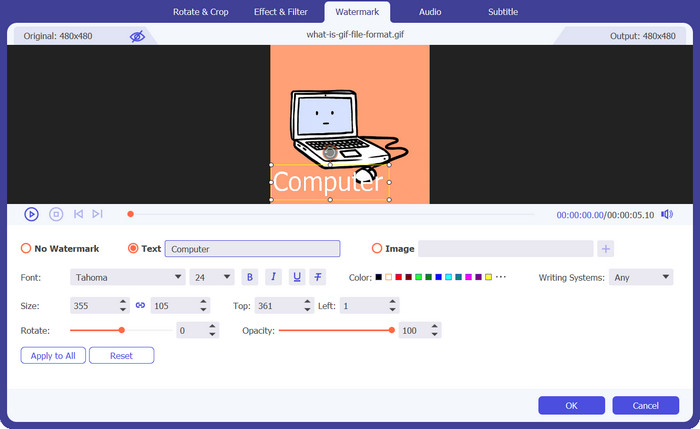
GIF にテキストを追加するには、魔法の杖(Magic Wand)ボタンをクリックし、エディター画面に進みます。そこで[ウォーターマーク]タブにチェックを入れ、載せたい文字を入力します。テキストのフォントや色、デザインもここで変更できます。
ステップ 4.出力を保存
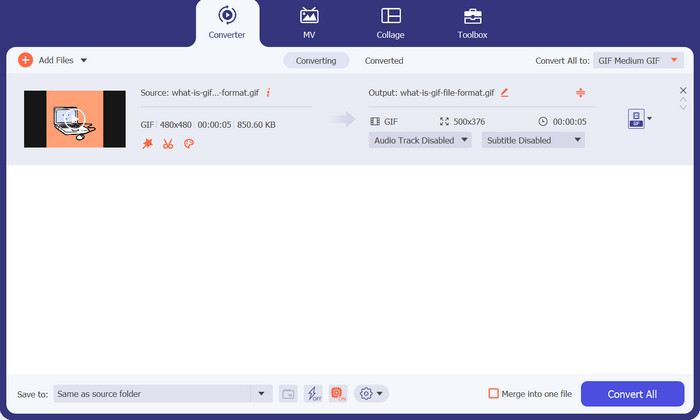
編集内容に満足したら、GIF ファイルをパソコンに保存します。変更を確定するにはOKをクリックしてください。次に変換タブで、ビデオタブの中から GIF 形式を選択し、すべて変換ボタンをクリックします。
2. 簡単GIFアニメーター
Easy GIF Animator も、試してみる価値のあるオフライン ソリューションです。このツールは、他にはない GIF を作成します。バナー、ボタン、アニメーション画像、さらにはビデオから GIF を作成できます。さらに、このツールは、GIF をオンラインで友達と共有する前に、GIF にテキストを追加する場合に最も効果的です。さらに、フレーム サイズを完全に制御したり、ファイル上に動くテキスト効果を作成したり、視覚効果やアニメーション効果を追加したりすることができます。
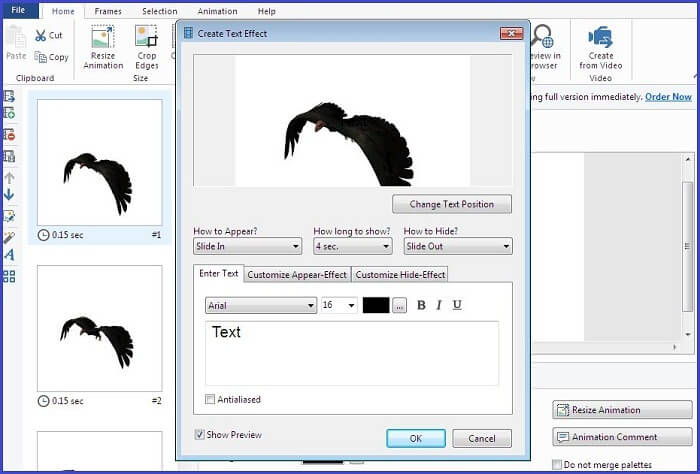
ステップ 1. まず、キーボードの F3 キーを押してパソコンのディレクトリを開き、GIF をプログラム内に読み込みます。
ステップ 2. GIF が編集パネルに表示されたら、テキストボタンをタップし、テキストボックスが表示されるのを待ちます。そこに重ねたいテキストを入力します。
ステップ 3. 編集した GIF を保存するには、[ファイル]タブに進み、保存をクリックします。
パート 2: オンラインで GIF にテキストを追加する
1.CapCut 無料GIFメーカー
オンライン プログラムを使用して、テキストを含むアニメーション GIF を作成する別の方法もあります。リストの最初はCapcutです。このツールはビデオ操作を超えて機能し、GIF を有効にするのに役立ちます。ユーザーは、GIF にコメディのタッチを追加したい場合に、FastMO および SlowMo 機能を楽しむことができます。テキスト以外にも、ステッカーやその他のエフェクトを大切なデジタル ファイルに添付することもできます。
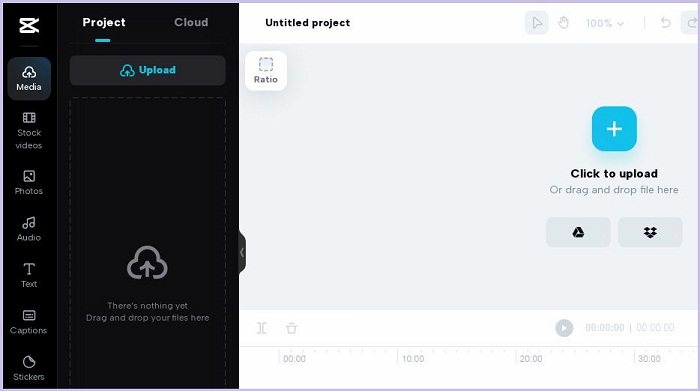
ステップ 1. まず、CapCut の公式ページにアクセスします。その後、GIF をアップロードボタンをクリックして GIF ファイルをアップロードします。
ステップ 2. CapCut を使ってオンラインで GIF にテキストを追加したら、キャプションを入れるために[テキスト]ボタンをクリックします。
ステップ 3. 最後に、編集が完了したら保存ボタンをクリックしてファイルをダウンロードします。
長所
- このプログラムには無料トライアルがあり、サインアッププロセスは必要ありません。
短所
- CapCut Free GIF Maker はモバイル デバイスやタブレットではアクセスできません。
2.EZGIF
EZGIF で行う必要のある GIF 操作がすべてカバーされているので、必要なものがすべて揃います。このオンライン プログラムは、ビデオを GIF に変換したり、GIF のサイズを別のフレーム比に変更したりするのに最適です。一方、EZGIF には、GIF の分割、テキストの追加、回転、トリミング、修復ができるオプティマイザーが備わっています。
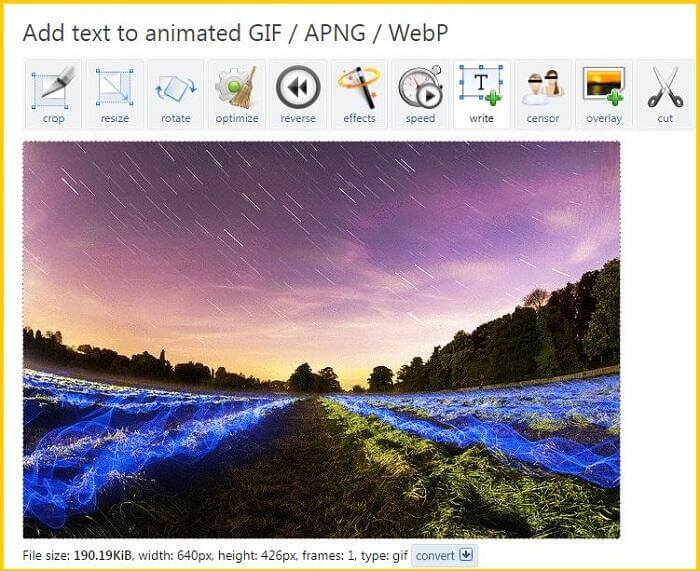
ステップ 1. EZGIF のメインページにアクセスすると、ツールや機能が並んだパネルが表示されます。そこから Add GIF(GIF を追加)を選択します。
ステップ 2. [ファイルを選択]ボタンをクリックして、対象の GIF をアップロードします。同様に、オンラインにアップロード済みのファイルであれば、その URL をコピー&ペーストすることもできます。
ステップ 3. 最後に、追加したい文字をテキストボックスに入力します。内容に満足したら、ダウンロードボタンをクリックします。
長所
- 初心者でも簡単にプログラムを使用できます。
- 登録料は必要ありません。
短所
- プログラムのメイン ページにはポップアップ広告が多すぎます。
3.GIFGIF
おそらく GIFGIFs は、あらゆる種類の機会に GIF ファイルをダウンロードするのに最適なプログラムの 1 つです。このプログラムには、動物、休日、生き物、スポーツなどを含む数百もの GIF カテゴリが含まれています。それに加えて、このオンライン ソリューションは、GIF へのテキストの追加機能を含む、GIF リバース、オプティマイザー、分割 GIF などのさまざまな GIF 編集機能を提供します。このツールを使用して GIF にテキストを追加する方法については、以下に作成したガイドに従ってください。
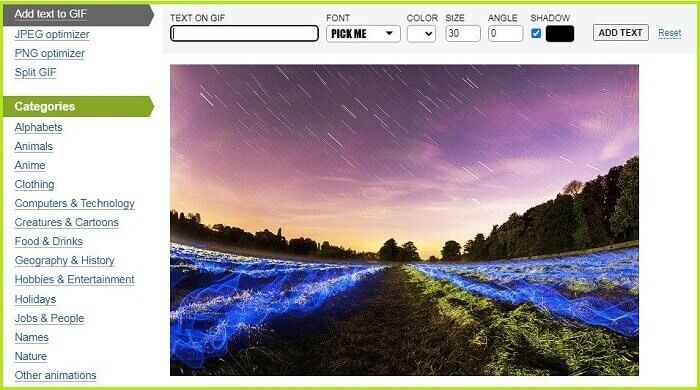
ステップ 1. まず、ツール画面の右上にあるテキスト追加ボタンをクリックし、GIF をインポートします。
ステップ 2. 次に、画面上の任意の場所をタップすると、自動的にテキストボックスが表示されます。テキストボックスを押したまま動かせば、GIF 上のテキストの位置も調整できます。
ステップ 3. 最後に、ダウンロードをクリックして、編集済みの GIF ファイルを保存します。
長所
- このツールは、GIF ファイルを無料で保存するための最良のオプションです。
短所
- オンラインでのみアクセスできます。
パート 3: iPhone および Android で GIF にテキストを追加する
1. GIF メーカー & エディター - GifBuz
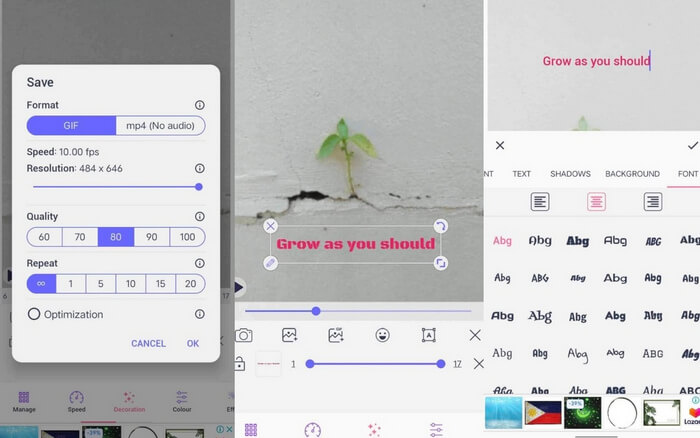
GIF を最初から作成する場合でも、写真やビデオから作成する場合でも、GifBuz の GIF Maker & Editor はワンストップ アプリケーションです。 GIF のペースを調整できる直感的な機能を提供します。一方、GIF にテキストを追加することは、数回クリックするだけで実行できます。さらに、テキストを編集して、好みのさまざまなフォントや色で GIF を作成できます。 iPhone および Android で GIF にテキストを追加する方法については、このガイドに従ってください。
ステップ 1. アプリを起動したら、GIF 編集(Edit GIF)をタップしてファイルを選択します。
ステップ 2. テキストを追加するには、[管理]ボタンをタップし、[テキスト追加]ボタンを選びます。テキストを入力したあと、影・背景・色・フォントなどを調整できます。
ステップ 3. ファイルを保存するには、画面右上のチェックアイコンをタップし、出力フォーマットと解像度を設定してからOKを押します。
さらに詳しく読む:
オンライン&オフラインで GIF にウォーターマークを追加する最も簡単な 3 つの方法
GIF を分割し、お気に入りのアニメーション GIF をカスタマイズする方法
パート 4: 人気のある GIF テキスト フォント トップ 3
一番の利点は、GIF にどのフォントを配置するかについてのガイドが必要な場合に、現在最も推奨されるフォントのトップ 3 をここに挙げることです。
| GIF フォント | 最適な用途 |
| ミリアドプロフォント | 読みやすいテキスト GIF を追加するための優れたオプションです。 |
| カリブリ | GIF クリエイターは Tumblr でこのフォントを広く使用しています。 |
| モントセラト | Google で使用されている人気のフォントは、GIF にクラシックな雰囲気を加えるのに適しています。 |
パート 5: Text Over GIF に関する FAQ
InstagramのGIFにテキストを追加できますか
はいぜったいに。 Instagram の GIF にはテキストやステッカーを追加でき、ストーリーに直接アップロードして投稿できます。
動くテキストをGIFに追加できますか?
オフラインおよびオンライン ツールを使用すると、GIF に動くテキストを追加できます。一部のアプリケーションは、GIF ファイルに生命を吹き込むための移動テキスト機能を提供しています。
GIMP は GIF を編集できますか?
GIMP は画像をラスタライズするために作られていますが、GIF の編集にも利用できます。それだけでなく、GIMP を使用して作成することもできます。
GIF を重ね合わせることができますか?
絶対そうです!複数の GIF をオーバーレイすることが可能です。編集後に表示されるように、GIF ファイルが透明であることを確認してください。
結論
以上が、GIF にテキストを入れる方法のすべてです。本記事で紹介したツールはすべて実際に検証済みです。オフラインツールからオンラインツールまで、静止テキストでも動くテキストでも、いつでも手軽に GIF に文字を載せられるようになりました。
-
 最高のGIFコンバイナーをオフラインとオンラインで使用してGIFを結合する
 ソーシャル メディアの投稿やマーケティング キャンペーンにスパイスを加えてみませんか?最高のオンラインとオフラインの GIF コンバイナー以上のものを探す必要はありません!
-
 機能と代替手段の包括的な Ezgif レビュー
 Ezgif を使用していても、実際に何が行われているかをまだご存じない方は、こちらをご覧ください。このEzgifレビューはその懸念を解決するのに役立ちます。さらに詳しく知りたい方は読み続けてください。
-
 デスクトップ、オンライン、モバイルを楽しむためのトップツールを発表
 GIF エディターが提供するものを発見し、オンラインにアップロードできる印象的で創造的な GIF を作成するために使用できる最高のツールについて学びます。
