


 ビデオコンバーター究極
 スクリーンレコーダー
 ビデオ修復
ビデオ修復MP4ビデオを簡単に反転するために使用できる最新のオンラインおよびオフラインソフトウェア
Most of the times when we try to reverse our video, we create some funny reactions that make us think that it is us. Because it is played backwards the effect of it creates something new to our eyes. So, if you want to know effective ways to reverse MP4 videos then it is a must to read this article. As it showcases different software online and offline you can use it to make a lot of reverse videos in a simple way. So, without any more delays let us introduce them to you one-by-one.

パート1。MP4ビデオを反転する方法(オフライン)
The phenomenal tool in the whole web is the Video Converter Ultimate. This tool has already helped millions of users who are having a hard time to reverse MP4. Unlike any tool in this list, you can access this software even if you don't have internet connectivity. Moreover, this tool can import and export immediately, it is like before you blink you didn't know it is already in reverse. Also, an amazing feature this tool can do like anybody is that it has all the advanced features you might like to use. So now, let's proceed to the steps on how to reverse the video effectively.
Video ConverterUltimateでビデオをリバースする方法の手順
Step 1. Firstly, you will need to download the tool first on your drive. Then install it and follow the set-up of it.
無料ダウンロードWindows 7 以降に対応安全なダウンロード
無料ダウンロードMacOS 10.7 以降に対応安全なダウンロード
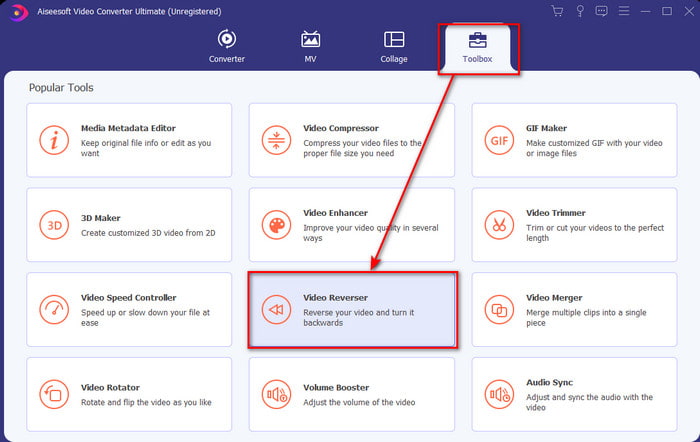
Step 2. Launch the software, click the Toolbox and select Video Reverser.
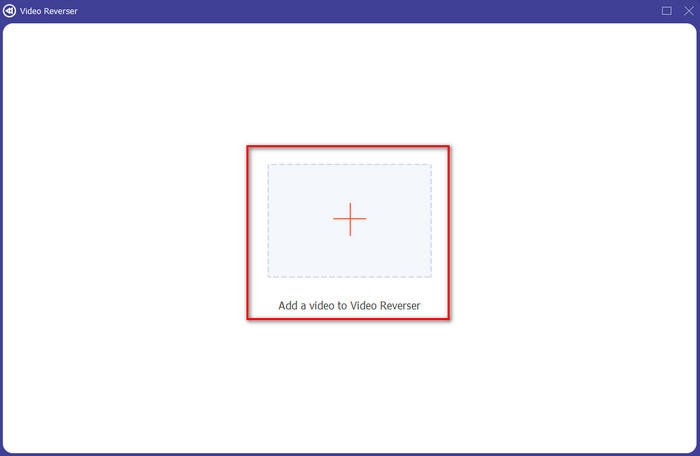
Step 3. Then add the MP4 file by clicking the + sign and choose from the computers folder. Then click Open to insert the .mp4 on the interface.
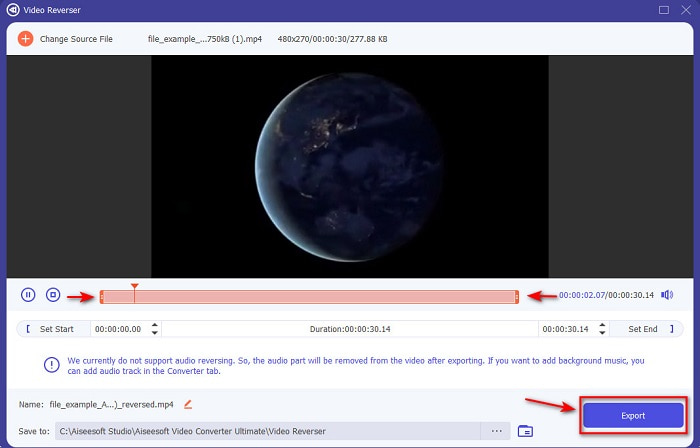
Step 4. And now adjust the playback in and out to change the duration of the video. Click Export to proceed.
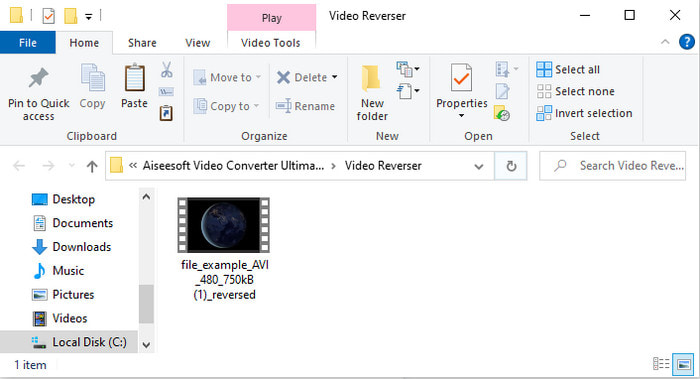
Step 5. After exporting is done, click the file on the folder to play the reverse file and to know where it is located.
パート2。MP4ビデオを反転する方法(オンライン)
1. FileConverto
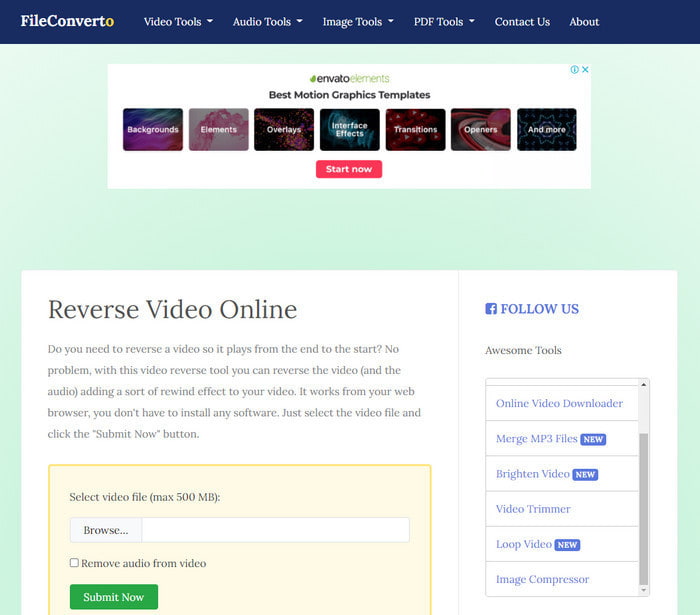
The reverse MP4 video online FileConverto has a lot of web tool features you can use to make your video extraordinary. The performance of this web tool is great for those who don't want to download any software. However, the web interface is a bit dull to look at, the uploading process will take a lot of your time, and it doesn't support all video formats. Also, you will encounter some bugs and pop-up web pages if you try to reverse. Although it has a lot of known problems still it is a great to use and.
長所
- このソフトウェアは簡単にアクセスでき、必要な基本的な編集機能がたくさんあります。
- 反転を経験したことがないユーザーでもここでそれを行うことができる非常にユーザーフレンドリー。
- それはあなたの変換を500mbに制限します。これは素晴らしいことです。
短所
- ここでファイルをインポートしてエクスポートすると、予想よりも非常に遅くなります。
- それはあなたを悩ませることができるだけのウェブツールにたくさんの広告を持っています。また、Webツール機能をクリックすると、もう一度クリックする必要があることが広告に表示されます。
- すべてのビデオ形式をサポートしているわけではありません。
2. PickFrom
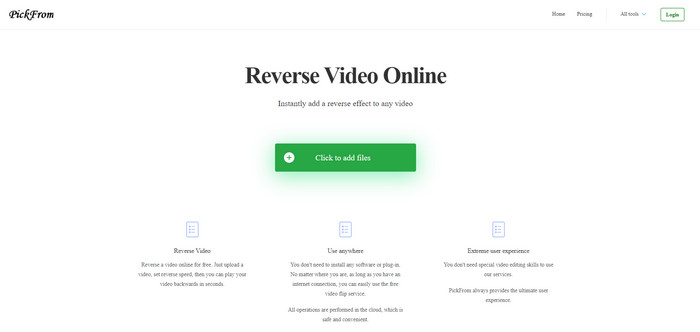
PickFrom has a better interface than FileConverto if we were about to compare. Because it showcases minimalist design and the color combination of white and cyan make it perfect. But the texts are a bit slim to read. Basically, if you don't have a 20-20 vision you might find the tool hard to read. Also, when you are about to do the reverse MP4 videos here the options are written in a simplified Chinese form. So, it is a bit hard to understand but the importing files here is faster than the FileConverto.
長所
- FileConvertoと比較してはるかに優れたWebインターフェイスを備えています。
- ウェブサイトの上部には広告はありませんが、下にスクロールすると厄介な広告がたくさんあります。
- 多くの基本的な編集機能をサポートします。
短所
- ツールの設定は中国語で書かれているので、中国語がわからないとわかりにくいです。
- スタートボタンをクリックすると、ツールが応答しなくなり、エクスポートプロセスに時間がかかります。
- エクスポートされたビデオの品質が低下します。
3. Media.io
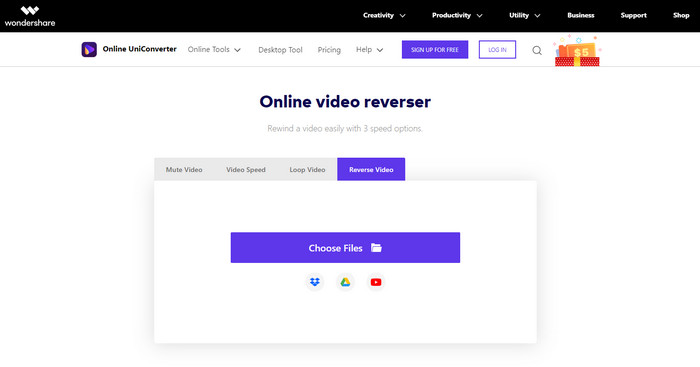
Media.io has 3 different types of reverse speed options: the x 0.5, x 1, x 2. You can basically reverse the video and play MP4 backwards with the help of its reverse feature. Although the tool looks great there are still some problems you will encounter while using Media.io. Like when you're about to export the file it will ask you to sign-in first before you can export the file. Also, you can only do 10 reverse videos here with limited file size.
長所
- ツールインターフェイスは素晴らしく、魅力的です。
- 元の形式が必要な場合、または保持する場合は、リバースビデオの最終出力形式を変更できます。
- ビデオをミュートまたはミュート解除できます。
短所
- Webサイトでは、エクスポートする前にサインアップするように求められます。つまり、電子メールで通知を送信できるようになります。
- x 2の逆は、他のツールのx2よりも遅くなります。
- このツールは、Webツールの可用性を制限します。たとえば、1日に10個を超えるファイルを元に戻すことはできず、ファイルサイズには上限があります。
パート3。MP4の反転に関するFAQ
ビデオを反転した後、品質が低下しますか?
ツールでビデオを反転しても、反転するビデオの品質が低下することはありません。ただし、ビデオ品質を低下させるソフトウェアはたくさんあります。ただし、品質を低く設定したり、高く設定しない場合があります。
リバースファイルにオーディオを追加するにはどうすればよいですか?
Most of the software listed in here doesn't support audio reversing as well but you can go to this link and learn how to add audio.
iPhoneでリバースビデオをマージするにはどうすればよいですか?
There are a lot of different ways you can merge videos on the iPhone effectively. Just by reading this article you will learn 4 different ways how to merge videos on iPhone.
結論
To conclude, now that we know how to reverse an MP4 file with the help of these several tools you can choose one. Moreover, not all of the mentioned in this article produce an astonishing video final output like the Video Converter Ultimate. So, if you want to be amazed by this tool then it is a must to download it first. Because you won't need to read a big book to know how this tool functions as a whole.
無料ダウンロードWindows 7 以降に対応安全なダウンロード
無料ダウンロードMacOS 10.7 以降に対応安全なダウンロード
-
 [2021更新] PC、Mac、iOS、Android向けの9つの最高のGIFエディター
 GIFをより表現力豊かにするために、GIFに個人的なタッチを追加する必要がありますか?この記事を読み続けて、編集方法とその仕事に最適なツールを確認してください。
-
 Android携帯で再生されていないビデオを修復する方法に関するガイド
 あなたのAndroidデバイス上のビデオが再生できない理由を知りたいですか?もしそうなら、あなた自身で問題を解決する方法はありますか?詳細については、読み続けてください。
-
 PS4でMKVファイルを再生する方法の詳細ガイド[2021年更新]
 この記事を読むことで、PS4でMKVを再生する方法と、ビデオが再生されない場合にビデオファイルを変換する方法についていくつかの方法を学びます。演奏する。
