


 ビデオコンバーター究極
 スクリーンレコーダー
 ビデオ修復
ビデオ修復
 安全なダウンロード
FLVビデオファイルを変換してYouTubeにアップロードする方法
“「.flv という拡張子の動画ファイルをアップロードしたのですが、『無効なファイル形式』という警告メッセージが出ました。どうやってFLV を YouTube にアップロードすればよいですか?」 FLV は拡張子であると同時に、動画コンテナ形式でもあります。つまり、FLV 動画ファイルの中にはさまざまな動画・音声コーデックが格納されており、その中には YouTube がサポートしていないものも含まれます。この記事では、FLV をスムーズに YouTube にアップロードするために知っておくべきことをすべて解説します。

パート1:YouTubeがサポートするビデオおよびオーディオコーデック
Googleによると、YouTubeは、ブロードキャスト形式と、拡張子が.mpgのDVD準拠のMPEG-2ストリームを好みます。 YouTubeでサポートされているコーデックは次のとおりです。
- MPEG-2
- オーディオコーデック: MPEG LayerIIまたはDolbyAC-3
- オーディオビットレート: 128kbps以上
- MPEG-4
- ビデオコーデック: H.264
- オーディオコーデック: AAC
- オーディオビットレート: 128kbps以上
さらに、YouTubeはMP3またはPCMオーディオを備えたWAVコンテナ、AACオーディオおよびFLACオーディオを備えたMOVのみをサポートします。 YouTubeは、適切なコーデックでWMV、AVI、MOV、MP4、FLVをサポートしています。
FLVに関しては、YouTubeはAdobe-FLV1ビデオコーデックでエンコードされたビデオにMP3およびAACオーディオとともにアクセスします。 FLVビデオに非圧縮オーディオまたはADPCMオーディオが含まれている場合、YouTubeはそれを受け入れません。
さらに、FLVをYouTubeにアップロードするためのルールは他にもあります。
- 推奨フレームレート: 24〜60
- 推奨される解決策: 1080p
- 最小期間: 33秒
パート2:FLVをYouTubeに変換する最も簡単な方法
方法1:デスクトップでFLVをYouTubeに変換する
FLV を YouTube にアップロードする際にエラーが出た場合、まず最初にすべきなのは、FVC Free FLV Converter のような FLV コンバーターを探すことです。これを使えば、動画・音声コーデックやその他のパラメーターを調整できます。その結果、FLV ファイルを YouTube の仕様に合わせることができます。さらに、ハードウェアアクセラレーションとマルチスレッドに対応しており、変換処理を高速化できます。
YouTube用の最高のFLVコンバーターの主な機能
- 1.FLVのビデオおよびオーディオコーデックを簡単に調整します。
- 2.無制限のFLVビデオを一度にバッチ処理します。
- 3.変換中にビデオ品質を自動的に保護します。
無料ダウンロードWindows 7 以降に対応安全なダウンロード
無料ダウンロードMacOS 10.7 以降に対応安全なダウンロード
デスクトップでYouTube用にFLVを変換する方法
ステップ 1:FLV ファイルを追加する
コンピューターにインストールしたら、最高のFLVコンバーターを起動します。左上の[ファイルの追加]メニューをクリックして、YouTubeにアップロードするFLVファイルを追加します。

ステップ 2:コーデックを変更する
画面下部の出力形式のプルダウンメニューをクリックして、プロファイルダイアログを開きます。プロファイルを検索欄にFLVと入力し、キーボードのEnterキーを押します。その後、適切な動画・音声コーデックを備えた FLV 形式を選択します。
FLV 動画が長すぎる場合は、クリップに分割してから YouTube にアップロードすることをおすすめします。編集メニューをクリックして、ビデオエディターウィンドウを開いてください。

ステップ 3:YouTube 用に FLV を変換する
次に、画面下部のフォルダーを開くボタンをクリックします。出力動画を保存するフォルダーを指定して選択します。最後に、変換ボタンをクリックすると、YouTube 用の FLV 変換がすぐに開始されます。

方法2:FLVをYouTubeオンラインに変換する
ハードディスクに動画変換ソフトをインストールしたくない場合は、FVC Free Online Video Converter が有力な代替手段になります。完全無料で、ウォーターマークなどの制限もありません。さらに、ファイルサイズの制限もありません。以下の手順に従ってください。
ステップ 1: ブラウザで https://www.free-videoconverter.net/free-online-video-converter/ にアクセスし、「Add Files to Convert」ボタンをクリックしてランチャーを入手します。

ステップ 2: Add File ボタンをクリックして、複数の FLV ファイルをアップロードします。次に、歯車アイコンを押してプロファイルダイアログを開きます。ここで、Video Encoder と Audio Encoder を調整できます。OKをクリックして確定します。

ステップ 3:画面下部で YouTube がサポートしている形式を選択し、Convert ボタンをクリックして FLV の YouTube 用変換を開始します。完了したら、出力ファイルをダウンロードします。
お見逃しなく:
パート3:FLVをYouTubeにアップロードする方法
変換後、FLVファイルをコンピューターのYouTubeにアップロードできます。迷子にならないように、ここで手順を共有します。
ステップ 1:YouTube のホームページにアクセスし、アカウントにサインインします。
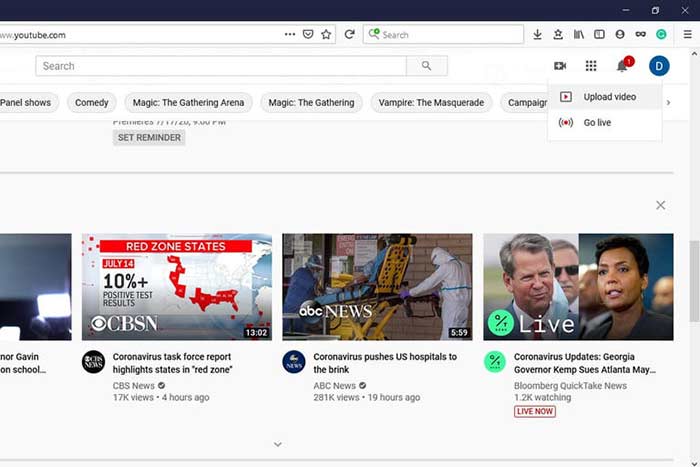
ステップ 2:ビデオカメラアイコンをクリックし、「動画をアップロード」を選択してアップロードページに入ります。
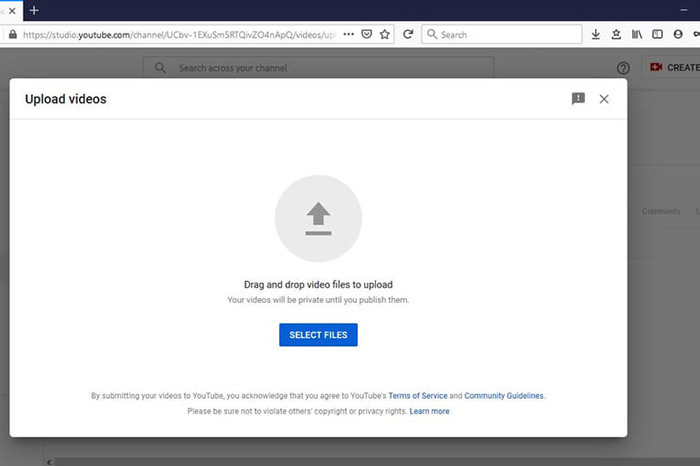
ステップ 3: ページ上の大きなファイルを選択ボタンをクリックし、YouTube 用に変換した FLV ファイルを開きます。もしくは、FLV ファイルをページ上にドラッグ&ドロップしてアップロードします。
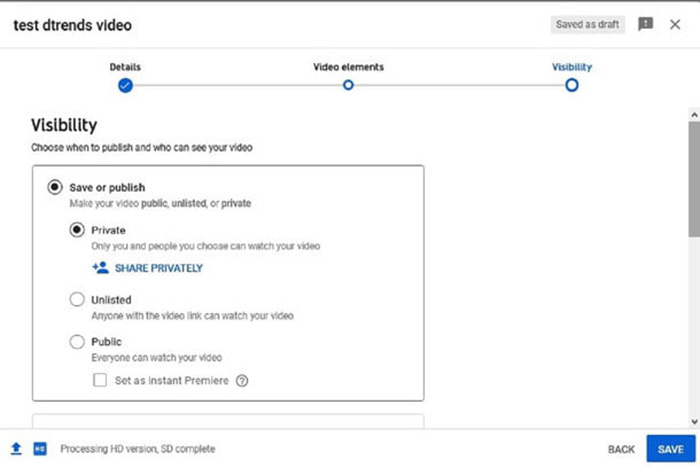
ステップ 4:公開設定を選択します。デフォルトでは「公開」ですが、「非公開」「予約公開」「限定公開」に変更することもできます。
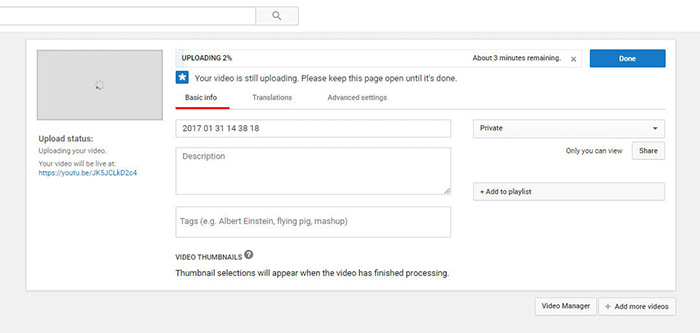
ステップ 5:設定が完了したら、保存または公開ボタンをクリックします。その後、ダッシュボードページに移動します。ここで、YouTube アカウントにアップロードされた FLV を確認できます。
パート4:YouTubeへのFLVに関するFAQ
FLVをYouTubeにアップロードできますか?
はいといいえ。 YouTubeはFLVビデオ形式をサポートしていますが、ビデオコンテナとして、サポートされているビデオおよびオーディオコーデックを含むFLVファイルのみをアップロードできます。そうでなければ、それは失敗になります。
FLVでYouTubeビデオをダウンロードできますか?
YouTubeビデオにダウンロードボタンが表示されている場合は、それをクリックして、出力形式としてFLVを選択できます。
YouTubeに最適なビデオ形式はどれですか?
MP4はYouTubeに最適なビデオ形式です。 Googleは、H.256ビデオコーデックとAACオーディオコーデックでMP4を使用することをお勧めします。これは、ファイルサイズを小さくして高品質を実現するためです。さらに、MOV、WMV、AVI、FLV、および3GPPもYouTubeでサポートされています。
結論
このガイドでは、YouTubeが受け入れる動画形式と、FLVをYouTubeに確実にアップロードする方法について説明しました。 FVC Free FLV Converterは、YouTube用にFLVを変換し、ビデオおよびオーディオコーデックを簡単に調整できるようにするのに役立ちます。技術的なスキルも必要ないので、初心者でもすぐに習得できます。 YouTubeに動画をアップロードするときに他の問題が発生した場合は、この投稿の下にメッセージを残してください。
-
 ペニーを支払わずにFLVビデオファイルをMP4に変換する方法
 このガイドでは、Windows 10/8/7 / XPおよびMacOS XでFLVビデオファイルをMP4形式に変換する4つの無料の方法を共有しているため、どのデバイスでもビデオを楽しむことができます。
-
 デスクトップとオンラインでFLVビデオをMP3オーディオファイルに変換する方法
 FLVをMP3ファイルに変換する方法は?あなたがする必要があるのは、この記事を注意深く読み、あなたの好きな方法を見つけて、あなたが望むものを得るために私たちのステップバイステップガイドに従うことです。
-
 FLVをWAVに変換する3つの無料の方法
 FLVファイルを変換するにはどうすればよいですか? VLCはYouTubeFLVをWAVに変換できますか?この投稿では、品質を損なうことなくFLVをWAVに変換する3つの無料の方法について説明しています。
