


 ビデオコンバーター究極
 スクリーンレコーダー
 ビデオ修復
ビデオ修復4つのGIFクロッパーでGIFをすばやくトリミングする方法
最適なGIFトリミングソリューションを使えば、GIF のサイズ変更はとても簡単です。しかし、すべての GIF エディターが、プロフェッショナルで実用的なトリミング機能を備えているわけではありません。GIF 用のトリマーについて知っておくべきことは、この投稿にすべてまとまっています。利用できる最良の選択肢を紹介するため、以下の詳細を読み進めて、GIF のサイズを変更できる 4 つの優れたトリマーをチェックしてみてください。

パート1。WindowsとMacでGIFを切り抜く方法
方法1.VideoConverter Ultimateを使用する–最高のGIFクロッパー
これは、ユーザーが抱えるあらゆる問題に対して常に優れた結果を提供するプロフェッショナルツールです。FVC Video Converter Ultimate は、GIF をカット、トリミング、クロップ、さらにはオリジナル GIF を作成する編集機能にも対応しています。このツールが優れているのは GIF だけではなく、GIF を MOV、AVI、MP4、MKV、WMV など 200 種類以上の形式に変換することも可能です。さらに、このツールの処理速度は他のツールとは一線を画しており、インポートとエクスポートを稲妻のような速さで行えます。加えて、このツールは GIF 編集に関するさまざまな問題を解決してきました。そのため、クロップ作業を任せるのも簡単です。GIF をクロップする方法を知りたいですか?それなら、以下の説明で素早くクロップするチュートリアルを確認してみましょう。

FVCビデオコンバーターアルティメット
5,689,200以上のダウンロード- プロフェッショナルで非常に信頼性の高いGIFクロッパーがWindowsとMacで利用できます。
- GIFからMP4、MOV、WMV、MKV、および200以上の形式への変換をサポートします。
- GIFの作成、スピードアップまたはスローダウンなどに役立つ追加の高度な機能を利用できます。
- あらゆる種類のウイルスから安全です。
- トリミングされたGIFをすぐに準備するのに役立つ超高速のエクスポートプロセス。
無料ダウンロードWindows 7 以降に対応安全なダウンロード
無料ダウンロードMacOS 10.7 以降に対応安全なダウンロード
ステップ 1. 下のダウンロードボタンをクリックして、トリマーをドライブにダウンロードします。その後、ソフトをインストールし、[Start Now]を押して次のステップに進みます。
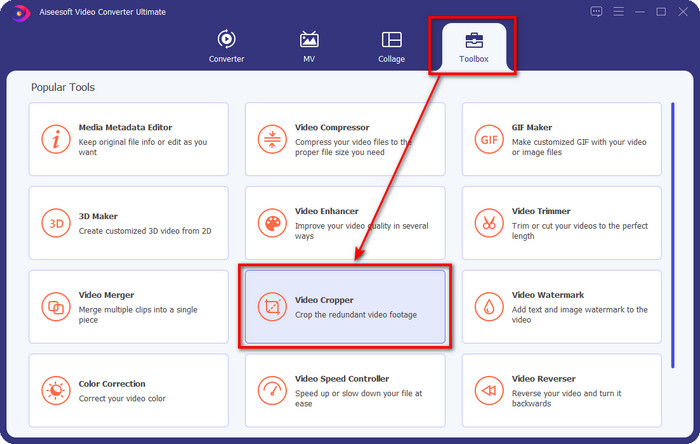
ステップ 2. ソフトを起動したら、ツールボックスをクリックし、インターフェース上部にあるビデオクロッパーを探します。
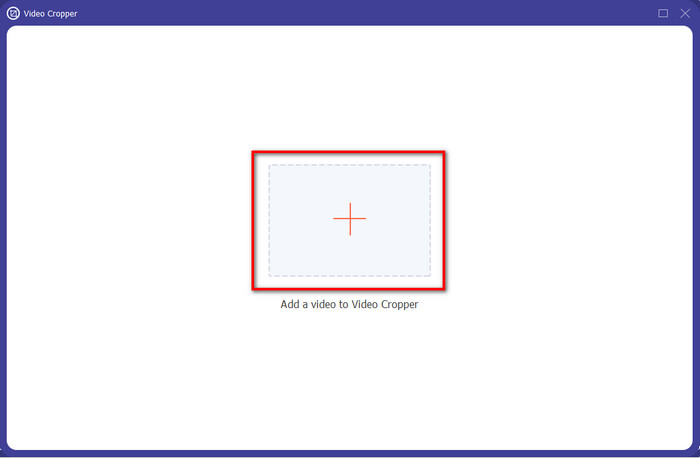
ステップ 3. 新しいインターフェースが表示されたら、+ボタンをクリックします。フォルダーが表示されるので、そこで GIF を選択し、Openを押して進みます。
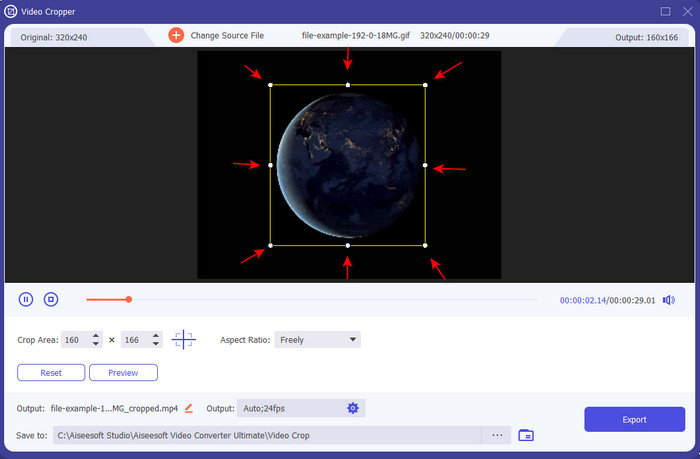
ステップ 4. Cutオプション(ハサミのアイコン)をクリックすると、新しい画面が表示され、そこで GIF をクロップできます。小さなドットを自由にドラッグして、好みに合わせてアスペクト比を調整してください。
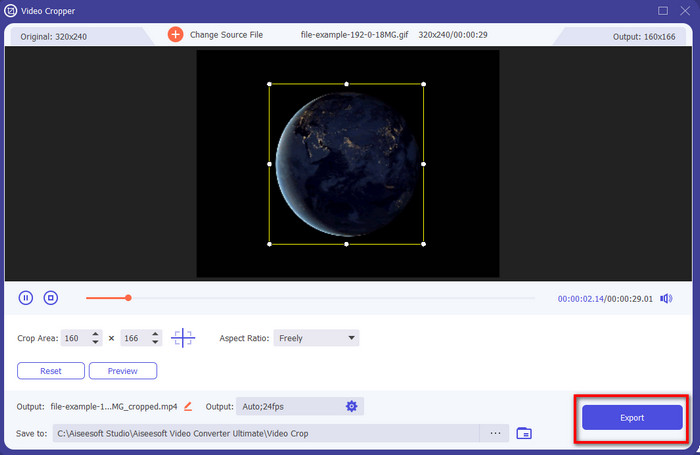
ステップ 5. 調整が終わったら、Exportを押してクロップした GIF をドライブに保存・ダウンロードします。とても簡単で、これで GIF のクロップが完了です。
方法2.Photoshopを使用する
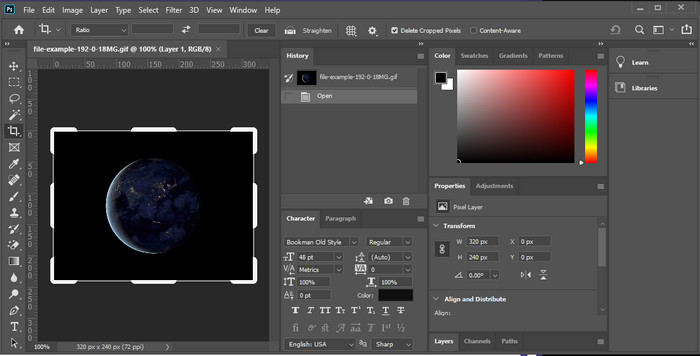
Photoshop は、GIF を含むあらゆる画像に対して高度な編集を行えるプロフェッショナルツールです。このツールは、何百万人もの経験豊富なユーザーが複雑な画像編集を行うのに役立ってきました。しかし、その高度な編集機能ゆえに、編集経験のない初心者にとっては操作が難しくなりがちです。クロッパーとして使うこともできますが、単純な作業にはオーバースペックとも言えます。それでも Photoshop で GIF をクロップする方法を知りたい場合は、以下の手順を参考にしてください。
ステップ 1. Photoshop をデスクトップにダウンロードして起動します。
ステップ 2. File をクリックし、GIF を探して Open を押します。キーボードの C を押し、サイズを調整してから Enter を押して進みます。
ステップ 3. File メニューの Save をクリックして、最終的な出力をエクスポートします。
パート2。GIFをオンラインで切り抜く方法
方法1.Ezgifを使用する
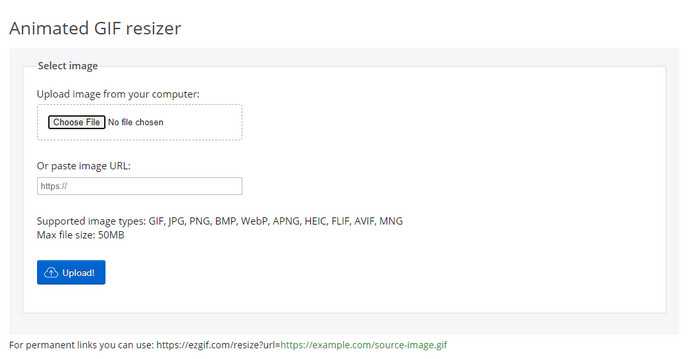
GIF をオンラインでトリミングしたいなら、Ezgif はすでにご存じかもしれません。このオンライン GIF エディターがリストに入っているのは、その編集機能の豊富さでよく知られているからです。前述のトリマーとは異なり、無料で利用でき、ダウンロードも不要です。全体的な使用感はなかなか良好ですが、広告が多いため快適とは言い難く、この点が残念なところです。また、ここでアニメーション GIF をクロップする場合、アップロードやダウンロードに時間がかかるため、ある程度の忍耐が必要になるでしょう。
ステップ 1. ブラウザーを開き、Ezgif を検索します。
ステップ 2. Crop ページに進み、Choose File を押してフォルダーからファイルを選択し、Upload をクリックします。
ステップ 3. 好みに合わせてフレームのドットをドラッグし、Crop Image を押して処理を進めます。
方法2。iLoveIMG
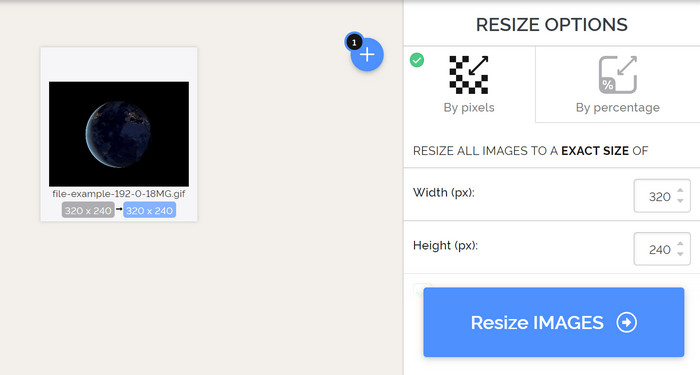
iLoveIMG を使って、オンラインで GIF をクロップする方法を学びましょう。このツールには、クロップ、サイズ変更、圧縮など、画像編集をサポートする機能が揃っています。さらに、ここでのアップロードとダウンロードは Ezgif よりも高速で、読み込みにそれほど時間がかかりません。デスクトップにトリマーをインストールしたくない場合は、先ほど紹介したオンラインツールと同様に、これも良い選択肢です。ただし、画面上に表示される広告が少々煩わしく感じられるかもしれません。
ステップ 1. 検索エンジンを開き、iLoveIMG を検索して Crop Image をクリックします。
ステップ 2. Select Image を押して GIF ファイルを選択します。必要に応じてフレーム比を調整し、Crop Image を押します。
ステップ 3. クロップ処理が完了するまで待ち、その後ダウンロードします。
パート3。GIFトリミングに関するFAQ
GIFクロッパーでどのような資格を探す必要がありますか?
GIFクロッパーを選択する際に考慮する必要のある資格はたくさんありますが、その1つは、プラットフォームでのツールの互換性です。ツールに関する記事のレビューを読んで、ツールがデバイスで使用できるかどうかを確認してください。次に、マルウェアに対して安全であり、特にオンラインまたはダウンロード可能です。トリミングは簡単な作業ですが、クロッパーの信頼性を確認してください。最後に、クロッパーには、トリミングされたサイズが適切なサイズであるかどうかを判断するために必要ないくつかの機能が必要です。これらには、トリミングフレーム、プレビューオプション、長さと高さなどが含まれます。
オンラインGIFクロッパーを使用しても安全ですか?
オンライン上のGIF トリマーのほとんどは安全ですが、すべてがそうとは限りません。利用する前に、そのオンラインツールが安全かどうかを必ず確認し、デバイスに取り返しのつかないダメージを与えないよう注意してください。
GIFを背景として設定するにはどうすればよいですか?
スマートフォンやデスクトップで GIF を壁紙にする方法は数多くあります。さらに、画像や動画を組み合わせて GIF を作成できるおまけツールも紹介しています。今すぐこちらのリンクをクリックして、デバイスでGIF を壁紙に設定する方法を確認してみてください。
結論
オンライン・オフラインを問わず、GIF をクロップするあらゆる方法をここにまとめました。この記事で紹介したツールを使えば、サイズ変更が簡単に行えることはすでに証明されています。しかし、プロレベルの仕上がりと手間のかからないツールが必要なら、FVC Video Converter Ultimate が最適な選択肢です。このツールは、「良いトリマー」と「最高のトリマー」の間に決定的な差を生み出します。プロのようにクロップしたいなら、下のダウンロードボタンからこのツールを入手してください。
無料ダウンロードWindows 7 以降に対応安全なダウンロード
無料ダウンロードMacOS 10.7 以降に対応安全なダウンロード
-
 ビデオの品質を損なうことなくMP4ファイルをトリミングする方法[2021]
 あなただけのために提供された簡単なステップでMP4をトリミングする方法を学びましょう。だから、私たちはあなたが使うかもしれない最高のトリミングツールの最高のものをあなたに提示するので、ペースを維持してください。
-
 オンラインGIFメーカーを介して最高のアニメーションGIFを作成する[2021]
 Web上ですでに遭遇したかどうかにかかわらず、これらの単純なオンラインGIFメーカーを使用してGIFを作成する方法についての有益なレビュー。
-
 [2021更新] PC、Mac、iOS、Android向けの9つの最高のGIFエディター
 GIFをより表現力豊かにするために、GIFに個人的なタッチを追加する必要がありますか?この記事を読み続けて、編集方法とその仕事に最適なツールを確認してください。
