


 ビデオコンバーター究極
 スクリーンレコーダー
 ビデオ修復
ビデオ修復
 安全なダウンロード
卒業写真から透かしを簡単に削除する方法
透かしは、写真で見ると目障りで、写真の品質を損ないます。作成者が自分の作品を盗まれたくない場合はいつでも、写真に透かしが表示されます。また、学生の場合は、卒業写真に透かしが表示され、スタジオの名前または撮影した写真家が示されます。
卒業写真からウォーターマークを消したい場合は、それを取り除くためのツールが必要です。この記事では、よく使われているウォーターマーク削除ツールのトップ3を紹介し、さらに卒業写真からウォーターマークを削除する手順も説明します。

パート1。オンラインで卒業写真から透かしを削除する方法
あなたがインターネット上で見るであろう多くの透かし除去ツールがあります。ただし、すべてが無料で使いやすいわけではありません。また、このパートでは、透かしを便利かつ効率的に削除する方法を学びます。
FVC Free Watermark Remover は、卒業写真に入っているウォーターマークを簡単に消せるオンラインのウォーターマーク削除ツールです。このオンラインツールが人気なのは、利用前に何かをダウンロードする必要がないからです。加えて、PNG、JPG、JPEG、BMP など、一般的な画像形式をサポートしています。さらに、画像からウォーターマークを削除しても、ダウンロードするときには元の画像形式のままで保存されます。
この透かしリムーバーを使用すると、透かし領域を選択する際にリムーバープリセットから選択できます。多角形、なげなわ、またはブラシから選択できます。さらに、このツールを使用して、画像上の他の不要なものを消去できます。
長所
- 高速オペレーティングソフトウェアインターフェイスを備えています。
- 安全に使用できます。
- 100%は無料でご利用いただけます。
- Google、Firefox、Safariを含むすべてのWebブラウザで利用できます。
短所
- インターネットに依存しています。
FVC Free Watermark Removerを使用して卒業写真の透かしを取り除く方法:
ステップ1. 普段使っているブラウザで FVC Free Watermark Remover を検索します。このリンクをクリックすれば、直接公式ページにアクセスできます。
ステップ2. ソフトのメイン画面で、Upload Image ボタンをクリックします。PC のフォルダが表示されるので、卒業写真を選択してアップロードします。
![[画像をアップロード]をクリックします](/images/2022/05/click-upload-images.jpg)
ステップ3. 次に、ウォーターマーク削除に使いたいツールを選びます。Polygonal、Lasso、Brush のいずれかを選択し、削除したいウォーターマーク部分を指定します。
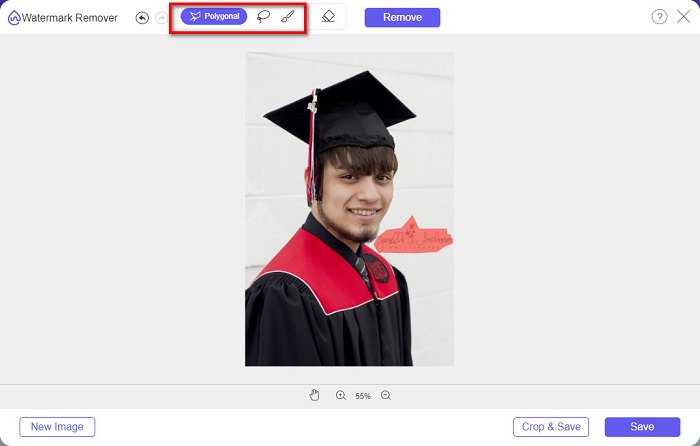
ステップ4. ウォーターマークの範囲を選択したら、Remove ボタンをクリックしてウォーターマークを消します。
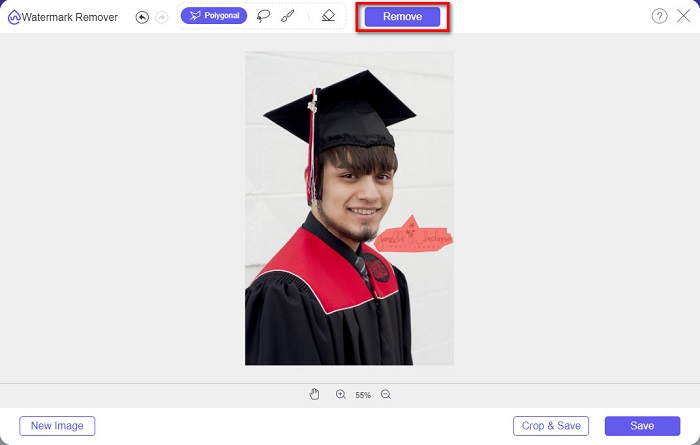
ステップ5. ウォーターマークが削除されたことを確認したら、Save ボタンをクリックして画像をデバイスにダウンロードします。さらに、このオンラインウォーターマーク削除ツールは、Photobucket のウォーターマーク削除ツールとしても利用できます。
![[保存]ボタンをクリックします](/images/2022/05/click-save-button.jpg)
パート2。Inpaintを使用して卒業写真から透かしを削除する方法
写真を元の外観に戻すために、透かしをレタッチすることがあります。しかし、彼らはどのようにそれを行うのでしょうか?専門家はフォトエディタを使用してラベルをピクセルごとにペイントするため、数時間の作業が必要になります。ただし、あなたの生活を楽にするのに役立つ別のツールがあります。このパートでは、Inpaintの使用方法とその利点について学習します。
Inpaint は、卒業写真のウォーターマーク削除にも役立つオンラインのウォーターマークリムーバーです。このオンラインアプリケーションには、Windows と Mac 向けのダウンロード版も用意されています。さらに、ロゴ、テキスト、不要な物体など、写真に写り込んだ不要な要素を取り除くこともできます。驚くべきことに、古い写真を修復して元のようなクオリティに戻す機能まで備えています。ウォーターマークの範囲を指定するための削除ツールも複数用意されています。
長所
- 使いやすいソフトウェアインターフェースを備えています。
- それはあなたがデジタル顔のレタッチをすることを可能にします。
- パノラマの黒い領域を埋めることができます。
- GoogleやFirefoxなどのほぼすべてのWebブラウザでアクセスできます。
短所
- インターネットに依存します。
Inpaintを使用して卒業写真から透かしを削除する方法:
ステップ1. ブラウザで Inpaint を検索して公式ページにアクセスします。そして、ソフトのメイン画面で Upload Image ボタンをクリックし、卒業写真をアップロードします。
ステップ2. 次に、ウォーターマークの範囲選択に使う削除ツールを選びます。marker tool、lasso tool、polygonal lasso tool の中から選択します。
ステップ3. 選んだツールを使って、削除したいウォーターマーク部分を選択します。

ステップ4. 最後に、Erase ボタンをクリックして卒業写真のウォーターマークを削除します。その後、Download ボタンをクリックして写真をダウンロードします。
パート3。Photoshopを使用して卒業写真から透かしを削除する方法
Adobe Photoshopは、多くの専門家が使用する最も有名な編集ソフトウェアです。しかし、多くのユーザーが知らないのは、それが単なる編集ソフトウェアではないということです。また、写真の不要な透かしを削除することもできます。写真から透かしを削除する方法については、この部分を包括的にお読みください。
Adobe Photoshop は、多彩な編集機能を備えた、もっとも有名な画像編集ソフトです。プロの多くがこの編集アプリケーションを使用しており、さまざまなプロフェッショナルな方法で画像を編集できます。細部までこだわって編集できるツールがそろっており、さらに、高品質な出力が得られるため、あらゆるソーシャルメディアプラットフォームで共有できます。
長所
- 使用する多くの高度な編集機能があります。
- 編集に使用する多くのツールが含まれています。
- 高品質の出力を生成します。
- これにより、印刷物とWebの両方の画像を編集および作成できます。
短所
- 使いにくいソフトウェアインターフェースを備えています。
- ダウンロードするにはアプリを購入する必要があります。
Adobe Photoshopを使用して写真の透かしを削除する方法:
ステップ1. デバイスに Adobe Photoshop をダウンロードして起動します。メイン画面から Photoshop 上で画像を開きます。
ステップ2. ウォーターマークのある範囲を選択します。ペンツール、クイック選択ツール、自動選択ツール(マジックワンド) のいずれかを使用できます。
ステップ3. 背景のピクセルを含めるために、Select > Modify > Expand を選択します。
![[変更][展開]を選択します](/images/2022/05/select-modify-expand.jpg)
ステップ4. 次に Edit > Fill を開き、Contents セクションで Content-Aware を選択します。
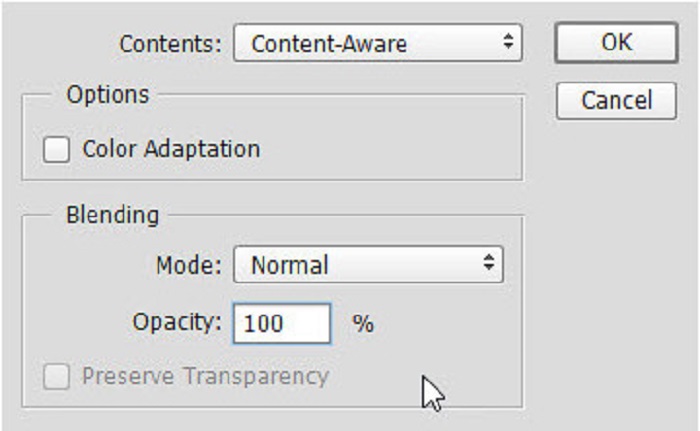
ステップ5. 続いて CTRL+D を押します。ウォーターマークが背景で埋められていることが確認できます。その後、ウォーターマークの輪郭を完全に消すために スタンプツール(Clone Stamp Tool) を使用します。
ステップ6. Alt キー を押しながらウォーターマークの輪郭をなぞります。跡を取り除き終えると、ウォーターマークが消えているのがわかります。
パート4。卒業画像から透かしを削除することに関するFAQ
卒業写真から透かしを削除すると、品質が損なわれますか?
卒業写真から透かしを削除しても、必ずしも品質が損なわれるわけではありません。ただし、透かしを削除しても、一部のツールにはマークが残ります。
Canvaの透かしを削除できますか?
はい。 Canvaには、透かしを無料で削除できる機能があります。これを行うには、[透かしの削除]ボタンをクリックするだけです。
PDFの透かしを削除できますか?
上記のツールを使えば、PDF ファイルからあらゆるウォーターマークを削除することもできます。
結論
ここまでで、卒業写真からウォーターマークを削除する方法を学んだので、実際に自分で試してみることができます。ウォーターマークリムーバーを使えば、ウォーターマークの削除は簡単に行えます。中でも多くのユーザーが、便利で使いやすいという理由から、FVC Free Watermark Remover を推奨しています。
-
 WindowsとMacでLumion透かしを簡単に削除する方法
 専門的に提示するためにLumion透かしを削除する必要がありますか?さて、あなたがそれが残す透かしを取り除くのを助けるためにあなたが使うことができるツールがあります。
-
 ビデオと画像のWeibo透かしを簡単に削除する方法
 エクスポートされたビデオと画像のWeibo透かしを削除するのに問題がありますか?その場合、あなたはあなたを助けることができる以下にリストする透かし除去剤をしなければなりません。
-
 Movavi透かしを無料で削除する方法を学ぶ$91;必須!$93;
 Movaviでビデオまたは画像をエクスポートすると透かしが残りますが、それを削除することは可能ですか?透かしを無料で削除する方法を教えるには、これを読んでください。
