


 ビデオコンバーター究極
 スクリーンレコーダー
 ビデオ修復
ビデオ修復
 安全なダウンロード
Windows / MacでMKVをMP4に変換する方法
映画を再生すると、一部のプログラムがMKV形式をサポートしていないため、映画を開くことができないことがわかります。次に、なぜこれが起こっているのか、そしてそれをどのように解決するのか疑問に思うかもしれません。
MKVを再生できない理由は、デバイスに特定のコーデックがないことが原因である可能性があります。そのため、最近ではどこでもMKVを見ることができますが、一部のデバイスやプログラムはまだMKV形式をサポートしていません。そのため、ほとんどすべてのデバイスに適切にロードできる、はるかに使いやすい形式であるMP4などのより一般的な形式に変換する必要があります。
今日は、MKV ファイルを MP4 に変換するのに役立つ無料コンバーターを 2 つご紹介します。

パート1。MKVをMP4オンラインおよび無料に変更する方法
私のようにコンピュータに多くのソフトウェアをインストールすることに耐えられない場合は、Webベースのオンラインコンバータを試してみることをお勧めします。
市場には無料のオンラインビデオコンバーターがたくさんありますが、正直なところ、これらのいわゆる「無料」コンバーターのほとんどには無数の制限があります。あなたはより良い計画を得るために彼らに支払う必要があります。その方法でのみ、透かしのないバッチで大きなファイルをすばやく変換できます。
それで、本当に無料で、速くて強力なビデオコンバーターはありますか?答えはイエスです。
FVC Free Online Video Converter は、制限なく動画を変換できる、高性能な MKV から MP4 への動画コンバーターです。ほぼすべての主流動画を、MP4、MOV、WMV、AVI、FLV などの人気形式に数秒で変換できます。バッチ変換にも対応しているので、複数の動画を一度に変換しつつ、元の画質を保つことができます。
FVC Free Online Video Converter は Web ベースのツールなので、安定したネットワーク環境とブラウザさえあれば、Windows・Mac のどちらでも簡単に利用できます。使い方も簡単で、このMKV から MP4 へのコンバーターは、わずか数ステップでマスターできます。
ステップ 1. ブラウザで FVC Free Online Video Converter の公式サイトにアクセスします。そして Add Files to Convert ボタンをクリックします。もしまだパソコンに FVC Launcher をダウンロードしていない場合は、まずランチャーのダウンロードを促すメッセージが表示されます。案内に従ってランチャーをインストールしてください。
ファイルを一括変換するには、デスクトップ版をダウンロードしてください。

ステップ 2. インストールが完了すると、自動的に Open File ウィンドウが表示されます。ここで変換したい MKV ファイルを選択します。なお、一度に複数の MKV 動画を変換したい場合は、必要な MKV ファイルをすべて選択してください。
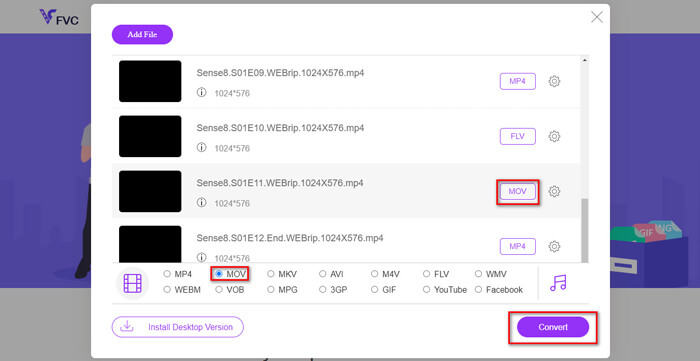
ステップ 3. 次に Open をクリックすると、選択したファイルの一覧が表示されます。その一覧の下にある出力形式から MP4 を選択します。
各ファイルの横にある Setting アイコンの隣の形式をクリックし、それぞれ個別に出力形式を変更することもできます。ただし、その操作を省略して、そのまま Convert ボタンをクリックしても構いません。その後、変換後の動画を保存する保存先フォルダを指定します。
パート2。VLCメディアプレーヤーでMKVをMP4に変換する方法
VLC を、ほとんどのデスクトップ OS で利用できるマルチメディアプレーヤーとしてご存じかもしれません。しかし実は、VLC には動画コンバーターとしての隠れた機能もあり、MKV ファイルを MP4 形式に変換することができます。すでにパソコンに VLC がインストールされているなら、ぜひ試してみてください。
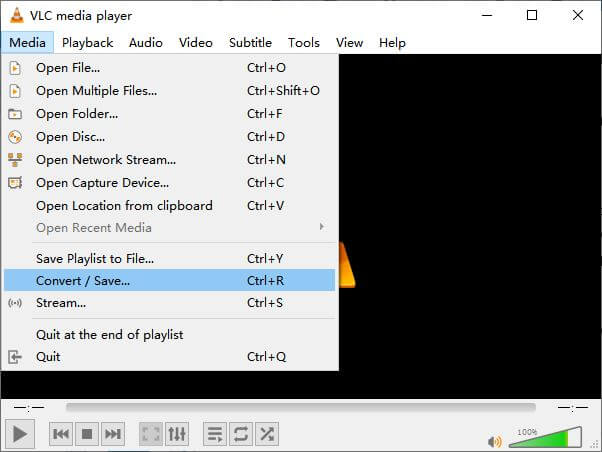
ステップ 1. まずパソコンで VLC Media Player を起動します。メニューの Media をクリックし、ドロップダウンリストから Convert / Save を選びます。
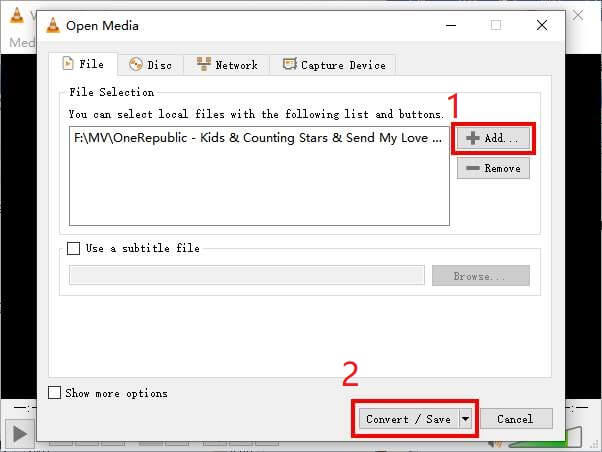
ステップ 2. + Add をクリックして、変換したい MKV 動画を選択します。次に、下部にある Convert / Save ボタンをクリックします。
ステップ 3. Convert ウィンドウで、出力形式として MP4 を選択します。
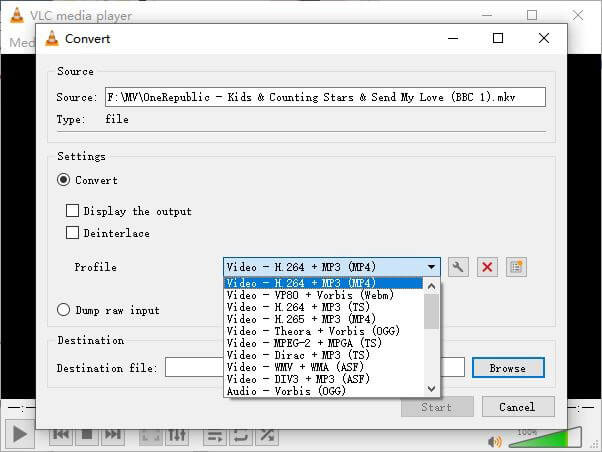
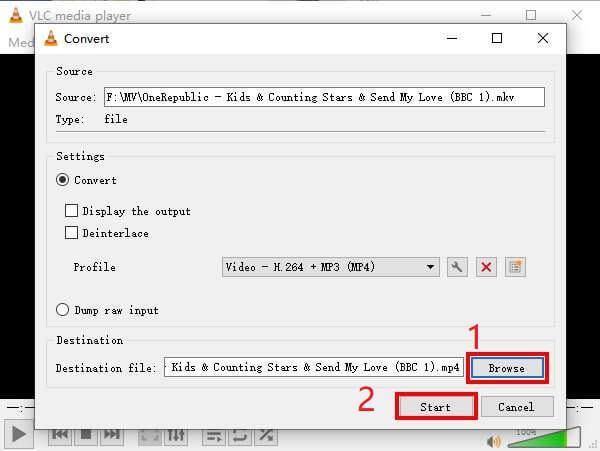
ステップ 4. Browse ボタンをクリックして、保存先フォルダを指定します。最後に Start をクリックして変換を開始し、MP4 動画が出力されるのを待ちます。
MKV 対 MP4
2002年にリリースされたMatroskaマルチメディアコンテナ形式は、多数のビデオ、オーディオ、画像、および字幕トラックを含めることができるオープンソース形式です。そのため、短いビデオクリップ、テレビ番組、および映画を簡単に保存するために使用できます。アニメファンサブで大人気。
2001年にMovingPictureExperts Group(MPEG)によってリリースされたMP4形式は、ビデオ、オーディオ、字幕、および画像データを別々のトラックに保存するのに役立ちます。これはMPEG-4Part14の略です。さらに、ビデオのストリーミングと共有に使用される最も一般的な形式の1つです。
パート3。MKVからMP4への変換に関するFAQ
1. ffmpegはMKVをMP4に変換できますか?
ffmpeg を使って MKV を MP4 に変換することも可能です。ただし、もっとも効果的な手順自体は一連の文字列、つまり ffmpeg -i my_movie.mkv -vcodec copy -acodec copy my_movie.mp4 だけなのですが、その仕組みを理解するのはやや難しく感じるかもしれません。
2. HandBrakeはMKVからMP4をエクスポートできますか?
変換後に MP4 ファイルさえ得られればよいという場合は、HandBrake も役に立ちます。しかし、WMV、MOV、FLV など、ほかの形式への変換には対応していません。HandBrake は、一般的なマルチメディアファイルのほとんどをサポートしていますが、それはあくまで対応している入力ソースについてです。出力形式として選べるのは、MP4(.M4V) と MKV のみです。
3. MKVをMP4に変換すると品質が低下しますか?
ほとんどのビデオコンバーターは、MKVファイルをMP4、おそらく1%または5%に変換すると品質が低下します。 MKVファイルをMP4に再エンコードしている間、データ損失を完全に回避することは困難です。ただし、画像の解像度を上げて、エクスポートされたMP4ビデオの品質を元のビデオに近づけることができます。
結論
あなたが選ぶための無数のビデオコンバーターがあります。無料で効率的なコンバーターを一人で見つけるのは難しいです。この投稿では、MKVをMP4に変換する2つの方法を紹介しました。 1つはVLCMedia Playerで、もう1つはFVC Free Online VideoConverterです。
MP4ファイルのみが必要な場合は、VLCで十分です。ただし、VLCは限られた数のフォーマットしかサポートしていません。したがって、より専門的なコンバーターが必要な場合は、FVC Free Online VideoConverterの方が適しているようです。
この投稿がお役に立てば幸いです。そして、遠慮なくご意見をお聞かせください。
-
 品質を損なうことなくMP4ビデオファイルをアニメーションGIF画像に変換する方法
 MP4ビデオをアニメーションGIFに変換する最良の方法をお探しですか?これは、Photoshop、Windowsムービーメーカー、オンラインビデオコンバーターなどでそれを行うための詳細なガイドです。
-
 品質を損なうことなくMOVをMP4に変換する方法
 MOV(Apple QuickTime Movie)ファイルをMP4に変換したいですか?この投稿では、Windows 10/8/7 / XPおよびMacOSXでMOVビデオファイルをMP4形式に変換する4つの無料の方法を共有しています。
-
 MacとWindowsでWMVをMP4に変換する4つの簡単な方法
 WMVファイルをMP4に変換する方法は? MacとWindowsで簡単な手順でWMVをMP4に変換する4つの簡単な方法を次に示します。

