


 ビデオコンバーター究極
 スクリーンレコーダー
 ビデオ修復
ビデオ修復
 安全なダウンロード
クリック内でMP4ファイルをMKVに変換する4つの最高の無料MP4からMKVへのコンバーター
MP4ビデオに字幕を追加する場合は、代わりにMP4をMKVに変換することをお勧めします。 MKVは、無制限の数のオーディオ、画像、字幕トラックをサポートするMatroskaビデオファイルです。 MP4をMKVファイルに変換することは難しくありません。あなたは記事から4つの最良の方法についての詳細を学ぶことができます。さらに、これはあなたが知っておくべき簡単に字幕を追加してビデオを編集するための究極の方法です。

パート1:MP4をMKVに変換するための3つの最良の方法
トップ1:無料でMP4をMKVオンラインに変換する方法
MP4ファイルをオンラインでMKVに変換したいときは、FVC Free Online Video Converter を使えば、MP4やMKVなどほとんどの動画形式を無料で変換できる多機能なビデオコンバーターとして利用できます。出力ファイルのために、動画や音声の各種設定を細かく調整することも可能です。さらに、一括変換にも対応しているため、複数の動画や音声ファイルをまとめて簡単に変換できます。
- 1. MP4をMKV、AVI、FLVおよびその他のメディアフォーマット/プリセットに変換します。
- 2.ビデオコーデック、フレームレート、ビデオ形式、およびビデオ形式を微調整します。
- 3.変換は、透かしやその他の制限なしで簡単です。
- 4.3つのステップでMP4をMKVファイルに変換するための簡単なインターフェースを提供します。
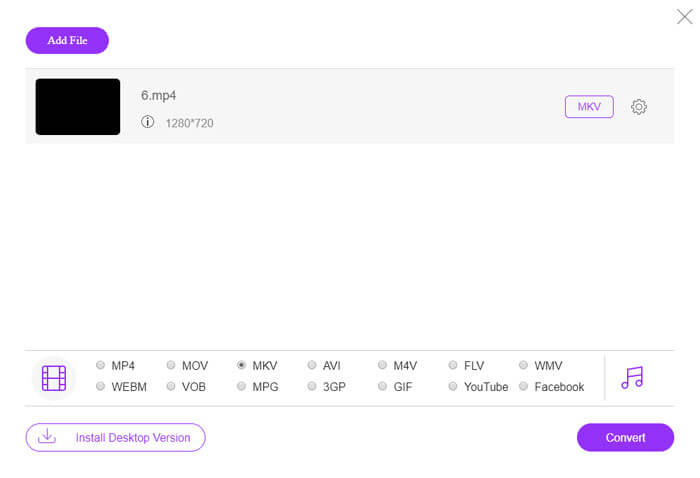
ステップ1. FVC Free Online Video Converter にアクセスし、Add Files to Convert ボタンをクリックして、MP4ファイルをプログラムに追加します。オンラインMP4→MKVコンバーターを初めて使用する場合は、事前にインストーラーをダウンロードしておく必要があります。
ファイルを一括変換するには、デスクトップ版をダウンロードしてください。

ステップ2. MP4動画を読み込んだら、出力形式として MKV オプションを選択します。Gear アイコンをクリックすると、ビデオエンコーダー、フレームレート、解像度など、動画と音声の各種設定を調整できます。

ステップ3. その後、Convert ボタンをクリックすると、希望する画質でMP4をMKVに変換できます。数秒ほどで目的のMKVファイルがパソコンに保存できる状態になります。保存する前に、出力動画をプレビューすることもできます。
トップ2:VLCメディアプレーヤーでMP4をMKVに変換する方法
VLC Media PlayerはMKVファイル用のメディアプレーヤーであるだけでなく、ほとんどの動画・音声形式に対応する独自のコーデックも備えています。出力形式としてMKVが見つからない場合でも、以下の手順のように、VLCでMP4をMKVに変換できるプラグインを探して利用することもできます。
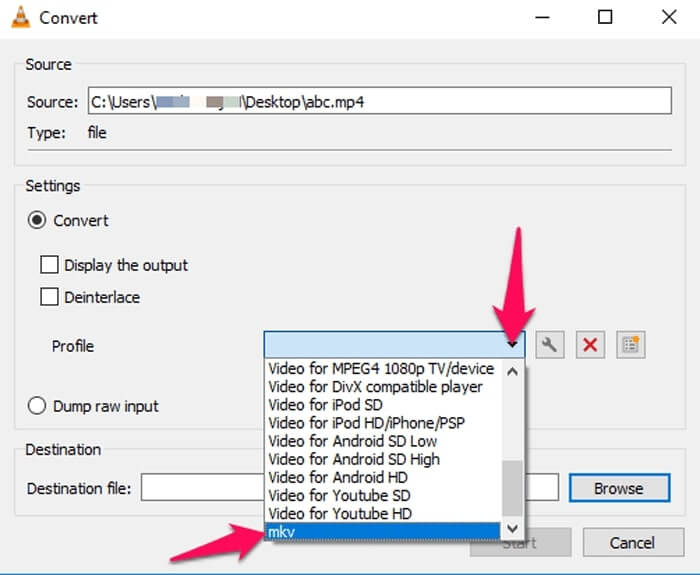
ステップ1. VLC Media Player を起動し、パソコン上でプログラムを立ち上げます。Media メニューをクリックし、Convert/Save... オプションを選択して、変換したいMP4ファイルを読み込みます。
ステップ2. 「メディアを開く」ウィンドウで、File タブをクリックし、続いて Add アイコンをクリックします。フォルダ内からMP4ファイルを選択します。その後、Convert/Save ドロップダウンメニューから Convert ボタンを選択します。
ステップ3. 続いて、出力形式としてMKVを選択します。Browse オプションをクリックして、変換後ファイルの保存先フォルダを指定します。その後、Start オプションを選択して、MP4をMKVに変換します。
トップ3:URLからMP4をMKVに変換する方法
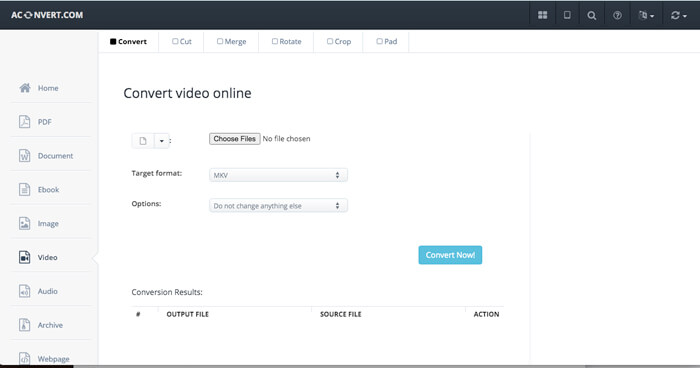
オンラインMP4をMKVに直接変換することは可能ですか? AConvertには一連のビデオからMKVへのオンラインコンバーターがあり、ビデオのURLを入力して目的の形式に変換できます。もちろん、ビデオ設定を微調整することもできます。
ステップ1. お使いの任意のブラウザーで aconvert.com にアクセスし、左上の Convert メニューを選択します。矢印をクリックして、ドロップダウンリストから Online File オプションを選びます。
ステップ2. Target format でMKV形式を選びます。その後、Options をクリックして、MP4からMKVへ変換する際の動画サイズ、ビットレート、フレームレート、アスペクト比など、その他の設定を調整します。
ステップ3. 設定が完了したら、Convert Now! ボタンをクリックして一括変換を開始します。出力ファイルは Conversion Results セクションに一覧表示され、そこからパソコンにダウンロードできます。
パート2:MP4をMKVに変換する究極の方法
MP4を字幕付きのMKVに直接変換する方法はありますか? FVC Video Converter Ultimateは、ビデオ/オーディオ設定の微調整、ビデオファイルの編集、字幕/オーディオトラックの追加、さらにはDVDからのファイルのリッピングを簡単に行える究極のMP4からMKVへのコンバーターです。
- 1.元の品質のバッチプロセスでMP4をMKVに変換します。
- 2.フレームレート、ビデオ品質、ビデオコードなどを微調整します。
- 3.クリップ、回転、トリミング、カット、圧縮、ビデオフィルターなどを使用してビデオを編集します。
- 4. 4K / 1080pHDビデオフォーマットおよびDVDファイル用の内蔵メディアプレーヤー。
無料ダウンロードWindows 7 以降に対応安全なダウンロード
無料ダウンロードMacOS 10.7 以降に対応安全なダウンロード
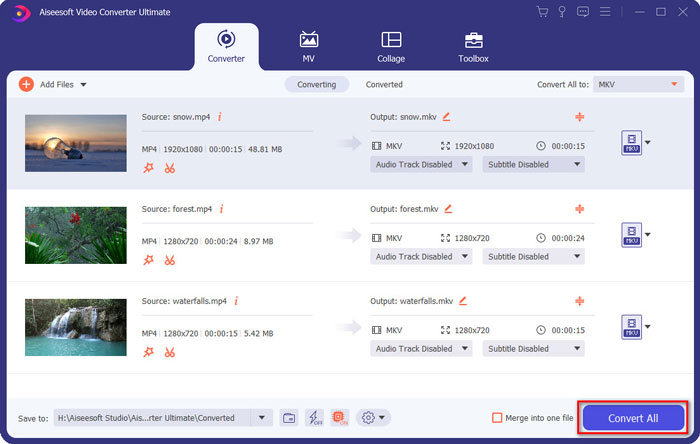
ステップ1. プログラムをパソコンにダウンロードしてインストールしたら、Add File をクリックし、Add File または Add Folders を選択するか、複数の動画・音声ファイルを直接ドラッグ&ドロップしてこのプログラムに追加します。

ステップ2. 続いて、出力形式としてMKVファイルを選択し、必要に応じて解像度、フレームレート、オーディオコーデックなどのプロファイル設定を調整します。

ステップ3. 字幕や音声トラックを追加する場合は、変換前にオーディオチャンネルまたは字幕をクリックして、希望するものを選択してから Convert All ボタンをクリックし、MP4をMKVに変換します。
MP4とMKV
2001年にMovingPictureExperts Group(MPEG)によってリリースされたMP4形式は、ビデオ、オーディオ、字幕、および画像データを別々のトラックに保存するのに役立ちます。これはMPEG-4Part14の略です。さらに、ビデオのストリーミングと共有に使用される最も一般的な形式の1つです。
2002年にリリースされたMatroskaマルチメディアコンテナ形式は、多数のビデオ、オーディオ、画像、および字幕トラックを含めることができるオープンソース形式です。そのため、短いビデオクリップ、テレビ番組、および映画を簡単に保存するために使用できます。アニメファンサブで大人気。
パート3:MP4をMKVに変換する方法に関するFAQ
1. MKVの利点は何ですか?
MP4ファイル形式と同様に、MKVも一般的なコンテナ形式です。それぞれが異なる圧縮形式を使用するいくつかの異なるトラックを保持できます。 SRT、PGS / SUP、VobSub、SSAなどの字幕を編集できます。 MP4をMKVに変換すると、それに応じて、いつでも希望の字幕とオーディオトラックでビデオをカスタマイズできます。
2. MKVファイルを簡単に編集するにはどうすればよいですか?
もちろん、プロのMP4からMKVへのコンバーターを使用して、ビデオ/オーディオ設定を編集したり、FVC Video ConverterUltimateなどのオーディオトラックや字幕を編集したりすることもできます。さらに、無料のエントリーレベルのMKVToolNixを使用して、Windows、Mac、およびLinuxで字幕を簡単に編集および管理することもできます。
3. MP4をMKVに変換するために重要なことは何ですか?
MP4をMKVに変換する必要がある場合は、出力ビデオのサイズに注意する必要があります。通常、MKVファイルはMP4よりもはるかに大きく、特に字幕やオーディオトラックを追加する必要がある場合はそうです。オンラインビデオコンバーターを使用すると、MKVビデオ全体を正しく変換できない場合があります。
結論
オンラインストリーミングビデオをローカライズしたい場合は、MP4をMKVに簡単に変換するための最良の方法に関する詳細を学ぶことができます。最も頻繁に使用される3つのオンライン方法と、記事の最終的な解決策を確認してください。 WindowsとMacでMP4ファイルをMKVに変換することについて質問がある場合は、記事にコメントを残してください。
-
 品質を損なうことなくM2TSをMKVに変換する方法
 元の品質を維持しながらM2TSをMKVに変換したいですか?この投稿では、M2TSをMKVにロスレスで変更するための無料のオンライン方法を紹介します。
-
 MKVとMP4:違いは何ですか?変換方法
 MKVとMP4のどちらを選択するのですか?ビデオ品質に適したフォーマットはどれですか?この記事では、MKVとMP4を詳細に比較して、選択に役立てます。
-
 Mac / Windows用にMP4をWMVに変換する方法
 この投稿では、MacまたはWindowsでMP4ビデオをWMV形式に変換する方法を共有しています。また、デスクトップソフトウェアとWebベースのオンラインコンバーターの両方を含む、いくつかのオプションを提供します。最高のMP4からWMVへの変換ツールを知る準備はできましたか?

