


 ビデオコンバーター究極
 スクリーンレコーダー
 ビデオ修復
ビデオ修復
 安全なダウンロード
WindowsおよびMacコンピューター用のトップAMVスクリーンレコーダー
アクションメディアビデオはAMVとしても知られています。これは、ほとんどのメディアプレーヤーで再生可能なユニバーサルフォーマットとしてMP4を置き換えるために特別に作成されたビデオファイルフォーマットです。 AVI形式に精通している場合、これはその修正および改善されたバージョンです。このファイル形式には、圧縮されたビデオが含まれています。 AMV形式は、経済的に作られたプレーヤーやデバイスがビデオを再生できるように作られています。ただし、フレームレートが低いため、最初にレンダリングされるファイルは低くなります。それにもかかわらず、出力ビデオをレンダリングするときは、それを優れた代替形式と見なすことができます。
比較的簡単な方法として、動画をAMVファイルとして手軽に出力できる画面録画ソフトを使うことも検討できます。実際のところ、そのようなことができるツールは数多く存在します。また、必ずしもAMVファイルである必要はありませんが、そのようなファイル形式が存在することを知っておくとよいでしょう。そこで、Android とパソコン向けに利用できる.amv動画レコーダーをいくつか挙げました。詳細は以下のリストをご覧ください。

パート1。トップオンラインAMVレコーダー
1.FVC無料スクリーンレコーダー
オンラインで利用できる無料ツールというと、「制限が多い」「ウォーターマークが入る」「安全性に不安がある」などを想像するかもしれません。そうしたケースもありますが、無料の画面録画ソフトがすべて同じというわけではありません。従来の常識を覆し、これらの問題を解決しているものもあります。FVC Free Screen Recorderはその一つです。このツールなら、画面録画においてより自由度の高い操作が可能になります。可変フレームサイズ機能により、希望するアスペクト比を選択し、録画画面を自由にカスタマイズできます。また、ビットレートも調整可能です。ビットレートは、出力する動画の画質に大きく関わるため、品質を細かくコントロールするのに重要な要素です。この優れたツールには、ほかにも注目すべき機能が多数搭載されています。
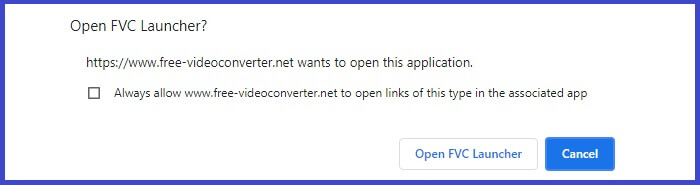
手順1. 公式サイト https://www.free-videoconverter.net/free-screen-recorder/ にアクセスしてアプリを起動します。Start Recording ボタンをクリックして起動してください。
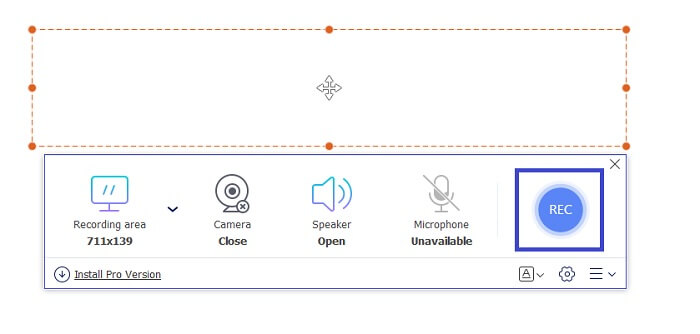
手順2. ツールが起動したら、点線のフレームをドラッグして動かし、希望する動画サイズになるまで調整し、録画範囲のアスペクト比を設定します。その後、REC をクリックして録画を開始します。
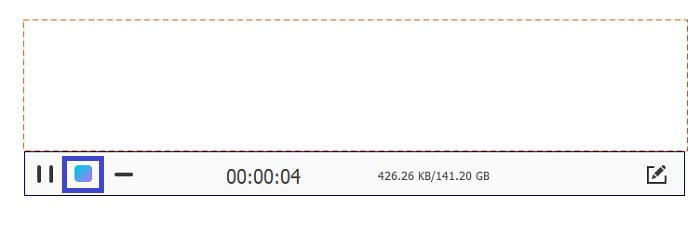
手順3. 録画中にペンシル(鉛筆)アイコンをクリックすると、リアルタイム注釈機能が有効になり、図形や線、テキストなどを追加できます。録画を終了したいときは、青い四角ボタンをクリックして録画を停止します。
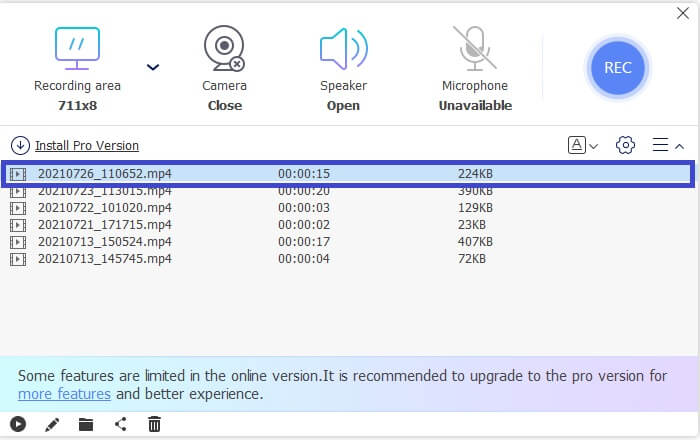
手順4. 録画したファイルを確認するには、メイン画面下部に表示されているファイル名をクリックします。ダブルクリックすると再生できます。
長所
- 無制限の録音。
- 期間制限なし。
- 高品質のビデオ出力のための調整可能なビットレート。
- ビデオトリミングがサポートされています。
短所
- 自動生成された字幕がありません。
2.スクリーンキャスト-O-Matic
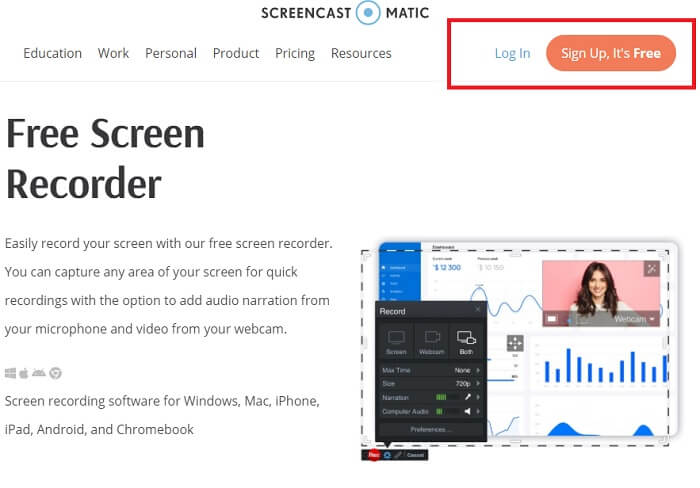
Screencast-O-Maticを使用して録画をパーソナライズし、インポートされたビデオと録画されたビデオの画面録画のミキシングとマッチングを体験してください。言うまでもなく、これはスクリーンショットを作成でき、自動キャプションを使用して画面に描画でき、同時に音声を録音できるオンラインツールです。ビデオの録画中にナレーションまたは字幕を追加することを選択できます。これは主にビデオチュートリアルメーカーやお金を節約している人に役立ちます。この無料アプリの唯一の欠点は、登録プロセスです。長いです。そんな中、使い方はこちら。
手順1. 公式サイト(メインページ)へアクセスし、アカウント登録を行います。
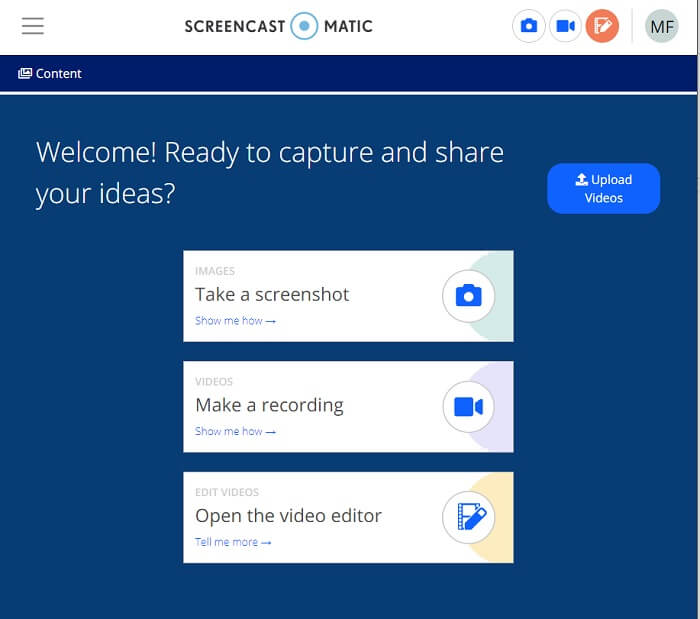
手順2. サインアップ後、次の画面で「どの操作を行うか」が表示されます。ここで Make a Recording(録画する)を選択します。
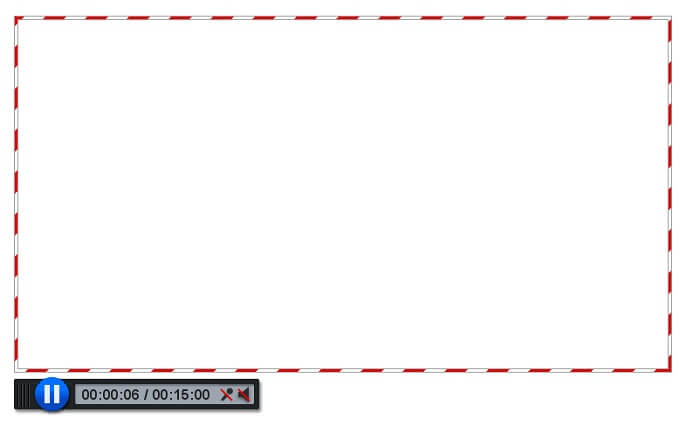
手順3. ツール画面が表示されます。録画を開始するには、赤い REC ボタンをクリックします。録画を停止したいときも、同じボタンをクリックします。
これらの2つのすばらしい無料アプリが提供できる機能に満足できない場合は、次に提供されるツールを読み続けることができます。今回は、PCにダウンロードできるプレミアムツールについてお話します。
パート2。トップデスクトップAMVレコーダー
1.FVCスクリーンレコーダー
最初のデスクトップツールはFVCスクリーンレコーダーです。コンピュータの画面やシステムオーディオを録音し、バックグラウンドノイズなしでオンラインストリーミングをキャプチャする機能があります。このツールは、コンピューターのシステムサウンドを記録します。これは、オーディオ品質が非常に満足できるものであることを意味します。広くサポートされているフォーマットに加えて、このツールはオンラインゲームストリーミングのアクセラレーション技術をサポートしています。透かしなし、高品質の録音のみ。このツールを使用した場合にのみ、最高の結果が得られます。 HD品質、ロスレスオーディオ、ライブストリーミング中のスムーズな録音、およびアクセラレーション。レコーディングのニーズに必要なものはすべてここにあります。それ以上に、特定のウィンドウのみを記録できるウィンドウロック機能があります。さらに、ツールは使いやすいので、下のボタンをクリックして開始してください。
無料ダウンロードWindows 7以降に対応安全なダウンロード
無料ダウンロードMacOS 10.7以降に対応安全なダウンロード
手順1. 録画を開始するには、Video Recorder ボタンをクリックします。
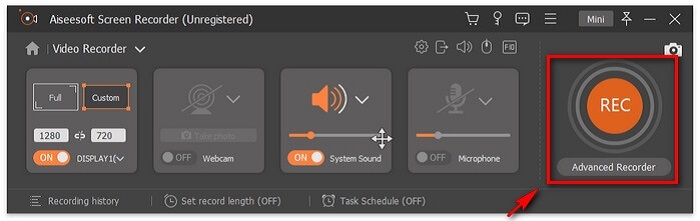
手順2. 録画を開始し、録画中に画面上へ注釈を追加します。
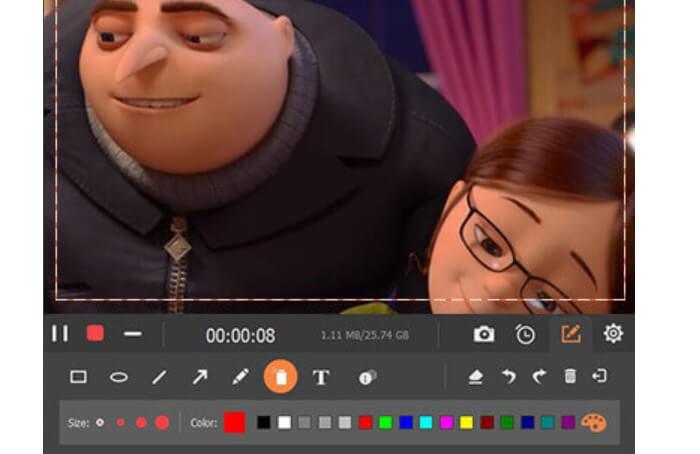
手順3. すべての操作が終わったら、赤い四角ボタンをクリックして録画を停止します。

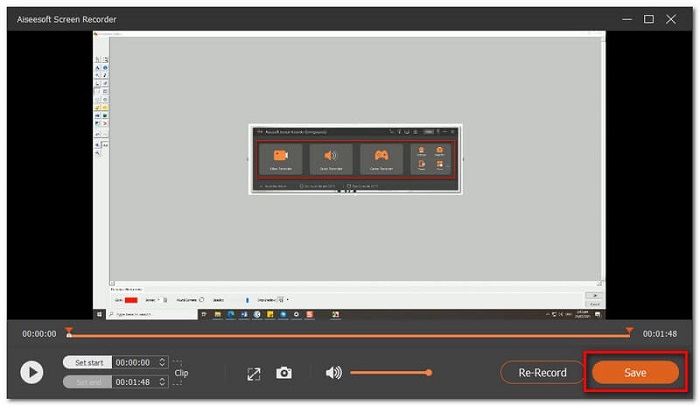
手順4. その後、新しいウィンドウがポップアップ表示されます。ここで Re-Record(録り直し)か Save(保存)を選択します。
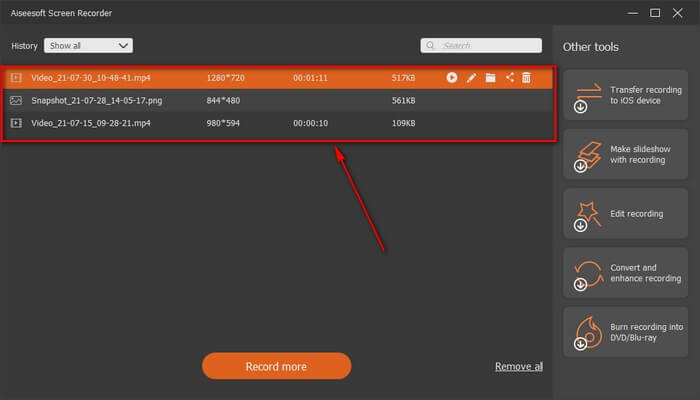
手順5. 次に表示されるウィンドウで、録画したファイルを確認します。
2.バンディカム
最後にBandicamがあります。これは、画面の記録に関して最も信頼できるツールの1つです。 1つは、ツールのインターフェイスが非常に単純だからです。確認する必要のあるすべての設定と機能が1つの画面に表示されます。ツールを起動すると、すべての設定と機能をすぐに確認できます。確かに、ユーザーフレンドリーなインターフェースの本当の定義。この種の技術の初心者でも簡単に対処できます。言われていることを示すために、これがあなたがそれを使うことができる方法です。
手順1. ツールの公式サイトへアクセスし、アプリをダウンロードしてインストールします。
手順2. インターフェース右上の REC ボタンをクリックします。すると、フレームサイズの調整を促すメッセージが表示されます。
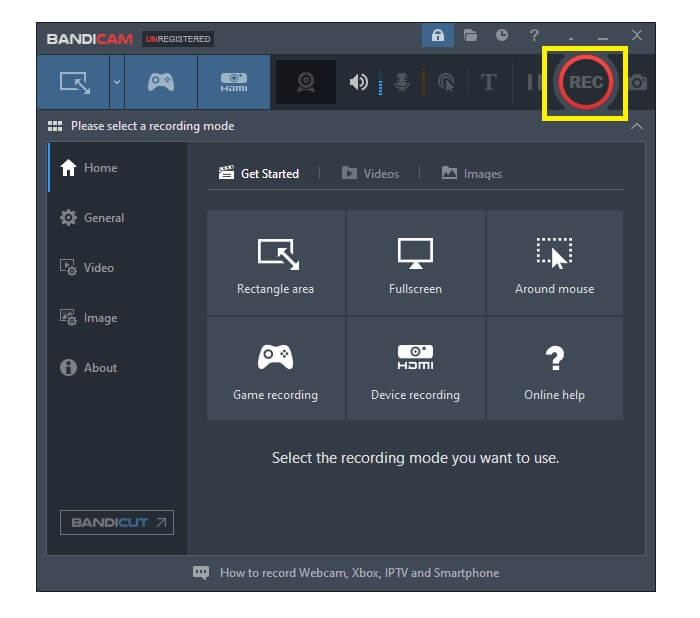
手順3. そこから録画を行いながら、同時に注釈を追加します。録画を終了するには、右上隅にある X ボタンをクリックします。
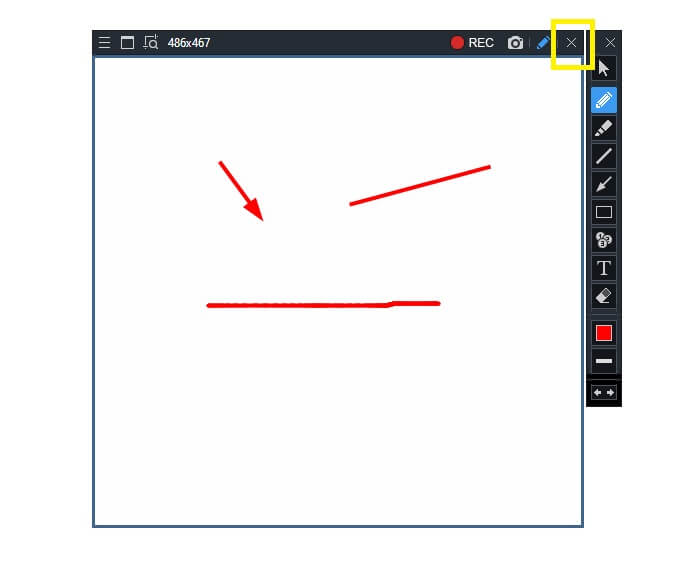
書かれたすべてのツールは確かに役に立ちます。 Bandicamはシンプルさと使いやすさを表しています。一方、Screencast-O-Maticは用途が広いです。一方、FVC Screen Recorderは、リストされているツールを完全に超える無料ツールとプレミアムツールの両方を提供できます。ロックウィンドウ機能は、マルチタスクと効率を可能にするため、特に利点があります。他のスクリーンレコーダーはこの機能を実行できません。FVCスクリーンレコーダーのみを使用します。
もっと読む:
パート3。AMVレコーダーに関するFAQ
PCでAMVファイルを開けないのはなぜですか?
いくつかの理由があります。ただし、最も一般的なのは、ファイルにコンピュータ上の適切なソフトウェアがないことです。オンラインでダウンロードしてください。
MP4プレーヤーがフォーマットエラーを再生していません、そしてそれを修正する方法は?
方法はとても簡単です。.amv ファイルを最新の形式に変換します。変換したい場合は、次の手順に従ってください。
1. このリンクにアクセスします:https://www.free-videoconverter.net/free-online-video-converter/。
2. ランチャーを起動し、変換したいファイルをアップロードします。
3. 希望する出力形式を選択します。設定が完了すると、すぐに変換が開始されます。
4. 変換が終わったら、ダウンロードボタンをクリックして変換後のファイルを保存します。
ファイルをソフトウェアに関連付けるにはどうすればよいですか?
方法は2つあります。1つ目は、AMVファイルを右クリックして「既定のプログラムを選択」し、そこから参照(Browse)を選ぶ方法です。もう1つは、Windows レジストリにファイルを関連付けて登録する方法です。
結論
結論として、AMVは、使用を検討できる形式を知っておくのは良いことですが、高品質のビデオを探している人にはお勧めしません。また、AMVスクリーンレコーダーのリストはAMVに限定されるだけでなく、MP4、MOVなどのより多くのフォーマットを生成できます。
-
 WindowsとMac用のトップ5の最高のマウスとキーボードレコーダー
 これは、マウスの動きとキーボードのクリックを保存し、イベントを繰り返すことができる、マウスとキーボードのレコーダープログラムのトップ5です。
-
 スクリーンビデオをAVIファイルとしてキャプチャするためのトップ4の無料AVIスクリーンレコーダー
 高品質のAVIファイルに画面を記録するために、この記事では、この投稿で上位4つの無料のAVIスクリーンレコーダーを特定して共有しました。それに応じて目的のものを見つけるために詳細を学びます。
-
 WindowsとMacで利用できるトップ6の無料WAVレコーダー
 この記事で共有する最高のWAV録音ソフトウェアには、プロのようにオーディオと音声をキャプチャするのに役立つさまざまな便利な機能があります。
