


 ビデオコンバーター究極
 スクリーンレコーダー
 ビデオ修復
ビデオ修復
 安全なダウンロード
高品質の画像出力を備えたHEIC写真を1分で印刷する方法
Appleは他のデバイス向けのサポートが少ないにもかかわらず、コストはかからず容量を節約できるハイパースペクトル画像を含めて保存できるHEIC形式を使い、素早く写真を撮影することを今後も宣言しています。しかし、印刷したり閲覧したり、Apple製品ではない別のデバイスへ画像を転送したりしようとすると、「非対応」という通知が表示されるだけです。一方で、Macユーザーであれば、生のファイルと同じクオリティでHEIC写真を印刷する方法を素早く習得できます。印刷手順を知りたい場合は、以下の詳細を読み進めてください。

パート1。MacでHEIC写真を印刷する方法の2つの効果的な方法
MacでHEIC写真を印刷する方法を調べて試してみると、形式を変換せずにHEICファイルのハードコピーを作成する方法が2つあることに気付きました。したがって、お持ちのHEICイメージのハードコピーを作成する方法を知りたい場合は、以下の2つの方法を読み続ける必要があります。
手順に進む前に、プリンタがMacに正しくインストールされているかどうかを確認し、トラブルシューティングを行ってください。すべての準備が整ったら、次に進む必要があります。
1番目の方法:ショートカットキーを使用する
クリック数を減らしたい場合は、ショートカットキーを使用してMacで画像を印刷する必要があります。手順とbをクリックしたキーに従って、MacでHEICファイルを簡単に印刷します。
ステップ1. Macに保存されているHEICファイルをクリックして開きます。
ステップ2. 開いたら、キーボードで Command+P キーを押します。
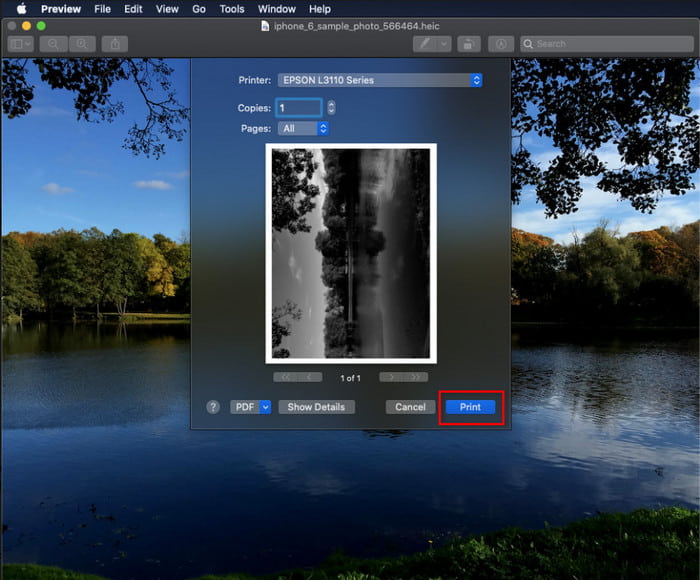
ステップ3. プリントダイアログボックスが表示されたら、画像のプレビューが確認でき、印刷設定を調整できます。設定後、プリントをクリックして、高品質のHEIC画像を紙に印刷します。
2番目の方法:ファイルメニューを使用する
ショートカットキーでドキュメントを印刷できない場合は、[ファイル]メニューを使用してみてください。このメニューを使用すると、HEIC画像のハードコピーを作成する前に、印刷ボタンをクリックして変更を加えることができます。ショートカットキーを使用せずに、macOSで使用しているHEICの印刷を開始しましょう。
ステップ1. まず最初に、Mac上でHEICファイルを開きます。
ステップ2. 画面上部のメニューからファイルをクリックすると、オプションの一覧が表示されます。一番下にあるプリントを選択します。
![[ファイル]をクリックします](/images/2022/04/click-file.jpg)
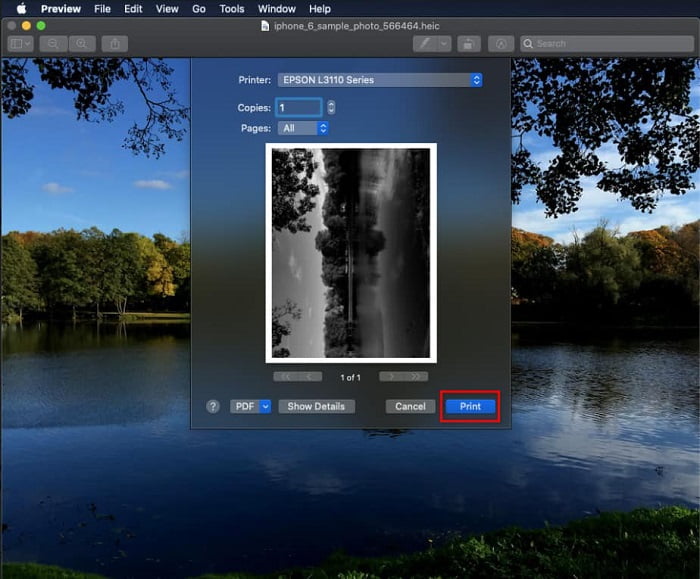
ステップ3. 画面にプリントダイアログが表示されます。中央部分には、HEICファイルを印刷した場合のイメージサンプルが表示され、横の欄で印刷前の細かな調整ができます。すべての設定が完了したら、プリントをクリックして印刷を開始します。
パート2.印刷用にHEIC写真をアップロードできないのはなぜですか?
HEICファイルを紙に印刷できず、扱いに苦労しているユーザーの一人ではありませんか?その場合、問題解決に役立つ特定のWebツールをご紹介します。それがFVC Free HEIC to JPG Converterです。このWebツールを使えば、HEICを簡単にJPGへ変換できます。フォーマットをJPEGに変えることで、印刷用にファイルをアップロードするのも容易になり、HEICよりはるかに認識されやすくなります。1日に10回まで、かつ5MB以下という制限はあるものの、その制限内であれば信頼できるWebコンバーターです。それでは、時間をかけずに、手軽に使えるこのオープンソース系Webコンバーターの手順を見ていきましょう。
ステップ1. このリンクをクリックしてWebコンバーターにアクセスすると、新しいタブがすぐに開きます。
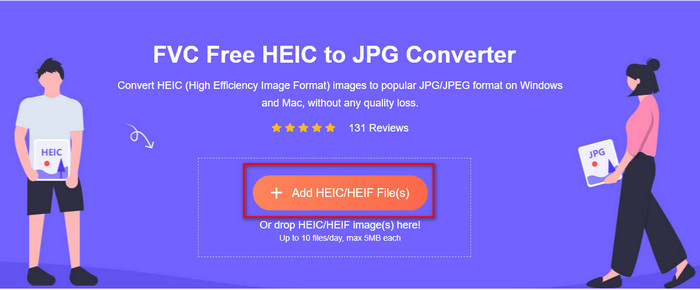
ステップ2. ボタンをクリックしてHEICファイルを読み込み、フォルダから対象のHEICファイルを選択し、開くをクリックして完全にアップロードします。
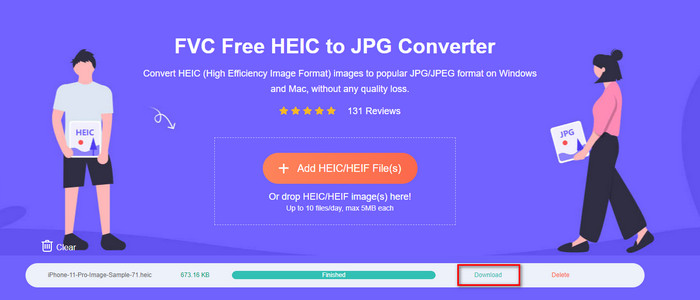
ステップ3. 変換処理がすぐに開始されるので、完了後にダウンロードをクリックしてデスクトップに保存します。これで、フォーマットは違っても、生の画像ファイルと同等の画質を保ったまま、プリンターでHEIC画像を簡単に印刷できる状態になります。
パート3。HEIC写真の印刷に関するFAQ
WindowsでHEIC写真を印刷できますか?
残念ながら、WindowsはHEICをサポートしていないため、高品質のHEICのハードコピーを作成できません。ただし、パート2には、HEICを認識可能なJPEG形式に変換する方法が含まれているため、希望を失うことはありません。自由に読んでその方法を理解し、Windowsで使用しているHEICファイルを印刷できますが、ファイル拡張子は異なります。
プリンターがHEICを認識しないのはなぜですか?
圧縮方式とフォーマット構造により、JPEGより小さいファイルサイズで高画質画像を保存できる一方で、市場に出たばかりの新しい形式であるため、まだ認識されにくいという難点があります。それでも、このフォーマットを、ほぼすべてのプリンターが認識できるもっとも互換性の高い画像形式、つまり現在でも広く使われている高解像度画像フォーマットであるJPEGへ変換することは可能です。コンバーターが必要な場合は、上で1つ紹介しましたが、さらに他のツールについて知りたいなら、このリンクをクリックして、HEICをJPEGに変換するために使えるツールを確認してください。私たちがそれぞれを比較・レビューしています。
HEICファイルとは何ですか?
Moving Picture Expert Group(MPEG)は、JPEGやJPGに代わる標準画像フォーマットとなり得るHEICを開発しました。同じグループが両方の形式を策定しているとはいえ、その内容は異なります。HEICとは何かをもっと詳しく知りたい場合は、このリンクをクリックして、私たちが調査した情報をご覧ください。
結論
上記の手順でHEIC写真を印刷する方法がわかったので、すべてのMacユーザーがそのハードコピーを作成できるようになります。ただし、Windowsユーザーの場合、この形式はWindowsでサポートされていないため、プリンターで単一のHEICイメージを印刷することはできません。ただし、これは、HEIC画像を印刷する希望を失うことを意味するものではありません。元のHEICファイルを印刷することはできませんが、公開する前に最初に形式をJPEG/JPGに変換すれば可能です。
パート2には、Web上でアクセスできる最高のオンラインHEICからJPGへのコンバーターが含まれており、ウイルスも含まれていません。それが正しく変換する仕事をすることができるかどうかまだわかりませんか?それなら、このリンクをクリックして試してみませんか?ツールがあなたが持っているHEICファイルを楽に変換できるので、きっとあなたは感動するでしょう。
-
 2022年の上位4つの改善された方法を使用してHEICをPDFに変換する
 最高のHEICからPDFへのコンバーターの詳細については、この2022をダウンロードできます。レビューを提供したので、この記事を読むことができます。
-
 最高のHEICからJPGへのコンバーターの5つがこの2022を選びます
 HEICからJPCへのコンバーターを使用すると、画像形式をポータブルJPGに簡単に変更できます。これらの5つのツールが何であるか知りたいですか?この記事を読んでください。
-
 あなたが知っておくべき最高の無料&有料HEICコンバーター[2022年更新]
 HEICコンバーターとは何か知りたいですか?その場合、HEIC形式を変更するために使用できる上位5つの無料および有料のHEICコンバーターが含まれています。
