


 ビデオコンバーター究極
 スクリーンレコーダー
 ビデオ修復
ビデオ修復
 安全なダウンロード
ウイルスの成功と持続的な印象のためにTikTokでビデオをつなぎ合わせる方法
もしあなたがTikTokでの実力をレベルアップさせ、驚くほど魅力的でシェアされやすいコンテンツを作りたいと思っているなら、ここはまさにうってつけの場所です。TikTokの最も強力な機能のひとつが、複数の動画を組み合わせたり「ステッチ」したりできる点であり、これにより、短時間でバズる可能性のある、魅力的でダイナミックな動画を作成できます。この包括的なガイドでは、プロのようにTikTokで動画を結合する方法を、専門的なコツやテクニックとともに解説します。これらを活用することで、シームレスでビジュアル的にも映える動画を作成し、激戦区であるTikTok上でもひときわ目立つ存在になれるでしょう。それでは、TikTokにおける動画ステッチのワクワクする世界を一緒に探っていきましょう!

パート 1. TikTok を使用して動画を結合する方法
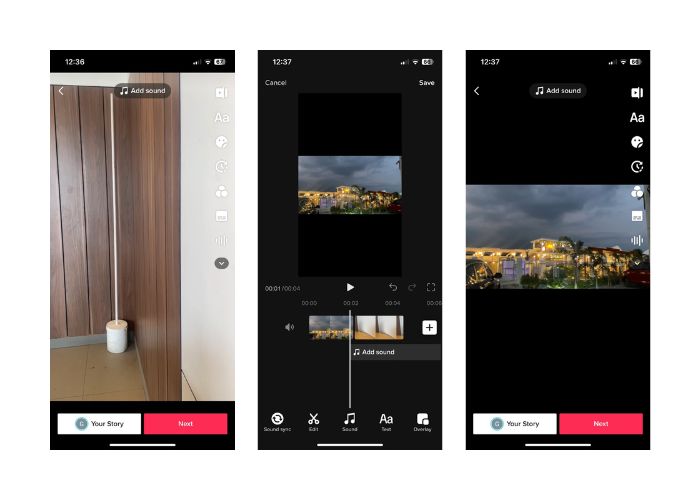
TikTok は有名なソーシャル メディア プラットフォームであり、ユーザーは音楽、効果音、ナレーションを設定した短い動画を作成して共有できます。ユーザーフレンドリーなインターフェイスとクリエイティブなツールにより、TikTok は世界的な現象となり、世界中の何百万人ものユーザーの注目を集めています。その間、以下の手順に従って、TikTokでステッチビデオを作成および視聴する方法を学びましょう。
ステップ1. モバイル端末でTikTokアプリを開き、自分のアカウントにサインインします。
ステップ2. 画面下部の+アイコンをタップして、新しい動画を作成します。
ステップ3. 録画画面右側の編集オプションをタップし、ステッチしたい動画を選びます。
ステップ4. スライダーを動かしてステッチしたい動画の開始位置を選択します。そのうえで、自分の音声吹き替え、リアクション、追加の映像など、オリジナルの要素を加えながら動画を録画します。
ステップ5. ステッチした動画に満足できたら、キャプション、エフェクト、その他のクリエイティブ要素を追加できます。
ステップ6. 次へボタンをタップして動画の詳細ページに進み、説明文やハッシュタグを追加し、動画を閲覧できるユーザーを選択します。最後に投稿ボタンをタップして、ステッチした動画をTikTokコミュニティに共有します。
パート 2. TikTok でビデオをスティッチする方法
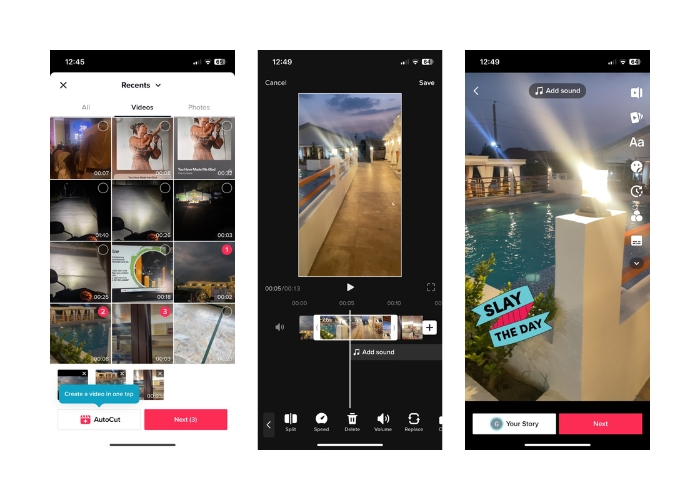
ステップ1. モバイル端末でTikTokアプリを開き、自分のアカウントにログインします。
ステップ2. アップロードボタンをタップし、結合したい動画を追加します。2本以上の複数動画を選んで結合できます。自分の動画だけでなく、他のTikTokユーザーの動画も選択可能です。選択が終わったら次へをタップして確定します。
ステップ3. 動画を選択すると、選んだ動画のタイムラインが表示されます。タイムライン上で開始点と終了点をドラッグし、ステッチしたい部分を選ぶことでトリミングできます。
ステップ4. 動画のトリミング後、テキスト、ステッカー、エフェクトなど、さまざまなクリエイティブ要素をステッチ動画に追加できます。
ステップ5. 次へボタンをタップして、動画の説明やその他の設定画面に進みます。キャプションとハッシュタグを追加し、動画の公開範囲などお好みのプライバシー設定を行います。
ステップ6. 最後に投稿ボタンをタップして、ステッチした動画をTikTokに公開します。これであなたの動画は、他のユーザーが視聴・交流できる状態になります。
パート 3. TikTok 用に動画を結合する方法
1. FVC Video Converter Ultimate - PC 用
FVC Video Converter Ultimateは、動画変換やマルチメディアファイルの管理によく使われるソフトで、さまざまな用途に合わせて動画や音声を変換・編集する便利な方法を提供します。これには、動画の結合、分割、トリミングなどが含まれます。FVC Video Converter Ultimateの主な機能のひとつが、複数の動画を1つの動画ファイルに結合できる点です。この機能により、2本以上の動画クリップを1本にまとめ、シームレスで連続した動画として出力できます。ユーザーはMP4への変換、AVI、MKV、WMV、MOV、FLVなど、異なる形式の動画を選び、画質を落とさずに1つの動画ファイルへと結合できます。では、TikTok用に動画を結合する手順を紹介します。
ステップ1. FVC Video Converter Ultimateをインストールして起動
まだの場合は、FVC Video Converter Ultimateをパソコンにダウンロード・インストールします。下の無料ダウンロードボタンにチェックを入れてソフトを入手し、起動して使い始めてください。
無料ダウンロードWindows 7 以降対応安全なダウンロード
無料ダウンロードMacOS 10.7 以降に対応安全なダウンロード
ステップ2. ソフトに動画を追加
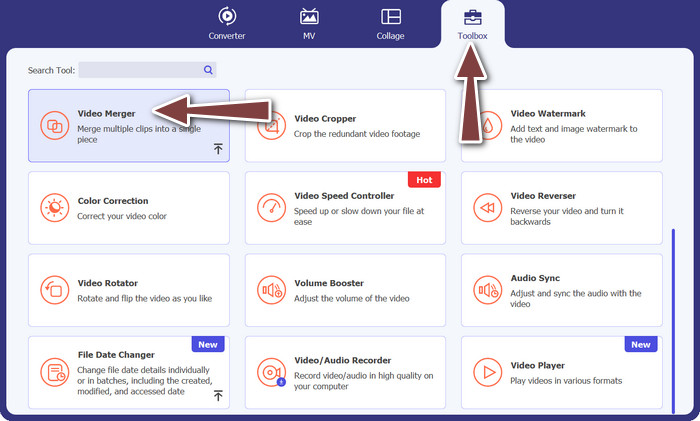
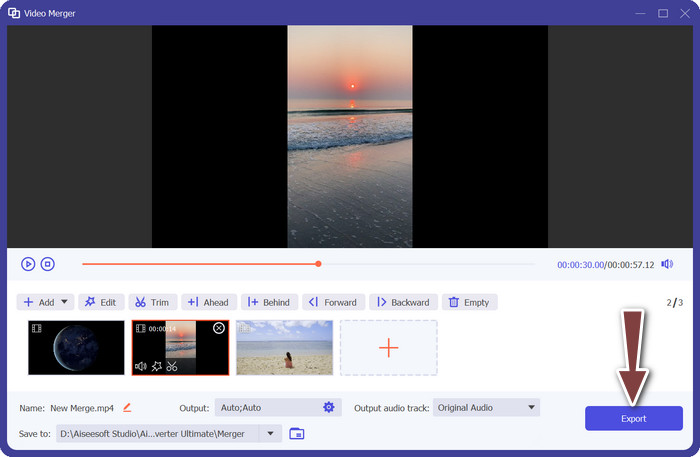
ツールボックスタブに進み、一覧から動画結合を選択します。その後、追加ボタンをクリックし、複数の動画を選びます。
ステップ3. 動画の順番を整える
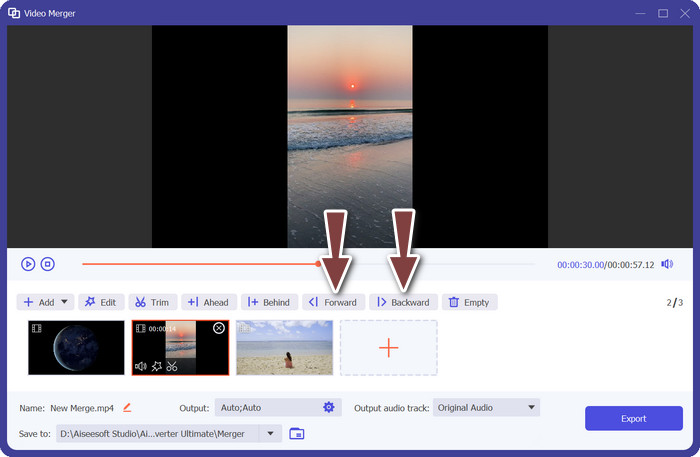
動画を追加したら、希望する順番になるよう並び替えます。あるいは、前へボタンと後ろへボタンを使うこともできます。これにより、最終的な出力動画で結合される順番が決まります。
ステップ4. 動画を結合
動画の並び替えや編集が終わったら、1本の動画として結合します。出力ボタンを探してクリックしてください。ソフトが、指定した順番に従って選択した動画の結合を開始し、新しい動画ファイルとして出力します。
2. YouCut - 電話用
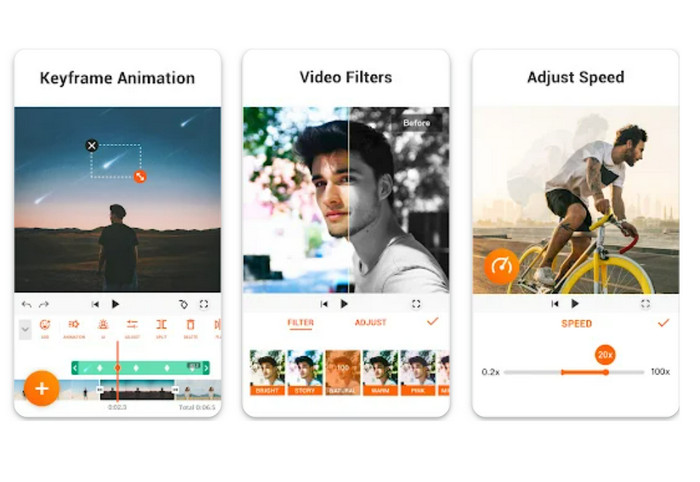
YouCutは人気の高い動画編集アプリで、クリップの結合、タイトルやサウンドトラックの追加、画質の調整など、さまざまな編集が可能です。シンプルなインターフェースと高機能な編集ツールにより、YouCutは多くのユーザーから高く評価されています。アプリのロゴやウォーターマークを入れずに本格的な動画を作りたい人にとっても最適なソフトで、そこが大きな魅力であり、最高レベルの無料Android向け動画結合アプリのひとつとされる理由です。ここからは、YouCutを使ってTikTok用に2つの動画を結合する方法を紹介します。
ステップ1. まず、AndroidデバイスでGoogle Playストアを開き、「YouCut - Video Editor & Video Creator」アプリを検索してインストールします。
ステップ2. 動画の結合を開始するには、メインメニューから動画結合オプションを選択します。
ステップ3. 追加ボタンをタップして、結合したい動画を読み込みます。複数の動画を同時に選択可能です。
ステップ4. 動画クリップを取り込んだら、タイムライン上で再生したい順番に並べ替えます。ドラッグ&ドロップするだけで動画の順番を変更できます。
ステップ5. 並べ替えと編集が済んだら、出力オプションをタップして動画を結合します。
パート 4. TikTok を使用した動画の結合に関する FAQ
TikTok で自分の動画をつなぎ合わせることはできますか?
はい、TikTok で自分の動画をつなぎ合わせることができます。これにより、独自のビデオ コンテンツの続きや応答を作成したり、複数のビデオを 1 つのまとまりのあるストーリーやシーケンスに結合したりできます。
TikTok で動画をつなぎ合わせているときに、動画に反応することはできますか?
いいえ、TikTok で動画をつなぎ合わせているときに動画に反応することはできません。スティッチングを使用すると、別のユーザーのビデオのセグメントを自分のビデオと組み合わせることができますが、デュエットのような組み込みのリアクション機能はありません。ただし、つなぎ合わせたビデオ セグメント内に独自のコンテンツとリアクションを追加して、元のビデオに対する独自のコメントや応答を提供することができます。
TikTok でつなぎ合わせたビデオの順序を制御できますか?
はい、TikTok でつなぎ合わせたビデオの順序を制御できます。ビデオをつなぎ合わせる場合、元のビデオに対してビデオ セグメントを配置する場所を選択できます。つなぎ合わせたセグメントの前後にビデオ セグメントを追加して、ビデオの再生順序を制御できます。
結論
TikTokでの動画ステッチは、他のユーザーの動画の一部と自分の動画のセグメントを組み合わせて、ユニークで魅力的なコンテンツを作れる、クリエイティブで楽しい方法だと私たちは理解しています。TikTokで動画を結合する方法を身につければ、ほかのユーザーとコラボしたり、動画に返信したり、自分なりのリアクションを加えたり、ステッチ動画の見た目をカスタマイズして、自分だけの作品に仕上げることができます。
-
 Tiktokでビデオと写真を一緒に追加する3つの効果的な方法
 Tiktokビデオに画像を追加する方法を知りたいですか?その場合は、この記事をクリックして読んで、Tiktokビデオに画像を簡単に追加する方法を学んでください。
-
 TikTokでビデオをトリミングする方法[詳細な手順]
 TikTokで動画を短くする方法を知りたいですか?次に、簡単な方法を提供します。また、オフラインのアプリケーション/プログラムを使用して他の方法を学びます。
-
 トリミングが簡単に: TikTok ビデオをトリミングして完全なエンゲージメントを得る方法
 簡単なチュートリアルで TikTok 動画をクロップする方法を学びましょう!数回のタップとスワイプだけで、視覚的に魅力的なビデオを作成できます。
