


 ビデオコンバーター究極
 スクリーンレコーダー
 ビデオ修復
ビデオ修復
 安全なダウンロード
高速アップロードのためのFLVの圧縮–知っておくべき2つの効率的な方法
FLVをブログにアップロードしたり、ソーシャルメディアのWebサイトとビデオを共有したりする場合は、時間がかかるか、アップロードが滞る可能性があります。FLVビデオを圧縮する必要があります。 FLVビデオサイズを縮小するための最良の方法は何ですか?記事からFLVのビデオサイズを縮小するための2つの最も効率的な方法の詳細をご覧ください。

パート1:無料でFLVをオンラインで圧縮する方法
もし、いくつかの簡単な FLV ファイルだけを扱うのであれば、Free Video Compressor は、解像度・ビットレートなどの各種パラメータを調整して動画サイズを縮小できる多機能な FLV 動画圧縮ソフトです。登録不要で、複数の FLV 動画をまとめて一括圧縮できます。さらに、このビデオコンプレッサーはユーザー情報を一切保存しません。
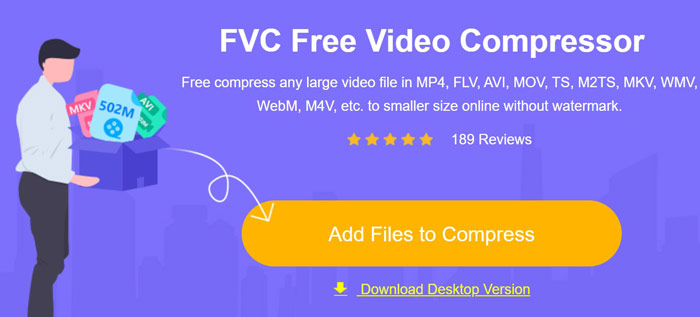
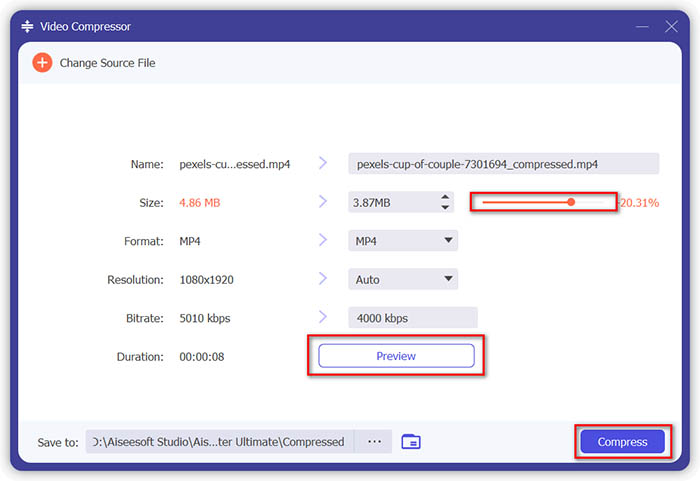
ステップ 1: 任意のウェブブラウザーでオンライン FLV コンプレッサーにアクセスします。Add Files to Compress ボタンをクリックしてインストーラーをダウンロードします。その後、もう一度ボタンをクリックして FLV 動画をインポートします。
ステップ 2: FLV をインポートしたら、動画サイズを希望のサイズに調整したり、MP4 形式に変更したり、動画解像度を選択したり、ビットレートを変更したりできます。
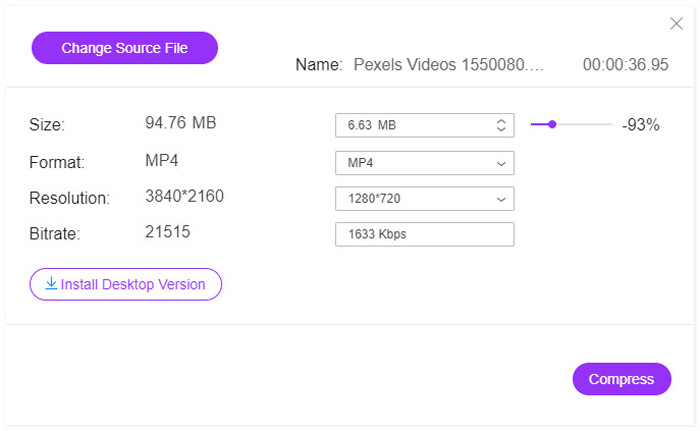
ステップ 3: 出力される FLV 動画を確認し、Compress ボタンをクリックして FLV を圧縮し、アップロード時間を短縮します。その後、圧縮した動画を各種ソーシャルメディアサイトで共有できます。
パート2:FLVを圧縮する専門的な方法
元の画質を保ったまま FLV を圧縮したい場合や、必要な動画クリップだけをカットしたい場合、あるいはより小さいサイズで FLV を MP4 に変換 したい場合には、Video Converter Ultimate が便利です。数回のクリックで FLV サイズを縮小できる多機能な FLV コンプレッサーです。さらに、ビデオコーデック、ビットレート、解像度などの各種パラメータも細かく調整して、FLV ファイルのサイズを抑えることができます。
無料ダウンロードWindows 7 以降に対応安全なダウンロード
無料ダウンロードMacOS 10.7 以降に対応安全なダウンロード
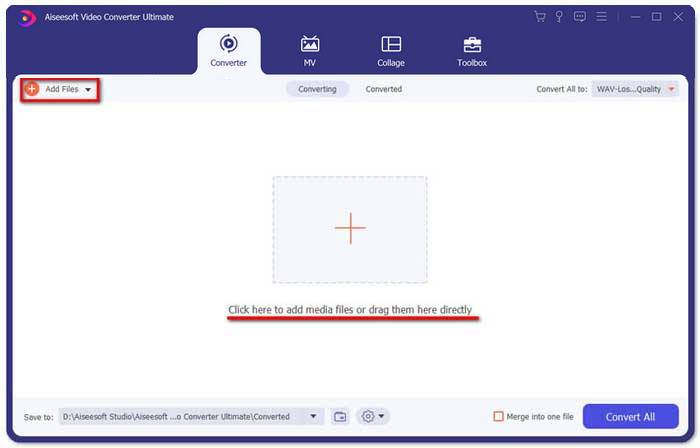
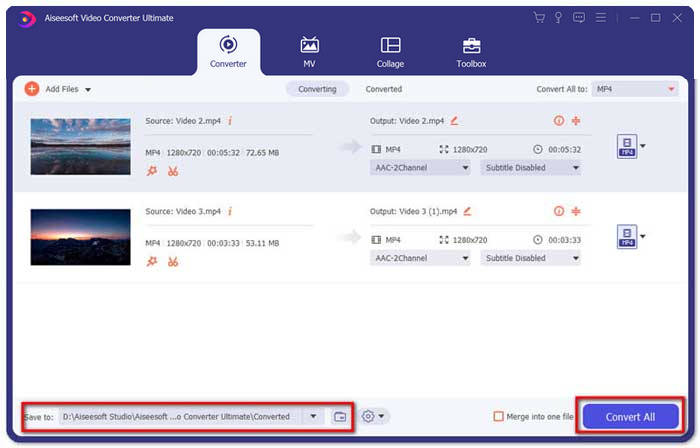
ステップ 1: Video Converter Ultimate をダウンロードしてインストールし、パソコン上で起動します。Converter メニューに進み、Add Files ボタンをクリックして FLV ファイルを読み込みます。もちろん、FLV 動画をドラッグ&ドロップして追加することもできます。
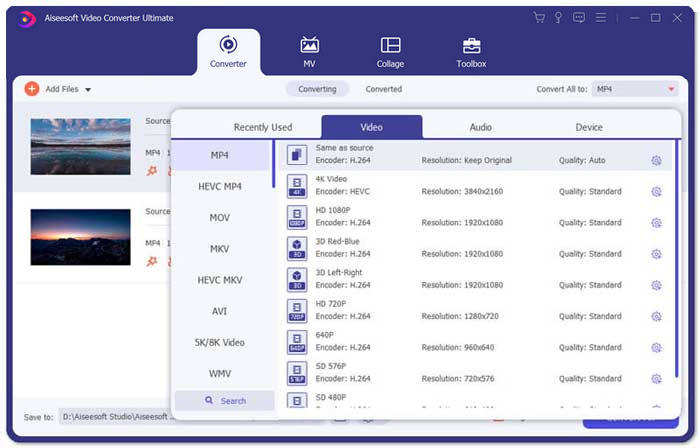
ステップ 2: FLV 動画をインポートしたら、動画欄の右側にある出力形式をクリックします。さらに、Gear アイコンをクリックして、動画エンコーダー、フレームレート、解像度、ビットレートなど、FLV ファイルを圧縮するための詳細設定を行います。
ステップ 3: FLV 動画のサイズだけを小さくしたい場合は、Toolbox メニューに移動して FLV ファイルをインポートします。その後、動画サイズや解像度などを調整できます。さらに、動画の再生時間も適宜カスタマイズ可能です。
ステップ 4: 満足のいく FLV 動画ができたら、保存先欄の隣にあるフォルダーアイコンをクリックして出力先フォルダーを選択します。その後、Convert All ボタンをクリックして FLV 動画を圧縮し、素早くアップロードできるようにします。
パート3:FLVビデオの圧縮に関するFAQ
1. FLVビデオフォーマットとは何ですか?
FLVはFlashVideoの略です。ファイル拡張子は、Adobe FlashPlayerまたはAdobeAirを使用してインターネット経由でビデオまたはオーディオを送信するファイルです。これは、ブログやYouTube、Huluなどのソーシャルメディアサイトを含む、インターネット上のすべての埋め込みビデオで使用される最も多くのビデオ形式の1つです。
2. FLVビデオをYouTubeにアップロードする必要がありますか?
はい。 YouTubeは、Adobe-FLV1ビデオコーデックとMP3およびAACオーディオでエンコードされている場合にのみ、FLVビデオファイルをサポートします。 FLVビデオを圧縮するときは、ビデオコーデックとオーディオコーデックも微調整して、FLVビデオをYouTubeにアップロードする必要があります。
3. FLV VS MP4、サイズが小さいですか?
FLVとMP4はどちらもコンテナ形式ですが、ビデオサイズはビデオ形式内のビデオコーデックによって異なります。 FLVビデオを圧縮する必要がある場合は、ビデオコーデックを変更するだけで、FLVまたはMP4ビデオのサイズを小さくできます。
結論
FLVビデオを圧縮して高速アップロードするには、記事から2つの効率的な方法について詳しく知ることができます。もちろん、無料のオンラインビデオ圧縮を使用すると、FLVをオンラインで簡単に圧縮できます。 FLVファイルを編集および拡張する必要がある場合は、Video ConverterUltimateを常に最初に選択する必要があります。
-
 AVCHDビデオを無料で小さなファイルサイズに圧縮する2つの方法
 AVCHDビデオファイルを圧縮する2つの簡単な方法を読んで入手してください。オンラインおよびオフラインのビデオコンプレッサーを使用して、コンピューター上のAVCHDビデオサイズを無料で縮小できます。
-
 VOBファイルをオンラインおよび無料で圧縮する方法
 VOBファイルを圧縮する方法をお探しですか?この記事では、VOBファイルのサイズを小さくするための最良の方法を学びます。
-
 2021年のWindows、Mac、iOS、Android向けのトップ10FLVプレーヤー
 FLVプレーヤーを使用すると、Windows、Mac、Android、iOSデバイスでFLVファイルに簡単にアクセスできます。あなたが今ダウンロードできる最高のFLVファイルプレーヤーをチェックしてください。
