


 ビデオコンバーター究極
 スクリーンレコーダー
 ビデオ修復
ビデオ修復
 安全なダウンロード
FinalCutProとUltimateToolを使用してビデオから透かしを削除する方法
透かし、ロゴ、スタンプなどは、無料版の編集ソフトや撮影ツールを使って書き出したときに写真(や動画)に追加されるものです。デスクトップなら、これらを簡単に削除して、ウォーターマークなしでより目を引く動画に仕上げる方法はよく知られています。しかし、Mac ユーザーは、動画に残ってしまったこれらのマークを消す際に少し苦労することがあります。この OS で使える透かし消去ツールは限られており、中にはウォーターマークをうまく消せないものもあります。ですが心配はいりません。Final Cut Pro と FVC Video Converter Ultimate があれば、ウォーターマークを一気に、そして完全に処理できます。以下でご紹介する情報では、Final Cut Pro を使って動画からウォーターマークを削除する方法と、究極の専用ソフトの使い方について、詳しくご案内します。

パート1。FinalCutProを使用してビデオから透かしを削除する方法[手順を完了]
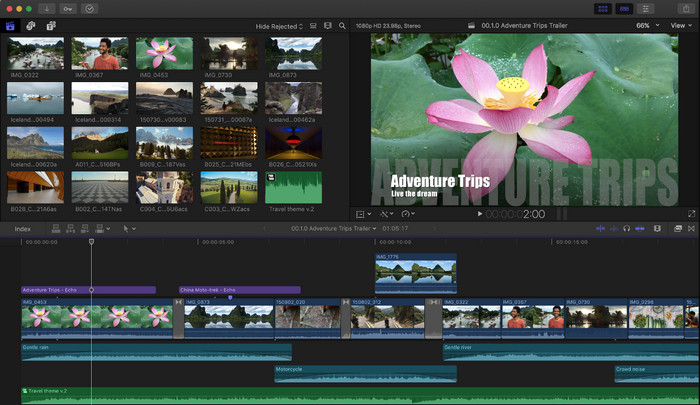
Final Cut Proは、透かしの削除、変換、およびビデオの昇格に使用できるMacベースのエディタです。このツールは、ビデオを素晴らしく見せるためにうまく機能するため、一般的にAdobePremiereProと比較されます。 Macでプロフェッショナルな出力が必要な場合は、これが頼りになるエディターです。 Macでのパフォーマンスと効率により、このツールがAppleデバイスでトップのビデオエディタになった理由と、iMovieよりも編集に最も適した選択肢になった理由に疑問の余地はありません。 Final Cut Proを使用して透かしを削除する方法を教えるには、以下の手順に従ってください。
ステップ 1. Safari で公式サイトにアクセスしてダウンロードします。その際、Mac で Final Cut Pro を使用する予定であれば、SpliceX のプラグインも必ずダウンロードしてください。これは重要なコンポーネントです。
ステップ 2. 画面上部のメニューから ファイル をクリックし、続いて 開く を選択して、ローカルドライブに保存されているウォーターマーク付き動画を読み込みます。
ステップ 3. 読み込んだ動画ファイルを ドラッグ してタイムラインに配置し、動画のウォーターマーク削除作業を開始します。
ステップ 4. 画面右側のインターフェースで トリミング(crop) アイコンをクリックします。ただし、このときは動画全体ではなく、ウォーターマークがある部分だけを残すように範囲を指定します。その後、完了(Done) をクリックして保存します。
ステップ 5. エフェクト(Effects) に進み、ぼかし(Blur) をクリックして、あらかじめインストールされているエフェクトの中から使いたいものを選びます。選んだエフェクトを ドラッグ してタイムラインに適用します。Blur Boost の値を好みに合わせて調整し、設定が終わったらウォーターマークの目立たない動画を保存できます。
パート2。プロの透かしリムーバーを使用してビデオから透かしを削除するはるかに簡単な方法
Final Cut Proの使用が難しいと思われる場合は、はるかに簡単なバージョンを使用して透かしを削除する必要があります。これは、FVC VideoConverterUltimateです。このツールは、Final Cut Proがもたらすものと同じように、最終的にビデオの透かしを削除しますが、はるかに簡単な方法です。使いやすく、ユーザーに効率を提供するため、ビデオの透かしを削除することが一般的になりました。また、このツールを使用するためにプラグインをダウンロードする必要はありません。
また、トリミング、トリミング、マージ、スクイーズなどのビデオ編集などの追加機能もサポートしています。したがって、このソフトウェアをMacにインストールしても、Final Cut Proよりもはるかに安価な多目的ツールを使用できるようになったため、後悔することはありません。あなたのようなMacユーザーに、Final Cut Proで最も簡単な方法で透かしを削除する方法を教えるには、次の手順に進みます。
ステップ 1. このツールの Mac 版をダウンロードするには、Mac 用ダウンロードボタンをクリックし、ダウンロード完了まで待ちます。ダウンロード後、ファイルをクリックしてソフトをデスクトップにインストールします。表示されるインストール手順に従い、最後に「今すぐ開始(Start Now)」をクリックして、究極のウォーターマークリムーバーを起動します。
無料ダウンロードWindows 7 以降に対応安全なダウンロード
無料ダウンロードMacOS 10.7 以降に対応安全なダウンロード
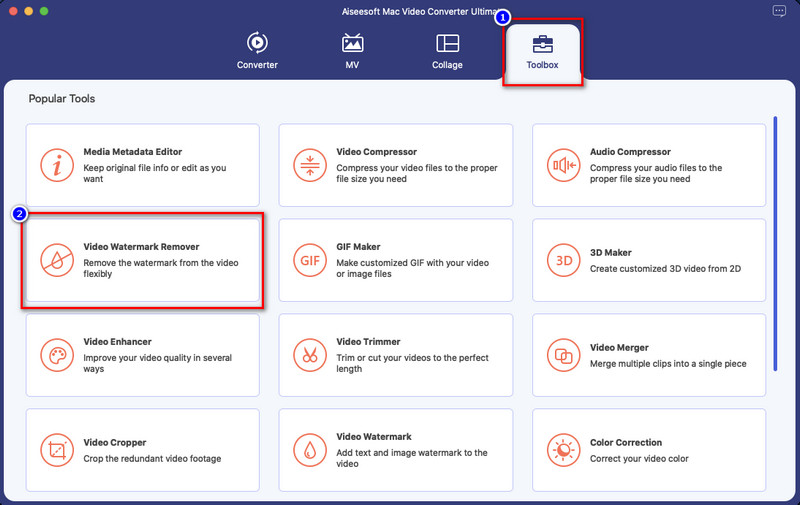
ステップ 2. ソフトが起動したら、上部メニューの ツールボックス(Toolbox) をクリックし、一覧の中から Video Watermark Remover を開きます。
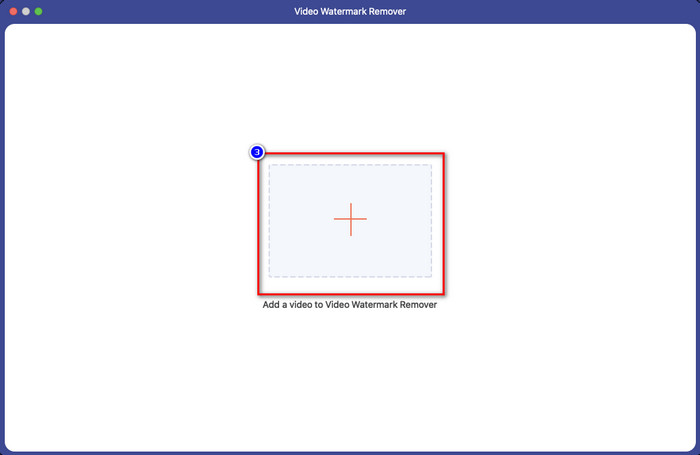
ステップ 3. + アイコンをクリックして、ウォーターマーク付き動画を読み込みます。表示されるフォルダーから対象ファイルを選択し、開く(Open) を押してアップロードを完了させます。
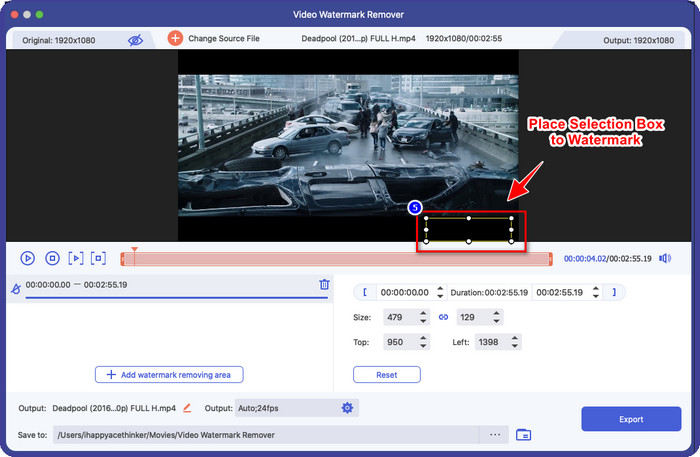
ステップ 4. Add Watermark Removing Area をクリックして、動画上のウォーターマークを削除するためのエリア指定を開始します。
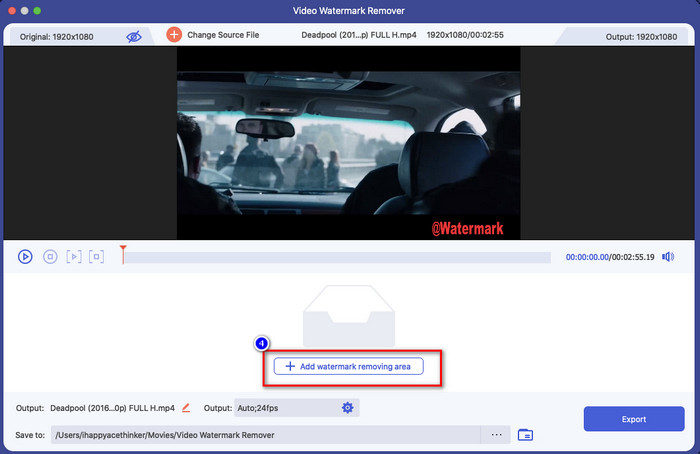
ステップ 5. クリックすると新しいウィンドウが表示されるので、ウォーターマークがある位置に選択ボックスを配置します。ボックスの四隅の点をドラッグしてサイズを調整できます。
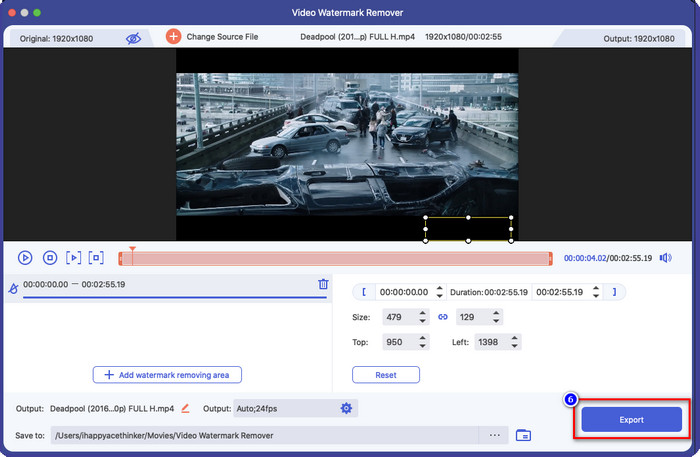
ステップ 6. たったこれだけで、あとは[Export]をクリックするだけでウォーターマークのない動画をダウンロードできます。簡単ですよね。これが、Final Cut Pro のベストな代替ソフトを使って動画からウォーターマークを削除する方法です。
関連:
パート3。FinalCutProのビデオから透かしを削除する方法に関するFAQ
Final Cut Proの購入にはどれくらいの費用がかかりますか?
Final Cut Proは1回限りの支払いですが、コストは非常に高くなりますが、これがあれば編集機能や機能が期待されます。 $299の予算がある場合は、プレミアムバージョンを入手して、満足のいくように使用できます。
Final Cut Proの無料トライアルはどのくらいですか?
このツールがあなたに適したツールであるかどうかを体験して決定するための90日間の無料トライアルがあります。この期間では、ツールが専門的にどのように機能するかを体験できます。
Final Cut Proの無料トライアルには透かしがありますか?
無料版を使用しているにもかかわらず、このソフトウェアのライセンスキーを購入しなかった場合は、最終出力に透かしが残ります。したがって、これを回避したい場合は、アプリを購入するか、究極のソフトウェアのように透かしを残さない透かしリムーバーを使用することをお勧めします。
結論
実際、Final Cut Proは、必要なときにいつでもビデオの透かしを削除できます。透かしの削除機能の他に、このプロのビデオエディタが持つ全体的な機能を利用することもできます。ただし、コストが高すぎて、このソフトウェアの取り扱いが難しいと感じるユーザーもいます。そのため、多額の費用をかけたくない場合に使用できる最良の代替手段を追加します。これは使いやすいものです。それが究極のツールです。これら2つのツールを使用して、Macユーザーが透かしの問題を解決するのに役立ったことを願っています。このトピックに関して他にご不明な点がございましたら、メールでお問い合わせください。すぐに返信いたします。
-
 卒業写真から透かしを削除する簡単な方法
 卒業写真から透かしを削除するための最良の方法を知りたいですか?この記事を読むことで、卒業生の写真の透かしを簡単に削除する方法を知ることができます。
-
 WindowsとMacでLumion透かしを簡単に削除する方法
 専門的に提示するためにLumion透かしを削除する必要がありますか?さて、あなたがそれが残す透かしを取り除くのを助けるためにあなたが使うことができるツールがあります。
-
 ビデオと画像のWeibo透かしを簡単に削除する方法
 エクスポートされたビデオと画像のWeibo透かしを削除するのに問題がありますか?その場合、あなたはあなたを助けることができる以下にリストする透かし除去剤をしなければなりません。
