


 ビデオコンバーター究極
 スクリーンレコーダー
 ビデオ修復
ビデオ修復オフライン対。オンライン: MP4 形式のビデオを簡単に高速化する方法をマスターする
あなたはお気に入りの映画を6回目の視聴中です。もう一度最初から最後まで見るのではなく、作品の重要なシーンだけを見直したいので、動画を倍速再生したいと思いましたが、形式はMP4です。さらに、動画クリップの再生速度を上げようとしたところ、通信環境がなくなってしまいましたが、その動画は学校のプロジェクトに必要なものでした。しかも、その動画クリップはMP4形式です。そこで、変換に対応し、なおかつMP4形式の動画を倍速再生できるツールがあるのかどうか疑問に思っています。この記事では、MP4形式をオンライン・オフラインの両方で変換する方法について詳しく解説しています。加えて、すべての変換を正しく実行できるよう、手順も含まれています。

パート 1. Video Converter Ultimate [オフライン] を使用して MP4 ビデオを高速化する方法
Video Converter Ultimateは、動画の変換と編集の両方に対応した最高のソフトウェアです。このソフトには動画の画質を向上させるためのツールが搭載されており、好みに合わせてカスタマイズし、理想の動画に仕上げることができます。さらに、これらのツールは操作しやすく、初心者ユーザーでも複雑さを感じずに扱えるよう設計されています。また、無料でダウンロードできるソフトであり、高画質な出力動画をさまざまな形式―とくにMP4形式―で保存できます。MP4は一般的な形式の1つであるため、Video Converter Ultimateは、解像度やフレームレートを調整することで、MP4形式の潜在能力を最大限に引き出すことができます。一方、前述した再生速度の問題に対しても、これは最適な解決策となります。以下の手順に従って正しく操作してください。
ステップ1: パソコンのデスクトップにソフトをダウンロードするため、無料ダウンロードボタンをクリックします。その後、ソフトをインストールし、好みに合わせて設定します。
無料ダウンロードWindows 7 以降に対応安全なダウンロード
無料ダウンロードMacOS 10.7 以降に対応安全なダウンロード
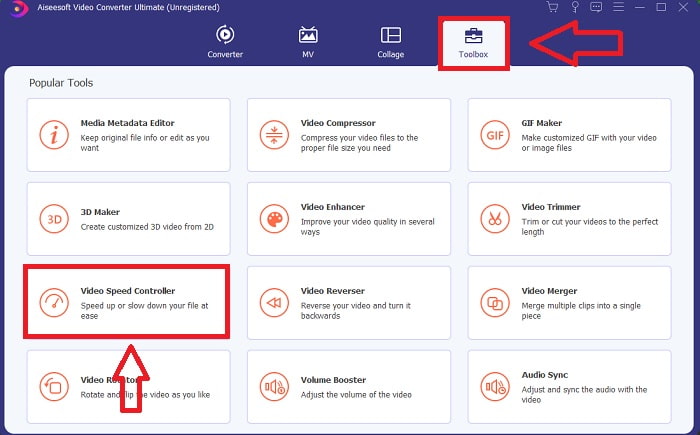
ステップ2: インストール後、ソフトを起動し、ツールボックスオプションを選択してから、動画スピードコントローラーを選びます。
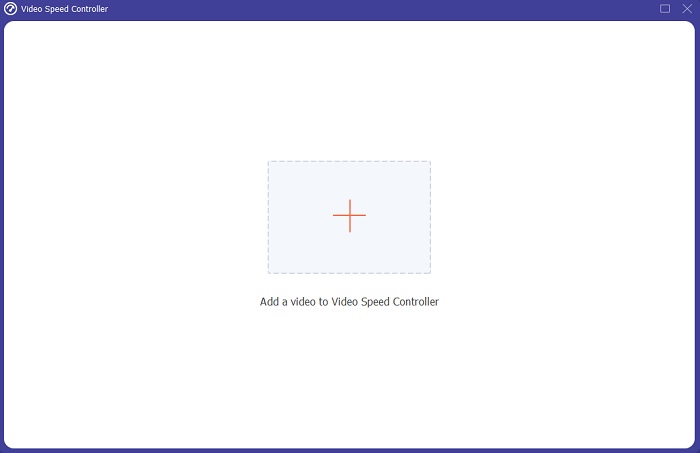
ステップ3: 速度を上げたいMP4動画をアップロードするため、設定バー内の+ボタンをクリックします。
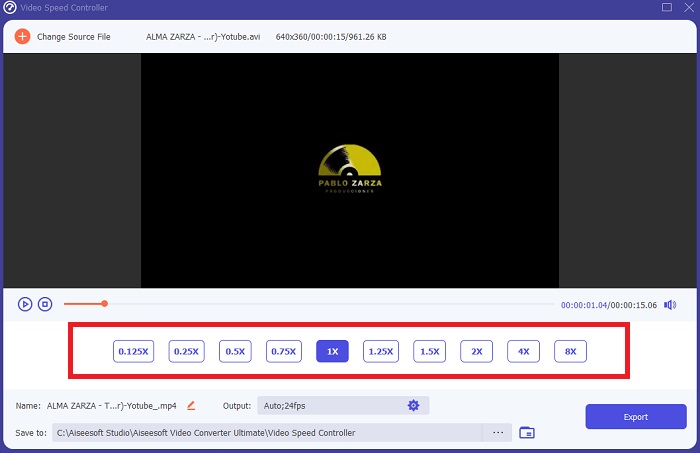
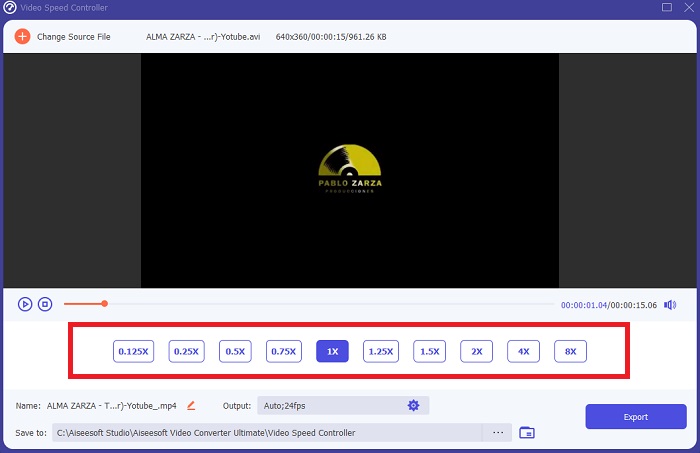
ステップ4: 再生中にフレームレートを何倍に上げるか、あるいは下げるかを決めることで、再生速度を変更できます。
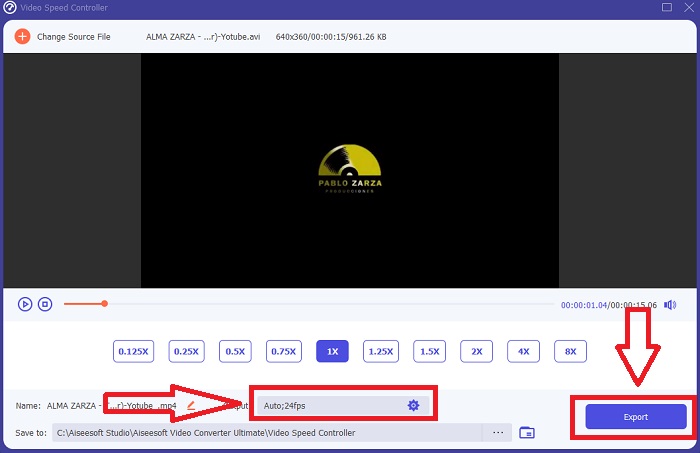
ステップ5: 形式、解像度、品質などを調整することで、動画クリップの再生速度を細かく調整できます。保存する準備ができたら、エクスポートをクリックし、保存先を選択してください。
パート 2. MP4 ビデオを高速化するその他の方法 [オンライン]
ビデオを別のレベルに変えることができる最高のWebベースのツールを紹介します.さらに、ほとんどの Web ツールには、ビデオ クリップの再生速度を増減できる機能があります。良い点は、これらの webtool が無料で、使いやすいことです。これらの Web ツールを使用する一般ユーザー向けに、適切に使用するための手順を示します。
ヒント 1: VEED を使用する
世界中のコンテンツクリエイターは、ソーシャルメディアなど向けの動画制作に、VEEDとそのオープンソースソフトウェアを活用しています。動画編集の経験も、事前のソフトウェアダウンロードも不要です。Webベースの動画エディターは、完全に無料で利用できます。Instagramストーリーの字幕にプログレスバーを付ける、YouTubeクリップに字幕を載せる、Twitter投稿用に映像をトリミングするといった作業は、すべてVEEDで行えます。このMP4スピードエディターは、安定したインターネット接続があってこそ性能を発揮するWebツールであり、インターフェース上から直接動画をアップロードして再生速度を調整できます。さらに、さまざまな機能を備えており、その中には動画の再生速度を上げる機能も含まれています。
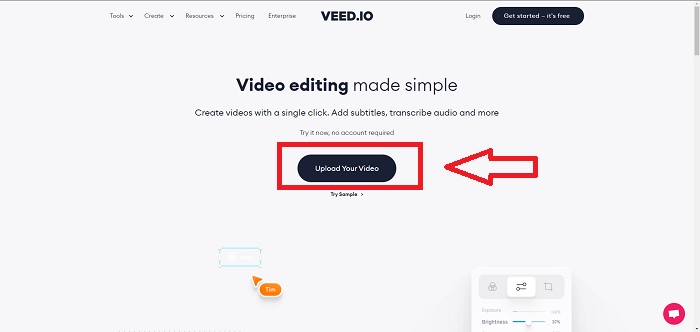
ステップ1: 「Upload Your Video」をクリックして、デスクトップから動画をアップロードします。
ステップ2: 動画トラックをクリックすると、画面左側に編集インターフェースが表示されます。そこでSpeed機能を探し、0.5x、1x、1.5x、2xの再生速度から選択します。もし希望する速度が候補にない場合は、Customを選択して動画クリップの再生速度をカスタマイズできます。
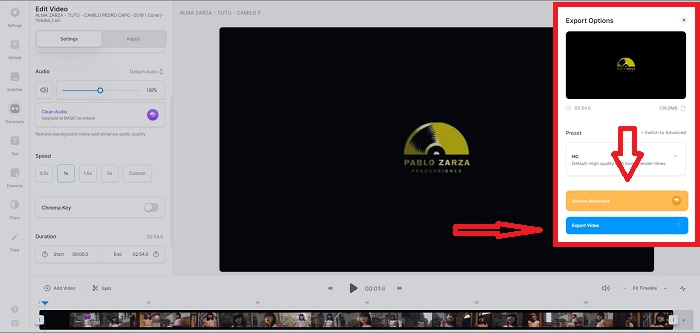
ステップ3: 希望どおりの再生速度に編集できたら、エクスポートをクリックして書き出しタブに進みます。このとき、好みの画質を選択できるほか、有料版を購入すれば透かし(ウォーターマーク)を削除できます。すべての設定が整ったら、Exporting Videoをクリックして変換後の動画をパソコンへ保存します。
ヒント 2: InVideo を使用する
InVideoは、あらゆる規模の企業が、独自のコンテンツやブランディングを施した動画を、各種ソーシャルメディアプラットフォームやWebサイト上で作成・共有できる、Webベースの動画編集ツールです。さらに、StoryblocksやShutterstockなど複数のオンラインリポジトリから取得した画像や動画を収録したコンテンツライブラリも備えています。本記事で先に紹介したWebツールとは異なり、InVideoを利用するには、まずメールアドレスを入力して登録する必要があります。このWebツールは、動画クリップを装飾したり強化したりするための膨大な数のテンプレートを提供しており、その優れた機能によって、あなたをプロ並みの編集者へと導きます。
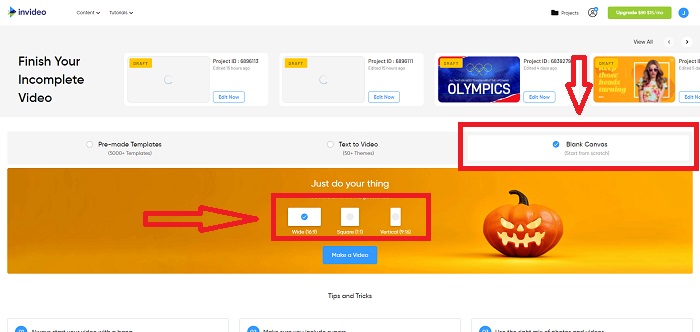
ステップ1: まずWebツールにアクセスするにはアカウントを作成する必要があります。その後、使用するテンプレートを選択するか、Blank Canvasを選んでゼロから開始します。画面左側のインターフェースにあるUploadをクリックして、ファイルをアップロードします。
ステップ2: 動画クリップを編集用トラックへドラッグし、画面右上のSpeedタブをクリックして再生速度の編集を開始します。次に、Sliderをドラッグして動画クリップの速度を自由に調整します。
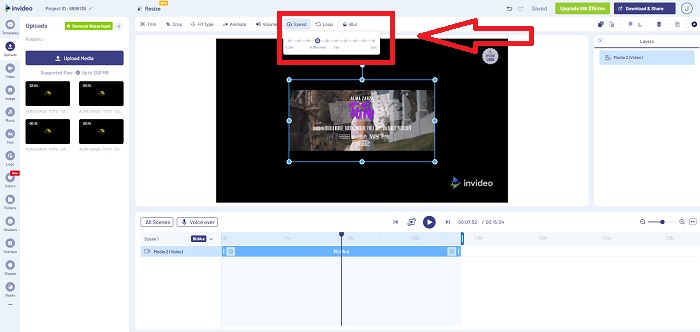
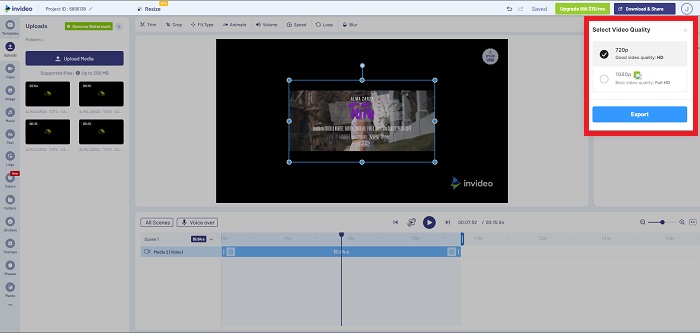
ステップ3: 編集が終わったら、「Download & Share」をクリックしてファイルを書き出します。高画質を選ぶ場合はプレミアム版を有効化してください。
ヒント 3: Typito を使用する
Typitoを使えば、ビジネスを競合から際立たせる、魅力的なテンプレートや画像を用いた美しい動画を作成できます。「動画版Canva」といったイメージに近いツールです。このWebツールはビジネス用途だけでなく、学校のプロジェクトや、マルチメディア分野のセミプロレベルの制作にも利用できます。また、このWebツールで動画クリップを希望どおりに変換・調整するには、メールアドレスの登録も必要です。
ステップ1: デスクトップからファイルをドラッグ&ドロップするか、フォルダーアイコンをクリックしてメディアファイルを追加します。
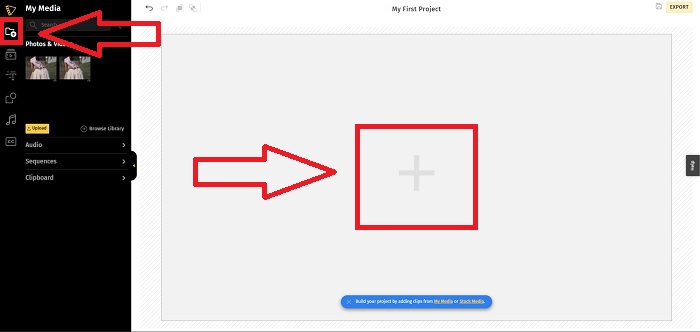
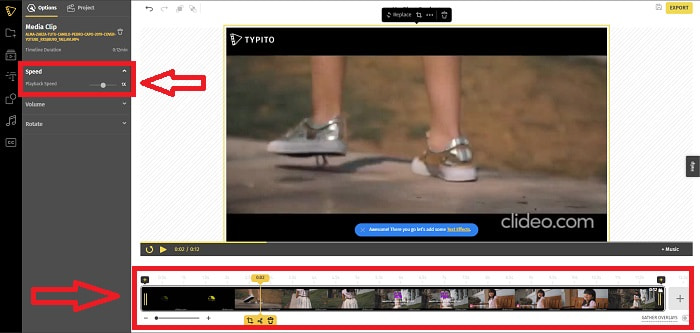
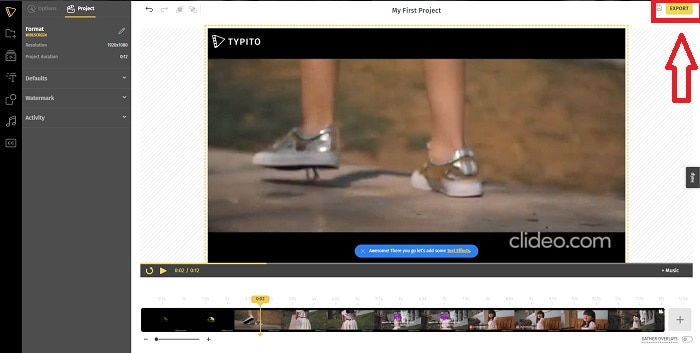
ステップ2: 動画ファイルをクリックし、Add Projectsをクリックすると、動画ファイルが動画トラックに移動し、編集を開始できます。下部の動画トラックをクリックし、画面左側のインターフェースからSpeed 機能を探して、Sliderを調整することで再生速度を変更します。
ステップ3: 画面右上のExportをクリックし、使用するメールアドレスを選択して、変換後のファイルをデスクトップにアップロード(ダウンロード)します。すべての準備が整ったら、ファイルをダウンロードしてください。
パート 3. MP4 ビデオを高速化する方法に関する FAQ
ビデオをオフラインまたはオンラインで変換する方が良いですか?
インターネット接続を使って動画ファイルを変換することは、利便性や安全性の面で面倒だと感じるユーザーもいるかもしれません。しかし、オフライン変換の利点は、ソフトウェアやWebツールを使う前にログインするといった手間を気にしなくてよい点にあります。また、変換プロセスそのものについても心配する必要がありません。ファイルサイズが大きくても小さくても、インターネット接続を使用しないため、変換にかかる時間をそれほど気にせずに済みます。詳しい手順付きでMP4をM4Vに変換する方法については、こちらをクリックしてください。
MP4とは何ですか?
MP4 は、メディア ファイルを MP4 形式で保存するマルチメディア ストレージ ファイルに対して一般的に使用される用語です。ビデオ コンテンツでは、MP4 形式がよく使用されます。この形式は、字幕、音声、および画像にも使用できます。 MP4 ファイルには大量の圧縮データが含まれているため、これらのファイル タイプはデジタル マルチメディア コンテナ フォーマットと呼ばれます。標準は、それがどのように格納されるかを説明しますが、これらのコンテナー内のエンコードされたデータには対処しません。
MP4 はすべてのメディア プレーヤーで利用できますか?
MP4はファイルサイズが小さいにもかかわらず、よく使われるメディア形式の1つになっています。MP4は、多くのメディアプレーヤーにおける標準的な形式となっており、一部のコンバーターとも高い互換性を持ちます。ここでは、利用できるおすすめのMP4プレーヤーを紹介します。
結論
まとめると、オンライン・オフラインを問わず、MP4を変換したりMP4の再生速度を変更したりすること自体に、良い・悪いといった絶対的な優劣はありません。変換方法の細かな点は異なりますが、一般的には出力結果は同等です。コンバーターによっては対応する動画形式が限定されることもあるため、本記事では、さまざまなツールで扱いやすい代表例としてMP4形式を取り上げました。もし別の動画形式で変換したい場合は、以下のリンクからMP4を他の形式に変換する方法についてさらに詳しく確認してください。
-
 [解決済み] Google ドライブで MP4 ファイルを再生する方法
 MP4がGoogleドライブで再生されていませんか? GoogleドライブでMP4ファイルを再生する方法は?この投稿では、GoogleドライブでMP4ビデオを再生する3つの方法について説明します。
-
 [解決済み] Chromebook2021でMP4ファイルを再生する
 Chromebook で動画を再生できますか。 Chromebook で USB から MP4 ファイルを再生する方法この投稿では、Chromebook で MP4 を再生する 3 つの方法を共有しています。
-
 Windows Media PlayerがMP4を再生していませんか?それを修正する5つの効率的な方法
 Windows Media PlayerでMP4を再生できませんでしたか? Windows10コンピューターのWindowsMediaPlayerでMP4を再生する理由と究極のソリューションの詳細をご覧ください。
