


 비디오 컨버터 궁극
 스크린 레코더
 비디오 수리
 안전한 다운로드
애니메이션 GIF의 궁극적인 가이드 및 GIF 재생/변환/생성 방법
정적인 이미지와 비교하면 GIF는 더 많은 정보를 전달할 수 있고, 감정과 의미를 더 잘 표현할 수 있습니다. 최근에는 밈, 웹 유머, 바이럴 동영상과 함께 기본 도구 중 하나가 되었습니다. 다양한 소셜 앱과 인터넷에서 여러 가지 GIF 파일에 접근할 수 있습니다. 그렇다면 GIF란 무엇일까요?

이 글에서는 애니메이션 GIF에 대해 자세히 소개합니다. GIF가 정확히 무엇인지, GIF 파일을 재생하는 방법, 그리고 동영상이나 사진으로 GIF를 만드는 방법을 배울 수 있습니다.
1부. GIF란?
GIF는 Graphics Interchange Format(그래픽 교환 형식)의 약자로, 정지 이미지와 애니메이션 이미지를 모두 지원하는 파일 형식입니다. 사실 애니메이션 GIF는 오래된 이미지 파일 형식 중 하나입니다. 1987년 6월 15일, 온라인 서비스 제공업체인 컴퓨서브(CompuServe)의 팀에 의해 개발되었습니다.
GIF는 한때 인터넷에서 8비트 컬러 이미지의 표준이었습니다. 각 이미지에 대해 픽셀당 최대 8비트를 지원합니다. GIF를 사용하면 단일 이미지 파일이 24비트 RGB 색상 공간에서 선택되는 최대 256가지 색상의 팔레트를 참조할 수 있습니다.
비트맵 이미지 형식인 GIF는 여러 이미지 또는 프레임을 단일 파일로 결합할 수 있습니다. GIF의 모든 이미지는 파일 크기가 짧은 짧은 애니메이션을 만들기 위해 다양한 프레임 속도로 연속적으로 표시됩니다.
애니메이션 GIF는 LZW(Lempel-Ziv-Welch) 무손실 데이터 압축 기술로 압축됩니다. 화질 저하 없이 파일 크기를 줄일 수 있습니다. 압축되지 않은 요소로 인해 GIF는 파일 크기가 큰 경우가 많습니다. 또한 GIF는 반투명을 지원하지 않습니다.
GIF는 컬러 사진과 컬러 그라디언트가 있는 기타 이미지를 재생하는 데 적합하지 않습니다. 그러나 단색 영역이 있는 그래픽이나 로고와 같은 단순한 이미지에서는 잘 사용할 수 있습니다. GIF는 연속적으로 반복되는 일련의 이미지 또는 소리 없는 비디오입니다. 재생을 위한 조작이 필요하지 않습니다.
GIF의 목적은 무엇입니까
요즘 GIF는 소셜 미디어, 인스턴트 메시징 앱 및 블로그에서 매우 인기가 있습니다. 실제 단어보다 항상 재미있고 재미있습니다.
GIF의 목적은 행동, 감정 및 반응을 더 잘 표현하는 것입니다. 위에서 언급했듯이 GIF는 색상 수가 제한된 단색 그래픽에 적합합니다. 따라서 로고에 적합할 수 있습니다. GIF는 회사의 브랜드나 개성을 나타내는 데 사용됩니다.
GIF는 낮은 색상의 스프라이트 데이터를 저장하는 데에도 사용할 수 있습니다. 또한 작은 애니메이션 및 저해상도 비디오 클립을 만드는 데 사용할 수 있습니다. 한 가지 알아야 할 것은 GIF를 사진에 사용해서는 안 된다는 것입니다.
GIF는 소셜 앱에서의 상호 작용을 장려하고, 이메일을 통해 고객과 클라이언트 간의 커뮤니케이션을 만들고, 시각적 방법 비디오를 만드는 등의 작업에 적합합니다.
2부. GIF 플레이어 - GIF 파일 재생 방법
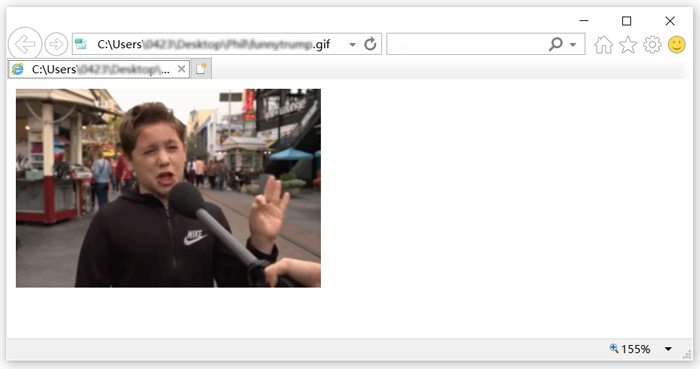
GIF 형식은 Windows PC의 Windows Media Player 및 Mac의 QuickTime Player를 포함하여 자주 사용하는 많은 플레이어에서 지원될 수 있습니다. 또한 GIF는 소셜 앱에서 직접 볼 수 있습니다. 또한 일부 인기 있는 사진 뷰어로 애니메이션 GIF 파일을 쉽게 열 수 있습니다. 컴퓨터에서 GIF를 재생하려면 GIF를 마우스 오른쪽 버튼으로 클릭하고 GIF 재생을 위해 Chrome, IE 또는 Safari와 같은 웹 브라우저를 선택할 수도 있습니다.
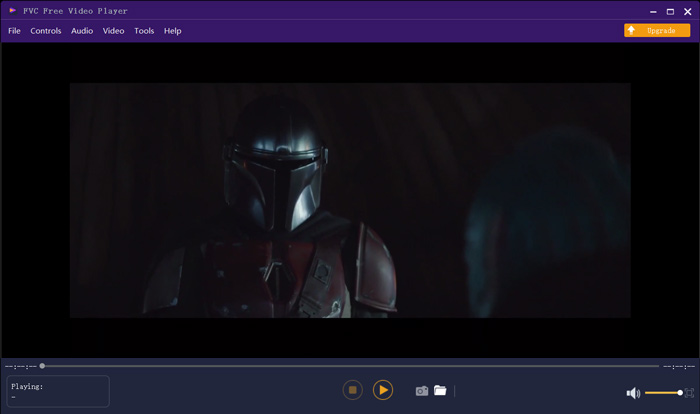
FVC Free Video Player는 Windows 10/8/7 PC와 Mac에서 어떤 GIF 파일이든 재생할 수 있는 무료 미디어 파일 재생 도구입니다. 타사 GIF 플레이어를 찾고 있다면 사용해 볼 수 있습니다. 단순한 무료 GIF 플레이어를 넘어, MP4, MOV, M4V, AVI, FLV, WMV, VOB 같은 여러 비디오 형식과 MP3, AAC, M4A, WAV, FLAC 등의 오디오 형식을 지원합니다. 컴퓨터, Android, iPhone용 최고의 GIF 플레이어 5가지를 확인해 보세요.
3부. GIF 메이커 - 동영상과 사진으로 GIF 파일을 만드는 방법
자신의 GIF를 만드는 일반적인 방법에는 2가지가 있습니다. 이미지 파일이나 동영상으로 GIF를 만들 수 있습니다. 이 부분에서는 2개의 GIF 제작자를 소개합니다.
비디오를 GIF로 변환
동영상을 애니메이션 GIF로 변환하려면 인기 있는 Free Video to GIF Maker를 사용할 수 있습니다. 이 도구는 거의 모든 인기 있는 형식의 동영상을 변환할 수 있습니다. 예를 들어 MP4, MOV, AVI, M4V, WMV, 그리고 FLV를 GIF로 고화질로 변환할 수 있습니다.
무료 다운로드Windows 7 이상용안전한 다운로드
무료 다운로드MacOS 10.7 이상용안전한 다운로드
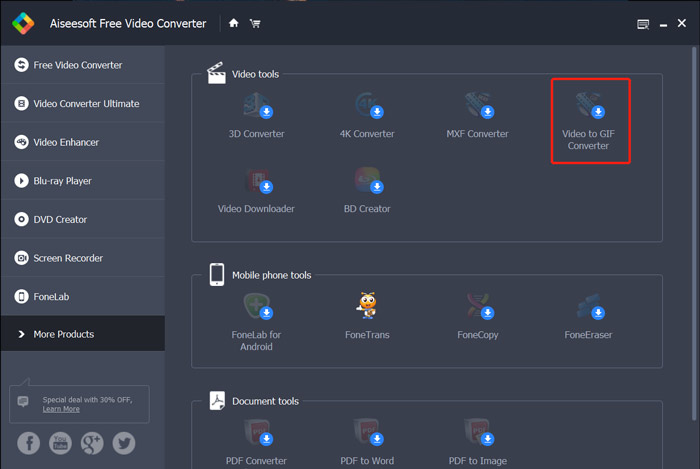
1단계. 이 Free Video to GIF Maker를 컴퓨터에 무료로 다운로드하여 설치하고 실행합니다. 왼쪽에서 More Products를 클릭하여 더 많은 편집 도구를 표시합니다. Video to GIF Converter를 찾아 무료로 설치합니다.
2단계. 이제 화면에 Video to GIF Converter가 나타납니다. Add File을 클릭해 GIF로 변환하려는 동영상을 가져옵니다.
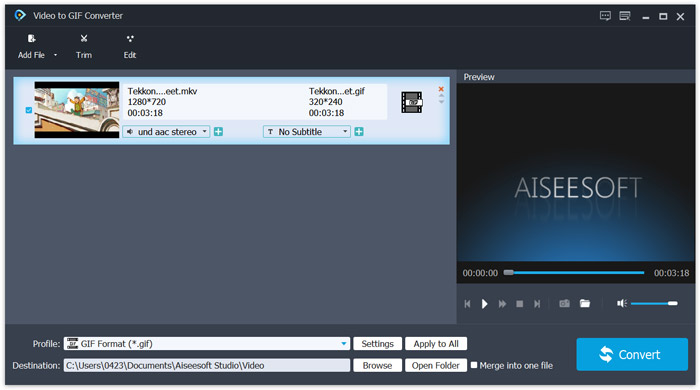
3단계. Profile 옆에 있는 Settings 버튼을 클릭해 다양한 출력 GIF 설정을 사용자 지정할 수 있습니다. 예를 들어 해상도, 비트레이트, 인코더, 프레임 레이트 등을 조절할 수 있습니다. 변경 사항을 저장하려면 OK 버튼을 클릭합니다.
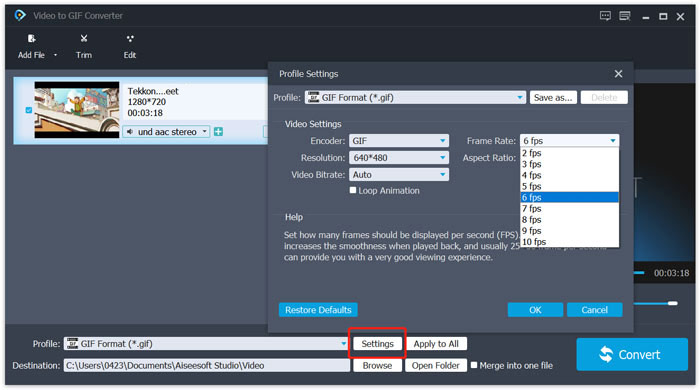
4단계. 이제 다시 기본 화면으로 돌아옵니다. 여기에서 Convert 버튼을 클릭하면 GIF 생성이 시작됩니다.
사진으로 GIF 만들기
이미지 파일이 많이 있고 이를 하나의 GIF 파일로 만들고 싶다면, 온라인 무료 GIF 제작 도구인 Imgflip Animated GIF Maker를 사용해 볼 수 있습니다. JPG, PNG 등 대부분의 인기 있는 이미지 형식의 사진을 GIF로 변환할 수 있습니다.
1단계. IE, Chrome, Safari, Firefox와 같은 웹 브라우저를 열고 이 Animated GIF Maker 사이트에 접속합니다. 보시다시피, 이 사이트는 온라인에서 무료로 동영상을 GIF로 변환하는 기능도 제공합니다.
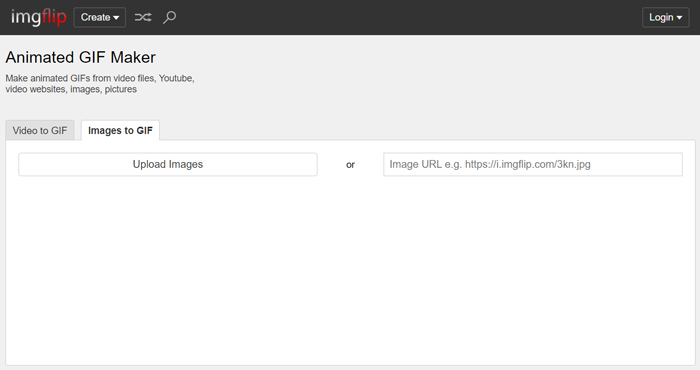
2단계. Images to GIF를 선택한 다음 Upload Images를 클릭해 이미지 파일을 업로드합니다. 여기에서 URL을 통해 사진을 추가할 수도 있습니다. 이후 출력 GIF 파일을 사용자 지정할 수 있는 여러 옵션이 제공됩니다.
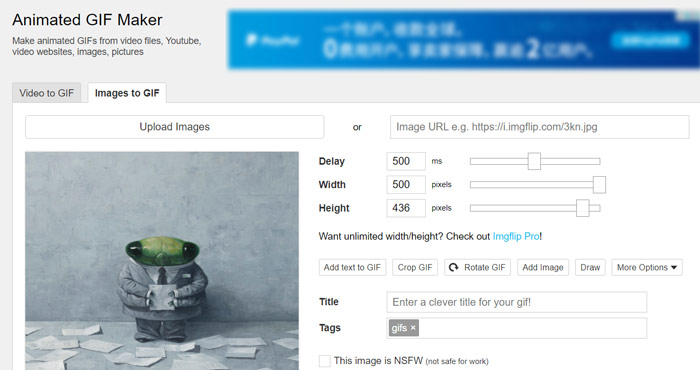
3단계. 모든 설정을 마친 뒤, Generate GIF 버튼을 클릭해 이 이미지들로 GIF를 생성합니다.
4부. GIF란 무엇인가에 대한 FAQ
질문 1. iPhone 및 Android 휴대폰에서 GIF를 저장하는 방법은 무엇입니까?
휴대용 iOS 및 Android 장치에서 다양한 GIF에 쉽게 액세스할 수 있습니다. 일부 소셜 앱에서 GIF 파일이 표시되면 다운로드/저장 프롬프트가 나타날 때까지 해당 파일을 길게 누를 수 있습니다. 그런 다음 저장 옵션을 탭하여 카메라 롤 폴더나 사진 앱에 저장할 수 있습니다.
질문 2. VLC Media Player에서 GIF 파일을 재생할 수 있습니까?
아니요. VLC Media Player는 GIF 재생을 지원하지 않습니다. GIF 파일을 VLC에 로드하면 정적 이미지로만 열 수 있습니다.
질문 3. GIF는 얼마나 오래 지속되나요?
시장에서 제공되는 수많은 GIF 메이커 앱으로, 특히 비디오를 GIF로 변환할 때 원하는 만큼 대용량 GIF 파일을 손쉽게 만들 수 있습니다. 그러나 많은 소셜 앱과 온라인 사이트에서 GIF 업로드 또는 공유는 15초와 같은 특정 시간으로 제한됩니다. 한편, GIF 파일 크기에도 몇 가지 제한이 있습니다. 10MB 미만의 GIF 파일을 보내는 것이 좋습니다.
결론
GIF란 무엇일까요? 이 글을 읽은 후 GIF 형식과 그 사용 방법에 대해 더 잘 이해하셨기를 바랍니다. GIF를 재생하고 만드는 방법에 대한 자세한 가이드를 얻을 수 있습니다. 또한 다른 형식의 동영상을 AVI를 GIF로와 같이 손쉽게 변환할 수 있습니다.
-
 데스크탑 또는 온라인에서 MP4를 GIF로 변환하는 방법에 대한 단계별 가이드
 MP4 비디오를 애니메이션 GIF로 변환하는 가장 좋은 방법을 찾고 계십니까? 다음은 Photoshop, Windows Movie Maker, 온라인 비디오 변환기 등에서 수행하는 방법에 대한 자세한 가이드입니다.
-
 GIF를 압축하고 고품질로 파일 크기를 줄이는 자습서
 다음은 컴퓨터 또는 휴대폰에서 GIF를 압축하는 2 가지 쉬운 방법입니다. FVC Free Online Video Compressor 및 Photoshop을 사용하면 다양한 측면에서 GIF 파일 크기를 줄일 수 있습니다.
-
 업로드하기 전에 Vimeo용 비디오를 압축하는 방법
 이 게시물에서는 Vimeo에 파일을 업로드하기 위해 비디오 파일을 압축하는 방법과 함께 비디오 및 오디오 압축에 필요한 지침을 보여줍니다.
