


 Video Converter Ultimate
 Skjermopptaker
 Videoreparasjon
Topp gratis og brukervennlige omformere som konverterer WMV til MOV du ikke bør gå glipp av
Microsoft Windows Media Audio (WMA) og Microsoft Windows Media Video (WMV) er komprimerte lyd- og videoformater utviklet av Microsoft i ASF-containeren. Så snart WMV- eller WMA-filene blir kodet med Windows Media Video- og Windows Media Audio-codecene, får de filendelsen .asf. Disse to videoformatene som er laget av Microsoft, kan bare spilles av i utvalgte videospillere eller konverteres ved hjelp av begrenset programvare eller nettbaserte konvertere. Men hvis du ser etter pålitelige og sikre konverteringsverktøy for å konvertere WMV til MOV, er denne artikkelen perfekt for deg. Les videre for å finne ut mer.

Del 1. Kort introduksjon av WMV og MOV
WMV-filtypen representerer Windows Media Video-filer, komprimert med ett eller flere av Microsofts videokomprimeringsformater. For eksempel bruker noen tredjepartsprogrammer det til å lagre korte animasjoner fordi det er et typisk format for lagring av videoen i Windows. Mens de ligner på Windows Media Video-filer, inneholder Windows Media Audio-filer bare lyddata og inneholder ikke video. WMA-utvidelsen brukes for disse filene.
QuickTime File Format (QTFF) er imidlertid et multimediebeholderformat, og en MOV-fil er en filmfil som er lagret i QuickTime File Format (QTFF). Ett eller flere spor lagres, der hvert spor inneholder ulike mediedata (for eksempel video, lyd og tekst) (undertekster). MOV-filer brukes vanligvis til å lagre filmer og andre videofiler, og de er enkle å finne.
Del 2. Beste måten å konvertere WMV til MOV på Mac og Windows
Denne artikkelen foreslår Video Converter Ultimate for Mac-brukere som ønsker å konvertere WMV til MOV. Både Windows- og Mac-versjoner av denne programvaren er tilgjengelige for gratis nedlasting. Programmet kan brukes av et bredt spekter av brukere på grunn av sitt brukervennlige grensesnitt og lett tilgjengelige verktøy. Denne programvaren har en videokonverter som støtter et bredt utvalg av videoformater og kan konvertere filer på under ett minutt, i motsetning til andre apper og nettressurser. I tillegg har programvaren en rekke ekstra funksjoner som kan hjelpe deg med å forbedre videoen din ytterligere. Forutsatt at du har lest gjennom beskrivelsen av programvaren, kan vi begynne:
Trinn 1. For å starte nedlastingen høyreklikker du på ikonet Free Download nedenfor. Programvaren kan kjøres på både Windows- og Macintosh-maskiner. Det er mulig å installere og begynne å bruke programmet umiddelbart etter nedlasting ved å klikke på alternativet Start Now.
Gratis nedlastingFor Windows 7 eller nyereSikker nedlasting
Gratis nedlastingFor MacOS 10.7 eller nyereSikker nedlasting
Trinn 2. Når du har lastet ned programvaren, bør du starte den. Denne informasjonen vil vises i et vindu når programvaren åpnes for første gang. Legg inn videofilen du vil konvertere for å starte konverteringsprosessen.
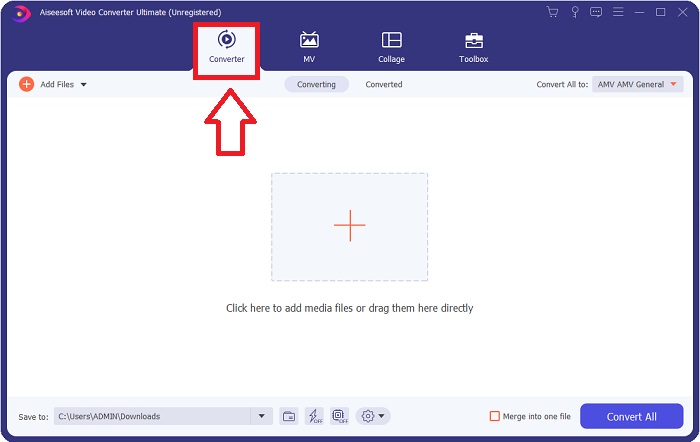
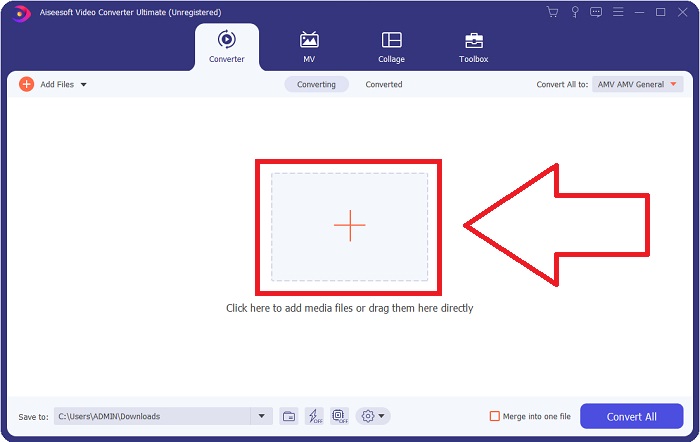
Trinn 3. Start med å laste inn filene du ønsker å konvertere i konverteren, og dra og slipp videofilen du vil konvertere inn på +-ikonet for å begynne konverteringsprosessen.
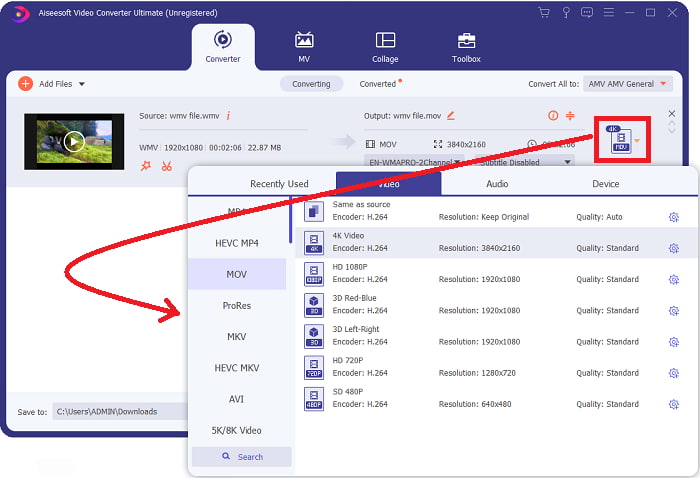
Trinn 4: En meny med alternativer vises øverst til høyre på skjermen, der du kan velge et videoformat som skal spilles av. Velg MOV som videoformat fra rullegardinmenyen som vises. Det er mulig å velge mellom ulike videokvaliteter, avhengig av hvilken MOV-fil du har valgt. Hvis ønsket video-utdata ikke er tilgjengelig, kan du justere kvalitetsinnstillingene i Windows. Du kan justere skjermens bildefrekvens og lydkvalitet ved å klikke på tannhjulikonet øverst til høyre. Bruk knappen Create New for å lagre endringene dine når du er ferdig.
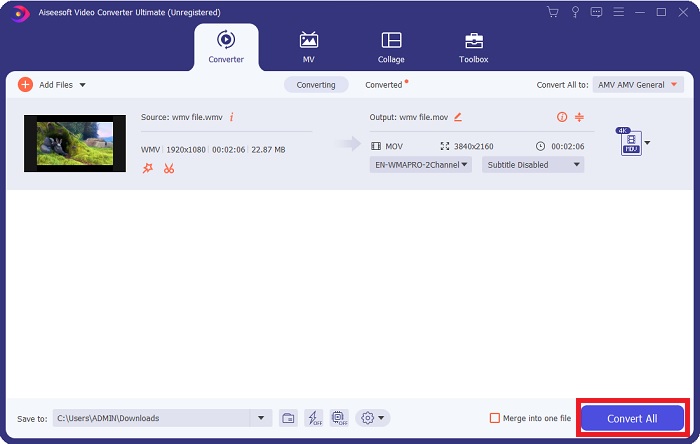
Trinn 5. Når du er ferdig med å redigere videoen og den er klar til å konverteres, klikker du på Convert All for å starte prosessen med å overføre filene.
Del 3. Annen effektiv måte å konvertere WMV til MOV på Mac og Windows
Metode 1. Bruk Free Video Converter Online
Med FVC Free Video Converter Online kan du konvertere et bredt spekter av multimediainnhold gratis. Hvis du har en HD-video, kan du enkelt konvertere den til formater som MP4, FLV og WMV uten å gå på kompromiss med kvaliteten. Uten å ofre kvaliteten er det mulig å konvertere et stort antall video- eller lydfiler samtidig. Med dette gratis videokonverteringsverktøyet får brukerne tilgang til et omfattende antall redigeringsalternativer, slik at de kan finjustere filmene sine. La oss derfor se på alle trinnene:
Trinn 1: Klikk på denne lenken for å gå til startsiden til FVC-konvertereren. Og begynn å konvertere filene dine på nettet.
Trinn 2: For å laste ned startprogrammet til datamaskinen din, klikker du på knappen Add Files to Convert til høyre på skjermen. Det vil starte automatisk når du laster det ned på nytt. Åpne filen i mappen din og start nedlastingsprosessen igjen.
Last ned skrivebordsversjonen for å konvertere filer i batch.
Trinn 3: For å starte konverteringsprosessen før den begynner, velger du MOV-formatet nedenfor.
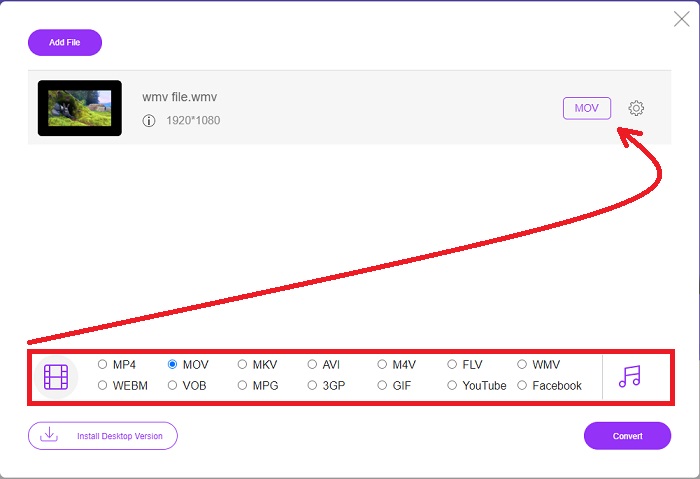
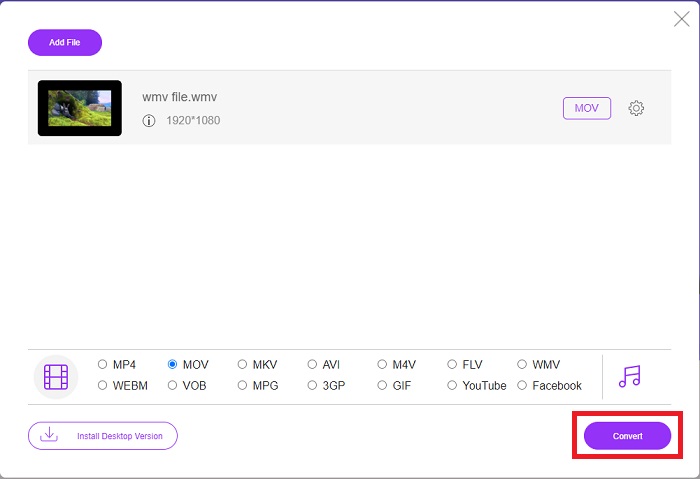
Trinn 4: Når du har valgt et format å konvertere til, klikker du på Convert for å starte konverteringsprosessen.
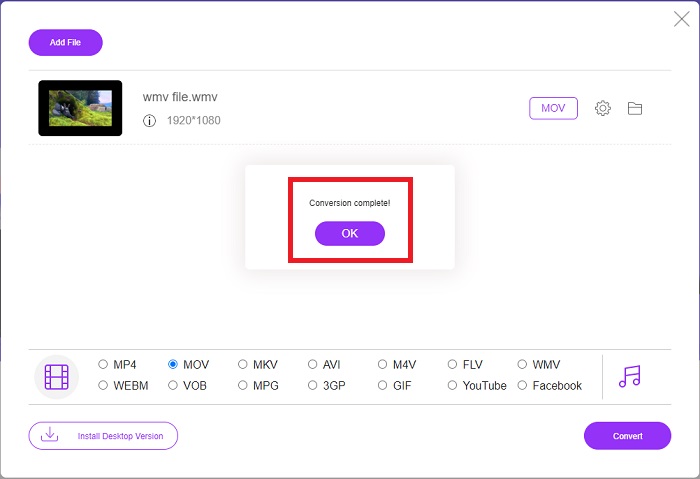
Trinn 5: Etter noen minutter bør du se en mappe som inneholder den konverterte filen, som du deretter kan åpne og begynne å se.
Metode 2. Bruk Video Converter
Prøver du å finne en gratis WMV til MOV-omformer? Den raskeste metoden er å bruke en nettjeneste for å konvertere WMV-filene dine til MOV-format. Når du er ferdig med videoene dine, kan du overføre dem til hvilken som helst enhet og nyte dem senere ved hjelp av dette online mediekonverteringsverktøyet! Her er hvordan det gjøres.
Trinn 1: Ved å klikke på knappen Add Your Media kan du importere WMV-filen din fra datamaskinen, Dropbox eller Google Drive for å konvertere den til MOV.
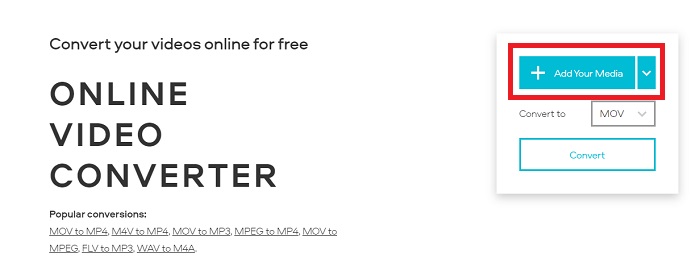
Trinn 2: Velg MOV som ønsket utdataformat. Bruk de avanserte innstillingene for å forbedre den generelle kvaliteten på videoen din.
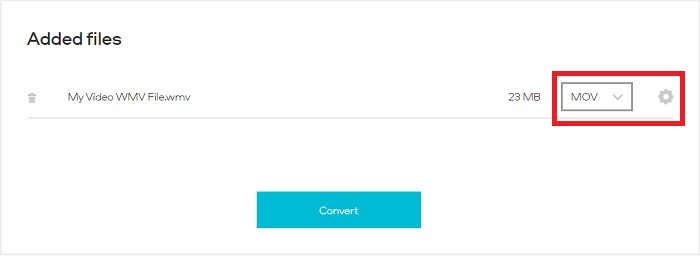
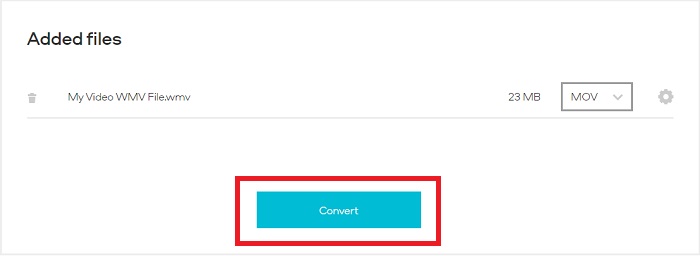
Trinn 3: Etter at alle justeringer er gjort, kan du nå klikke på knappen Convert.
WMV vs. MOV
Produsert av Microsoft, WMV var et av de vanligste videoformatene tilbake på 2000-tallet. Den kan sees over nettet og spilles av forskjellige mediespillere på Windows. Og det er også standard videofilformat for Windows Media Player. Men det har blitt overtatt av andre formater nylig.
MOV-formatet kan brukes til å lagre en film, et TV-program, et kort videoklipp eller en hjemmefilm. Den er faktisk lagret i QuickTime File Format (QTFF), som ble introdusert av Apple i 1991. MOV-filer brukes ofte når folk vil lagre en video med høy kvalitet.
Del 4. Vanlige spørsmål om konvertering av WMV til MOV
Er MOV og WMV det samme?
MOV-filer bruker MPEG-4-koding for å spille med QuickTime for Windows, utviklet av Apple for QuickTime Player. I tillegg til å være støttet av Facebook og YouTube, fungerer MOV godt for TV-titting. WMV-filer (Windows Media Viewer) kan sammenlignes med MOV (Mozillas videoformat) i kvalitet og størrelse. Microsoft opprettet WMV for bruk i Windows Media Player.
Hva er fordelene og ulempene med MOV?
MOV-filer brukes primært til redigering og ikke til praktisk avspilling. I tillegg til QuickTime Player støttes formatet bare av et lite antall multimedieavspillingsprogrammer. Profesjonelle videoredigerere utnytter denne fordelen. En ulempe er manglende støtte på faktiske enheter.
Brukes WMV fortsatt?
Det ble utviklet av Microsoft og brukes ofte i Windows Media Player. WMV-videoformatet gjør at WMV-filer er mindre og mer komprimerbare enn MP4-filer. Som et resultat er formatet populært til strømming av video på nettet. iPhone og Mac kan kjøre Windows Media Player, som er inkompatibel med Apple-enheter.
Konklusjon
Som vist ovenfor finnes det mange mulige konvertere som kan lastes ned eller brukes på nettet når som helst. Men når det gjelder effektivitet og å velge de beste konverterne, peker denne konklusjonen på Video Converter Ultimate fremfor andre. Med sin evne til å konvertere video- og lydformater i høyt tempo og støtte en rekke formater gratis, og at den er tilgjengelig for både Windows og Mac. Hva venter du på? Last den ned nå!
Gratis nedlastingFor Windows 7 eller nyereSikker nedlasting
Gratis nedlastingFor MacOS 10.7 eller nyereSikker nedlasting
-
 Topp 3 måter å konvertere FLV til WMV på Windows og Mac
 Leter du etter den beste måten å konvertere FLV til WMV uten å miste kvaliteten på PC eller Mac? Du er heldig siden vi deler her tre metoder for å gjøre jobben enkelt.
-
 2 enkleste måtene å konvertere WMV-filer til FLV på PC / Mac
 Hvordan kan du konvertere WMV til FLV? For det første må du lese vår anbefaling og finne din favorittmetode, og deretter følge vår guide for å gjøre jobben raskt.
-
 [2 løsninger] Hvordan konvertere WMV-videoer til GIF-filer gratis
 Hvis du vil klippe de fantastiske delene av WMV -videoene og lage GIF -er fra dem, kan du lære om to enkle metoder for å overføre WMV -videoer til GIF -er i denne artikkelen.

