


 Video Converter Ultimate
 Skjermopptaker
 Videoreparasjon
Uttømmende gjennomgang for lydopptaksprogramvare for å ta opp lyd effektivt
Enten du er ekspert eller amatør, må du ha et lydopptaksprogram for å bearbeide og finpusse lyd til et bestemt formål. I tillegg kan det være utfordrende å velge en passende lydopptaker på enheten din, siden det finnes så mange alternativer på markedet. I stedet for å teste ut flere forskjellige lydopptaksprogrammer, presenterer vi her fire opptakere vi mener passer dine behov, slik at du kan unngå å laste ned eller åpne skadelig programvare. Listen over lydopptakere nedenfor er nøye gjennomgått for å gi deg kun de beste alternativene – ikke svakt presterende opptaksprogrammer.

Del 1. 4 Beste lydopptaksprogramvare på Windows og macOS
1. FVC -skjermopptaker
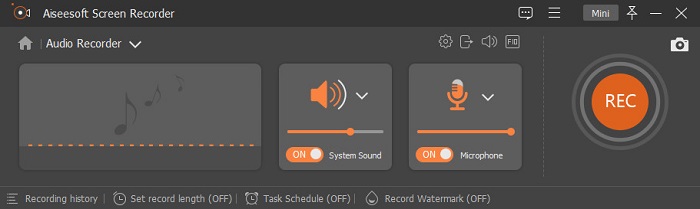
Trenger du å ta opp lyd fra datamaskinen, men vet ikke hva du skal bruke? I så fall presenterer vi det beste og hittil mest brukte opptaksprogrammet på markedet, FVC Screen Recorder. Det har et glimrende grensesnitt som gjør at brukere kan betjene programmet uten å måtte gjøre kompliserte ting. I tillegg har mange problemer med bakgrunnsstøy, men med den nye innebygde støydempingen kan du ta opp uten å bli plaget av små bakgrunnslyder. Dessuten har det flere funksjoner som gjør opptaksprosessen mer effektiv. Vil du vite hvilke? I så fall tar vi en gjennomgang av nøkkelfunksjonene i FVC Screen Recorder.

Skjermopptaker
4 988 518+ nedlastinger- Den tar opp lyder med ultrahøy lydkvalitet.
- Ta opp lyd 24/7 så lenge du har nok lagringsplass på datamaskinstasjonen.
- Du kan ta opp systemlyd med en mikrofon samtidig.
- Mikrofonforbedring er tilgjengelig for en mye bedre opplevelse av å ta opp stemmen din.
- Du kan sjekke mikrofonlyden hvis du trenger det.
Gratis nedlastingFor Windows 7 eller nyereSikker nedlasting
Gratis nedlastingFor MacOS 10.7 eller nyereSikker nedlasting
Fordeler
- Programmet lar brukerne oppleve en høy spennende å ta opp lyd på Mac eller Windows.
- Grunnleggende redigeringsfunksjoner er tilgjengelige, som å kutte eller trimme lyden.
- Den har en innebygd opptakshistorikk for å finne den innspilte lyden enkelt.
Ulemper
- Den støtter ikke å legge til effekter på lyd under opptak.
- Kjøp før du bruker.
2. Frimodighet
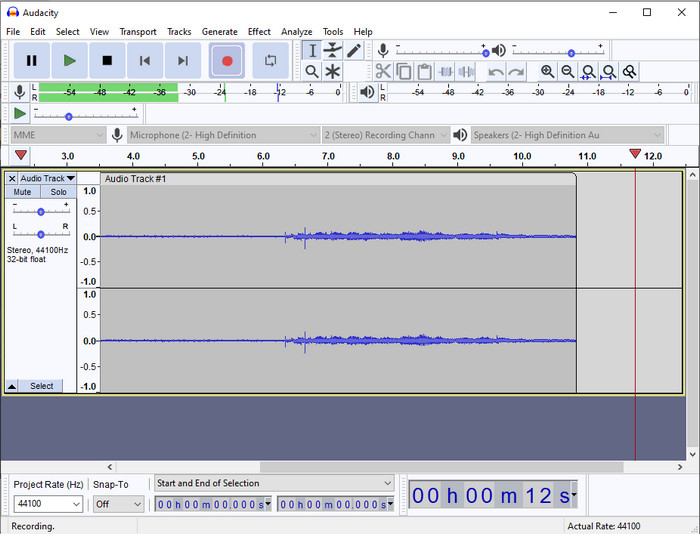
Hvis du trenger et profesjonelt verktøy til å håndtere lydopptak, er Audacity til god hjelp. Dette pro-lydopptaksprogrammet har allerede hjulpet millioner av podkastere i deres arbeid med opptak. Hvis du trenger et avansert opptaksprogram gratis, er dette et av alternativene. Selv om det har flere profesjonelle opptaksfunksjoner, er det likevel vanskelig å bli fortrolig med verktøyet på grunn av et svakt grafisk brukergrensesnitt. Selv om det duger til profesjonelle opptak, er det fortsatt funksjoner som bør forbedres, som støydemping. Likevel tar Audacity opp datalyd på en profesjonell måte som ikke alle opptakere kan tilby.
Fordeler
- Gratis å laste ned på alle skrivebordsplattformer.
- Den tilbyr ekspertredigeringsfunksjoner for proffene.
- Den har noen avanserte funksjoner du trenger for å lage en podcast.
Ulemper
- GUI av programvaren er utdatert.
- En oppgradering trenger noen av funksjonene.
- Ikke det beste valget for amatører og de som ikke vet hvordan de skal spille inn.
3. QuickTime Player
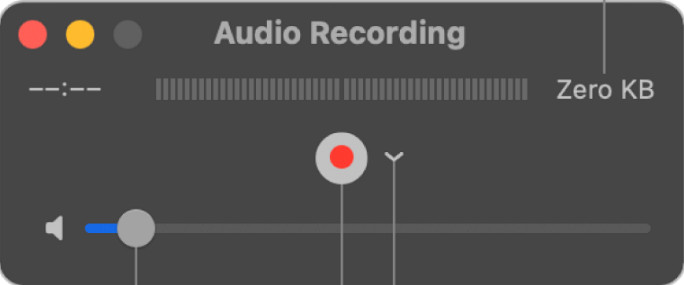
QuickTime Player kan også brukes som lydopptaker på Mac når du trenger det. Selv om avspilleren ikke er spesielt kraftig eller effektiv til opptak, vil du oppleve forsinkelser og lavere kvalitet på lydfilene. Men hvis du trenger et raskt lydopptak på Mac-en din, er dette et alternativ, siden du ikke trenger å laste det ned og det er uten tvil trygt å bruke. Er du derimot en profesjonell bruker som ser etter det beste lydopptaksprogrammet, er ikke dette det optimale verktøyet.
Fordeler
- Den er allerede tilgjengelig på alle macOS.
- Gratis, trygg og enkel å bruke.
Ulemper
- Den er ikke like effektiv som den andre lydopptakeren i denne listen.
- Den endelige utgangskvaliteten på lyden er lav.
- Ikke det beste valget for profesjonell opptak og redigering.
Relatert:
Hvordan ta opp skjerm med lyd på Mac ved hjelp av QuickTime
Hvordan konvertere QuickTime til MP4
4. Oceanaudio
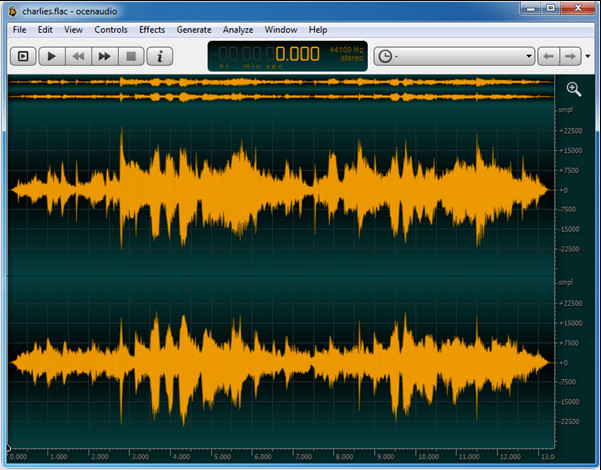
Hvis du trenger en avansert opptaker for å ta opp lyd på Windows 10 eller nyere, vil Oceanaudio hjelpe deg. Dette verktøyet har et grensesnitt som ligner mye på Audacity, men det er enklere å forstå brukergrensesnittet her. For å forklare nærmere: Denne opptakeren tilbyr avanserte funksjoner og kompleksitet du vil trenge til lydopptak. Selv om det er litt krevende å bruke og du sannsynligvis må se en veiledning først, er det verdt det til slutt. Så hvis du trenger en editor med et bedre grensesnitt enn Audacity, bør dette være ditt valg.
Fordeler
- Den bruker avansert teknologi for opptak.
- Det er et ekspertvalg å gjøre lydopptak.
- Du kan lytte til stemmen din mens du spiller inn.
Ulemper
- Det er ikke brukervennlig.
- Nybegynnere kan bli forvirret når de bruker dette verktøyet.
Del 2. Sammenligningsskjema om programvare for lydopptaker
| Funksjoner | FVC -skjermopptaker | Frimodighet | QuickTime Player | Ocenaudio |
| Ta opp systemlyd og mikrofon |  | | | |
| Rediger innspillingen | | |  | |
| Maskinvareakselerasjon | | | | |
| Forhør i sanntid | | | | |
| Lagre den originale kvaliteten | | | | |
| Beste brukergrensesnitt | | | | |
Del 3. Vanlige spørsmål om programvare for lydopptaker
Er Cinch Audio Recorder den beste lydopptakeren?
Vi har nylig laget en omtale av Cinch Audio Recorder. Hvis du vil vite mer om dette lydopptaksprogrammet, må du klikke på denne lenken for å få mer detaljert informasjon om opptakeren.
Hva er egenskapene til en god lydopptaker?
Du må kjenne til grunnleggende standarder før du velger en god lydopptaker. For det første skal det være i stand til å fange opp lyden på mikrofonen din på en enkel måte. For det andre er det trygt og fritt for skadelig programvare. For det tredje, hvis du trenger å kjøpe verktøyet, bør selve verktøyet gi fortreffelighet til brukerne. For det fjerde betyr effektivitetsgrad at verktøyet må være svært effektivt i en innspilling. For det femte må grunnleggende eller avanserte funksjoner være tilgjengelige for å hjelpe brukerne med å ta opp. Før du velger en lydopptaker for å hjelpe deg, kan du stole på disse standardene.
Hvordan ta opp lyd på Windows 10?
Før du tar opp på Windows 10, må du velge det beste opptaksprogrammet, som FVC Video Recorder, ved å laste det ned til datamaskinen, installere programmet og starte det. Deretter velger du alternativet Audio Recorder og klikker på det. Nå kan du enkelt legge til systemlyd i opptaket eller mikrofonen ved å skru dem på i verktøylinjen som flyter på skjermen. Når du er klar til å ta opp, klikker du på den røde runde knappen for å starte. Hvis du vil avslutte opptaket, klikker du på den firkantede stoppknappen; deretter vises et nytt grensesnitt med en liste over lydopptakene du har gjort.
Konklusjon
Nå kjenner vi til lydopptaksprogramvaren som er tilgjengelig på datamaskinen din. Alle verktøyene vi har presentert her vil hjelpe deg med opptak. Men hvis du ser etter et program som overgår de andre, bør FVC Screen Recorder være ditt valg. Er du fortsatt i tvil om denne lydopptakeren? Da er det å laste den ned den eneste måten å teste den på og finne ut om den fungerer slik vi beskriver i denne artikkelen.
-
 Topp 4 gratis AIFF -lydopptakere som produserer lyd av høy kvalitet
 Denne artikkelen snakker om AIFF og noen av de mest populære verktøyene du kan bruke til å produsere AIFF-format av høy kvalitet.
-
 3 av de beste teknikkene for hvordan ta opp lyd på iPhone
 Har du problemer fordi du ikke kan gjøre lydopptak ordentlig på iPhone? Les deretter denne artikkelen for å vite hvordan du tar opp lyd på iPhone og hva som er tilgjengelige verktøy.
-
 7 av Magnificent Voice Recorder tilgjengelig på alle plattformer
 Vil du lære hvordan du gjør lydopptak? Gå deretter til denne artikkelen mens vi snakker om den beste lydopptakeren som kan passe inn i dine behov.
