


 Video Converter Ultimate
 Skjermopptaker
 Videoreparasjon
 Sikker nedlasting
Veiledning om hvordan du fjerner Lumion-vannmerket på skrivebordet uten problemer
Lumion er en app som oftest brukes av arkitekten for å lage et 3D-design av et hus, sykehus, skole, infrastruktur osv. Med kraftig programvare som dette kan du enkelt gi folk en visuell ide om hvordan bygningen vil se ut i virkeligheten -tid. Selv om du kan bruke den gratis prøveversjonen, er hovedproblemet du vil støte på at det vil etterlate et vannmerke når du eksporterer. Det er ikke bra for profesjonelle presentasjoner.
Instead of worrying about this problem, you can use the best software to remove the watermark to present it without the logo of the Lumion. Do you want to know how to remove the Lumion watermark? If so, you must proceed with reading the information we added below in each software that can resolve the problem.

Del 1. Beste måter å fjerne Lumion-vannmerket på nettet og offline
FVC Video Converter Ultimate
Can you take off the Lumion pro 9 watermarks? There is no need to ask the question because FVC Video Converter Ultimate is the best solution to remove the watermark from the video you take on Lumion. This software is superior in removing the watermark; it uniquely removes the watermark attached to the exported video file. Also, suppose you are a Windows user. In that case, you can download its Windows version to remove the watermark with the help of this ultimate software. But if you are a Mac user, there is no need to worry because this software is available on other OS.
Hva mer? Den kan også gjøre flere ting, for eksempel å legge til effekter til videoen du tar på Lumion og bruke noen overgangseffekter for å gjøre den bedre. Sammenlignet med den andre programvaren, er dette verktøyet den ultimate programvaren blant resten av vannmerkefjerneren du kan laste ned på markedet. Så hvis du vil fjerne Lumion-vannmerket, kan du følge trinnene nedenfor for å hjelpe deg å gjøre det enkelt og i noen få trinn.
Step 1. To download the software on your Windows or Mac, click the below download button. Please choose the appropriate button to download the correct version of it. Press the file you download earlier to install it, then open it to proceed to the next step.
Gratis nedlastingFor Windows 7 eller nyereSikker nedlasting
Gratis nedlastingFor MacOS 10.7 eller nyereSikker nedlasting
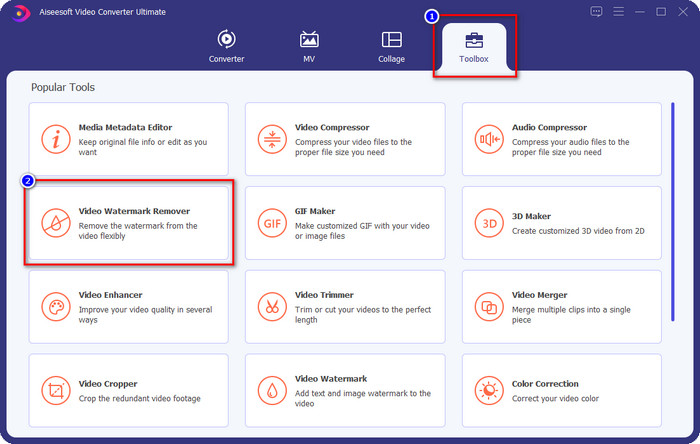
Step 2. After launching the software, open the Toolbox, and find the Video Watermark Remover on the set of features that will show after clicking the Toolbox.
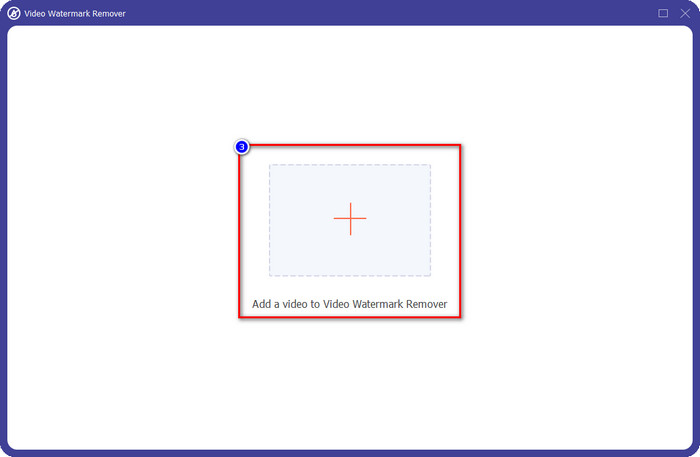
Step 3. To upload the Luminion file, you export with watermark, click the + icon, find the video file with watermark, click it, and then press Open to upload it.
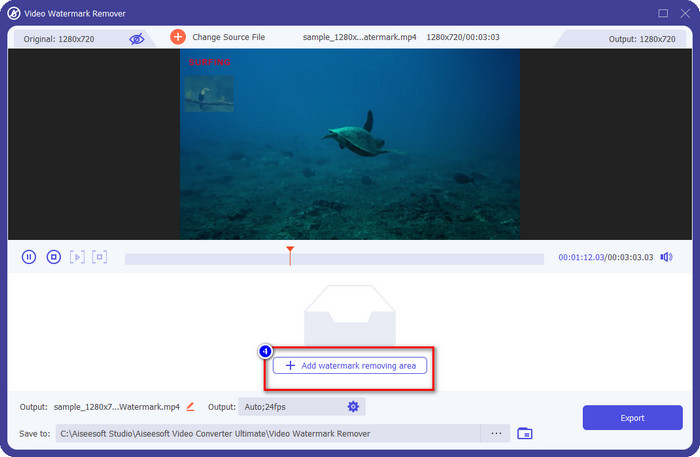
Step 4. Click Add Watermark Removing Area to remove the Luminion watermark placed on the video.
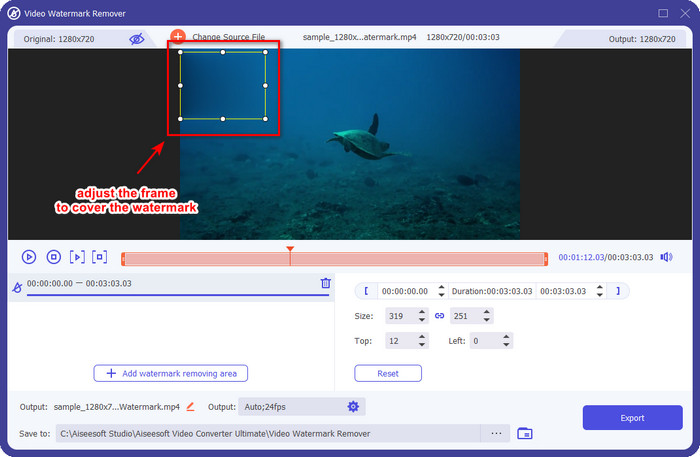
Step 5. Adjust the watermark remover by dragging the dots of the frame to cover the watermark. You can hold and drag the frame to place it properly in the video that has a watermark.
Step 6. To save the video without Luminion watermark, click Export, and it will automatically save the video without watermark.

Aiseesoft gratis vannmerkefjerner på nett
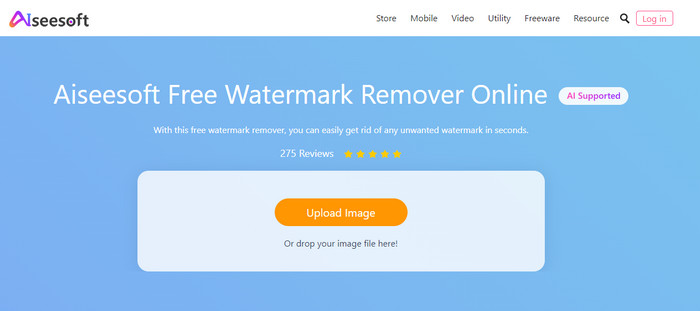
Aiseesoft Free Watermark Remover Online allows you to remove the Lumion watermark on your snap image. Though the web tool doesn't remove the watermark on video, you can still use this online software if you want to remove the watermark on your image. Also, downloading this tool isn't necessary because it is available on the web. So, if you want to save space on your desktop, and don’t want to wait on the downloading process, then luckily, you can use this software to remove the watermark.
Denne programvaren er den beste løsningen for å fjerne vannmerket på hvert bilde du har. Likevel er dette verktøyet gratis å bruke og tilgjengelig i alle nettlesere for å søke på.
Step 1. Search the official website of the remover online, then open the website of the watermark remover, and click Upload Image to add the image that has a Lumion watermark on it.
Step 2. Highlight the watermark using the tools presented above; ensure to cover the Lumion watermark so that you can remove it.
Step 3. Click Remove to make the Lumion trial watermark disappear before saving the image. After that, click Save to export the Lumion image without a watermark.
Gihosoft Video Editor
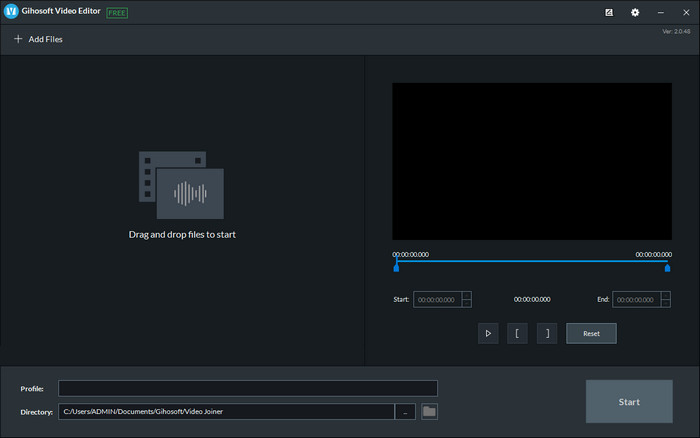
Gihosoft Video Editor can help you delete the watermark on the video you have by trimming it out. This tool can convert the video file you imported and simultaneously remove the watermark. Though the software is free to use on Windows and Mac, several drawbacks to removing watermarks became a problem for many users while they were using it. It can't directly remove the watermark on the video you upload, especially if the watermark is placed on the video and not at the beginning or end of the clip. Even though the software isn't as great as the other watermark remover we mentioned above, you can still use it to trim your clip's watermark with this tool easily.
Step 1. To download the software on your desktop, you will need to visit its official webpage to have the video cutter.
Step 2. Open the software, click Add Files, and upload the video with a watermark.
Step 3. Hold and drag the play heads in and out to trim out the watermark on your video.
Step 4. To save the changes, click Cut, and it will start the exporting process.
Del 2. Vanlige spørsmål om hvordan du fjerner Lumion vannmerke
Kan jeg kjøpe premium Lumion for å fjerne vannmerket?
Ja, du kan kjøpe premiumversjonen av den. Når du eksporterer 3D-designet du har laget, vil det ikke være noe vannmerke, enten det er en video eller et bilde.
Hva er den effektive måten å fjerne Lumion-vannmerket på?
I stedet for å laste ned programvare på enheten din for å fjerne vannmerket til videoen eller bildet du eksporterer på Lumion, kan du kjøpe premiumversjonen av den. Men anta at du ikke har penger til å betale for det. I så fall kan du bruke den forskjellige vannmerkefjerneren vi nevnte i denne artikkelen.
Hvorfor kan jeg ikke starte Lumion på riktig måte?
Hvis du vil bruke Lumion på riktig måte, trenger du et høyspesifisert skrivebord som passer den nødvendige standarden. Selv om du kan starte den med lav versjonsspesifikasjon, vil den krasje ofte, og det vil være tider du ikke kan starte programvaren på skrivebordet på riktig måte.
Konklusjon
Now that we know different ways how to remove the Lumion watermark. You can understand to eliminate the watermark on the 3D design you’ve made to present it professionally. So, which tool do you think will suffies your needs? Suppose you haven’t chosen which you should use. In that case, we highly recommend you to use the FVC Video Converter Ultimate to remove video watermark because it is simply the best among the rest. So, if you want to have the ultimate watermark video remover, click the download button above and use it right away after you download and install it.
-
 Hvordan legge til vannmerke til en video i iMovie på Mac [All Embracing]
 Vil du vite hemmelighetene ved å legge til et vannmerke i en video i iMovie? Ikke søl te på noen, og lær det ved å lese denne artikkelen.
-
 3 enkleste måter å legge til vannmerke til en GIF online og offline
 Å legge til et vannmerke til en GIF kan være så enkelt som 1-2-3 hvis du bruker riktig verktøy. Verktøyene i markedet er for brede, men vi vil presentere de tre verktøyene du kan stole på.
-
 4 beste måter å fjerne vannmerket fra GIF [Online & Offline]
 Trenger du å fjerne vannmerke fra GIF? Med verktøyet i denne artikkelen vil du lære de forskjellige stilene med den forskjellige vannmerkefjerneren som er tilgjengelig på plattformen din.
