


 Video Converter Ultimate
 Skjermopptaker
 Videoreparasjon
 Sikker nedlasting
Beste videotrimmere med måter å klippe en del ut av en video
Vil du klippe bort enkelte deler av videoen din for å lage et høydepunkt? Eller vil du gjøre videoen din kortere? Denne veiledningen kan være noe for deg. Vi introduserer deg for en rekke videoredigeringsprogrammer for å trimme en video. Du vil også få vite mer om funksjonene deres, kompatibilitet og beskrivelser. I tillegg gir innlegget deg også trinnene for å trimme en video ved hjelp av verktøyene. Hvis du vil vite mer om disse videotrimmerne, klikk på dette innlegget og les videre.

Del 1. Grunner til å trimme en video
Det er ulike grunner til at brukere trenger å trimme en video. Se årsakene nedenfor for en bedre forståelse.
Lage høydepunkter.
Som vi ser i denne moderne tid, er det flere korte klipp på internett. Du kan bare se videoer på bare et minutt. Hvis du også vil lage den typen video og bare vise høydepunktene, er trimming av en video den beste metoden du kan gjøre.
Unødvendige opptak.
En annen grunn til at du trenger å trimme en video er å fjerne unødvendige opptak. Hvis du vil eliminere noen deler av en video, spesielt de unødvendige, er trimming den beste løsningen.
Lengdebegrensninger.
Noen sosiale medieplattformer støtter ikke lange videoer eller klipp. For eksempel er en lang video forbudt hvis du legger ut en video på historien din, spesielt på Facebook eller Instagram. På denne måten er det beste du trenger å gjøre å kutte videoen.
Tilpasse video til musikk.
Noen brukere ønsker å synkronisere videoen til lyden. I så fall er trimming av en video en annen løsning for å oppfylle kravene ved synkronisering av lyden.
Del 2. Den mest enkle videotrimmeren
I dag kan du finne mange videoredigeringsprogrammer både på nett og som nedlastbar programvare. Noen av dem er nyttige, og noen er vanskelige å bruke. Hvis det er problemet, finnes det en eksepsjonell, frakoblet videotrimmer du kan bruke til å trimme videoene dine. Dette programmet er Video Converter Ultimate. Med hjelp av dette verktøyet kan du enkelt forkorte og dele opp videoen din. I tillegg tilbyr det et intuitivt grensesnitt med enkle framgangsmåter, noe som gjør det perfekt for alle typer brukere. Under trimmeprosessen finnes det flere ting du kan gjøre. Du kan gå til innstillingene for utdata og gjøre noen endringer. Du kan endre videoens kvalitet, bildefrekvens, koder, oppløsning og andre parametere. Du kan til og med lagre det endelige resultatet i ulike formater, inkludert MOV, AVI, MP4, MKV og flere. Dessuten legger ikke programmet til vannmerker etter at du har redigert videoen. På den måten kan du fortsatt nyte å se den redigerte videoen uten forstyrrelser. Videre er Video Converter Ultimate tilgjengelig på både Windows og Mac. Det betyr at programmet er praktisk for både Windows- og Mac-brukere.
Vurdering: 9,5/10
Kompatibilitet: Windows og Mac
Nøkkelfunksjoner:
◆ Den tilbyr en verktøykasse for trimming av video, rotering, redigering, fjerning av vannmerker og mer.
◆Den er i stand til å konvertere forskjellige videoer, lyd og bilder.
◆ Den tilbyr en collage maker.
Se den grunnleggende fremgangsmåten nedenfor for å lære hvordan du korter ned en video.
Trinn 1 Last ned Video Converter Ultimate på enheten din. Klikk på Last ned-knappen nedenfor ut fra hvilken enhet du bruker. Windows- og Mac-versjoner er tilgjengelige nedenfor. Gå deretter videre til installasjonsprosessen. Start programmet etterpå.
Gratis nedlastingFor Windows 7 eller nyereSikker nedlasting
Gratis nedlastingFor MacOS 10.7 eller nyereSikker nedlasting
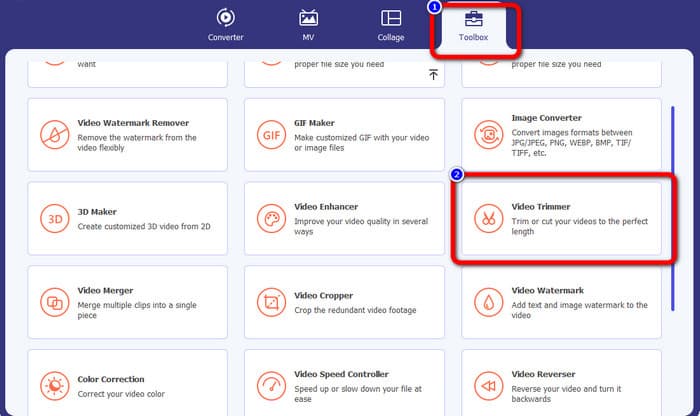
Trinn 2 Etter at du har startet programmet, vises grensesnittet på skjermen. Velg Verktøykasse øverst i grensesnittet og klikk på verktøyet Video Trimmer.
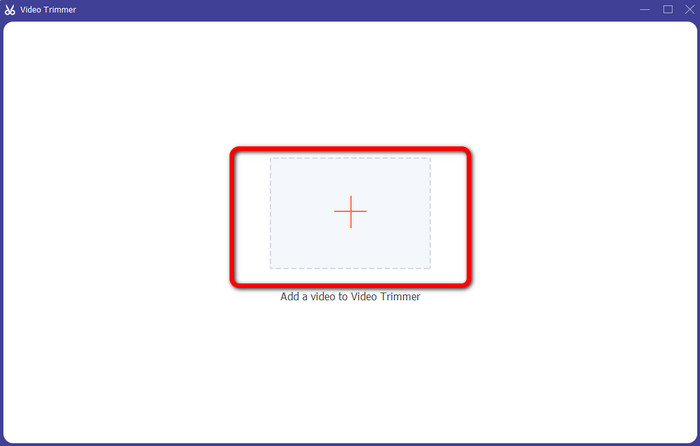
Trinn 3 Et nytt grensesnitt vises på skjermen. Klikk på Pluss-symbolet i midten av grensesnittet. Åpne deretter videoen du vil trimme, fra datamappen din.
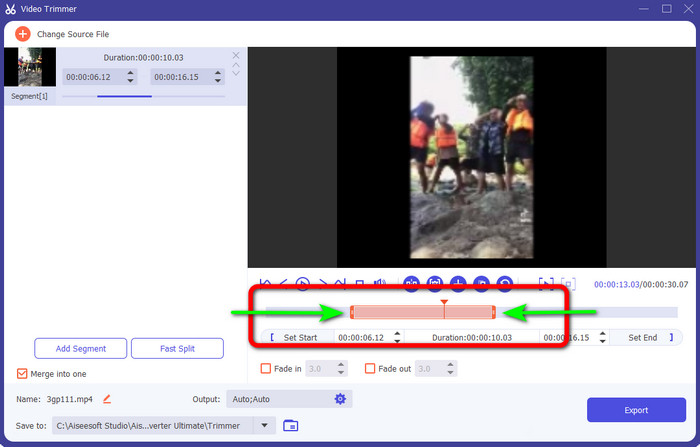
Trinn 4 I denne delen kan du allerede trimme videoen. Gå til den justerbare linjen. Der kan du flytte høyre og venstre kant på linjen for å trimme videoen. Gå til den delen av videoen du vil trimme.
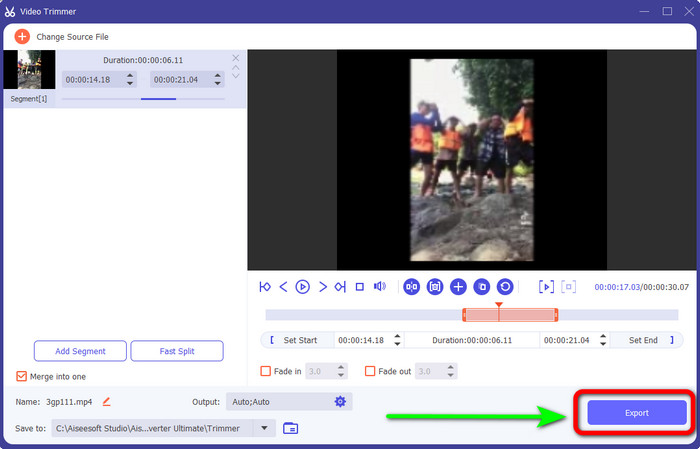
Trinn 5 Etter trimming kan du lagre den redigerte videoen ved å klikke på knappen Eksporter. Åpne deretter videoen fra utdatamappen for å spille den av.
Del 3. Beste gratis videokutter
1. VLC Media Player
VLC Media Player er ikke bare pålitelig til avspilling av videoer. Du kan bruke dette frakoblede programmet til å klippe video for å fjerne unødvendige deler. På denne måten regnes VLC som programvare for videoklipping. Med hjelp av dette frakoblede programmet kan du klippe videoer for å lage videoklipp. Det lar deg velge en bestemt del av videoen og klippe den ut. Det gjør det også mulig å klippe bort begynnelsen og slutten av en video. Som vi alle vet, er ikke VLC et avansert videoredigeringsprogram, men det er enkelt å klippe videoer. Siden det ikke er avansert programvare, har VLC imidlertid mange begrensninger. Hvis du vil spille av videoen, må du først åpne den i mappen sin, noe som er veldig tidkrevende. Installasjonsprosessen kunne dessuten vært raskere. Du må være tålmodig når du skal bruke dette frakoblede programmet.
Vurdering: 8/10
Kompatibilitet: Windows og Mac
Nøkkelfunksjoner:
◆ Trimming og klipping av videoer.
◆ Spille av videoer enkelt og umiddelbart.
◆ Konverter ulike videoformater.
◆ Lyden normaliseres for hørselvern.
Bruk trinnene nedenfor for å klippe videoen i VLC.
Trinn 1 Last ned VLC Media Player på datamaskinen din. Følg deretter installasjonsprosessen og kjør programmet. Åpne så videoen du vil klippe.
Trinn 2 Klikk på menyen Vis øverst i grensesnittet. Klikk deretter på alternativet Avanserte kontroller.
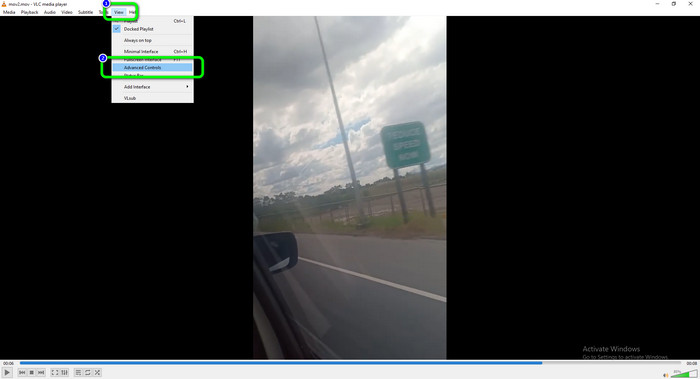
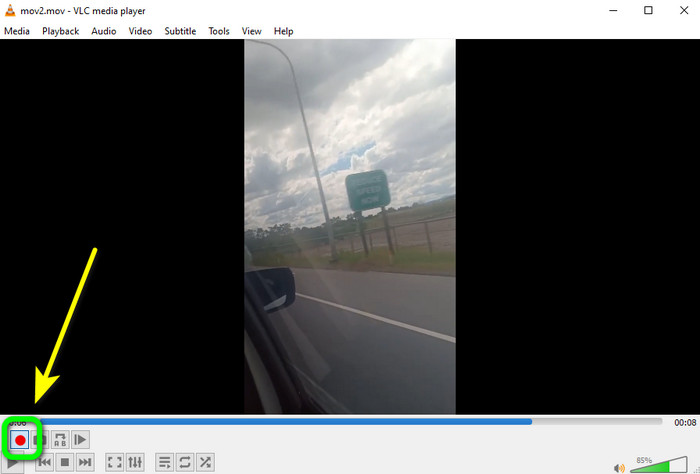
Trinn 3 Knappen Opptak vises øverst blant avspillingskontrollene. Klikk på opptaksknappen for å begynne å klippe videoen. Du kan klikke på Opptak-knappen ved startpunktet til videoen du vil klippe. Når du kommer til sluttpunktet, klikker du på opptaksknappen igjen. Opptaksknappen er den røde sirkelen på skjermen.
Trinn 4 Etter dette kan du åpne den redigerte videoen via Datamaskin > Videoer.
2. FFmpeg
Hvis du vil klippe bort noen deler av videoen din, er et annet verktøy du kan bruke FFmpeg. Det er et kommandolinjeverktøy som kan lage, behandle og redigere ulike typer medier. FFmpeg er svært nyttig på dette området. Men det har noen ulemper. FFmpeg er vanskelig å bruke. Når du laster ned programmet, må du gjennom mange prosesser. Oppsettet er også komplisert, noe som gjør det uegnet for ikke-profesjonelle brukere. I tillegg er det mange kommandoer du må lære deg før du kan bruke programmet. Så hvis du er en ikke-profesjonell bruker, må du studere programmet først. Et annet alternativ er å se etter en mye enklere videokutter for å klippe noen videoer.
Vurdering: 7/10
Kompatibilitet: Windows og Mac
Nøkkelfunksjoner:
◆ Trimming og klipping av videoer.
◆ Klipp videoen med en bestemt tid.
◆ Kod og dekod videoformat til hverandre.
Slik bruker du FFmpeg til å trimme videoer
Trinn 1 Last ned FFmpeg på datamaskinen din. Følg alle stegene for å sette opp FFmpeg på enheten. Gå deretter til startknappen på datamaskinen og skriv inn cmd.
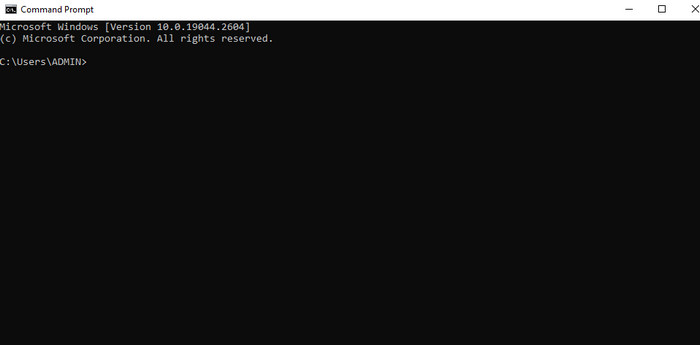
Trinn 2 Skriv deretter $ ffmpeg -i input.mp4 -ss 00:05:10 -to 00:15:30 -c:v -c:a copy output2.mp4 i kommandolinjen. Kommandoen -to brukes til å angi det nøyaktige tidspunktet som skal klippes fra et startpunkt. I eksemplet er den klipte videoen fra 00:05:10 til 00:15:30. Det gir en video på 10 minutter og 20 sekunder.

Trinn 3 Til slutt klikker du på Enter-tasten på tastaturet for å kjøre prosessen. Etterpå kan du åpne videoen på datamaskinen din.
3. iMovie
Du kan bruke iMovie til å klippe videoene dine hvis du er Mac-bruker. Dette programmet tilbyr et klippeverktøy for å fjerne unødvendige opptak i filmen din. I tillegg har det en enkel prosess for videoredigering. På denne måten kan både erfarne og uerfarne brukere bruke programmet uten problemer. I tillegg har iMovie flere funksjoner å by på. Du kan også skalere om og endre størrelsen på videoen ved hjelp av dette frakoblede programmet. Men iMovie har flere ulemper. Hvis du jobber med store filer, vil prosessen gå veldig tregt. Hvis du dessuten ser etter et avansert program med avanserte funksjoner, er iMovie ikke det beste verktøyet. Du må finne et annet program som kan innfri forventningene dine.
Vurdering: 7,5/10
Kompatibilitet: Mac
Nøkkelfunksjoner:
◆ Trimming og klipping av videoer.
◆ Den tilbyr en videoreskalering og resizer.
Følg metodene nedenfor for å lære hvordan du klipper klipp i iMovie.
Trinn 1 Det første trinnet er å starte iMovie på Mac-maskinen din. Gå deretter til fanen Prosjekt. Klikk deretter på alternativet Opprett ny og velg Film.
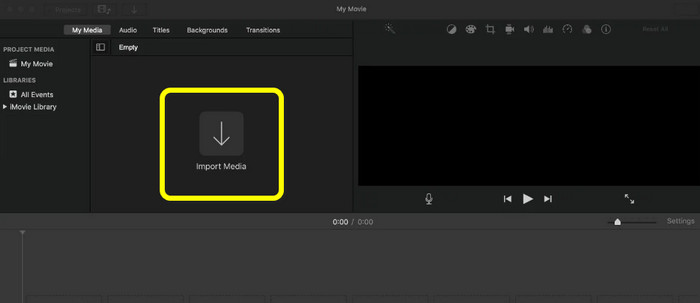
Trinn 2 Klikk deretter på alternativet Importer media for å legge til videoen du ønsker å redigere i iMovie.
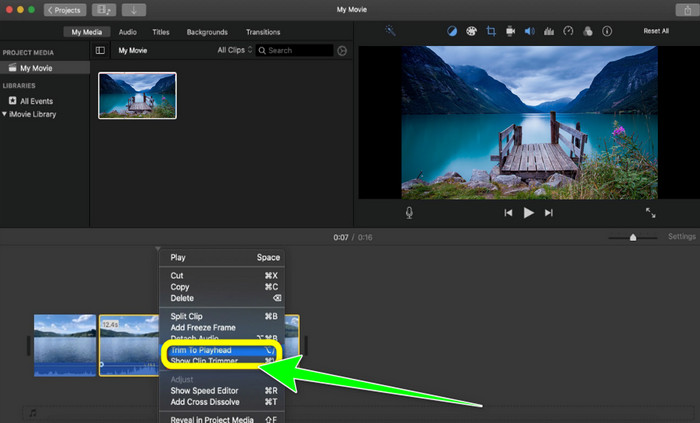
Trinn 3 Neste trinn er å dra filmen til tidslinjen for å trimme videoen. Høyreklikk på videoen og velg alternativet Trim til avspillingshodet. Etter dette er videoen ferdig. Du kan fjerne den unødvendige delen og se den redigerte utgaven.
4. Openshot
Et annet verktøy er Openshot. Dette programmet er også pålitelig til å klippe/trimme en video. Det passer dessuten godt for nybegynnere. Det tilbyr bare en enkel metode for trimmeprosessen. På denne måten kan du bruke programmet selv uten redigeringsferdigheter. Men Openshot har flere ulemper. Du kan bare gjøre grunnleggende redigering av videoer. Avanserte redigeringsverktøy er ikke tilgjengelige.
Vurdering: 8/10
Kompatibilitet: Windows og Mac
Nøkkelfunksjoner:
◆ Et trimmevideoverktøy er tilgjengelig.
◆ Den tilbyr en forhåndsvisning i sanntid.
◆ Videooverganger, maks og wipes
◆ Bildesekvenser og 2D-animasjoner.
Slik bruker du Openshot til å klippe videoer
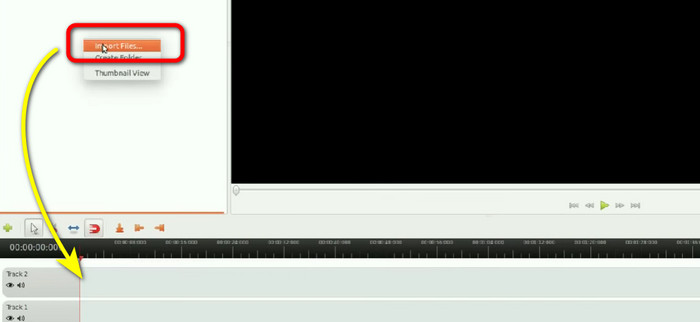
Trinn 1 Last ned Openshot på datamaskinen. Når du har installert det, kjører du programmet. Når grensesnittet vises, klikker du på alternativet Importer fil for å sette inn videoen. Legg deretter videoen på tidslinjen.
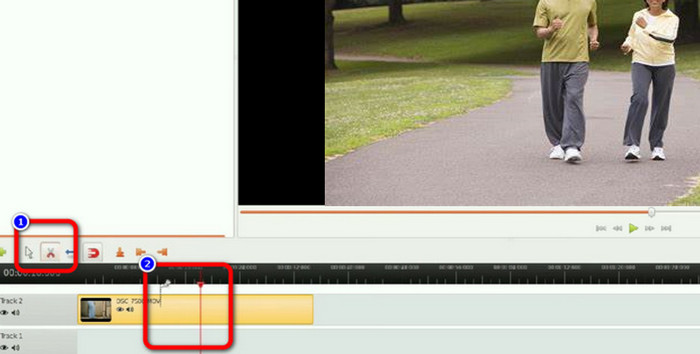
Trinn 2 Klikk på Klipp-ikonet og gå til den delen av videoen der du vil klippe.
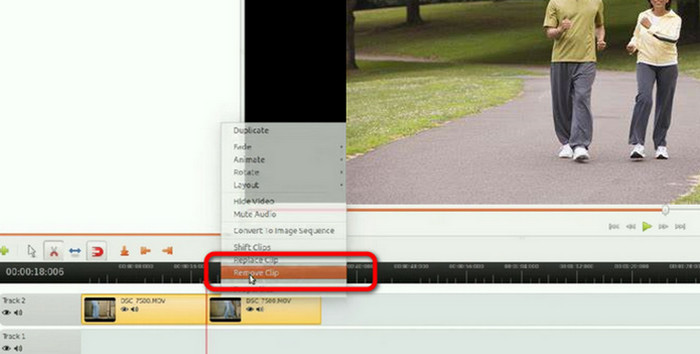
Trinn 3 Når videoen er delt i to, høyreklikker du på den unødvendige delen og velger Fjern klipp. Etterpå kan du lagre resultatet.
5. Windows Media Player
Vil du vite hvordan du trimmer videoer med Windows Media Player? Windows Media Player lar brukere spille av mediefiler på Windows-operativsystemer. Windows-brukere ønsker ofte å finne en måte å redigere eller trimme videoer direkte i Windows Media Player. Så, er Windows Media Player i stand til å redigere videoer? Denne Windows-programvaren kan dessverre ikke redigere videoer. Men det betyr ikke at Windows Media Player må forlates hvis du ønsker å endre filmene dine. Den beste måten er å bruke en plug-in. Den heter SolveigMM. Denne plugin-modulen hjelper Windows Media Player med å kutte videoer effektivt.
Vurdering: 7/10
Kompatibilitet: Windows
Nøkkelfunksjoner:
◆ Spill av en video.
◆ Trim en video på en enkel måte.
◆ Konverter ulike videoformater.
For å trimme videoer i Windows 11, bruk Windows Media Player. Se trinnene nedenfor for å trimme en video.
Trinn 1 Start med å laste ned SolveigMM Trimmer-pluginen fra den offisielle nettsiden. Installer deretter programmet på datamaskinen ved å fullføre installasjonsprosessen.
Trinn 2 Start Windows Media Player og legg til pluginen for å gjøre trimmefunksjonen tilgjengelig. Velg Verktøy > Programtillegg > SolveigMM WMP. Deretter bør du legge merke til et nytt valg nederst i panelets grensesnitt.
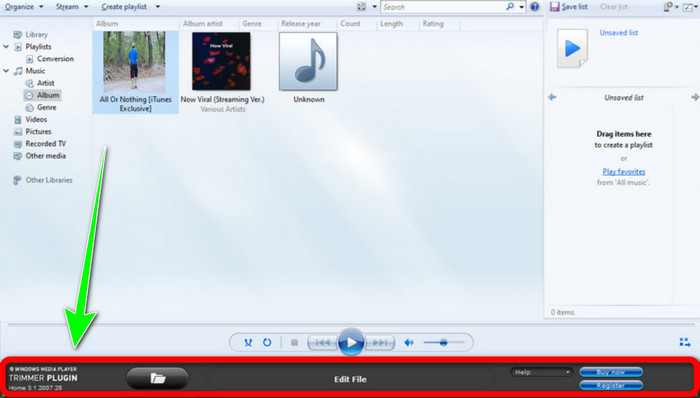
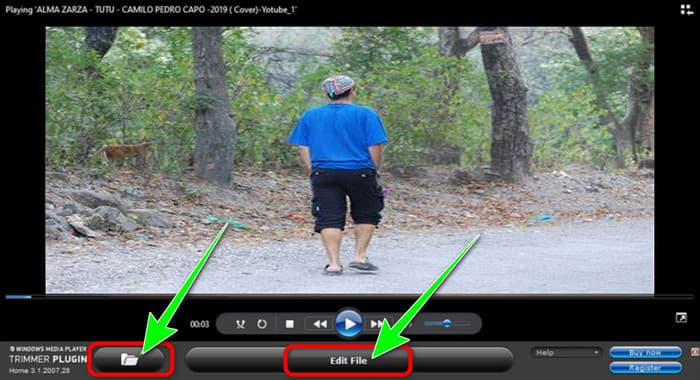
Trinn 3 Legg nå til videoen du vil klippe. For å gjøre dette klikker du på Mappe-ikonet og blar deg frem til videoen du vil legge til i programmet. Videoen skal begynne å spille av umiddelbart. Klikk deretter på Rediger fil for å begynne å redusere videoen.
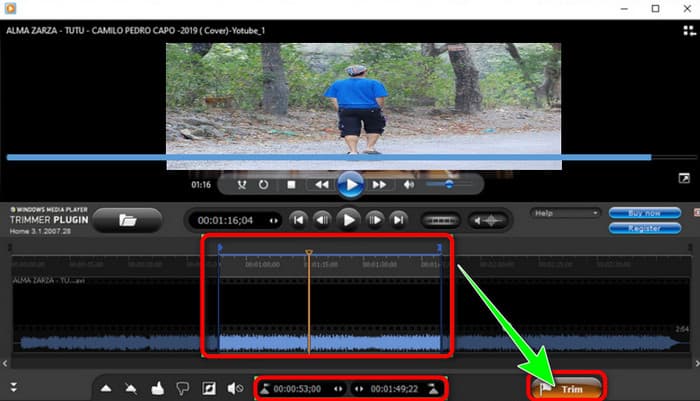
Trinn 4 Velg deretter det nøyaktige tidspunktet eller posisjonen du vil korte ned. Du kan også bruke tidsangivelsen for å angi start- og sluttposisjon. Klikk på knappen Trim når du er ferdig med prosessen, og forhåndsvis videoen for å se om endringene har trådt i kraft.
6. QuickTime Player
Apples standard mediespiller er QuickTime, men du kan også redigere og klippe videoene dine. Med QuickTime Player kan du rotere, omorganisere og beskjære videoer. En video kan deles inn i separate klipp, som hver kan redigeres uavhengig. QuickTime vil alltid være gratis å bruke siden det er en del av macOS. QuickTime Player har imidlertid begrensede funksjoner. Hvis du vil redigere videoer på et profesjonelt nivå, kan du bruke et annet videoredigeringsprogram.
Vurdering: 8 /10
Kompatibilitet: Mac
Nøkkelfunksjoner:
◆ Den tilbyr måter å trimme en video på.
◆ Egnet for å rotere og arrangere videoer.
◆ Spill av en video i forskjellige formater.
Følg trinnene nedenfor for å trimme videoen i QuickTime.
Trinn 1 Start QuickTime Player på Mac. Gå deretter til Arkiv > Åpne og legg til videoen.
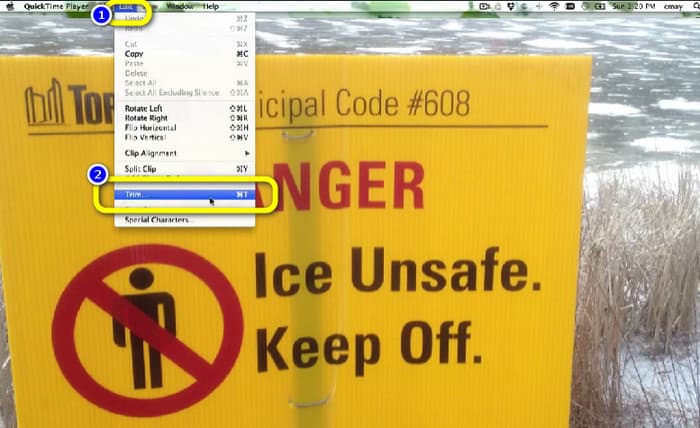
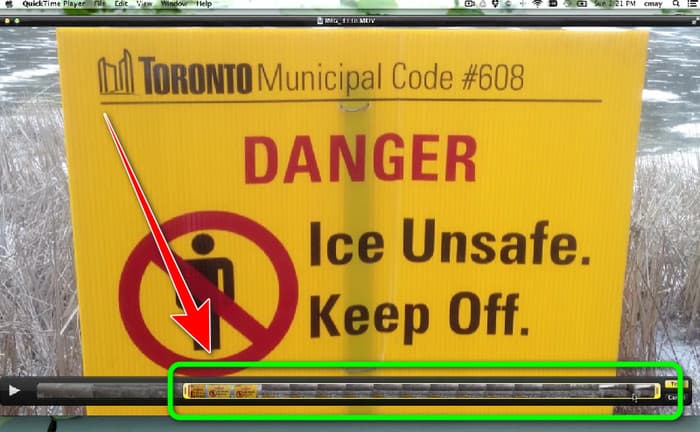
Trinn 2 Etter at du har åpnet videoen, går du til menyen Rediger og klikker på alternativet Trim. På denne måten kan du begynne å trimme videoen.
Trinn 3 I denne delen kan du allerede trimme videoen. Klikk og dra ytterkanten av linjen. Du kan justere både venstre og høyre side. Etter at du har trimmet videoen, kan du gå til menyen Arkiv og Eksportere det endelige resultatet.
Del 4. Betalt og profesjonell videokutter
1. After Effects
Hvis du er en kunnskapsrik bruker som leter etter et avansert videoredigeringsprogram, er After Effects ideelt. Redigering i After Effects kan være utfordrende, og med god grunn, siden det egentlig ikke er et redigeringsprogram. Selv om After Effects er et robust animasjonsverktøy som kan hjelpe deg med å lage fantastiske effekter, er det ikke laget for rask klippredigering. Selv om du sannsynligvis fullfører redigeringen av prosjektet ditt i Premiere Pro, er det likevel viktig å forstå hvordan du deler og kutter klippene dine i Adobe After Effects. Hvis du er nybegynner, er kanskje dette programmet for avansert for deg. Grensesnittet er komplisert og har mange alternativer, noe som er forvirrende for nybegynnere.
Vurdering: 8 /10
Kompatibilitet: Mac og Windows
Nøkkelfunksjoner:
◆ Animasjon er tilgjengelig.
◆ Trimming og klipping av videoer.
Slik kutter du et klipp i After Effects
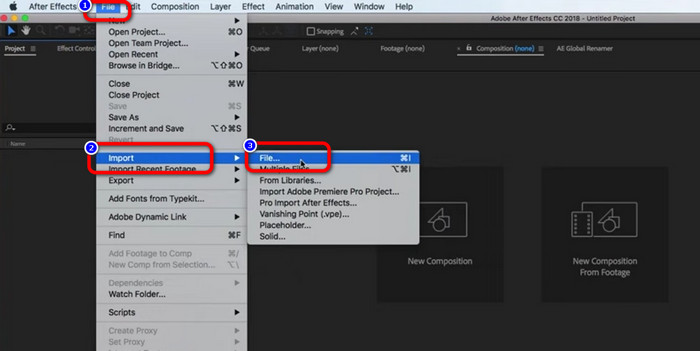
Trinn 1 Start Adobe After Effects på datamaskinen din. Gå deretter til File-menyen. Velg alternativet Open > File for å legge til videoen.
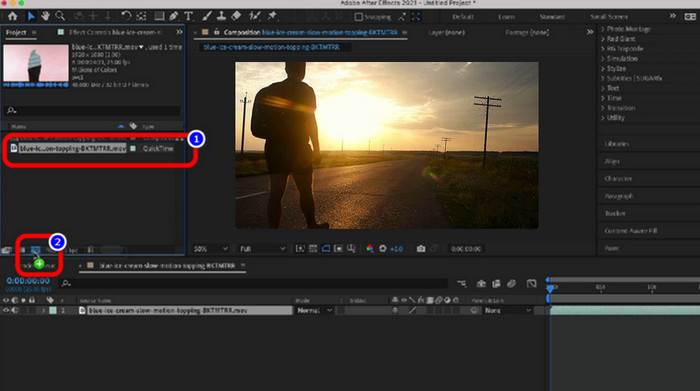
Trinn 2 Dra videoen til New Comp-ikonet i Layer panel for å starte en ny komposisjon.
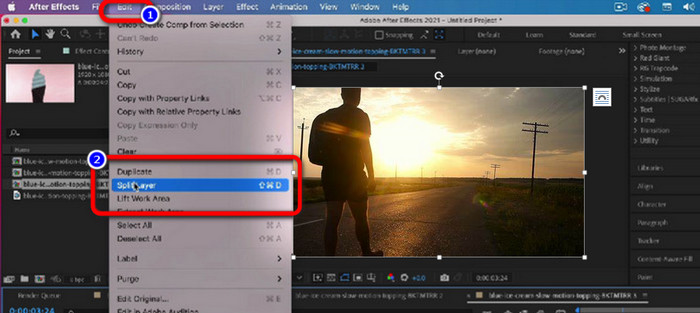
Trinn 3 Plasser avspillingshodet der du ønsker å dele laget. Hvis du ikke har et fullt tastatur, kan du flytte avspillingshodet én rute om gangen ved å trykke på Page Up/Down eller Cmd+Left Arrow & Cmd+Right Arrow.
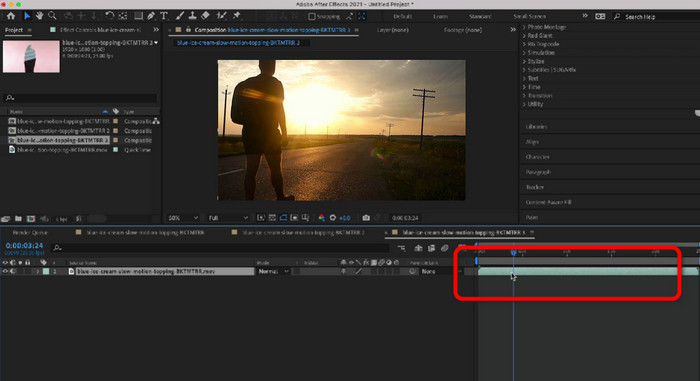
Trinn 4 For å fjerne den uønskede delen av videoen, gå til Edit-menyen og klikk på Split Layer-alternativet. Du kan fjerne den unødvendige delen og lagre den redigerte videoen.
2. DaVinci Resolve
Et annet avansert videoklipper-verktøy du kan bruke offline er DaVinci Resolve. Dette programmet er pålitelig til å trimme/kutte en video. Med hjelp av dette nedlastbare programmet kan du fjerne alle forstyrrende deler av videoen din. I tillegg finnes det flere funksjoner du kan benytte i DaVinci Resolve. Du kan forbedre bildekvaliteten, legge til effekter, fjerne støy i lyden og mer. Det er imidlertid vanskelig for nybegynnere, siden DaVinci er et profesjonelt videoredigeringsprogram. Det offline programmet har et forvirrende grensesnitt, noe som gjør det komplisert å forstå. Dessuten må du kjøpe et abonnement for å få tilgang til flere avanserte funksjoner.
Vurdering: 8,5/10
Kompatibilitet: Mac og Windows
Nøkkelfunksjoner:
◆ Klipp og trim videoklipp.
◆ I stand til å dempe lyd.
◆ Det kan forbedre videokvaliteten.
Slik kutter du et klipp i DaVinci Resolve
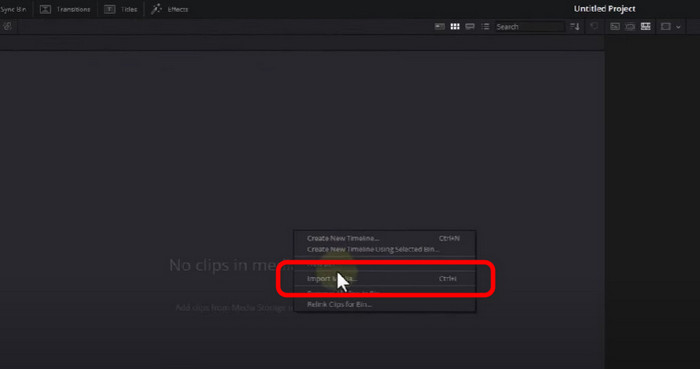
Trinn 1 Kjør DaVinci Resolve på Windows- eller Mac-datamaskinen din. Deretter høyreklikker du på det tomme området og velger Import Media-alternativet. Velg videoen fra filmappen din.
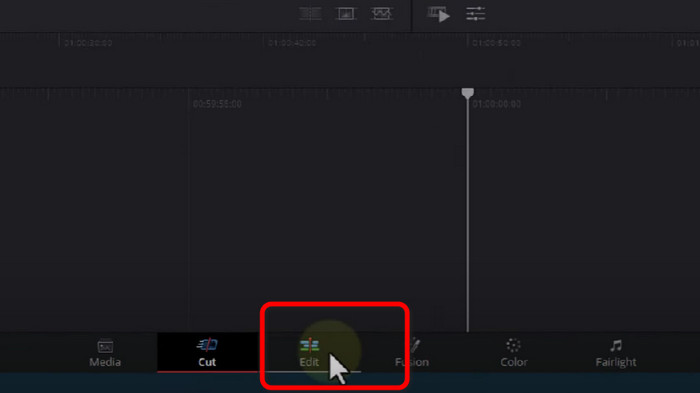
Trinn 2 Gå til den nedre delen av grensesnittet og sørg for at du er i Edit-oppsettet.
Trinn 3 Deretter drar og slipper du videoen på tidslinjen for å starte trimmeprosessen.
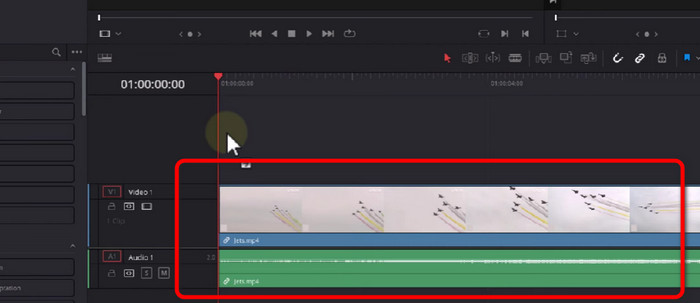
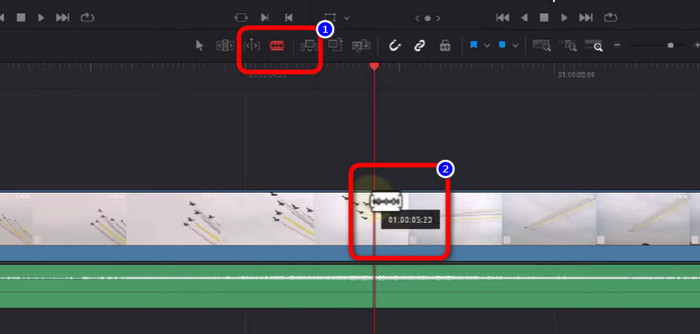
Trinn 4 Del opptaket ved å bruke Blade Edit Mode og rediger derfra. Med denne enkle teknikken kan du kutte videoen etter behov.
3. Adobe Premiere Pro
Generelt sett er klipping og trimming av video grunnleggende ferdigheter for enhver videoredigerer. Det antas at alle uunngåelig vil klippe bort uønskede scener og pinlige øyeblikk fra opptakene. Uten tvil tilbyr Adobe Premiere Pro en alt-i-ett-løsning for etterarbeid på video, inkludert videoklipping. Så hvis du ønsker å vite hvordan du klipper klipp i Premiere Pro, er det bare å lese videre. Dette offline programmet passer imidlertid bare for avanserte brukere. Hvis du ikke har ferdigheter i videoredigering, vil du synes det er vanskelig å bruke programmet. I tillegg er Adobe Premiere Pro dyrt. Du må kjøpe et abonnement for å bruke flere avanserte funksjoner.
Vurdering: 8/10
Kompatibilitet: Mac og Windows
Nøkkelfunksjoner:
◆ Klipp og trim videoklipp effektivt.
◆ Trim ett klips i forskjellige deler.
◆ Legg til filtre og effekter til videoen.
Hvordan klippe klipp i Premiere
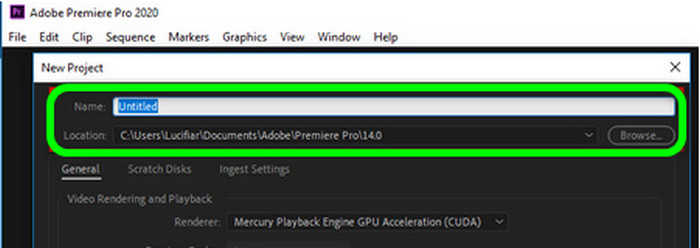
Trinn 1 Åpne Adobe Premiere Pro, start et nytt prosjekt, gi prosjektet et navn, og velg hvor Premiere-filene skal lagres.
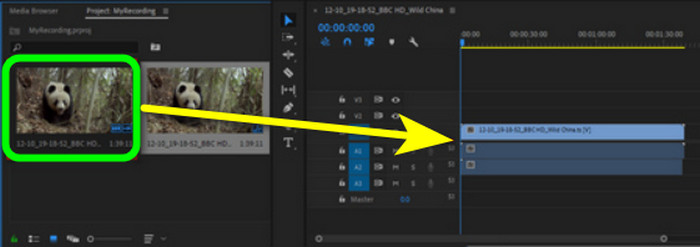
Trinn 2 Gå deretter til det tomme området og importer klippet. Legg det så på tidslinjen.
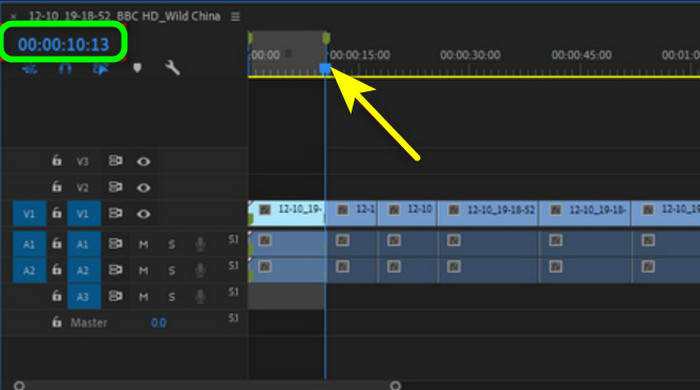
Trinn 3 For å trimme et startpunkt drar du den blå glidebryteren dit, velger Sequence > Add Edit, eller trykker ganske enkelt Ctrl + K. Du vil se en delingslinje som deler opptaket i to deler. Deretter fjerner du alt unødvendig materiale på tidslinjen og lagrer den trimmede videoen.
4. Final Cut Pro
Hvis du vil ha et annet videoklipper-verktøy for Mac og Windows, kan du bruke Final Cut Pro. Dette programmet kan hjelpe deg med å fjerne alle uønskede deler av videoen din. I tillegg tilbyr Final Cut Pro et grensesnitt med en rekke alternativer. På denne måten er det mer du kan gjøre enn bare trimming. Programmet krever imidlertid et abonnement for at du skal få tilgang til flere fantastiske funksjoner. I tillegg er installasjonsprosessen tidkrevende. Det bruker også mye lagringsplass, så sørg for at du har nok plass.
Vurdering: 8,5/10
Kompatibilitet: Mac og Windows
Nøkkelfunksjoner:
◆ Trim og klipp en video effektivt.
◆ Lag videoer med høy kvalitet.
◆ Den tilbyr lys- og fargekorrigeringsverktøy.
Her er veiledningen du kan prøve for å lære hvordan du trimmer video i Final Cut Pro.
Trinn 1 Last ned Final Cut Pro på Windows eller Mac. Åpne deretter programmet etter at installasjonsprosessen er fullført.
Trinn 2 Gå til Projects > Clips-alternativet for å se videoen. Deretter drar du videoen til tidslinjen.
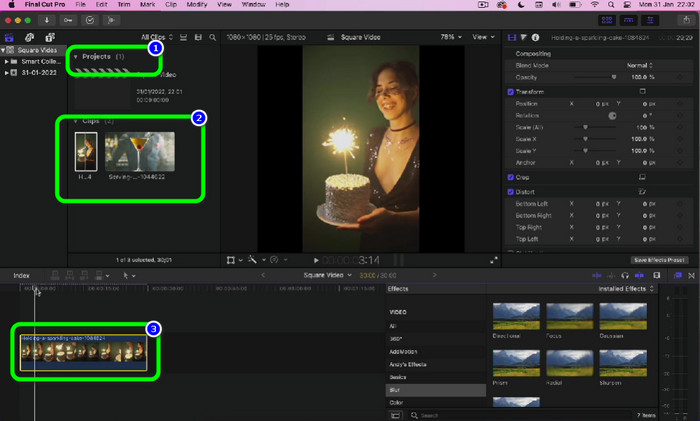
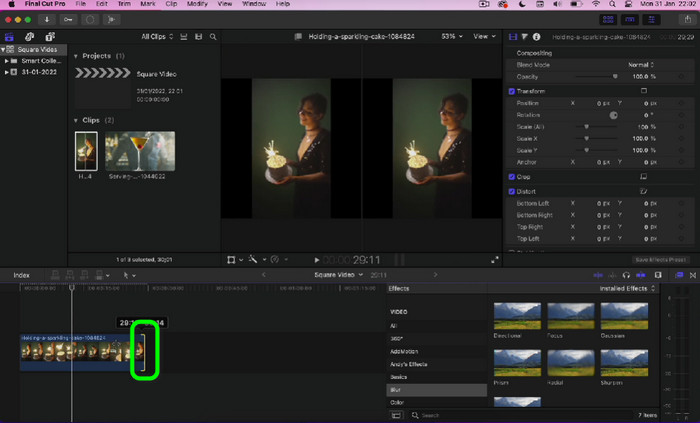
Trinn 3 Gå deretter til den delen av videoen du vil trimme. Deretter kan du klikke på kanten av videoen og dra for å trimme videoen. Du kan dra venstre og høyre kant av videoen. Så er det gjort. Du kan nå lagre videoen etter trimming.
Del 5. Vanlige spørsmål om videotrimmer
1. Reduserer trimming av en video kvaliteten?
Hvis du kjøper en utmerket videotrimmer, vil trimming vanligvis ikke føre til tap av videokvalitet. Du bør være klar over at oppløsning, bitrate og frame er kritiske determinanter for videokvalitet. Så pass på å beholde de originale parameterne når du eksporterer en redigert video.
2. Hvilken videotrimmer er best?
Hvis du vil ha det mest fremragende videoklipper-verktøyet, kan du bruke Video Converter Ultimate. Dette nedlastbare programmet lar deg trimme en video på en problemfri måte. I tillegg er grensesnittet lett å forstå. I tillegg er det gratis å laste ned, i motsetning til annen videoredigeringsprogramvare.
3. Hva er videotrimming?
For ytterligere forklaring er et av de essensielle trinnene i redigering trimming. Det innebærer å ta en videos begynnelse eller slutt. Ofte er målet å kutte ut alt unntatt det mest verdifulle materialet fra videoen.
4. Hvordan trimme video i PowerPoint?
Start PowerPoint og naviger til alternativet Sett inn > Video. Klikk Trim Video i redigeringsområdet på båndet. Du kan bruke markørene til å velge start- og sluttpunkt, angi start- og sluttid manuelt, eller gjøre en kombinasjon av begge. Hvis du vet det, kan du skrive inn nøyaktige start- og sluttid i de tilsvarende områdene. Ved å sjekke varigheten øverst umiddelbart etter trimming av videoen, kan du se om du bare kan se en viss del på grunn av tidsbegrensninger. Klikk OK når ønsket del av videoen er klargjort.
Konklusjon
Hvis du ønsker å korte ned en lang video, er den beste løsningen å trimme den. Derfor har denne veiledningen presentert de mest utprøvde og pålitelige videoklipperne. Imidlertid er noe programvare for videotrimming utfordrende å bruke. Så hvis du vil ha mer brukervennlig programvare, kan du bruke Video Converter Ultimate. Dette nedlastbare programmet kan hjelpe deg med å trimme en video uten å møte noen vanskeligheter.
-
 Oppdag den beste MP4 -trimmeren med prosedyre og informasjon
 Vil du lære hvordan du klipper videoer som vloggerne du ser på? Fortsett deretter å lese dette innlegget for å vite hvilke MP4-trimmere du kan bruke.
-
 Oppdag den beste MP4 -trimmeren med prosedyre og informasjon
 Vil du lære hvordan du klipper videoer som vloggerne du ser på? Fortsett deretter å lese dette innlegget for å vite hvilke MP4-trimmere du kan bruke.
-
 Den beste MP4-redigereren for Windows og Mac i 2023
 Enten du bruker datamaskinen din til MP4-videoredigering eller bare jobber på telefonen din, vil du kunne finne noen gode alternativer her, inkludert den beste MP4-redigereren for Windows og Mac.
