


 Video Converter Ultimate
 Skjermopptaker
 Videoreparasjon
 Sikker nedlasting
Veiledning for hvordan du roterer en video på en iPhone og iPad med de beste verktøyene
Er du lei av å myse med øynene for å se på videoer som er sidelengs eller opp-ned på iPhonen din? Vi har alle opplevd det. Men det gode er at du ikke lenger trenger å leve med skeiv video. Med noen få enkle trinn kan du lære deg hvordan rotere videoer på en iPhone og få dem til å se ut akkurat slik du vil. Enten du er en spirende filmskaper, en influenser på sosiale medier eller bare noen som liker å fange spesielle øyeblikk, er det nyttig å kunne justere orienteringen på videoene dine.
I dette blogginnlegget viser vi deg hvordan du roterer videoer på iPhone som en proff, slik at du kan vise frem opptakene dine på best mulig måte. Så gjør deg klar til å ta videoredigeringsspillet ditt til neste nivå!

Del 1. Slik roterer du en video på iPhone
1. Bilder
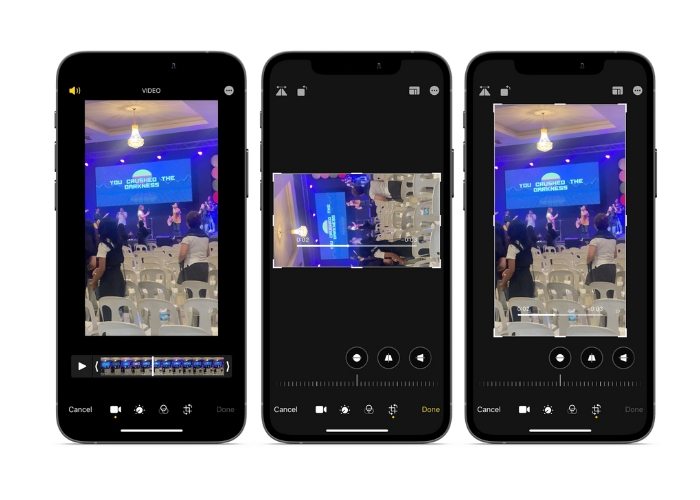
Hvis du er en iPhone-bruker, er sjansen stor for at du allerede er kjent med Bilder-appen. Det er go-to-appen for å organisere og redigere bildene og videoene dine, og den er fullpakket med funksjoner som gjør det enkelt å administrere mediebiblioteket ditt. Denne appen er ikke bare for å organisere og redigere bilder. En nyttig funksjon er muligheten til å rotere videoer, som kan være en livredder hvis du ved et uhell har filmet noe i feil retning. Sjekk ut trinnene for å lære hvordan du konverterer en portrettvideo på iPhone-videolandskap eller omvendt.
Trinn 1. Åpne Bilder‑appen på iPhonen din og velg klippet du vil rotere.
Trinn 2. Trykk deretter på knappen Rediger øverst til høyre på skjermen.
Trinn 3. Trykk på knappen Besjø r og roter, som ser ut som et kvadrat med en pil som går i bue rundt det.
Trinn 4. For å rotere videoen bruker du to fingre til å vri den i den retningen du ønsker. Du kan også bruke glidebryteren nederst på skjermen for å finjustere rotasjonen. Når du har rotert videoen til ønsket orientering, trykker du på Ferdig nederst til høyre på skjermen. På sett og vis fungerer Bilder‑appen også som en app for å rotere video for iPhone‑brukere.
2. iMovie
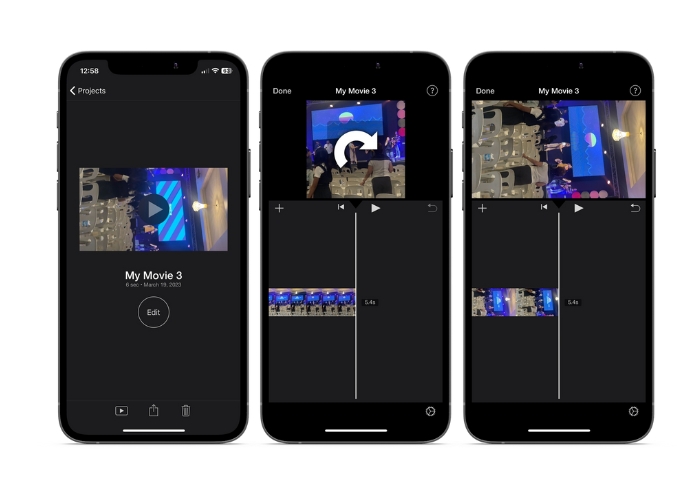
For ambisiøse filmskapere, innholdsskapere eller bare noen som elsker å fange spesielle øyeblikk på video, så må du sjekke ut iMovie. iMovie er en kraftig videoredigeringsapp for Apple-enheter som lar deg lage fantastiske filmer. Med iMovie kan du enkelt rotere videoene dine og sørge for at de ser perfekte ut for enhver skjermstørrelse eller visningsvinkel. For å utføre iMovie-rotering av video på en iPhone, følg instruksjonene nedenfor.
Trinn 1. Start først iMovie på iPhonen din. Deretter oppretter du et nytt prosjekt.
Trinn 2. Velg deretter en video du vil redigere fra telefonens galleri.
Trinn 3. Plasser to fingre på videoen i forhåndsvisningspanelet. Drei så med eller mot klokken for å rotere videoen.
Trinn 4. Til slutt trykker du på knappen Ferdig øverst til venstre på skjermen. Slik får du en video til å rotere på en iPhone ved hjelp av iMovie.
3. Video Rotate & Flip
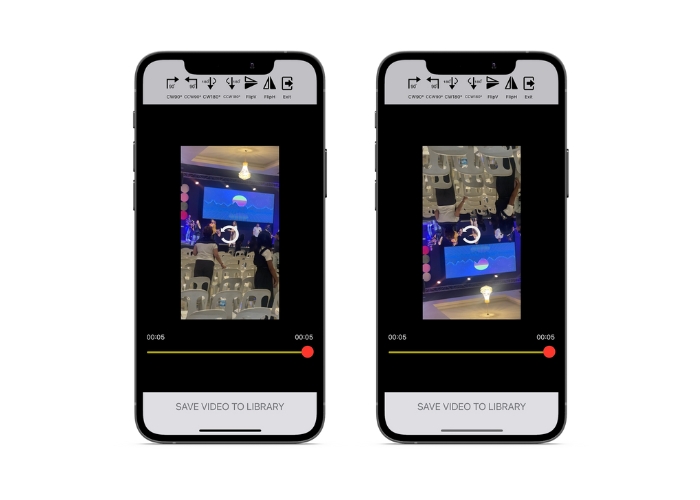
Video Rotate & Flip er en tredjepartsapp som du kan laste ned fra App Store. Den lar deg enkelt rotere og snu videoer. Bare åpne appen, velg videoen du vil rotere, og bruk rotasjonsverktøyet for å justere vinkelen på videoen. Du kan også bruke flip-verktøyet til å snu videoen horisontalt eller vertikalt. Når du er ferdig, lagre videoen på kamerarullen din eller del den direkte fra appen.
Trinn 1. Installer programmet fra Play Store. Åpne appen og trykk på pil opp‑knappen på hovedskjermen for å velge videoen du vil rotere.
Trinn 2. Når du har valgt videoen, vises den i forhåndsvisningsvinduet. Du kan bruke kontrollene under forhåndsvisningsvinduet til å rotere videoen 90 grader med eller mot klokken, eller speilvende den horisontalt eller vertikalt.
Trinn 3. Når du har rotert eller speilvendt videoen til ønsket orientering, trykker du på knappen Lagre for å lagre endringene. Slik får du videoen til å rotere på en iPhone med dette programmet.
Del 2. Hvordan rotere en video på en iPad
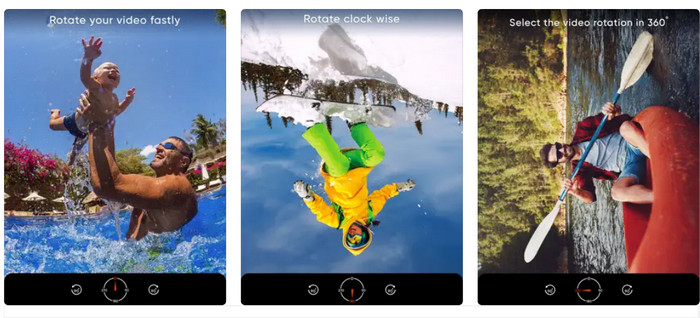
Hvis du vil jobbe på en større skjerm, for eksempel en iPad, kan du bruke Video Rotate. Dette er en tredjepartsapp du kan laste ned fra App Store. Den lar deg rotere videoer enkelt, og du kan også speilvende dem horisontalt eller vertikalt ved behov. Video Rotate gjør mer enn bare å rotere videoer. Den har også noen andre nyttige funksjoner. Du kan trimme videoen for å fjerne deler du ikke vil ha med, endre lysstyrke og kontrast, eller til og med legge til tekst eller effekter.
Trinn 1. Last ned appen Video Rotate fra App Store og installer den på iPaden din.
Trinn 2. Åpne appen og trykk på knappen Velg video for å velge videoen du vil rotere. Du vil se at videoen spilles av på skjermen.
Trinn 3. For å rotere videoen bruker du rotasjonskontrollene nederst på skjermen. Du kan rotere videoen 90 grader til venstre eller høyre ved å trykke på den tilsvarende knappen. Du kan også speilvende videoen horisontalt eller vertikalt ved å trykke på knappen Flip.
Del 3. Hvordan rotere iPhone-videoer på en datamaskin
Hvis du vil lære hvordan du roterer videoer på en PC, kan du bruke FVC Video Converter Ultimate. Dette er en allsidig og omfattende videokonverterer som også kan fungere som en kraftig videorotator. Den har et brukervennlig grensesnitt og støtter et bredt utvalg videoformater, inkludert MP4, AVI, MOV og mange andre. For å lære mer om dette verktøyet kan du følge trinnene nedenfor.
Trinn 1. Skaff verktøyet og installer det.
Først må du hente appen og installere programmet på datamaskinen din. Etter det, start den med en gang.
Gratis nedlastingFor Windows 7 eller nyereSikker nedlasting
Gratis nedlastingFor MacOS 10.7 eller nyereSikker nedlasting
Trinn 2. Legg til en videofil
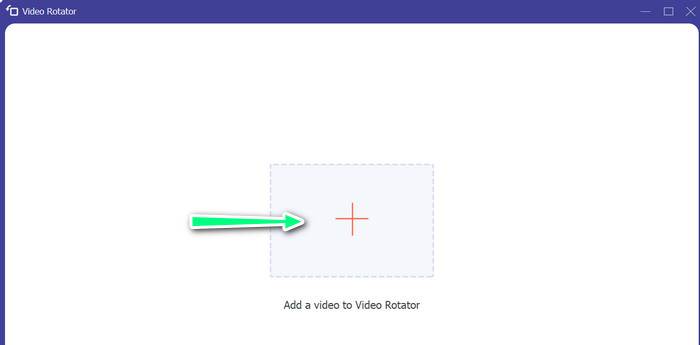
Klikk deretter på fanen Verktøykasse og bruk programmets funksjon Video Rotator. Etter at du har klikket på dette alternativet, blir du bedt om å laste opp videoen din. Klikk nå på pluss-symbolet for å legge til videoen du vil ha.
Trinn 3. Roter videoen
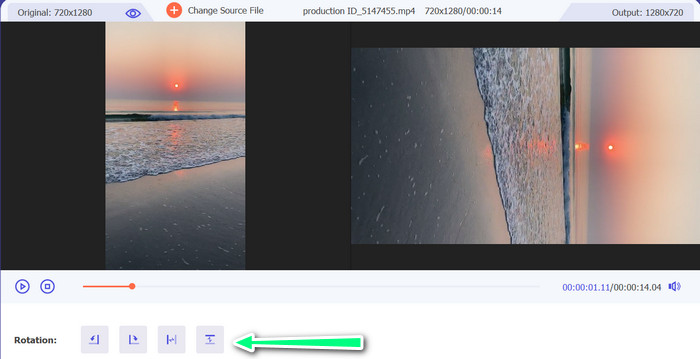
På dette tidspunktet klikker du på knappen som får videoen til å se slik du vil ha den. Siden forhåndsvisningen er live, kan du gjøre endringer raskt.
Trinn 4. Få en kopi av den roterte videoen
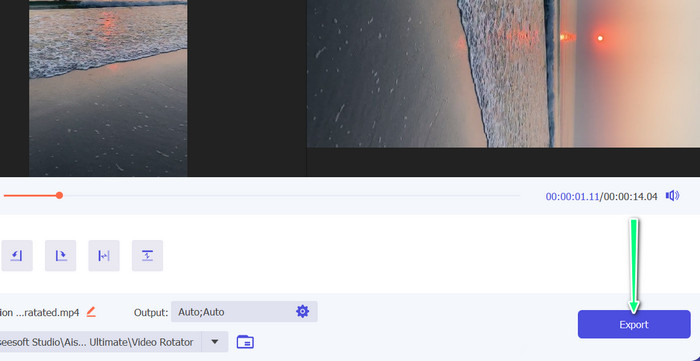
Til slutt klikker du på knappen Eksporter for å få en kopi av videoen du nettopp har redigert. Etter dette vil et varsel dukke opp, og mappen der videoen ligger, åpnes.
Del 4. Vanlige spørsmål om roterende videoer på iPhone
Hvorfor roterer ikke iPhone-video?
Det kan være flere årsaker til at iPhone-videoen din ikke vil rotere. De vanligste årsakene er at orienteringslåsen er på, videoformatet er ikke kompatibelt, og mange andre.
Hvordan ta portrettvideo på iPhone 12?
For å ta en portrettvideo på iPhone 12, start med å åpne Kamera-appen og sveip til venstre for å bytte til videomodus. Trykk deretter på 1×- eller 2×-knappen for å velge kameraet du vil bruke. Se deretter etter Portrett-alternativet over utløserknappen og trykk på det for å velge det.
Vil rotering av en video på iPhone påvirke kvaliteten?
Å rotere en video på iPhonen din skal ikke påvirke kvaliteten så lenge du ikke endrer størrelse på eller komprimerer videoen i prosessen.
Konklusjon
Å rotere videoer på en iPhone kan være en enkel og effektiv måte å forbedre det visuelle innholdet ditt på. Med den innebygde Bilder‑appen eller tredjepartsapper kan du rotere videoer på en iPhone til ønsket orientering og lage imponerende videoer uten å måtte bekymre deg for orienteringen på det opprinnelige opptaket.
-
 [4 løsninger] Slik bremser du en video på iPhone som en proff
 Har du problemer med å bremse en video på iPhone? Hvis du støter på dette problemet, ikke bekymre deg lenger, for vi hjelper deg med å løse problemet ved å lese denne artikkelen.
-
 Hvordan forkorte en video på iPhone [Detaljerte veiledninger]
 Er du iPhone-bruker og vil trimme videoene dine? Ikke bekymre deg mer. Denne guideposten vil gi alle detaljer om hvordan du klipper en video på iPhone og iPad.
-
 Rediger som en proff: Slik beskjærer du iPhone-videoer uten problemer
 Hvis du ønsker å ta iPhone-videoredigeringsferdighetene dine til neste nivå, er videobeskjæringsapper en endring i spillet. Vi vil dekke noen av de beste videobeskjæringsappene for iPhone.
