


 Video Converter Ultimate
 Skjermopptaker
 Videoreparasjon
 Sikker nedlasting
Raske og enkle trinn Hvordan rotere og snu GIF-er ved å bruke offline og online
Du redigerer en video i liggende format og vil legge til noen videoeffekter med GIF-er. Men GIF-en du har laget eller lastet ned er i portrettformat, og fordi den er i portrett, passer den ikke inn. Nå vil du rotere den og speilvende noe av den. Samtidig gir nedlasting fra upålitelige nettsteder deg problemer, og disse sidene kan gi enheter virus. Frykt ikke! Denne artikkelen vil hjelpe deg å bruke de beste verktøyene til å rotere og speilvende GIF-er både på nett og uten nett.

Del 1: Hvordan rotere og snu GIF-er med de beste verktøyene [frakoblet]
1. Video Converter Ultimate
Dette er ett av de beste verktøyene denne artikkelen anbefaler blant alle nettbaserte metoder og programmer som kan hjelpe med problemet. Installer FVC Video Converter Ultimate på datamaskinen din; et program med mange funksjoner for å forbedre video. En av funksjonene lar deg rotere og speilvende GIF-er i det mønsteret du ønsker uten å miste kvalitet. Se på trinnene nedenfor for å lære hvordan du bruker programvaren:
Trinn 1. Skaff programmet
Klikk på knappen Free Download for å laste ned programvaren til datamaskinen. Installer deretter programvaren og tilpass oppsettet etter ønske. Hvis alt er i orden, start programvaren etter installasjonen og klikk Start Now.
Gratis nedlastingFor Windows 7 eller nyereSikker nedlasting
Gratis nedlastingFor MacOS 10.7 eller nyereSikker nedlasting
Trinn 2. Gå til Video Rotator
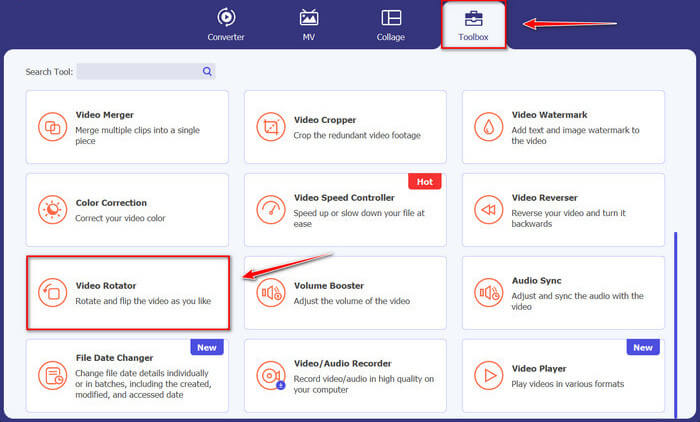
Klikk deretter på funksjonen Toolbox, bla nedover skjermen og velg Video Rotator.
Trinn 3. Importer en GIF-fil
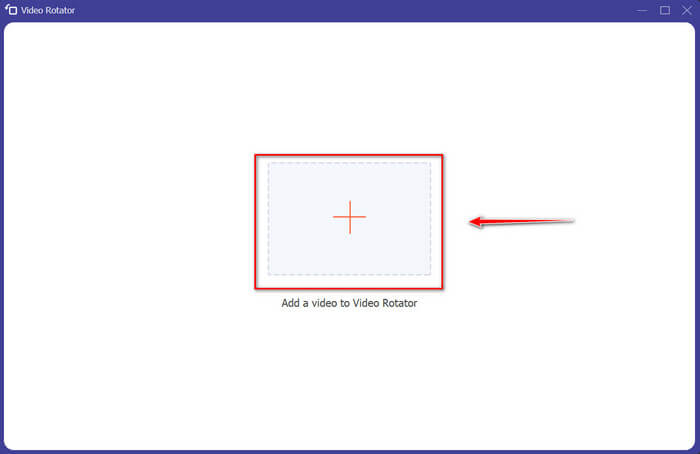
Importer filer du vil rotere og snu ved å dra filer til grensesnittet. Du kan også klikke på +-knappen og velge filer til datamaskinen din.
Trinn 4. Roter GIF-en
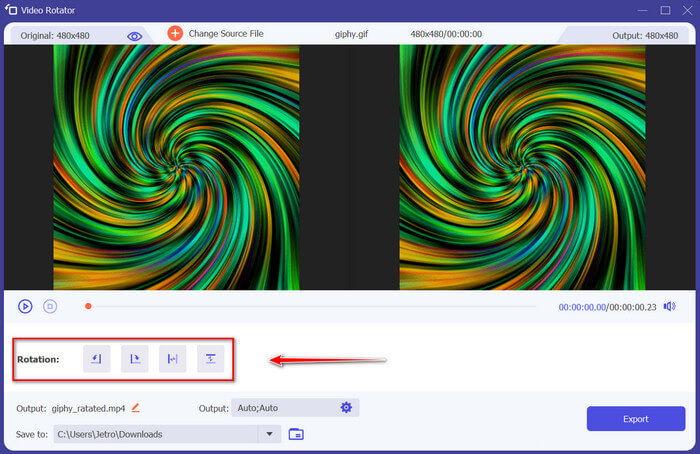
Velg hvordan du vil snu og rotere GIF-en din. Du kan rotere den 90 grader til venstre eller høyre og snu den vertikalt eller horisontalt.
Trinn 5. Last ned den roterte GIF-en
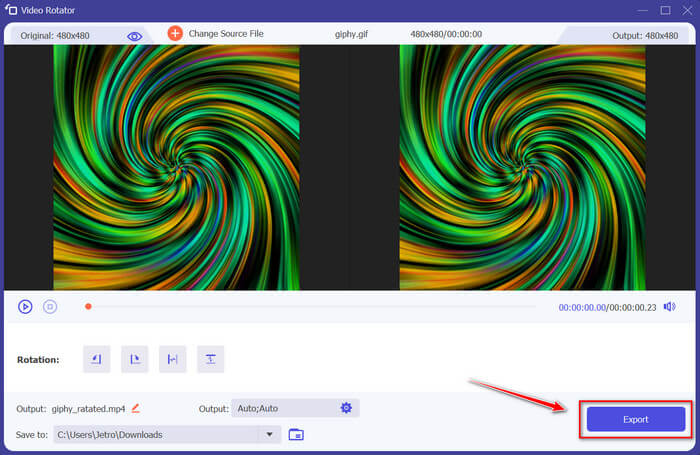
Last ned filen din ved å klikke Export nederst i høyre hjørne av grensesnittet. Etter det vil et vindu vises på skjermen. Klikk Rotate Again for å rotere et nytt videoklipp eller Okay hvis du er ferdig.
2. Photoshop
Et annet flott offline-verktøy som anbefales å bruke, vil hjelpe deg å lære hvordan du roterer og snur GIF-er. Dette verktøyet er stort i størrelse og mer komplisert å bruke, men det har de samme funksjonene som FVC Video Converter Ultimate. Med Photoshop kan du rotere og snu GIF-er som en proff uten å ødelegge kvaliteten. Følg de angitte metodene nedenfor for å få kunnskap om funksjonene og teknikalitetene.
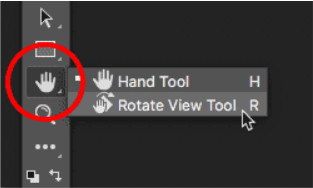
Trinn 1. Last ned og åpne Photoshop på datamaskinen din. Klikk deretter på Hand Tool på listen over funksjoner i Toolbar. Hand Tool er synlig som standard, med Rotate View Tool skjult bak. Klikk og hold på ikonet til Hand Tool til en meny dukker opp for å velge Rotate View Tool. Velg deretter Rotate View Tool fra menyen.
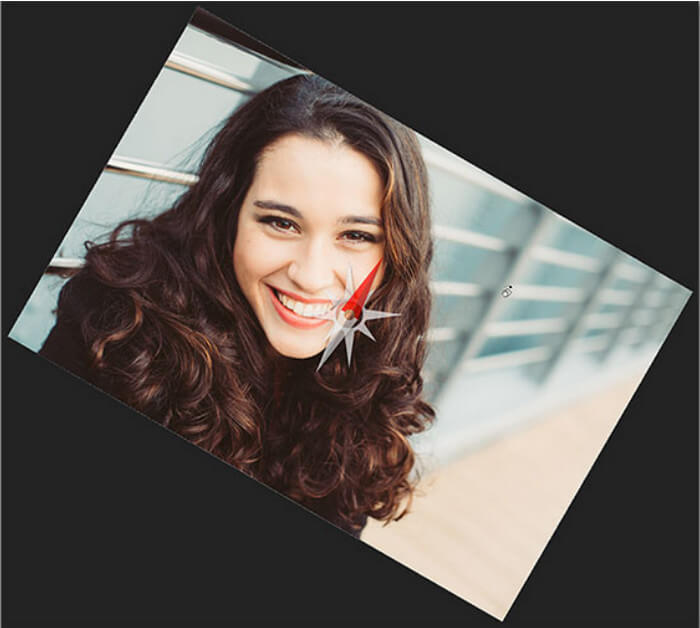
Trinn 2. Hold nede venstre museknapp mens du klikker på bildet med Rotate View Tool. Da vises et kompass i midten. Etter det vil den røde retningsmarkøren øverst på kompasset alltid peke mot toppen av det faktiske bildet, slik at du, selv om du roterer vinkelen, alltid vet hvilken vei som er opp.

Trinn 3. Hold museknappen og dra bildet for å rotere visningen. Dra med eller mot klokken etter behov. Når du roterer visningen, peker kompasset mot den faktiske toppen av bildet. Photoshop lar deg som standard rotere vinkelen fritt. Men hvis du holder nede Shift-tasten mens du drar, vil visningen rotere med 15 grader.
3. Bilder
Noen ganger trenger enkle problemer bare enkle løsninger. Med dette verktøyet trenger du ikke å laste ned programvare og installere apper på enheten din bare for å rotere og snu GIF-er. Ved å bruke Android-telefonen din kan du nå rotere og snu GIF-er når det passer deg. Hvis du ikke er sikker på hvordan du gjør det, følg alle de angitte trinnene nedenfor:
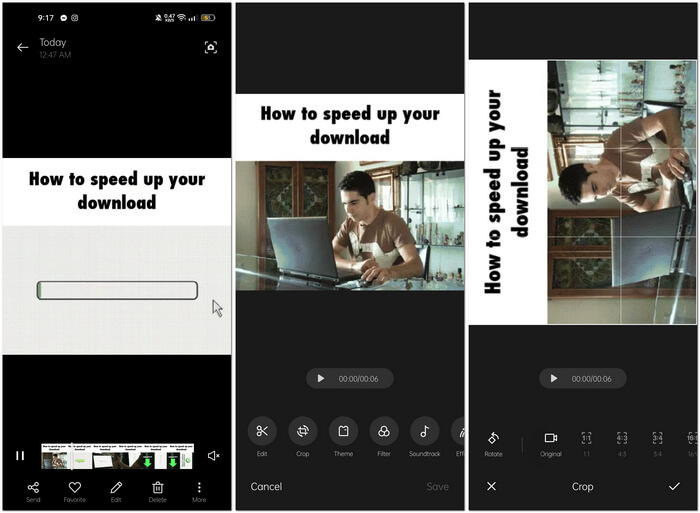
Trinn 1. Åpne telefonen og gå til Photos- eller Image-mappen. Velg en GIF du vil rotere og speilvende. Velg Edit for å begynne å redigere GIF-en din.
Trinn 2. Nederst på skjermen velger du Crop etter at du har valgt et klipp.
Trinn 3. Roter GIF-en din ved å klikke på Rotate. Du kan bare justere GIF-en vertikalt eller horisontalt. Klikk deretter på Check-ikonet for å lagre den justerte GIF-en.
Del 2: Beste online alternative verktøy for å rotere og snu GIF-er
1. LunaPic
Dette nettverktøyet er et lavbudsjettredigeringsprogram som dekker ulike verktøy som er tilgjengelige for et gratis å bruke nettverktøy som kan gi deg et profesjonelt redigeringsperspektiv. Fordi dette nettverktøyet dekker de fleste formater og sosiale medier som er tilgjengelige, blir redigering et stykke kake, og gir en utmerket opplevelse for noen pro-redaktører. Du vil se verktøy som andre nettverktøy ikke tilbyr, spesielt de som hjelper deg med å rotere og snu GIF-er. Grensesnittet er enkelt og kan skreddersys etter hver brukers preferanser. Følg trinnene nedenfor for å bruke dette utmerkede nettverktøyet.
Trinn 1. Klikk på fanen Upload øverst til venstre i nettsidens grensesnitt, og legg til filer ved å klikke Choose file.
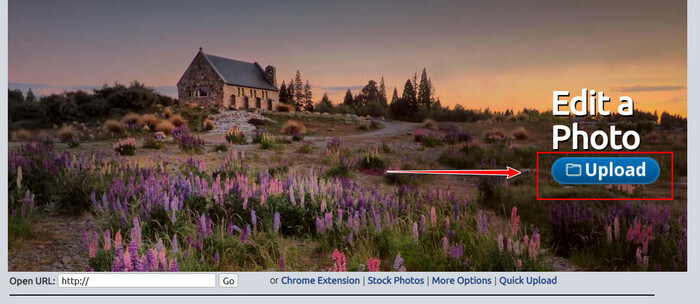
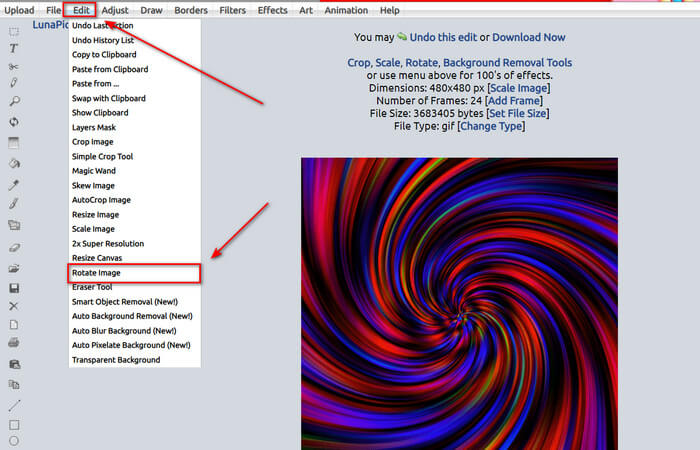
Trinn 2. Du kan redigere GIF-en din i det første grensesnittet etter at du har lastet opp filen. Men hvis du vil justere GIF-ens rotasjon, fortsetter du ved å klikke på fanen Edit og deretter Rotate Image.
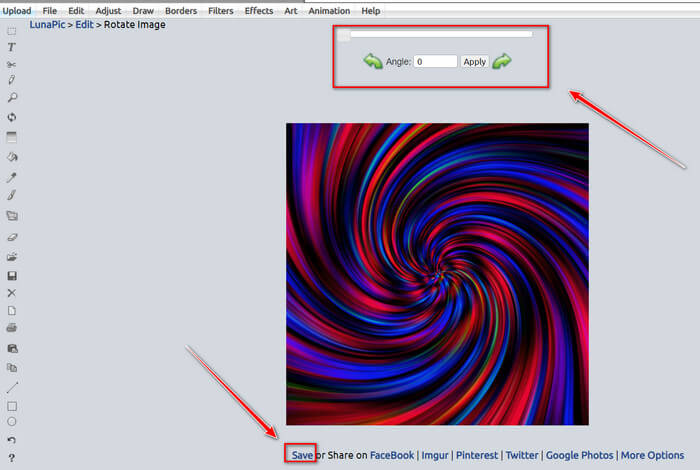
Trinn 3. Juster rotasjonen på GIF-en ved å angi en bestemt grad eller ved å klikke på pilene til venstre og høyre. Last den deretter ned ved å klikke på Save nederst på skjermen.
2. Ezgif
Ezgif.com er en enkel nettbasert GIF-produsent og verktøykasse for å lage og endre grunnleggende animerte GIF-er. Med Ezgif kan du endre størrelse, beskjære, forbedre, optimalisere og spole GIF-er baklengs. En av de beste funksjonene er at du kan rotere GIF-er med enkle trinn. For å lære hvordan du bruker den, følger du trinnene nedenfor:
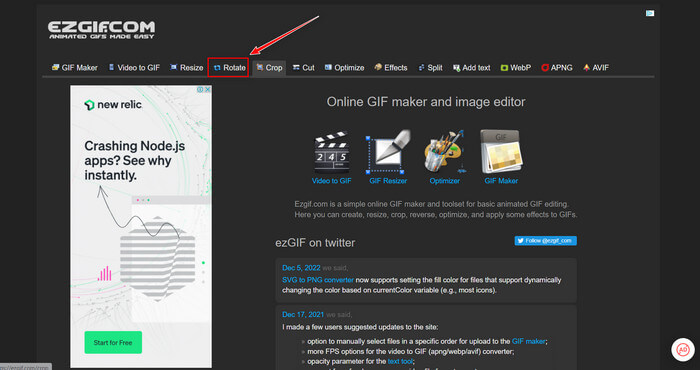
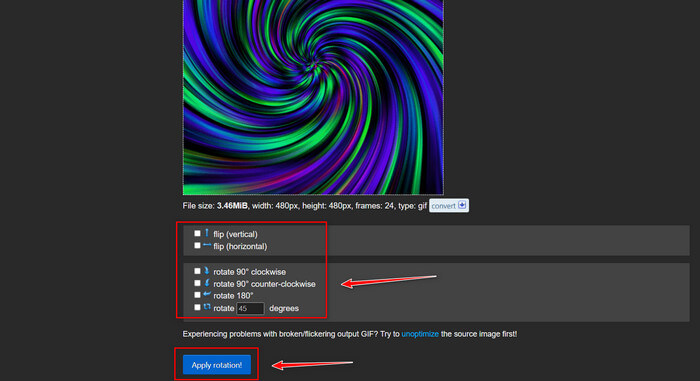
Trinn 1. Velg Rotate på Toolbar øverst på skjermen.
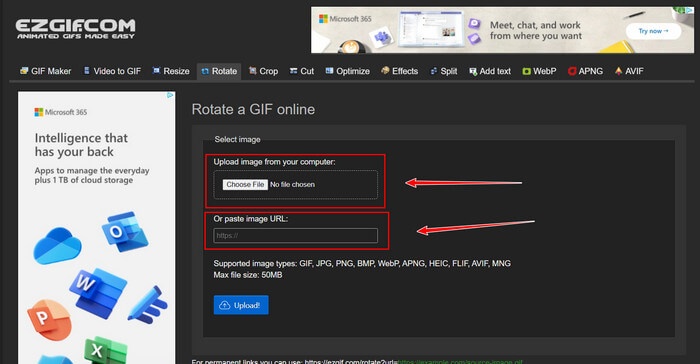
Trinn 2. Importer en fil ved å klikke på Upload File eller kopier URL-en til en GIF og lim den inn i grensesnittet. Klikk deretter Upload.
Trinn 3. Huk av for hvilken retning du vil rotere GIF-en din. Du kan også angi et spesifikt antall grader slik at du kan vippe eller rotere GIF-en etter egen preferanse. Klikk deretter Apply Rotation og klikk på Save-ikonet for å laste ned den justerte GIF-en.
Del 3. Vanlige spørsmål om rotering og vending av GIF-er
Kan jeg rotere GIF-er på iPhone?
Sammenlignet med en Android-telefon er det umulig å rotere GIF-er med en iPhone. Du kan bare rotere GIF-er på iPhone ved å laste ned en tredjepartsapp på nettet.
Kan du slå iPhone-video-GIF-er?
I App Store finnes det flere tredjepartsapper som lar deg lage GIF-er fra videoer, som for eksempel MP4 to GIF. Du har kanskje allerede prøvd en eller flere av dem på enheten din. Forskjellen med denne metoden er at vi bruker den innebygde Snarveier-appen på iPhone eller iPad. Hvis du ikke er klar over det, gir Snarveier tilgang til verktøy som ikke er tilgjengelige direkte i iOS og iPadOS.
Hvordan kan du ikke bruke GIF-er på iPhone-innstillinger?
Rull nedover på Innstillinger-appen og trykk på «Tilgjengelighet». Øverst på skjermen trykker du på "Bevegelse" og kontroller at "Reduser bevegelse" ikke er valgt. Hvis dette er tilfelle, deaktiver det og se om GIF-er fungerer igjen.
Konklusjon
Gjennom hele artikkelen ser vi at GIF-formatet ofte må roteres og speilvendes i orienteringen, noe som er nødvendig når man redigerer videoer. Det finnes mange måter å gjøre dette på, både gratis og betalt, og både uten nett og på nett; disse nettverktøyene og programmene løfter redigeringen til et nytt nivå. Men hvis du vil ha tilgang til redigeringsprogrammet uten at en internettforbindelse kan skape problemer, kan du laste ned Video Converter Ultimate og bruke det som redigeringsverktøy, også på andre videoformater. Det hjelper deg å redigere videoklipp på en profesjonell måte, spesielt ved å rotere og speilvende GIF-er.
-
 Loop GIF med den beste animerte GIF Looper på Windows og Mac
 Vil du vite hemmeligheten for den beste loop GIF? Vil du lage en? I så fall er du på rett sted. Så lær hvordan du lager en loop med den beste tilgjengelige looperen.
-
 4 beste måter å fjerne vannmerket fra GIF [Online & Offline]
 Trenger du å fjerne vannmerke fra GIF? Med verktøyet i denne artikkelen vil du lære de forskjellige stilene med den forskjellige vannmerkefjerneren som er tilgjengelig på plattformen din.
-
 Topp 4 offline og online GIF-forstørrelser du ikke må gå glipp av
 Dette innlegget er for deg hvis du leter etter de beste GIF-forstørrelsene. Vi listet opp de beste online og offline GIF-forstørrelsene for datamaskinen din.
