


 Video Converter Ultimate
 Skjermopptaker
 Videoreparasjon
 Sikker nedlasting
Hvordan konvertere AIFC til MP3 ved å bruke de beste lydkonvertererne
AIFC, forkortelse for Audio Interchange File Format, er et lydformat som opprinnelig ble utviklet av Apple Inc. Det er en standard for lagring av lyddata, og du kan ofte finne AIFF-filer på Mac-systemer. AIFC er en utvidelse av AIFF, hvor de komprimerte variantene er identifisert med en .aifc filtype.
Utfordringen med AIFC-filer ligger i deres begrensede kompatibilitet med ulike enheter og mediespillere. Videre kan kompatibilitetsproblemer skape betydelige utfordringer ved redigering av AIFC-filer dersom redigeringsprogrammet ikke støtter dette formatet. For å løse dette har vi samlet noen effektive metoder som kan hjelpe deg med å konvertere AIFC-filer til det bredt støttede MP3-formatet. Å konvertere AIFC-filene dine til MP3 sikrer bedre kompatibilitet på tvers av enheter og gir sømløse redigeringsmuligheter. La oss utforske disse konverteringsmetodene for å overvinne kompatibilitetshindringer med lydfilene dine.

Del 1. 5 måter å konvertere AIFC til MP3
1. Video Converter Ultimate
Video Converter Ultimate er et pålitelig og profesjonelt AIFC-til-MP3-konverteringsverktøy som er utviklet for å konvertere AIFC-format til MP3 og en rekke andre formater uten problemer. Denne programvaren gjør det mulig å transformere video- og lydfilene dine enkelt og trygt, samtidig som den forbedrer din underholdningsopplevelse offline og sikrer optimal kompatibilitet. Dra nytte av de imponerende funksjonene ved å laste ned programvaren for en gratis prøveversjon i dag.
Gratis nedlastingFor Windows 7 eller nyereSikker nedlasting
Gratis nedlastingFor macOS 10.7 eller nyereSikker nedlasting
Følg disse enkle trinnene for å konvertere AIFC-filene dine til MP3 ved hjelp av Video Converter Ultimate:
Trinn 1. Importer AIFC-filer
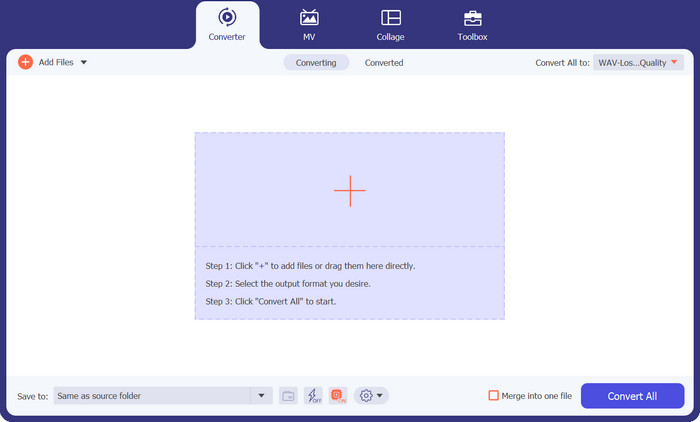
Start programmet etter å ha installert Video Converter Ultimate på Windows- eller Mac-maskinen din. Klikk på knappen Add Files som ligger på den øverste verktøylinjen, og importer AIFC-filene du ønsker å konvertere.
Trinn 2. Velg MP3 som utdataformat
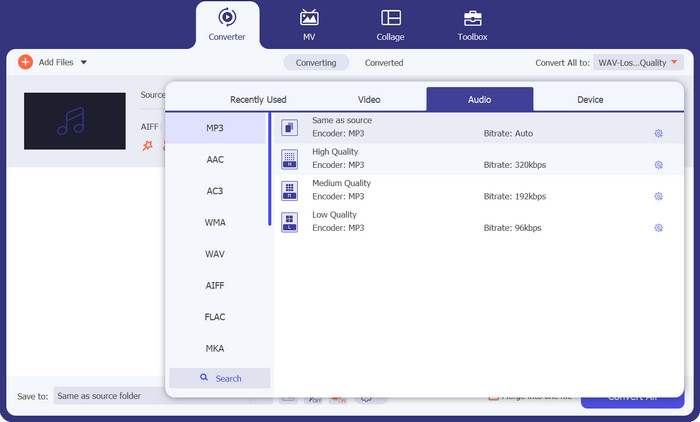
Finn AIFC-lydfilen i biblioteket og klikk på rullegardinmenyen Convert All to som er plassert på høyre side. Velg fanen Audio og deretter MP3 som ønsket utdataformat. Klikk deretter på rullegardinknappen nederst for å bla gjennom og angi en mappe for lagring av de konverterte MP3-filene.
Trinn 3. Konverter AIFC til MP3
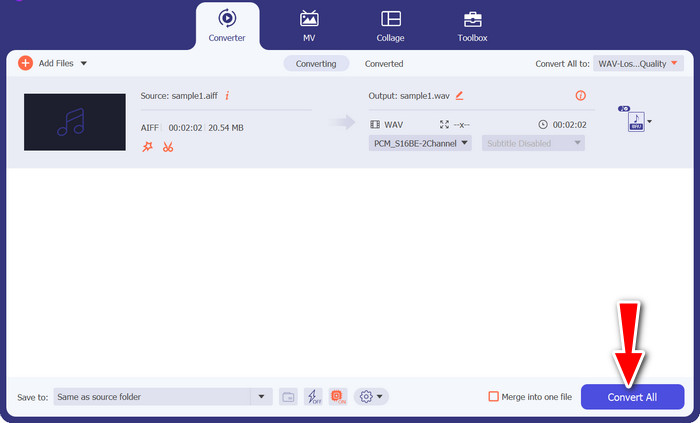
Når du har konfigurert utdata-innstillingene, velger du alle AIFC-filene du vil konvertere i biblioteket. Klikk på knappen Convert All nederst til høyre for å starte konverteringsprosessen, og gjøre AIFC-filene dine om til MP3-format. Etter konverteringen kan du enkelt overføre og spille av MP3-filene dine på enhver kompatibel enhet.
2. iTunes
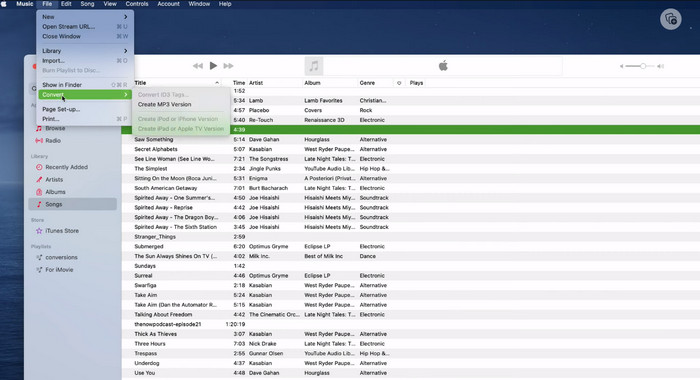
iTunes er en allsidig plattform for å spille, administrere og laste ned musikk og videoer på Mac OS X og Windows OS. I tillegg har den en innebygd evne til å konvertere AIFC-lydfiler. Nedenfor finner du omfattende trinnvise guider for effektiv konvertering av AIFC til MP3 på Mac ved hjelp av iTunes.
Trinn 1. Åpne iTunes på datamaskinen din. På en Mac får du tilgang til iTunes ved å velge iTunes > Preferences fra menylinjen øverst på skjermen.
Trinn 2. I iTunes-innstillingsvinduet går du til General og klikker deretter på Import Settings nederst. I dialogboksen Import Settings klikker du på rullegardinmenyen ved siden av Import Using og velger MP3 Encoder. Klikk OK for å bekrefte valget. Hvis du bruker en Mac, holder du nede Option-tasten, klikker File > Convert > Convert to MP3 og velger mappen som inneholder AIFC-sangene du vil konvertere.
Trinn 3. Når du har fullført konverteringsprosessen, vil sangene bli konvertert til MP3-format og vises i iTunes-biblioteket ditt, klare til avspilling eller overføring til enhetene dine. Etter dette bør du ha lært hvordan du konverterer AIFC til MP3 på Mac.
3. Gratis MP3 Converter Online
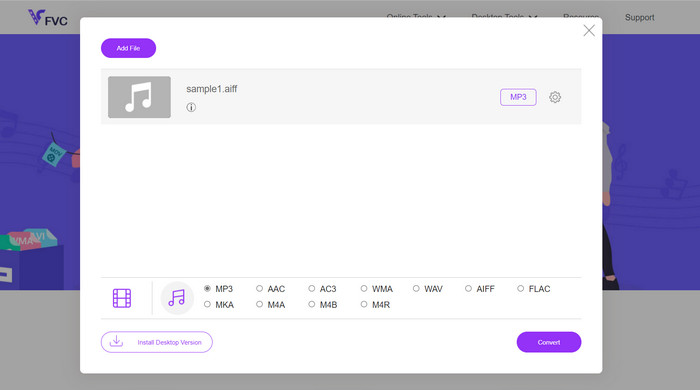
Den enkleste og mest praktiske løsningen er å bruke en pålitelig AIFC-til-MP3-nettkonverterer, og min personlige favoritt er Free MP3 Converter Online. Denne nettbaserte tjenesten krever verken innlogging eller e‑postadresse, og lar brukere legge til filer for direkte konvertering uten bryderi. En bemerkelsesverdig funksjon som er verdt å nevne, er den omfattende støtten for ulike formater.
Trinn 1. Begynn med å gå til programvarens offisielle side. Klikk på knappen Add Files to Convert og velg ønsket AIFC-fil fra datamaskinens harddisk.
Trinn 2. Når filen er lagt til, går du til formatmenyen og velger MP3 som ønsket utdataformat.
Trinn 3. Klikk til slutt på knappen Convert for å starte konverteringsprosessen. I løpet av noen sekunder vil filen være konvertert til MP3-format og lagret direkte på datamaskinen din for enkel tilgang.
4. Zamzar
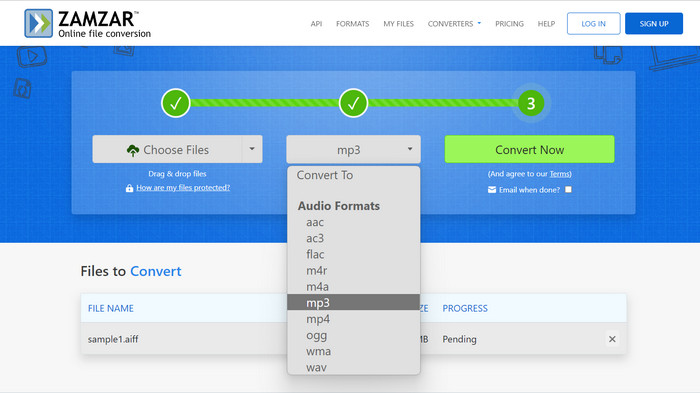
Å velge nettbaserte lydkonverteringsapplikasjoner presenterer et fristende alternativ for å konvertere AIFC til MP3. Uten behov for installasjon håndterer disse applikasjonene lydkonverteringsoppgaven effektivt. For å illustrere prosessen, bruker vi Zamzar som et eksempel.
Trinn 1. Gå til siden for AIFC‑til‑MP3‑konvertering i nettleseren din. Last opp AIFC-filene dine fra datamaskinens harddisk, en URL eller direkte fra skylagringskontoen din.
Trinn 2. For å endre utdataformat klikker du på rullegardinmenyen for format og velger MP3 som ønsket format.
Trinn 3. Når du har konfigurert innstillingene, klikker du på knappen Convert Now for å starte konverteringsprosessen. Vent til konverteringen er fullført, og last deretter ned de konverterte MP3-filene til datamaskinen din for umiddelbar bruk.
5. Convertio
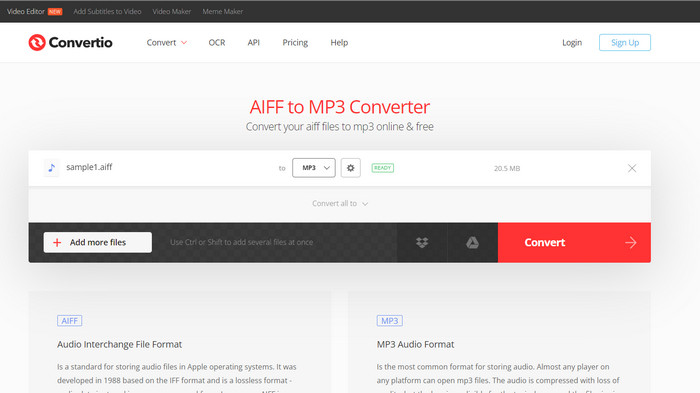
Convertio er ikke begrenset til AIFC til MP3-konvertering alene. Faktisk tilbyr den et bredt spekter av muligheter for å konvertere AIFC-filer til forskjellige andre populære formater, inkludert WAV, WMA, AAC, AC3, FLAC, OGG, RA og mer. Med Convertio kan du enkelt transformere AIFC-filene dine til ditt foretrukne lydformat, noe som gjør det til et allsidig og verdifullt verktøy for lydkonverteringer.
Trinn 1. Besøk Convertio-nettstedet (https://convertio.co/aifc-mp3/) i nettleseren din.
Trinn 2. Klikk på knappen Choose Files for å laste opp AIFC-filene dine fra datamaskinen. Alternativt kan du også dra og slippe filene direkte på nettsiden.
Trinn 3. Etter at du har lastet opp AIFC-filene, klikker du på rullegardinmenyen for utdataformat. Velg MP3 fra listen over tilgjengelige lydformater.
Trinn 4. Klikk på knappen Convert for å starte AIFC‑til‑MP3‑konverteringsprosessen. Vent til konverteringen er fullført.
Mer lesing:
Omtale av de beste AIF til WAV-konverteringsprogrammene [2023]
FLAC vs. MP3: Hvilket lydfilformat er best?
Del 2. Vanlige spørsmål om AIFC til MP3-konvertering
Konverterer QuickTime AIFC til MP3?
Selv om QuickTime kan lese AIFC-filer, har den ikke muligheten til å konvertere AIFC til MP3.
Er AIFC bedre enn AIFF?
AIFC er en populær variant av AIFF som bruker komprimering, noe som resulterer i mindre filstørrelser sammenlignet med AIFF. Denne komprimeringen fører imidlertid også til lavere lydkvalitet enn det originale AIFF-formatet.
Hva er bedre, MP3 eller AIFC?
AIFC er et tapsformat, og kvaliteten bestemmes av den valgte bithastigheten. Å endre bithastigheten kan påvirke om AIFC overgår eller faller bak MP3 i lydkvalitet. Til tross for dette har MP3 omfattende enhetskompatibilitet. Det bedre alternativet mellom MP3 og AIFC avhenger av dine spesifikke krav og preferanser.
Kan jeg konvertere AIFC-filer til MP3 på mobilenheten min?
Ja, noen mobilapper eller online-konverterere tilbyr AIFC til MP3-konvertering direkte på mobilenheten din for enkelhets skyld.
Hvordan kan jeg sikre den beste lydkvaliteten under konverteringsprosessen?
For å oppnå best lydkvalitet, bruk en høyere bitrate under konvertering. Vær imidlertid oppmerksom på at større filstørrelser vil resultere av høyere bithastigheter.
Konklusjon
Konvertering av AIFC til MP3 gir fleksibilitet og bredere enhetskompatibilitet, noe som gjør det til et populært valg for lydkonvertering. Selv om AIFC kan gi bedre kvalitet ved høyere bithastigheter, er MP3 fortsatt et praktisk og allment akseptert alternativ til daglig bruk.
-
 Beste 4 måter å konvertere AIFF til MP3 på Mac og PC
 Har du problemer fordi AIFF-filer er for store til å lagres? Så du må fortsette å lese mens vi forklarer hvordan du fikser det ved å konvertere AIFF til MP3-format.
-
 MP3-spillernedlasting – 10 beste gratis MP3-musikkspillere i 2023
 lue er den beste MP3-musikkspilleren? Hvordan legger jeg musikk på en MP3-spiller? Hvordan laste ned MP3-musikkspilleren? Dette innlegget gir deg en detaljert gjennomgang av 10 beste gratis MP3-spillere for Windows PC og Mac.
-
 5 MP3-kuttere for å kutte hvilken som helst lyd enkelt [2023 Oppdatert]
 Trenger du en MP3-kutter for å trimme lyden? I så fall, les denne artikkelen fordi vi tilbyr verktøyene du kan stole på som gir enkel skjæring av lyden.
