


 Video Converter Ultimate
 Skjermopptaker
 Videoreparasjon
 Sikker nedlasting
Hvordan fargekorrigere med de 5 beste verktøyene du må ha
Fargekorrigering er en grunnleggende prosess i videoredigering som forbedrer og blander fargene i en video, og gir et visuelt tiltalende og iøynefallende resultat. Det innebærer å justere en videos kontrast, metning, lysstyrke og fargetoner for å oppnå den perfekte visuelle stemningen. Enten du er en profesjonell videofotograf eller en spirende innholdsskaper, er det å forstå hvordan du utfører fargekorrigering en «game-changer» for å levere engasjerende visuelle uttrykk. Prosessen starter med å identifisere og analysere den eksisterende fargebalansen, høylys, skygger og mellomtoner i videomaterialet. Deretter gjøres justeringer ved hjelp av spesialisert programvare som gir presis kontroll over disse fargeelementene. La oss gå i dybden i denne artikkelen for å lære hvordan du fikser fargeproblemer i video med de beste verktøyene du kan stole på.

Del 1. Fem måter på hvordan fargekorrigere video
Å finne forskjellige gratis fargekorrigeringer for videoredigering på nettet for å heve videoens visuelle appell kan være så enkelt som du tror. Men å se etter mer avanserte og pålitelige er litt vanskelig å skape den rette stemningen for videoene dine. Oppdag fem effektive måter å perfeksjonere videoens farger ved å bruke ulike allsidige programvarer, forbedre historiefortellingen og engasjere publikum.
1. Video Converter Ultimate
Video Converter Ultimate er en alt-i-ett videoløsning som gjør det mulig å forbedre videokvaliteten ved å justere viktige parametere som lysstyrke, kontrast og metning. Denne praktiske fargekorrigereren lar deg også redigere videoer med funksjoner som klipping, beskjæring og sammenslåing. I tillegg tilbyr den et vell av alternativer for videokonvertering, slik at du kan gjøre om videoer til tusenvis av formater og tilpasse dem til ulike enheter som MP4, MKV, MOV, MP3, AAC, GIF, iPhone, Samsung og Apple TV, slik at de kan nytes på forskjellige plattformer. Dessuten kan brukere legge til undertekster og vannmerker for å gjøre videoene sine mer personlige. Med et brukervennlig grensesnitt er dette verktøyet perfekt enten du er nybegynner eller erfaren. Følg trinnene nedenfor for å lære hvordan du lykkes med fargekorrigering av videoen din ved hjelp av Video Converter Ultimate.
Trinn 1: Last ned og installer fargekorrigereren
Først laster du ned verktøyet ved å klikke på en av knappene for Gratis nedlasting nedenfor. Avhengig av operativsystemet på datamaskinen din må du sørge for å laste ned den versjonen av Video Converter Ultimate som passer til din datamaskin. Følg instruksjonene for å installere det.
Gratis nedlastingFor Windows 7 eller nyereSikker nedlasting
Gratis nedlastingFor macOS 10.7 eller nyereSikker nedlasting
Trinn 2: Start Video Converter Ultimate
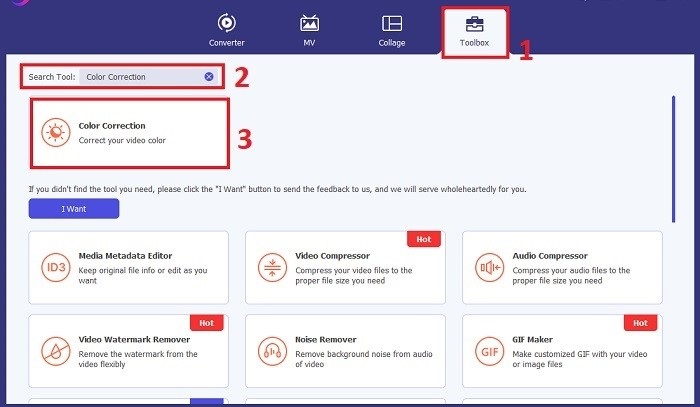
Når programmet er installert, åpner du Video Converter Ultimate. Gå til Verktøykasse i hovedmenyen og se etter funksjonen Color Correction. Klikk på den for å fortsette.
Trinn 3: Importer videoen for fargekorrigering
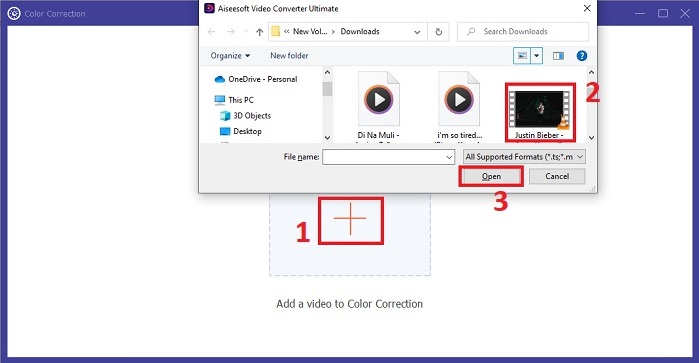
Klikk nå på Pluss-knappen for å importere videoen du vil fargekorrigere. Finn videofilen på datamaskinen din. Velg deretter Åpne for å hente den inn i programvaren.
Trinn 4: Juster videofargeinnstillinger og lagre
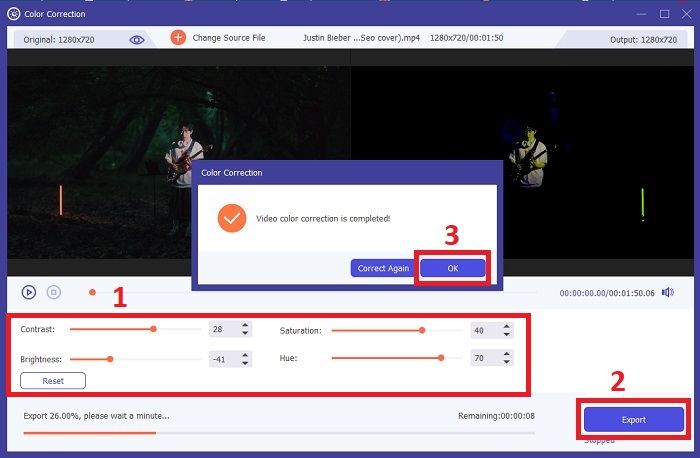
Etter at du har importert videoen, finjusterer du fargeparametere som lysstyrke, kontrast, metning og fargetone for å oppnå ønsket fargekorrigering. Når du er fornøyd med fargejusteringene, klikker du på Eksporter. La verktøyet behandle videoen og lagre den korrigerte versjonen på ønsket plassering.
2. Fargekorreksjon Premiere Pro
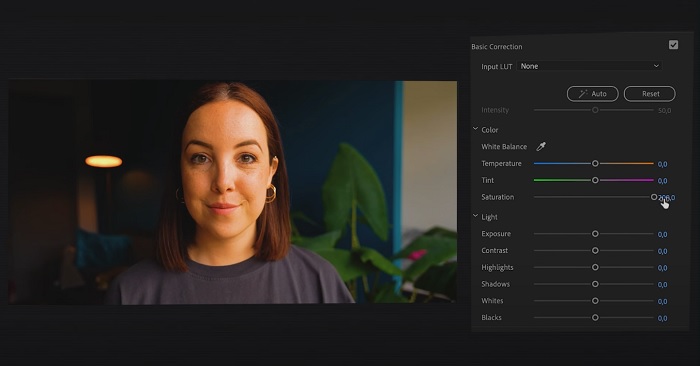
Premiere Pro er kjent for sin høykvalitets videoredigeringsprogramvare og omfattende fargekorrigeringsevner. Den tilbyr forskjellige fargegraderingsverktøy og effekter for å gjøre nøyaktige justeringer. Color Correction Premiere Pro lar deg justere fargebalanse og eksponering eller bruke kreative utseende for å oppnå ønsket visuell stil. Du kan også velge mellom hundrevis av innebygde videoeffekter og overganger eller starte med profesjonelt utformede maler og endre dem for å lage ønsket utgang. Dessuten har den samarbeidsfunksjoner og integreres jevnt med annen Adobe-programvare, noe som gjør den til et toppvalg blant profesjonelle.
Trinn 1. Start med å åpne Premiere Pro og importere videoen din. Gå deretter til Color workspace.
Trinn 2. I Color workspace bruker du Lumetri Color-panelet til å justere eksponering, fargebalanse og kreative uttrykk.
Trinn 3. Bruk scopes for å sikre at fargejusteringene er nøyaktige og samsvarer med ønsket resultat. Til slutt forhåndsviser du og eksporterer den korrigerte videoen.
3. Davinci Resolve Color Correction
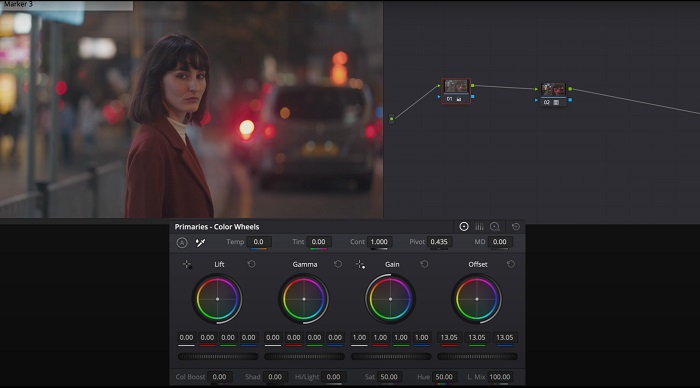
Utforsk de eksepsjonelle fargegraderingskapasitetene. Denne alt-i-ett-programvaren kombinerer profesjonell redigering, fargekorrigering, visuelle effekter og lydpostproduksjon. Med verktøyets brukervennlige grensesnitt og omfattende funksjonssett kan du bringe din kreative visjon til live med presisjon og stil. Davinci Resolve Color Corrections avanserte fargegraderingsverktøy lar deg få videoene dine til å skille seg ut. Enten du jobber med banebrytende Hollywood-filmer eller personlige prosjekter, gir dette verktøyet fagfolk og entusiaster mulighet til å lage overbevisende fortellinger med uovertruffen kvalitet.
Trinn 1. Åpne Davinci Resolve og importer videoen din. Når den er importert, går du til «Color»-fanen.
Trinn 2. I Color-fanen bruker du fargehjul, kurver og noder for å korrigere fargen i videoen din. Du kan bruke tilgjengelige scopes for presise justeringer.
Trinn 3. Etter at du har gjort nødvendige fargejusteringer, forhåndsviser du den korrigerte videoen for å forsikre deg om at den innfrir forventningene. Når du er fornøyd, eksporterer du den korrigerte videoen slik at den er klar til bruk.
4. Final Cut Pro Color Correction
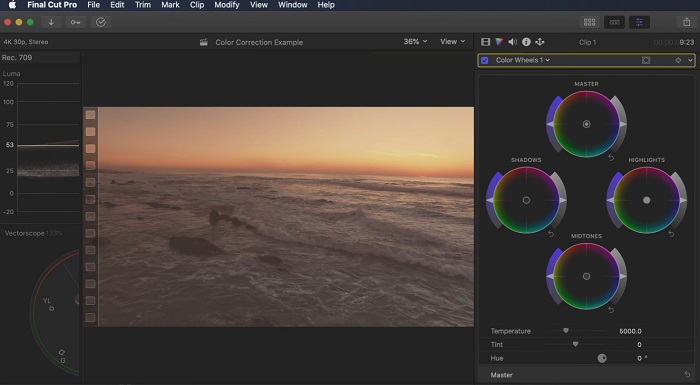
Hvis du er en Mac-bruker på jakt etter et videoredigeringsprogram i toppklasse, er Final Cut Pro et flott alternativ. Den har et brukervennlig grensesnitt og kraftige funksjoner som gjør redigering til en lek. Når det gjelder fargekorrigering, tilbyr Final Cut Pro et fargebrett og fargehjul for justering av eksponering, metning og fargetone. Du kan bruke fargeeffekter i sanntid og bruke avanserte graderingsverktøy for å forbedre opptakene dine. I tillegg eksporterer den jevnt til Apple-enheter og populære nettplattformer. Hvis du er en profesjonell person som søker effektivitet og kreativitet, er Final Cut Pro en enkel sak. Sørg for at du har macOS 13.4 eller nyere og en Mac-datamaskin med Apple-silisium for optimal ytelse.
Trinn 1. Du kan starte med å importere videoen din i Final Cut Pro, og deretter gå til Color workspace.
Trinn 2. Bruk Color Board eller Color Wheels for å gjøre grunnleggende justeringer av eksponering, metning og fargetone.
Trinn 3. Foreta ytterligere finjustering av videofargene ved hjelp av ekstra fargegraderingsverktøy for å sikre best mulig resultat. Når du er ferdig, forhåndsviser og eksporterer du den korrigerte videoen.
5. Fargekorrigering etter effekter
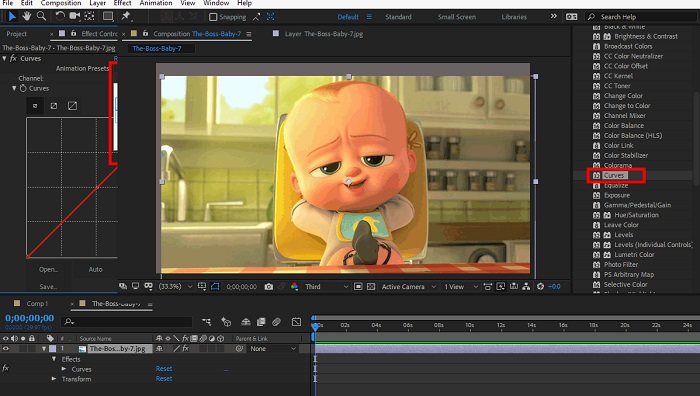
After Effects er en kjent programvare for bevegelig grafikk og visuelle effekter med robuste fargekorrigeringsmuligheter. Bortsett fra de grunnleggende fargekorrigeringseffektene, gir den forskjellige justeringslag og effekter for å forbedre og endre farger. Du kan raskt animere tekst og grafikk, og bringe dem til live med fengslende bevegelser. Color Correction After Effects lar deg utnytte nivåer, kurver og blandingsmoduser for å oppnå ønsket fargegradering. Det er et allsidig fargekorrigeringsalternativ takket være integrasjonen med forskjellige Adobe-produkter og et stort fellesskap som tilbyr opplæringsprogrammer og plugins. Dessuten utvikles programvaren kontinuerlig, og introduserer funksjoner som et intuitivt egenskapspanel, transparent lagkontroll og effektiv multi-frame-gjengivelse som strømlinjeformer arbeidsflyter og holder kreasjoner på forkant av kreativitet.
Trinn 1. Importer videoklippet ditt i prosjektet i verktøyet. Påfør fargekorrigeringseffekter ved å gå til panelet Effects & Presets og velge passende fargekorrigeringsverktøy som Curves, Levels eller Color Balance.
Trinn 2. Klikk på den påførte fargekorrigeringseffekten for å få tilgang til innstillingene. Endre deretter verdier som eksponering, kontrast, metning og fargetone for å korrigere og forbedre fargene i videoen din.
Trinn 3. Forhåndsvis videoen i Composition-panelet for å se hvordan fargekorrigeringen påvirker opptaket. Finjuster justeringene basert på forhåndsvisningen, slik at du oppnår ønsket fargekorrigering, og gå deretter videre til å rendre eller eksportere den korrigerte videoen.
Mer lesing:
Beste gratis bilde-fargeforsterkerapper på Android og iOS
4 fantastiske måter å legge til et filter på en video i Windows og macOS
Del 2. Vanlige spørsmål om videofargekorrektorer
Hvordan utfører jeg fargekorrigering på en iMovie?
For å korrigere farger i iMovie importerer du videoklippet ditt, velger det og klikker på knappen Color Correction (tryllestav-ikonet). Juster skyvebryterne for eksponering, metning og farge for å oppnå ønsket uttrykk.
Hvordan får jeg tilgang til fargekorrigeringsverktøy i OpenShot?
I OpenShot Video Editor Color Correction velger du et klipp, går til fanen Effects og klikker på Color Correction. Juster skyvebryterne for lysstyrke, kontrast, fargetone og metning for å oppnå ønsket fargekorrigering.
Hvordan får jeg tilgang til fargekorrigeringsverktøyene i Sony Vegas?
I Sony Vegas Color Correction velger du klippet du vil fargekorrigere, går til fanen Video FX og søker etter Color Corrector. Dra og slipp den på klippet og juster fargeegenskapene i vinduet Effect Controls.
Konklusjon
Å mestre fargekorrigering er avgjørende for å forbedre den visuelle appellen i videoene dine og skape en fengslende seeropplevelse. I denne veiledningen har vi sett på fem kraftige fargekorrigeringsverktøy for å oppnå upåklagelig fargekorrigering. Hvis du er på utkikk etter videoredigeringsverktøy av høy kvalitet, bør du vurdere å bruke Video Converter Ultimate, Premiere Pro, Final Cut Pro, DaVinci Resolve eller After Effects. Disse programmene tilbyr et bredt spekter av funksjoner og muligheter som hjelper deg med å lage profesjonelle videoer. Hvert program har sitt eget sett med funksjoner og egenskaper som appellerer til ulike preferanser og erfaringsnivåer.
-
 Hvordan legge til og lage et Instagram-filter før du legger ut bilde og video
 Hva er filtrene på Instagram? Hvordan bruke det? Hvordan lage en? Disse spørsmålene vil ha enkle svar i dette innlegget, så les dem.
-
 Problemfrie metoder for å konvertere bilder til svart-hvitt
 Vil du få bildene dine til å se nostalgiske ut? Vi har et svar til deg. Dette innlegget vil tilby bemerkelsesverdige måter å konvertere et fargebilde til svart-hvitt.
-
 6 favorittvalg Snapchat-animerte Snapchat-filtre på Snapchat
 Vil du vite de beste måtene å legge til filtre på Snapchat-videoer? Vel, du kan klikke på dette og lære de forskjellige filtrene du kan bruke til å bruke på Snapchat-videoer.
