


 Video Converter Ultimate
 Skjermopptaker
 Videoreparasjon
 Sikker nedlasting
Hvordan konvertere zoomopptak til MP4 på Windows- og Mac-datamaskiner
Zoom er en plattform som muliggjør videosamtaler, som møter og nettundervisning. Vanligvis lagrer den opptak i et format som kan spilles av på de fleste enheter, for eksempel MP4. Hvis du derimot ved et uhell stopper opptaket for tidlig, kan filen bli sittende fast i plattformens opprinnelige format, .zoom, som du ikke kan åpne med en gang. Dette skjedde fordi Zoom ikke fikk muligheten til å konvertere filen automatisk til MP4. Hvis dette skjer med deg, må du konvertere Zoom til MP4 enten i eller utenfor plattformen. Heldigvis finnes det noen måter å få Zoom til å fullføre denne konverteringsprosessen på. Vi viser deg hvordan du gjør det ved å bruke selve Zoom-programmet og et eget verktøy som følger med Zoom. Hvis det ikke fungerer for deg, har vi listet opp andre verktøy du kan bruke i stedet. La oss derfor gå rett til innholdet!

Del 1. Er Zoom-opptak i MP4
Først og fremst produserer Zoom MP4-opptak, som er standardoppsettet. Dette vil imidlertid ikke skje på et øyeblikk. Det vi mener er at under innspillingen er råopptaket ditt ennå ikke i MP4-formatet du tror det er. Faktisk, som nevnt ovenfor, er opptakene fra prosessen fortsatt i .zoom-format, som er plattformens proprietære format, og vil først bli omgjort til MP4 når opptaket er gjort og konverteringen er fullført. Dette gjelder spesielt når du stopper opptakene ved et uhell.
Del 2. 3 måter å konvertere zoomopptak til MP4 med zoom
La oss nå gå videre til de effektive verktøyene som vil hjelpe deg med å konvertere Zoom-opptak til MP4 hvis du ikke klarer å ha en på plattformen.
1. Zoom-klient (skrivebord)
Visste du at Zoom holder styr på alle opptakene dine i skrivebordsklientapplikasjonen? Ikke bare kan du enkelt få tilgang til opptakene dine, men Zoom har også en innebygd omformer. Dette vil sikre avspillingskompatibilitet på de fleste enheter. Derfor, hvis du er usikker på hvordan du bruker den, her er en detaljert oversikt over hvordan du finner og konverterer Zoom-opptakene dine til MP4-format.
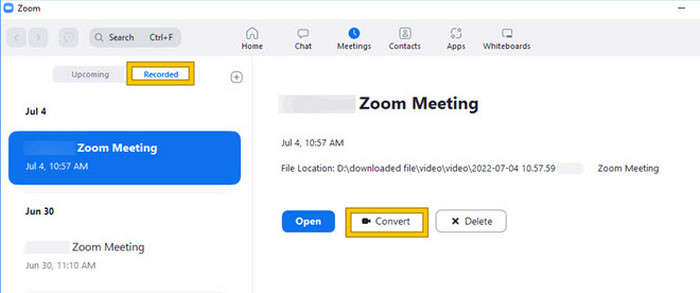
Trinn 1. Start Zoom på datamaskinen din og gå direkte til delen Meetings for å åpne møtehistorikken din.
Trinn 2. Når den er åpnet, ser du en liste over de opptatte møtene dine. Finn opptaket du vil konvertere, og klikk for å velge det.
Trinn 3. Når det er valgt, vises et valg på høyre side av skjermen. Klikk på knappen Convert og vent på det endelige konverterte MP4-resultatet.
2. Omkode (macOS)
Hvis du er en Mac-bruker og Zooms automatiske opptakskonvertering til MP4 mislykkes, så er her et hendig verktøy kalt Transcode for å hjelpe deg. Dette verktøyet lar deg manuelt konvertere .zoom til MP4-filer, som kanskje ikke spilles riktig på grunn av den mislykkede automatiske konverteringen. I hovedsak gir Transcode en manuell løsning for Mac-brukere for å sikre at deres Zoom-opptak er tilgjengelige og brukbare når den automatiske prosessen ikke fungerer som forventet.
Trinn 1. Finn .zoom-filen din, dobbeltklikk på den, og velg Choose Application i dialogboksen. Åpne deretter filen med appen Transcode, som du også kan angi som standardapp for filene dine.
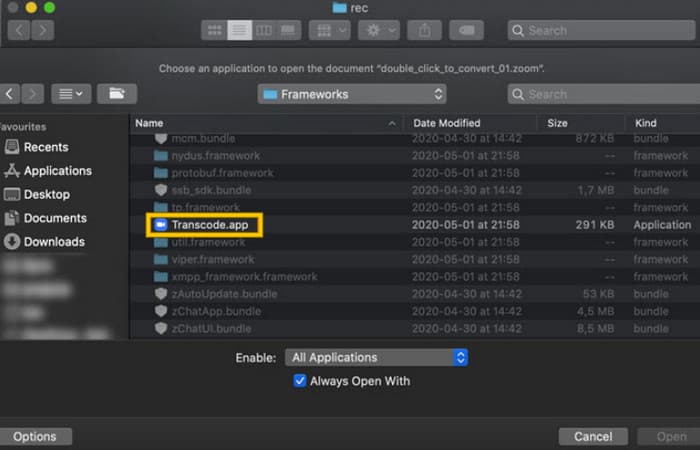
Trinn 2. Rett etter at du har valgt appen, starter konverteringsprosessen automatisk.
Trinn 3. Når konverteringsprosessen er ferdig, velger du ønsket mappe der du vil lagre resultatfilen.
3. zTscoder (skrivebord)
Hvis du vil ha et verktøy som ligner det forrige for skrivebordet ditt, anbefaler vi zTscoder. zTscoder er Windows-versjonen av Transcode, som er programmet Mac-brukere stoler på for lignende situasjoner. Begge verktøyene lar deg manuelt konvertere Zoom-filene dine til standard MP4-format, som kanskje ikke spilles riktig. Derfor, hvis du nå står overfor skrivebordet, følg trinnene nedenfor.
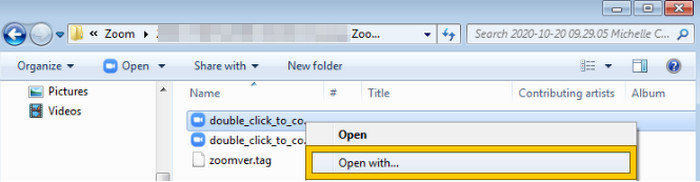
Trinn 1. Finn mappen der Zoom-opptakene dine er lagret, og velg den du trenger å konvertere. Høyreklikk på filen og åpne den med zTscoder.
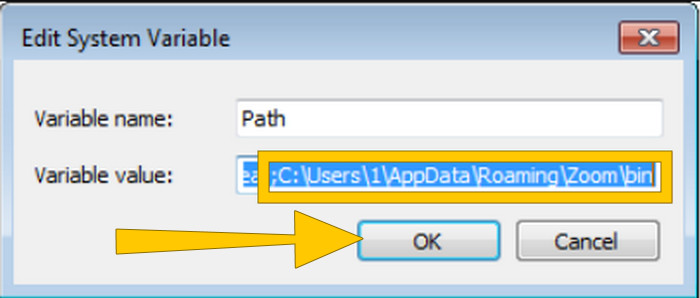
Trinn 2. Hvis verktøyet ikke svarer, kan du gå til Kontrollpanel, navigere til System og sikkerhet > System, og deretter åpne Avanserte systeminnstillinger. Der legger du til C:\Users\*brukernavnet ditt*\AppData\Roaming\Zoom\bin i variabelverdien, og klikker deretter OK.
Trinn 3. Når filen er satt opp til å åpnes med verktøyet, starter konverteringsprosessen automatisk.
Del 3. Ta opp Zoom-møter i MP4 med opptil 4K-kvalitet
Vil du ha en god løsning for å lagre Zoom-møtene dine som MP4? Ta dem opp med FVC Screen Recorder! Dette opptaksprogrammet tilbyr en allsidig løsning som går lenger enn bare Zoom-møter. Verktøyet lar deg ta opp nettundervisning, konferanser, veiledninger eller hva som helst som vises på Zoom-skjermen din. I tillegg har du fleksibiliteten til å ta opp hele skjermen eller bare et bestemt vindu, siden det tilbyr innstillinger for dette. Det kan også ta opp mikrofonlyd, systemlyd og til og med webkameraet ditt, så lenge du går gjennom innstillingene på forhånd. Programvaren er kompatibel med både Mac og Windows og lar deg lagre opptakene dine i høykvalitetsformater, inkludert opptil 4K-oppløsning. En annen god grunn til å like FVC er at det går et skritt videre ved å tilby annoteringsverktøy som lar deg fremheve viktige punkter under opptaket. Her er hvordan du konverterer Zoom-opptak til MP4.
Trinn 1. Installer opptakeren på datamaskinen din. Du kan bruke Nedlastings-knappen nedenfor. Mens du er i installasjonsprosessen, åpner du Zoom-møtet du vil ta opp som MP4.
Gratis nedlastingFor Windows 7 eller nyereSikker nedlasting
Gratis nedlastingFor MacOS 10.7 eller nyereSikker nedlasting
Trinn 2. Start konverteren og klikk på verktøyet Video Recorder. Deretter må du stille inn skjermområdet slik at det dekker hele Zoom-møtegrensesnittet. Du kan også stille inn Systemlyd og Mikrofon hvis du ønsker det.
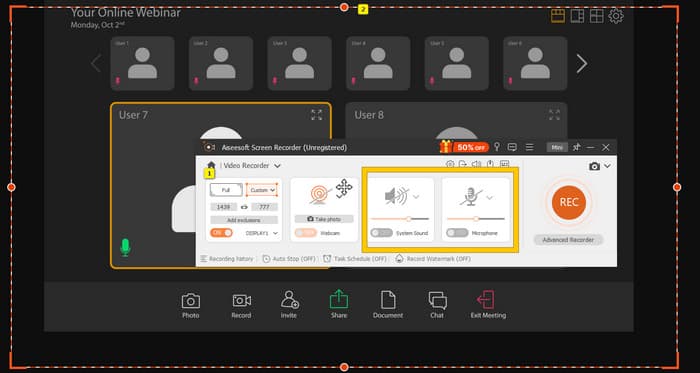
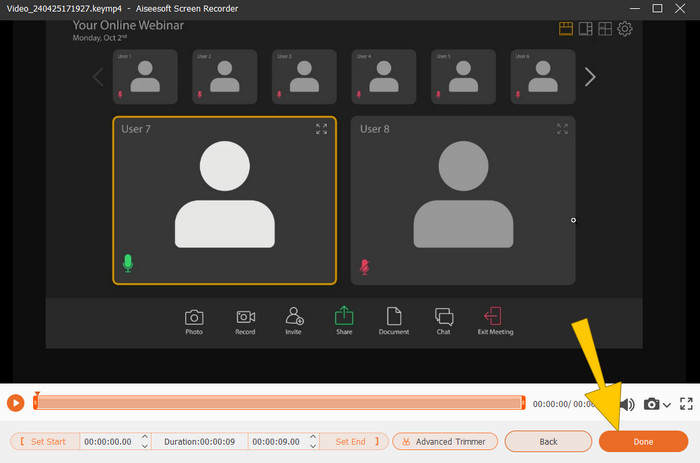
Trinn 3. Deretter klikker du på REC-knappen for å starte opptaket. Når møtet er over, klikker du på Stopp-knappen på den flytende linjen. Deretter kan du gjøre noen små justeringer i det nye vinduet. Hvis ikke, klikker du på DONE-knappen for å gå videre til lagring av opptaket.
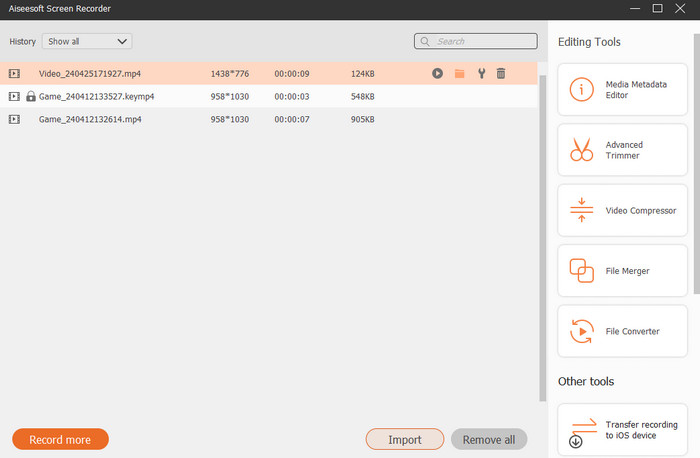
Trinn 4. For flere redigeringsmuligheter vil verktøyet ta deg til biblioteket sitt, der du ser opptakslisten din. Redigeringsverktøyene som du fritt kan bruke, finnes også der.
Utvidet lesing:
6 fantastiske MP4-opptaksverktøy i 2024 [Gratis og premium]
Topp 5 Zoom-møteopptakere for å ta opp møter i Zoom [2024]
Del 4. Vanlige spørsmål om konvertering av zoomopptak
Er Zoom-opptak MP4?
Ja. Det kan imidlertid hende at opptakene ikke er i MP4 hvis de ble stoppet ved et uhell.
Er det en grense for varigheten av opptak jeg kan konvertere til MP4?
Det kommer an på. Gratis kontoer kan ha begrensninger på lagringsplass og konverteringsalternativer, mens betalte planer vanligvis tilbyr mer fleksibilitet og høyere grenser.
Hvordan kan jeg konvertere et Zoom-opptak til MP4?
Du kan konvertere et Zoom-opptak til MP4 med Zoom-klienten siden den har en innebygd konverteringsfunksjon. Når du åpner opptaket, trenger du bare å klikke på Konverter-knappen.
Konklusjon
Som standard lagres Zoom-møter i MP4, men hvis opptakene ikke blir riktig lagret, må du likevel konvertere Zoom-opptak til MP4. Heldigvis er det presentert effektive måter å gjøre denne konverteringen på i dette innlegget. Vi håper du synes det er nyttig.
-
 7 av Magnificent Voice Recorder tilgjengelig på alle plattformer
 Vil du lære hvordan du gjør lydopptak? Gå deretter til denne artikkelen mens vi snakker om den beste lydopptakeren som kan passe inn i dine behov.
-
 CamStudio 2025-gjennomgang: Fordeler og ulemper ved å bruke CamStudio
 CamStudio er et fantastisk gratis program med åpen kildekode for å fange opp skjermen. Er CamStudio skjermopptaker trygg? Denne anmeldelsen vil hjelpe deg med å oppdage alle funksjonene i CamStudio.
-
 Gjennomførbare måter på hvordan du kan spille inn lyd med VLC Player
 Lær de beste måtene å spille inn lyd med VLC -spiller og andre praktiske verktøy, ved å lese gjennom artikkelen.
