


 Video Converter Ultimate
 Skjermopptaker
 Videoreparasjon
Hvordan beskjære en GIF ved hjelp av de beste GIF -cropperne
Å velge de riktige GIF‑ene til meldingen er helt nødvendig for å formidle riktig tone i det du sikter til. Men noen GIF‑er må beskjæres for å vise den egentlige hensikten med GIF‑en. Hvis du prøver å beskjære GIF‑ene dine, skal kvaliteten på GIF‑ene dessuten ikke forringes, og de bør beholde samme bilderate (fps). Å velge riktig verktøy for å beskjære GIF‑er kan til tider være litt vanskelig, fordi ikke alle verktøy gir deg mulighet til å beskjære. Og noen av verktøyene som faktisk kan beskjære, gjør at GIF‑ene mister kvalitet og bilderate. I denne artikkelen kan du velge den beste GIF‑beskjæreren; alle verktøyene som er listet opp er allerede testet av oss for å gi deg pålitelig dokumentasjon. Vi presenterer også den beste GIF‑beskjæreren som finnes på alle plattformer, og hvordan du bruker den. Les videre for å finne ut mer.

Del 1. Den beste GIF Cropper som støtter Windows og Mac -operativsystemer
1. FVC gratis video til GIF Maker
Dette verktøyet er tilgjengelig på alle plattformer som Windows og Mac. Det er den beste animerte GIF‑beskjæreren utviklet av FVC – nemlig FVC Free Video to GIF Maker. Denne programvaren lar brukerne utforske og forbedre GIF‑er de allerede har laget, eller lage nye GIF‑er om de ønsker det. Hvis du vil beskjære GIF‑en din, hjelper dette verktøyet deg med å gjøre det selv uten nettilgang. Beskjær GIF‑en din for å gjøre den mer tydelig og gjenkjennelig, på en enkel og effektiv måte. Følg trinnene nedenfor for å lære hvordan du beskjærer GIF‑en din.
Trinn 1. Installer verktøyet på disken din og juster innstillingene etter behov.
Gratis nedlastingFor Windows 7 eller nyereSikker nedlasting
Gratis nedlastingFor MacOS 10.7 eller nyereSikker nedlasting
Trinn 2. Et lite grensesnitt som dette vil vises på skjermen etter at du har startet verktøyet.
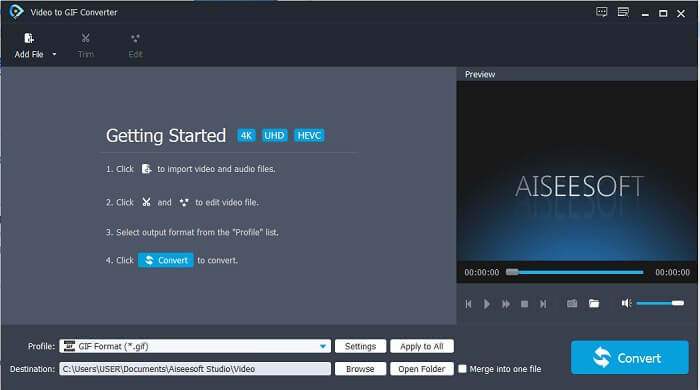
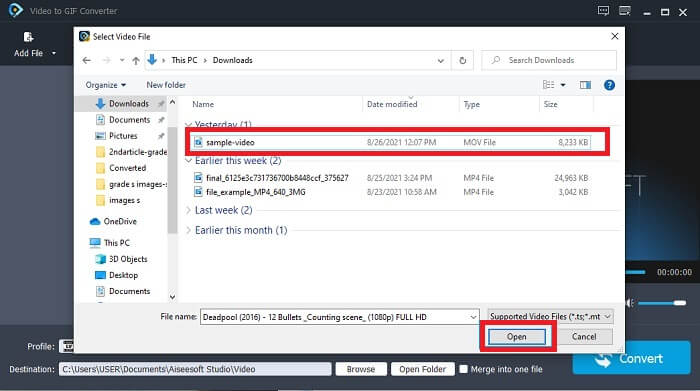
Trinn 3. Klikk på Add File, eller du kan også dra og slippe videofilen inn i verktøyets grensesnitt.
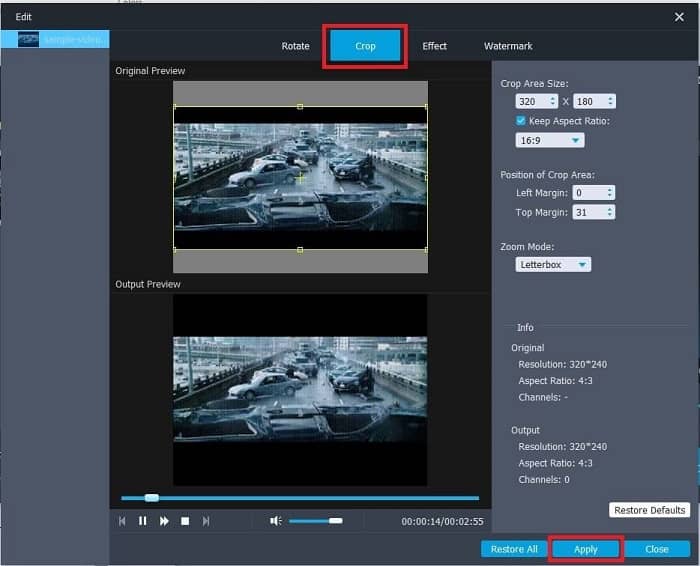
Trinn 4. Trykk på Edit for å forbedre GIF‑en din. Gå til Crop og juster størrelsen på GIF‑en. Du kan også endre Aspect Ratio og Zoom Mode. Klikk Apply for å lagre justeringene du har gjort.
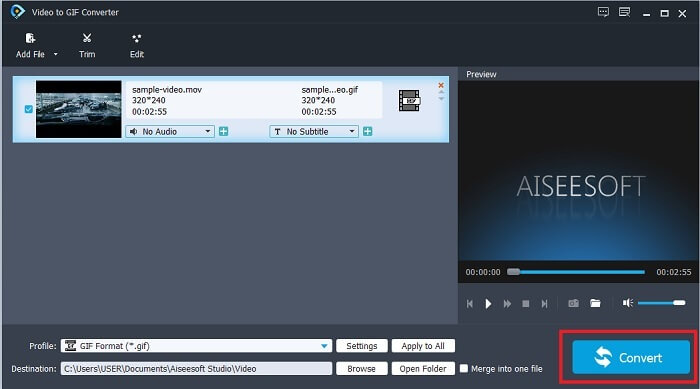
Trinn 5. Klikk på Convert for å starte konverteringen av videoen til GIF. Når konverteringen er fullført, kan du finne det endelige resultatet i filutforskeren ved å skrive inn navnet på videoen.
Fordeler
- Alle de mindre funksjonene er tilgjengelige her.
- Det er mye bedre enn det elektroniske verktøyet og noen av de nedlastbare verktøyene også.
- Lag din GIF enkelt med dette verktøyet.
Ulemper
- Du kan ikke bruke hovedfunksjoner som Ultimate -versjonen gir.
- Den støtter mindre formatvideo i stedet for premiumversjonen.
2. Video Converter Ultimate
Gratisversjonen av dette verktøyet kan gjøre det enkle arbeidet, men premium -versjonen er den beste GIF -beskjæreren. Video Converter Ultimate er ikke bare et navn, men også at dette verktøyet er det ultimate når det gjelder å konvertere video til en GIF -fil. I motsetning til gratisversjonen og verktøyet nedenfor, kan dette verktøyet gjøre din enkle GIF til en mer fantastisk. Gjør GIF -en din til en enestående ved å legge til effekter som dette verktøyet bare kan tilby. Det gir også konvertering av en video til GIF, som MP4 til GIF, sammenslåing av videoer til en, 3D -maker og mange flere. Så bruk dette verktøyet som din personlige beskjærer, og det vil aldri svikte deg. Videre fortsetter du å lese trinnene nedenfor for å vite hvordan du beskjærer GIF for å levere en mer spesifikk melding til mottakeren.
Trinn 1. Før du kan bruke dette verktøyet, må du laste det ned. Installer verktøyet på disken din, endre innstillingene etter behov, og klikk finish for å starte verktøyet på skjermen.
Gratis nedlastingFor Windows 7 eller nyereSikker nedlasting
Gratis nedlastingFor MacOS 10.7 eller nyereSikker nedlasting
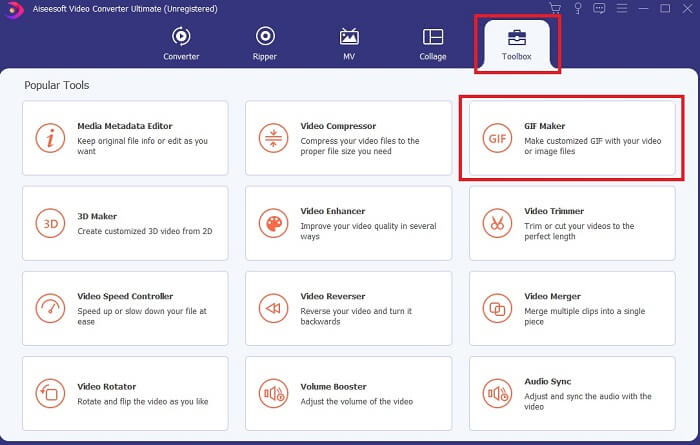
Trinn 2. Når verktøyet er fullstendig lastet ned til disken din, vil et oversiktlig grensesnitt som dette vises på skjermen. Klikk på Toolbar, og i toolbar klikker du på GIF Maker.
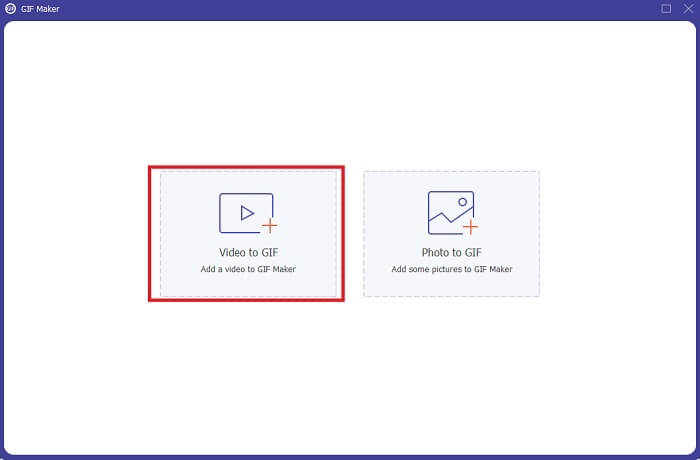
Trinn 3. For å legge til videoen klikker du på Video to GIF og finner GIF‑en du vil beskjære eller redigere. Etter at du har valgt videoen, klikker du på Open for å starte GIF Maker.
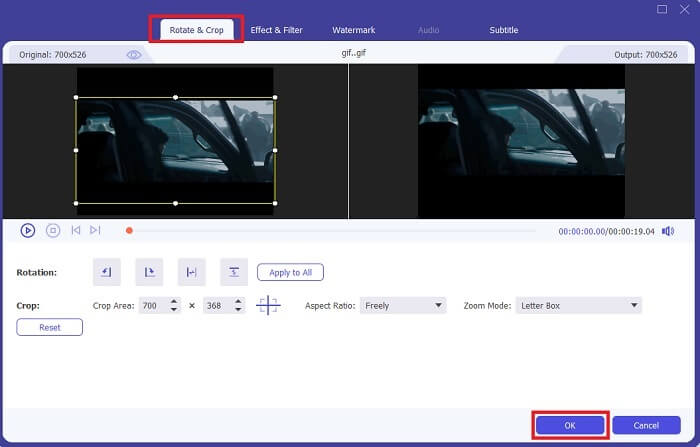
Trinn 4. Klikk på knappen med et stjerne‑ikon på for å begynne å redigere. Klikk på Rotate & Crop for å begynne å beskjære GIF‑en. Du kan også legge til effekter og filtre, vannmerke og undertekster. Når du er ferdig med justeringene, klikker du på OK for å lagre endringene.
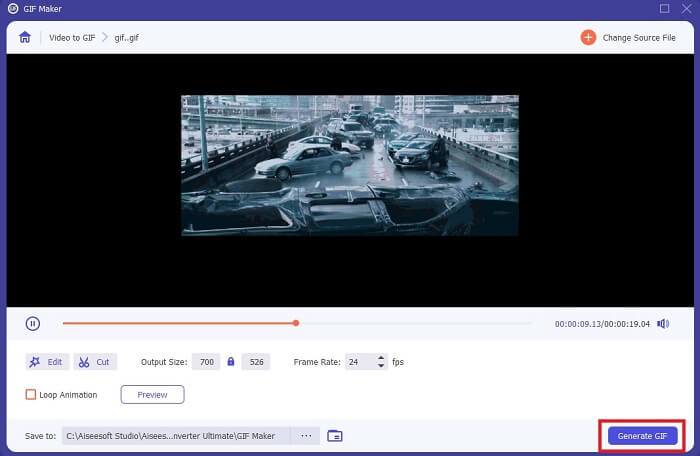
Trinn 5. Endre plasseringen der du vil lagre sluttresultatet, slik at det blir enklere å finne. Klikk på Generate GIF for å starte konverteringen. Når konverteringen er 100% ferdig, finner du sluttresultatet der du valgte å lagre det, eller i filbehandleren.
Fordeler
- Verktøyet du kan bruke hvis du vil forbedre GIF til en mye mer interaktiv. Bruk fantasien til å krydre tingene i GIF -ene dine.
- Det kan gjøre din GIF til en imponerende produksjon ved å bruke de viktigste funksjonene den gir som den andre premiumversjonen ikke kan tilby.
- Mer enn en million brukere velger dette verktøyet som sitt førstevalgspremieverktøy.
Ulemper
- For å bruke verktøyet må du først betale, men det er ikke så dyrt. Så du må ikke forvente noe mindre hvis du kjøpte dette verktøyet.
- Last ned verktøyet før du starter det. Selv om du ikke har internett, kan du fortsatt bruke dette verktøyet fordi det ikke er internettavhengig.
Del 2. Topp 5 beste GIF -cropper du kan få tilgang til over internett
1. iLoveIMG
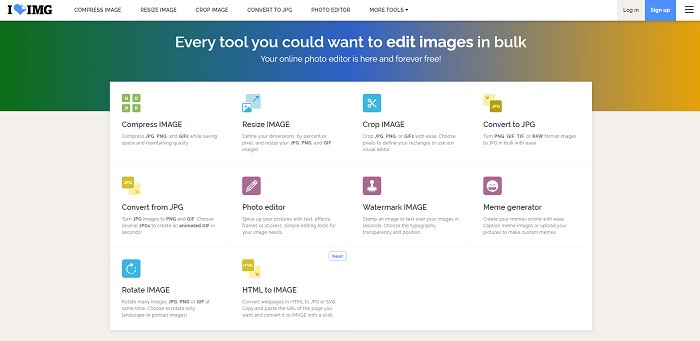
Beskjær GIF‑en din ved hjelp av denne GIF‑beskjæreren på nett. iLoveIMG er kjent som den beste nettbaserte beskjæreren for GIF, JPG og PNG. Selv om verktøyet ikke kan konvertere videoer til GIF‑format, fordi det bare fokuserer på å forbedre GIF, JPG og PNG, er nettsidegrensesnittet mer enn forventet – det er ikke bare enkelt, men også mer interaktivt. Du kan derfor regne med at du ikke kjeder deg mens du bruker nettstedet. Vi vil gi det karakteren 7 av 10, noe som er bra for en nettbasert applikasjon.
Fordeler
- Best å forbedre GIF, JPG og PNG.
- Grensesnittet til nettstedet er utrolig vakkert.
- Du trenger ikke laste ned.
Ulemper
- Det er en sjanse for tap av data hvis tilkoblingen er avbrutt.
- Du kan ikke konvertere videoformat til et GIF -format.
2. RedKetchup
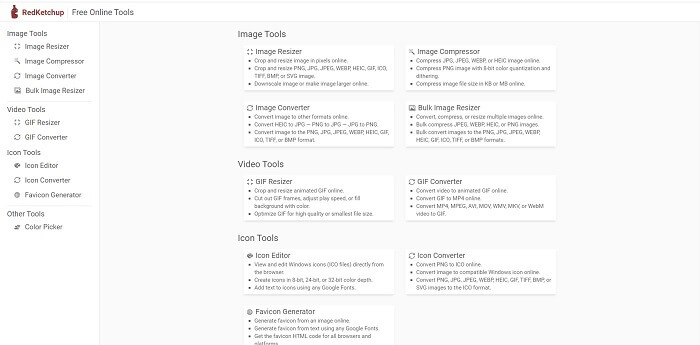
Hvis iLoveIMG ikke er noe for deg, bør du prøve denne nettbaserte GIF‑beskjæreren. RedKetchup er veldig informativt på grunn av beskrivelsene som følger med hvert av redigeringsverktøyene. Dermed blir det enklere å forstå hvordan en funksjon virker, selv om du ikke har noe forhåndskunnskap. Du kan også konvertere bildene dine til GIF, PNG, JPG, WEBP og mer. Den støtter flere formater enn iLoveIMG, men ulempen med dette verktøyet er at nettsidens grensesnitt er ganske kjedelig. Hele bakgrunnen på nettstedet er bare hvit, og det eneste som har farge, er RedKetchup-navnet og -ikonet.
Fordeler
- Den støtter flere bildeformater enn iLoveIMG.
- Hver verktøyfunksjon har en kort beskrivelse slik at brukeren kan forstå funksjonene.
- Det er et gratis online verktøy.
Ulemper
- Websiden til dette verktøyet er så kjedelig å se på grunn av den monotone fargen på den.
- Det er en sjanse for at filen ikke blir lagret på riktig måte hvis internett er ustabilt.
3. Kapwing
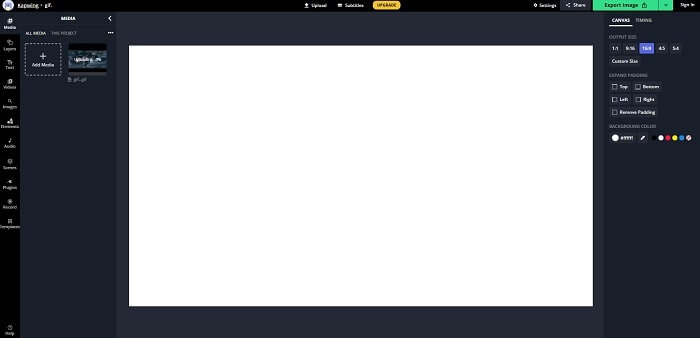
Dette verktøyet har nesten de samme funksjonene som Photoshop, men er nettbasert. Det er den beste GIF‑ramebeskjæreren på nett. Kapwing er kjent for å lage de beste GIF‑ene du vil dele med vennene dine. I motsetning til de to første verktøyene ovenfor, støtter dette verktøyet noen videoformater som kan konverteres til GIF‑format. Det kan ta litt tid å lære seg å bruke verktøyet, men det er verdt det. Hvis du vil lage en enkel GIF, er dette verktøyet svært godt egnet til nettopp det. Dette verktøyet har nesten de samme funksjonene som Photoshop, men er nettbasert. Det er den beste GIF‑ramebeskjæreren på nett. Kapwing er kjent for å lage de beste GIF‑ene du vil dele med vennene dine. I motsetning til de to første verktøyene ovenfor, støtter dette verktøyet noen videoformater som kan konverteres til GIF‑format. Det kan ta litt tid å lære seg å bruke verktøyet, men det er verdt det. Hvis du vil lage en enkel GIF, er dette verktøyet svært godt egnet til nettopp det.
Fordeler
- Grensesnittet til verktøyets nettsted gir deg nesten den samme stemningen med Photoshop.
- Konverter videoen din til et GIF -format.
- Grunnleggende redigeringsfunksjoner tilbys.
Ulemper
- Behandling av videoens endelige utgang vil alltid være avhengig av hvor raskt internett er. Så det er nødvendig å ha mye tålmodighet for å produsere det endelige resultatet.
- Du må registrere deg for å fjerne vannmerket fra utdataene. Så forvent en mail på hver oppdatering som står og noen irriterende kunngjøringer. Fordi du lar dem få tilgang til kontoen din.
4. GIFGIF -er
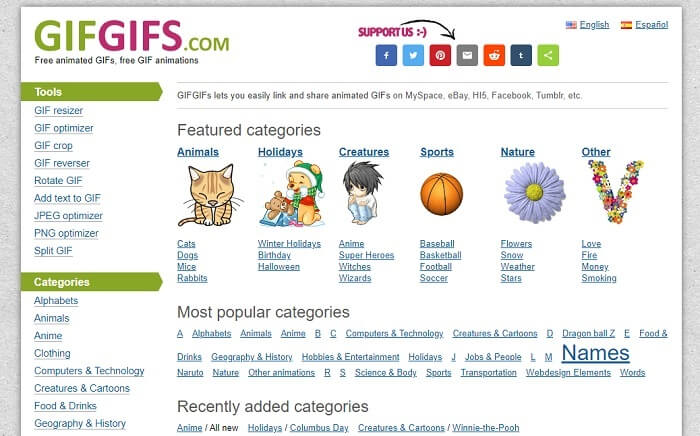
Du kan beskjære GIF‑ene dine med denne GIF‑beskjæreren uten kvalitetstap. GIFGIFs gir deg de beste ferdiglagde GIF‑ene på nett. Du kan velge mellom kategorier som alfabet, sport, anime, klær osv. Dette verktøyet gir deg ikke bare de beste funksjonene for å forbedre GIF‑ene dine, men lar deg også optimalisere JPG og PNG.
Fordeler
- Det er et godt valg å forbedre din GIF til en bedre.
- Den støtter optimalisering av JPEG, PNG og GIF.
- Velg allerede utførte GIF -er i kategoriseksjonene.
Ulemper
- Den gir ikke en søkefelt, så det er vanskelig å finne den perfekte GIF -en du vil bruke.
- Grensesnittet er greit. Det er ikke noe spesielt, eller skal vi si at det ikke er bra, men ikke dårlig.
5. VEED.IO
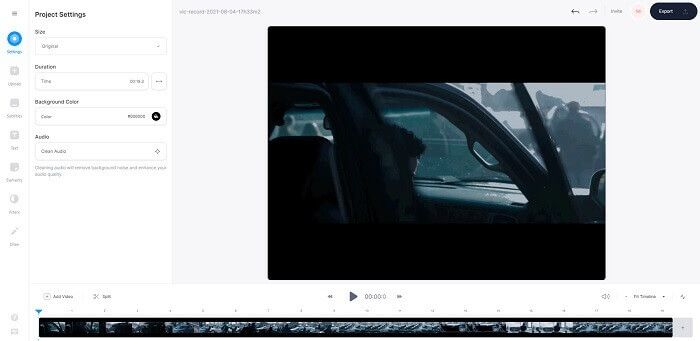
Velg dette som ditt første valg gratis GIF cropper online, men det kan også oppgraderes til en premium-versjon hvis du vil. VEED.IO er et av de beste online verktøyene for å forbedre dine GIF -er til en bedre. Men gratisversjonen av verktøyet støtter bare 50 MB GIF -filstørrelse, og for å legge til flere filstørrelser må du kjøpe premiumversjonen av verktøyet.
Fordeler
- Den gir en flott redigeringsfunksjon for å gjøre GIF -en din bedre.
- Enkelt brukergrensesnitt.
- Du kan også legge til teksting hvis du vil.
Ulemper
- Det gir ikke en 3D -maker for å forbedre dine 2D -bilder.
- Noen ganger krasjer programvaren når du prøver å zoome inn på tidslinjen.
Del 3. Vanlige spørsmål om GIF Cropper
Er det noe bedre format enn GIF -formatet?
Selv om det er veldig kjent at GIF er det beste filmformatet på nettet. Men visste du at det finnes et bedre format enn GIF? Dette er APNG. Dette formatet gir en mer fargepall enn GIF, og det er også bedre i komprimering. Men du kan også bruke WEBP, MNG, FLIF og AVIF.
Hva er grunnen til at GIF -er opprettes?
Seint i 1987 spurte en mann ved navn Steve Wilhite seg selv om det var mulig å lage en bildefil for dataskjermer med liten filstørrelse, og det var da GIF‑en ble født. For å lære mer om GIF‑er kan du klikke her.
Hvilken er bedre? JPG eller GIF?
JPG -format gir deg et mer detaljert bilde fordi det støtter et bredt spekter av farger, så det er best til å ta fotografier. GIF -en gir en liten mengde fargepalett, men den er god til å lage et statisk bilde.
Konklusjon
Avslutningsvis bør du velge den beste GIF‑beskjæreren som gir deg den beskjæringen du trenger, uten at kvaliteten på selve GIF‑en blir svekket selv om du beskjærer den. Det er tydelig at du bør velge det ultimate verktøyet utviklet av FVC. Det gir deg de beste GIF‑funksjonene du vil legge til i GIF‑ene dine for å få dem til å se mer iøynefallende ut enn andre GIF‑er. Å beskjære GIF‑ene dine er enklere enn noensinne hvis du bruker Video Converter Ultimate.
-
 Veiledning for å komprimere GIF og redusere filstørrelsen med høy kvalitet
 Her er to enkle måter å komprimere GIF på datamaskinen eller mobiltelefonen din. Du kan bruke FVC Free Online Video Compressor og Photoshop redusere GIF-filstørrelse i forskjellige aspekter.
-
 GIF Player - 5 beste GIF-spillere for Windows PC, Mac, Android og iPhone
 Hvilket program åpner GIF-filer? Hvordan ser jeg GIF-er på Android? Har iPhone en GIF-spiller for å åpne GIF-er? Dette innlegget deler 5 beste GIF-spillere for deg.
-
 Hvordan konvertere AVI-videoer til animerte GIF-filer på Windows / Mac
 Vil du velge de interessante AVI-segmentene for å lage GIF-memer? Denne artikkelen vil fortelle deg de to beste metodene for å klippe AVI-videoene og konvertere AVI til animerte GIF-filer gratis.
