


 Video Converter Ultimate
 Skjermopptaker
 Videoreparasjon
5 Greatest MP4 Cutter: Lær hvordan du klipper videoer på PC, Mac og mobile enheter
Hvis du er en vlogger eller en aspirerende en, er det så vanlig å ta en video av deg selv. Dette vil kreve mye innsats og selvtillit i tillegg til at du fotograferer foran et kamera. Dessuten er det vanligste at alle proffene og nye til vlogging er feilene du gjør. I stedet for å ta opp videoen på nytt, har de en tendens til å klippe den og slå seg sammen til de originale videoene. For å lage en helt ny video som består av forskjellige vinkler, visninger, montasjer og mer, klipper de den fra forskjellige videoer og legger den til én. Men som ny i denne typen jobb eller til og med proff, er det vanskelig å velge riktig trimmer. Fordi ikke alle funksjoner som de sa på annonsen for verktøyet er ikke i verktøyene. I stedet for å gå til den andre artikkelen og lese anbefalingen, hvorfor ikke lære av dette først. Som vi samlet bare de virkelige bevisene for din egen vinning. Så her i listen er MP4-kutterne du kan bruke til å starte vlogging. Hold fokus for å vite hva som er de beste trimmerne du kan bruke som gir videoene dine et enkelt, men profesjonelt syn.

Del 1. Last ned den beste MP4 Video Cutter-programvaren på PC og Mac
Hvis vi skal snakke om det beste, må du prioritere å lese dette først. Som nevnt tidligere, er det mye vanskeligere å lage vlogger enn vi trodde – det handler ikke bare om å ha selvtillit til å møte kameraet og legge det ut. Du må også vurdere å ha et flerfunksjonsverktøy. Et som gir en mer tiltalende video for alle seere. FVC Video Converter Ultimate tilbyr fantastiske redigeringsfunksjoner og konverteringsmuligheter som alle som vil, kan bruke. Enten du er nybegynner eller proff, bør vi se etter det beste av det beste på markedet. Selv om dette er en betalingsversjon, gir den fortsatt det beste du kan ønske deg. Og hvis du velger dette som ditt personlige verktøy, ligger det en lys fremtid foran deg. Vil du begynne å vlogge i dag? Følg da denne veiledningen om hvordan du bruker denne MP4‑videokutteren.
Trinn 1. Klikk på nedlastingsknappen nedenfor og installer den på PC-en eller Mac-en din. Følg oppsettet for verktøyet og klikk «Fullfør» for å starte programvaren.
Gratis nedlastingFor Windows 7 eller nyereSikker nedlasting
Gratis nedlastingFor MacOS 10.7 eller nyereSikker nedlasting
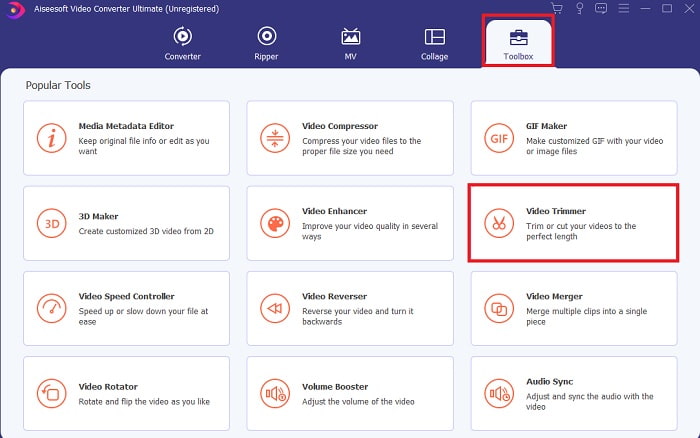
Trinn 2. Hvis dette vises på skjermen din, klikker du på Toolbar og ser etter Video Trimmer nedenfor.
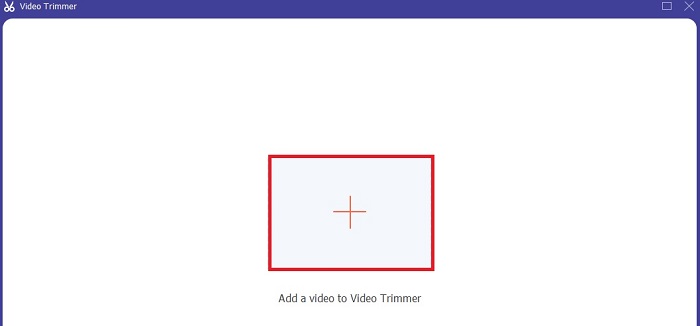
Trinn 3. Klikk på pluss-knappen for å legge til filen. Velg filen på stasjonen din som du vil klippe, og klikk Open for å sette inn videoen.
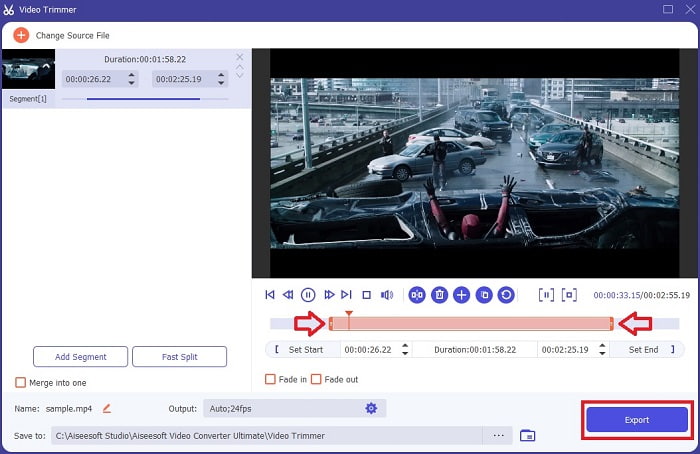
Trinn 4. Juster start- og sluttpunktet på videoen din ved å manipulere playback in and out for å angi varigheten du vil ha. Legg til fade inn og ut hvis du ønsker. Du kan også endre medieutdata hvis du klikker på cog-knappen. Når du er ferdig, klikker du på Export-knappen for å starte klippeprosessen.
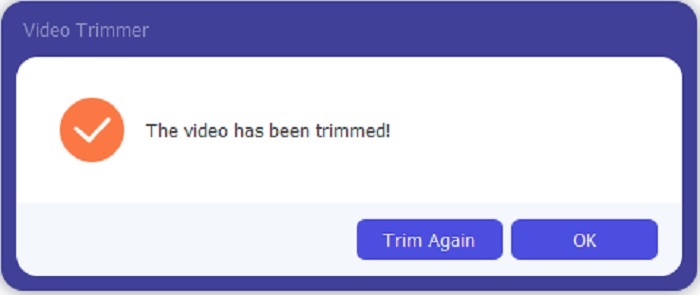
Trinn 5. Vent bare et øyeblikk, og nå er videoen din klippet. Klikk deretter OK eller Trim Again hvis du må klippe en til. Hvis du vil forbedre videoen du nettopp laget, klikker du på verktøylinjen igjen og ser etter video-forbedreren.
Fordel med å ha et sammenslåingsverktøy levert av FVC Video Converter Ultimate with Steps
I motsetning til alle andre apper er det superenkelt å slå sammen videoer i FVC Video Converter Ultimate. Dette er en bonusfunksjon hvis du anskaffer deg dette verktøyet. Som sagt, er dette verktøyet et flerbruksverktøy, så la oss uten videre begynne å slå sammen forskjellige videoer til én.
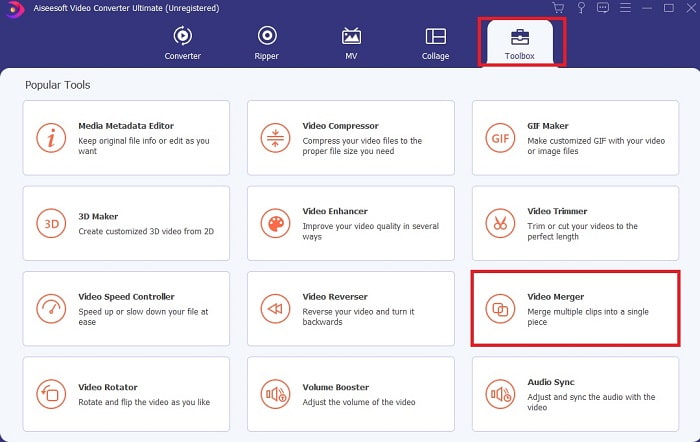
Trinn 1. Åpne programvaren og gå til Toolbar, finn Video Merger og klikk på den.
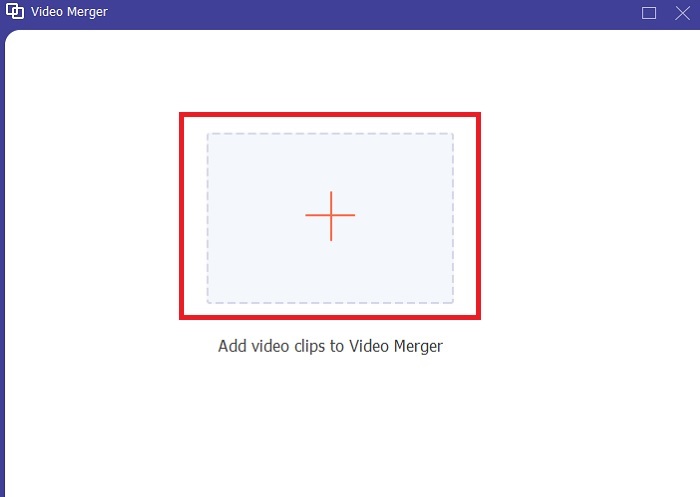
Trinn 2. Klikk på add-knappen og velg videoen du vil slå sammen, og klikk Open for å fortsette. Etter å ha valgt den første filen, klikker du på plusstegnet for å legge til den andre filen du vil slå sammen.
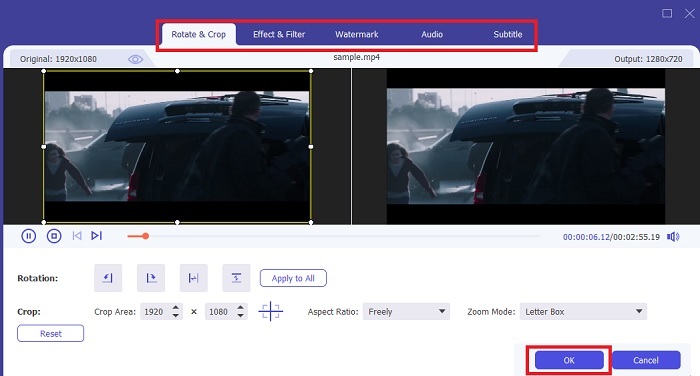
Trinn 3. I grensesnittet klikker du på wand-knappen for å add effekter, enhance the audio, rotate or crop and add subtitles også. For å lagre redigeringen du nettopp gjorde, klikker du OK. Gjør den samme prosedyren med de andre videoene også, hvis du vil.
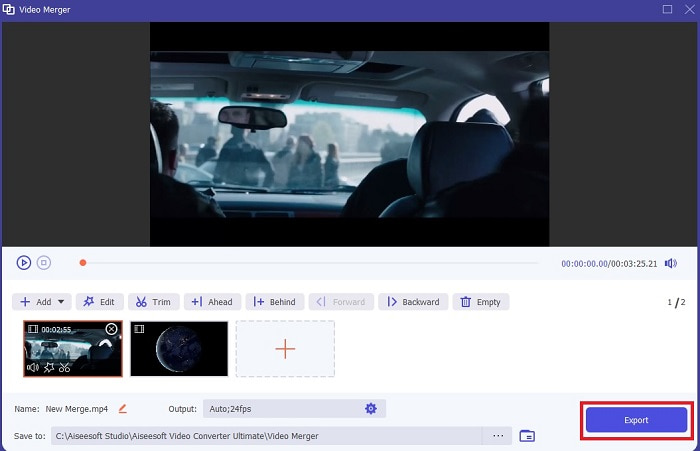
Trinn 4. Når du er klar til å starte prosessen, klikker du på Export. Når eksporten er ferdig, vil et filbehandlingsvindu dukke opp på skjermen. For å se den eksporterte videoen klikker du bare på den og koser deg.
Del 2. Beste MP4-kuttere på nett
Dette er sikkert en god kutter, men den er ikke like god som FVC Video Converter Ultimate. Men den er i det minste verdt å prøve blant disse online MP4‑kutterne.
1. 123Apps Online Video Cutter
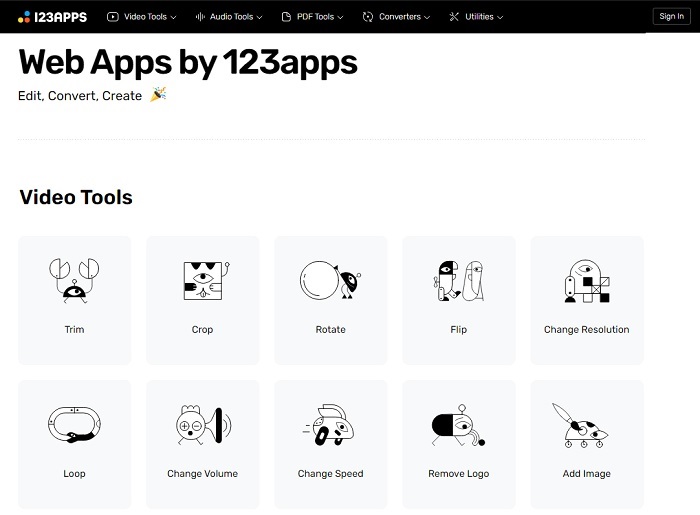
Dette første nettverktøyet er ment å gjøre videoene dine bedre. Den kan justere varigheten av videoen, beskjære, legge til tekst og mer. Men dette verktøyet bruker mye tid på å bli eksportert. Etter at du har eksportert må du laste den ned, og denne prosessen vil være avhengig av internetthastigheten din. Du kan heller ikke justere kvaliteten på videoene dine. Så hvis videoen din er litt uskarp og trenger å justere fps på den, kan du ikke gjøre det her. Men likevel er det verdt å prøve.
2. Clideo
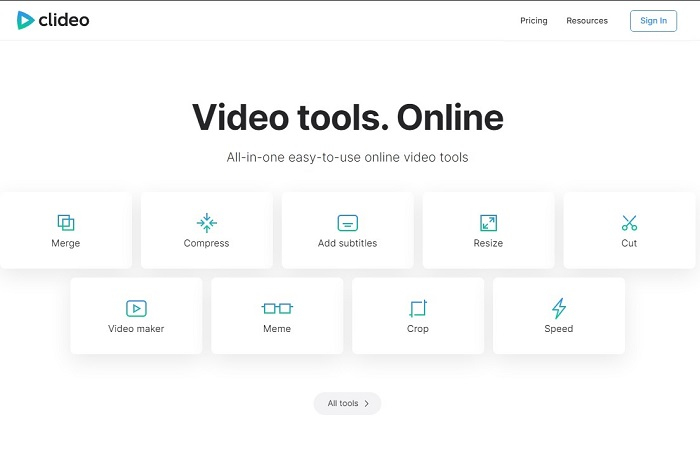
Hvis vi skal snakke om klipping, kan dette også være et godt valg. Clideo er en av de beste MP4‑klipperne på nettet du kan finne. Akkurat som det første nettverktøyet som ble nevnt tidligere, tilbyr også dette verktøyet grunnleggende redigeringsfunksjoner. Selv om det støtter grunnleggende redigering, er det likevel ikke nok hvis du lager en iøynefallende video. Men du kan prøve det på nettet uten å bekymre deg – det er gratis og også trygt.
Del 3. 3 Beste MP4 Cutter-apper på Android og iOS
Hva om du ikke har et skrivebord for å bruke verktøyene ovenfor og ønsker å være en vlogger, er det fortsatt mulig? Hvis du har en telefon som Android eller iOS, kan du bruke disse appene til å redigere på telefonene dine. Men det er noen funksjoner som er tilgjengelige ovenfor som ikke er her. Så fortsett å lese nedenfor for å vite hva disse verktøyene er og velg fra dem.
1. iMovie for iOS
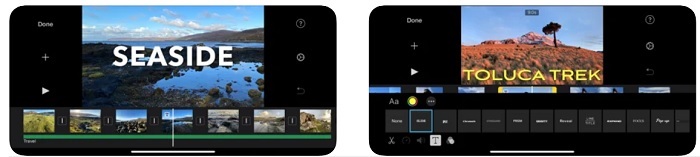
Hvis du vil gi videoen din en Hollywood-aktig følelse, er iMovie riktig programvare. Denne MP4‑kutterappen er laget kun for iOS‑brukere. Men selv om verktøyet tilbyr avanserte redigeringsfunksjoner, er noen av feilene her ennå ikke rettet. I enkelte tilfeller krasjer appen hver gang du prøver å redigere, og skjermen blir svart. Noen ganger er ikke video og lyd synkronisert på grunn av feil. Dette er noen av eksemplene på bugs – vi kan se dem som småfeil, men de er svært irriterende det meste av tiden. Så hvis du vil prøve iMovie, kan du fortsatt laste det ned fra App Store.
2. Video Editor & Maker – Viva Video for Android
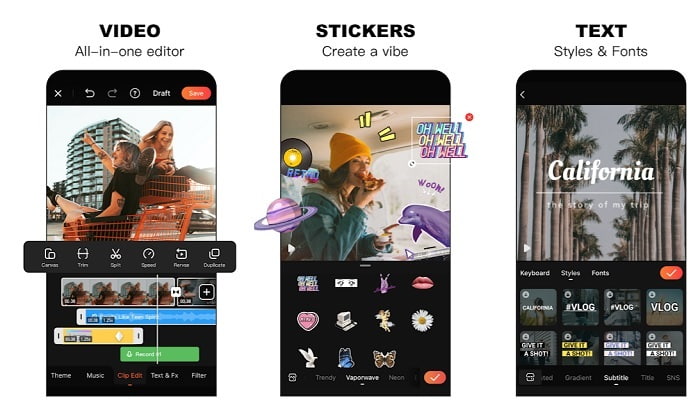
En av de beste gratis MP4‑kutterne på Android er Video Editor & Maker – Viva Video. Akkurat som verktøyet ovenfor tilbyr begge de beste redigeringsfunksjonene på mobil. Som overganger for video, glitch-effekter og mer, men dette er et betalingsverktøy. I noen tilfeller er det ikke optimalt, fordi det ikke finnes noen «avslutt abonnement»-knapp for å stoppe appen. Så den beste løsningen du kanskje tenker på, er å slette appen for å avslutte abonnementet, men det vil ikke ta slutt. Den vil fortsette å belaste kredittkortet ditt hvis du har valgt denne betalingsmetoden. Men alt i alt er verktøyet i A‑klassen, verken mer eller mindre.
Del 4. Vanlige spørsmål om MP4 Cutter
Hva er en MP4?
MP4 er også kjent som multipurpose media format. I stedet for å lagre en kode, lagrer den data om videoene, stillbilder, undertekster eller tekster. Det er også det mest brukte videoformatet over hele verden.
Er MP4 tapsfri eller tapsfri?
Som et flerbruksformat er MP4 en tapskomprimering.
Hva er det beste formatet annet enn MP4?
Det finnes noen formater som gir bedre medieutdata enn MP4, men de er ikke like fleksible som dette formatet. For eksempel WMV – dette formatet gir en mindre filstørrelse enn MP4, men det er ikke kompatibelt med Apple-enheter. Fordi det er ment som et eget format for Windows Media Player. Du kan velge å konvertere MP4-filene dine til WMV for bedre avspilling.
Konklusjon
Avslutningsvis er det nå enklere å forstå forskjellen mellom hvert verktøy du kan bruke. Men som nevnt tidligere, tilbyr ikke alle de gode klippefunksjonene som FVC Video Converter Ultimate kan. Spesielt hvis du vil lage en mer tiltalende video for å få flere visninger og også tjene penger. Så i stedet for å nøye deg med et midlertidig alternativ, hvorfor ikke velge FVC Video Converter Ultimate for å møte fremtiden og få den beste versjonen for deg selv.
-
 Veiledning om hvordan du konverterer RMVB til MP4 på Windows / Mac (3 gratis måter)
 Vil du konvertere RMVB til MP4 for enkel avspilling på datamaskinen eller mobiltelefonen? Du finner enkle måter å konvertere RMVB-filene dine til MP4 i denne veiledningen.
-
 4 beste MP4 til M4V-omformere for å gjøre MP4-videoer til M4V med letthet
 Når du trenger å endre MP4 til M4V-filer, bør du lære mer informasjon om forskjellene mellom de to formatene, samt de beste MP4 til M4V-omformerne fra artikkelen.
-
 AMV Converter - De 3 beste metodene for å konvertere MP4 til AMV på Win / Mac
 Hva er de beste MP4 til AMV-omformerne for å gjøre videoene til Amine Music Video, du kan lære mer om 3 mest effektive metoder for å få de ønskede videoene med letthet fra artikkelen.
