


 Video Converter Ultimate
 Skjermopptaker
 Videoreparasjon
 Sikker nedlasting
Topp 4 måter å gratis konvertere MP4 til MOV
MP4 er et av de mest populære videoformatene og støttes i stor grad av de fleste avspillere, redigeringsprogrammer og enheter. Men i noen tilfeller trenger du likevel å konvertere MP4 til MOV. Vet du hvordan du endrer MP4 til MOV?

Når du søker på Google etter hvordan du konverterer MP4 til MOV på internett, kan du se at mange videokonverterere kan hjelpe deg med videokonverteringen, inkludert noen gratis nettbaserte konverteringsverktøy. Her i dette innlegget vil vi fortelle deg om 4 gratis måter som kan hjelpe deg å konvertere MP4 til MOV på en enkel måte.
Del 1. Hvordan gratis konvertere MP4 til MOV på Mac / PC uten tap av kvalitet
Selv om det finnes et stort antall MP4‑til‑MOV‑konverteringsprogrammer på markedet, vil mange av dem miste noe bilde- og lydkvalitet under konverteringen. Hvis du vil konvertere MP4 til MOV uten kvalitetstap, bør du velge Free Video Converter.
Free Video Converter er spesielt designet for å håndtere alle slags video- og lydkonverteringer. Den støtter sterkt nesten alle video- / lydformater, inkludert MP4, MOV, MKV, FLV, AVI, WMV, MP3, AAC, FLAC og mer. Det lar deg gratis konvertere MP4 til MOV på Mac eller Windows PC mens du holder den originale kvaliteten.
Gratis nedlastingFor Windows 7 eller nyereSikker nedlasting
Gratis nedlastingFor MacOS 10.7 eller nyereSikker nedlasting
Trinn 1. Dobbeltklikk på nedlastingsknappen ovenfor, og følg deretter instruksjonene for å installere og kjøre denne gratis MP4‑til‑MOV‑konvertereren på din Mac/PC. Pass på at du laster ned riktig versjon basert på systemet ditt.
Trinn 2. Når du går inn i hovedvinduet, kan du klikke på Add File(s) for å importere MP4‑filen(e) du vil konvertere. Denne gratis MP4‑til‑MOV‑konvertereren er utstyrt med en funksjon for batchkonvertering som lar deg konvertere én eller flere MP4‑filer om gangen.
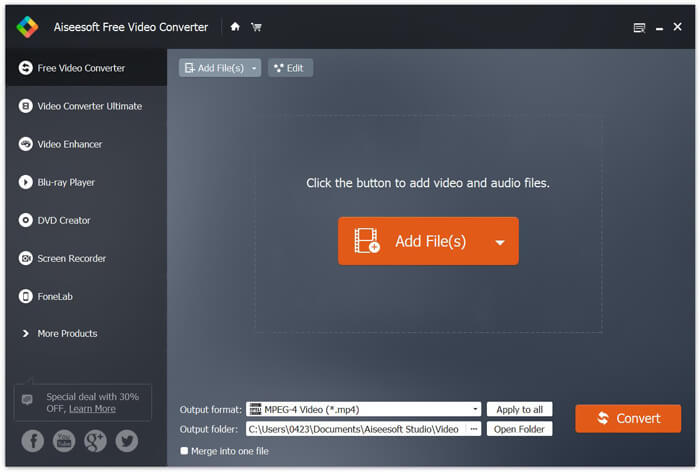
Trinn 3. Klikk Output format og velg MOV som målformat fra rullegardinlisten. Nå kan du ganske enkelt klikke på Convert-knappen for å starte konverteringen fra MP4 til MOV.
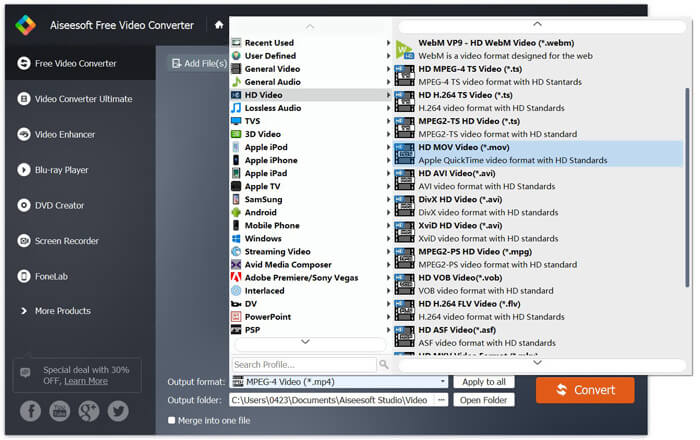
Bare noen få sekunder senere blir den originale MP4 konvertert til MOV-format. Foruten MOV, kan du også konvertere MP4 til MKV, FLV, AVI, etc. med høy kvalitet. Denne gratis videokonvertereren har også noen grunnleggende redigeringsfunksjoner. Før den endelige konverteringen av MP4 til MOV, kan du bruke dem til å redigere MP4-videoene dine.
Del 2. Slik endrer du MP4 til MOV Free med Online Video Converter
Som nevnt ovenfor, er det mange gratis online videokonverterere som tilbys på markedet som kan hjelpe deg med å slå MP4 til MOV. Her i dette innlegget vil vi introdusere to metoder for hvordan du endrer MP4 til MOV online.
1. FVC gratis online videokonverterer
Hvis du vil konvertere MP4 til MOV gratis på nett, vil FVC Free Online Video Converter være ditt beste valg. Med 3 enkle trinn kan du fullføre konverteringen og få den tapsfrie konverterte filen på få sekunder.
Trinn 1. Klikk på lenken ovenfor og gå til FVC Free Online Video Converter. Klikk deretter på Add Files to Convert midt på banneret. Last så ned og installer FVC launcher på datamaskinen din.
Last ned skrivebordsversjonen for å konvertere filer i batch.

Trinn 2. Etter at du har valgt og lastet opp videoen du vil konvertere, må du velge MOV som utdataformat for den konverterte videofilen.
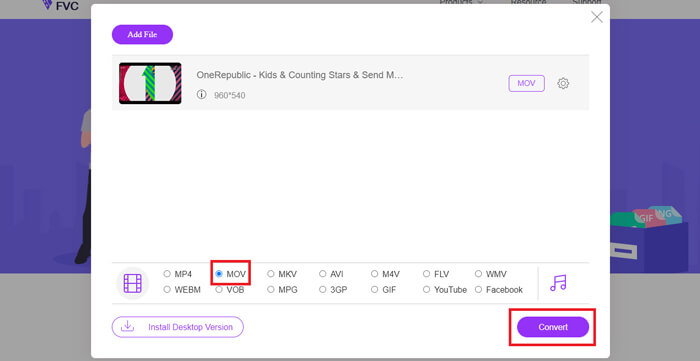
Trinn 3. Klikk Convert. Og du kan velge å lagre den konverterte filen på skrivebordet ditt. Deretter er det bare å vente litt for å få MOV‑videoen din.
2. CloudConvert
CloudConvert er et veldig populært og brukervennlig online videokonverteringsverktøy. Den har muligheten til å konvertere over 200 formater, inkludert lyd-, video-, dokument-, eBok-, arkiv-, bilde-, regneark- eller presentasjonsformater. Videre vil denne pålitelige nettkonvertereren beskytte dine data og personvern.
Trinn 1. Åpne nettleseren din og gå til den offisielle nettsiden til CloudConvert. Den er utformet med et enkelt grensesnitt som kan gi deg en behagelig konverteringsopplevelse.
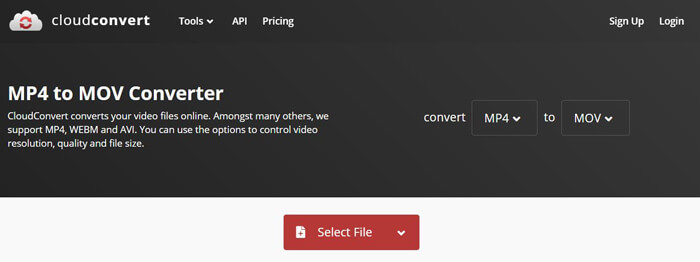
Trinn 2. Klikk på Select File-knappen for å laste opp MP4‑filen du vil konvertere. Her kan du legge til filer fra datamaskin, URL, Google Drive, OneDrive eller Dropbox. I dette trinnet kan du legge til flere filer for konvertering.
En ting du bør bekymre deg for er at denne gratis MP4 til MOV-omformeren bare lar deg konvertere en video mindre enn 1 GB. Du må kjøpe en pakke for å konvertere større filer.
Trinn 3. Klikk på Convert-knappen for å begynne å laste opp og konvertere MP4‑filen din. Deretter kan du klikke på Download-knappen for å lagre den konverterte MOV‑videoen på datamaskinen.

Ved å bruke CloudConvert til å konvertere MP4 til MOV online, må du bruke mer tid på videoopplasting, konvertering og nedlasting, spesielt når du konverterer en stor fil.
Del 3. Hvordan konvertere MP4 til MOV med VLC Media Player
VLC Media Player er en populær og åpen kildekode-basert multimediaspiller. Mer enn bare en mediespiller kan VLC også fungere som et videokonverteringsverktøy som hjelper deg å gjøre ulike videokonverteringer. Hvis du har VLC installert på datamaskinen din, kan du bruke det til å konvertere MP4‑filen din til MOV‑video.
Trinn 1. Åpne VLC Media Player på datamaskinen. Hvis du ikke har VLC, kan du gå til den offisielle nettsiden for å laste det ned gratis.
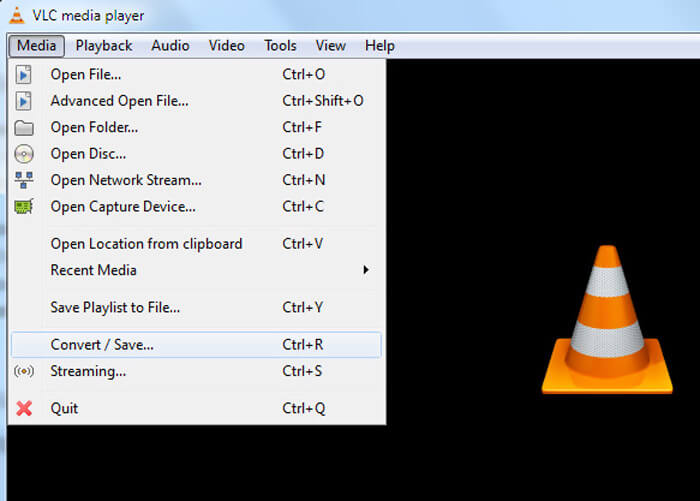
Trinn 2. Klikk på Media-knappen på menylinjen og velg deretter Convert/Save-alternativet fra rullegardinlisten.
Trinn 3. Et nytt Open Media-vindu vil dukke opp. Her kan du klikke File > Add for å importere MP4‑filen du vil konvertere.
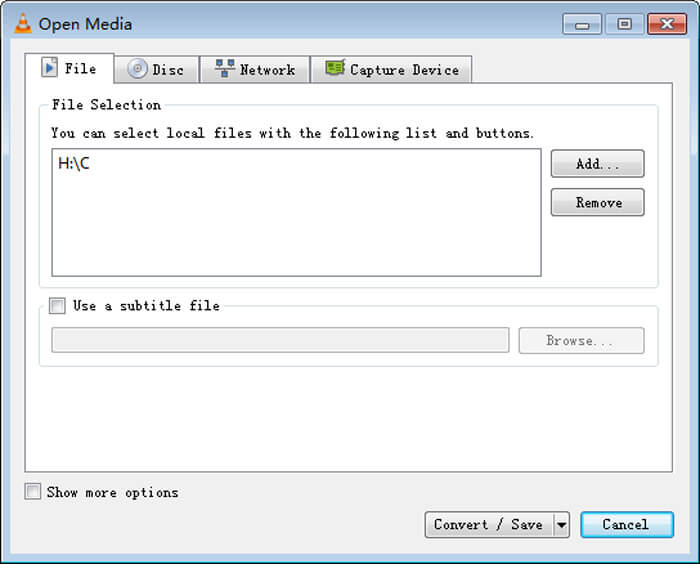
Trinn 4. Klikk på Convert/Save-knappen nederst for å bekrefte operasjonen. Deretter blir du sendt videre til et Convert-vindu der du kan velge målmappen og utdataformat for den konverterte videoen.
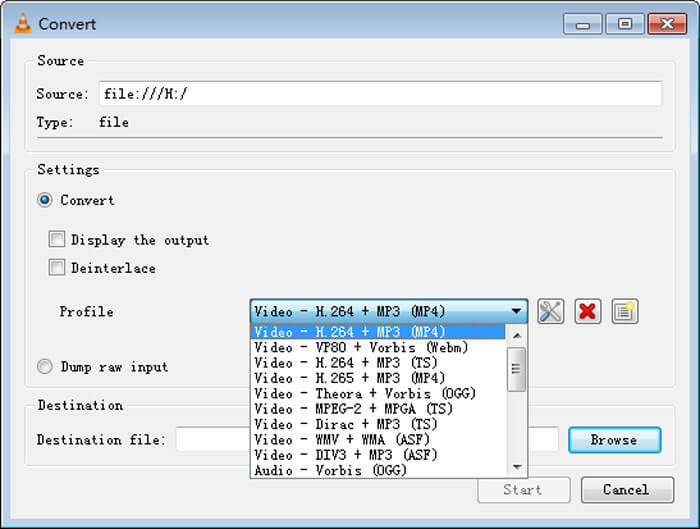
Trinn 5. Velg MOV som utdataformat fra rullegardinlisten Profile. Klikk deretter på Start for å utføre videokonverteringen fra MP4 til MOV i VLC.
MP4 vs. MOV
Utgitt av Moving Picture Experts Group (MPEG) i 2001, kan MP4-formatet hjelpe deg med å lagre video-, lyd-, undertekst- og bildedata i separate spor. Det er en forkortelse for MPEG-4 Part 14. I tillegg er det et av de mest populære formatene som brukes til å streame og dele videoer.
MOV-formatet kan brukes til å lagre en film, et TV-program, et kort videoklipp eller en hjemmefilm. Den er faktisk lagret i QuickTime File Format (QTFF), som ble introdusert av Apple i 1991. MOV-filer brukes ofte når folk vil lagre en video med høy kvalitet.
Del 4. Vanlige spørsmål om konvertering av MP4 til MOV
Spørsmål 1. Kan QuickTime konvertere MP4 til MOV?
Når du har behov for å konvertere MP4 til MOV på Mac, kan du prøve QuickTime. Du kan åpne MP4-video med QuickTime Player. Klikk deretter på Eksporter-knappen og velg MOV-format. Du kan gi nytt navn til filen, velge plassering og videooppløsning. Deretter kan du klikke på Eksporter-knappen for å gratis konvertere MP4 til MOV på Mac.
Spørsmål 2. Hva er bedre, MOV eller MP4?
MP4 er et av de mest populære formatene for lagring av multimediafiler. Det er en digital containerfil, kun en beholder rundt videoen, ikke selve videoen. På samme måte som MP4 er MOV også en digital containerfil. MOV er kodet med MPEG‑4‑kodeken.Hovedforskjellen mellom MOV og MP4 er at MOV for det meste brukes i Mac-miljøer. MOV er spesielt utviklet for QuickTime. MP4 er en internasjonal standard som kan støttes av de fleste mediespillere og systemer. Generelt sett er MOV‑video ofte høyere i kvalitet og større i filstørrelse. MP4‑filen er vanligvis mer komprimert og mindre i størrelse. Så du kan ikke enkelt si at MOV er bedre enn MP4, eller at MP4 er det beste formatet.
Spørsmål 3. Mister konvertering av MOV til MP4 kvalitet?
Når du vil konvertere MOV til MP4, eller endre MP4 til MOV, bør du velge en profesjonell videokonverterer. I de fleste tilfeller vil du ikke se noe tap av kvalitet etter konverteringen.
Spørsmål 4. Er det noen gratis MP4 til MOV-omformer?
Det er mange gratis videokonverterere som tilbys på internett som kan hjelpe deg med å konvertere MP4 til MOV. I tillegg til den anbefalte CloudConvert, kan du også stole på FFmpeg, HandBrake, ZAMZAR, Convert Files og mer for å lage konverteringsversjonen.
-
 Hvordan konvertere MP4-videofiler til animerte GIF-bilder uten tap av kvalitet
 Leter du etter den beste måten å konvertere MP4-videoen din til animerte GIF-er? Her er en detaljert guide for å gjøre det i Photoshop, Windows Movie Maker, online video converter og mer.
-
 MOV VS MP4 - Hvilken er bedre
 MOV VS MP4, hvilken er bedre? Dette innlegget forteller forskjellen mellom MP4 og MOV, slik at du kan få det bedre valget å bruke til videofilene dine.
-
 Hvordan konvertere MOV til MP4 uten å miste kvalitet
 Vil du konvertere MOV (Apple QuickTime Movie) filer til MP4? Dette innlegget deler 4 gratis metoder for å konvertere MOV-videofiler til MP4-format på Windows 10/8/7 / XP og Mac OS X.

