


 Video Converter Ultimate
 Skjermopptaker
 Videoreparasjon
 Sikker nedlasting
Slå sammen WAV-filer sømløst med programvareverktøy og tips
Enten du er nybegynner i lydredigering eller erfaren, er det nødvendig å bruke riktige verktøy og teknikker for å slå sammen WAV-filer slik at to forskjellige WAV-filer kombineres og eksporteres med tapsfri kvalitet. Å finne det riktige verktøyet kan derimot ta tid og kreve innsats fra brukeren. Med hjelp av denne artikkelen vil vi uansett utforske ulike verktøy, med trinnvise forklaringer på hvordan du bruker dem effektivt, samt tips som hjelper deg i gang og gjør prosessen enklere og mer effektiv.

Del 1. Kombiner WAV-filer tapsfritt på sekunder [med GPU-akselerasjon]
Når du vil slå sammen to WAV-filer til én enkelt fil, er den beste og enkleste måten å bruke den FVC-utvalgte Video Converter Ultimate. Dette programmet fra Aiseesoft er tilgjengelig for alle typer brukere, siden det er helt gratis å laste ned fra den offisielle nettsiden. Verktøyet inneholder funksjoner for video- og lydredigering med mulighet til å slå sammen flere WAV-filer til én fil. I tillegg er programvaren integrert med høyhastighets behandlingsteknologi som gjør sammenslåing og eksport av WAV-filer langt mer effektivt for brukeren. For å gjøre det enklere å navigere i oppgaven med å slå sammen WAV-filer, kan du følge veiledningen nedenfor.
Trinn 1. Last ned og installer WAV-filsammenslåeren på datamaskinen din, og åpne den deretter.
Gratis nedlastingFor Windows 7 eller nyereSikker nedlasting
Gratis nedlastingFor MacOS 10.7 eller nyereSikker nedlasting
Trinn 2. Når du er i programvaretens grensesnitt, klikker du på knappen Add Files øverst til venstre. Åpne og velg så WAV-filene du vil slå sammen til én fil, og klikk deretter på knappen Open.
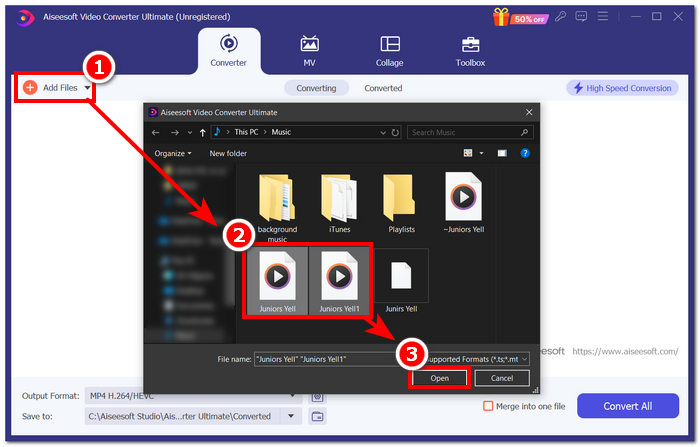
Trinn 3. Når du har lastet opp WAV-filene du vil slå sammen i programvaren, merker du av for menyen Merge into one file, som ligger ved siden av knappen Convert All nederst til høyre i programvaretens grensesnitt.
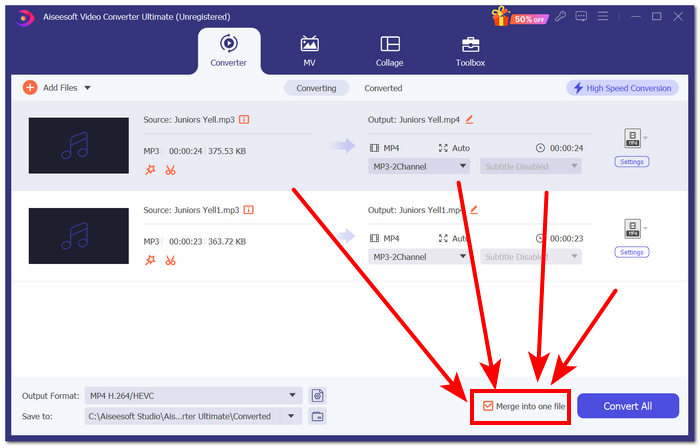
Trinn 4. Klikk på knappen Convert All for å starte sammenslåingsprosessen og automatisk eksportere dem til nedlastingsmappen din.

Tips
• Du kan slå sammen flere WAV-filer i programvareverktøyet samtidig.
• I nedre venstre hjørne av programvaregrensesnittet kan du kontrollere utdataformatet til ditt mest ønskede filformat før du eksporterer det.
• Du kan også endre destinasjonen til den sammenslåtte WAV-filen ved å gå til og velge mappen du har valgt i nedre venstre hjørne av programvaregrensesnittet.
• For å maksimere høyhastighetsbehandlingsteknologien når du slår sammen og eksporterer WAV-filen, aktiverer du innstillingen for høyhastighetskonvertering øverst til høyre i programvaregrensesnittet.
• Dette verktøyet støtter også ulike formater, og du kan slå sammen MP4, MKV, FLV, MP3, FLAC og flere andre formater.
Del 2. Kombiner WAV-filer online
Når du synes det er ganske vanskelig å slå sammen WAV-filene dine gjennom et programvarebasert verktøy, kan en nettløsning være den du trenger. Descript er et nettbasert verktøy som fungerer som et lyd-, video- og transkriberingsredigeringsverktøy i ett. Å slå sammen WAV-filer er relativt enkelt ettersom det nettbaserte verktøyet bruker AI til automatisk å slå sammen WAV-inndatafilene dine i det øyeblikket du laster dem opp og lar brukerne forhåndsvise dem før de laster ned.
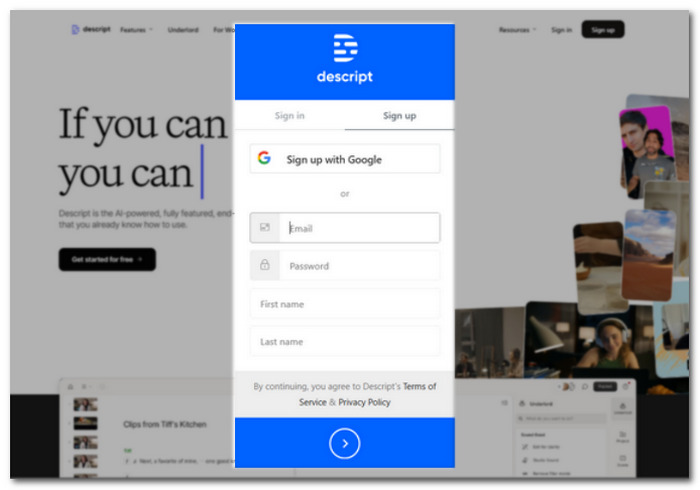
Trinn 1. Gå til Descripts offisielle nettside og opprett en konto slik at du kan bruke programmet til å slå sammen WAV-filene dine.
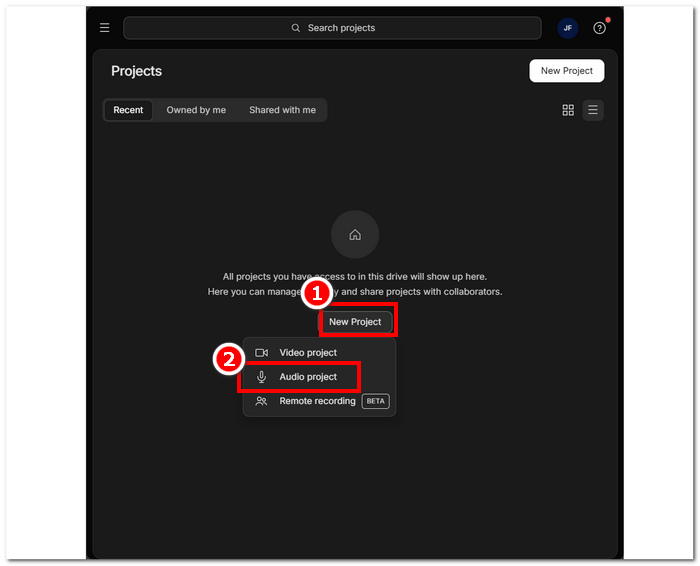
Trinn 2. Når du har logget inn i verktøyets grensesnitt, klikker du på New Project > Audio Project.
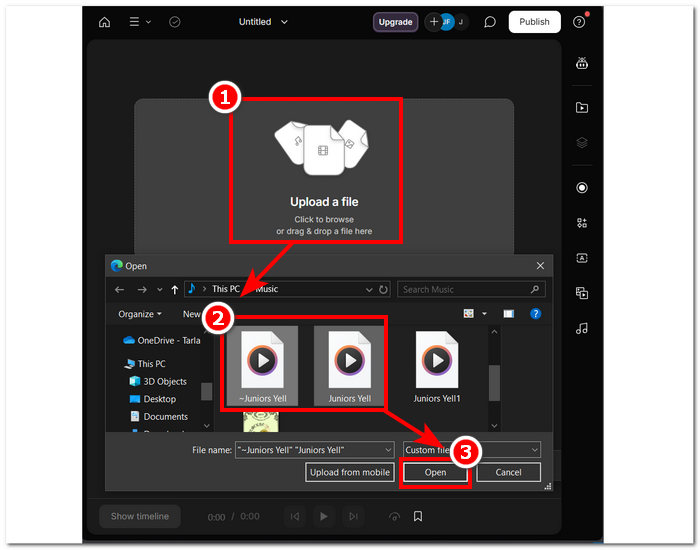
Trinn 3. Last opp WAV-filene du vil kombinere og slå sammen til én fil i feltet Upload a file som er tilgjengelig i verktøyets grensesnitt.
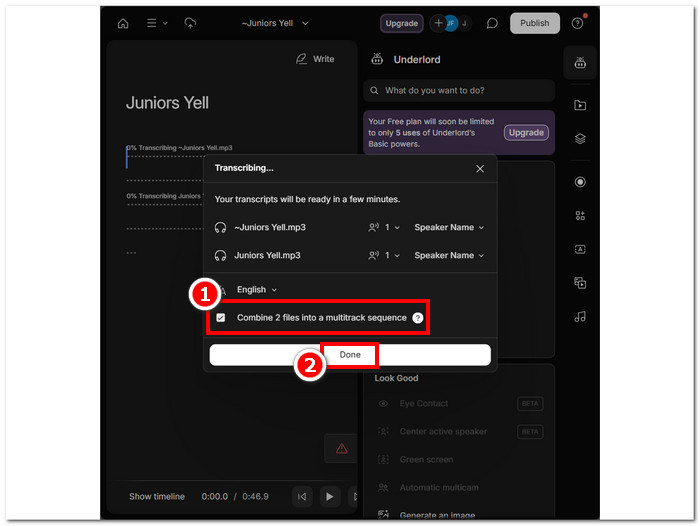
Trinn 4. Mens WAV-filene dine lastes opp i verktøyets grensesnitt, vises et vindu. Der kan du bestemme om du vil at de skal kombineres automatisk. Merk av for å tillate den AI‑baserte sammenslåingsprosessen, og klikk deretter på knappen Done.
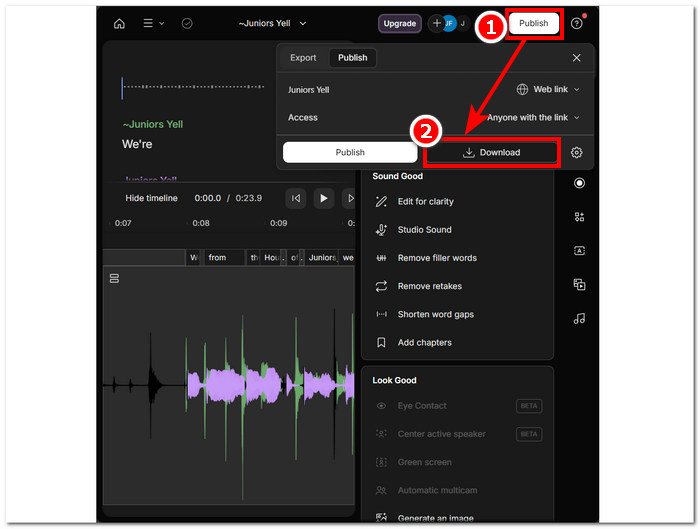
Trinn 5. Vent til verktøyet er ferdig med å slå sammen WAV-filene. Når det er gjort, kan du spille av det ferdige resultatet for å kontrollere om AI-en har gjort en god jobb med å slå sammen WAV-filene, og gjøre justeringer ved behov. Når du er fornøyd, klikker du på Publish > Download for å laste ned de sammenslåtte WAV-filene til datamaskinen.
Tips
• Før du laster ned de kombinerte WAV-filene dine, sørg for å sjekke lydsporet grundig for å unngå spaltninger.
• Å være kjent med verktøyet kan bidra til å effektivisere sammenslåingsprosessen for WAV-filer.
Del 3. Kombiner WAV-filer med Audacity
Som en åpen kildekode-basert lydeditor kan også Audacity slå sammen spor som WAV-filer helt gratis. Denne gratis nedlastbare programvaren har hjulpet brukere med lydredigering og gjort sammenslåing av WAV-filer mye enklere. Audacity lar brukere legge til flere WAV-filer på én gang, og støtter dessuten import av ulike lydformater. I tillegg har det en rask funksjon for å ordne hvert spor perfekt fra slutten av hvert spor, noe som gjør det mye enklere å slå sammen uten å risikere at sporene overlapper feil. Ved å følge den omfattende veiledningen nedenfor vil du kunne navigere i programmet bedre.
Trinn 1. Last ned Audacity-programmet til datamaskinen din. Når du har det, åpner du det og laster inn WAV-filene du vil slå sammen til én fil.
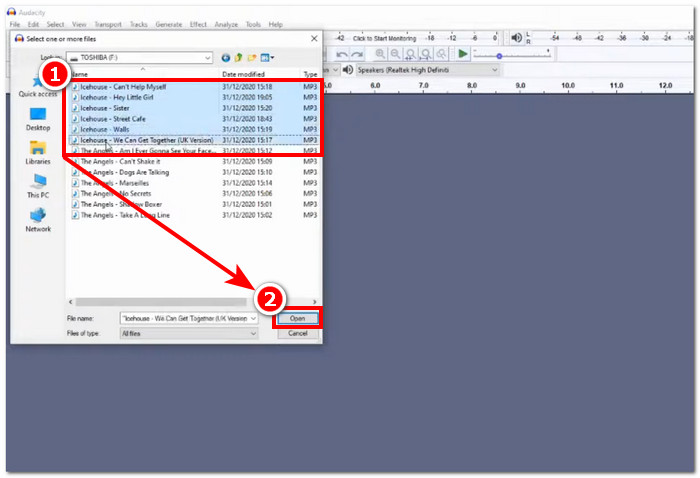
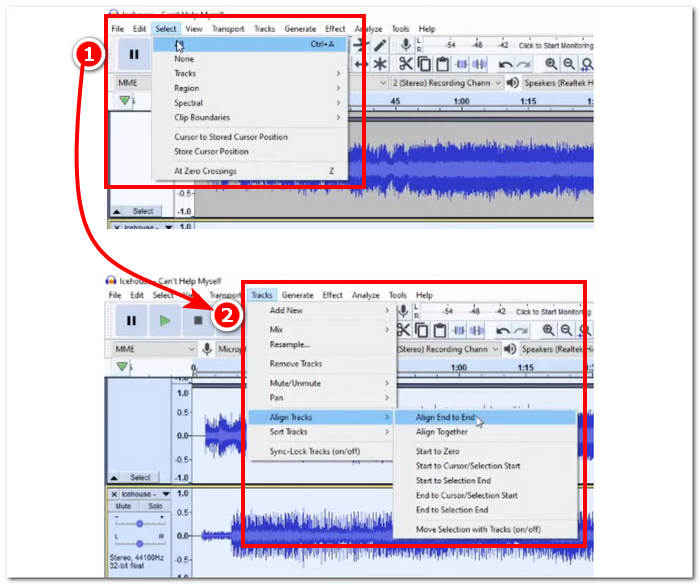
Trinn 2. Når WAV-filene dine er lastet inn i verktøyets grensesnitt, begynner du med å velge alle sporene ved å klikke på Select > All i den øverste menylinjen i verktøyet. Deretter må du justere de valgte WAV-sporene: klikk på delen Track, og under Align Tracks klikker du på Align End to End.
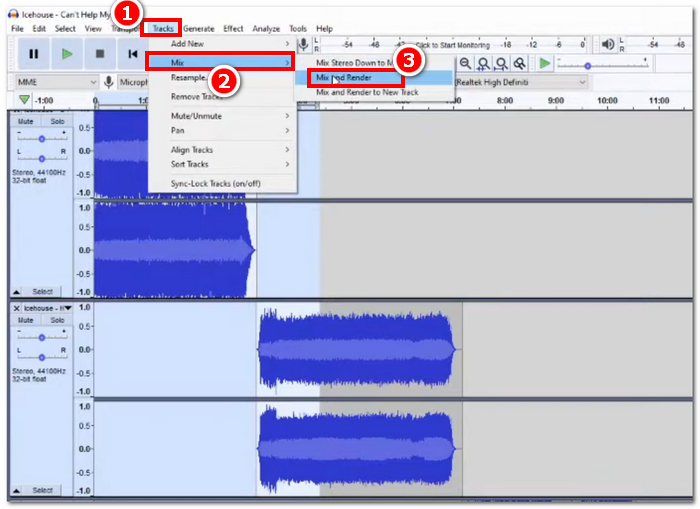
Trinn 3. Når WAV-filene er justert ende mot ende, klikker du på delen Track, og under Mix-funksjonen klikker du på Mix and Render for å starte sammenslåingsprosessen.
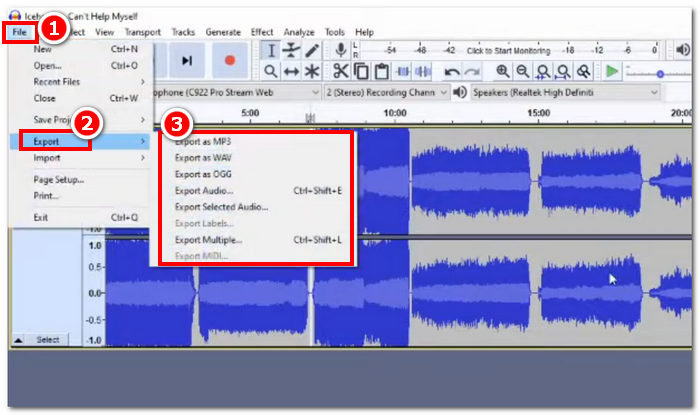
Trinn 4. Når sammenslåingsprosessen er ferdig, kan du eksportere WAV-filen ved å klikke på File > Export, og fritt velge ønsket utdataformat fra de tilgjengelige alternativene.
Tips
• Når du eksporterer dine kombinerte WAV-filer, velg å eksportere som WAV, siden den beholder den opprinnelige lydkvaliteten.
Del 4. Kombiner WAV-filer med FFmpeg
Et annet åpen kildekode-programvareverktøy for lyd- og videomanipulering er FFmpeg. Dette kraftige multimedierammeverket kan brukes som en omformer og for multimedieredigering, for eksempel video, lyd og andre mediefiler. Ved håndtering av oppgaver som å slå sammen WAV-filer, legger programvaren inn en spesifikk kode i ledeteksten for å starte sammenslåingsprosessen kalt sammenslåing av WAV-filer til en enkelt utdatafil. Nedenfor er en detaljert veiledning om hvordan du bruker FFmpeg som en WAV-filsammenslåing.
Trinn 1. Gå til FFmpeg-nettstedet og installer programmet avhengig av hvilken enhet du bruker.
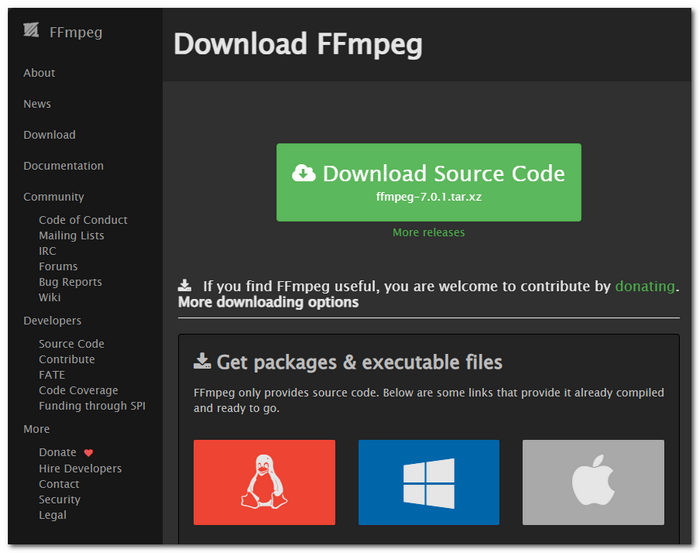
Last ned zip-filen fra nettstedet og opprett en ny mappe i systembanen for å lagre alle FFmpeg-kjørbare filene, inkludert flytting av zip-filen til mappen.
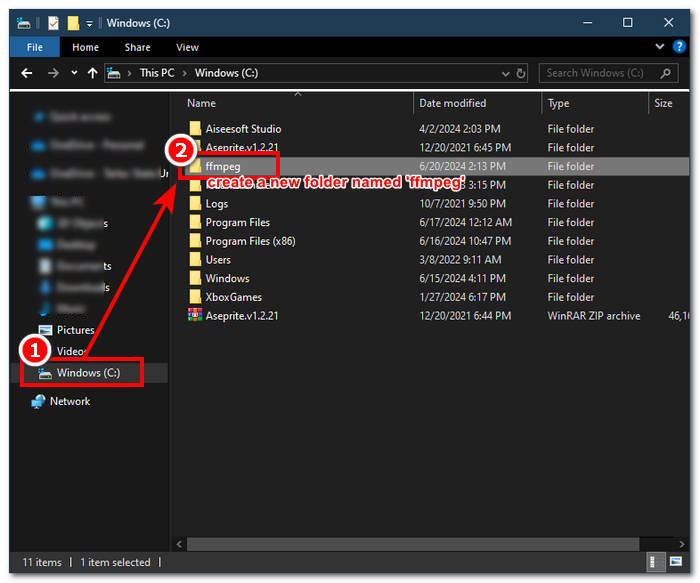
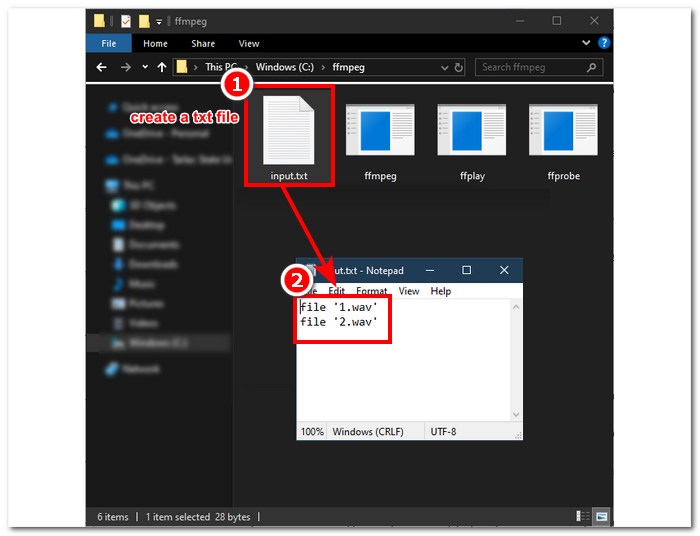
Trinn 2. Flytt WAV-filene dine til ffmpeg-mappen du nettopp opprettet, og forbered WAV-filene ved å gi dem navnene ‘input1.wav’ og ‘input2.wav’ i katalogen.

Merk: Opprett deretter i den samme mappen en fil med navnet ‘input.txt’ og skriv inn følgende innhold:;
file 'input1.wav'
file 'input2.wav'
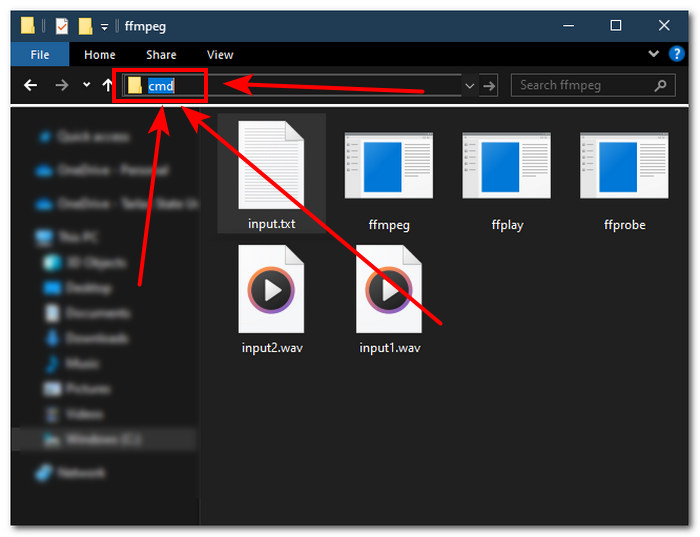
Trinn 3. Kjør FFmpeg-kommandolinjen ved å skrive ‘cmd’ i adressefeltet til mappen øverst i vinduet og trykk Enter.
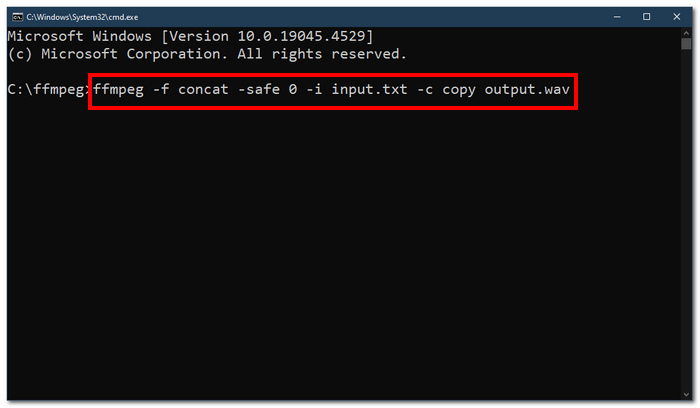
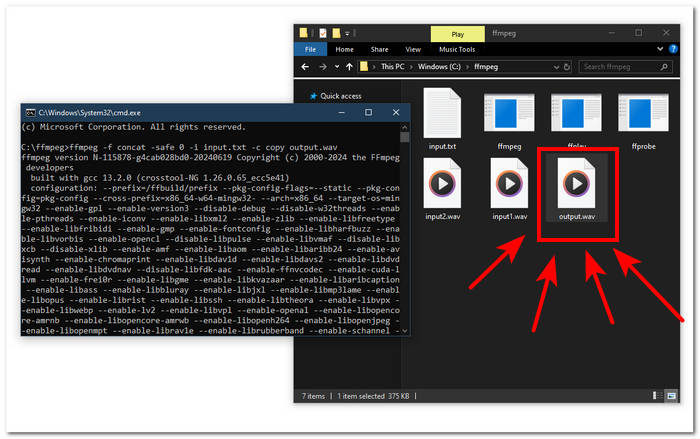
Trinn 4. Når du er i kommandolinjen for FFmpeg, skriver du inn følgende kommando og trykker Enter:;
ffmpeg -f concat -safe 0 -i input.txt -c copy output.wav
Trinn 5. En ny WAV-fil vises i mappen din, noe som betyr at du har slått sammen WAV-filene dine til én enkelt fil.
Tips
• Siden verktøyet er kommandolinjebasert, er det viktig å være kjent med og kjenne den grunnleggende kommandolinjen for effektiv navigering av verktøyet.
• Hold alle FFmpeg-relaterte mapper og filer under én enkelt mappe for organisering og enkel tilgang.
• Se veiledninger og les guider på internett når du vil gjøre andre oppgaver enn å slå sammen WAV-filer.
Del 5. Vanlige spørsmål om hvordan kombinere WAV-filer
Kan du blande WAV-filer?
Ja, du kan blande WAV-filer ved å bruke tredjepartsprogramvare laget for å slå sammen WAV-filer, for eksempel den FVC-valgte Video Converter Ultimate og Audacity.
Kan VLC slå sammen lydfiler?
VLC mediespiller har ikke muligheten til å slå sammen WAV-filer da den utelukkende er laget for mediestrømming og mediekonvertering.
Hvordan slå sammen videofiler i Windows Media Player?
Windows media player støtter ikke redigering av WAV-filer enn si sammenslåing av WAV-filer. Windows Media Player er en programvare bygget for Windows-enheter designet for å spille av medieinnhold.
Hva er den enkleste måten å kombinere lydfiler på?
Den enkleste måten å slå sammen WAV-filer på er å bruke FVC-plukket Video Converter Ultimate; denne programvaren er utviklet med høyhastighets prosesseringsteknologi for å være praktisk for brukere med minst mulig erfaring med lydredigeringsoppgaver, for eksempel å kombinere WAV-filer.
Kan kombinasjon av WAV-filer påvirke lydkvaliteten?
Ja, programvareverktøy kan i stor grad påvirke en WAV-filkvalitet avhengig av kvaliteten på programvaren du bruker. Den kan ha den dårligste kvaliteten ved bruk av et skisseverktøy. Når du bruker pålitelige og pålitelige programvareverktøy som FVC-plukket Video Converter Ultimate, Audacity og mer, kan det bidra til å opprettholde den opprinnelige kvaliteten.
Konklusjon
Avslutningsvis kan du slå sammen WAV-filer ved hjelp av de oppgitte programvarene for effektivt å kombinere dem og eksportere med tapsfri kvalitet. Det er verdt å merke seg at det å finne de riktige verktøyene og lære å bruke dem er en avgjørende del av prosessen. Derfor har denne artikkelen, fra bruk av fullverdige programmer som den FVC-utvalgte Video Converter Ultimate til det avanserte kommandolinjeverktøyet FFmpeg, sørget for å liste trinnene og nyttige tips slik at alt du trenger å gjøre er å følge dem for en enkel og problemfri sammenslåingsprosess.
-
 Hvordan kan jeg konvertere MP4 til WAV online gratis
 Prøver du hardt å konvertere MP4 til WAV? Vet ikke hvilken omformer som kan hjelpe deg perfekt uten å betale en krone? Les dette innlegget og alle spørsmålene dine blir besvart.
-
 Gjennomgang av 10 beste gratis MP3-musikkspillere
 Hva er den beste MP3-musikkspilleren? Hvordan legger jeg musikk på en MP3-spiller? Hvordan laste ned MP3-musikkspilleren? Dette innlegget gir deg en detaljert gjennomgang av de 10 beste gratis MP3-spillerne for Windows PC og Mac.
-
 8 beste MOV-spillere for PC og Mac for å spille QuickTime MOV-videofiler
 Bare lær mer om de 8 beste MOV-spillerne som er tilgjengelige for både Windows og Mac. Du kan velge ønsket og passende for å spille MOV-filer med original kvalitet.
