


 Video Converter Ultimate
 Skjermopptaker
 Videoreparasjon
Velg den beste GIF-skjermopptakeren for opptak av GIF [online og offline]
Det er det faktum at GIF-er er enkle, men likevel lett tilgjengelige filformater rundt på nettet. Filstørrelsen på GIF-er er så liten at det ble en av de mest effektive måtene å sende video eller film over internett. Mens du så en film, fant du en flott scene om filmen du ser på, og du vil at den skal dele med venner, kjære eller familie. Men de fleste av skjermopptakerne er i formatet MP4 og MOV, som er et av de største filstørrelsesformatene. Det er ikke nytt for oss at overføring av denne typen filformat vil ta en time eller mer, og mesteparten av tiden mislykkes de på grunn av internettavbrudd eller i andre tilfeller blir formatet utilgjengelig fordi ikke alle de lokale mediespillerne støtter alle formater.
Mens du skroller på nettet og leter etter en løsning, kommer du over GIF-er. Dette filformatet er mye mindre i størrelse og lett å dele. Så du begynner å tenke på hvilken GIF-opptaker som er best å bruke for å ta opp en scene i filmen du ser på. Listen nedenfor tar for seg noen populære GIF-opptaksverktøy du kanskje allerede har kommet over på nettet – eller ikke. Les videre for å finne ut hva disse verktøyene er, og hvordan du bruker dem til å fange innhold i animert GIF-format.

Del 1. Beste egenskaper en GIF-opptaker bør ha
Før noe annet er det viktig å velge den beste skjermopptakeren. Men kanskje du lurer på hva du bør prioritere når du velger en GIF-opptaker? Listen nedenfor gir deg noen ideer om hvilke egenskaper en god opptaker bør ha.
● Den bør være brukervennlig – Velg et produkt som ikke skaper problemer under opptaket.
● Budsjettvennlig – dette gjelder bare hvis verktøyet er betalingsbasert. Det er helt greit å velge noe rimelig i stedet for å bruke penger på noe du kan få i en billig premiumversjon. Det er et faktum at et premiumverktøy ofte gir best resultat. Dette er kun relevant for betalingsverktøy. Gratis nett- eller skrivebordsverktøy trenger ikke å bekymre seg for dette.
● Tilgjengelighet av programmet – for eksempel hvis du bytter fra PC til Mac eller omvendt, skal du ikke måtte venne deg til en helt ny opptaker. Derfor er det viktig å velge en GIF-skjermopptaker som finnes på alle plattformer. Dessuten, for mindre styr ved oppdateringer, er det en fordel om endringene er enkle – for eksempel bare i navn – og ikke i hele grensesnittet.
● Ingen skadelig programvare eller virus – dette kan gjelde både nettbaserte og nedlastbare verktøy. Hvert program bør gi deg best mulig opptak med høy sikkerhet. Det bidrar til å unngå tap av data og lekkasje av informasjon.
Selv om dette er de enkle egenskapene en opptaker skal gi, er det unike ved verktøyet du kan velge i listen nedenfor. Finn forskjellen mellom hvert verktøy og velg den beste GIF-opptakeren fra listen for opptaket ditt.
Del 2. Beste GIF-opptakere over nettet
1. FVC Free Screen Recorder
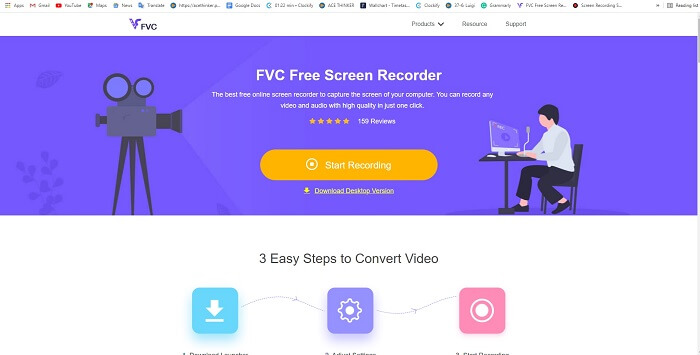
Den beste måten å dele øyeblikket på er å ta det opp, og den beste måten å ta opp en scene eller handling på skjermen er med FVC Free Screen Recorder. Dette åpen kildekode-verktøyet lar brukeren ta opp med hjelp av internett. Hvis du har internettilgang, kan du bruke dette verktøyet. Det støtter dessuten vanlige filformater, kodeker osv. Selv om det er en lett GIF-opptaker på nett for PC og Mac, gir det deg gode muligheter til å ta opp så mye du vil, uten begrensninger og vannmerke. Følg trinnene under for å se hvordan du bruker verktøyet.
Trinn 1. Klikk på denne lenken for å gå til hovedsiden.
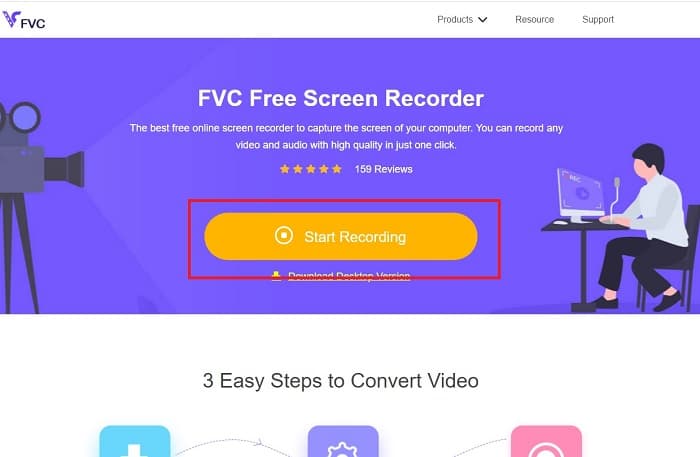
Trinn 2. Et nettsted som dette vil vises på skjermen. Klikk på Start Recording og Allow for å starte det nettbaserte verktøyet.
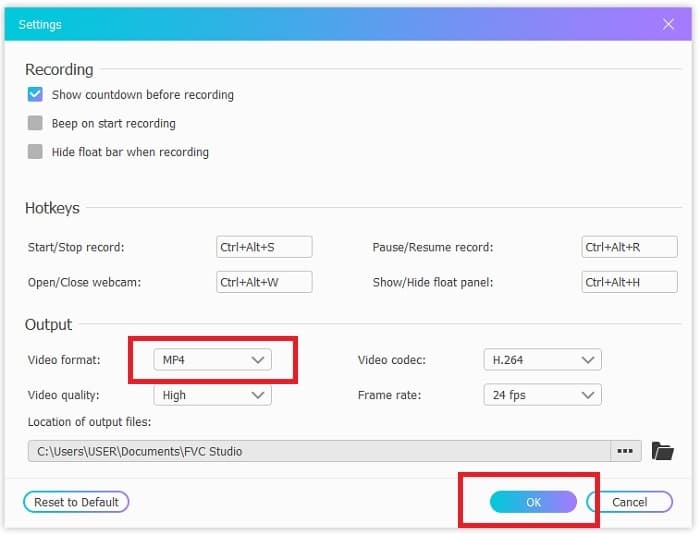
Trinn 3. En flytende verktøylinje vises på skjermen. Klikk på tannhjulikonet for å gå til innstillingene, endre videoformat og andre innstillinger ved behov. Klikk OK for å lagre endringene.
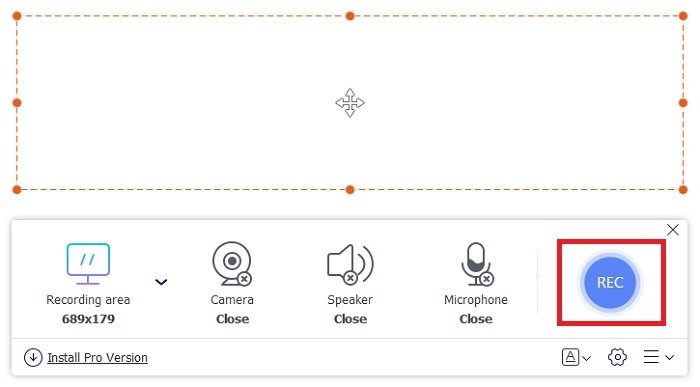
Trinn 4. Juster opptaksområdet, eller klikk Full screen for fullskjerm. Høyttaler og mikrofon brukes ikke til GIF fordi det ikke er lyd i GIF-er. Men du kan legge til ansiktet ditt ved å åpne Webcam. Når du er klar til å starte opptaket, klikker du på REC-knappen.
Trinn 5. Klikk på firkant-knappen for å avslutte opptaket. Du kan også se det ferdige opptaket i history list.
2. FVC -skjermopptaker
Hvis det gratis nettverktøyet fra FVC gir deg gåsehud, vil du få den etterlengtede wow-følelsen ved å installere denne beste GIF-opptakeren – FVC Screen Recorder. Hva er det dette verktøyet tilbyr som gir wow-faktoren? Det er ikke bare til opptak av GIF-er. Det tilbyr også video- og lydopptak samt imponerende opptak av spill. Men dette er bare noen av funksjonene; det støtter også flere ulike utdataformater som MP4, GIF, MOV og mange flere.
En annen funksjon ved det er låseskjermfunksjonen, dette er den unike funksjonen til dette verktøyet, selv en tungvektsopptaker som Bandicam kan ikke tilby denne funksjonen. Ta opp og skjermdump i et GIF-format uten å vise selve verktøyet. FVC Screen Recorder gir pund for pund konge i opptaket. Så uansett hva du tar opp, kan denne opptakeren ta det opp. For å vite hvordan du bruker dette verktøyet, følg disse enkle trinnene for å lykkes med GIF-opptak.
Trinn 1. Her får du installasjonsfilen til verktøyet. Velg mellom de to tilgjengelige operativsystemene. Installer verktøyet på harddisken, tilpass innstillingene etter behov, og klikk finish for å lagre.
Gratis nedlastingFor Windows 7 eller nyereSikker nedlasting
Gratis nedlastingFor MacOS 10.7 eller nyereSikker nedlasting
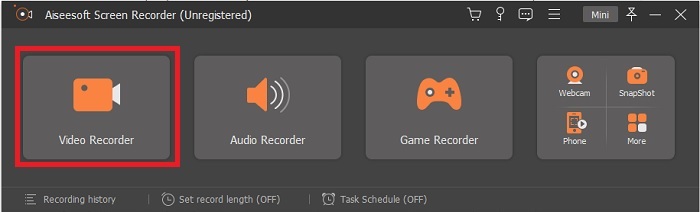
Trinn 2. Velg Video Recorder for å ta opp det som vises på skjermen. Tilgjengelige alternativer som lydopptaker og spillopptaker er nyttige å bruke senere.
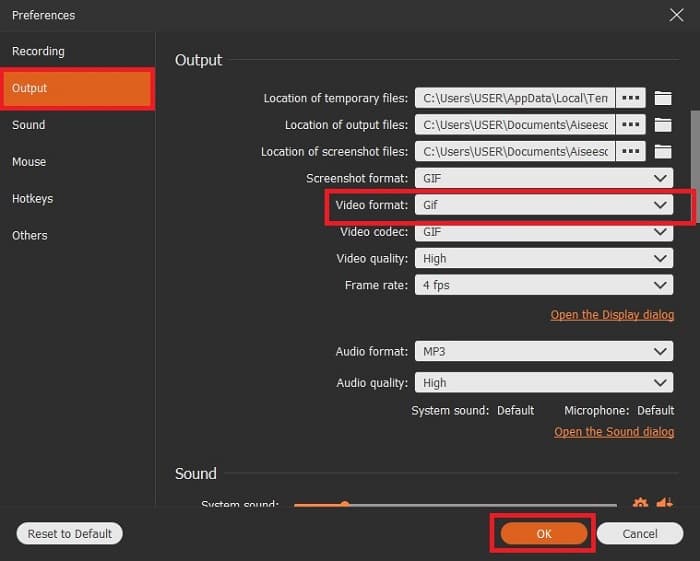
Trinn 3. Den flytende verktøylinjen vises på skjermen. Klikk på tannhjulet for å gå til innstillingene, og under Output endrer du formatet til GIF eller et annet ønsket format. Klikk OK for å lagre endringen.
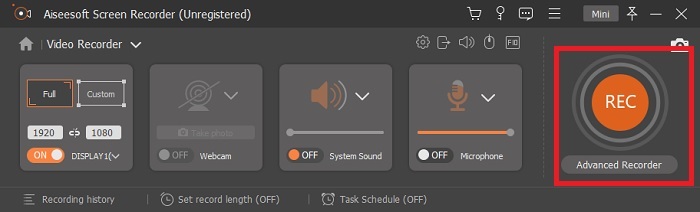
Trinn 4. I hovedverktøylinjen kan du justere skjermforholdet, eller klikke på full screen for fullskjerm. Ved opptak i GIF-format spiller ikke lyd og mikrofon noen rolle. Men du kan legge til Webcam for å vise reaksjonen din. Når du er klar, klikker du på runde-knappen for å starte opptaket.
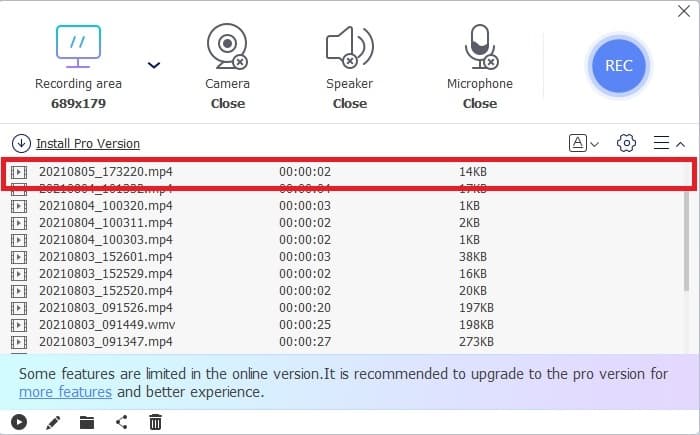
Trinn 5. Når opptaket er ferdig, kan du klikke kube-knappen for å stoppe. Klikk Save og Next for å lagre fremdriften. For å se gjennom GIF-en du nettopp har tatt opp, klikker du på ikonet med tre linjer, så vises opptakshistorikken på skjermen.
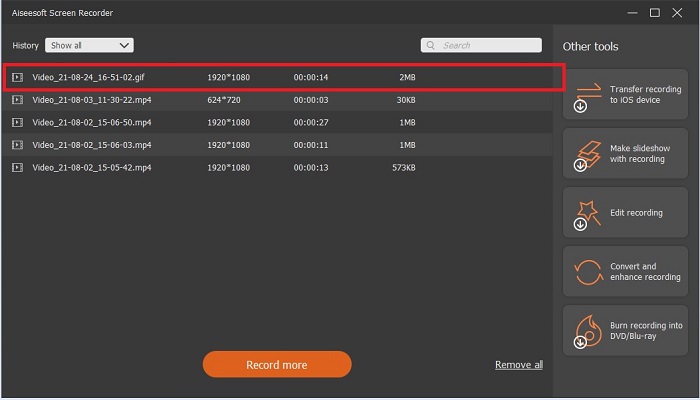
3. ScreenToGif
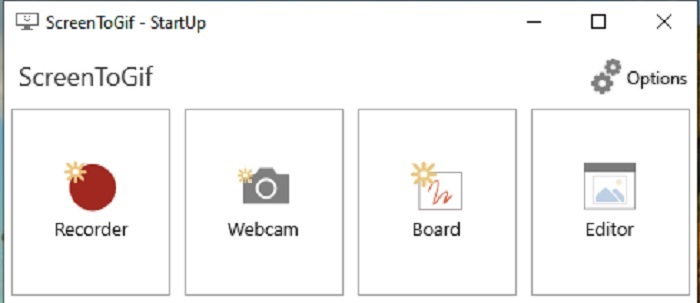
Dette verktøyet er en nedlastbar GIF-opptaker for Mac og PC og har to forskjellige versjoner: Installer og Portable. Velg hvilken av de to du vil laste ned. Det kan imidlertid forekomme mindre feil mens verktøyet kjører. Det eneste tilgjengelige formatet for sluttresultatet er .gif. Hvis du ønsker et annet format, kan ikke dette verktøyet tilby det. Det er likevel gratis å bruke, så hvis du bare vil ta opp GIF-er, kan du bruke dette verktøyet. Grensesnittet og verktøyene virker litt svake på grunn av den hvite bakgrunnen. Det kan se kjedelig ut, men det gjør jobben.
4. Gyazo
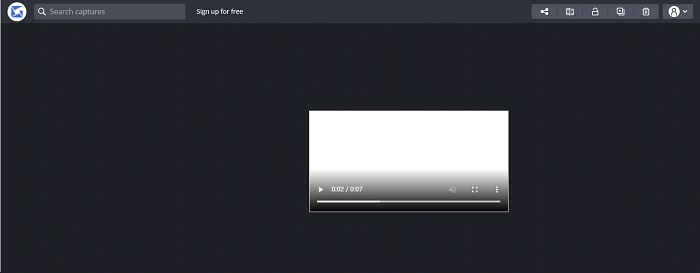
Dette er en av de beste GIF-opptakerne for Windows. Gyazo er en programvare som er laget spesielt for opptak av GIF-er. Etter installasjon vil tre verktøy automatisk lastes ned til lagringsplassen din. De er alle en del av løsningen, men de er forskjellige fra hverandre og har ulike funksjoner. Disse tre verktøyene er Gyazo, Gyazo GIF og Gyazo Replay. I Gyazo GIF er opptakstiden begrenset til 7 sekunder. Hvis opptaket ditt er lengre enn 7 sekunder, er dette derfor ikke det beste valget. I tillegg blir ikke den lagrede videoen automatisk lastet ned til lagringen din. I stedet åpnes en ny fane i nettleseren, og du må laste den ned derfra. Nedlasting av sluttresultatet avhenger av internettforbindelsen din, så vær oppmerksom på det.
5. Ta opp det!
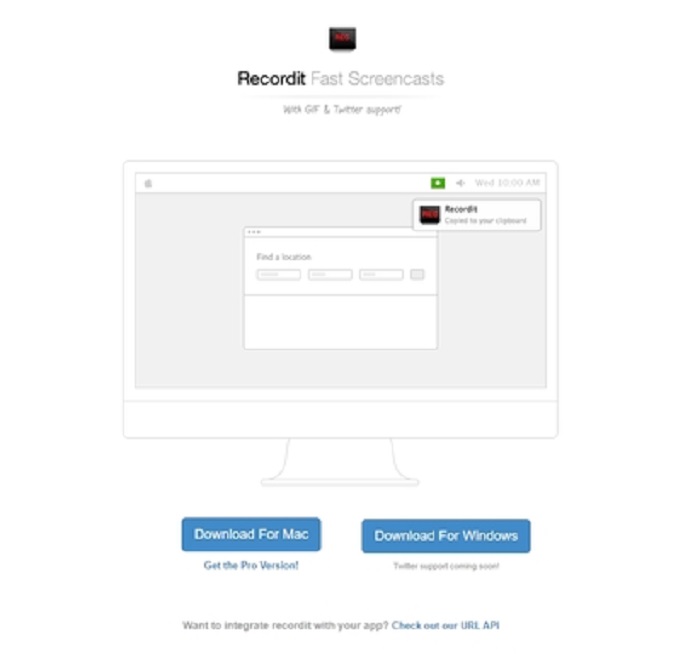
Et annet verktøy for å lage GIF-er er RecordIt!, den beste GIF-opptakeren for Mac. Dette verktøyet har også et Windows-program. Problemet med dette verktøyet er imidlertid installasjonen. Selv etter at du har kjørt installasjonsoppsettet, kan du støte på problemer med å få verktøyet inn i systemet. Dette er normalt, for hvis du ikke oppdaterer programmene i systemet ditt, vil verktøyet aldri bli lastet ned. Det finnes et alternativ, men det kan være risikabelt for datamaskinen din: Du kan klikke på «ignore» for å laste ned og ignorere alle varsler. Last det derfor ned på eget ansvar. Verktøyet har dessuten annonser, og du bør også være forsiktig med dem, siden noen kan være ufiltrerte. Det finnes imidlertid en pro-versjon som fjerner annonser og gir flere funksjoner.
Del 3. Vanlige spørsmål om GIF-opptaker
Kan jeg konvertere GIF til et MOV-format?
Ja, du kan konvertere GIF til MOV-format ved hjelp av en online videokonverter som FVC Free Online Video Converter.
Hva er de forskjellige typene GIF-er?
Det er 5 GIF-er: Replay GIFs, Reaction GIF, Cinema graph, Perfect loop og Technical GIF. Alle disse kan være animasjonsbaserte, videobaserte og klistremerker.
Hva er de andre alternativene for GIF-er?
Til tross for opprettelsen av GIF-er i mer enn 30 år. Det er noen konkurrenter på nettet som produserer film så vel som GIF-er. Dette er de beste alternativene til animerte GIF-er: APNG, WebP, AVIF, MNG og FLIF.
Konklusjon
Nå nærmer vi oss slutten – det sies at enhver god historie avsluttes med en god konklusjon. For å oppsummere: GIF-er formidler sterke og uttrykksfulle følelser til mottakeren. Men ikke alle videoene du liker, finnes i GIF-format. I stedet for å vente på at noen skal lage en GIF, hvorfor ikke lage en selv? Med hjelp av den beste GIF-opptakeren, nemlig FVC Screen Recorder, kan du ta opp GIF-er og gi dem ditt personlige preg. Hvis du fortsatt er usikker på hva du skal bruke, bør du lese gjennom de viktigste egenskapene én gang til – alle disse egenskapene finner du hos den utvalgte, nemlig FVC Screen Recorder.
-
 [2 løsninger] Hvordan enkelt konvertere SWF til GIF -filer gratis
 Når du ikke eksporterer GIF-format via Flash-programvare, kan du prøve å lagre filene i SWF-format først. Deretter kan du lære to enkle måter å konvertere SWF til GIF-filer fra denne artikkelen.
-
 4 måter å slå sammen videoer gratis på Windows / Mac / Online
 Her er 4 raske måter å slå sammen videoer til en ny video. Ingen videofilstørrelse eller formatgrense. Du kan bli med 2, 3, 4 og enda flere videoklipp i forskjellige formater og oppløsninger med vellykket.
-
 (2 løsninger) Hvordan konvertere WMV-videoer til GIF-filer gratis
 Hvis du vil klippe de fantastiske delene av WMV -videoene og lage GIF -er fra dem, kan du lære om to enkle metoder for å overføre WMV -videoer til GIF -er i denne artikkelen.
